What Are Effects?
Effects are styling features that add visual polish to your components (buttons, boxes, cards, etc.).
The three main effects:
- Border — Outline around element
- Radius — Rounded corners
- Shadow — Depth/glow effect
Think of it like decorating a picture frame:
- Border = The frame itself
- Radius = Rounded vs sharp corners
- Shadow = Depth/3D effect
Why Use Effects?
Professional Appearance:
✓ Polished, finished look
✓ Modern design (shadows, rounded corners)
✓ Visual hierarchy (borders highlight)
Visual Design:
✓ Draws attention to important elements
✓ Creates visual separation
✓ Adds depth and dimension
User Experience:
✓ Clear clickable areas (buttons with borders)
✓ Visual feedback (shadows show depth)
✓ Better visual organization
Effect 1: BORDER
What It Does
A border is an outline around your component.
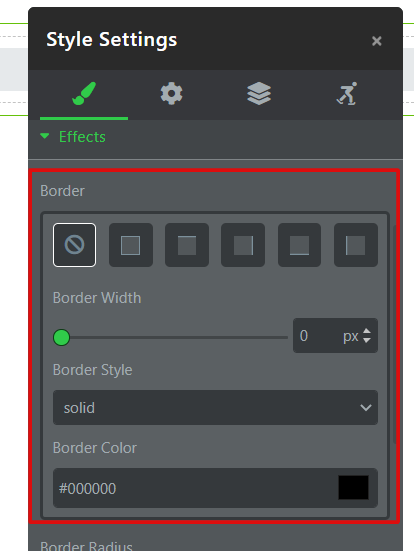
Border Properties
Border Width
What it is: Thickness of the outline (in pixels)
Common values:
- 1px = thin (subtle)
- 2px = standard (visible)
- 4px = thick (prominent)
- 8px = very thick (bold statement)
Border Style
What it is: Pattern of the border line
Available styles:
Solid (Most common)
- Single continuous line
- Clean, professional
- Use this in most cases
Dashed
- Broken line with dashes
- Creates separation effect
- Less formal than solid
Dotted
- Broken line with dots
- Subtle, softer look
- Good for secondary elements
Double
- Two parallel lines
- Bold, decorative
- Rarely used
Groove
- 3D sunken effect
- Looks carved/indented
- Rarely used (dated)
Ridge
- 3D raised effect
- Looks embossed
- Rarely used (dated)
Inset
- 3D pressed-in effect
- Looks sunken
- Rarely used
Outset
- 3D raised effect
- Looks button-like
- Rarely used
None
- No border (default)
Recommendation: Use Solid 90% of the time. Dashed/Dotted for special effects.
Border Color
What it is: Color of the border outline
How to set:
Method A: Color Picker
- Click color square
- Choose from palette
- Preview updates
Method B: Hex Code
- Enter hex code (example:
#0066FFfor blue) - Updates immediately
Common border colors:
- Black (
#000000) — Classic, professional - Brand color — Maintains consistency
- Light gray (
#CCCCCC) — Subtle, light touch - White (
#FFFFFF) — For dark backgrounds
Effect 2: BORDER RADIUS
What It Does
Border Radius creates rounded corners on your component.
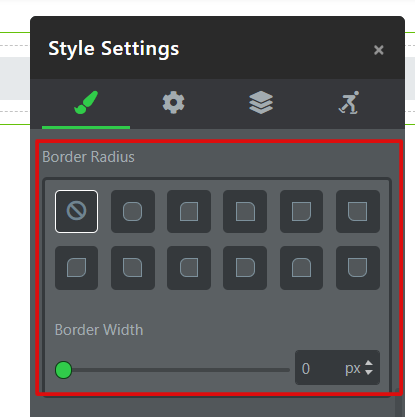
Radius Values
What they mean:
- 0px = Sharp corners (sharp angle)
- 5px = Slightly rounded
- 10px = Noticeably rounded
- 20px = Very rounded
- 50px+ = Completely rounded (becomes circle for square elements)
Effect 3: BOX SHADOW
What It Does
Box Shadow adds a shadow underneath (or inside) your component, creating depth.
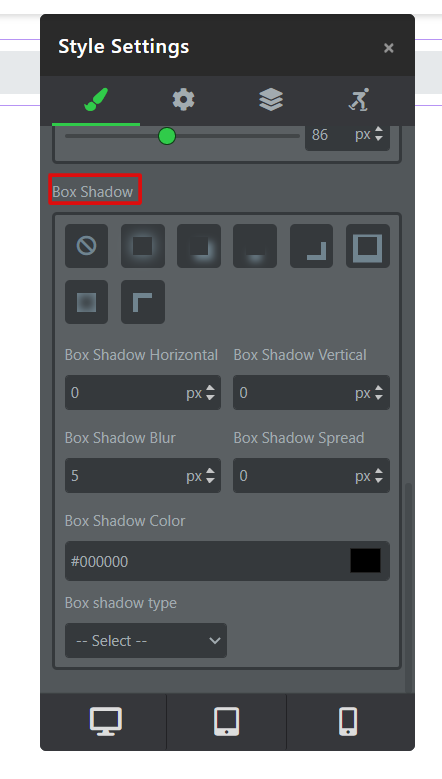
Shadow Properties
Shadow Horizontal Offset
What it is: How far left/right the shadow appears
Values:
- 0px = Shadow directly underneath
- 5px = Shadow offset to the right
- -5px = Shadow offset to the left
Shadow Vertical Offset
What it is: How far up/down the shadow appears
Values:
- 0px = No vertical offset
- 5px = Shadow below element
- -5px = Shadow above element (rare)
Shadow Blur
What it is: How soft/blurry the shadow is
Values:
- 0px = Sharp shadow (crisp edges)
- 5px = Slightly blurred
- 10px = Medium blur (soft)
- 20px+ = Very blurred (very soft)
Shadow Spread
What it is: How far the shadow extends
Values:
- 0px = Normal shadow size
- 5px = Shadow extends further (larger)
- -5px = Shadow contracts (smaller)
Step-by-Step: Add Effects
Step 1: Select Component
- Click the element (button, card, section, etc.)
- It highlights when selected
Step 2: Open Settings
- Look for gear icon ⚙️ or "Settings" button
- Click it
- Settings panel opens
Step 3: Find Effects Settings
- In settings panel, look for "Effects" or "Style" section
- Click to expand
- You'll see options for:
- Border
- Border Radius
- Box Shadow
Step 4: Add Border (Optional)
To add a border:
- Find "Border Width" field
- Enter value (example: 2px)
- Find "Border Style" dropdown
- Select "Solid" (most common)
- Find "Border Color"
- Click to choose color
- Preview updates
Step 5: Add Rounded Corners (Optional)
To round corners:
- Find "Border Radius" field
- Enter value (example: 10px)
- All corners round equally
- Or set individual corners (Top Left, Top Right, etc.)
- Preview updates
Step 6: Add Shadow (Optional)
To add shadow:
- Find "Box Shadow" section
- Set Horizontal Offset (usually 0px)
- Set Vertical Offset (usually 5-10px)
- Set Blur (usually 10-15px for soft look)
- Set Spread (usually 0px)
- Choose Color (usually black or dark)
- Choose Type (Outset for floating effect)
- Preview updates
Step 7: Save
- Click outside settings or "Save"
- Effects are applied
✓ Effects are now set!
Common Situations & Quick Fixes
Situation 1: "Shadow Doesn't Appear"
What's happening: Shadow settings configured but not visible.
Diagnostic steps:
- Check vertical offset
- Is it set to 0px?
- Change to 5-10px (creates visible shadow)
- Check blur value
- Is it 0px?
- Change to 10px+ (creates visible, soft shadow)
- Check color
- Is shadow color too light?
- Use black or dark color with opacity
- Check type
- Is it set to Inset?
- Change to Outset (more common, more visible)
Situation 2: "Border Looks Jagged or Rough"
What's happening: Border rendering issue.
Diagnostic steps:
- Check border width
- Very thick borders (20px+) might look rough
- Use 1-8px for clean look
- Check border style
- Dashed/Dotted might look jagged on curves
- Use Solid for smooth appearance
- Pair with radius
- Adding border radius helps smooth borders
- Try 5-10px radius with borders
Situation 3: "Rounded Corners Look Too Extreme"
What's happening: Radius value too high.
Diagnostic steps:
- Reduce border radius value
- If 50px, try 20px
- If 20px, try 10px
- Adjust until comfortable
- Use different values per corner
- Top corners: 10px (rounded)
- Bottom corners: 0px (sharp)
- Mix and match as desired
- Modern standard is 8-12px
- Good balance of rounded without extreme
Situation 4: "Shadow Makes Component Look Heavy/Dark"
What's happening: Shadow is too dark or large.
Diagnostic steps:
- Reduce shadow color opacity
- If 100%, try 50%
- If 50%, try 20-30%
- Lighter shadow = subtler effect
- Reduce blur value
- If 20px, try 10px
- Creates sharper, smaller shadow
- Reduce vertical offset
- If 15px, try 8px
- Shadow appears closer
Situation 5: "Border, Shadow, and Radius All at Once Look Cluttered"
What's happening: Too many effects combined.
Diagnostic steps:
- Remove one effect
- Start with border (outline)
- Or shadow (depth)
- Or radius (modern look)
- Don't use all three unless bold design
- Typical combinations:
Modern: Radius + Shadow (no border)
Professional: Border + subtle radius (no shadow)
Bold: All three together (use carefully)
- Use restraint
- One or two effects usually best
- Three effects can feel overdone
Was this article helpful?
That’s Great!
Thank you for your feedback
Sorry! We couldn't be helpful
Thank you for your feedback
Feedback sent
We appreciate your effort and will try to fix the article