What Is a Form Element?
A form is a box on your landing page where visitors enter their information (name, email, phone, etc.). It's how you collect leads.
Think of it this way: Your form is like a sign-up sheet at a store counter. Visitors fill it out, and their data gets saved so you can follow up with them.
In FlexiFunnels terms: A form element is a pre-built component you add to your page. You configure it to collect specific information and send that data to your email list, CRM, or automation tool.
Why Add a Form to Your Page?
You need a form if you want to:
- Collect emails to build your mailing list
- Capture leads with contact information (name, phone, company)
- Gate content — require visitors to fill out a form before downloading a guide or video
- Qualify prospects — ask questions that help you understand if they're a good fit
- Send automations — automatically send welcome emails or follow-up sequences
If you just want to display information (no lead collection), you don't need a form.
Before You Start: What You Need
Before adding a form, have these ready:
- ✓ A FlexiFunnels page already created (or open the editor)
- ✓ A decision on what information to collect (email, name, phone, etc.)
- ✓ An email/CRM account to receive the leads (Mailchimp, Klaviyo, HubSpot, etc.)
- ✓ A confirmation message or follow-up URL for after submission
If you don't have these, set them up first, then come back.
Step-by-Step: Add a Form to Your Page
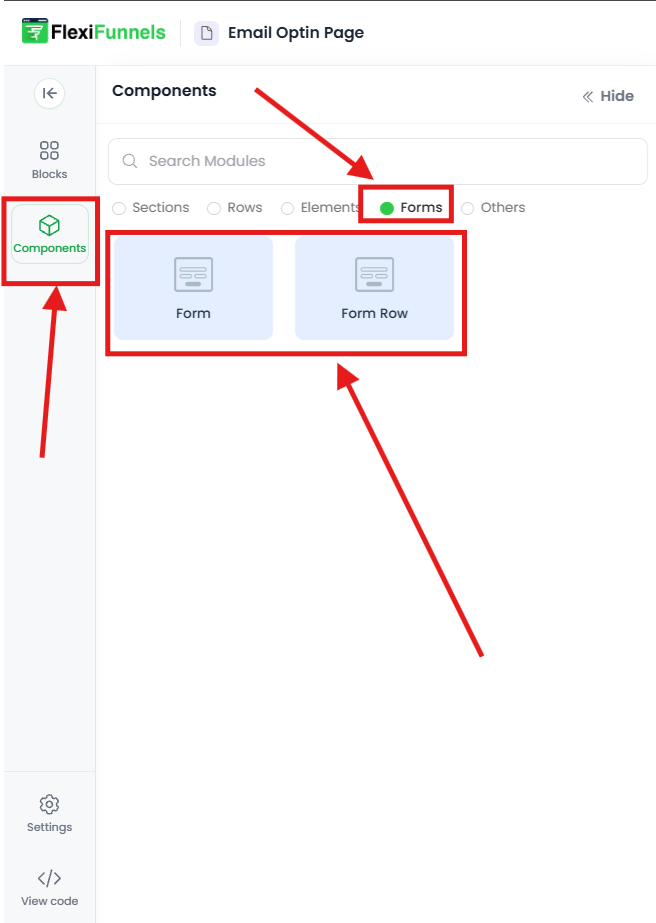
Step 1: Open the Components Sidebar
- In the FlexiFunnels editor, look at the left sidebar
- Click the "Components" button at the top (or look for "Add Elements")
- A menu of component categories will appear
Step 2: Select the Form Component
- In the components menu, find and click "Forms"
- A list of form options will appear
Step 3: Drag the Form into Your Page
- Look for the "Form Element" option
- Click and drag it to the area of your page where you want it to appear
- Release it—the form is now on your page
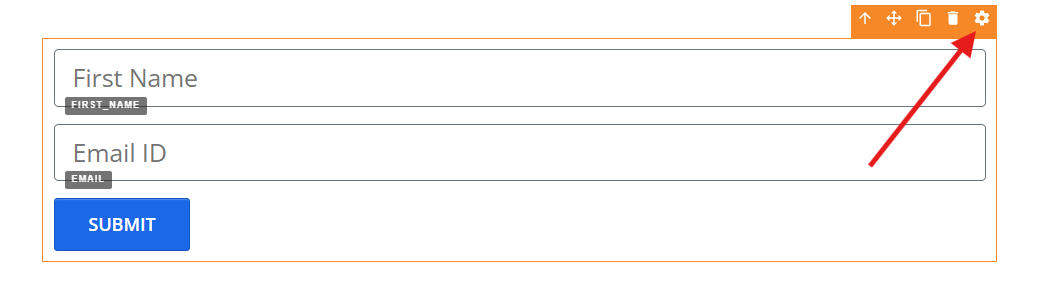
You should see a basic form with placeholder fields (like "Name" and "Email").

Step 4: Open Form Settings
- Click directly on the form you just added
- Look for the gear icon ⚙️ (usually in the top-right corner of the form)
- Click it—the settings panel will open on the right side
You'll see several tabs: Advance Settings, Style, and more.
Configure Form Behavior (Advance Settings)
Click on the "Form" tab in the advance settings panel. You'll see these options:
Autoresponder — Where Do Form Submissions Go?
This is where you tell FlexiFunnels what to do with the data people submit.
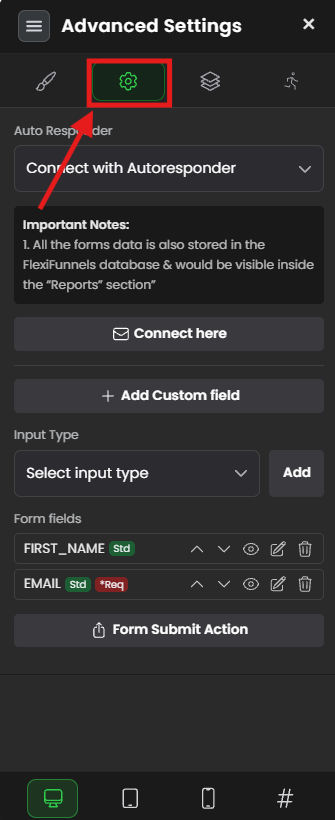
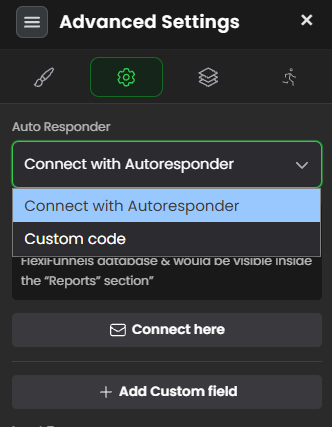
You have two choices:
Option 1: Standard Integration (Recommended for Most Users)
Use this if you want to send form data to:
- Email services (Mailchimp, Klaviyo, GetResponse, ConvertKit)
- CRMs (HubSpot, Salesforce, Pipedrive)
- Automation tools (Zapier, Make, ActiveCampaign)
How it works:
- You select your email/CRM tool from the list
- FlexiFunnels connects to that tool
- Form submissions automatically go to your list/CRM
Read more: Autoresponder - Standard Integration Guide
Option 2: Parse Code Integration (Advanced)
Use this if you have a custom automation or advanced integration that FlexiFunnels doesn't natively support.
What it does: Instead of connecting to a pre-made tool, you write custom code that tells FlexiFunnels exactly what to do with the form data.
When to use this: Only if your email/CRM tool isn't in the standard list, or if you need custom logic (e.g., "if email ends with @company.com, send to one list; otherwise send to another").
This requires technical knowledge. If you're not comfortable with code, stick with Option 1 (Standard Integration).
Read more: Autoresponder - Custom Form Parse Code
Connect Here Select Your Account
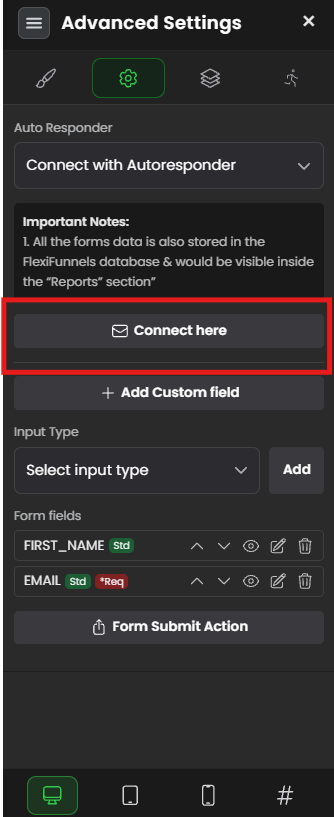
After choosing an Autoresponder method, you'll see a "Connect Here" section.
What it does: Links your FlexiFunnels form to your actual email/CRM account.
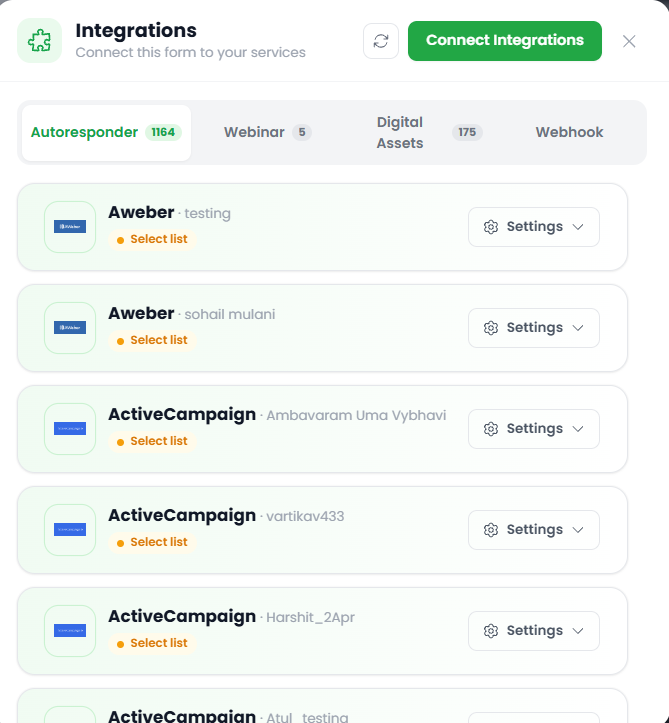
Example: If you selected "Mailchimp" as your autoresponder, clicking "Connect Here" lets you sign in to your Mailchimp account and choose which list to send form submissions to.
Steps:
- Click "Connect Here"
- Sign in to your email/CRM account
- Grant FlexiFunnels permission to send data to your account
- Select the specific list or automation (e.g., "New Leads" in Mailchimp)
- Click Save
Add Custom Fields — What Information to Collect
By default, FlexiFunnels shows basic fields: Name, Email.
To add more fields (Phone, Company, Message, etc.), use the "Add Custom Field" option.
Example fields you might add:
- Phone Number (to call them back)
- Company Name (to personalize follow-ups)
- How did you hear about us? (to understand your traffic source)
- Budget (to qualify if they're a good fit)
- Message (to let them ask questions)
For detailed guidance on field types and when to use each, see the Custom Fields guide
Pro tip: Only ask for information you'll actually use. Every extra field reduces form completion rates.
Input Type What Kind of Fields to Show
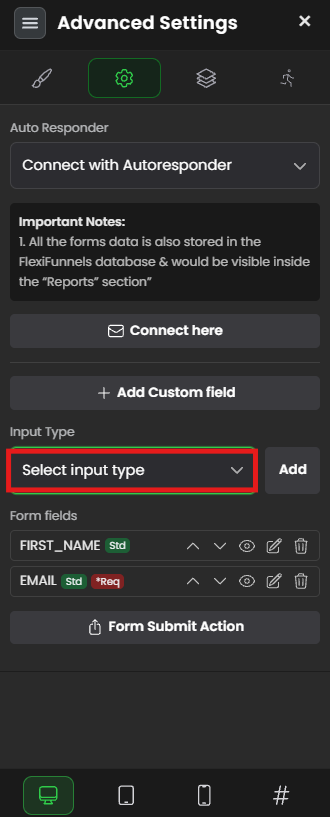
This is where you configure what type of input each field is (text box, dropdown, checkbox, etc.).
Common input types:
- Text — simple one-line field (email, name, phone)
- Textarea — multi-line field (for messages or longer text)
- Dropdown — users choose from a list (e.g., "How did you hear about us?")
- Checkbox — users can check multiple options (e.g., interests)
- Radio Button — users choose one option from a list
- Date Picker — users select a date (for appointments, etc.)
How to add an input type:
- Click on "Input Type" section
- Choose the field type from the list
- Click "Add" to add it to your form
- The field appears in your form preview
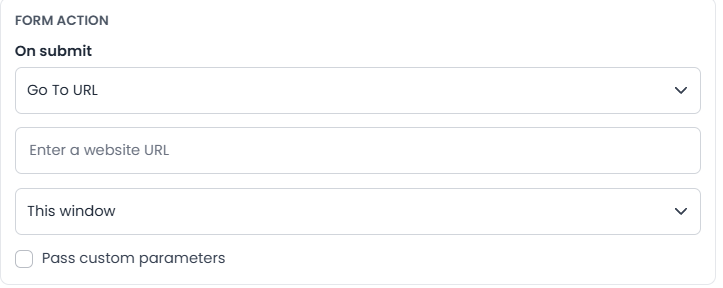
Form Action — What Happens After Submission
After someone submits your form, what should happen next? You have two options:
Option 1: Redirect to a URL
After they click "Submit," take them to a thank-you page or another page.
Example:
- Submit form → Redirect to "Thank You" page
- Submit form → Redirect to a sales page
- Submit form → Redirect to a download link
How to set it up:
- Toggle "On submit go to URL" to ON
- Paste the URL where you want them to go
- Make sure the URL starts with
https://orhttp://
Pro tip: A "Thank You" page builds trust. Don't just redirect silently.
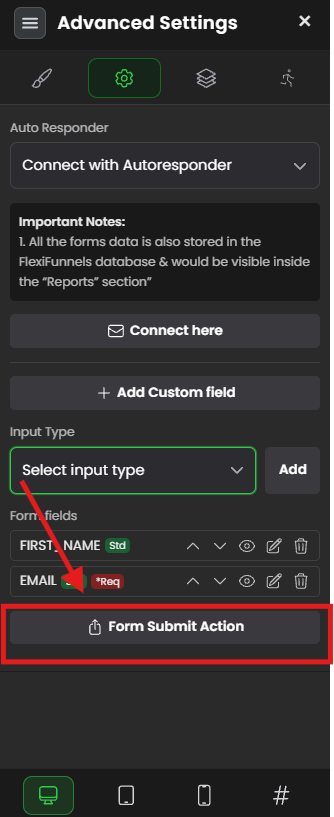
Option 2: Show a Message
After they click "Submit," display a message above the form instead of redirecting.
Example messages:
- "Thanks for signing up! Check your email for next steps."
- "We'll be in touch soon!"
- "Your download is ready."
How to set it up:
- Toggle "On submit Message" to ON
- Type the message you want to show
- The message appears after submission
Choose one or the other, not both. If you enable both, the redirect happens first (message won't be seen).
Know how to collect leads using Forms in detail here:-
Standard Integration method -
Custom Form details -
Want to Know-How to collect leads in Detail? Please check this article -https://help.flexifunnels.com/support/solutions/articles/36000308295
Customize Your Form's Look (Style Settings)
Now your form works—it collects data and sends it where it needs to go. But you might want it to look better to match your page design.
Click on the Style tab in form settings to customize appearance.
Note: Style settings have a lot of options. Below are the ones that matter most for most users. Don't feel pressured to change everything.
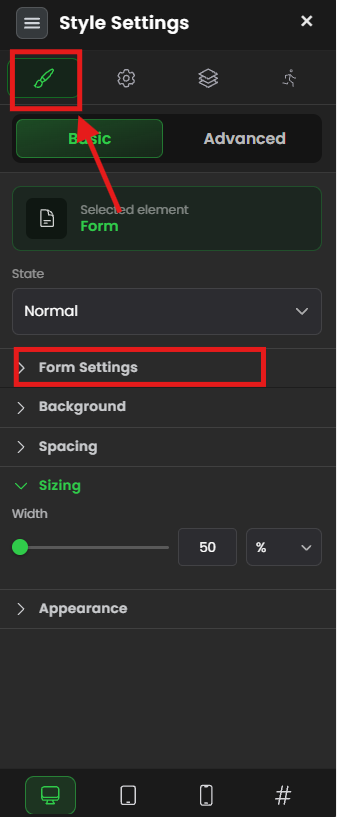
Form Settings — Spacing and Layout
These control how fields are arranged and how much space is between them.
Input Distance
- What it does: Controls space between form fields
- Example: If fields are too cramped, increase this
- When to change it: When your form looks cluttered
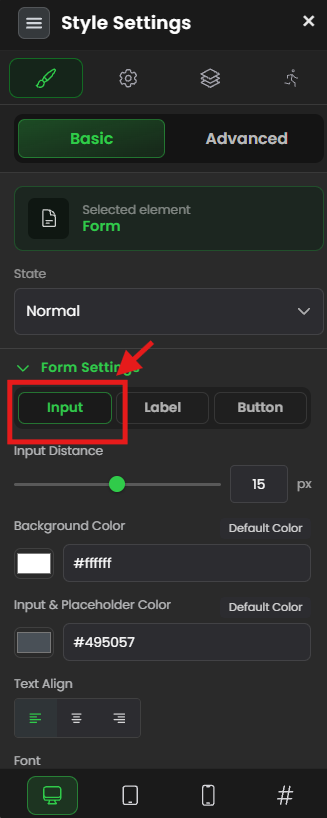
Input: Background Color, Border, Size
- Background Color: Change the field background from white to another color
- Border Color & Width: Make the field outline thicker or change its color
- Border Radius: Round the corners of the fields (0 = sharp corners, 10+ = very rounded)
- Size: Make fields larger or smaller
- When to change it: To match your brand colors or make fields easier to see
Input: Text & Placeholder
- Placeholder Color: The gray text that says "Enter your email" — change its color if it's hard to read
- Text Align: Line up placeholder text (left, center, right)
- Font: Choose the font family for text inside fields
- Weight: Make text bold or light
- When to change it: If placeholder text blends in with the background
Label Settings — The Field Names
These control how the field labels look ("Email," "Name," "Phone," etc.)
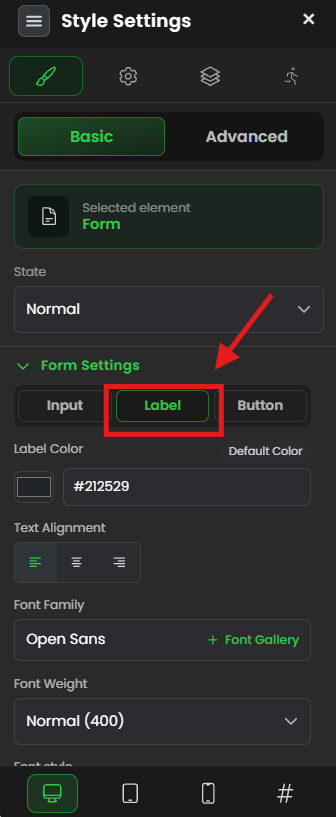
Key Label Options
Label Color: Change the color of the label text
- Font Family: Choose the font
- Font Weight: Bold or light
- Font Style: Italic or normal
- Font Size: Make labels bigger or smaller
- Text Alignment: Left, center, or right
- Capitalization: Uppercase, lowercase, or normal
When to change labels: If labels are too small to read, or you want
them to stand out more from fields.
Pro tip: Make labels slightly bold (font-weight: bold) so they're clearly separate from the fields.
Button Settings — The Submit Button
The button is what users click to submit the form. This is the most important styling element—make it stand out!
Button Text (What the Button Says)
- Button Text:Change from "Submit" to something more action-oriented
- ✓ Better: "Get Instant Access," "Claim Your Free Guide," "Let's Talk"
- ✗ Avoid: "Submit" (boring), "Click Here" (vague)
- Subtext: Optional secondary text below the main button text (rarely needed)
- Font settings: Change family, weight, size, style to match your brand
- Text Color: Make button text white, black, or another color for contrast
- Capitalization: Uppercase, lowercase, or normal
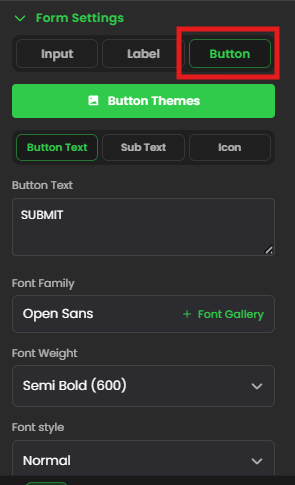
Button Themes
FlexiFunnels has 20+ pre-made button styles. Instead of changing every option manually:
- Click "Button Themes"
- Browse the pre-made options
- Click one you like
- It automatically updates all button settings
This is the fastest way to get a professional look.

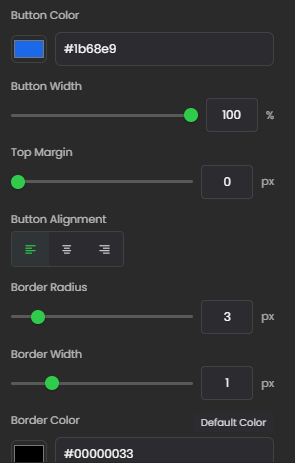
Button Appearance
- Button Color:The background color of the button (choose a color that stands out)
- Pro tip: Use a contrasting color (if your page is blue, use orange or green)
- Height: How tall the button is (make it tall enough to be easy to click)
- Width:How wide the button is
- Option: Full width (stretches across form) or Fixed width (smaller)
- Button Alignment: Center, left, or right (usually center looks best)
- Top Margin: Spacing between the last field and the button
Style Settings: Background & Effects
These options control the form container's appearance (the background behind the fields).
- Background Color: Change the background color of the entire form box
- Spacing: Control padding inside the form (space between form edge and fields)
- Sizing: Set a max-width so the form doesn't stretch too wide on large screens
- Effects: Add shadows or gradients for depth
When to use: To make the form stand out (e.g., white form on colored page background).
Common Situations & Quick Fixes
Situation 1: "Form Submissions Aren't Showing Up in My Email List"
What's happening: You're submitting the form, but no new contacts appear in your email service (Mailchimp, Klaviyo, etc.).
Diagnostic steps:
- Check the autoresponder connection
- Go to Form Settings → Advance Settings → "Autoresponder"
- Is it set to "Standard Integration"? (If "None," nothing gets sent)
- Click "Connect Here"—is an account connected? (It should show "Connected to [Your Account]")
- If not connected, click "Connect Here" and sign in again
- Verify the correct list is selected
- In "Connect Here" section, which email list is selected?
- Example: You might have "List A" (old subscribers) and "List B" (new leads)
- Make sure you're sending to the correct one
- If unsure, click the dropdown and verify the list name
- Test with a unique email
- Submit the form using an email you don't normally use
- Example:
test.123@yourdomainname.com - Go to your email list and search for it
- If it appears, the form works! (You might be looking in the wrong place for previous submissions)
- Check for duplicates
- If the email already exists in your list, the autoresponder might skip it (depending on settings)
- Try submitting with a brand-new email address
- Verify the email service isn't blocking it
- Check your email service's "spam" or "unconfirmed" folder
- Some services put auto-submitted emails in quarantine
- This is a setting in your email service, not FlexiFunnels
Common root cause: The form isn't connected to an email service, or it's sending to the wrong list.
Situation 2: "Form Fields Look Broken or Misaligned"
What's happening: Fields overlap, text is too small, button is in the wrong place, or styling looks off.
Diagnostic steps:
- Check form width
- Look at the Style settings → Sizing section
- Is a "Max Width" set? If it's too narrow, fields will stack oddly
- Try setting it to 400-500px (standard form width)
- On mobile, this might be different (that's normal)
- Check input distance
- If fields are overlapping, increase the "Input Distance" under Input settings
- Try values like 10px, 15px, or 20px
- Check label alignment
- Are labels misaligned? Go to Label settings
- Set "Text Alignment" to "Left" (most common)
- If that doesn't fix it, try "Center"
- Check button alignment
- In Button settings, set "Button Alignment" to "Center"
- Is the button still in the wrong place? Try "Left" or "Right"
- Check responsive design
- Open the page on a mobile phone or use your browser's mobile view (F12 key)
- Does it look better or worse on mobile?
- Mobile and desktop styling can be different (that's expected)
- Reset to default
- If styling is a mess, you can reset by selecting a "Button Theme" (this resets all button styling to a clean preset)
- Or start fresh by deleting the form and re-adding it
Common root cause: Max-width is too narrow, or label/input alignment settings are wrong.
Situation 3: "The Form Button Doesn't Stand Out"
What's happening: Your submit button blends in with the form background, and visitors don't notice it.
Diagnostic steps:
- Change button color
- Go to Style → Button → Button Color
- Pick a color that contrasts with your form background
- Example: If form background is light gray, use a bold blue or orange button
- Use a button theme
- Go to Style → Button → "Button Themes"
- Click a theme with strong contrast
- This is the fastest way to fix visibility
- Make button bigger
- Go to Style → Button → Height
- Increase to 45-50px (taller buttons look more clickable)
- Also set "Width" to "Full" so it stretches across the form
- Change button text to action words
- Instead of "Submit," use "Get Access," "Claim Offer," or "Download Now"
- People respond better to action-oriented text
- Add top margin
- Go to Style → Button → Top Margin
- Add 15-20px so the button has breathing room from the last field
Common root cause: Button color is too similar to form background, or button text is generic ("Submit").
Situation 4: "Form Isn't Showing My Custom Fields"
What's happening: You added a custom field (like "Phone Number" or "Company"), but it's not appearing on the form.
Diagnostic steps:
- Check if the field was saved
- Go to Form Settings → Input Type
- Do you see your custom field listed there?
- If not, it wasn't added correctly
- Add the field again
- Click "Add Custom Field"
- Choose the field type (Text, Dropdown, Checkbox, etc.)
- Name it (e.g., "Phone Number")
- Click "Add"
- Check the preview—does it appear now?
- Check field visibility
- Some fields might be hidden
- Go to the Input Type section and make sure the field is set to "Visible" (not hidden)
- Check if form is published
- Even if a field shows in the editor, it might not show on the published page
- Publish your page (Page Settings → Publish) and check the live page
- If it still doesn't show, the field might have a visibility rule
- Check field type compatibility
- Not all field types work with all autoresponders
- Example: A "Dropdown" field might not sync with some email services
- Test by changing the field type to "Text" and see if it appears
Common root cause: Custom field wasn't saved, or the form page hasn't been published yet.
Situation 5: "Users Aren't Getting the Thank You Message or Redirect"
What's happening: After submitting, users see nothing—no redirect, no thank you message.
Diagnostic steps:
- Check form action settings
- Go to Form Settings → "Form Action"
- Is "On submit go to URL" enabled? Is a URL filled in?
- Or is "On submit Message" enabled? Is a message filled in?
- If both are disabled, users see nothing
- Test the form yourself
- Submit the form (fill all fields completely)
- What happens after you click Submit?
- Do you see the message or get redirected?
- Check URL format
- If using a redirect URL, make sure it starts with
https://orhttp:// - Make sure the URL is complete (not broken across lines)
- Example:
https://example.com/thankyou(correct) vsexample.com/thankyou(missing https://)
- If using a redirect URL, make sure it starts with
- Check if page is published
- Even if form action is set, it might not work in editor preview
- Publish your page and test on the published URL
- Form actions only work on published pages
- Check for errors in submission
- If a required field is missing, the form might not submit at all
- Make sure all required fields are filled out in your test
- Look for error messages above the form
Common root cause: Form action isn't enabled, or the page isn't published yet.
Was this article helpful?
That’s Great!
Thank you for your feedback
Sorry! We couldn't be helpful
Thank you for your feedback
Feedback sent
We appreciate your effort and will try to fix the article