What Are Advanced Settings?
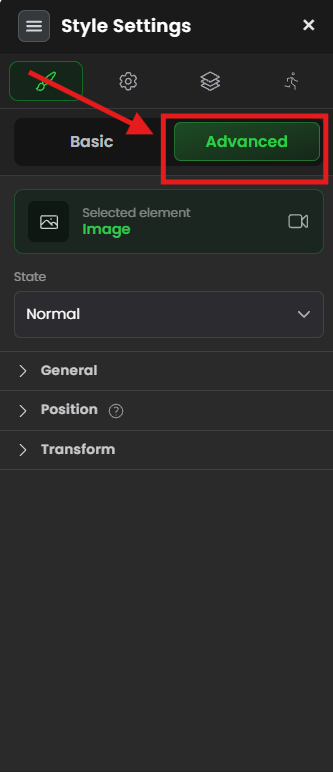
Advanced Settings are powerful styling options for complex layouts and effects.
The three main categories:
- Opacity — Transparency (see-through)
- Position — Where element sits on page (relative, absolute, fixed)
- Transform — Rotate, scale, move, skew elements
Think of it like advanced photo editing:
- Opacity = Making photo transparent
- Position = Moving photo around
- Transform = Rotating, scaling, skewing photo
SETTING 1: OPACITY
What It Does
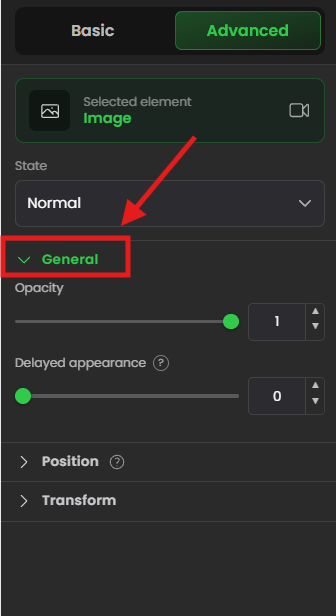
Opacity controls how transparent an element is (see-through).
Opacity Values
Scale: 0 to 1 (or 0% to 100%)
- 1.0 (100%) = Completely opaque (fully visible)
- 0.8 (80%) = Mostly visible, slightly transparent
- 0.5 (50%) = Semi-transparent (can see through)
- 0.3 (30%) = Very transparent (mostly see-through)
- 0 (0%) = Completely invisible (hidden)
When to Use Opacity
✓ Hover effects — Fade on hover ✓ Disabled states — Gray out disabled buttons ✓ Overlays — Semi-transparent overlay over images ✓ Watermarks — Faint background watermark ✓ Background elements — Deemphasize secondary content
SETTING 2: POSITION
What It Does
Position controls where an element sits on the page and how it relates to other elements.
Four position types:
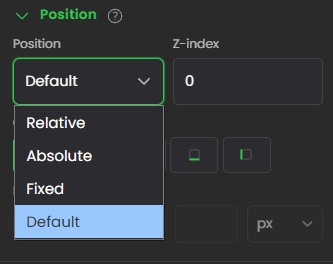
RELATIVE (Default)
What it does: Element is positioned relative to its parent container
Think of it like: Element stays in normal document flow but can be adjusted
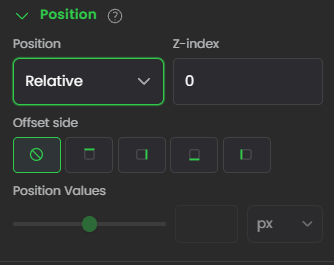 How it works:
- Button moves relative to its parent column
- Other elements adjust around it
- Document flow is maintained
When to use:
✓ Normal positioning (most elements)
✓ Slight adjustments within normal flow
✓ Default for most use cases
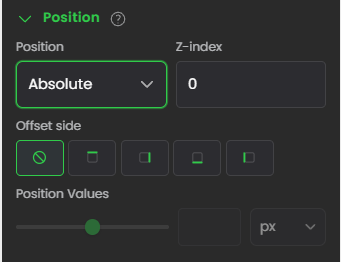
ABSOLUTE (Advanced)
What it does: Element is removed from normal flow and positioned absolutely
Think of it like: Element floats independently, ignoring normal document flow
How it works:
- Element can be positioned anywhere
- Other elements don't adjust around it
- Positioned relative to nearest positioned parent
When to use: ✓ Overlays (overlay one element on another)
✓ Floating elements (floating CTA button)
✓ Complex layouts (layered designs)
✓ Tooltips (position over other content)
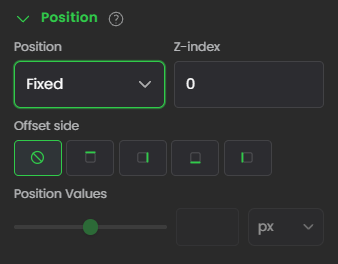
FIXED (Sticky)
What it does: Element stays in one place even when scrolling
Think of it like: Element is glued to your viewport
How it works:
- Element stays visible while user scrolls
- Doesn't move with page
- Perfect for sticky headers/footers
When to use: ✓ Sticky headers (stay at top)
✓ Floating buttons (always visible)
✓ Sticky sidebars
✓ Floating CTAs (call-to-action)
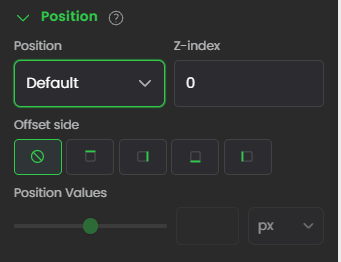
DEFAULT
What it does: Undoes position changes, returns to default (Relative)
When to use: ✓ Reset if you changed position incorrectly
✓ Revert to normal positioning
Z-INDEX (Layering)
What it does: Controls which element appears on top when elements overlap
Think of it like: Stack of papers where higher numbers are on top
SETTING 3: TRANSFORM
What It Does
Transform changes the visual appearance of elements (scale, move, rotate, skew).
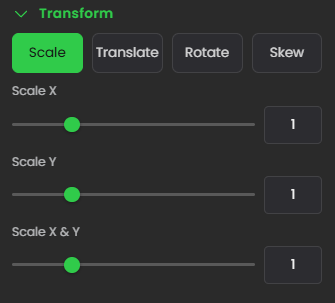
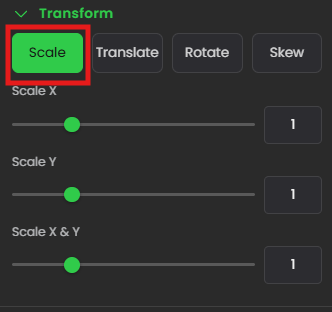
SCALE (Size Up/Down)
What it does: Makes element larger or smaller
Scale values:
- 1.0 = Normal size (100%)
- 1.5 = 150% size (50% larger)
- 2.0 = 200% size (double size)
- 0.5 = 50% size (half size)
Axes:
- X = Scale horizontally (wider/narrower)
- Y = Scale vertically (taller/shorter)
When to use: ✓ Hover effects (scale on hover)
✓ Focus states (zoom in on focus)
✓ Zoom animations
✓ Emphasis effects
TRANSLATE (Move Position)
What it does: Moves element horizontally or vertically
Values: Pixels (px) or percentages (%)
Axes:
- X = Move left/right
- Y = Move up/down
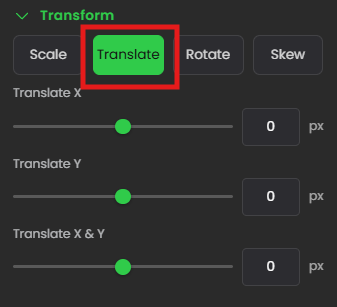
Positive vs Negative:
- Positive X = Move right
- Negative X = Move left
- Positive Y = Move down
- Negative Y = Move up
When to use: ✓ Nudge elements (slight adjustments)
✓ Hover effects (move on hover)
✓ Animations (slide in/out)
✓ Fine-tuning layout
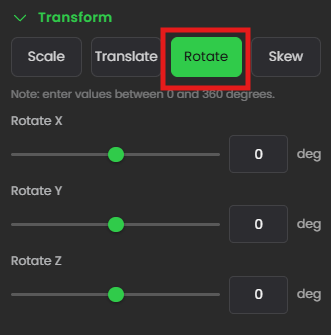
ROTATE (Turn Around)
What it does: Rotates element around an axis
Rotation values: 0-360 degrees
Axes:
- X = Rotate around horizontal axis (3D flip)
- Y = Rotate around vertical axis (3D flip)
- Z = Rotate on 2D plane (flat rotation)
When to use: ✓ Decorative elements (tilted text)
✓ 3D effects
✓ Creative designs (rotated images)
✓ Loading animations (spinning loader)
SKEW (Slant/Distort)
What it does: Slants/distorts element along an axis
Skew values: 0-360 degrees (though 0-90 is typical)
Axes:
- X = Skew horizontally (slant left/right)
- Y = Skew vertically (slant up/down)
When to use: ✓ Creative/decorative designs
✓ Modern, edgy layouts
✓ Parallax effects
✓ Unique visual styles
Note: Skew is rarely used in professional designs. Use sparingly.
Common Situations & Quick Fixes
Situation 1: "Absolute Position Element Disappeared"
What's happening: Element positioned absolutely but not visible.
Diagnostic steps:
- Check Z-index
- Is Z-index lower than other elements?
- Increase Z-index (try 100 or 1000)
- Check position values
- Is element positioned off-screen?
- Set Top, Left, Right, or Bottom values
- Example: Top: 50px, Left: 50px
- Check parent positioning
- Parent must be positioned (not static)
- Parent must be relative or absolute
- Check parent position setting
Situation 2: "Fixed Position Element Scrolls With Page"
What's happening: Fixed positioning not working.
Diagnostic steps:
- Verify position is set to Fixed
- Is it actually set to Fixed?
- Not Relative or Absolute?
- Check on published page
- Don't test in editor preview
- Publish and test on live page
- Check parent container
- Fixed elements sometimes affected by parent's transform
- Try moving element outside container
Situation 3: "Transformed Element Looks Blurry"
What's happening: Transform (scale, rotate, skew) causes blurriness.
Diagnostic steps:
- Use whole numbers
- Avoid decimal scales (1.33)
- Use whole numbers (1.0, 1.5, 2.0)
- Reduce extreme transforms
- Extreme skew (45+ degrees) looks bad
- Keep transforms subtle (0-30 degrees)
- Test in different browsers
- Some browsers render transforms differently
- Edge cases might render poorly
Was this article helpful?
That’s Great!
Thank you for your feedback
Sorry! We couldn't be helpful
Thank you for your feedback
Feedback sent
We appreciate your effort and will try to fix the article