What is the Accordion element, and why use it?
An Accordion is a stack of clickable sections that open and close — like a row of folders. Each one shows a title (usually a question), and when a visitor clicks it, the answer slides open underneath. Click again, and it tucks away.
Why use it? Because it keeps long information tidy. Instead of a wall of text that makes visitors scroll endlessly, an accordion shows just the questions, and people open only the ones they care about. It's the perfect tool for FAQ sections, but it also works well for product details, terms and conditions, course curriculums, or anything where you want to hide detail until someone asks for it.
Why "accordion"? Like the musical instrument that expands and squeezes shut, these sections stretch open to reveal content and fold back up — only one part takes up space at a time.
Quick reminder on where elements live: Every FlexiFunnels page follows the Section → Row → Element structure. The Accordion drops into a Row like any other element.
Steps to add the Accordion element inside the FlexiFunnels:
Step 1: Add the Accordion element to your page
- Open your editor and go to the Components section.
- Select Elements.
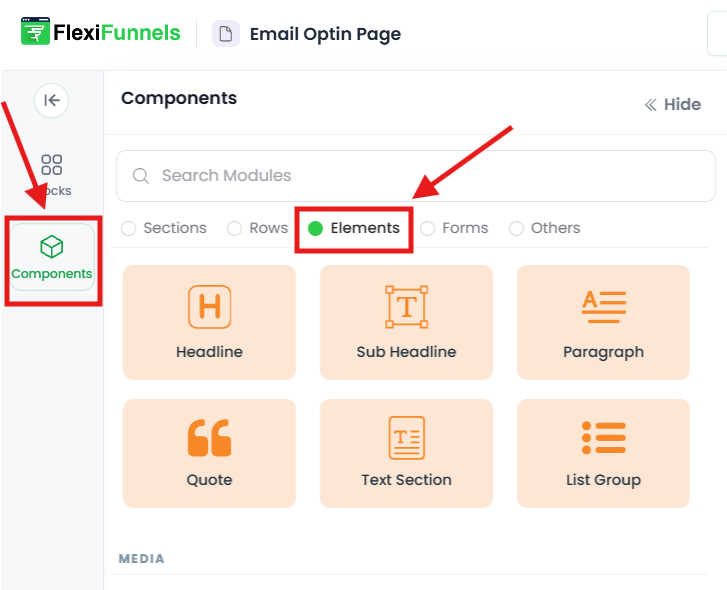
Find the Accordion element and drag it into your editor workspace.
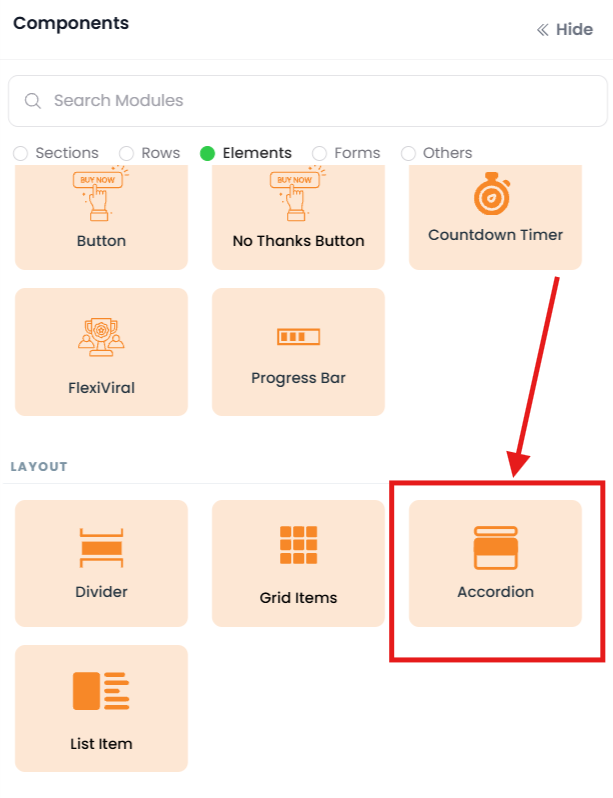
Step 2: Open the Accordion settings
Click the Accordion element to open its settings pop-up, then click into the Advanced Settings tab. This is where you'll edit your questions, answers, and the look of the accordion.

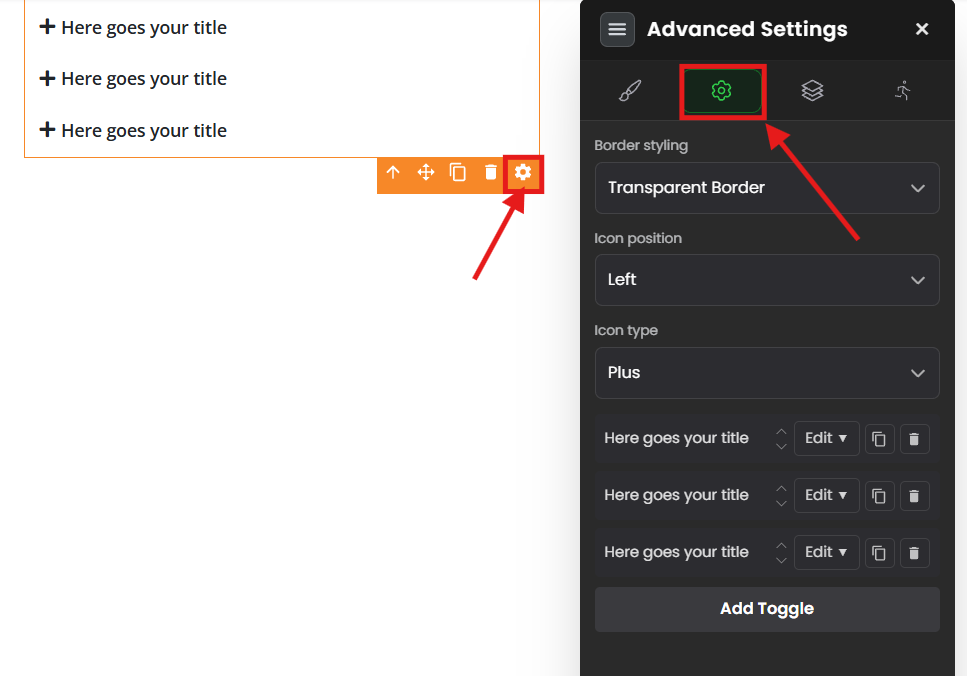
Step 3: Style the look
Still in Advanced Settings, you can shape how the accordion appears.
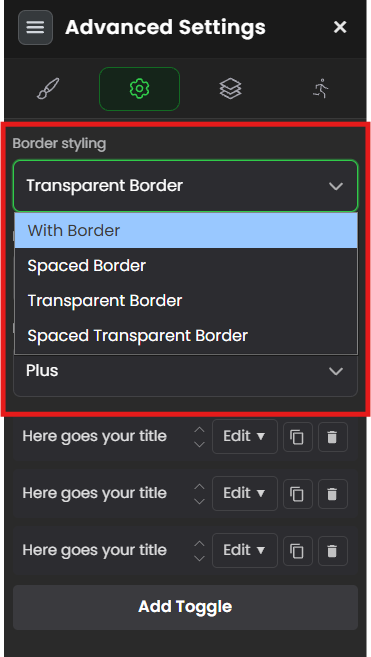
Border Styling
Choose how each section is outlined:
With Border — A visible line around each section.

Spaced Border — Each section sits as its own separated, "floating" block with gaps between them.

Transparent Border — No visible outline; the sections blend cleanly into the page.

Icon Position and Icon Type
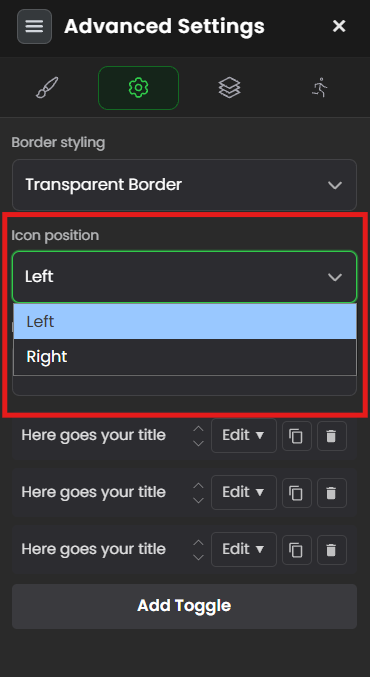
Each section shows a small icon that signals "click to open." You can control both where it sits and what it looks like.
Icon Position — Place the icon on the left or right of the title.
Icon Type — Pick the symbol:
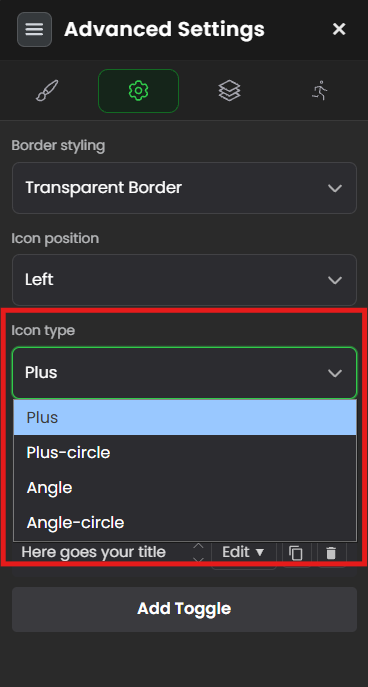
Plus — a simple + sign.

Plus-circle — a + inside a circle.

Angle — a small arrow/chevron.

Angle-circle — an arrow inside a circle.

Option to Change Questions: Click on the edit option to modify the questions for the FAQ section.
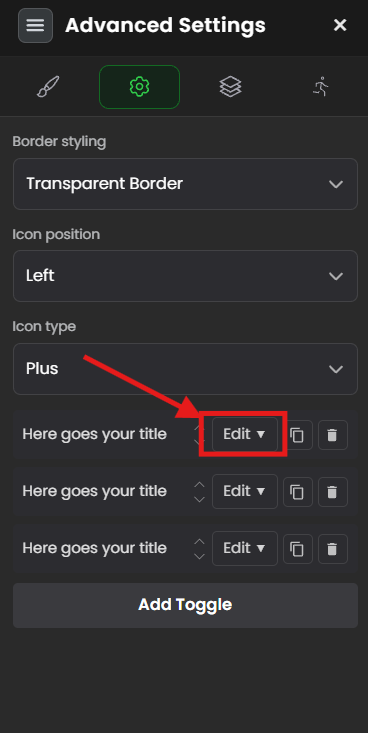
Note: To change the answer, navigate to the "Answers" section. Double-click on the answer you want to modify, and you can rewrite both the question and answer from the advanced settings.
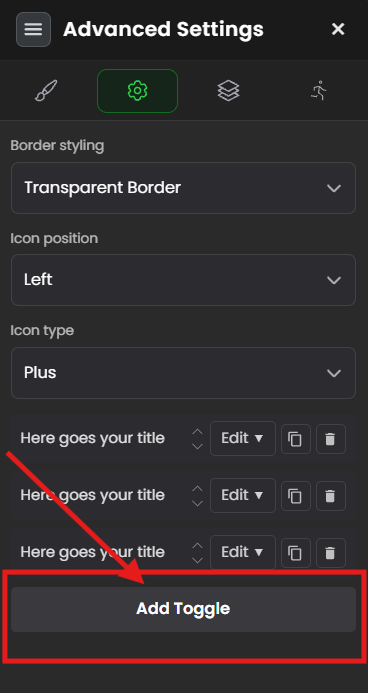
d.) Add a toggle option by which you can add another set of Questions and Answers dynamically. This allows you to expand your FAQ section as needed.
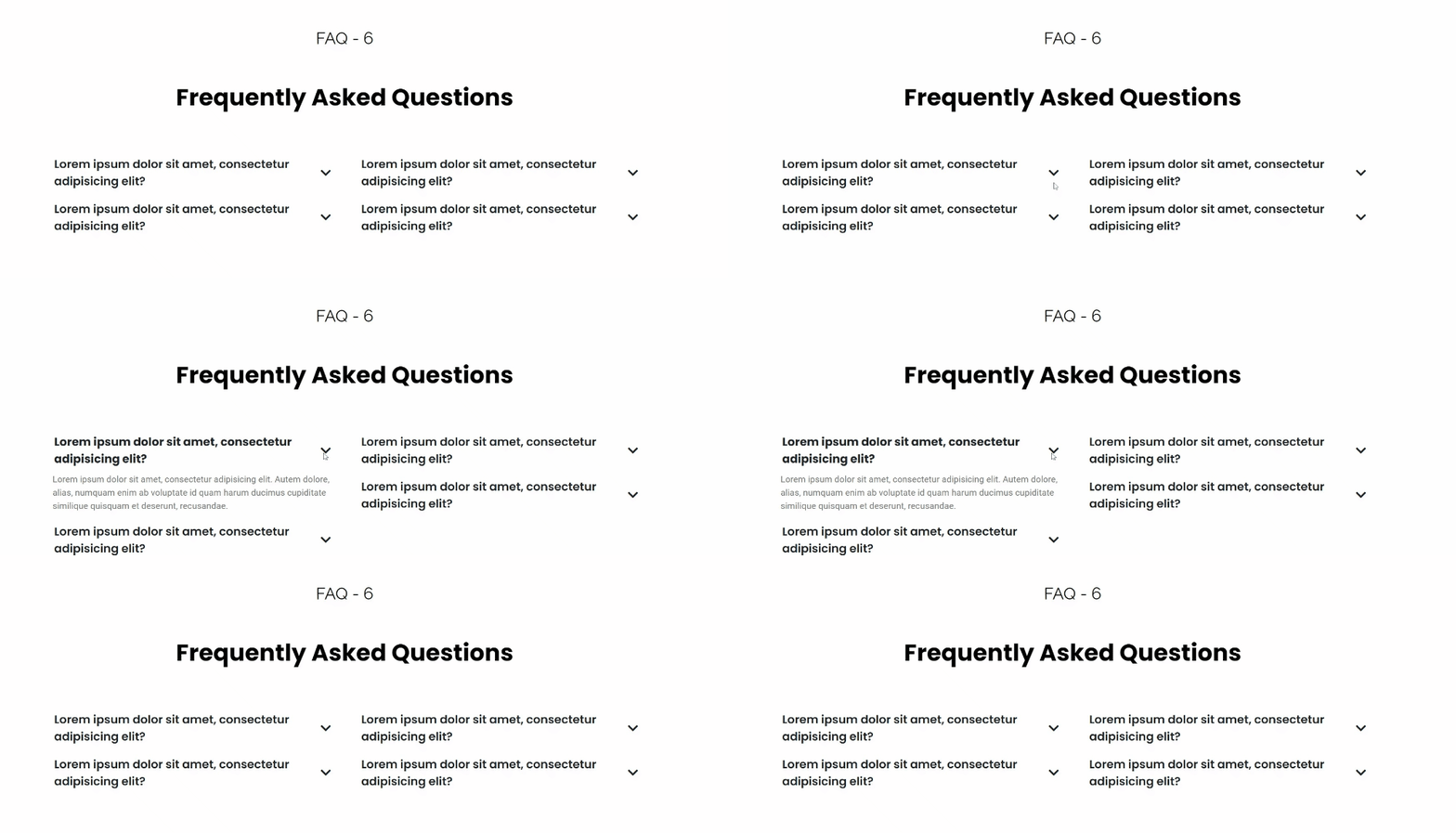
Samples of FAQs created by Accordion element:

Common situations & quick fixes
Check these before contacting support.
"My answer won't update / I edited the question but the answer stayed the same." → Questions and answers are edited in two places. To change an answer, go to the Answers section and double-click the specific answer (Step 3). Editing the question alone won't change its answer.
"I added a new section but it's empty / blank." → After using the Add toggle, you need to fill in both the new question and its answer. A pair with empty fields will show as a blank section.
"All my sections are open at once (or none will open)." → Test on the published page, not the editor — the click-to-open behavior runs on the live page. If it still misbehaves there, clear your browser cache and reload.
"My accordion looks cramped or the sections run together." → Switch the Border Styling to Spaced Border to add gaps between sections, which makes a long FAQ much easier to read.
"The open/close icon is confusing or hard to see." → Try a different Icon Type (Plus or Angle are the clearest), and adjust the Icon Position so it lines up neatly with your titles.
"My text is getting cut off inside a section." → Long answers are fine — the section expands to fit. If text looks clipped in the editor, check the published page; it usually displays in full once live.
"It looks fine on desktop but messy on mobile." → Switch to mobile view in the editor. Shorter question titles work best on narrow screens, since long titles can wrap awkwardly next to the icon.
Need more help?
If your accordion still isn't working after the steps above, submit a ticket and include:
- The page URL where the accordion appears
- Which question/answer is giving trouble
- What you expected vs. what's actually happening
- A screenshot of your Advanced Settings
Was this article helpful?
That’s Great!
Thank you for your feedback
Sorry! We couldn't be helpful
Thank you for your feedback
Feedback sent
We appreciate your effort and will try to fix the article