What Are Sticky Social Icons?
Sticky Social Icons are clickable social media buttons that stay visible on your page as visitors scroll.
Think of them like a permanent contact card on the edge of your page—no matter how far down visitors scroll, they can always click to connect with you on social media.
Why Use Sticky Social Icons?
Engagement:
✓ Always accessible (no scrolling to find)
✓ Quick way to connect
✓ Increases social media following
✓ Builds community
Sales Impact:
✓ Reduces friction (one-click contact)
✓ Answers questions instantly (via Messenger, DM)
✓ Builds trust (active social presence)
✓ Converts browsers to buyers
Conversions:
✓ Easy customer support access
✓ Address buying objections in real-time
✓ Multiple contact options
✓ Improves perceived legitimacy
Sticky vs. Non-Sticky Social Icons
| Aspect | Sticky Icons | Non-Sticky Icons |
|---|---|---|
| Always visible | Yes | No (only when scrolled to) |
| Accessibility | Always accessible | Must scroll to find |
| Engagement | Higher (always available) | Lower (easy to miss) |
| Page space | Uses fixed space on edge | Uses page content space |
| Mobile friendly | Yes (side icons) | Can be hard on mobile |
| Best for | All pages | Specific sections only |
Step-by-Step: Add Sticky Social Icons
Step 1: Open Your Landing Page in Editor
- Log into FlexiFunnels
- Go to your project
- Open the landing page
- Click "Edit Page"
- You're in the page editor
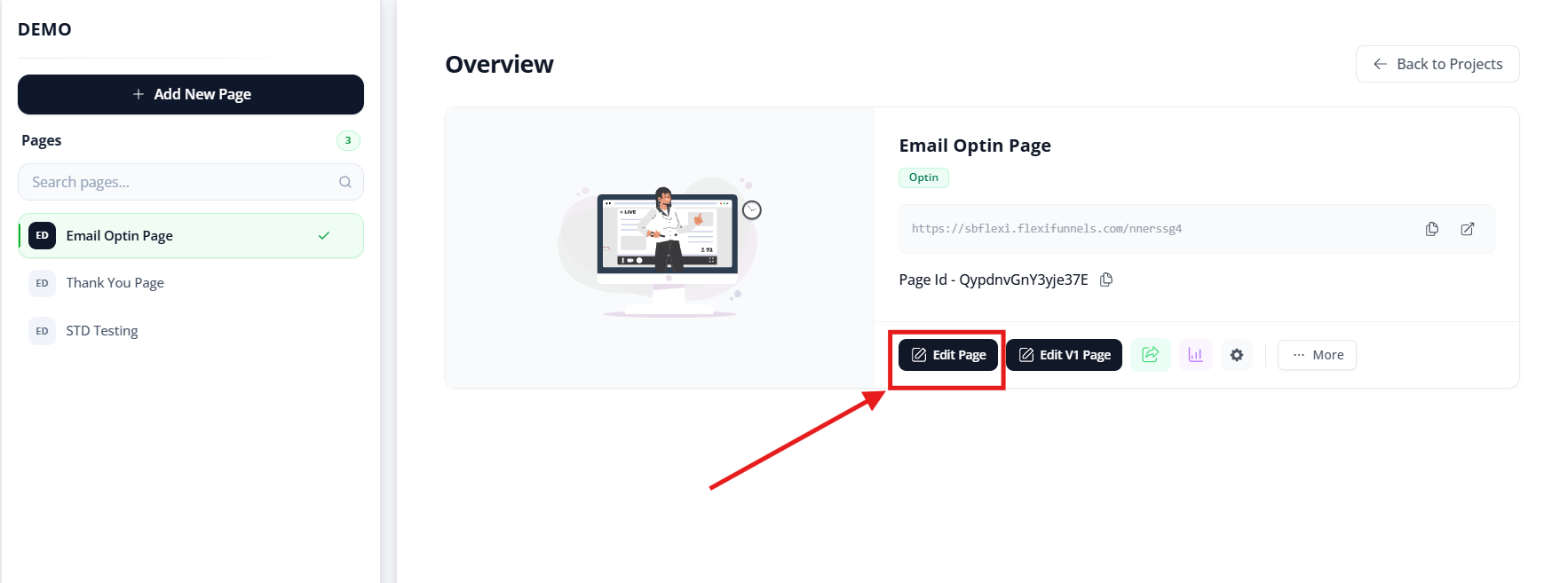
Step 2: Add Social Links Block
Method A: From Elements Panel
- Look at left sidebar (elements panel)
- Search for "Social" or "Social Links"
- Find "Social Links Block" or "Social Icons"
- Drag it to your page
Method B: From Builder Menu
- Click "+ Add Element" or "Add Block"
- Look for "Social" section
- Select "Social Links"
- Block is added to page
Where to place initially:
- Usually at top or bottom of page first
- We'll move it to sticky position next
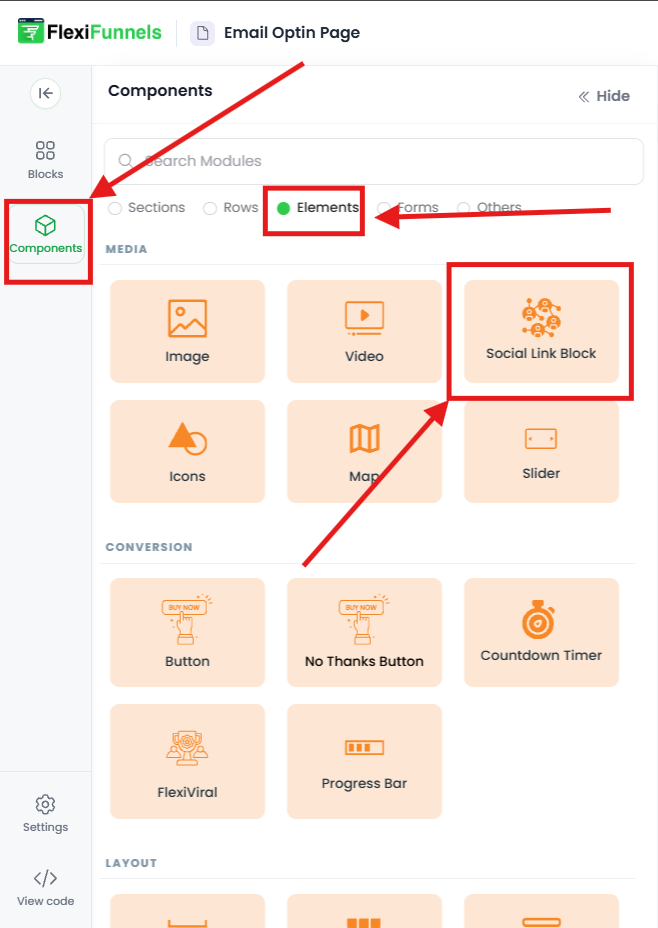
Step 3: Add Your Social Platforms
Once the Social Links block is on your page:
- Click on the block to select it
- Look for "Add Social Link" or "+ Add Platform" button
- Click it
For each platform:
- Select platform (Facebook, Instagram, etc.)
- Enter your profile URL or handle
- Click to add next platform
- Repeat for all desired platforms
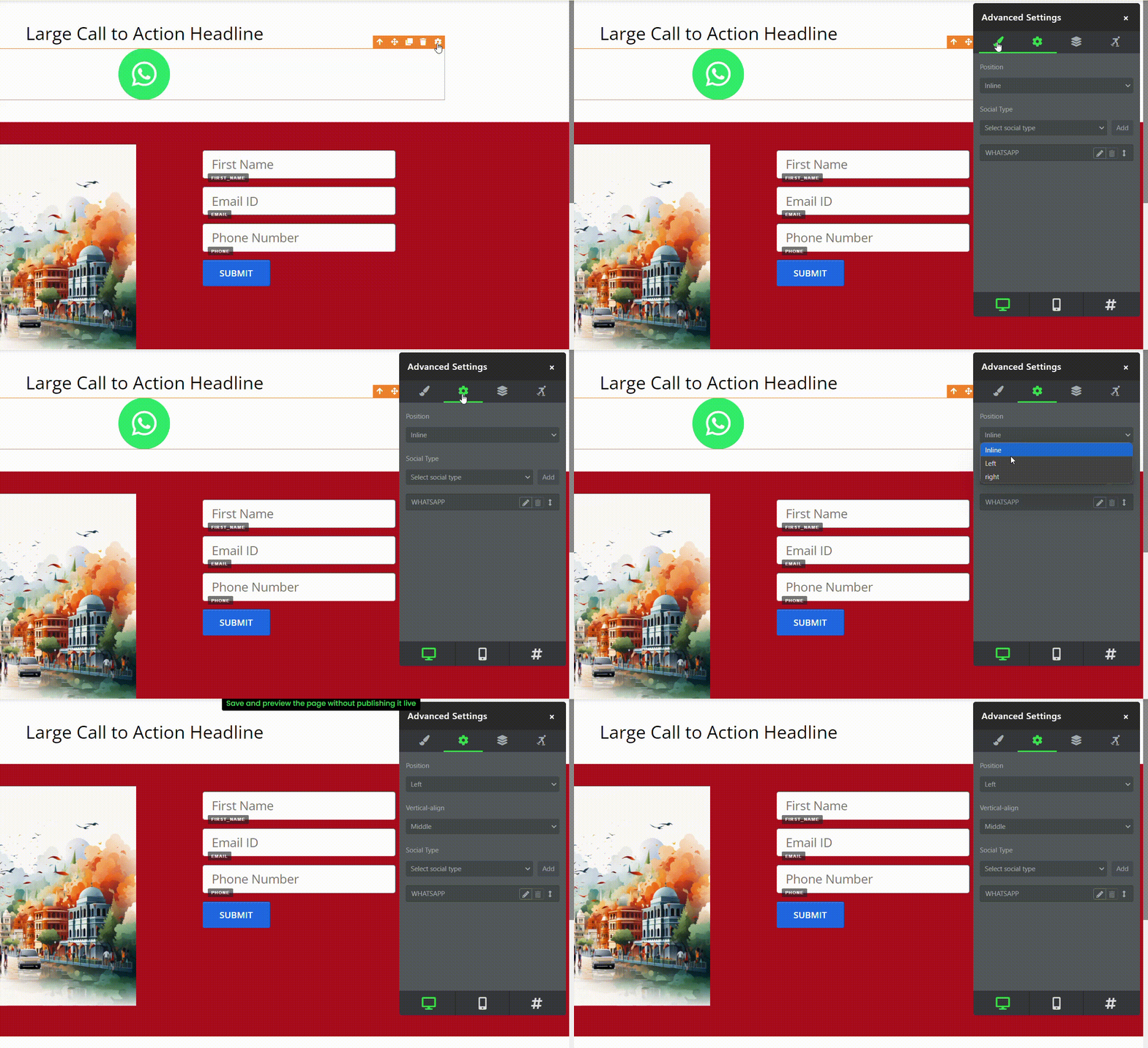
Step 4: Open Advanced Settings
- With the Social Links block selected, look for gear icon ⚙️ or "Settings" button
- Click it
- Settings panel opens on right
- Look for "Advanced" or "Advanced Settings" tab
- Click to expand
Step 5: Enable Sticky/Fixed Position
- In Advanced settings, look for:
- "Position" or "Positioning"
- "Fixed" or "Sticky" toggle
- "Display" options
- Look for option to make "Fixed" or "Sticky"
- Toggle it ON
Now the icons will stay visible as visitors scroll.
Step 6: Choose Icon Placement
Position options:
Left Side:
- Icons appear on left edge of page
- Most common choice
- Doesn't interfere with content
Right Side:
- Icons appear on right edge
- Alternative to left
- Works well on desktop
Top Center:
- Icons appear at very top
- Can be intrusive
- Best for short pages
Bottom Right/Left:
- Icons appear at bottom
- Less intrusive
- Good for longer pages

Step 7: Set Vertical Alignment
If icons are on left or right side, choose where vertically:
Options:
- Top (icons at top of edge)
- Middle (icons vertically centered)
- Bottom (icons at bottom of edge)
Step 8: Customize Icon Style (Optional)
Common styling options:
Icon Size:
- Small (32px)
- Medium (48px)
- Large (64px)
- Choose based on visibility needs
Icon Color:
- Default (platform colors)
- Custom color
- With/without background
Spacing:
- Gap between icons
- Distance from page edge
- Adjust for readability
Animation:
- Hover effects
- Fade/slide on scroll
- Optional enhancements
Step 9: Test on Mobile
- Switch to Mobile View
- Verify icons appear correctly
- Check positioning doesn't block content
- Test tap targets (easy to click?)
Mobile best practices:
✓ Icons at bottom (thumb-friendly)
✓ Adequate spacing (easy to tap)
✓ Not blocking important content
✓ Visible on first screen
Step 10: Save and Publish
- Click "Save" or click outside settings
- Changes apply
- Publish your page
- Test on live site
✓ Sticky social icons are now live!
Common Situations & Quick Fixes
Situation 1: "Icons Don't Appear as Sticky They Scroll Off Page"
What's happening: Sticky/Fixed setting not enabled.
Diagnostic steps:
- Check Fixed setting
- Go to Advanced Settings
- Is "Fixed" or "Sticky" toggle ON?
- If OFF, turn it ON
- Check on published page
- Don't test in editor preview
- Test on actual live page
- Publish and view
- Clear cache
- Clear browser cache
- Open in incognito mode
- Test again
- Check positioning
- Is position set to Left/Right/etc.?
- Verify position is configured
Situation 2: "Icons Block Important Content on Mobile"
What's happening: Icons overlap with page content.
Diagnostic steps:
- Switch to mobile view
- Check how it looks on phone size
- Adjust positioning
- Move icons to different location
- Try Bottom Right instead of Middle
- Reduce icon size
- Smaller icons take less space
- Change from Large to Medium or Small
- Add spacing
- Add margin/padding to push icons away from content
- Ensure they don't overlap
Situation 3: "I Added Icons but They're Not Clickable"
What's happening: Social links not properly configured.
Diagnostic steps:
- Check URLs entered
- Are social platform URLs correct?
- Example: facebook.com/yourbusiness (not facebook.com/yourname)
- Verify platforms selected
- Did you select the correct platform?
- Is URL for that platform?
- Test links
- Click each icon
- Do they go to your social profile?
- If not, edit the URLs
- Check for errors
- Invalid URLs won't work
- Use full URLs: facebook.com/your-page
Situation 4: "Which Platforms Should I Actually Include?"
What's happening: Unsure which social icons to add.
Answer: Include only platforms where you actively engage.
Decision process:Question 1: Do you have an active presence on this platform?
→ NO: Don't include
Question 2: Can you respond to messages quickly?
→ NO: Don't include (bad experience)
Question 3: Do your audience use this platform?
→ NO: Don't include (low engagement)
Question 4: Does it match your business type?
→ NO: Skip it
Question 5: Is it a main contact method for your business?
→ YES: Include it!
Start with 2-3 platforms maximum. Add more only if you can actively manage them.
Situation 5: "Icons Look Unprofessional or Cluttered"
What's happening: Too many icons or poor styling.
Diagnostic steps:
- Reduce icon count
- Remove unused platforms
- Keep only 2-4 icons
- Cleaner look
- Increase spacing
- Add gap between icons
- Reduce visual clutter
- Easier to tap
- Adjust size
- Medium (48px) is usually best
- Not too big, not too small
- Professional appearance
- Match brand colors
- Use consistent color scheme
- Or use platform default colors
- Avoid too many colors
Was this article helpful?
That’s Great!
Thank you for your feedback
Sorry! We couldn't be helpful
Thank you for your feedback
Feedback sent
We appreciate your effort and will try to fix the article