What Are Sticky Sections?
Sticky Sections stay visible as visitors scroll, then release when they scroll past.
Think of it like a menu that sticks to the top of your screen—it follows you as you scroll, but releases when you reach the bottom.
Sticky vs. Fixed: What's the Difference?
| Aspect | Sticky | Fixed |
|---|---|---|
| Behavior | Sticks to edge, releases at bottom | Always stuck (never releases) |
| Scroll release | Releases when you scroll past | Never releases |
| Use case | Headers, section dividers | Always-visible CTAs |
| Viewport | Respects parent container | Always at viewport edge |
| Mobile friendly | Better (releases) | Can block content |
Why Use Sticky Sections?
Navigation:
✓ Sticky headers keep navigation accessible
✓ Users can navigate without scrolling to top
✓ Always-visible reference point
Conversions:
✓ Sticky CTAs stay visible (higher click rates)
✓ Call-to-action always accessible
✓ Easy for visitors to take next step
User Experience:
✓ Reduces friction (quick access)
✓ Improves engagement
✓ Professional appearance
When to Use Sticky Sections
STICKY ON TOP (Most Common)
Use for:
- Headers/Navigation
- Important announcements
- CTA sections
- Contact information
Example:Sticky header stays visible
User scrolls through content
Header remains at top throughout
User reaches end, header releases
STICKY ON BOTTOM (Less Common)
Use for:
- Footer information
- Bottom CTAs
- Contact info
- "Back to top" buttons
Example:Content displays normally
User scrolls down
Sticky footer appears at bottom
User continues scrolling
Footer stays at bottom
Step-by-Step: Enable Sticky Section
Step 1: Identify Your Outer Section
- Look at your page structure
- Identify the outer section (top-level section)
- Not nested inside another section
- This is where sticky works
To verify it's an outer section:
- Click on the section
- Check if it spans full width of page
- Not contained within another section
Step 2: Select the Outer Section
- In page editor, click on the section
- Make sure you're clicking the entire section
- Not just content inside it
How to select:
- Click on section border/edge
- Entire section highlights
You should see section settings available
Step 3: Open Section Settings
- With section selected, look for gear icon ⚙️ or "Settings" button
- Click it
- Settings panel opens on right
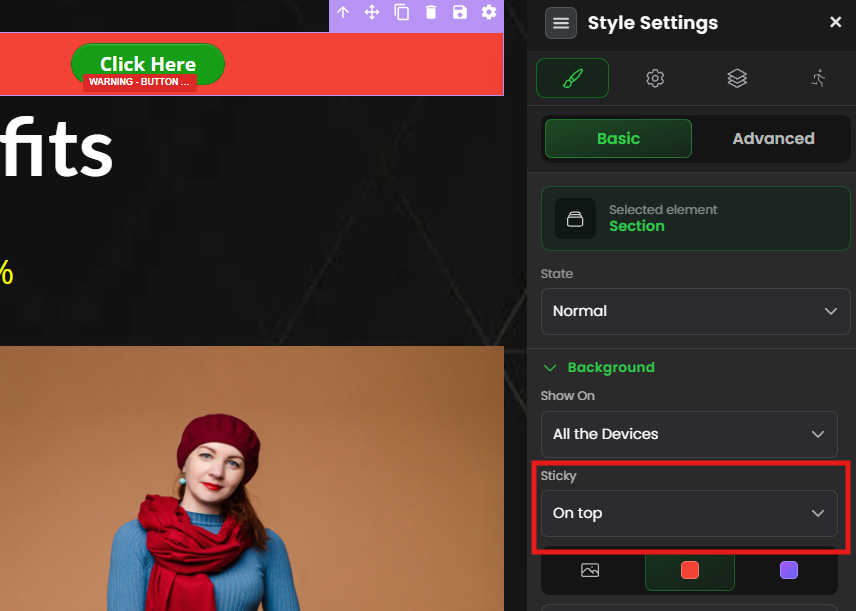
Step 4: Find Sticky Settings
- In settings panel, look for "Sticky" option or "Position" settings
- Find the "Sticky" dropdown or toggle
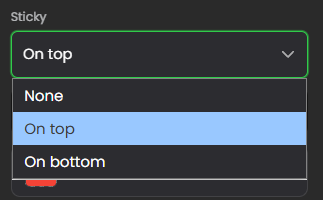
- Should show options: On Top, On Bottom, None
Step 5: Choose Sticky Position
Option 1: On Top
- Section sticks to top of page
- Follows as user scrolls
- Releases at bottom of content
- Most common choice
Option 2: On Bottom
- Section sticks to bottom of page
- Follows as user scrolls down
- Releases when reaching end
- Less common, special use cases
Option 3: None
- No sticky behavior (default)
- Section behaves normally
- Scrolls with page
Step 6: Verify Selection
- Look at the setting
- Is "On Top" selected? (if that's what you want)
- Or "On Bottom"? (if bottom sticky)
Step 7: Save & Publish
- Click "Save" or click outside settings
- Publish your page
- Test on live site
✓ Sticky section is now active!
Common Situations & Quick Fixes
Situation 1: "Sticky Isn't Working—Section Still Scrolls Normally"
What's happening: Sticky setting not working.
Diagnostic steps:
- Check it's an outer section
- Is section nested inside another section?
- If yes, sticky won't work
- Move to outer section instead
- Check sticky setting
- Is it actually set to "On Top" or "On Bottom"?
- Not set to "None"?
- Change setting if needed
- Check on published page
- Don't test in editor preview
- Test on actual live page
- Publish and visit URL
- Clear browser cache
- Clear cookies/cache
- Open in incognito mode
- Test again
- Check for conflicting CSS
- Custom CSS might override sticky
- Check General Code settings
- Look for CSS that might affect positioning
Situation 2: "Sticky Section Blocks Content on Mobile"
What's happening: Sticky header/section takes up too much space on mobile.
Diagnostic steps:
- Test on actual mobile
- How much space does sticky section use?
- Does it block important content?
- Reduce section height on mobile
- Make sticky section shorter on mobile
- Use mobile-specific settings if available
- Reduce padding/margins on mobile
- Consider not sticky on mobile
- Some sites disable sticky on mobile
- Content flows normally on phones
- Reduces "blocked content" issue
- Alternative: Sticky on Top (not Bottom)
- Top sticky is usually better on mobile
- Bottom sticky uses valuable screen space
Situation 3: "Multiple Sticky Sections Stack On Top of Each Other"
What's happening: Two or more sticky sections both set to "On Top" overlap.
Diagnostic steps:
- Only one section should be sticky
- Don't make both header AND CTA sticky "On Top"
- They'll stack and block content
- Choose one section to be sticky
- Solution options:
- Option A: Make only header sticky
- Option B: Make only CTA sticky
- Option C: Use different positions (one On Top, one On Bottom)
- Best practice:
- One sticky header at top
- One sticky CTA or footer at bottom
- Not multiple sections "On Top"
Situation 4: "Sticky Section Looks Different on Desktop vs. Mobile"
What's happening: Sticky behavior varies by device.
Diagnostic steps:
- Test on actual mobile device
- Behavior might differ
- Mobile browsers handle sticky differently
- Reduce section on mobile
- If section is too tall on mobile
- Makes sticky work better
- Use media queries/mobile settings
- Some builders allow mobile-specific sticky
- Disable sticky on mobile if it causes issues
- Test both orientations
- Portrait (vertical phone)
- Landscape (horizontal phone)
- Both should work well
Situation 5: "Should I Make This Section Sticky?"
What's happening: Unsure whether to enable sticky.
Decision tree:Is it a header/navigation?
→ YES: Make sticky On Top ✅
Is it a CTA/action section?
→ YES: Consider sticky On Top (increases conversions)
Is it a footer?
→ YES: Consider sticky On Bottom
Is it regular content?
→ NO: Don't make sticky (normal scrolling is fine)
Does sticky improve user experience?
→ YES: Use it
→ NO: Leave as normal section
Is there already a sticky section?
→ YES: Don't add another (avoid overlap)
→ NO: One sticky section is usually good
Was this article helpful?
That’s Great!
Thank you for your feedback
Sorry! We couldn't be helpful
Thank you for your feedback
Feedback sent
We appreciate your effort and will try to fix the article