What is a Webhook
Think of a webhook as a delivery courier between two apps. When someone fills out your FlexiFunnels form, the webhook instantly carries that information to another tool—like Zapier, your CRM, or any automation platform. No manual copying and pasting. No waiting. The data arrives automatically.
Why this matters: Instead of checking FlexiFunnels daily for new leads, your CRM gets populated instantly. Your team can start following up within minutes, not hours or days.
When to Use Webhooks
You'll want to set up a webhook if:
- You want form submissions to automatically appear in your CRM (HubSpot, Salesforce, etc.)
- You need to send leads to a mailing list or email platform
- You want to trigger automations in tools like Zapier, Make, or Integromat
- You need real-time data sync between FlexiFunnels and another app
Don't need a webhook? If you're just collecting form submissions and reading them in FlexiFunnels, skip this guide.
Before You Start: Checklist
Before setting up a webhook, confirm you have:
- ✓ A FlexiFunnels form already created and ready to connect
- ✓ An account in the destination tool (Zapier, CRM, automation platform)
- ✓ Editor access to your FlexiFunnels page
- ✓ A copy of all form field names you want to send (e.g., "Email," "Phone Number," "Name")
If you're missing any of these, go back and set them up first.
How Webhooks Work: The Big Picture
Here's the flow:
- FlexiFunnels → Someone fills out your form
- Webhook trigger → FlexiFunnels automatically sends that data to a URL
- Automation tool (Zapier, CRM, etc.) → Receives the data and acts on it (creates a contact, sends an email, etc.)
The URL is the key—it's the address where the data gets sent. We'll copy that URL from Zapier and paste it into FlexiFunnels.
Step-by-Step: Set Up Your Webhook
Part 1: In FlexiFunnels (Set Up the Webhook Connection)
Step 1: Open Your Form Element
- Go to your FlexiFunnels page editor
- Find and click on your FORM element on the page
- (Not sure which is your form? Look for the box where users enter their email, name, etc.)
Step 2: Open Form Settings
- Look for the gear icon ⚙️ next to or on the form element
- Click it—a settings panel should slide open
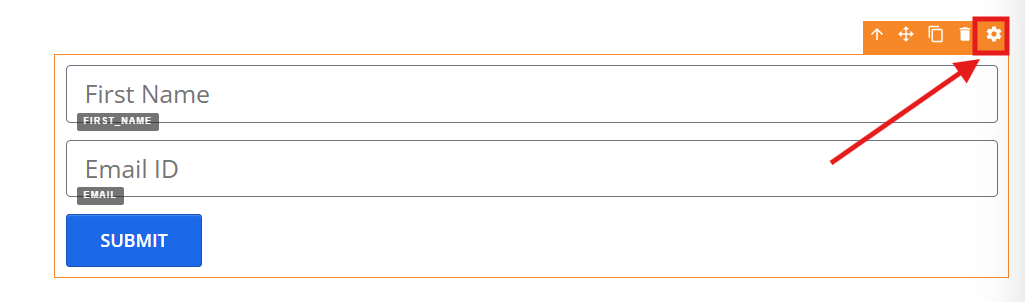
Step 3: Find the Connection Option
- Inside the settings panel, look for a button labeled "Connect Here" or "Integrations"
- Click it
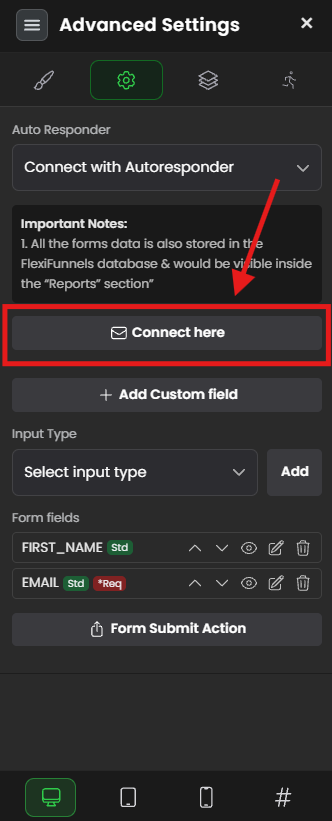
Step 4: Select Webhook Settings
- A popup or new menu will appear with integration options
- Click on "Webhook" (or "Webhook Settings")
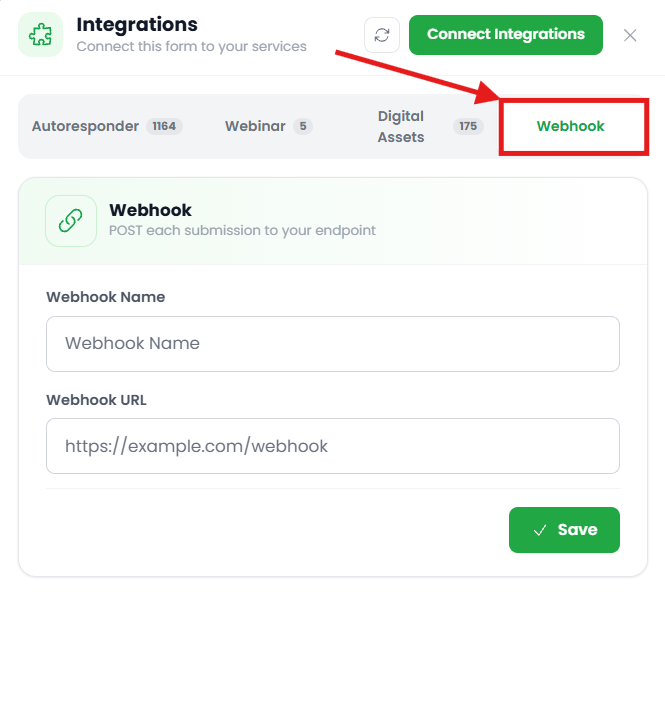
Step 5: Name Your Webhook
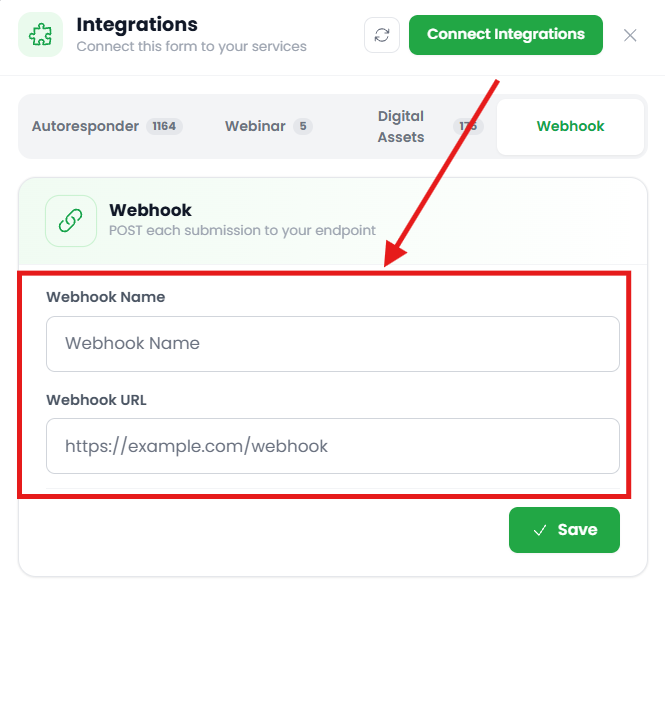
- In the "Webhook Name" field, type a label for this connection
- Use something descriptive like "Zapier - Lead Form" or "CRM Auto-Sync"
- This is just for you—to remember what this webhook does if you set up multiple ones
Step 6: Copy the Webhook ID (or Leave Blank for Now)
- Some platforms show a Webhook ID here—make note of it if visible
- For now, leave the Webhook URL field empty—we'll paste it after Zapier generates one
Part 2: In Zapier (Generate the Webhook URL)
Why Zapier? Zapier is an automation tool that sits between FlexiFunnels and your other apps (CRM, email, spreadsheets). It catches the form data and routes it where you need it.
Note: You can use other webhook tools (Make, Integromat, etc.), but the steps are similar—find the "Catch Webhook" option and copy the URL.
Step 7: Log In to Zapier and Create a New Zap
- Go to zapier.com and log in (or sign up if you don't have an account)
- Click "Create Zap" (usually a big button on the dashboard or top-left corner)

Step 8: Name Your Zap
- At the top-left of the screen, you'll see a name field (default: "Untitled Zap")
- Click it and type something clear:
"FlexiFunnels Form → CRM"or whatever your destination is - This helps you find this automation later

Step 9: Set the Trigger (Incoming Webhook)
- Zapier will ask you to choose a Trigger (the app that starts the action)
- In the search bar, type "Webhooks by Zapier"
- Click on the "Webhooks by Zapier" result


Step 10: Choose "Catch Hook Event"
- After selecting Webhooks by Zapier, you'll see options like "Catch Hook Event," "Catch Raw Hook," etc.
- Click "Catch Hook Event" (this is the standard option for form data)
Step 11: Continue
- Click the "Continue" button at the bottom

Step 12: Copy Your Webhook URL
- Zapier will now display a unique Custom Webhook URL
- It will look something like:
https://hooks.zapier.com/hooks/catch/12345/abcde/ - Copy this entire URL (Ctrl+C or Cmd+C)
- Keep this URL private don't share it publicly, as anyone with it could send data to your Zapier account

Part 3: Back to FlexiFunnels (Paste the URL and Save)
Step 13: Return to FlexiFunnels
- Go back to your FlexiFunnels editor (the webhook settings panel should still be open)
Step 14: Paste the Webhook URL
- Find the "Webhook URL" field
- Paste the URL you copied from Zapier:
https://hooks.zapier.com/hooks/catch/12345/abcde/

Step 15: Save
- Click the "Save" button
- You should see a confirmation message like "Webhook connected successfully" or similar
You've done it! Your form is now connected to Zapier. When someone submits the form, their data automatically goes to Zapier.
Common Situations & Quick Fixes
Situation 1: "Form Submissions Aren't Reaching Zapier"
What's happening: You submitted the form, but Zapier shows no incoming data.
Diagnostic steps (before contacting support):
- Check the webhook URL
- Go back to FlexiFunnels form settings
- Verify the Webhook URL field is NOT empty
- Make sure there are no extra spaces before or after the URL (common copy-paste mistake)
- Example of wrong:
https://hooks.zapier.com/hooks/catch/12345/abcde/(note the space at end)
- Verify the form is saved
- After pasting the URL, did you click Save?
- Check that the form page is also published (not just saved in draft)
- Go to the published page (use the public link, not the editor preview) and submit a test form
- Check form field mapping
- Make sure the form actually has fields (Name, Email, etc.)
- A form with no fields won't send anything
- Test with a simple form: just an Email field
- Check Zapier status
- Log into Zapier and verify your Zap is turned ON (toggle switch is blue)
- Go to the Zap History—does it show any activity at all?
- If no activity, the webhook isn't firing (problem is in FlexiFunnels)
Common root cause: The form wasn't published after connecting the webhook. Always publish your page after changing webhook settings.
Situation 2: "Zapier Caught the Data, but It Didn't Reach My CRM"
What's happening: Zapier shows a successful webhook catch, but nothing appears in your CRM.
Diagnostic steps:
- Check the Action step in Zapier
- Click on the Action (the second step in your Zap, e.g., "Google Sheets" or "Salesforce")
- Look at the Error Message section—it usually explains what went wrong
- Common errors: "Authentication failed" (your CRM login expired) or "Field mismatch" (form fields don't match CRM fields)
- Verify CRM authentication
- In Zapier, check if your CRM account is still connected
- If it shows a warning or expired login, reconnect it
- Try clicking the "Test Action" button to see if Zapier can reach your CRM
- Check field mapping
- Make sure form fields are correctly mapped to CRM fields
- Example: "Email" from the form should map to "Email Address" in the CRM (names might differ)
- Missing mappings = missing data in your CRM
- Test with a simpler Action first
- If CRM setup is complex, test by sending data to a Google Sheet first
- If that works, the issue is with CRM-specific setup, not the webhook itself
Common root cause: CRM login expired or fields weren't mapped correctly. Check Zapier's error logs first.
Situation 3: "Webhook URL Isn't Saving in FlexiFunnels"
What's happening: You paste the URL, click Save, but it keeps disappearing or showing an error.
Diagnostic steps:
- Check for special characters
- Make sure the URL has no extra spaces, line breaks, or special characters
- Copy it fresh from Zapier—don't manually type it
- Check URL format
- The URL should start with
https://(nothttp://) - It should be a complete URL, not broken across lines
- Example correct format:
https://hooks.zapier.com/hooks/catch/XXXXXXXXX/YYYYYYYYY/
- The URL should start with
- Try a different webhook name
- Clear the "Webhook Name" field
- Enter a simpler name (e.g., just "Zapier" instead of special characters or emojis)
- Then try saving the URL again
- Check browser compatibility
- Try a different browser (Chrome, Firefox, Safari)
- Clear your browser cache (Ctrl+Shift+Delete or Cmd+Shift+Delete)
- Log out and back into FlexiFunnels
Common root cause: Extra spaces or formatting issues in the URL, or browser cache causing problems.
Situation 4: "I Have Multiple Forms and Can't Keep Track of Webhooks"
What's happening: You set up several webhooks and can't remember which form goes to which app.
Diagnostic steps + solution:
- Use clear naming conventions
- For each webhook, use a descriptive name:
"Zapier - Sales Form → HubSpot"not just"Webhook 1" - This way, when you open form settings later, you know exactly what's connected
- For each webhook, use a descriptive name:
- Document your webhooks
- Create a simple spreadsheet:
- Column A: Form Name
- Column B: Webhook Destination (Zapier, Make, etc.)
- Column C: Webhook URL
- Column D: Date Set Up
- This saves you time if you need to troubleshoot or update later
- Create a simple spreadsheet:
- Test each one individually
- Submit a test form for each form → webhook combination
- Verify data reaches the destination
- Mark it as "Verified" in your spreadsheet
Common root cause: Not having a naming or tracking system. One or two webhooks are fine, but more than that benefit from documentation.
Situation 5: "I'm Getting an Error Code from Zapier"
What's happening: Zapier shows an error like "400 Bad Request" or "401 Unauthorized."
What these mean :
- 400 Bad Request: The form data format is wrong. Usually means fields aren't mapped correctly.
- 401 Unauthorized: Zapier can't authenticate to your CRM. Usually means your CRM password/API key expired.
- 403 Forbidden: Permission issue. Your app account doesn't have permission to create/update data.
- 404 Not Found: The destination endpoint changed or no longer exists.
- 500 Server Error: Temporary Zapier or CRM server issue. Wait 5 minutes and try again.
Diagnostic steps:
- Read Zapier's error message carefully
- Zapier usually explains what failed
- Screenshot it and share with support if you're stuck
- For 401 errors (authentication):
- Reconnect your CRM in Zapier
- Check that your CRM login isn't expired
- If you use API keys, verify the key is still valid
- For 400 errors (bad request):
- Check field mapping in the Action step
- Verify required fields are included (email, name, etc.)
- Test with fewer fields first (just email) to isolate the problem
- For 500 errors:
- Wait 5 minutes (could be a temporary server issue)
- Try submitting the form again
- Check Zapier's status page: status.zapier.com
Was this article helpful?
That’s Great!
Thank you for your feedback
Sorry! We couldn't be helpful
Thank you for your feedback
Feedback sent
We appreciate your effort and will try to fix the article