How to connect lead forms to your email tools, set up webhooks, and manage email templates — all through chat.
Overview
Once a visitor fills out a form on your page, you'll usually want that information to flow somewhere — an email list, another tool, or an automated email response. This article covers connecting forms to autoresponders and webhooks, managing autoresponder integrations, and creating or updating email templates.
This article covers:
- Setting up a webhook on a form
- Adding a new autoresponder (email service) integration
- Renaming or updating autoresponder integration details
- Creating, cloning, and updating email templates
- Attaching a digital asset (file) to a form for automatic delivery
What You Can Do
- Send form submissions to a webhook URL, so the data flows into another tool
- Connect a new email service (autoresponder) to your FlexiFunnels account
- Rename or update the details of an existing autoresponder connection
- Create a new saved email template
- Clone an existing email template to quickly create a variation
- Update the content, subject line, or settings of an email template
- Attach a digital asset (like a PDF) to a form, so it's automatically delivered when someone submits
Why This Is Useful
Getting leads into your email list or automation tool is essential for following up with potential customers. With Flexi Genie, you can connect these pieces — forms, autoresponders, webhooks, templates — without navigating multiple settings screens separately.
Before You Begin
- You need an active FlexiFunnels account, logged in.
- Have your email service provider's API credentials ready if connecting a new autoresponder.
- Know the specific form and page you want to configure.
Step-by-Step: Common Email & Form Tasks
Step 1: Set Up a Webhook on a Form
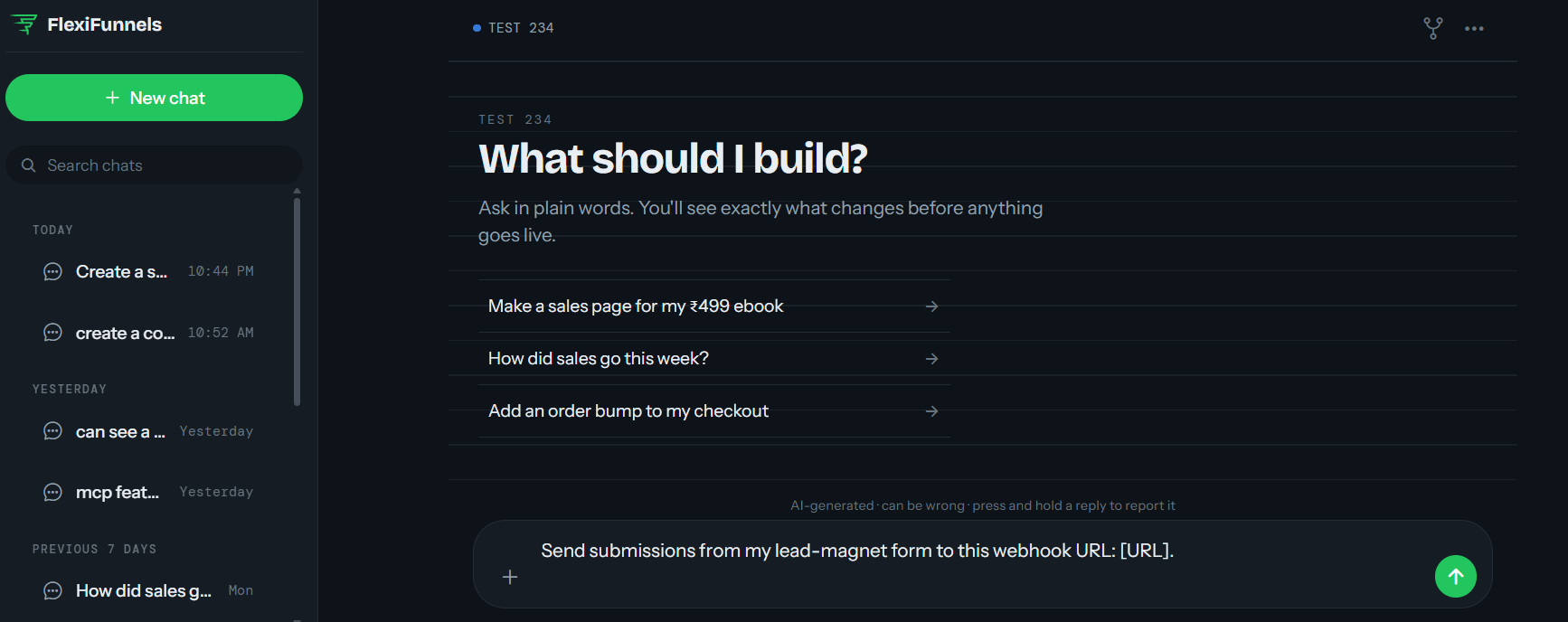
- Tell Flexi Genie which form should send its submissions to a webhook, and provide the webhook URL.
Example Prompt: "Send submissions from my lead-magnet form to this webhook URL: [URL]."
Step 2: Add a New Autoresponder Integration
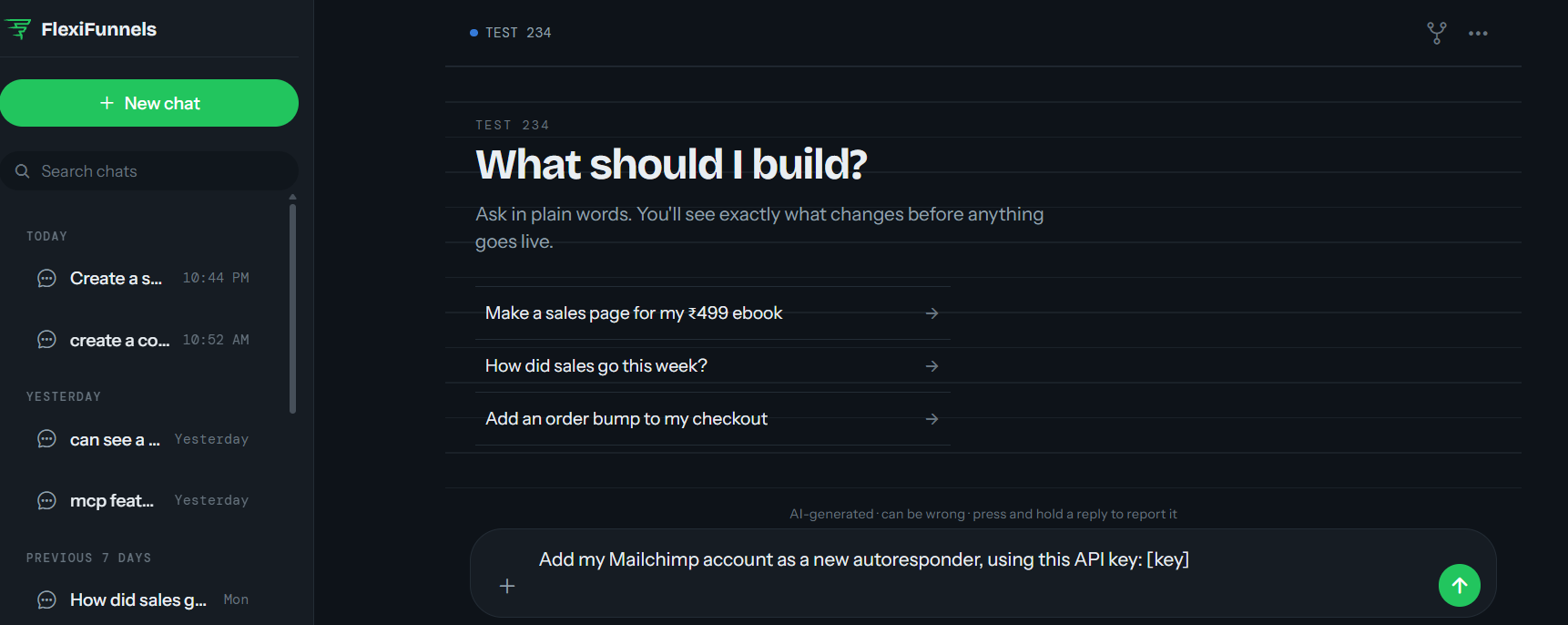
- Connect a new email service provider (like Mailchimp or ActiveCampaign) using your API credentials.
Example Prompt: "Add my Mailchimp account as a new autoresponder, using this API key: [key]."
Be Careful: Treat your API credentials like a password. Only share them in a secure context, and revoke/replace them if you suspect they've been exposed.
Step 3: Rename or Update an Autoresponder Connection
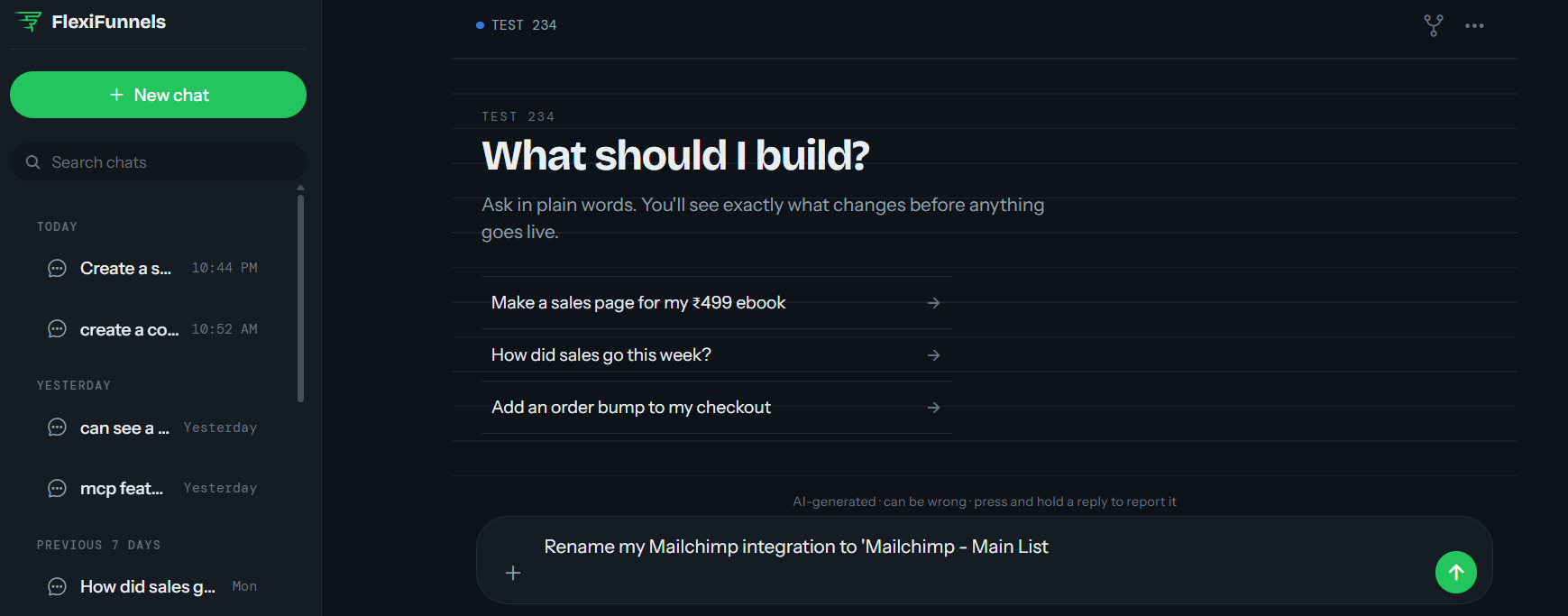
- If you have multiple autoresponders connected, rename them for clarity.
Example Prompt: "Rename my Mailchimp integration to 'Mailchimp - Main List'."
Step 4: Create, Clone, or Update an Email Template
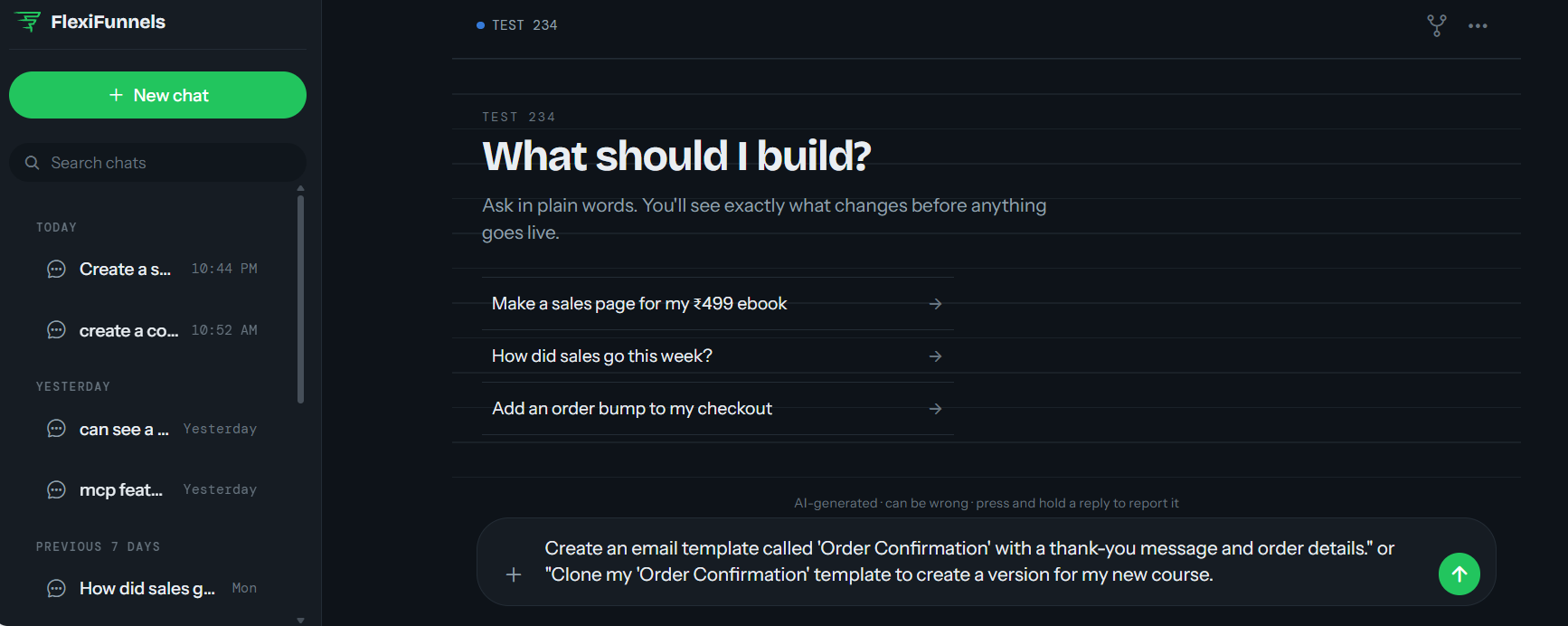
- Create a new saved email template for things like order confirmations or lead-magnet delivery.
- Clone an existing template if you need a similar version for a different product or list.
- Update a template's subject line or content whenever it needs a refresh.
Example Prompt: "Create an email template called 'Order Confirmation' with a thank-you message and order details." or "Clone my 'Order Confirmation' template to create a version for my new course."
Step 5: Attach a Digital Asset to a Form
- If you're offering a free download (like a checklist or ebook) in exchange for an opt-in, link the file to your form.
Example Prompt: "Attach my 'Free Checklist' PDF to my opt-in form so it's automatically emailed to anyone who submits."
Behind the Scenes — MCP Tools Involved
| Task | Related MCP Tool(s) |
|---|---|
| Connect a form to a webhook | connect_form_to_webhook |
| View existing webhooks | get_webhooks |
| Add a new autoresponder | add_autoresponder |
| Rename an autoresponder | rename_autoresponder |
| View connected autoresponders | get_autoresponders |
| View autoresponder service options | get_autoresponder_services |
| View lists inside an autoresponder | get_autoresponder_lists |
| Connect a form to an autoresponder | connect_form_to_autoresponder, get_form_autoresponders |
| Create an email template | create_email_template |
| Clone an email template | clone_email_template |
| Update an email template | update_email_template |
| View email settings/templates | get_email_settings |
| Attach a digital asset to a form | link_asset_to_page_or_form |
| Set what page a form redirects to after submission | set_form_redirect |
Good to Know: You never need to know these tool names to use Flexi Genie — this table is just for anyone curious about what's happening behind the scenes.
Ready-to-Use Prompts
"Connect my webinar registration form to my ActiveCampaign welcome list."
"Send new leads from my lead-magnet page to this webhook: [URL]."
"Create an email template for delivering my free ebook after opt-in."
"Show me all my connected autoresponders."
"Redirect visitors to my thank-you page after they submit my opt-in form."
Tips for Better Results
- Double-check which list a form is connected to, especially if you run multiple lead magnets into different lists.
- Test a form submission after setting up a new connection, to confirm data is flowing correctly.
- Keep your email templates organized with clear names, especially if you clone them often for different offers.
Common Issues / Troubleshooting
Leads Not Appearing in Email List: Confirm the form is connected to the correct autoresponder and list, and that the autoresponder integration itself is still valid (API credentials haven't expired or been revoked).
Digital Asset Not Being Delivered: Check that the asset is correctly linked to the form, and that an appropriate email template is set up to deliver it.
Limitations / Important Notes
- Connecting a form to an autoresponder requires the autoresponder integration to already be set up at the account level.
- API credentials for autoresponders should be kept secure and updated if your email service provider issues new keys.
Curious what else Flexi Genie and AI assistants can do inside FlexiFunnels? See the full Possibilities with Flexi Genie & AI Assistance reference document.
Was this article helpful?
That’s Great!
Thank you for your feedback
Sorry! We couldn't be helpful
Thank you for your feedback
Feedback sent
We appreciate your effort and will try to fix the article