What This Feature Does
Restricts how many devices/sessions can be logged into a single student account at once. If a student exceeds the limit (e.g., by sharing their login with friends), their account gets automatically blocked until you manually reactivate it.
Before You Start
- Decide your session limit based on realistic use, not just paranoia: a genuine student might log in from a laptop, phone, and tablet — a limit of "2" will lock out honest customers who own three devices, not just people sharing accounts
- Understand this is a manual reactivation process — every blocked account requires you (or your team) to personally review and unblock it. If you run a large membership, budget support time for this.
Here are the steps to be done
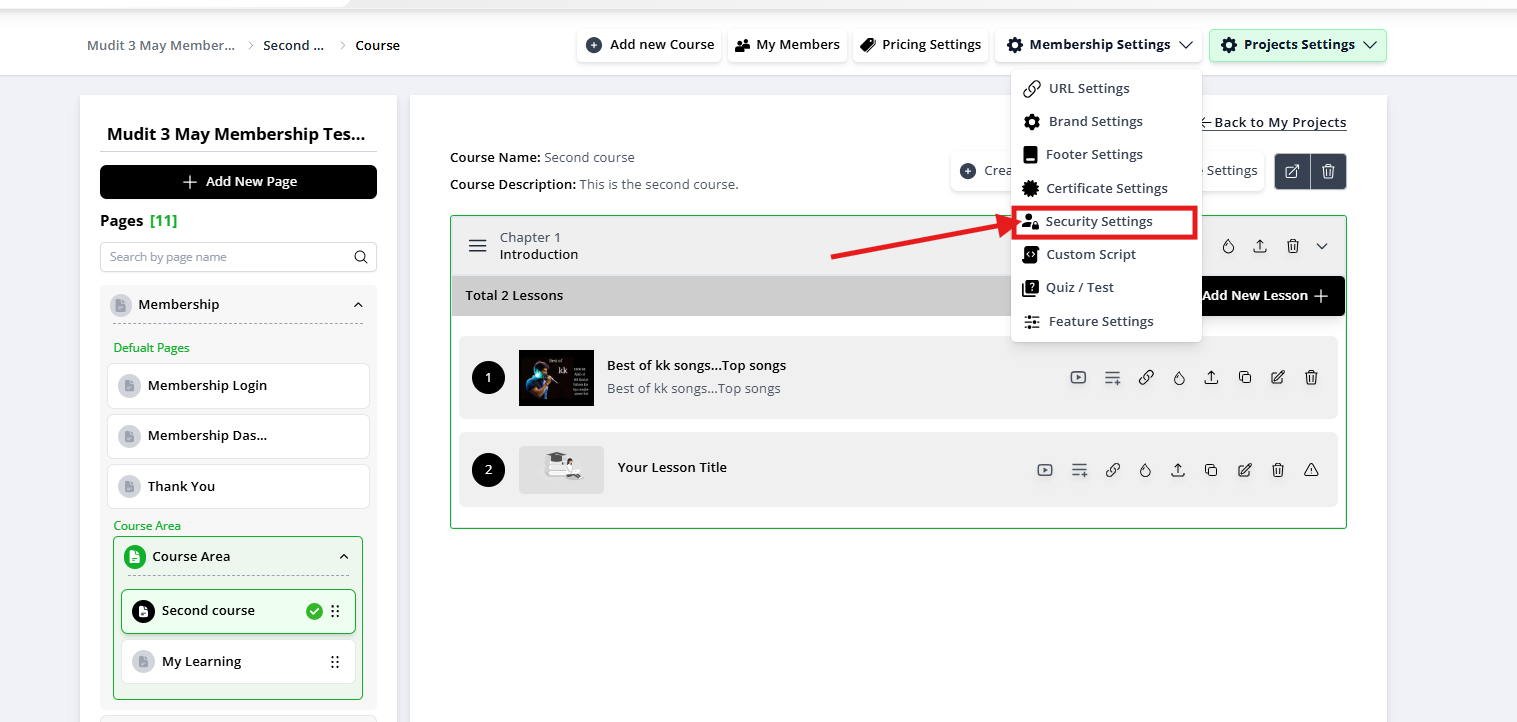
Step 1: Open Security Settings
- Go to your Membership Project
- Click Membership Settings
- Click "Security Settings".
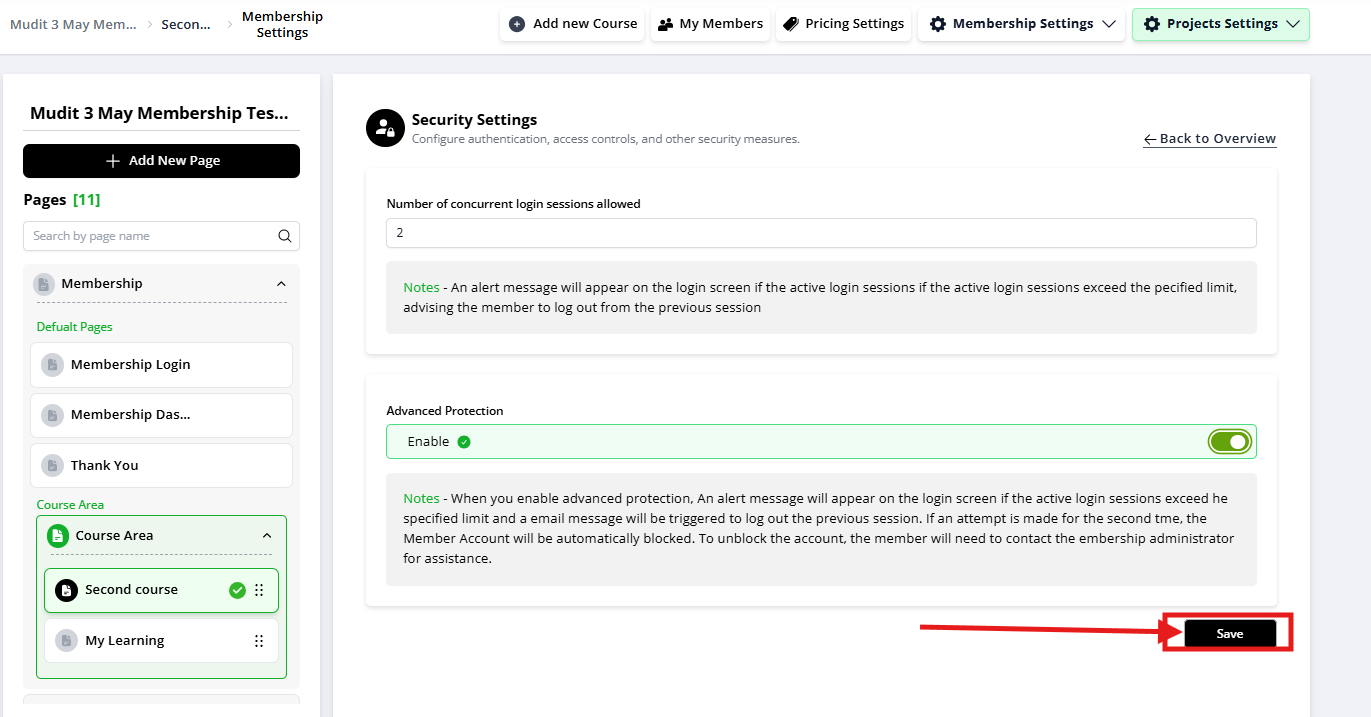
Step 2: Set the Session Limit
- Choose the number of allowed concurrent logins: 2, 5, 10, 15, 20, or Unlimited
- Consider your content's actual value/exclusivity vs. how many devices a normal customer might reasonably use
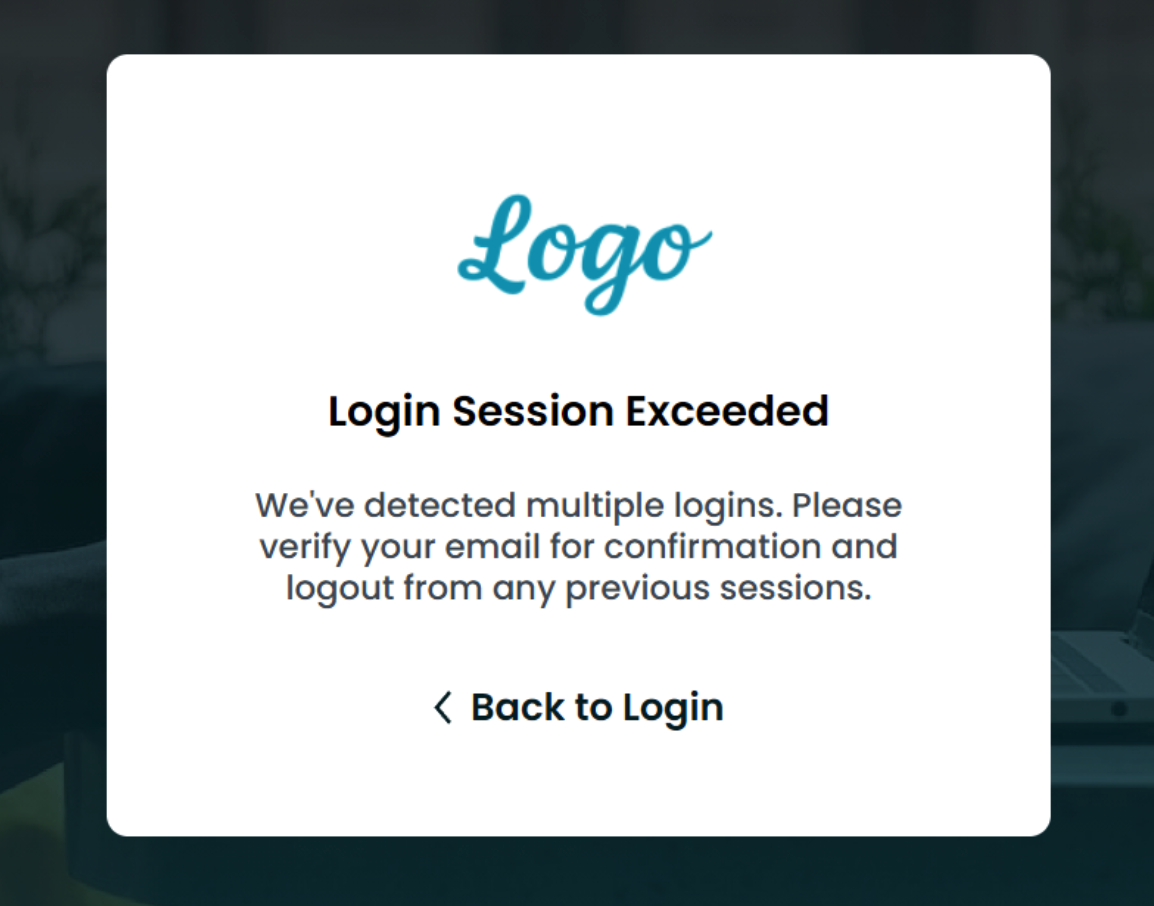
What happens now: If a student logs in on more devices than your limit allows, they get an alert telling them to log out of other devices. If they exceed it again, their account is automatically blocked — they lose access entirely until you manually restore it.
Step 3: Turn On Account Protection
- Toggle Account Protection ON
- Click Save
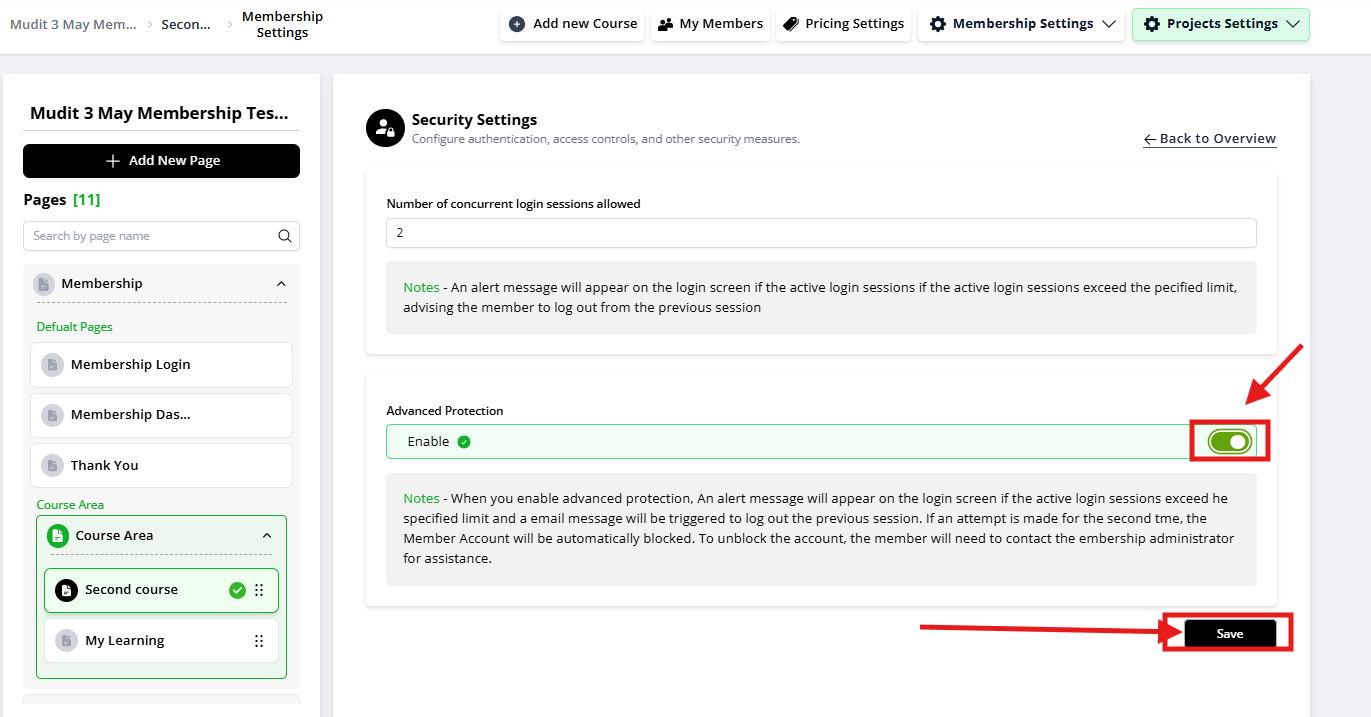
When you turn on the toggle and click on the Save button, if found violation of the set limit, the user receives an alert, advising them to log out from other devices. This serves as both a security measure and a reminder to users to adhere to the login policy.
Once an account is blocked, it can only be reinstated by the administrator. This step requires direct contact from the user, allowing for a review of the account activity and a discussion on proper usage policies before reinstatement.
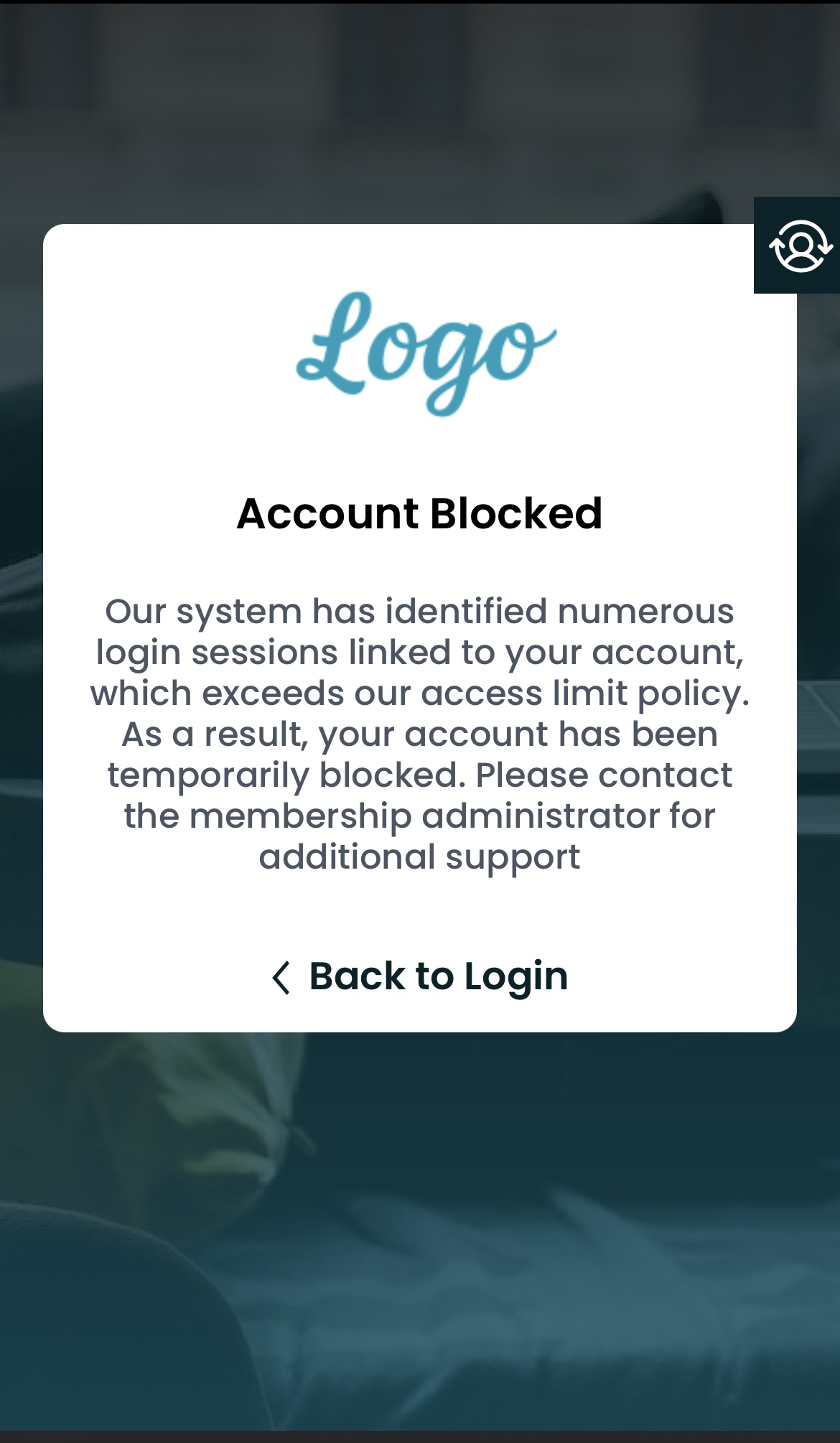
When a member violates the multiple login policy and gets blocked, they must contact the course vendor to regain access to their account. As a vendor, you can restore their access directly through FlexiFunnels's My Members Area. This process is vital for maintaining control over your courses while providing an opportunity to reinforce security policies with your members.
Steps for Vendors to Reactivate a Blocked Account:
Step 1: Monitor Active Sessions
Go to "Member Logged In Session Record" to see, per member:
- Device name
- IP address
- Date the session was created
Use this to:
- Spot suspicious patterns (e.g., logins from geographically distant locations in a short time — a strong signal of shared credentials)
- Manually terminate a specific session (e.g., a student forgot to log out on a public/shared computer)
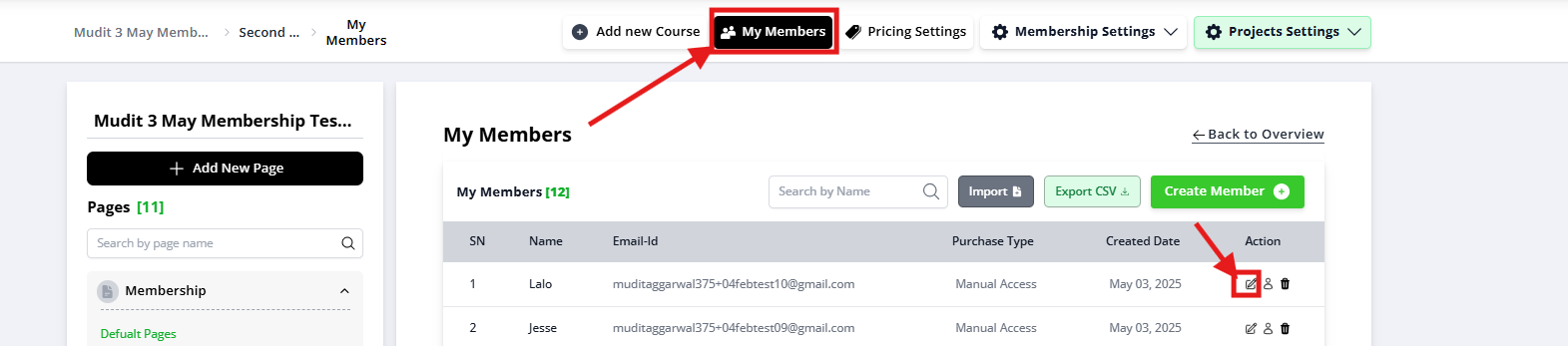
Step 2: Reactivate a Blocked Account
When a student contacts you saying they're locked out:
- Go to "My Members"
- Find the blocked member (look for a grayed-out status or restriction icon)
- Locate the activation toggle next to their name — it will be OFF
- Click it to turn it back ON
- Confirm/save if prompted
- Message the student letting them know they're reactivated, and remind them of the login limit
- Watch for repeat violations — if it happens again, the system will auto-block them the same way
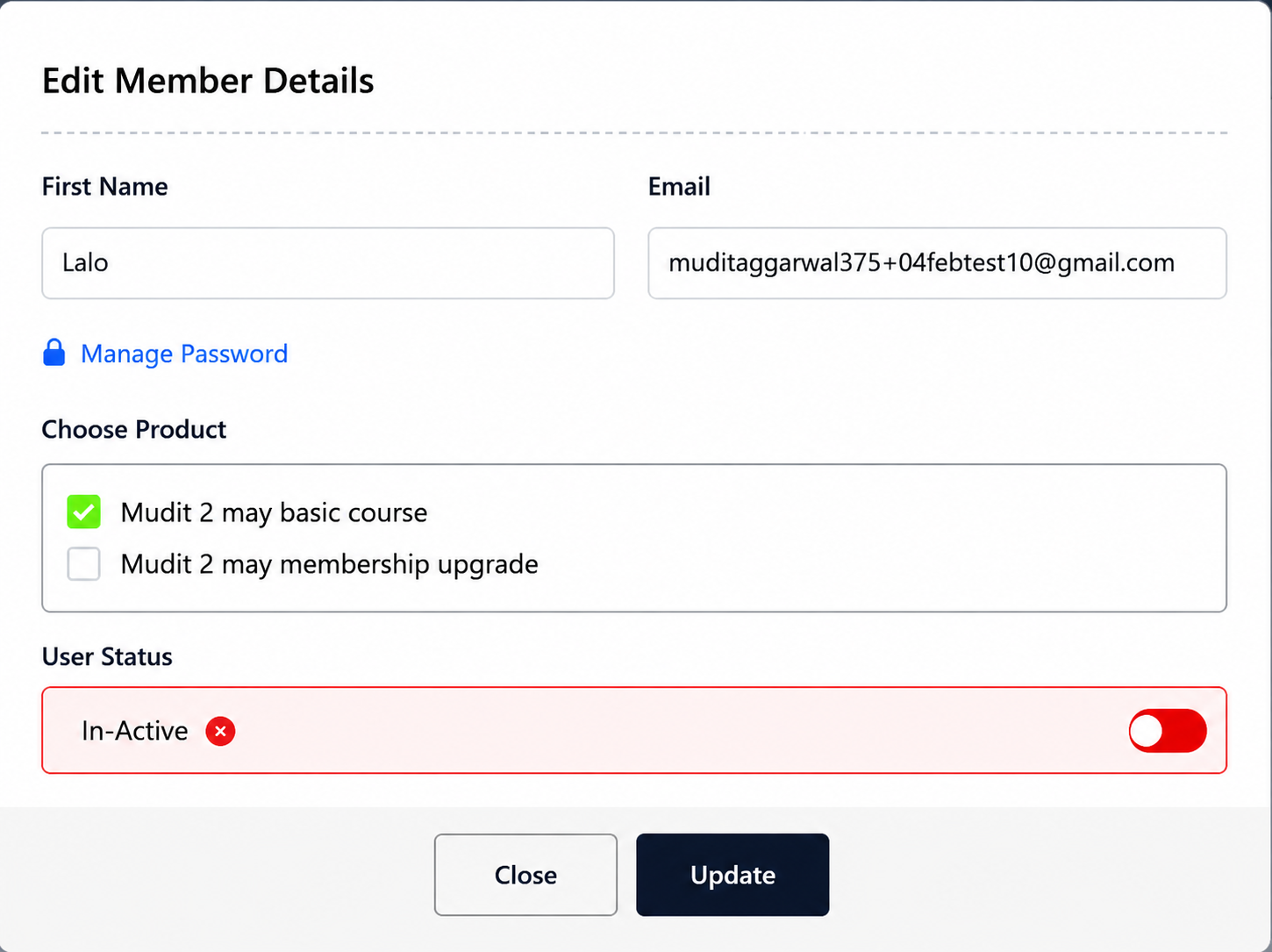
Save the Changes: Confirm the action if prompted, to ensure that the account status is updated in the system.
Monitor for Compliance: Keep an eye on the member's activity to ensure they adhere to the policy going forward. Repeat violations may warrant additional actions.
Note: If they do the same activity again, their account will be locked automatically on more than the maximum number of logins you set up.
Detailed Session Monitoring for Improved Security
Course vendors can now access the 'Member Logged In Session Record' feature. This powerful addition to our security suite gives vendors an overview of active sessions, including the device name, IP address, and the date when the session was created. Here's how this enhances your platform's security and management:
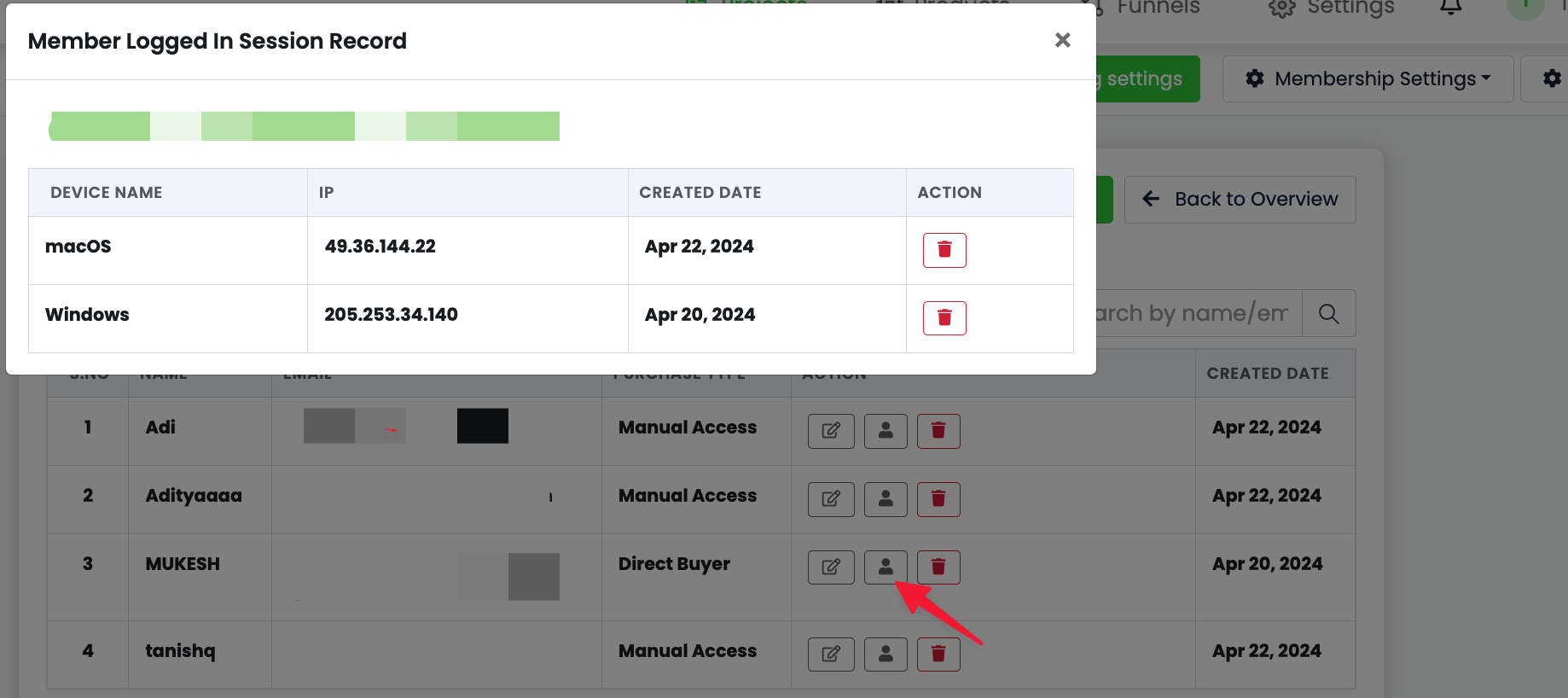
1. Active Session Tracking: Vendors can monitor the devices and IP addresses from which members are accessing the platform. This is crucial for identifying unusual patterns that might suggest unauthorized sharing of credentials or other security risks.
2. Session Management: With the ability to view active login sessions, vendors have the agency to maintain a secure platform environment. If a session appears suspicious or if a user has forgotten to log out from a public device, vendors can directly terminate those sessions to prevent potential misuse.
3. Preventing Account Sharing: By tracking login sessions, vendors can enforce their single-sign-on policies. If multiple sessions from different devices are detected, vendors can take appropriate action, such as reaching out to the user to verify their activity or terminating the extra sessions to comply with the platform's usage policy.
4. Responsive User Support: In cases where users face issues with their sessions, such as being unable to log in because they've reached the maximum number of sessions, vendors can now troubleshoot by viewing and managing those sessions directly.
That's it! Now you're fully equipped to use the Security Settings in Membership Project.
Real-World Scenario
Setup: You sell a $497 premium course and set the login limit to 3 (reasonable for laptop + phone + tablet).
What happens:
- A legitimate student logs in from their laptop, then their phone during a commute — 2 sessions, no issue
- A student shares their password with 5 friends, all logging in simultaneously — the 6th login attempt triggers the block
- The student gets the "log out from other devices" alert, ignores it, tries again — account locks
- They email support confused about being locked out
- You check the Session Record: 6 different IP addresses, different cities, all within the same hour — clear sign of shared credentials, not device switching
- You have a decision to make: reactivate with a warning, or treat it as a policy violation worth addressing directly
Common Issues & Fixes
| Problem | Likely Cause | Fix |
|---|---|---|
| Legitimate student keeps getting blocked | Session limit set too low for normal multi-device use | Raise the limit, or check Session Record to confirm it's not actually shared credentials |
| Student says they're logged out everywhere and locked out | Account was auto-blocked after exceeding the limit | Go to My Members, reactivate, and communicate the limit clearly |
| Can't tell if a block is legitimate sharing vs. innocent device switching | No context beyond the block itself | Check the Session Record — same IP/device pattern = likely legitimate; scattered IPs/locations = likely sharing |
| Reactivated account gets blocked again immediately | Student didn't actually log out of the extra devices/sessions | Ask the student to explicitly log out everywhere before logging back in, or manually terminate old sessions yourself from the Session Record |
Was this article helpful?
That’s Great!
Thank you for your feedback
Sorry! We couldn't be helpful
Thank you for your feedback
Feedback sent
We appreciate your effort and will try to fix the article