What Is Project Search?
Project Search lets you quickly find projects by name or by their published URL—instead of scrolling through your entire project list.
Think of it like searching your email inbox—instead of scrolling through all emails, you type what you're looking for and find it instantly.
Search options:
- Search by project name
- Search by published URL
- Find projects quickly
- Reduce time scrolling
Why Search Projects?
Save Time:
✓ Find projects instantly
✓ Don't scroll through list
✓ Quick access to what you need
Organization:
✓ Manage many projects
✓ Locate specific project
✓ Stay organized
Efficiency:
✓ Work faster
✓ Reduce frustration
✓ Better workflow
Large Projects: '
✓ If you have 50+ projects
✓ Search becomes essential
✓ Saves hours per month
Project Name vs. Published URL
PROJECT NAME
What it is: Name you gave your project when creating it
Examples:
"Sales Funnel - Q4 2025"
"Lead Magnet - Email Course"
"Webinar Registration"
"Product Launch Campaign"
When to use:
- You remember the name you created
- Looking for specific campaign
- Organizational name you used
PUBLISHED URL
What it is: The web address where your page lives
Format:
https://yourdomain.com/sales
https://yourdomain.com/webinar
https://example.com/lead-magnet
Examples:
yourdomain.com/sales
yourdomain.com/webinar
yourdomain.com/course
When to use:
- You have the URL but not the name
- Someone shared the URL with you
- You remember the slug/path (e.g., "/sales")
- Looking for page by URL path
Note: Published URL is the path after your domain
Accessing the Search Feature
Step 1: Log Into FlexiFunnels
- Go to FlexiFunnels
- Log into your account
- You're in the dashboard
Step 2: Go to Projects
- Look for "My Projects" or "Projects" menu item
- Click it
- You see your list of projects
Where to find:
- Main navigation menu (left sidebar)
- Dashboard section
- Or "Projects" in header/top menu
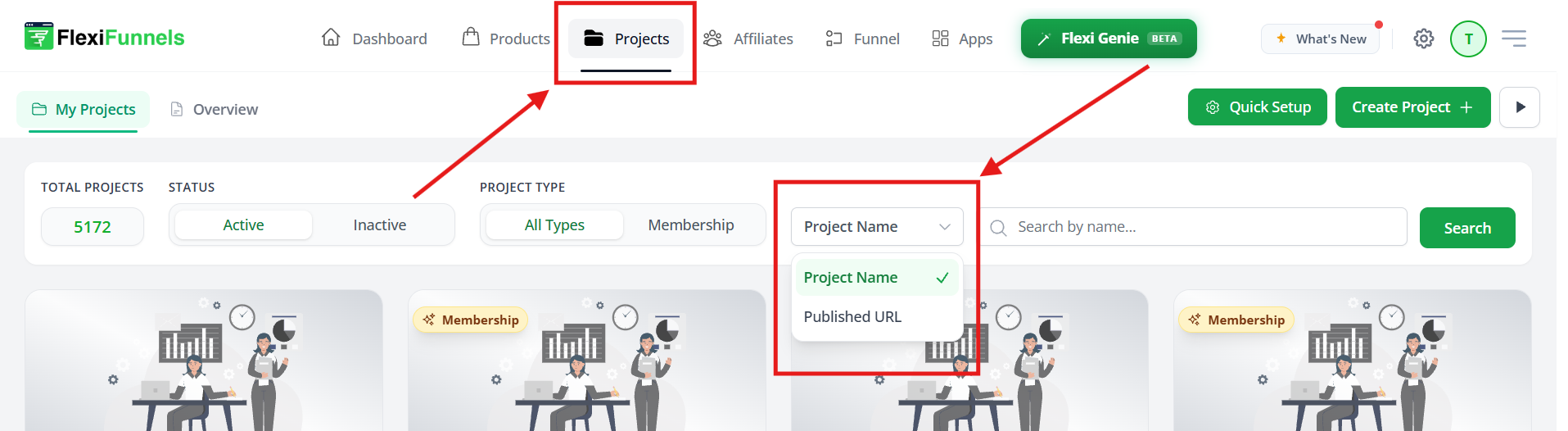
Step 3: Locate Search Bar
- At the top of projects page
- You see a search box/input field
- Usually says "Search projects..." or similar
- Might have a search icon ?
Search bar location:
- Top-left or top-center of projects page
- Usually above project list
- Might say "Search by name, URL, etc."
Step 4: Click on Search Bar
- Click inside the search box
- Cursor appears in search field
- Ready to type
Method 1: Search by Project Name
Step 1-4: Same as Above
Follow Steps 1-4 above
Step 5: Select "Project Name" Option
- Look for dropdown next to search bar
- Or search bar might have options
- Find and click "Project Name" option
- Or it might default to this
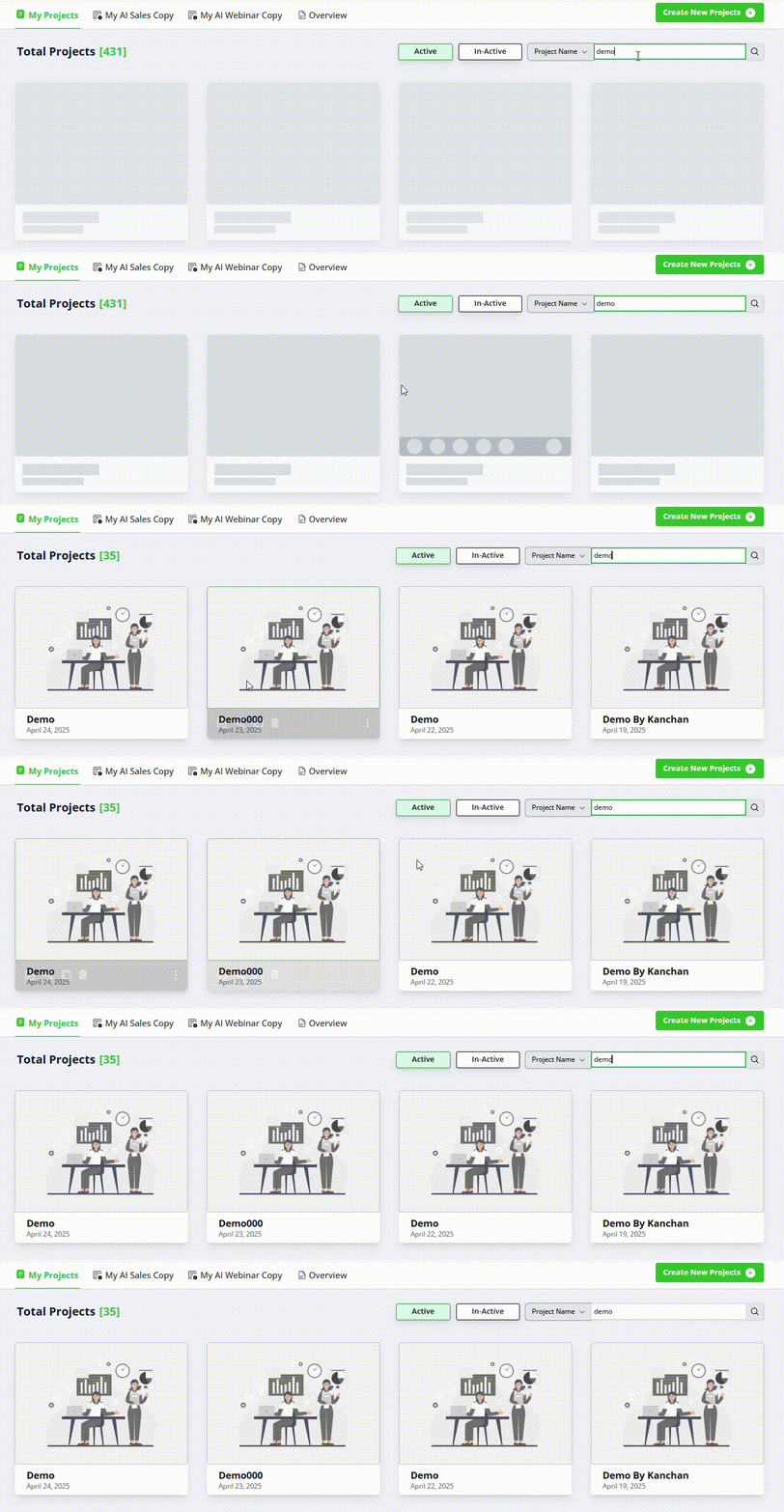
Step 6: Type Project Name
- In search box, type the project name you're looking for
- Type full name or part of it
Examples:
Sales Funnel"
"Q4"
"Webinar"
"Email Course"
Tips:
- Don't need exact name
- Partial matches work
- Case doesn't matter
- Type as you remember it
Step 7: Search Executes (Auto or Click Search)
Two options:
Option A: Auto-Search (as you type)
- Projects appear as you type
- Results update live
- No need to click Search button
Option B: Click Search Button
- Type your search
- Click "Search" or "?" icon
- Results appear
Step 8: View Results
- Matching projects appear below
- Show only projects matching your search
- Click project to open it
- Or click "Edit" to open editor
Method 2: Search by Published URL
Step 1-4: Same as Above
Follow Steps 1-4 to access search
Step 5: Select "Published URL" Option
- Click dropdown next to search bar
- Select "Published URL" option
- Or "URL" or "Page URL"
Step 6: Type Published URL
In search box, type the URL:
Common Situations & Quick Fixes
Situation 1: "Search Not Finding Project"
What's happening: You searched but didn't find project.
Diagnostic steps:
- Check spelling
- Did you type name correctly?
- Try again with correct spelling
- Try different keywords
- Maybe name is different than you thought
- Try partial name
- Try URL instead
- Clear search
- Clear search box
- Browse full list to verify project exists
- Try searching again
- Check if project exists
- Scroll through full list
- Is project actually there?
- Or was it deleted?
- Try different search method
- Searched by name? Try by URL
- Searched by URL? Try by name
Situation 2: "Too Many Results in Search"
What's happening: Search returned too many projects.
Solutions:
- Be more specific
- Instead of "Sales", try "Sales Q4"
- Narrow down the results
- Add more details to search
- Use full name
- Search full project name
- Exact name returns exact match
- Use URL path
- If name search returns too many
- Try searching by URL instead
- URLs are usually unique
Situation 3: "I Forgot Project Name AND URL"
What's happening: Can't remember how project was named or what URL it has.
Solutions:
- Scroll through all projects
- Clear search
- Manually look through list
- Recognize project by thumbnail/preview
- Check recent projects
- Look for "Recently Used" or "Recent" section
- Project might be listed there
- Useful if you edited it recently
- Remember any details
- Client name?
- Campaign type?
- Date created?
- Search using these details
Situation 4: "Search Results Show Wrong Project"
What's happening: Search found project but not the one you wanted.
Diagnostic steps:
- Verify project details
- Click project to see details
- Check if it's actually wrong one
- Or if it's the one you need
- Search more specifically
- Add more details to search
- Use different keywords
- Narrow down results
- Use URL if available
- Sometimes URL is more specific
- Try searching by URL instead of name
Was this article helpful?
That’s Great!
Thank you for your feedback
Sorry! We couldn't be helpful
Thank you for your feedback
Feedback sent
We appreciate your effort and will try to fix the article