What Is General Code?
General Code is code (HTML, JavaScript, etc.) that you add once to apply across your entire project.
Think of it like spraying bug repellent around your whole house instead of in each room individually. You do it once, and it protects everywhere.
Examples of general code:
- Retargeting pixels (Facebook, Google, TikTok ads)
- Analytics tracking (Google Analytics, Mixpanel)
- Chat widgets (Intercom, Drift, LiveChat)
- Fonts (Google Fonts, custom fonts)
- Favicons (browser tab icons)
- Tracking scripts (Hotjar, Clarity)
- Meta tags (SEO, social sharing)
- Conversion API (Facebook tracking)
Why Use General Code?
Efficiency: Add once, applies everywhere (vs. adding to every page)
Consistency: Same tracking/chat on all pages
Maintenance: Update code in one place (vs. 20 pages)
Speed: Scripts load on all pages automatically
Safety: Control where code loads (Head, Body Start, Body End)
General Code vs. Page-Specific Code
Aspect | General Code | Page-Specific Code |
|---|---|---|
Applies to | All pages in project | One page only |
Where to add | Project Settings | Page editor |
Use case | Tracking, analytics, chat | Forms, CTAs, specific elements |
Frequency | Add once | Add to each page |
Management | Centralized | Scattered |
When to use General Code:
✓ Code that applies everywhere (retargeting pixels, analytics)
✓ You don't want to add to every page
✓ Code is the same on all pages
When to use Page-Specific Code:
✓ Code only needed on one or two pages
✓ Different pages need different code
✓ You need fine-grained control per page
Step-by-Step: Add General Code
Step 1: Log In to FlexiFunnels
- Go to app.flexifunnels.com
- Enter your email and password
- Click "Sign In"
- You're in the dashboard
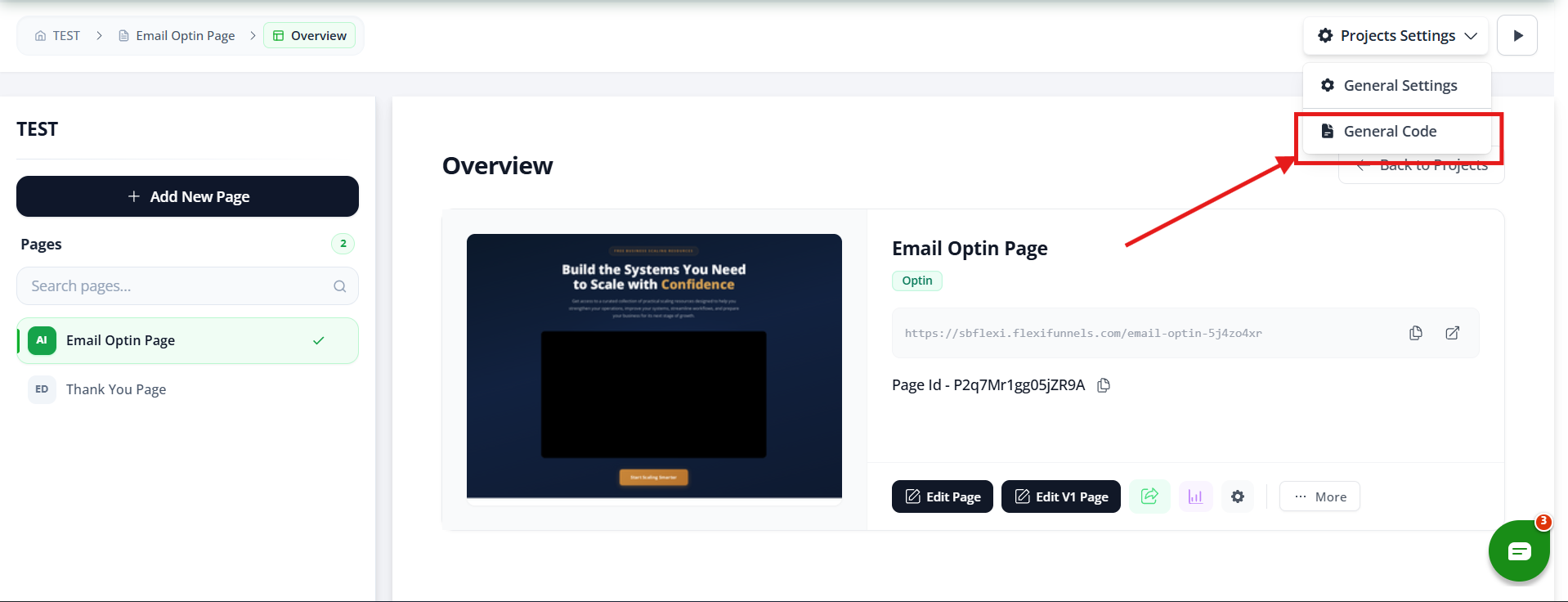
Step 4: Select "General Code"
- In the settings menu, look for "General Code"
- Click it
The General Code interface appears with sections for Head, Body Start, Body End, and Favicon.
Step 5: Choose Your Section
Based on what code you're adding, choose:
- Head — Meta tags, fonts, verification
- Body Start — Tracking pixels
- Body End — Chat widgets, analytics, retargeting
Step 6: Paste Your Code
- Click in the appropriate section
- Paste your code (from the provider)
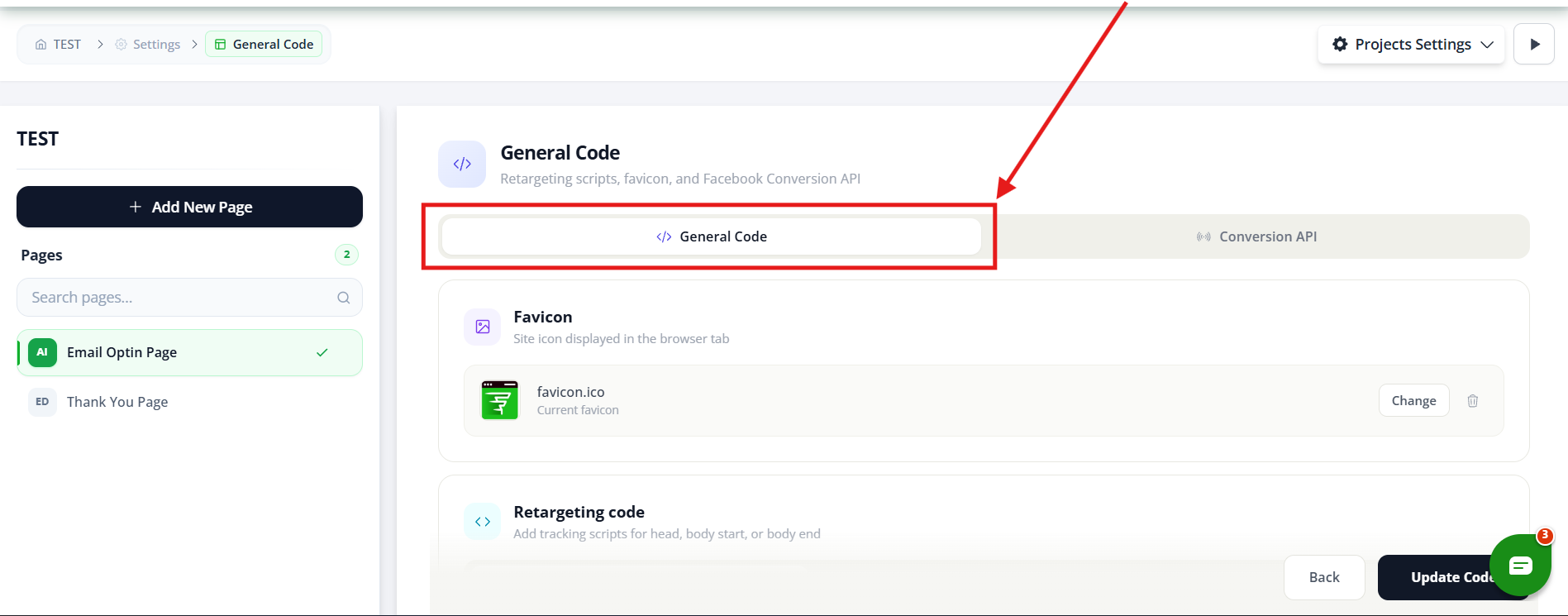
There, you will get the option to add the Conversion API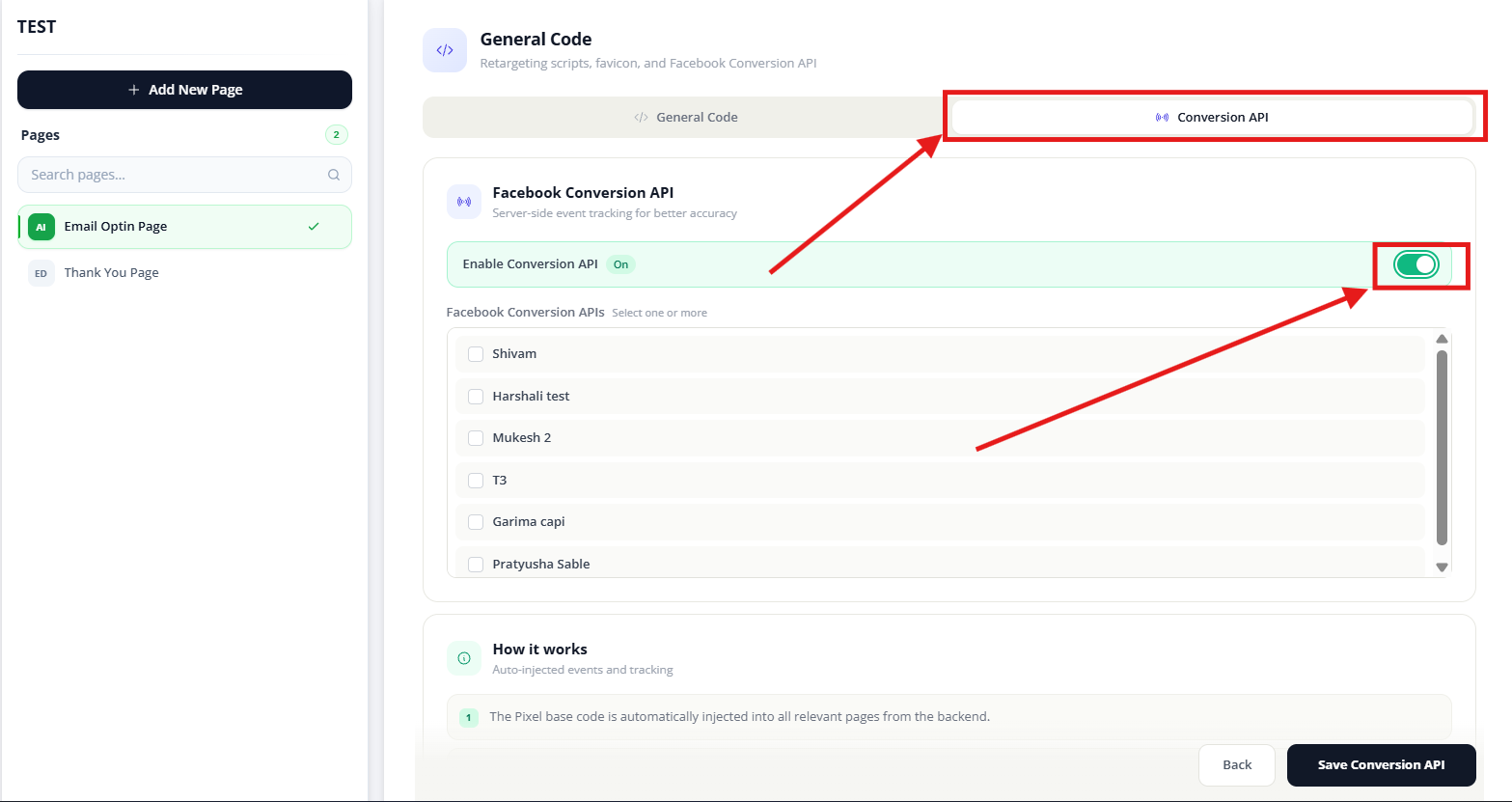
Step 7: Save
- Click "Save" or "Update"
- Confirmation message appears
- Code is now active on all pages
✓
Done!
Code Placement Explained: Head vs. Body
When you add code, you choose WHERE it loads:
HEAD Section
What it is: The "header" of your page (invisible to visitors)
What loads here:
- Meta tags (SEO, social sharing)
- Fonts (Google Fonts, custom)
- Stylesheets (CSS)
- Analytics setup code (Google Analytics, Mixpanel)
- Verification codes (site ownership verification)
Why Head? These need to load before the page displays
Performance: Slows down page load (use sparingly)
When to use: ✓ Code that must load before page renders
✓ Meta tags, fonts, verification
✓ Critical stylesheets
BODY START Section
What it is: Right after the <body> tag opens (very top of visible page)
What loads here:
- Tracking pixels (Facebook, Google, TikTok)
- Event tracking setup
- Early-loading scripts that need quick execution
Why Body Start? Loads early but doesn't block page display
Performance: Minimal impact
When to use: ✓ Code that needs to load early
✓ Tracking pixels (for early page loads)
✓ Non-critical scripts
BODY END Section
What it is: Right before the page closes (bottom of page)
What loads here:
- Chat widgets (Intercom, Drift, LiveChat)
- Analytics tracking (Google Analytics events)
- Retargeting pixels
- Conversion tracking
- Hotjar, Clarity, session recording
Why Body End? Loads last, doesn't slow down initial page load
Performance: Best for non-critical code (page already loaded)
When to use: ✓ Code that doesn't need to load immediately
✓ Chat widgets
✓ Analytics events
✓ Retargeting pixels
✓ Session recording
Common Situations & Quick Fixes
Situation 1: "I Don't Know Which Section to Use"
Decision tree:
Does the code need to load before the page displays?
- Yes → Head
- No → Continue
Does the code need to load early but page can display?
- Yes → Body Start
- No → Body End
Rule of thumb: Start with Body End. If it doesn't work, move to Body Start or Head.
Situation 2: "I Pasted Code, But It's Not Working"
What's happening: Code was added but not tracking/functioning.
Diagnostic steps:
- Verify code was saved
- Go back to General Code settings
- Does the code still appear in the section?
- If not, it wasn't saved properly
- Check for errors in code
- Copy the code into a text editor
- Look for broken or incomplete code
- Make sure you copied the ENTIRE code block
- Wait for propagation
- Changes take a few minutes to appear on live pages
- Wait 5-10 minutes, then test
- Test on published page only
- Don't test in editor preview
- Go to the actual published page (live URL)
- Test there
- Clear browser cache
- Clear cookies and cache (Ctrl+Shift+Delete or Cmd+Shift+Delete)
- Open page in incognito/private mode
- Test again
- Check provider verification
- Log into the service (Facebook, Google, etc.)
- Did the pixel/tracking activate?
- Is it receiving data?
- If not, the issue is with the code or setup, not FlexiFunnels
Situation 3: "Code Added, But Slowing Down My Pages"
What's happening: Pages load slower after adding code.
Diagnostic steps:
- Move code to Body End
- Head and Body Start execute before page displays
- Move non-critical code to Body End (loads after)
- Most code can wait until Body End
- Use async loading
- Look for
asyncordeferattributes in code async= load without blocking pagedefer= load after page renders- Prefer
asyncfor performance
- Look for
- Test page speed
- Use Google PageSpeed Insights
- Run before and after adding code
- See actual impact
- Disable and test
- Remove code temporarily
- Test if pages faster
- If yes, the code is the issue
- Try placing it in different section or using async version
Situation 4: "I Want Different Code on Different Pages"
What's happening: You need different tracking on different pages.
Answer: General Code applies to ALL pages.
Solutions:
Option 1: Page-Specific Code
- Instead of General Code, add code to individual pages
- Edit each page → Add code in page settings
- Each page has its own code
Option 2: Use Conditional Code
- Add code to General Code that checks which page
- Code only runs on specific pages
- Advanced (requires coding knowledge)
Option 3: Tag Manager
- Use Google Tag Manager
- Add GTM container to General Code (once)
- Manage different tracking rules in GTM interface
- Recommended approach
Situation 5: "Should I Add Conversion API?"
What's happening: You see option for Conversion API in Body End.
What it is: Facebook's server-to-server tracking (more accurate than pixel)
When to use: ✓ You're selling products (better tracking)
✓ You have pixel installed (complements it)
✓ You want more accurate data
When not to: ✗ You're just collecting leads (overkill)
✗ You don't understand it yet (learn first)
How to use:
- Requires API setup in Facebook (advanced)
- FlexiFunnels provides interface to enter token
- Usually handled by paid ads specialist or developer
If unsure: Skip for now, add later if needed
Was this article helpful?
That’s Great!
Thank you for your feedback
Sorry! We couldn't be helpful
Thank you for your feedback
Feedback sent
We appreciate your effort and will try to fix the article