What Is Form Validation?
Form Validation ensures users fill out forms correctly before submitting.
Think of it like a security checkpoint—you can't proceed without providing required information.
Validation means:
- User must select an option
- System prevents incomplete submissions
- Shows error if validation fails
- Ensures data quality
Why Validate Dropdown Fields?
Data Quality:
✓ Accurate responses only
✓ No placeholder values submitted
✓ Clean lead data
User Experience:
✓ Clear what's required
✓ Prevents submission errors
✓ Guides user to complete form
Lead Generation:
✓ Only qualified leads captured
✓ No blank or junk submissions
✓ Better data for follow-up
Conversion:
✓ Less abandoned forms
✓ Clearer instructions
✓ Better form completion rates
Validation Active State
When validation is active:
- Placeholder cannot be submitted
- User must select real option
- Form shows error if not selected
- Prevents empty/placeholder submissions
Step-by-Step: Enable Dropdown Validation
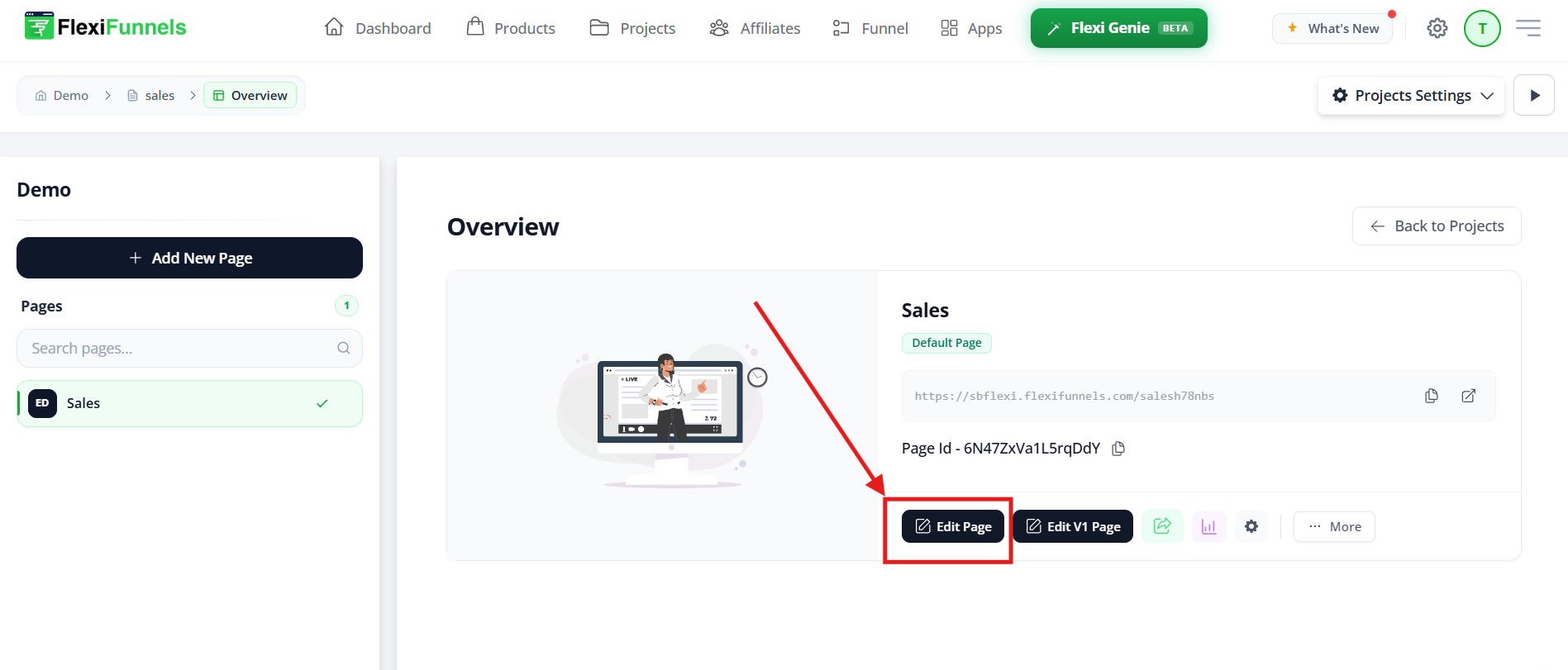
Step 1: Log In and Open Editor
- Log into FlexiFunnels
- Go to your project
- Click "Edit" on the page with the form
- Page editor opens
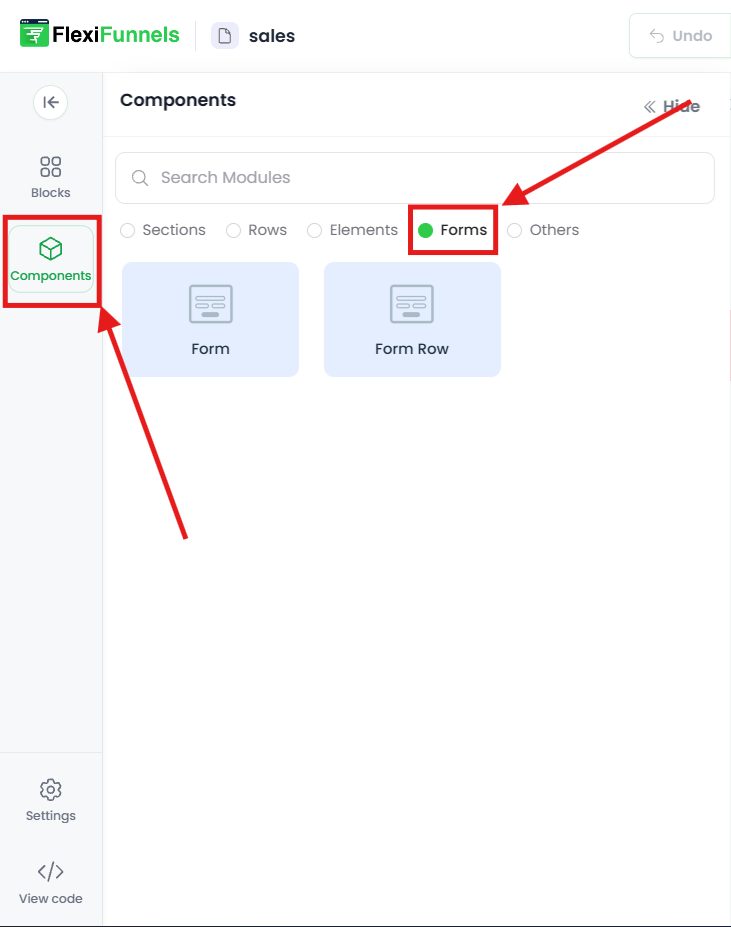
Step 2: Navigate to Your Form
- In the editor, locate your form
- Click on the form to select it
- Form is now selected for editing
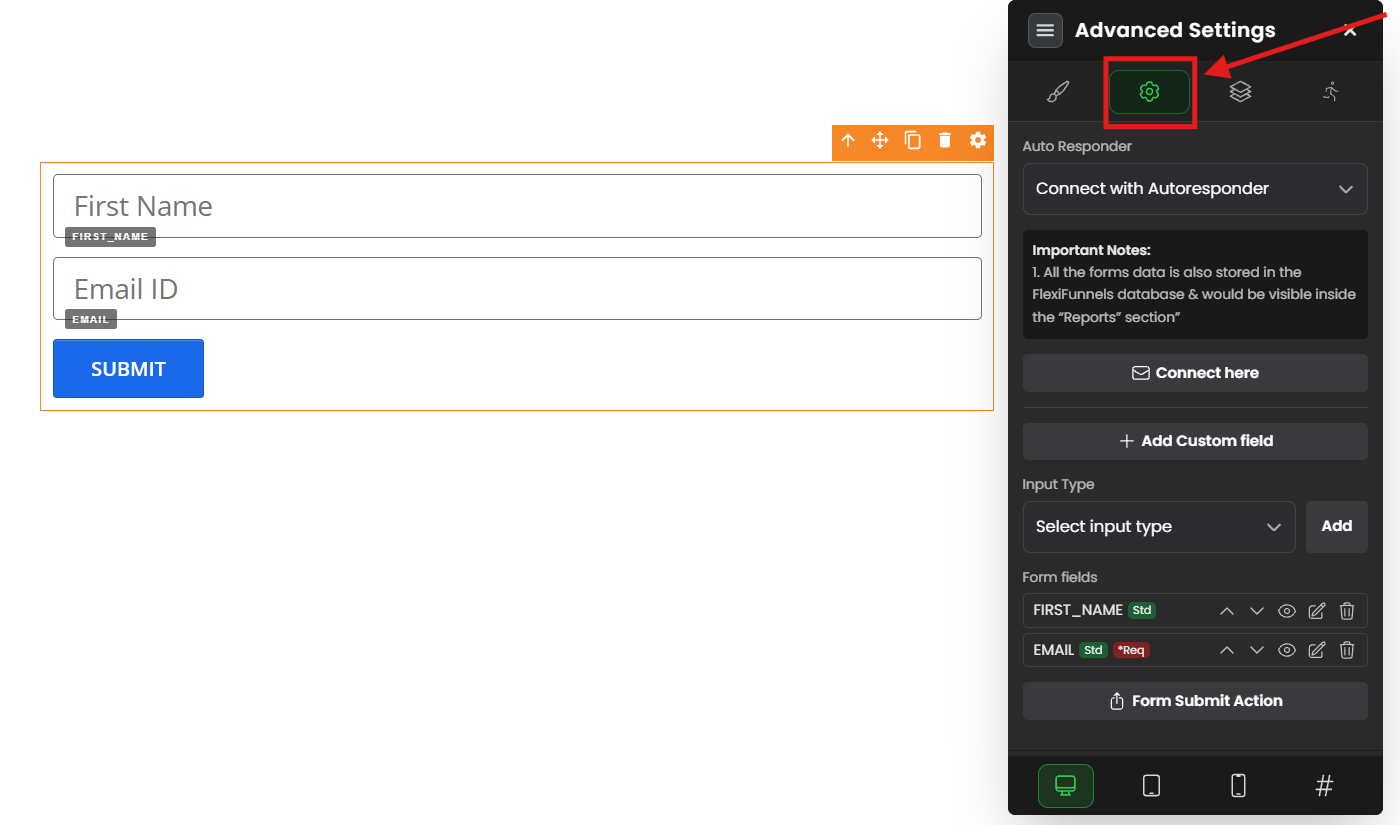
Step 3: Select the Dropdown Field
- Inside the form, click on the dropdown field you want to validate
- Dropdown is now selected
- Settings panel appears on right
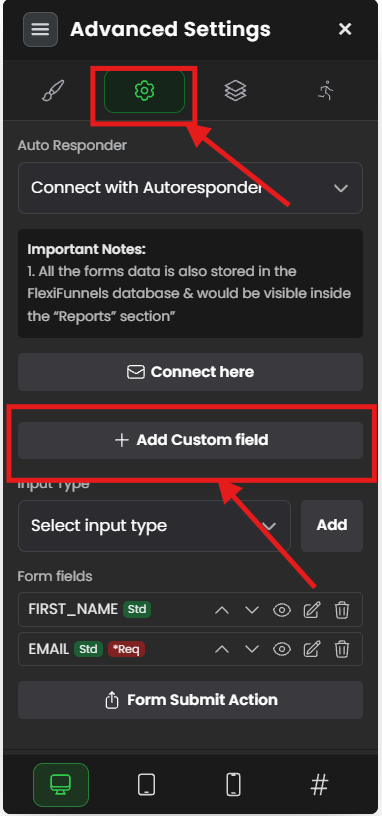
Step 4: Open Field Settings
- With dropdown selected, look for settings panel
- Click "Settings" or "Edit Field"
- Field settings open
- You see dropdown configuration options
Step 5: Find Advanced Settings
- In field settings, scroll down
- Look for "Advanced Settings" section
- Or "Validation" option
- Or "Advanced Options"
- Click to expand
Step 6: Locate Placeholder Option
In advanced settings, find:
- "Placeholder" option
- "Default Value" setting
- "Default Option"
- "Select Message" option
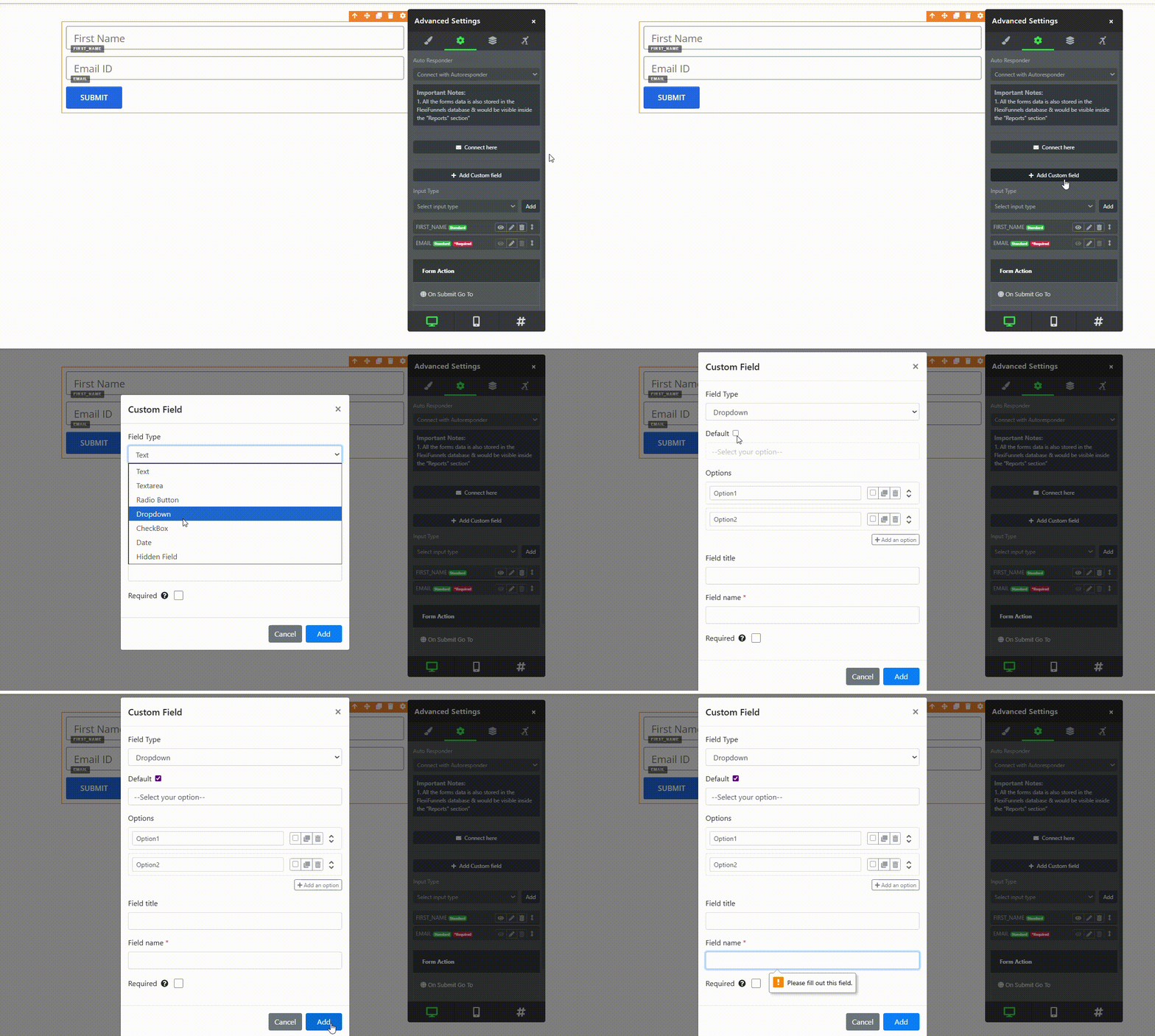
Step 7: Enable and Set Placeholder
Two options depending on your version:
Option A: Checkbox + Text Field
☑ Use Placeholder
Placeholder Text: [Type "Select your option"]
Option B: Text Field Only
Placeholder:[Type "Select your option"]
Step 8: Type Placeholder Text
In the placeholder field, type:
Or choose your own:
"Select your option"
Important: This text will NOT be submittable
"Please choose..."
"Pick one..."
"Choose from list..."
"Make a selection..."
Step 9: Enable Validation
- Look for "Required" checkbox or toggle
- Or "Make this field required" option
- Or "Validation" toggle
- Check/enable it
What this does:
- Makes field required
- Prevents form submission without selection
- Shows error if empty
Step 10: Save Field Settings
- Click "Save" button
- Or click outside settings
- Dropdown field is now configured
- Validation is active
✓ Dropdown validation is now enabled!
Common Situations & Quick Fixes
Situation 1: "Validation Not Working"
What's happening: Placeholder can be submitted despite validation.
Diagnostic steps:
- Check if validation is enabled
- Open field settings
- Is "Required" checked?
- Or is validation toggle ON?
- Verify placeholder is set
- Is placeholder text entered?
- Is placeholder text different from options?
- Placeholder should be unique
- Check option values
- Are dropdown options different from placeholder?
- If option matches placeholder, both submittable
- Make placeholder unique
- Save and publish
- Save field changes
- Publish page
- Test on published page (not preview)
- Clear cache
- Clear browser cache
- Test again in incognito mode
Situation 2: "Error Message Shows But Form Still Submits"
What's happening: Validation shows error but doesn't prevent submission.
Diagnostic steps:
- Verify field is required
- Check the "Required" setting
- Is it actually checked/enabled?
- Test on published page
- Don't test in editor preview
- Test on actual live page
- Preview might not show all functionality
- Check browser console
- Might be JavaScript error
- Open Developer Tools (F12)
- Look for error messages
- Contact support
- If validation should work but doesn't
- Provide screenshots
- Include steps to reproduce
Situation 3: "User Selects Placeholder by Mistake"
What's happening: User accidentally selects placeholder instead of option.
Prevention:
- Make placeholder clear
- Use text like "-- Select Option --"
- Makes it obvious it's not a choice
- Make options obviously different
- Don't use "Select..." as an option
- Use clear, distinct option names
- Add help text
- Above dropdown: "Please choose..."
- Below dropdown: "This field is required"
Situation 4: "I Want Multiple Required Fields"
What's happening: Need validation on multiple dropdowns.
Steps:
- Select first dropdown
- Enable validation
- Set placeholder
- Enable "Required"
- Save
- Select second dropdown
- Enable validation
- Set placeholder
- Enable "Required"
- Save
- Repeat for all dropdowns
- Each field independently validated
- All must be filled to submit
Was this article helpful?
That’s Great!
Thank you for your feedback
Sorry! We couldn't be helpful
Thank you for your feedback
Feedback sent
We appreciate your effort and will try to fix the article