How to build multi-step funnels, review their structure, reorder steps, and add new steps — all through chat.
Overview
A funnel is a connected sequence of pages that guides a visitor from first contact to purchase — for example, a main offer followed by an order bump, an upsell, a downsell, and a thank-you page. This article covers creating a funnel, reviewing its structure and sequence, reordering its steps, and adding new steps to an existing funnel.
This article covers:
- Creating a new funnel
- Viewing a funnel's structure
- Viewing the sequence/order of pages in a funnel
- Reordering the pages/steps inside a funnel or project
- Adding new steps to an existing funnel
What You Can Do
- Create a complete funnel — wiring a main offer to upsells, downsells, and order bumps
- Review how a funnel is currently structured, including its connected steps
- See the exact sequence in which pages appear to a visitor
- Change the order of pages/steps within a funnel or project
- Add an upsell/downsell pair, or another type of step, to an existing funnel
Why This Is Useful
Building a multi-step funnel manually means creating each page individually and then wiring them together in the right order. With Flexi Genie, you can describe the entire flow — main offer, order bump, upsell, downsell, thank-you page — and have it built and sequenced in one go, or adjust an existing funnel's flow with a simple request.
Before You Begin
- You need an active FlexiFunnels account, logged in.
- Have a clear picture of your funnel flow in mind — what the main offer is, and what upsells/downsells/order bumps (if any) should follow it.
- If adding to an existing funnel, know its name so Flexi Genie can locate it.
Step-by-Step: Common Funnel Tasks
Step 1: Create a New Funnel
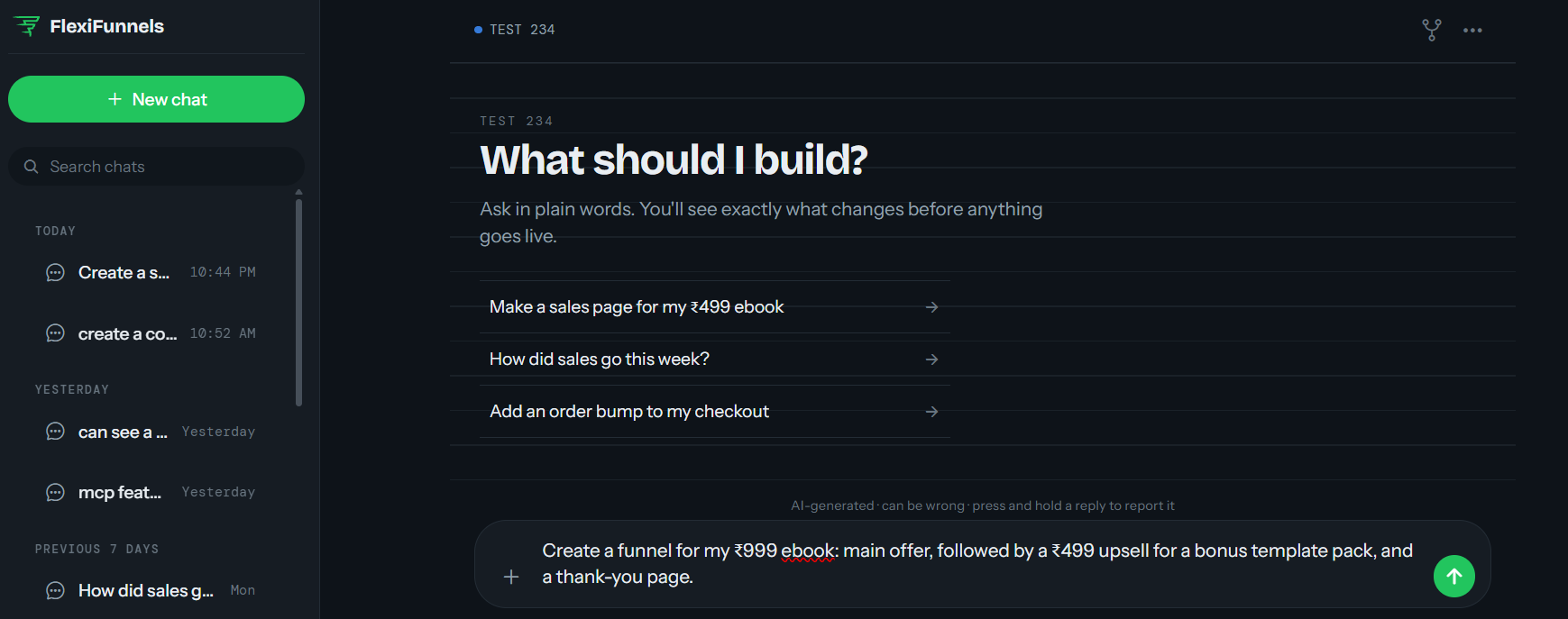
- Describe the full funnel flow you want — the main offer and any upsells, downsells, or order bumps.
Example Prompt: "Create a funnel for my ₹999 ebook: main offer, followed by a ₹499 upsell for a bonus template pack, and a thank-you page."
Step 2: View a Funnel's Structure
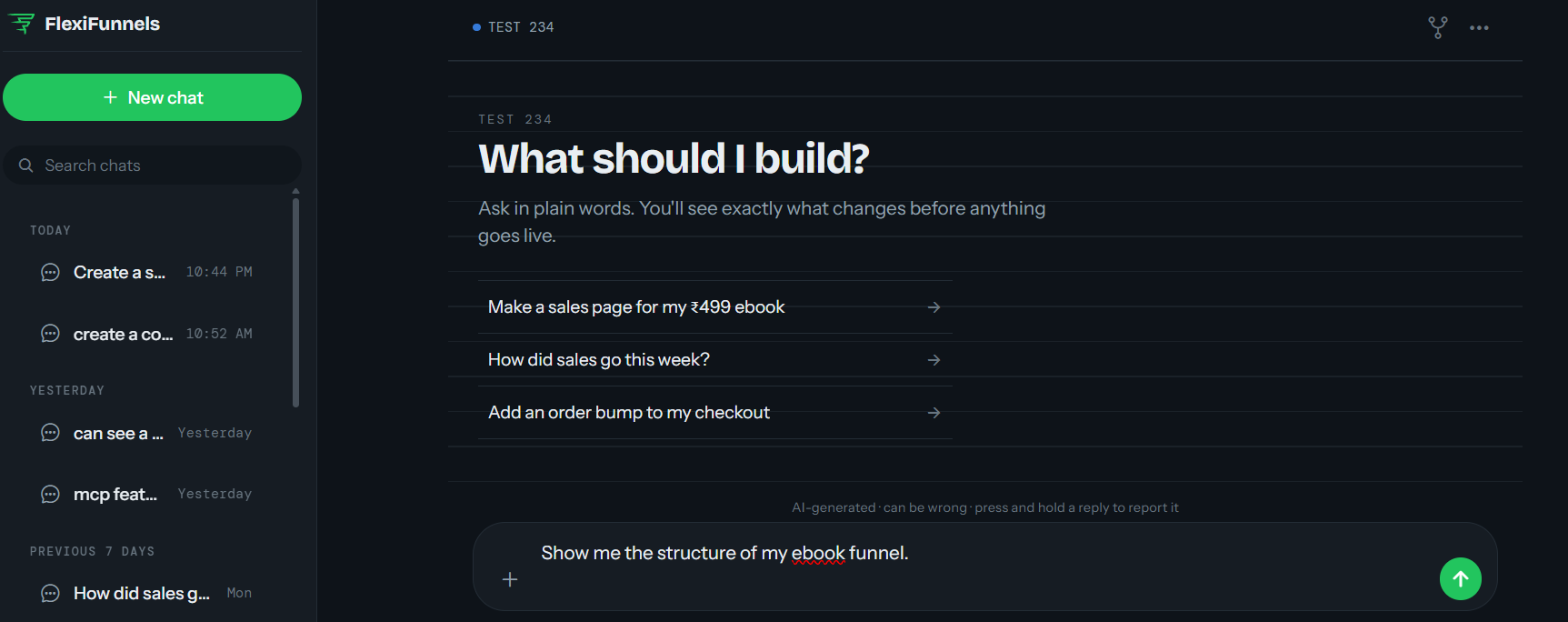
- Ask Flexi Genie to show you how a funnel is currently built — useful before making changes to an existing funnel.
Example Prompt: "Show me the structure of my ebook funnel."
Step 3: View the Funnel Sequence
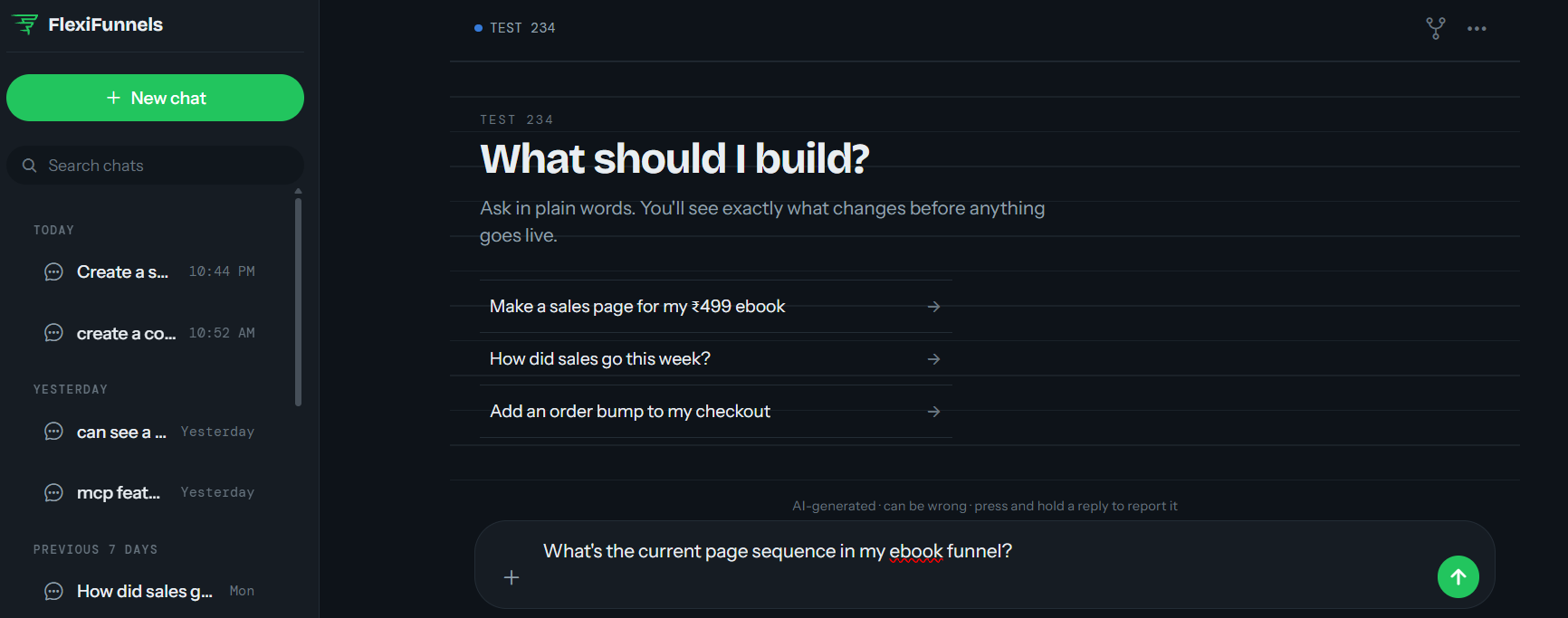
- This shows the exact order pages appear to a visitor as they move through the funnel.
Example Prompt: "What's the current page sequence in my ebook funnel?"
Step 4: Reorder Funnel Steps
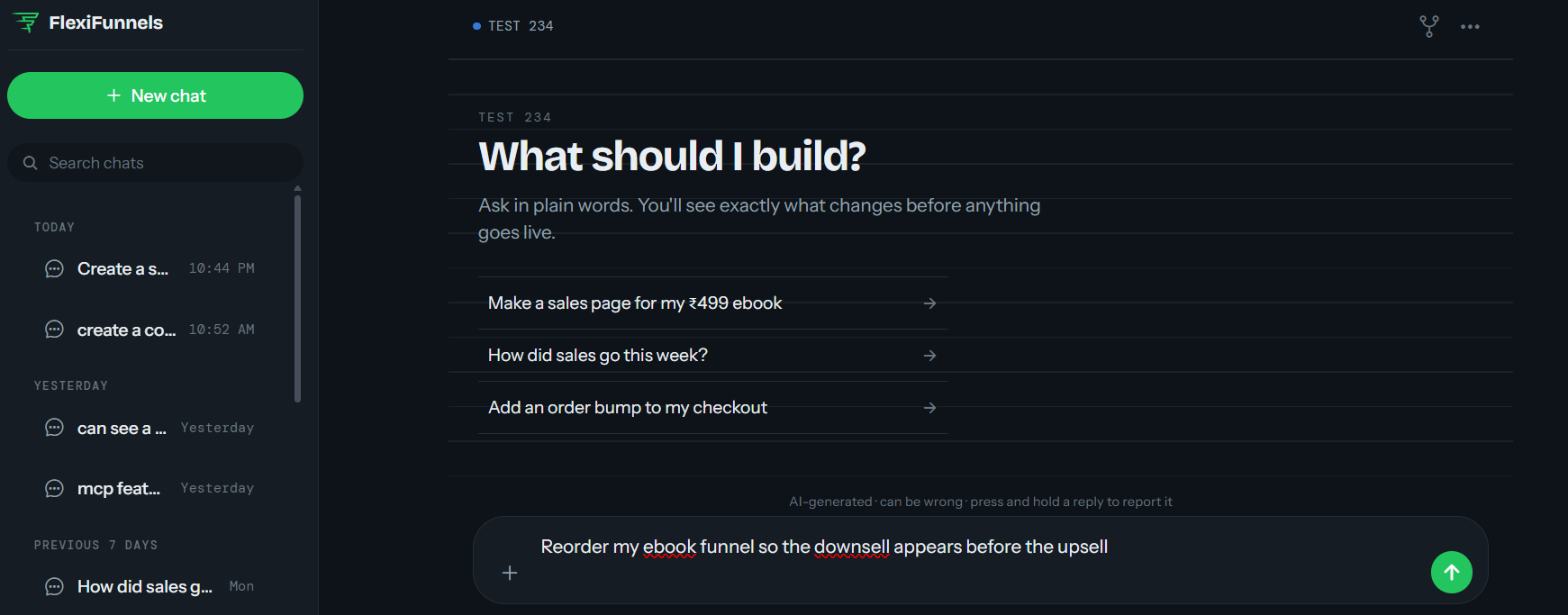
- If the order of your pages needs to change — for example, moving a downsell before an upsell — describe the new order you want.
Example Prompt: "Reorder my ebook funnel so the downsell appears before the upsell."
Be Careful: Reordering a live funnel changes what visitors see immediately after publishing. Review the new sequence carefully before confirming.
Step 5: Add New Steps to an Existing Funnel
- You can extend an existing funnel by adding a new upsell/downsell pair or another step.
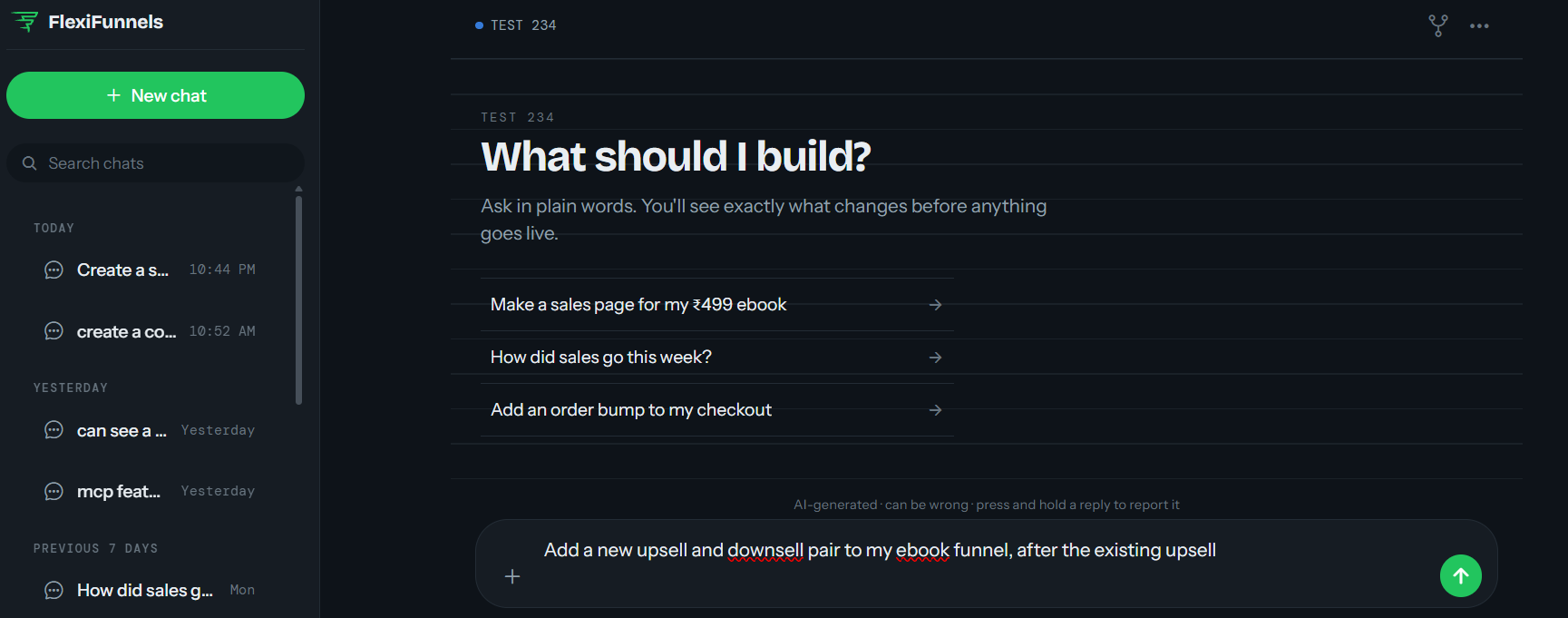
Example Prompt: "Add a new upsell and downsell pair to my ebook funnel, after the existing upsell."
Behind the Scenes — MCP Tools Involved
| Task | Related MCP Tool(s) |
|---|---|
| Create a funnel | create_funnel |
| View funnel structure | get_funnel_structure |
| View funnel sequence | get_funnel_sequence |
| Reorder funnel/project pages | reorder_funnel_pages |
| Add steps to a funnel | add_funnel_step |
| List funnels in your account | get_funnels |
Good to Know: You never need to know these tool names to use Flexi Genie — this table is just for anyone curious about what's happening behind the scenes.
Ready-to-Use Prompts
"Create a funnel for my coaching offer: application page, booking page, and a thank-you page."
"Show me the current structure of my coaching funnel."
"What order do pages currently appear in, in my coaching funnel?"
"Add an order bump to my coaching funnel's main offer page."
"List all the funnels currently in my account."
Tips for Better Results
- Describe your funnel flow in the order you want visitors to move through it — this makes the request unambiguous.
- Review a funnel's structure before reordering it, so you know exactly what's changing.
- Name your funnels clearly so they're easy to reference in future requests.
Common Issues / Troubleshooting
Visitors Not Seeing Steps in the Expected Order: Check the funnel's current sequence to confirm the live order matches what you intended, and republish if changes were made but not yet live.
New Step Not Appearing in the Funnel: Confirm the new step was actually added to the funnel (not just created as a standalone page) and that the funnel has been republished.
Limitations / Important Notes
- Reordering or adding steps to a funnel affects the live visitor experience once published — always confirm changes before publishing.
- A funnel's structure and its page sequence are related but distinct views — structure shows how steps connect, sequence shows the order they appear in.
Curious what else Flexi Genie and AI assistants can do inside FlexiFunnels? See the full Possibilities with Flexi Genie & AI Assistance reference document.
Was this article helpful?
That’s Great!
Thank you for your feedback
Sorry! We couldn't be helpful
Thank you for your feedback
Feedback sent
We appreciate your effort and will try to fix the article