The FlexiFunnels MCP (Model Context Protocol) lets you connect your AI assistant directly to your FlexiFunnels account, so you can ask it things like "Show me my project list" and get a real answer pulled live from your account — no copy-pasting, no switching tabs.
Think of it like giving your AI a direct phone line to your FlexiFunnels account. Until now your AI could only advise you based on what you told it. With MCP connected, it can actually look things up inside your account on your behalf — the same way a virtual assistant with account access could.
Watch: How to Connect Gemini with FlexiFunnels MCP →
Follow These Steps
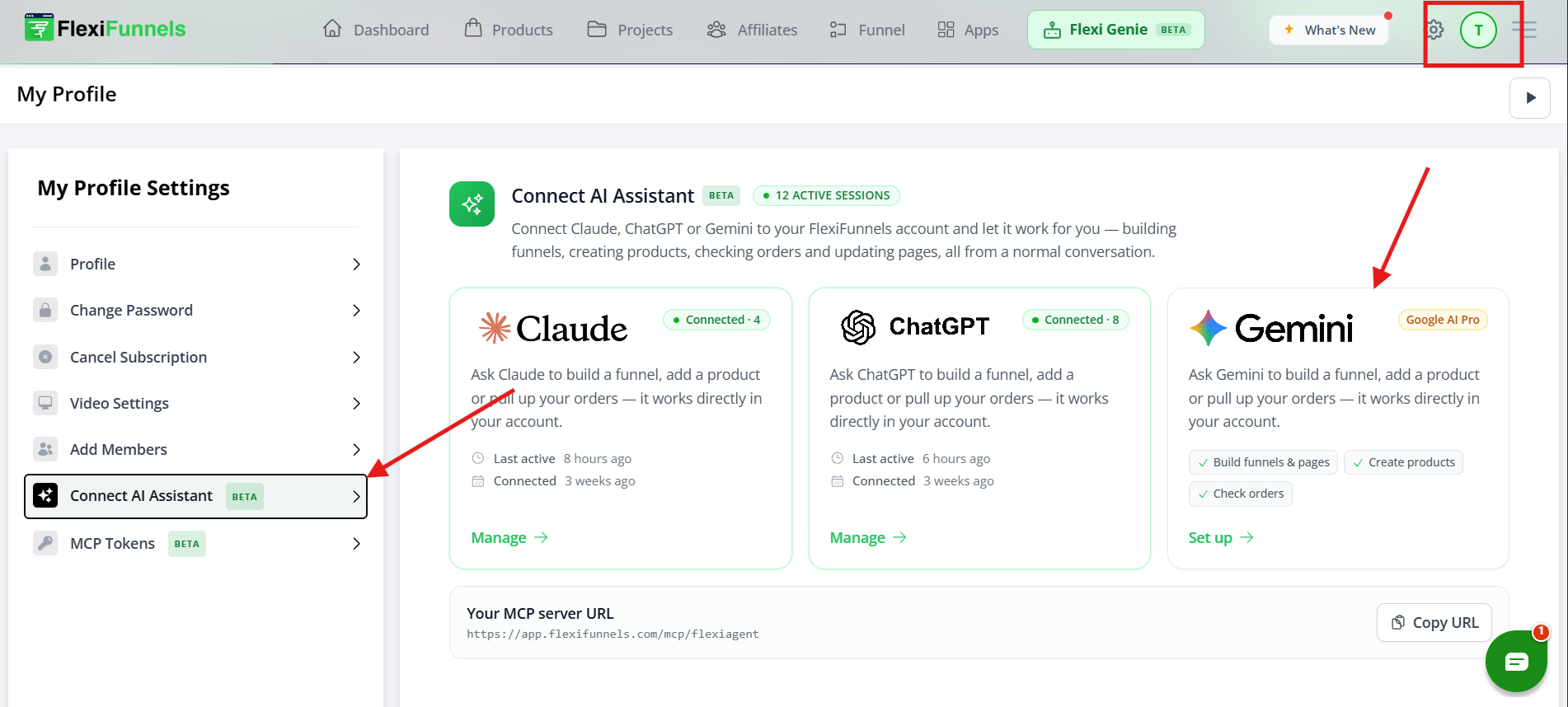
Step 1: Open the FlexiFunnels Setup Panel
In your FlexiFunnels account, click on the Setup panel.
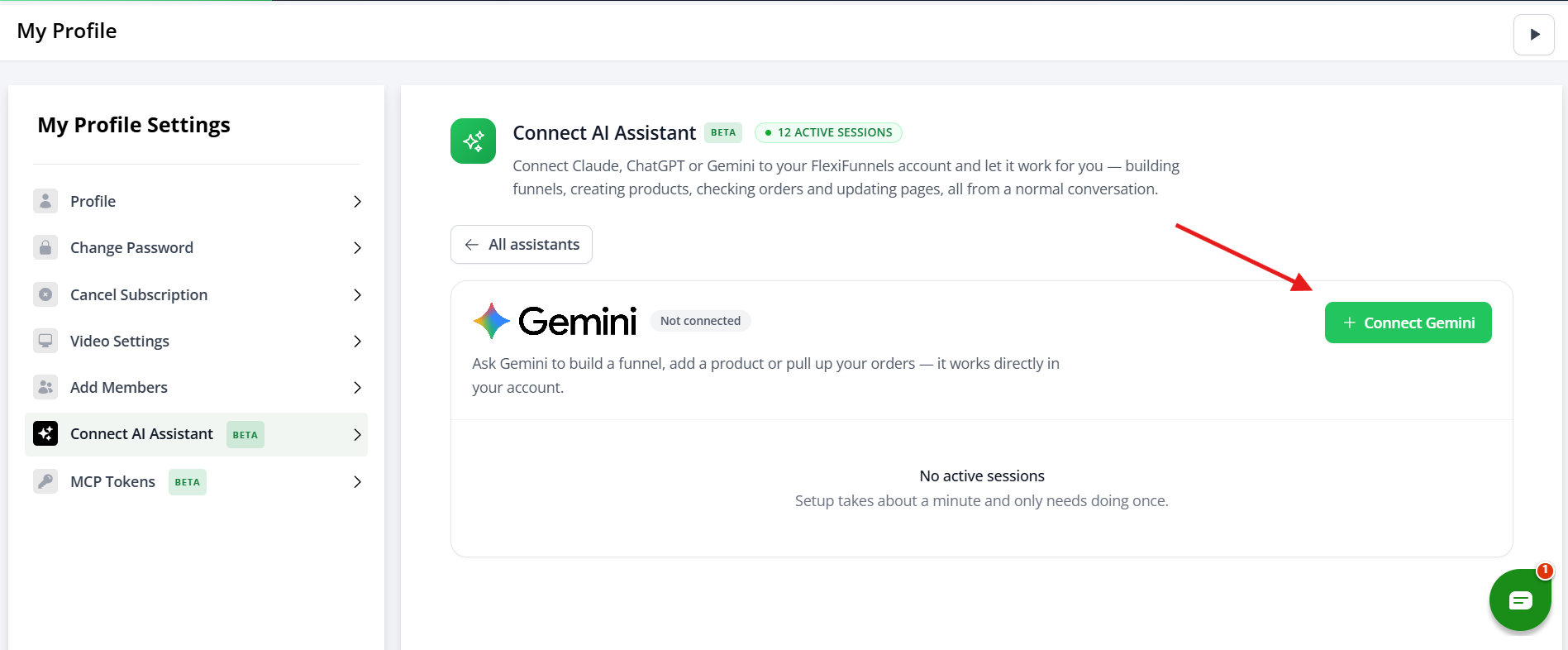
Step 2: Click "Connect Gemini"
Inside the Setup panel, you will see a Connect Gemini option. Click on it.
Step 3: Confirm You Have Gemini Spark
Click on Check — I have a Gemini Spark to confirm your account has Spark enabled.
Step 4: Copy the MCP URL from FlexiFunnels
FlexiFunnels provides you with a custom app URL for Spark. Copy this URL — you'll need it in the next step.
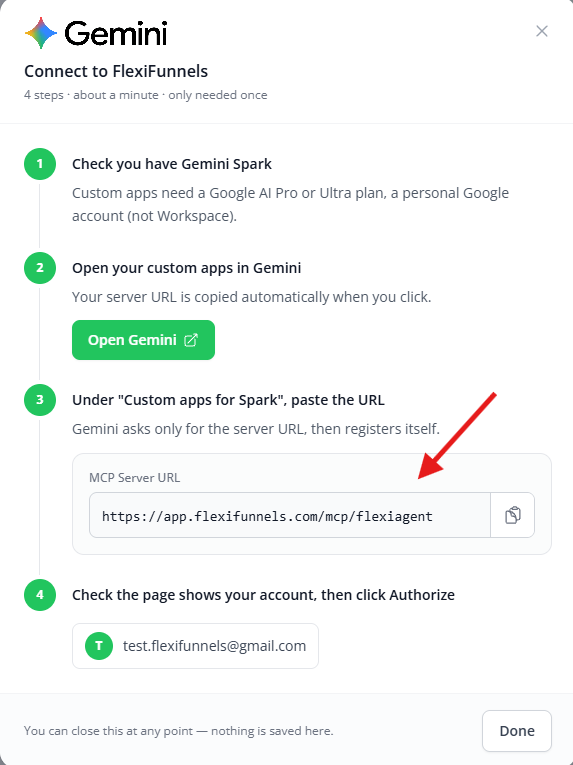
Step 5: Open Gemini Custom Apps
Now go to Gemini. You have two ways to do this:
- Option A — Click the Open Gemini button directly from the FlexiFunnels setup panel.
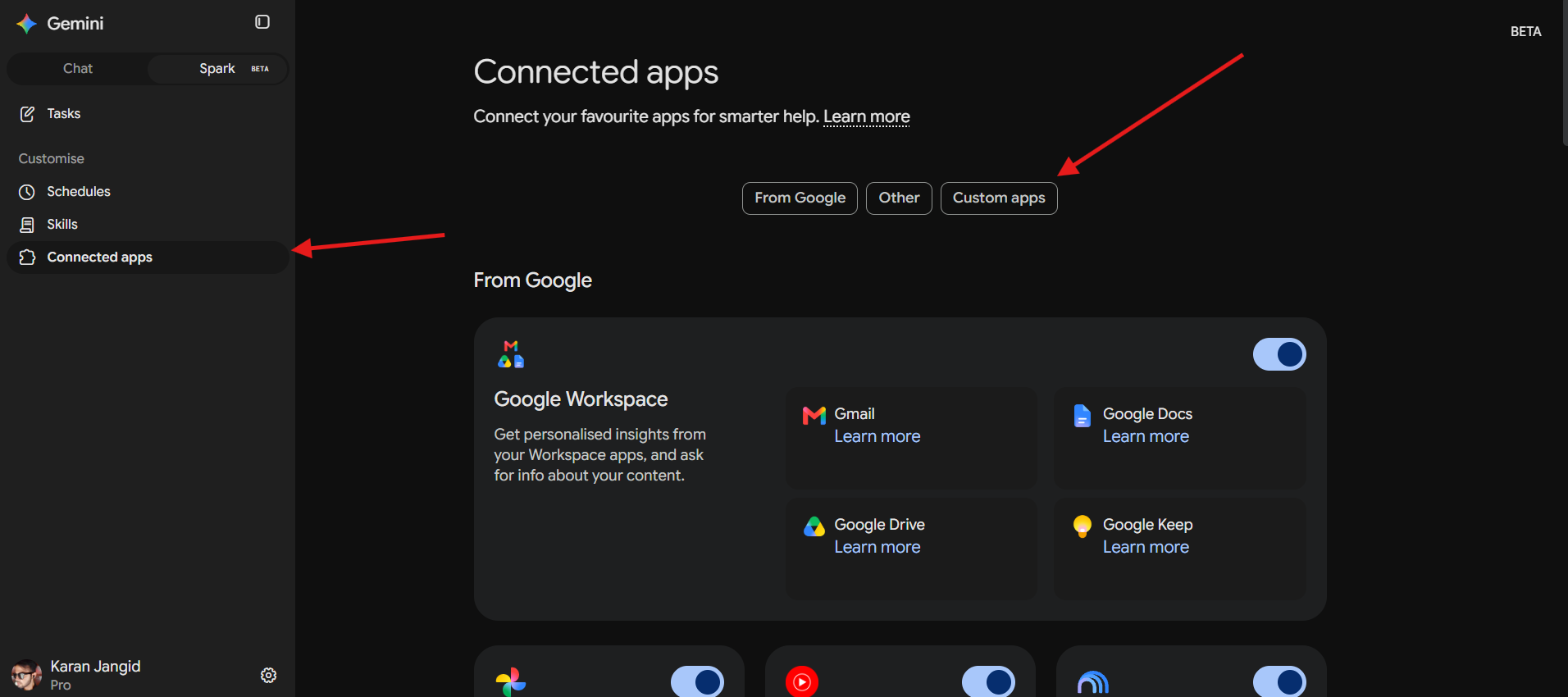
- Option B — In Gemini, click your profile icon, then go to Connected apps.
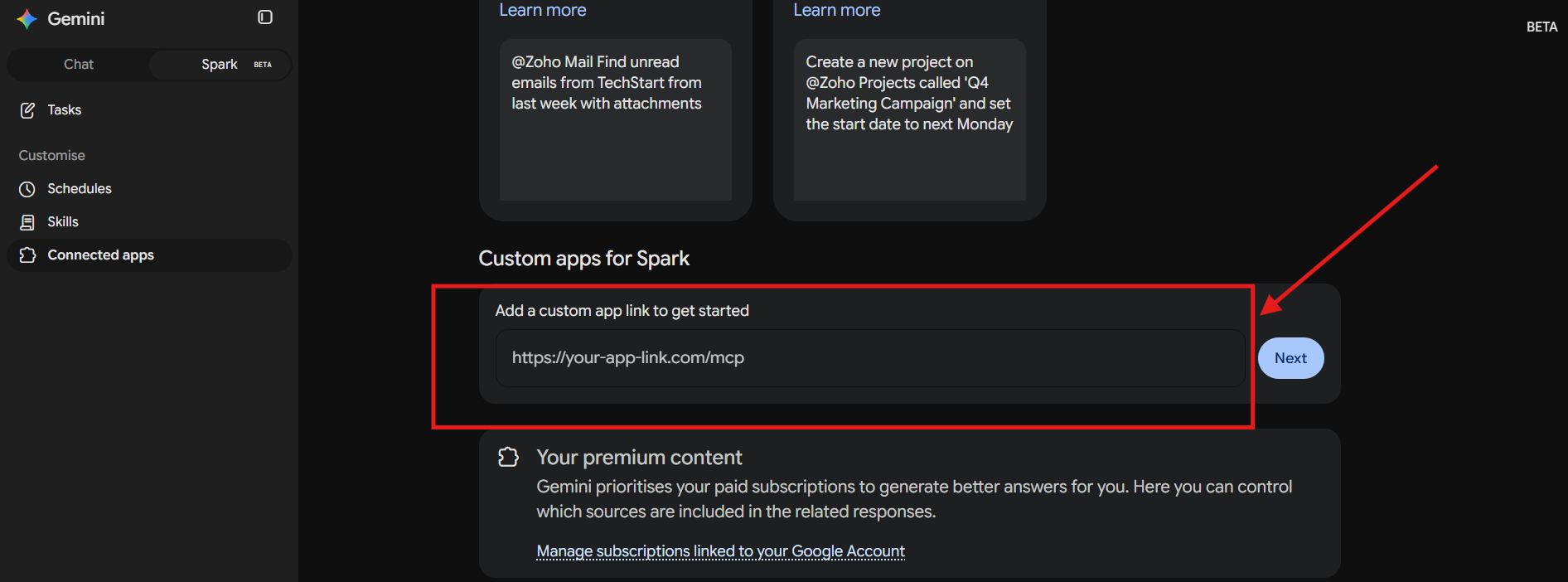
Either way, once inside Gemini, navigate to Custom Apps for Spark.
Step 6: Paste the URL and Click Next
In the Custom Apps field, paste the URL you copied from FlexiFunnels in Step 4. Then click Next, then click Next again to proceed through the confirmation steps.
Step 7: Accept the Permissions and Connect
Gemini will show you a list of permissions. Read through them, tick the checkbox to agree, then click Connect.
Step 8: Complete Authorization in the Pop-Up
An authorization window will pop up. Read the details, then click Agree and Continue. Log in to your Google account if prompted, then click Authorize.
Step 9: Click Connect to Finalize
Once authorization is complete, a confirmation pop-up appears. Wait a moment for it to process, then click Connect.
Your Gemini account is now successfully connected to FlexiFunnels via MCP. ?
Test the Connection
To quickly confirm everything is working, go to the Tasks section in Gemini and type:
"Show me the project list from my FlexiFunnels account."
Gemini will load the FlexiFunnels MCP server and return your actual project list — including project names, dates, and details pulled live from your account. If you see real data, the connection is working correctly.
Common Situations & Quick Fixes
Was this article helpful?
That’s Great!
Thank you for your feedback
Sorry! We couldn't be helpful
Thank you for your feedback
Feedback sent
We appreciate your effort and will try to fix the article