Use the affiliate commission settings to choose how much affiliates earn when they sell this product, and when that commission is paid out.
An affiliate is a person who promotes your product and receives a share of each sale they bring in.
Key Terms
| Term | Meaning |
|---|---|
| Affiliate | A person who promotes your product. |
| Commission | The money an affiliate earns per sale. |
| Refund window | The number of days a buyer can ask for their money back. |
| Payout | The commission paid to the affiliate. |
Video Walkthrough
Prefer to watch? This video covers the same steps as the written guide below.
Steps
1. Open the Affiliates Page
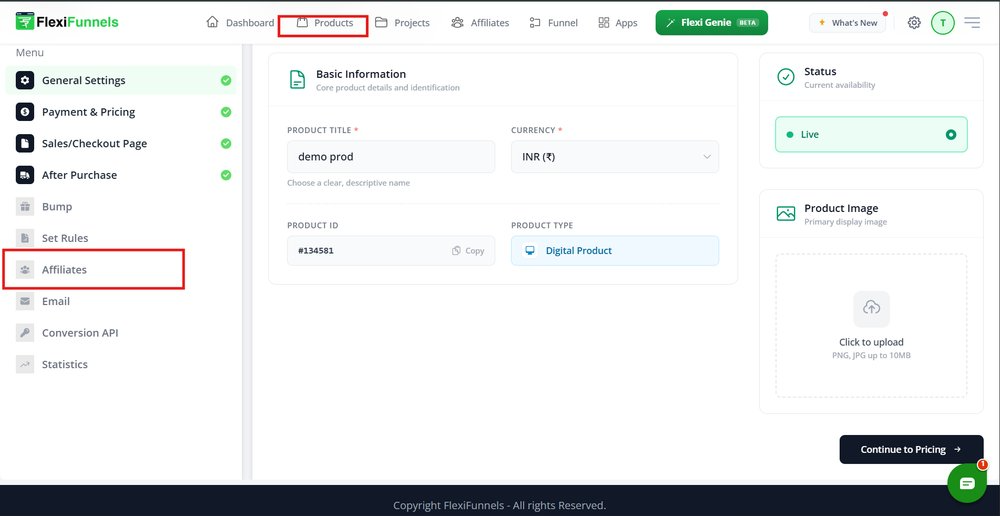
- Click Products in the top menu.
- Open your product.
- In the left menu, click Affiliates.
What you will see
The Affiliates page opens.
2. Enable Affiliates for the Product
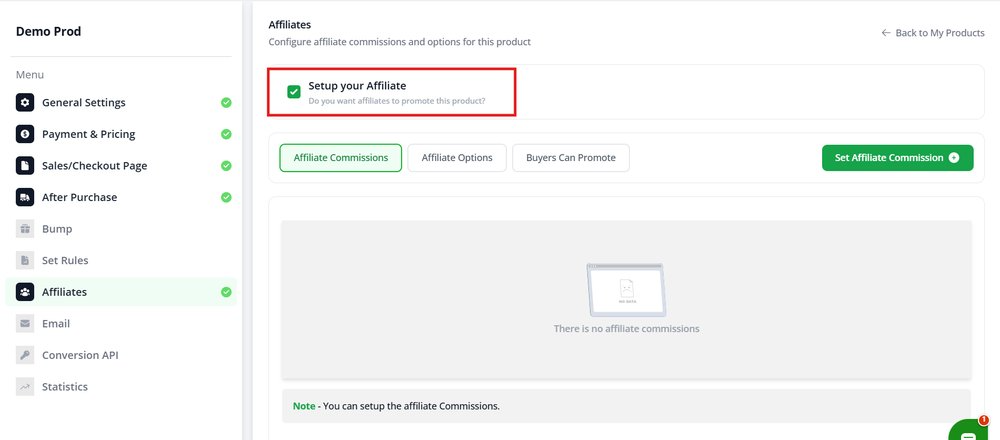
- Select the Setup your Affiliate checkbox.
- This setting asks: Do you want affiliates to promote this product?
What you will see
Three tabs appear: Affiliate Commissions, Affiliate Options and Buyers Can Promote. Until you add a commission, the list shows the message There is no affiliate commissions.
3. Open the Commission Settings
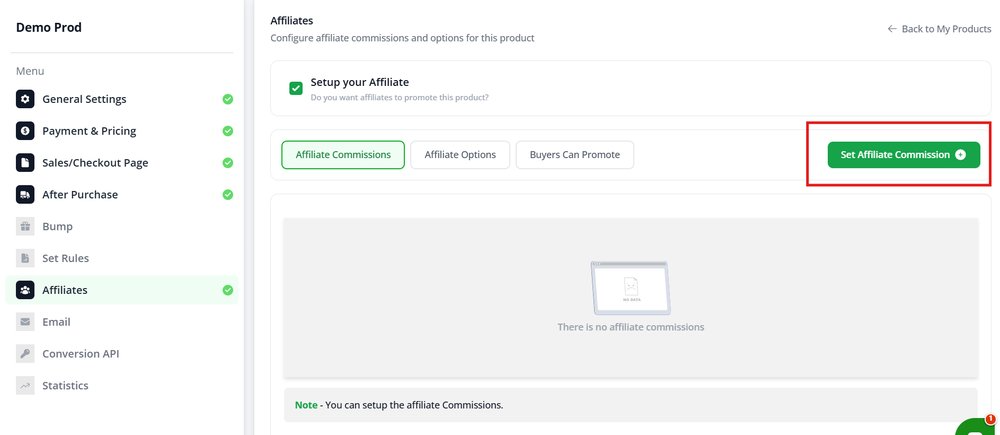
- Stay on the Affiliate Commissions tab.
- Click the green Set Affiliate Commission button.
What you will see
The Affiliate commissions window opens.
4. Choose What Affiliates Earn
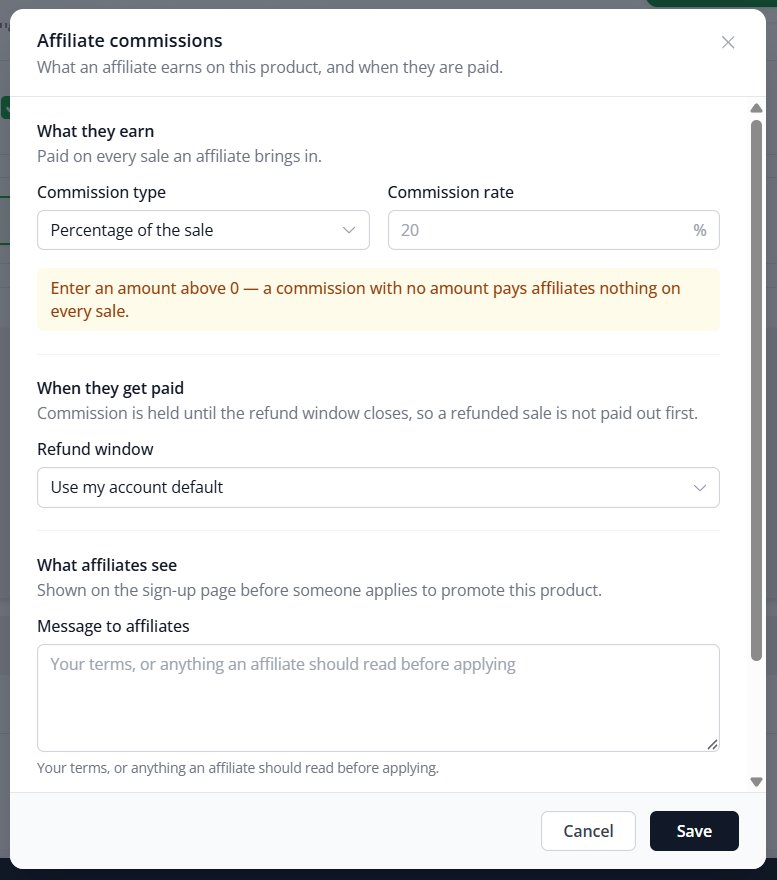
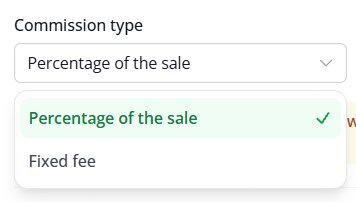
- Under What they earn, open the Commission type list.
- Select one of the options described in the table below.
- Enter a number in the Commission rate field.
| Option | What it means |
|---|---|
| Percentage of the sale | The affiliate earns a percentage of each sale. |
| Fixed fee | The affiliate earns the same amount on every sale. |
The Commission type list shows both options:
Important
Enter a number greater than 0. A commission with no amount pays affiliates nothing on every sale.
5. Choose the Refund Window
- Scroll to the When they get paid section.
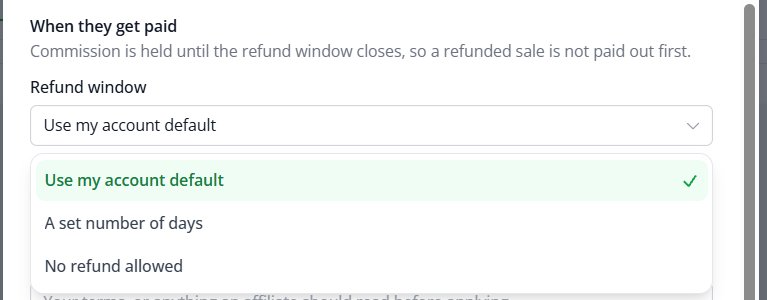
- Open the Refund window list.
- Select one of the options described in the table below.
| Option | What it means |
|---|---|
| Use my account default | Uses the refund window saved in your account. |
| A set number of days | You choose the number of days for this product. |
| No refund allowed | This product has no refund window. |
Good to know
The commission is held until the refund window closes. This way, commission is not paid out on a sale before it could still be refunded.
6. Choose When the Payout Is Released
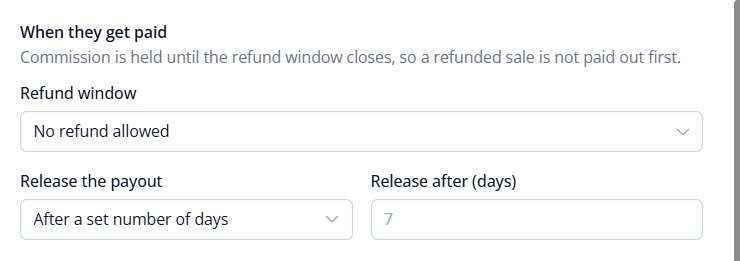
- Find the Release the payout setting.
- Select After a set number of days.
- Enter the number of days in the Release after (days) field.
7. Add a Message for Affiliates
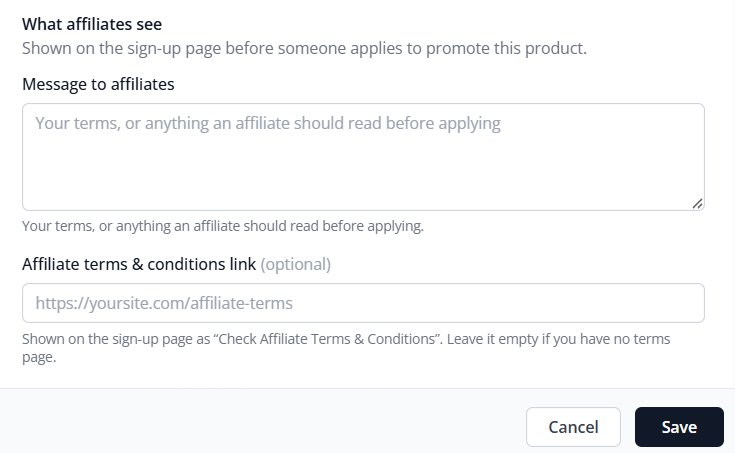
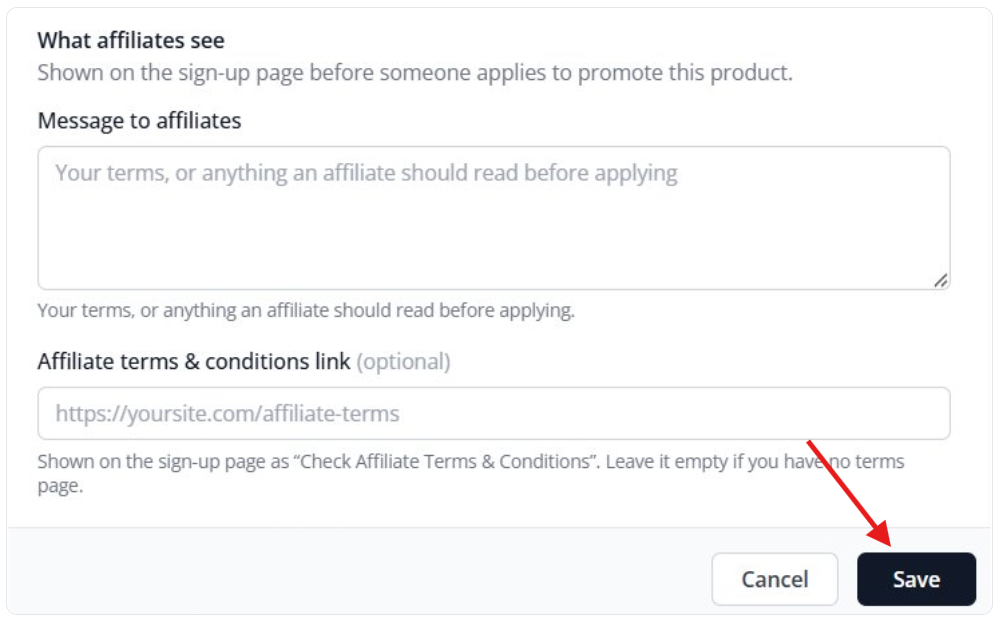
- Under What affiliates see, click Message to affiliates.
- Enter your terms, or anything an affiliate should read before applying.
- Optional: paste the link to your terms page in the Affiliate terms & conditions link field. Leave this field empty if you do not have a terms page.
What you will see
Affiliates see your message and the link on the sign-up page before they apply. The link appears as Check Affiliate Terms & Conditions.
8. Save Your Settings
- Click the dark Save button.
- To close the window without saving, click Cancel instead.
Was this article helpful?
That’s Great!
Thank you for your feedback
Sorry! We couldn't be helpful
Thank you for your feedback
Feedback sent
We appreciate your effort and will try to fix the article