Connect Claude or ChatGPT to FlexiMembership. Then run your community day to day: post, schedule, moderate and plan events.
Think of the community as a town square ?️. You post notices, keep the peace and host gatherings.
Sensitive actionsMany of these actions are seen by members, or send notices. Posts notify members. Approving a post notifies members. Editing a member’s post does not tell its author. A new event is switched on at once. Read every preview.
Before You Start
- Connect FlexiMembership to Claude (a Connector) or ChatGPT (a Plugin). Make sure it is authorized.
- Have a community. See Article 2.
- Know who the post should come from.
- Have any picture, video or audio file ready.
- Start each request with “In FlexiMembership”.
Steps
Part A: Posts
1See who can post, and what is posted
- Ask who you can post as. It is the owner, instructors, and the community’s admins and moderators.
- Ordinary members never appear here.
- Ask for the latest posts. You also see scheduled posts and drafts.
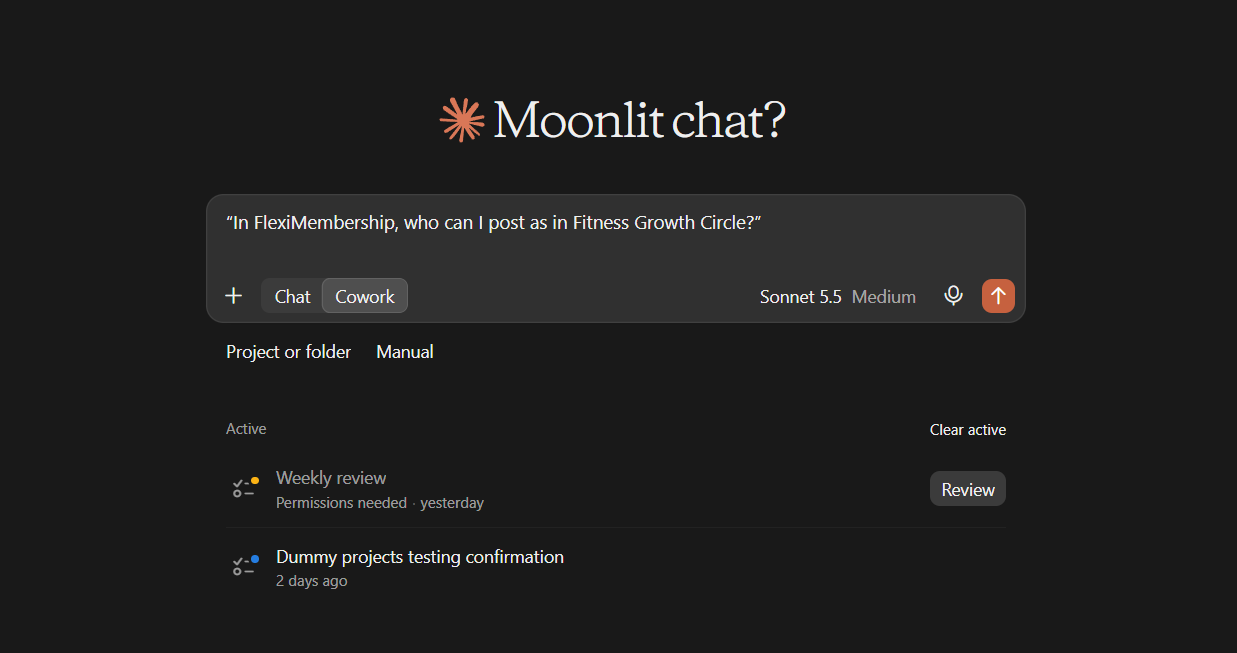
Example prompt“In FlexiMembership, who can I post as in Fitness Growth Circle?”
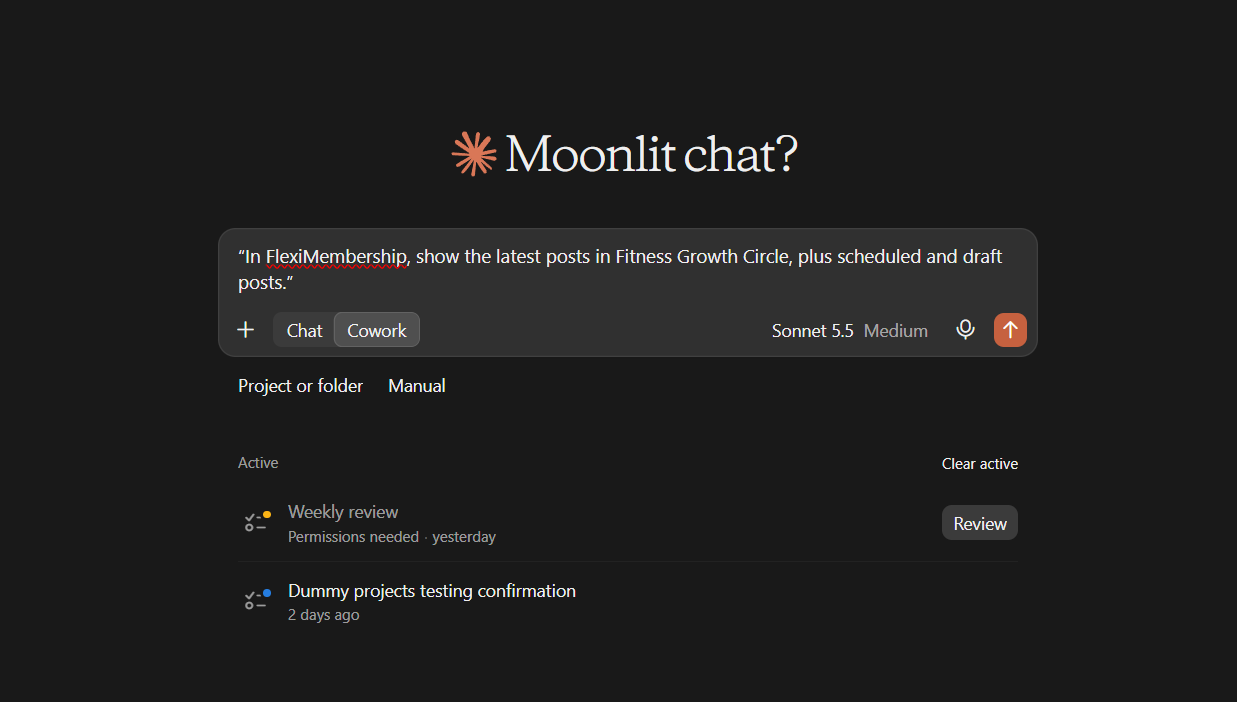
Example prompt“In FlexiMembership, show the latest posts in Fitness Growth Circle, plus scheduled and draft posts.”
2Publish a post now
- Give the text and who it comes from.
- Optional: a title, a category, one picture set, one video, one recording or a poll.
- A poll takes 2–6 answers.
- Read the preview. It says if members get an email.
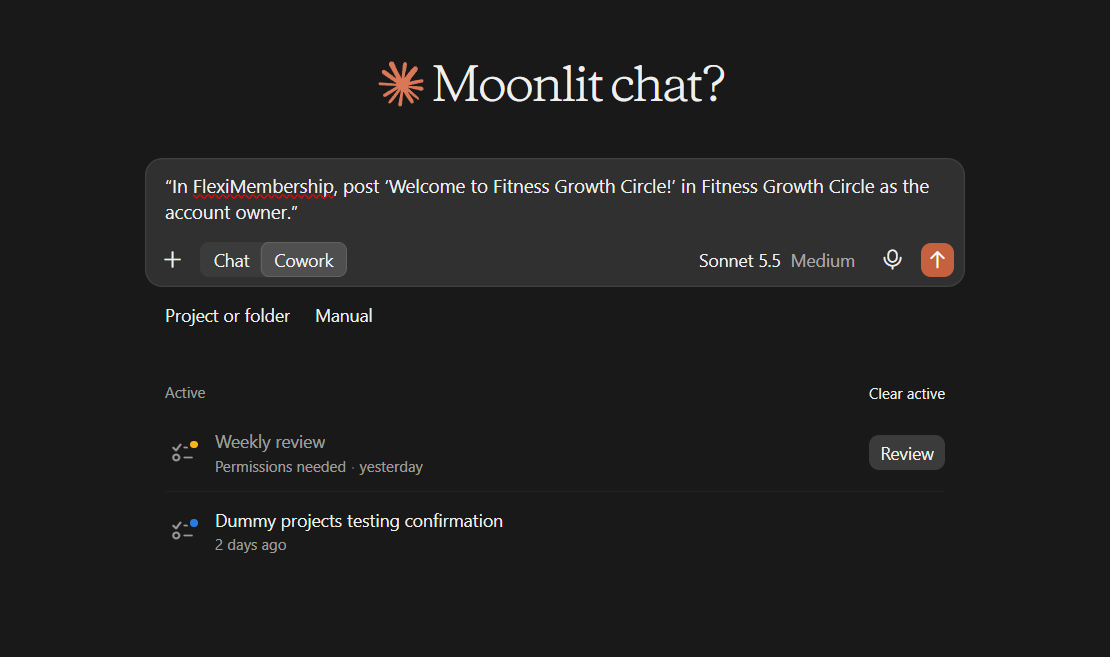
Example prompt“In FlexiMembership, post ‘Welcome to Fitness Growth Circle!’ in Fitness Growth Circle as the account owner.”
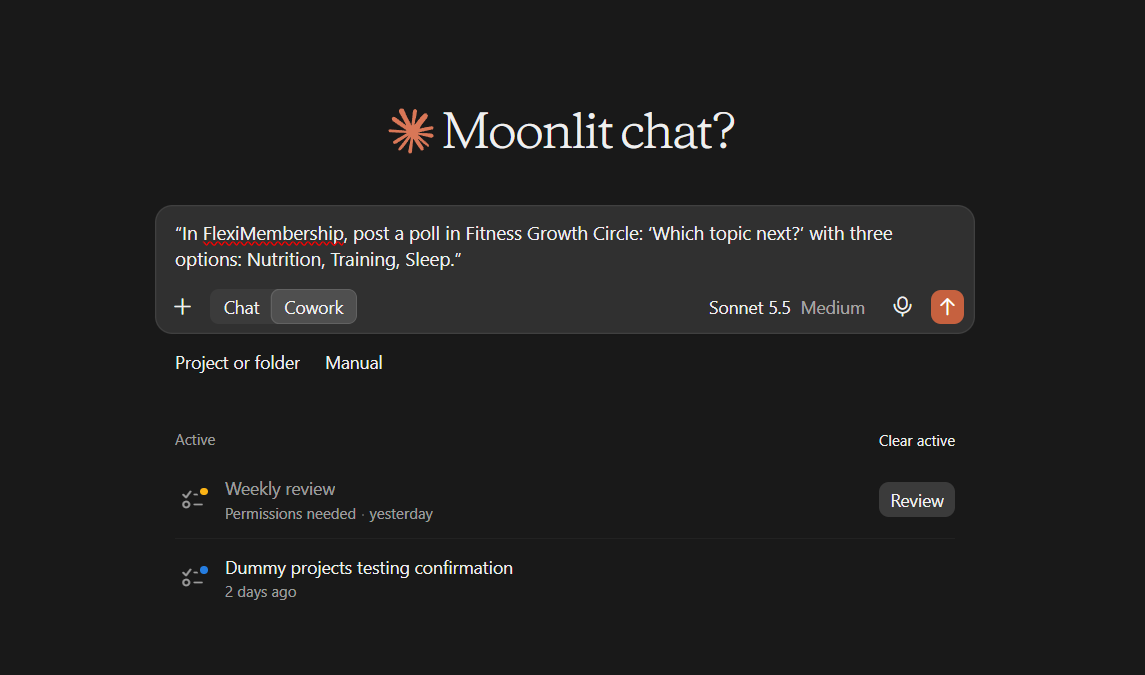
Example prompt“In FlexiMembership, post a poll in Fitness Growth Circle: ‘Which topic next?’ with three options: Nutrition, Training, Sleep.”
- To use a file, upload it first. The AI gives you an address to use in the post.
- Pictures: up to 5 MB. Video: up to 50 MB. Audio: up to 15 MB.
- Nothing is posted until you use the file in a post.
Be careful: members are notifiedA post is published at once. Members get a notice in the app. They also get an email if the community’s emails and your sending email are on. The upload step has no preview.
3Schedule a post
- Give the text and a future date and time. Use your account’s time zone.
- The post goes out as the community’s scheduled-post author. You cannot pick someone else.
- A scheduled post has text, an optional title and one picture or one video.
- It has no polls, categories or tags. An @name is plain text. Nobody is notified.
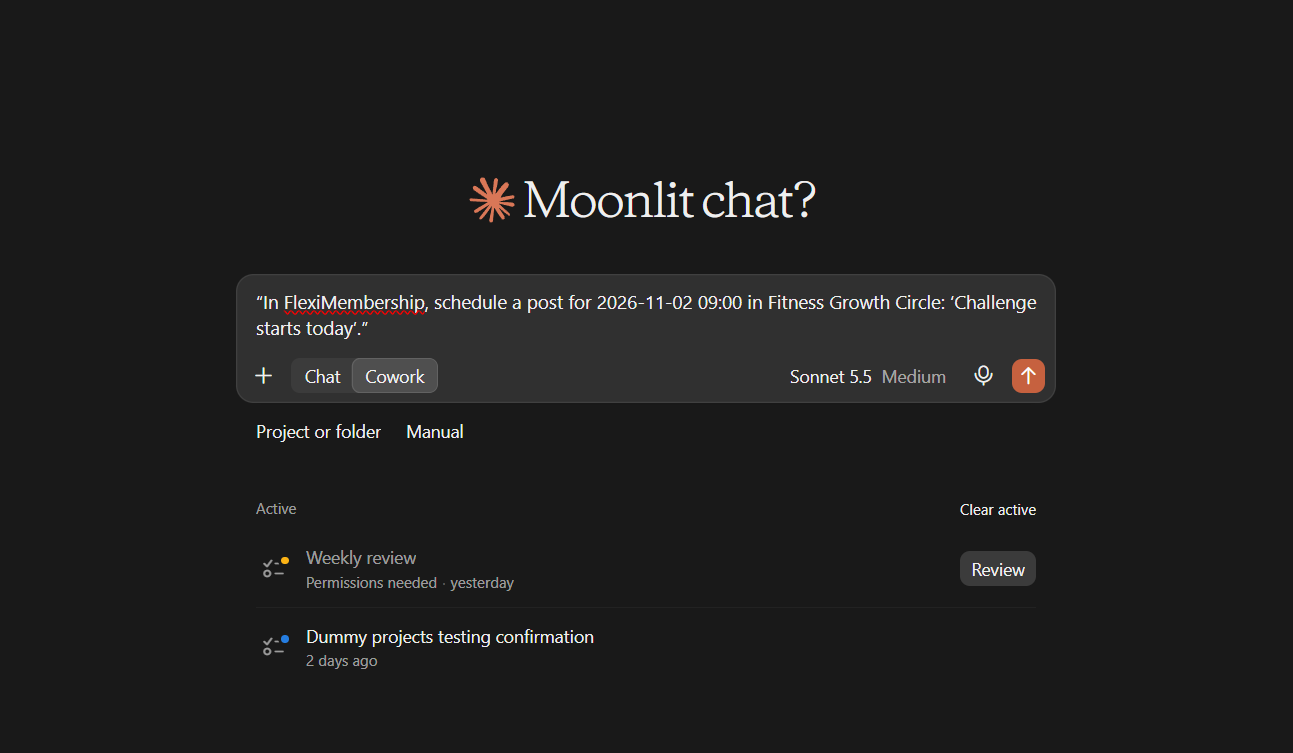
Example prompt“In FlexiMembership, schedule a post for 2026-11-02 09:00 in Fitness Growth Circle: ‘Challenge starts today’.”
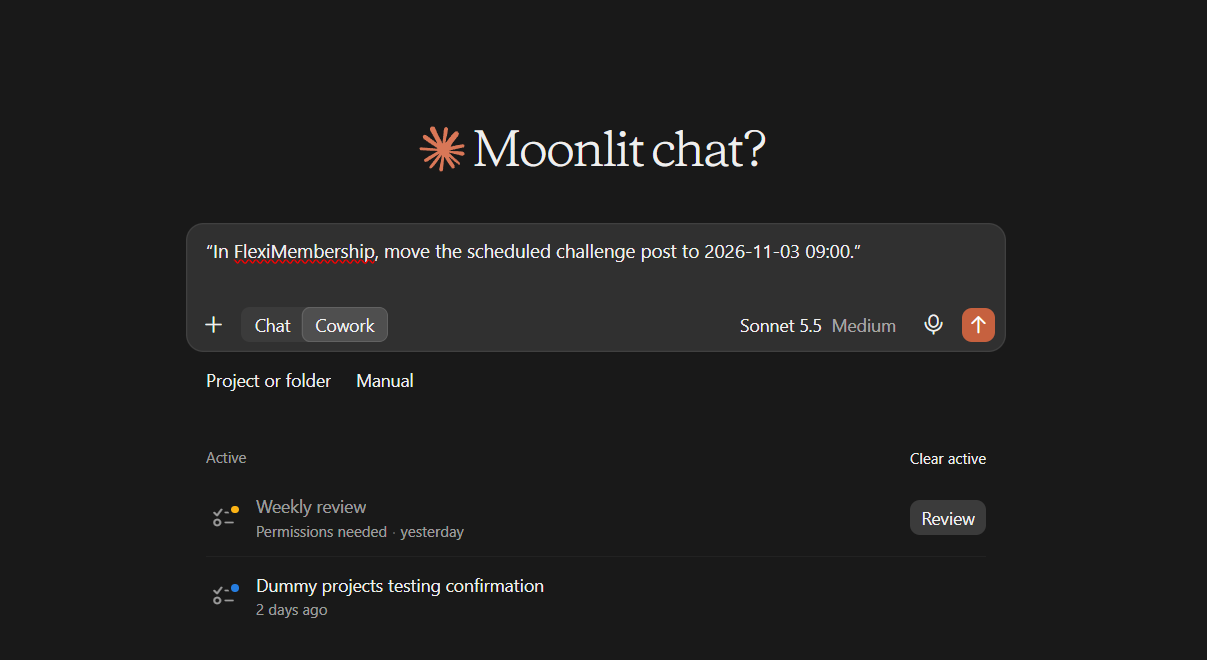
Example prompt“In FlexiMembership, move the scheduled challenge post to 2026-11-03 09:00.”
- You can also turn a scheduled post into a lesson when it goes out.
- Pick the course and module. Put the lesson in a bundle, or no member sees it.
Be careful: no removeA scheduled post cannot be removed through the AI. Check the text and time first.
4Edit and pin a post
- You can edit posts by the owner, instructors, admins and moderators.
- The AI reads the post first. If it changed meanwhile, the edit is refused.
- Poll answers cannot be changed. Nobody is notified of an edit.
- Pin any published post to the top. Unpin it later.
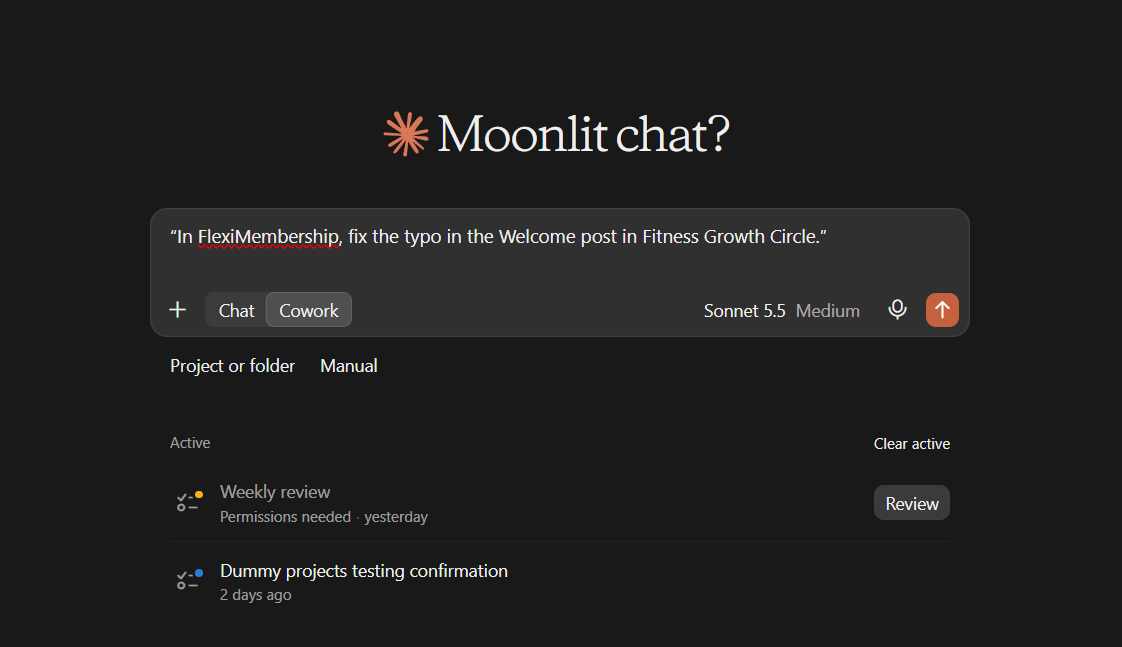
Example prompt“In FlexiMembership, fix the typo in the Welcome post in Fitness Growth Circle.”
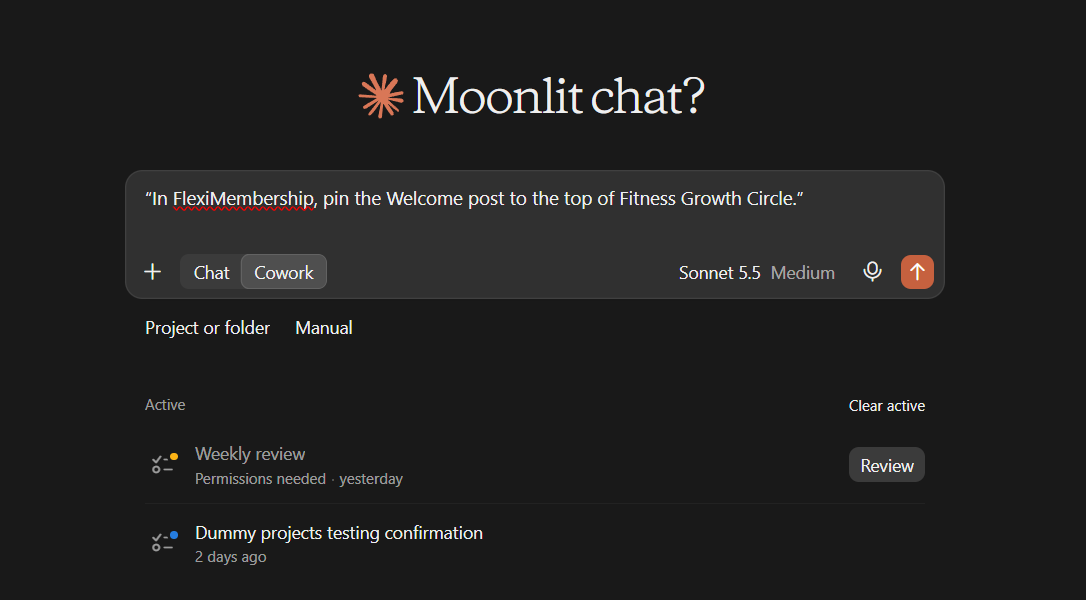
Example prompt“In FlexiMembership, pin the Welcome post to the top of Fitness Growth Circle.”
Part B: Moderation
5Review what members wrote
- Pick a list: lesson posts, lesson comments or community posts.
- Filter by course, lesson, community, status or words.
- Open one post to see its whole thread, hidden replies included.
- There is no member report button in this app. “Hidden” is the moderation state.
Example prompt“In FlexiMembership, show hidden posts waiting for review in Fitness Growth Circle.”
Example prompt“In FlexiMembership, show the whole thread for that post.”
Good to knowMember text is just text to read. The AI does not follow orders written inside it.
6Hide, restore or approve
- Hide takes a post or comment out of view. Restore brings it back.
- Approve publishes a community post that was waiting.
- You can handle up to 50 items of one type at once.
- Hiding is not deleting. Hiding a post does not hide its replies.
Example prompt“In FlexiMembership, hide that comment.”
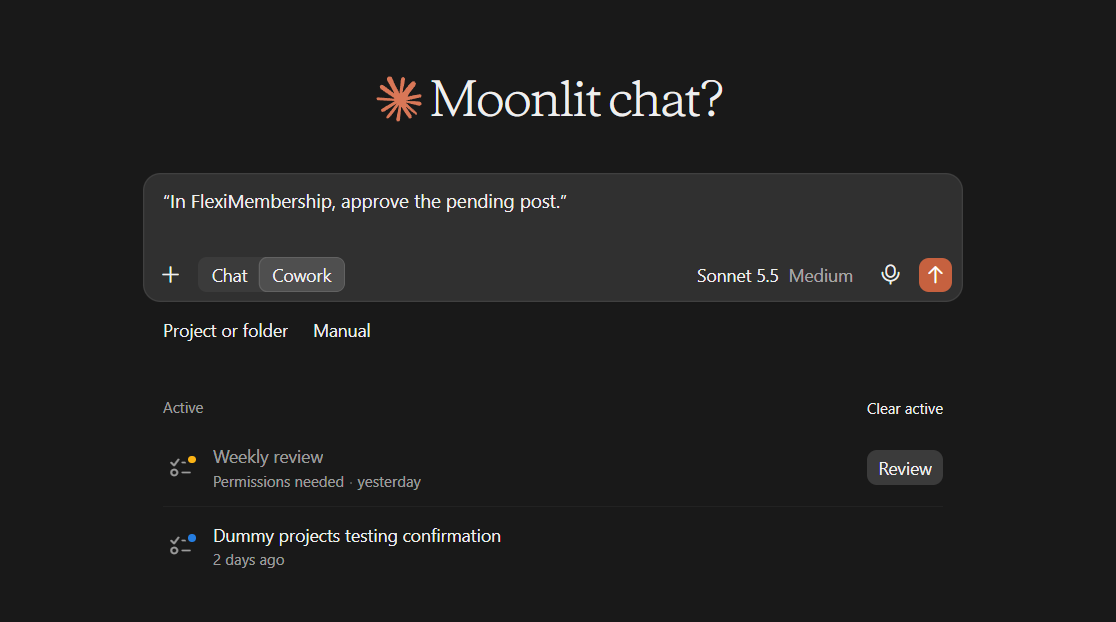
Example prompt“In FlexiMembership, approve the pending post.”
Be careful: approveApproving makes the post live. The author gets their post points and a notice. The community’s members are notified of a new post. Deleting is done in the dashboard.
7Edit a member’s post or comment
- You can change the text, replace all attachments, or remove them.
- The author keeps their name and date.
- The author is not told.
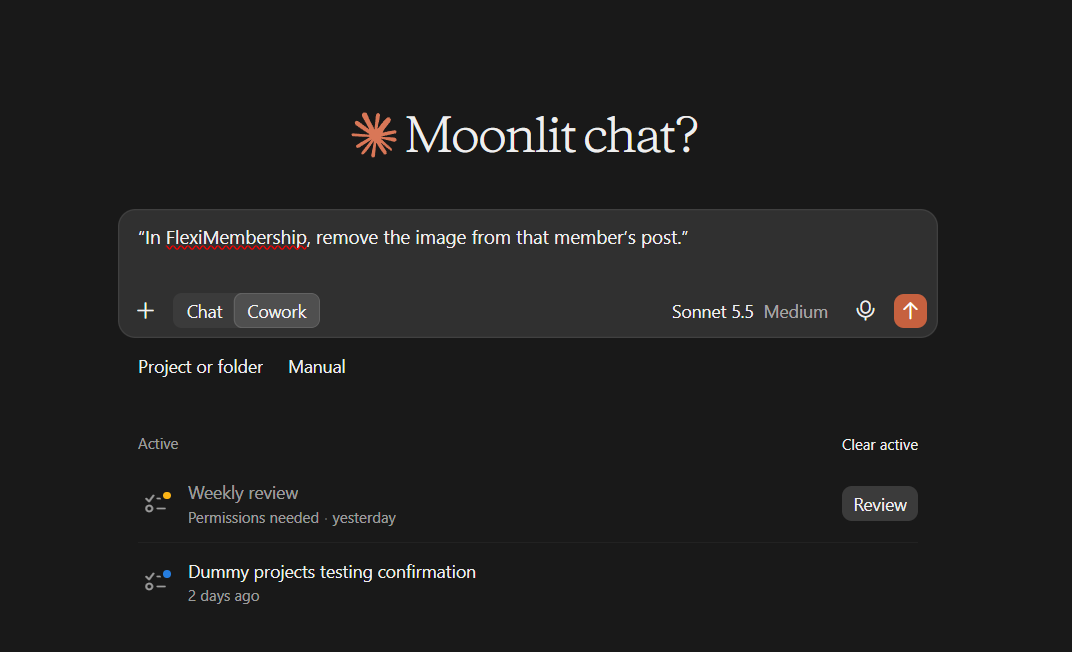
Example prompt“In FlexiMembership, remove the image from that member’s post.”
- To stop a member posting, see Article 6.
Be careful: editing membersYou are changing someone else’s words. Check the text in the preview.
Part C: Events
8Create an event
- Pick a type: Google Meet, Zoom, webinar or in-person.
- Meet and Zoom need a link from that tool. A webinar takes any web link.
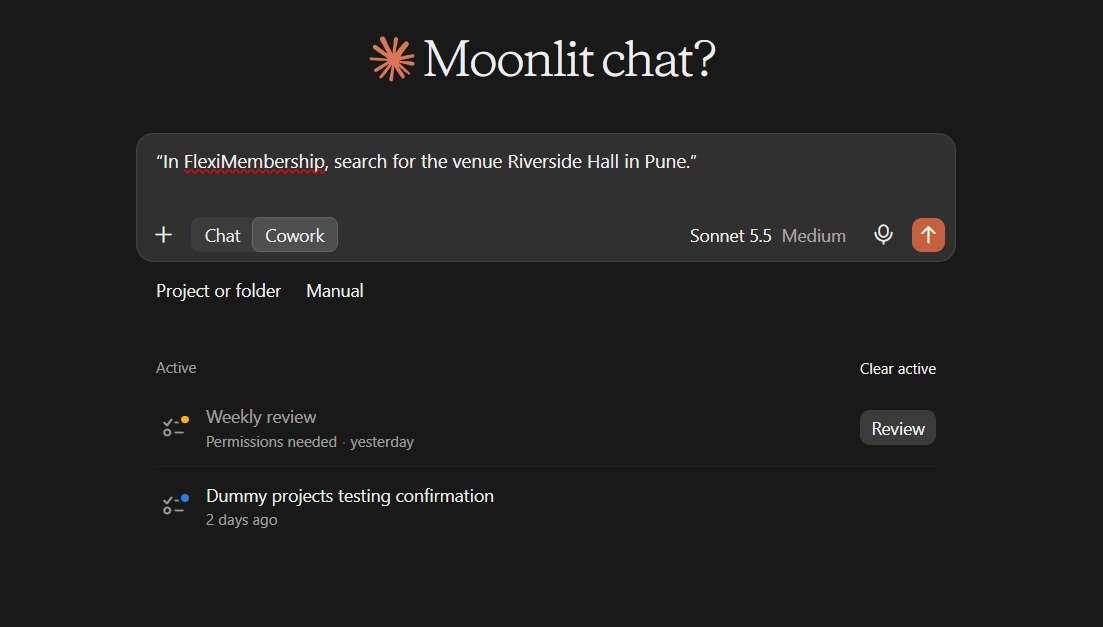
- An in-person event needs a venue. Search for it first and use the name exactly as shown.
- Give times in your account’s time zone. Do not convert them.
- It can show everywhere, or only in some courses, communities or pages.
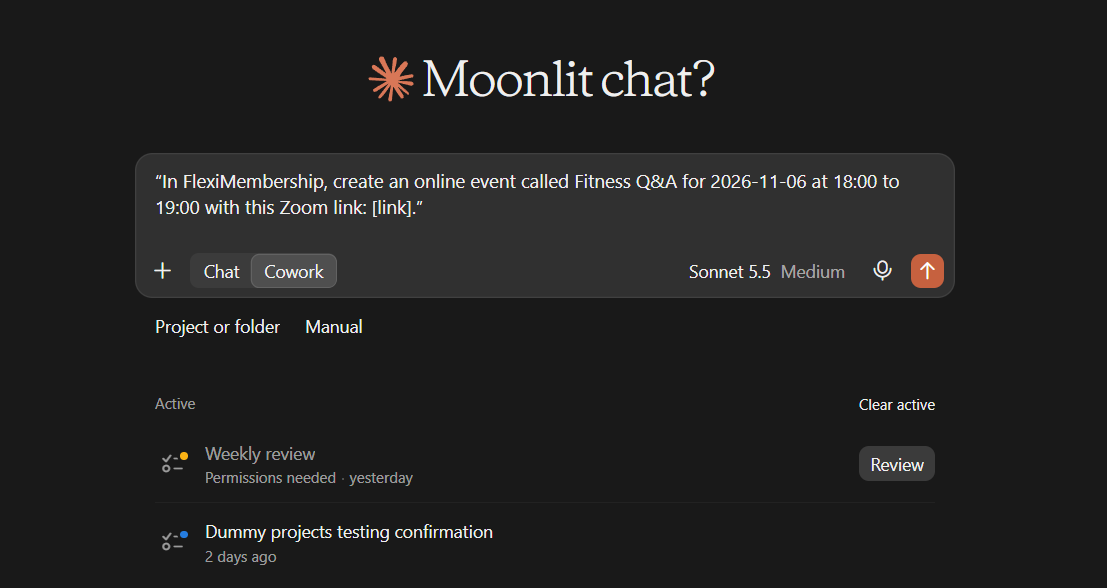
Example prompt“In FlexiMembership, create an online event called Fitness Q&A for 2026-11-06 at 18:00 to 19:00 with this Zoom link: [link].”
Example prompt“In FlexiMembership, search for the venue Riverside Hall in Pune.”
Be careful: live at onceA new event is switched on at once. Saving emails nobody. The preview says if community members will get a reminder before it starts.
9Change, hide or list events
- Ask for your events. Filter by upcoming, live or past.
- Change an event’s title, time, link, venue or where it shows.
- Switch an event off to hide it. No reminders go out.
- Nothing is deleted. Switch it on again any time.
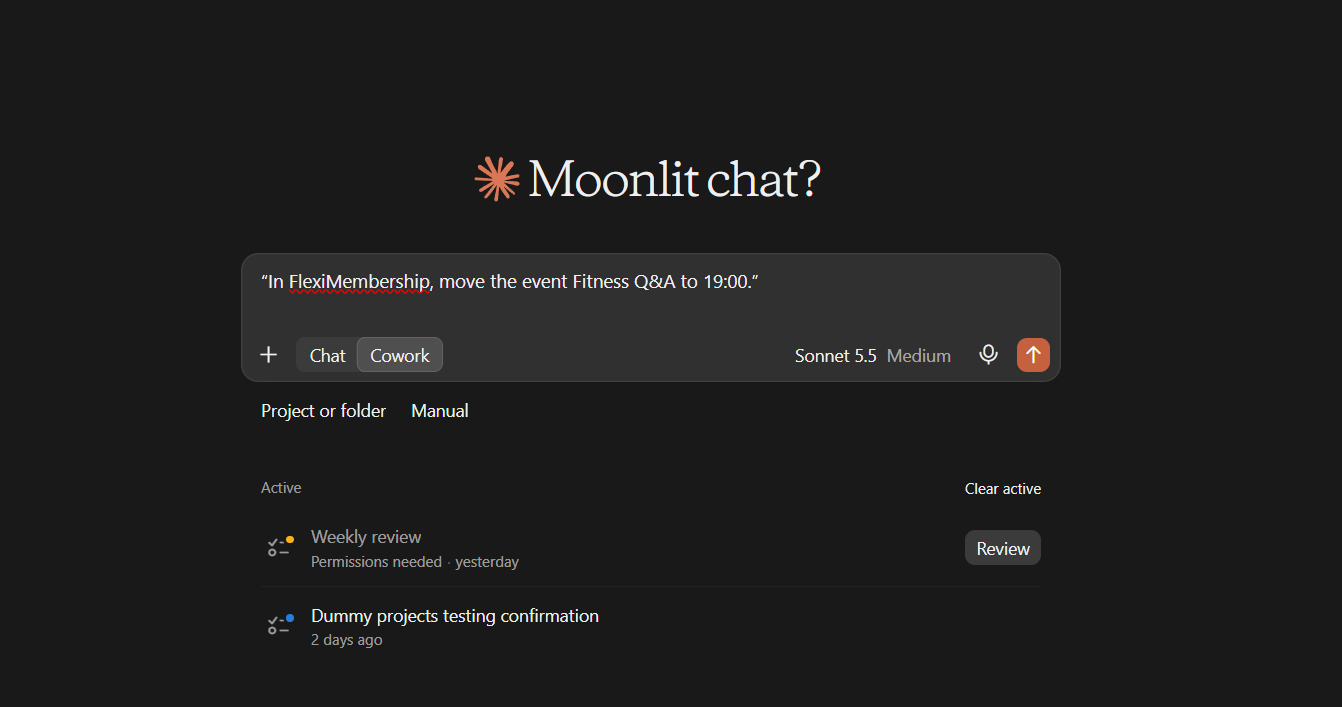
Example prompt“In FlexiMembership, move the event Fitness Q&A to 19:00.”
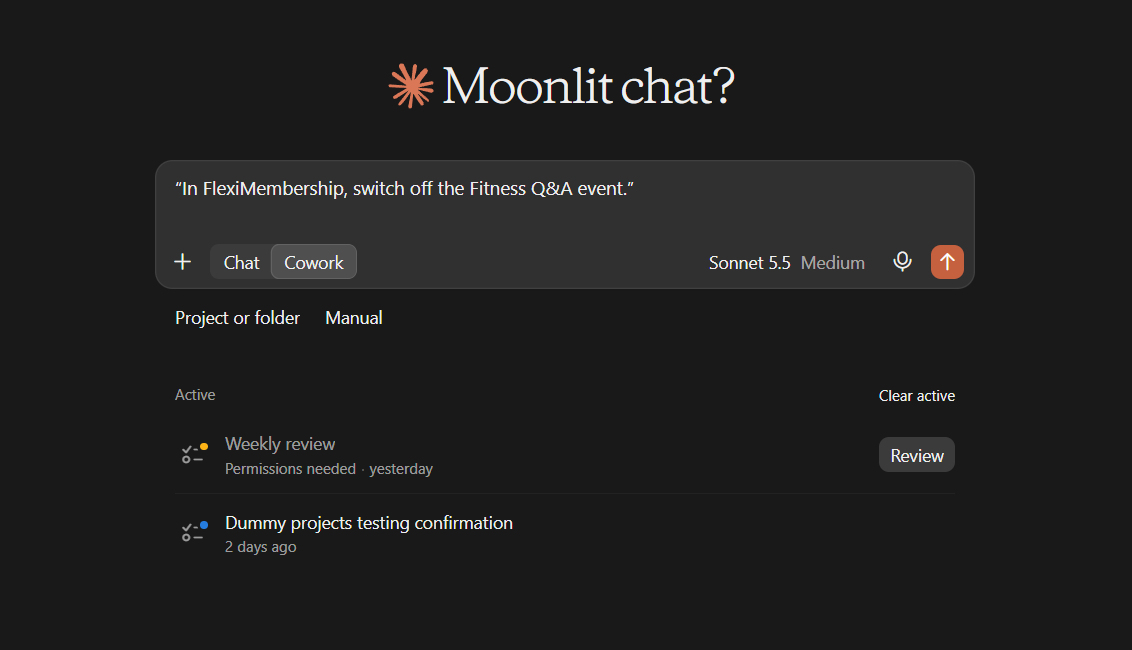
Example prompt“In FlexiMembership, switch off the Fitness Q&A event.”
Behind the Scenes: MCP Tools Involved
| Task | Related MCP tool(s) |
|---|---|
| See who a post can come from | list_post_authors |
| See posts, scheduled posts and drafts | list_posts |
| Upload a picture, video or audio for a post | upload_post_media |
| Publish a post now | create_post |
| Schedule a post | schedule_post |
| Change a scheduled post | update_scheduled_post |
| Turn a scheduled post into a lesson | set_scheduled_post_lesson |
| Edit a published post | edit_post |
| Pin or unpin a post | pin_post |
| List what members wrote | list_moderation_queue |
| Open a thread with its replies | get_moderation_thread |
| Hide, restore or approve | moderate_item |
| Edit a member’s post or comment | edit_member_content |
| Search for an event venue | search_event_locations |
| Create an event | create_event |
| List events | list_events |
| View one event | get_event |
| Change an event | update_event |
| Switch an event on or off | set_event_active |
| Find the community first | list_groups |
Ready-to-Use Prompts
- “In FlexiMembership, who can I post as in Fitness Growth Circle?”
- “In FlexiMembership, post ‘Welcome to Fitness Growth Circle!’ in Fitness Growth Circle as the account owner.”
- “In FlexiMembership, show hidden posts waiting for review in Fitness Growth Circle.”
- “In FlexiMembership, hide that comment.”
- “In FlexiMembership, create an online event called Fitness Q&A for 2026-11-06 at 18:00.”
Tips for Better Results
- Name the community in every request.
- Say who the post comes from.
- Read the preview. It says who is notified.
- Upload a file first, then post.
- Use full dates like 2026-11-06 and a 24-hour time.
- Handle moderation in small batches.
Quick Fixes
| Problem | Fix |
|---|---|
| I cannot post as a person. | Only the owner, instructors, admins and moderators can. Ask who you can post as. |
| A scheduled post went out under another name. | It uses the community’s scheduled-post author. That is set in the community settings. |
| An edit was refused. | The post changed meanwhile. Ask the AI to read it again. |
| My event time is wrong. | Times use your account’s time zone. Give the time as you mean it. |
| Members cannot see my event. | It may be switched off. Ask the AI to switch it on. |
| A large video will not upload. | Give a public link to the file instead. |
| The AI does not use FlexiMembership. | Check the connector or plugin is connected and authorized. Add “In FlexiMembership” to your prompt. |
Explore the complete FlexiMembership MCP Tools Reference: View the documentation for a detailed explanation of available MCP tools, their functionality, and how to use them.
Limitations
- Scheduled posts cannot be removed through the AI.
- Scheduled posts go out only as the community’s scheduled-post author.
- Poll answers cannot be changed after a post is made.
- Hiding is not deleting. Deleting is done in the dashboard.
- Editing a member’s post does not notify the author.
- There is no member report or flag feature in this app.
- No undo is described. Read each preview before you confirm.
Was this article helpful?
That’s Great!
Thank you for your feedback
Sorry! We couldn't be helpful
Thank you for your feedback
Feedback sent
We appreciate your effort and will try to fix the article