Flexi Membership allows administrators to assign different roles to members based on the level of access and responsibilities they require. Member roles help you delegate administrative tasks while maintaining control over your membership.
To change a member's role:
- Open the Members section.
- Locate the member whose role you want to update.
- Under the Role column, click the current role.
- Select the appropriate role from the dropdown menu.
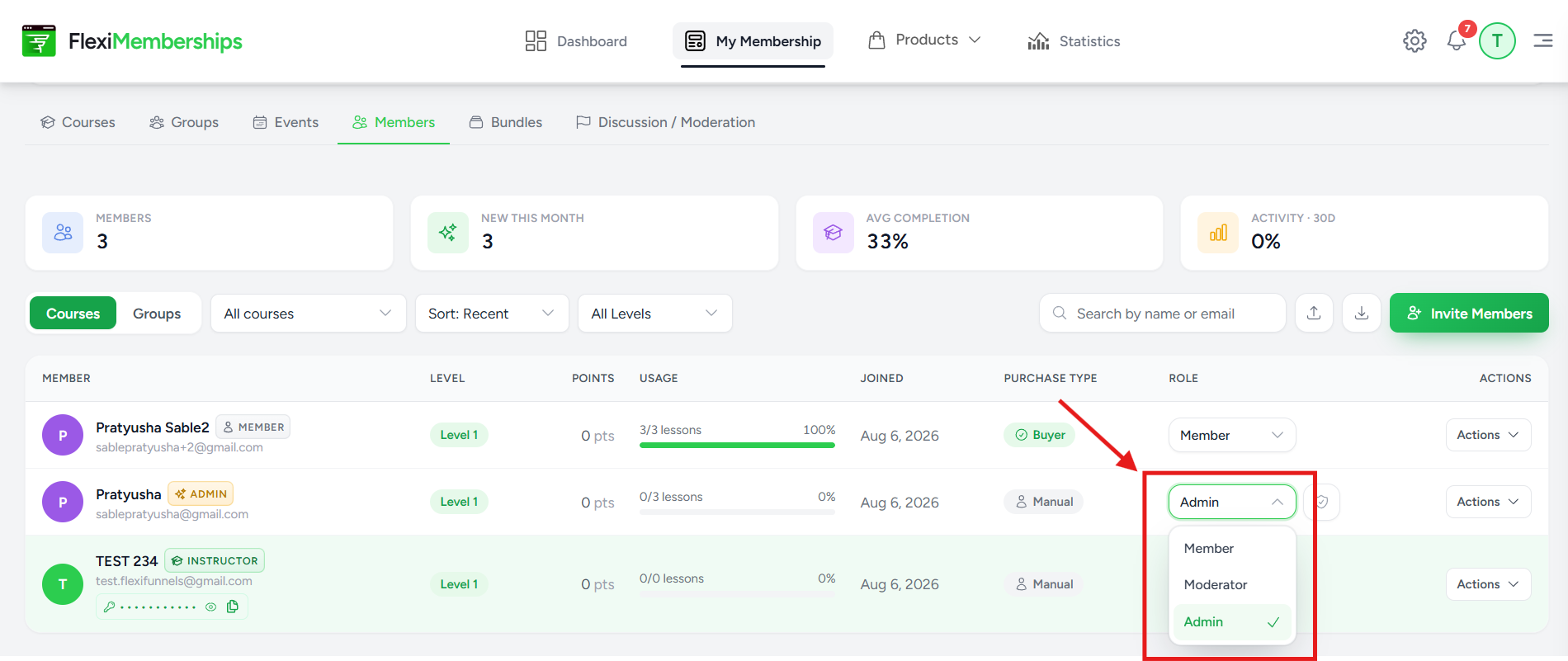
Available roles include:
Member
The Member role is intended for regular learners. Members can access the products, courses, and groups assigned to them but do not have administrative or moderation privileges.
Moderator
The Moderator role is designed for community managers or instructors who need to oversee discussions and community activity. Moderators can help manage discussions, review community interactions, and assist in maintaining a healthy learning environment without having full administrative control.
Admin
The Admin role provides elevated permissions within the membership. Administrators can manage membership resources, oversee members, configure settings, and perform other administrative tasks required to manage the membership effectively.
Best Practice: Assign the Admin role only to trusted team members who require full management access. Use the Moderator role for users responsible for managing discussions and community engagement without granting complete administrative privileges.
Was this article helpful?
That’s Great!
Thank you for your feedback
Sorry! We couldn't be helpful
Thank you for your feedback
Feedback sent
We appreciate your effort and will try to fix the article