Overview
The Members section provides a centralized directory of everyone who belongs to your membership. It allows you to browse members, view their profiles, see when they joined, and filter members based on their enrolled courses or groups.
This feature makes it easier to discover other members and understand your community's participation.
Accessing the Members Directory
After logging into your membership:
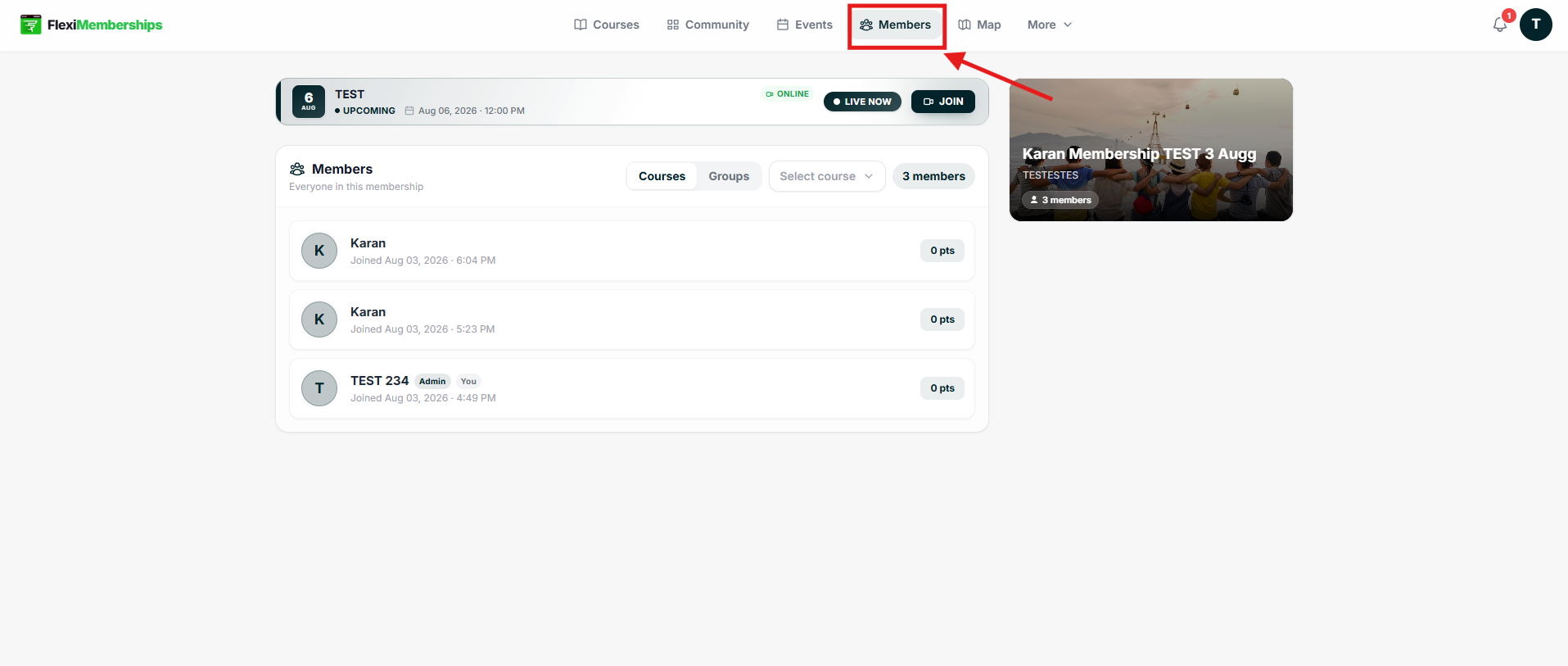
- Click Members from the top navigation bar.
- The Members page opens, displaying all members in the membership.
Understanding the Members Page
The Members page contains several filtering options to help you locate members.
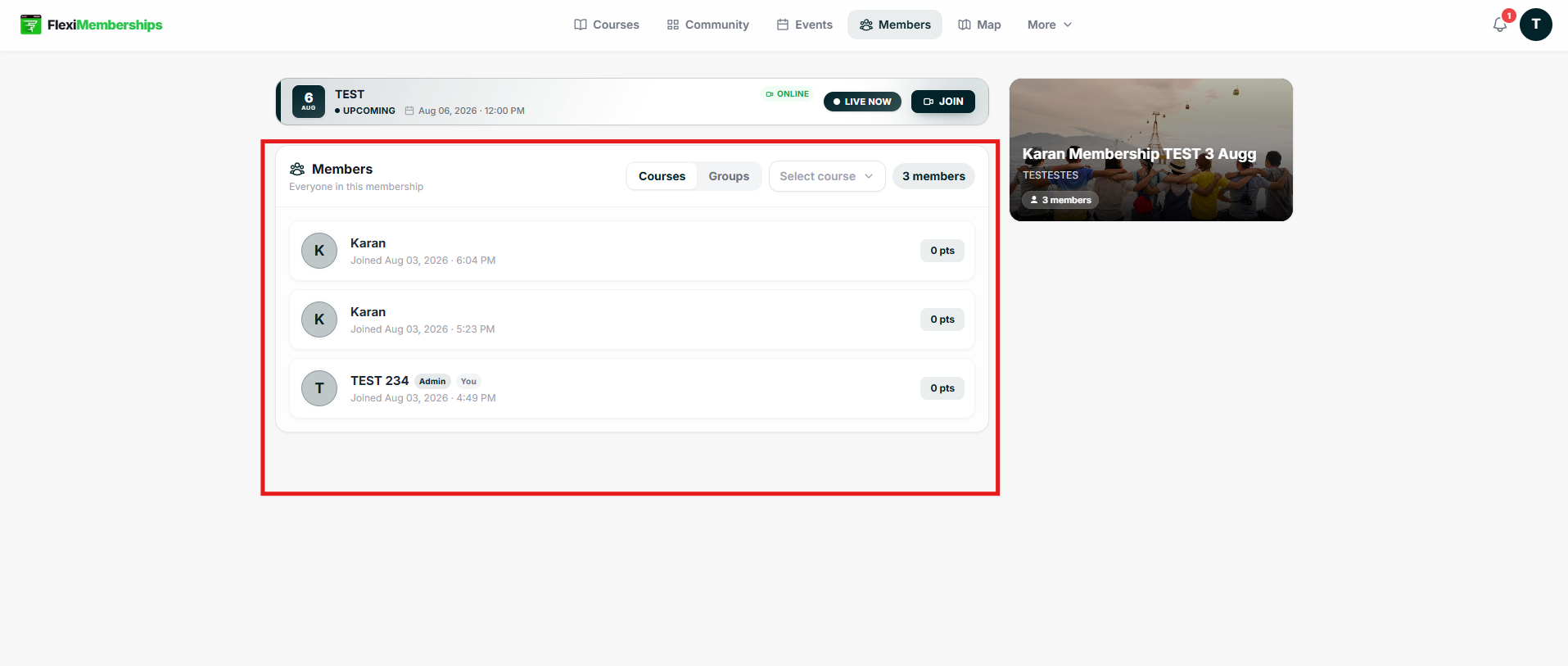
Members List
Every member is displayed with:
- Profile avatar
- Member name
- Join date and time
- Current points
- Role badges (if applicable)
Examples include:
- Admin
- Instructor
- You
Total Members
The counter at the top-right displays the total number of members in the membership.
Filter by Courses
Select the Courses tab to view members enrolled in specific courses.
After selecting the tab:
- Click Select Course.
- Choose a course.
- The member list updates automatically.
This is useful for identifying learners within a particular course.
Filter by Groups
Switch to the Groups tab to display members belonging to community groups.
After selecting a group, only members from that group are shown.
Member Points
Each member card displays the total points earned within the membership.
These points may contribute toward leaderboards, rewards, or badges depending on how the membership owner has configured gamification.
Member Roles
Special role badges may appear beside member names.
Common examples include:
- Admin
- Instructor
- You
These badges help identify administrators and instructors within the membership.
Tips
- Use course filters to locate students enrolled in a specific course.
- Use group filters to view members participating in a particular community.
- Check member points to identify highly active participants.
- Role badges help distinguish instructors and administrators from regular members.
Note: Available filters and displayed information depend on how the membership owner has configured the membership.
Using Member Map in FlexiMemberships
Overview
The Member Map provides a geographic view of your membership community. Members who have shared their location appear on an interactive map, making it easy to discover nearby members and explore your global community.
Opening the Member Map
Navigate to:
Map from the top navigation menu.
The interactive member map opens.
Was this article helpful?
That’s Great!
Thank you for your feedback
Sorry! We couldn't be helpful
Thank you for your feedback
Feedback sent
We appreciate your effort and will try to fix the article