Overview
The Community section brings members together in one collaborative space where they can join groups, interact with other members, participate in discussions, and stay updated with community activities.
Depending on how your membership is configured, you may have access to one or more public or private groups. Once you've joined a group, you can create posts, comment on discussions, react to content, and participate in conversations with other members.
Accessing the Community
After logging into your membership, click Community from the top navigation bar.
The Community page displays all groups available within your membership.
From here, you can:
- Browse available groups
- Search for groups
- Filter groups
- Join eligible groups
- Open groups you've already joined
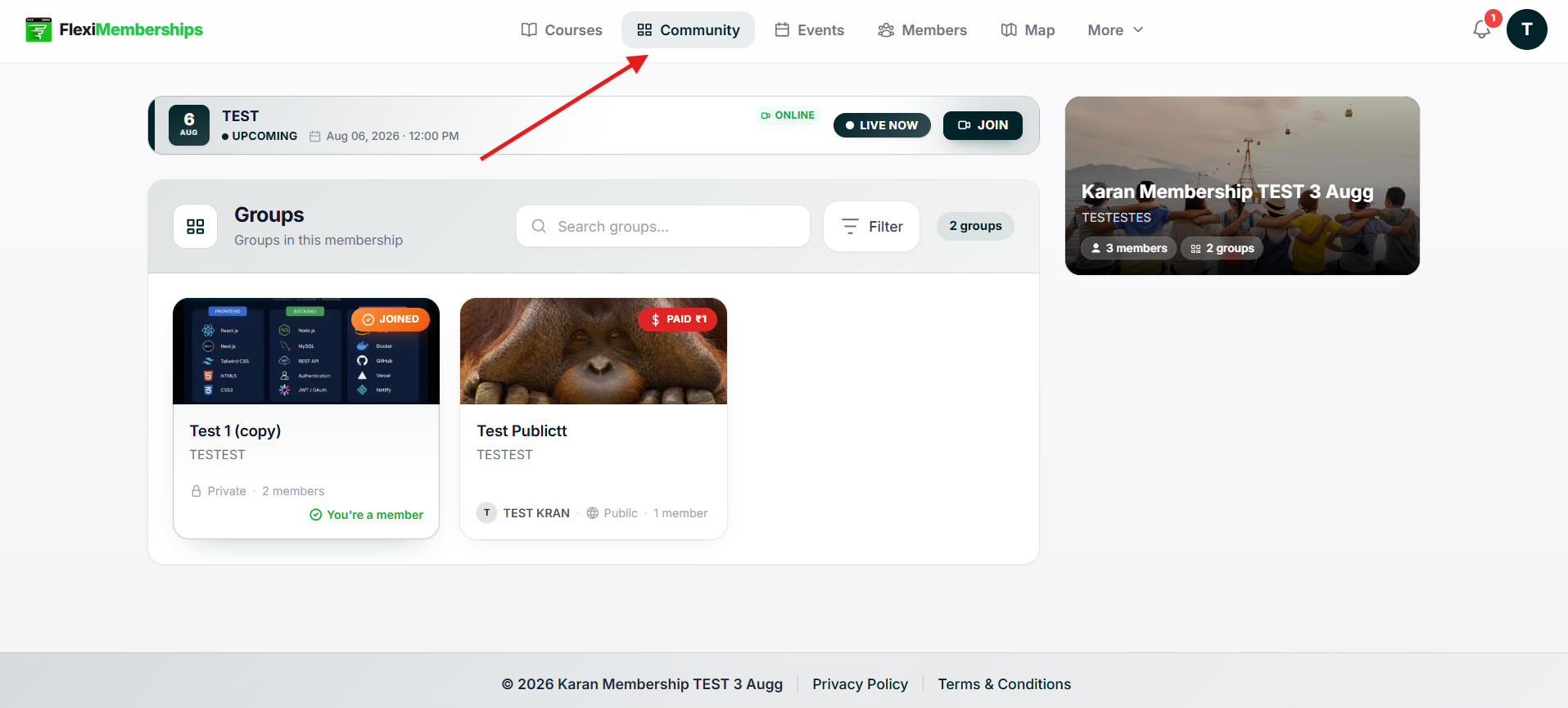
Understanding the Community Page
Each group card provides a quick overview of the community.
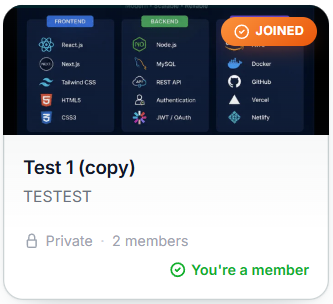
Group Cover Image
Displays the group's cover image to help identify it visually.
Group Name
Shows the name of the community group.
Click the group card to open the group.
Group Description
Displays a brief description of the group.
Group Visibility
Groups can be either:
- Public – Visible to all eligible members.
- Private – Accessible only to invited or enrolled members.
The visibility badge is displayed on the group card.
Membership Status
Your current access is displayed using badges such as:
- You're a member
- Joined
If you haven't joined an eligible public group yet, you'll see the option to join it.
Paid Groups
Some communities may require a purchase before access is granted.
Paid groups display a pricing badge on the group card.
Member Count
Shows how many members are currently part of the group.
Search Groups
Use the Search Groups field to quickly locate a specific community by typing its name.
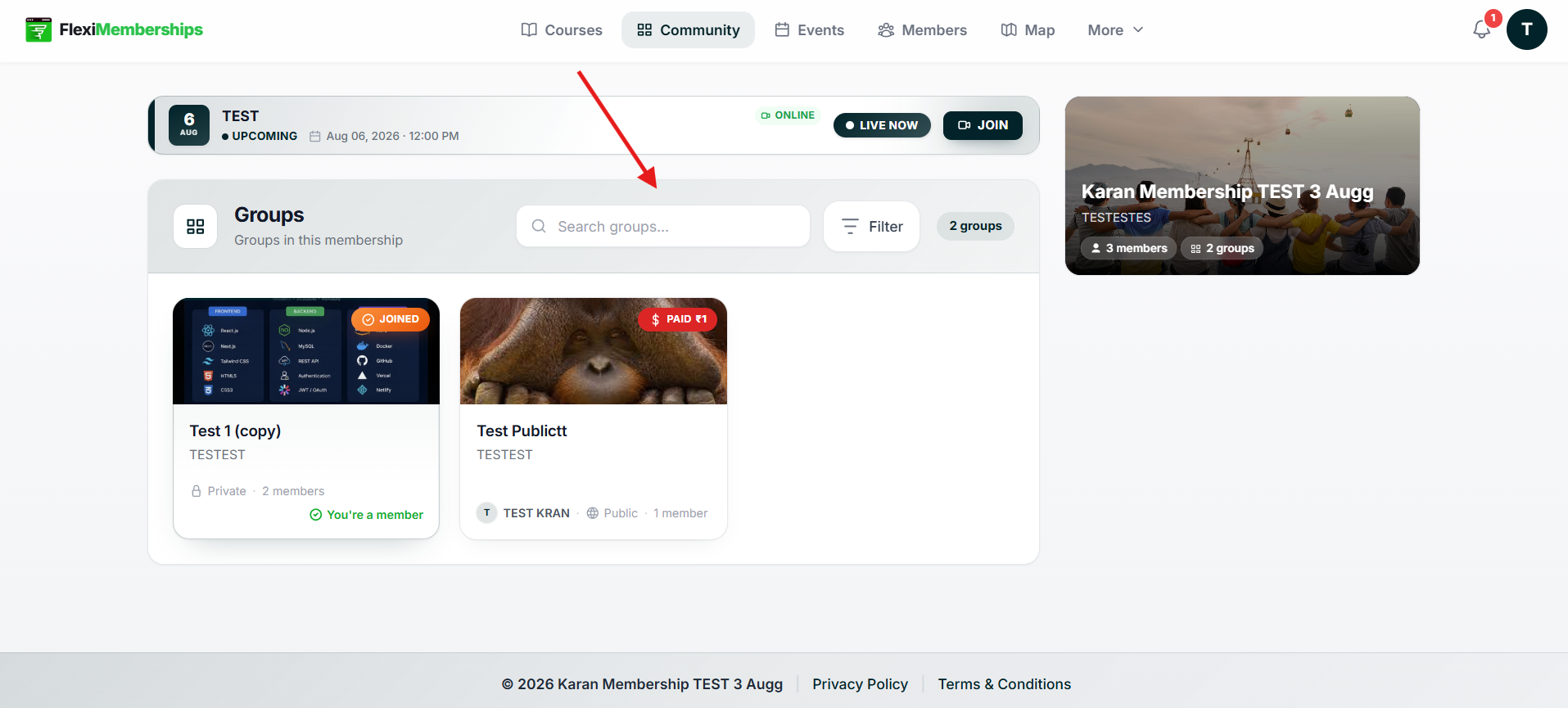
Filter Groups
Select Filter to narrow the displayed groups based on available criteria.
Opening a Community Group
Click any joined group to open its community feed.
Inside a group, you'll find:
- Community feed
- Posts
- Comments
- Live event announcements
- Group information
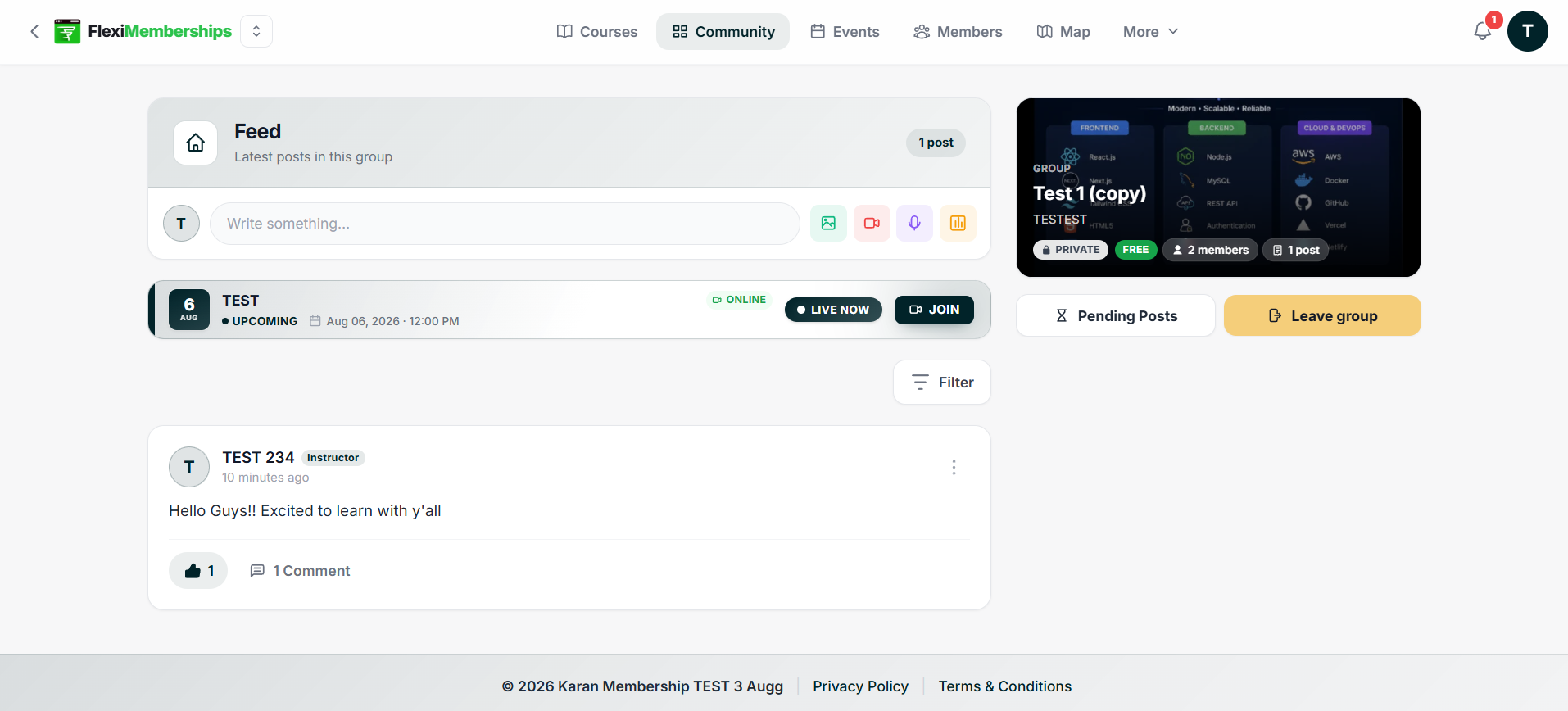
Understanding the Group Feed
The group feed is the central place where members interact with one another.
Posts are displayed in chronological order, allowing everyone to stay updated with the latest discussions.
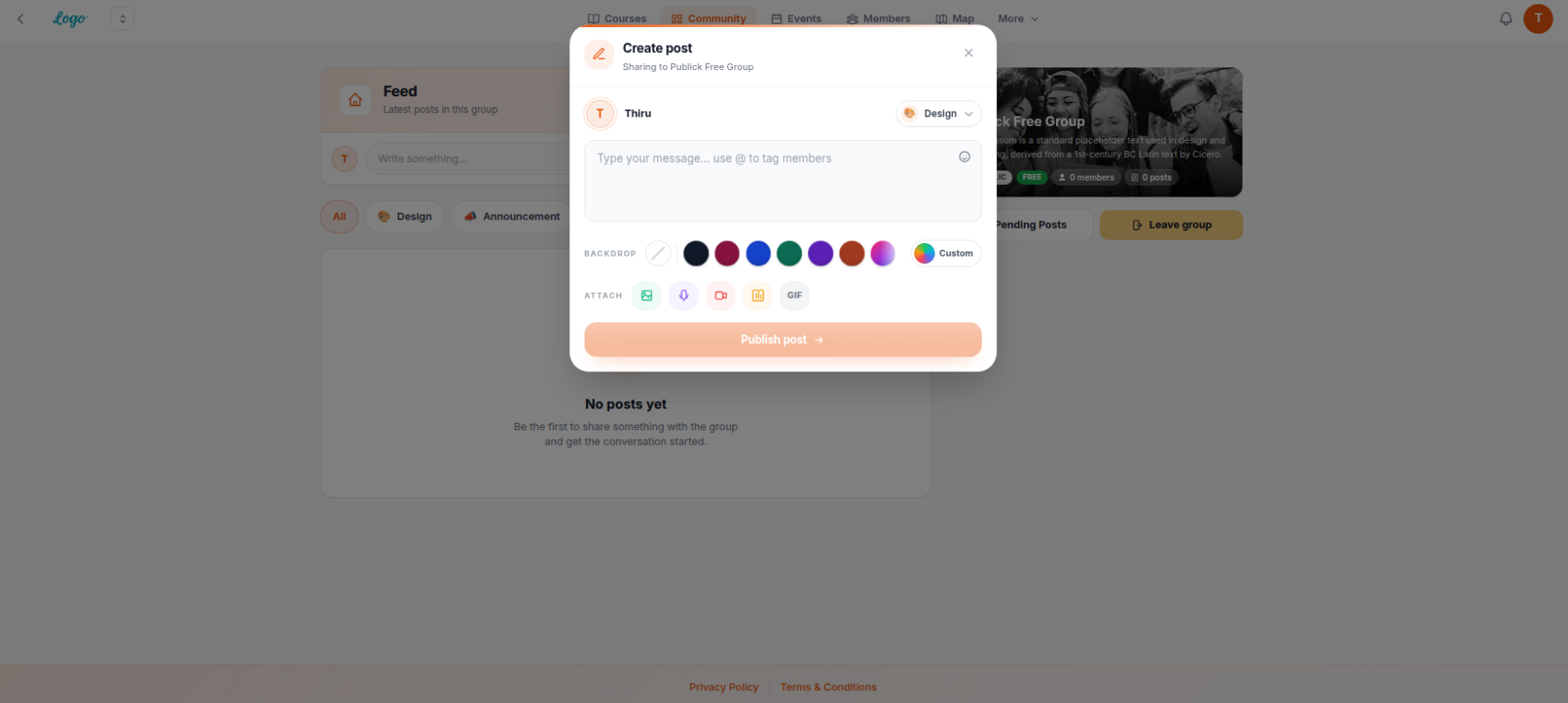
Creating a Post
At the top of the feed, you'll find the post composer.
Simply click inside the Write something... field to share content with your community.
Depending on your membership settings, you may also be able to attach:
- Images
- Videos
- Voice recordings
- Documents
After publishing, your post becomes visible to other group members.
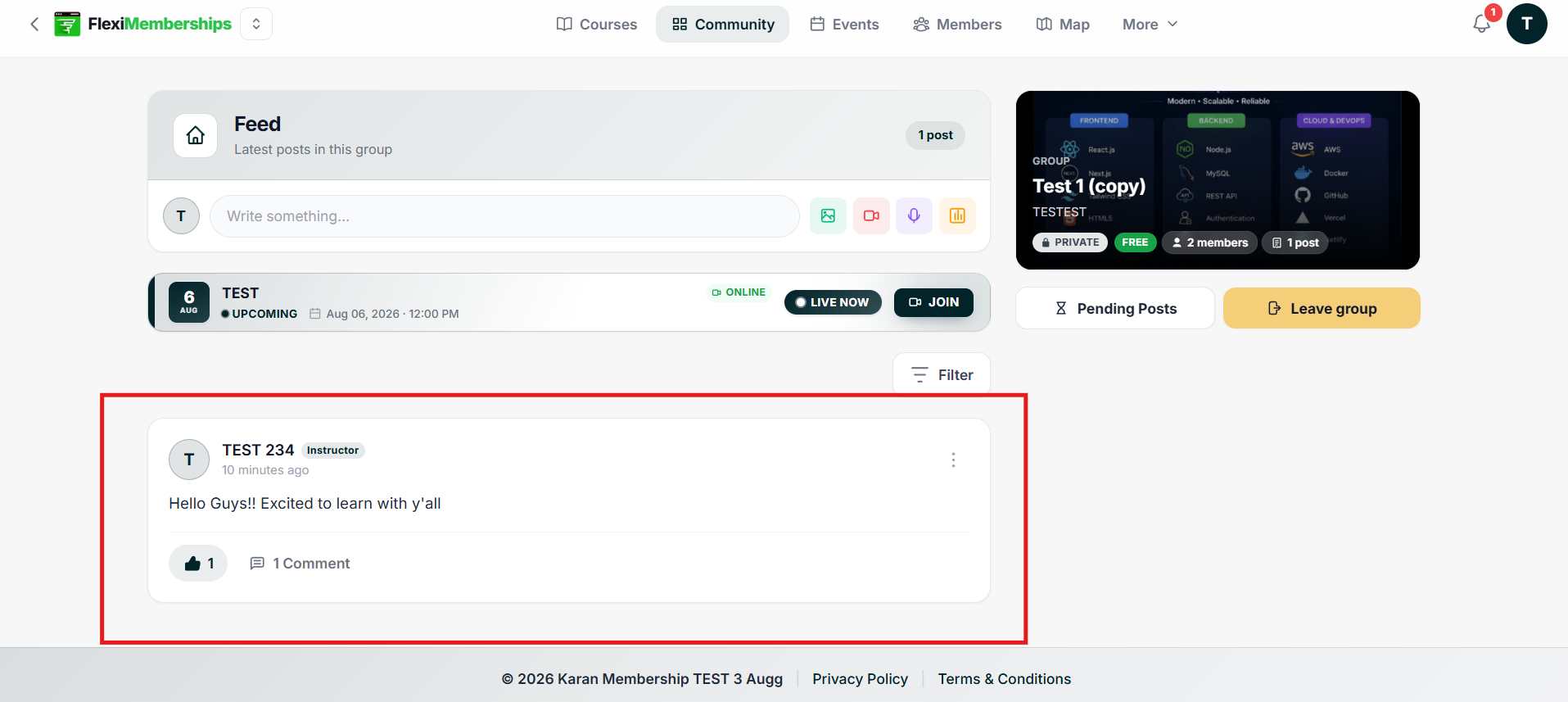
Viewing Community Posts
Each post displays useful information including:
- Author name
- Author role (such as Instructor)
- Time of posting
- Post content
- Total likes
- Total comments
This allows members to quickly identify recent discussions and instructor announcements.
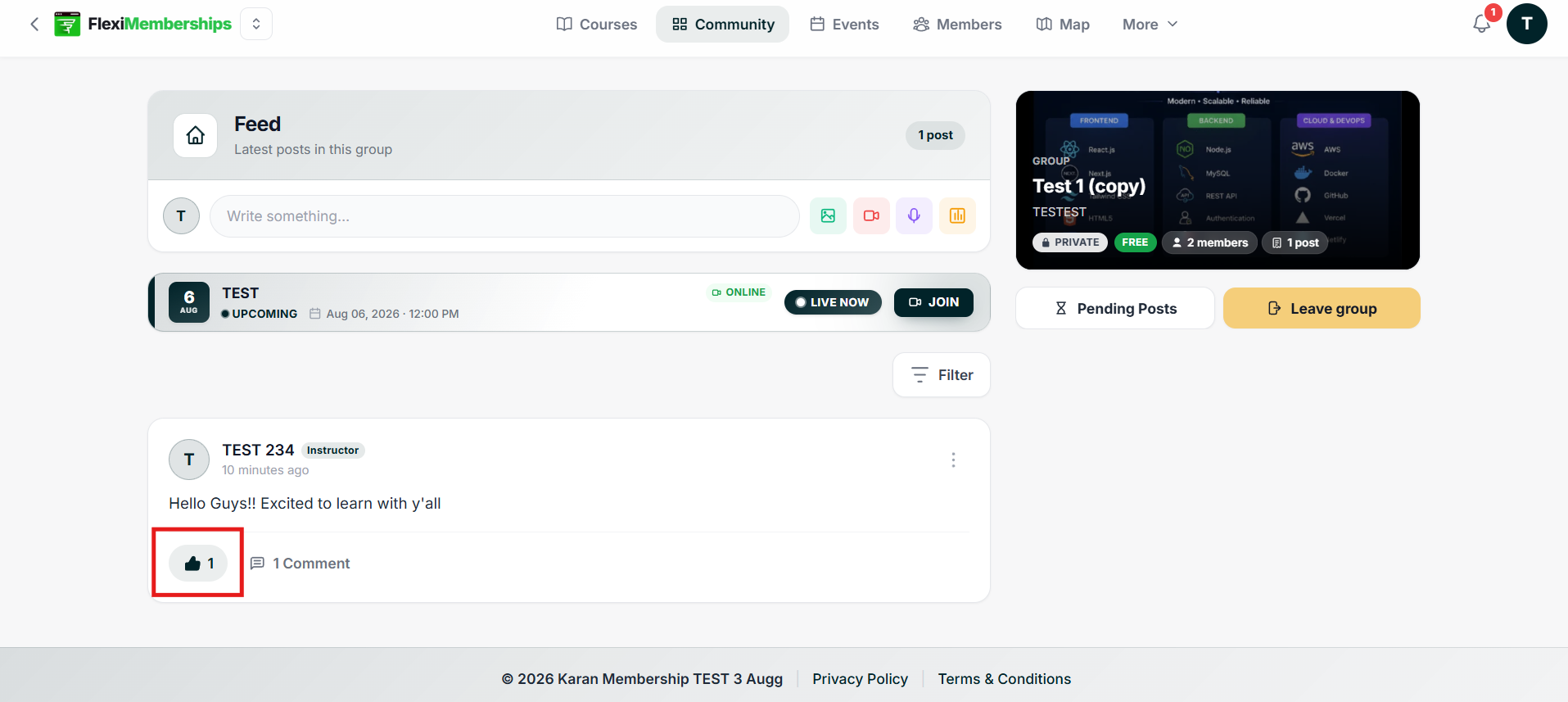
Liking Posts
To react to a discussion, click Like below the post.
Your reaction helps acknowledge helpful or interesting content.
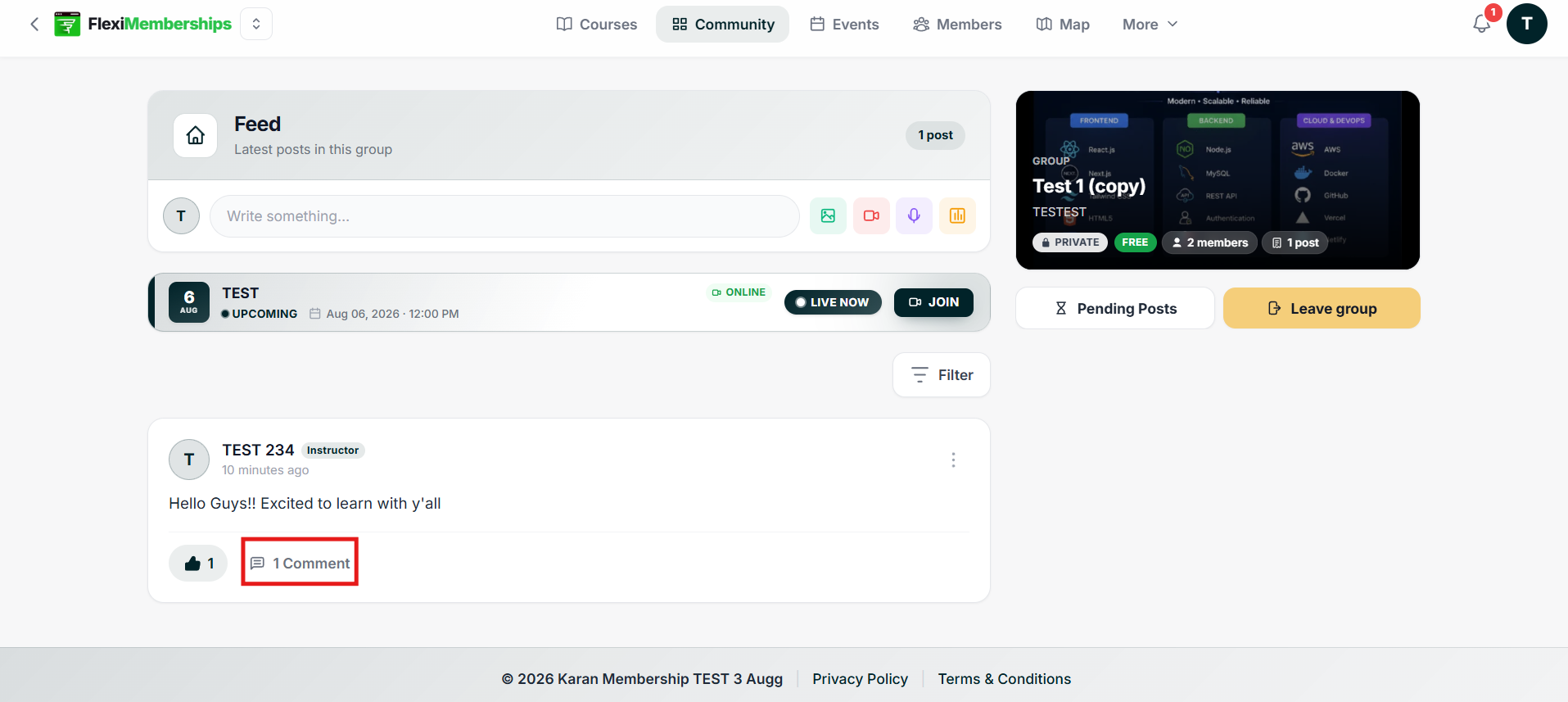
Commenting on Posts
Members can participate in conversations by posting comments.
To comment:
- Select the comment field below the post.
- Type your message.
- Click Send.
Your comment will appear beneath the original post.
Replying to Comments
Instead of creating a new comment, you can reply directly to an existing conversation.
Replies help keep discussions organized under the relevant comment.
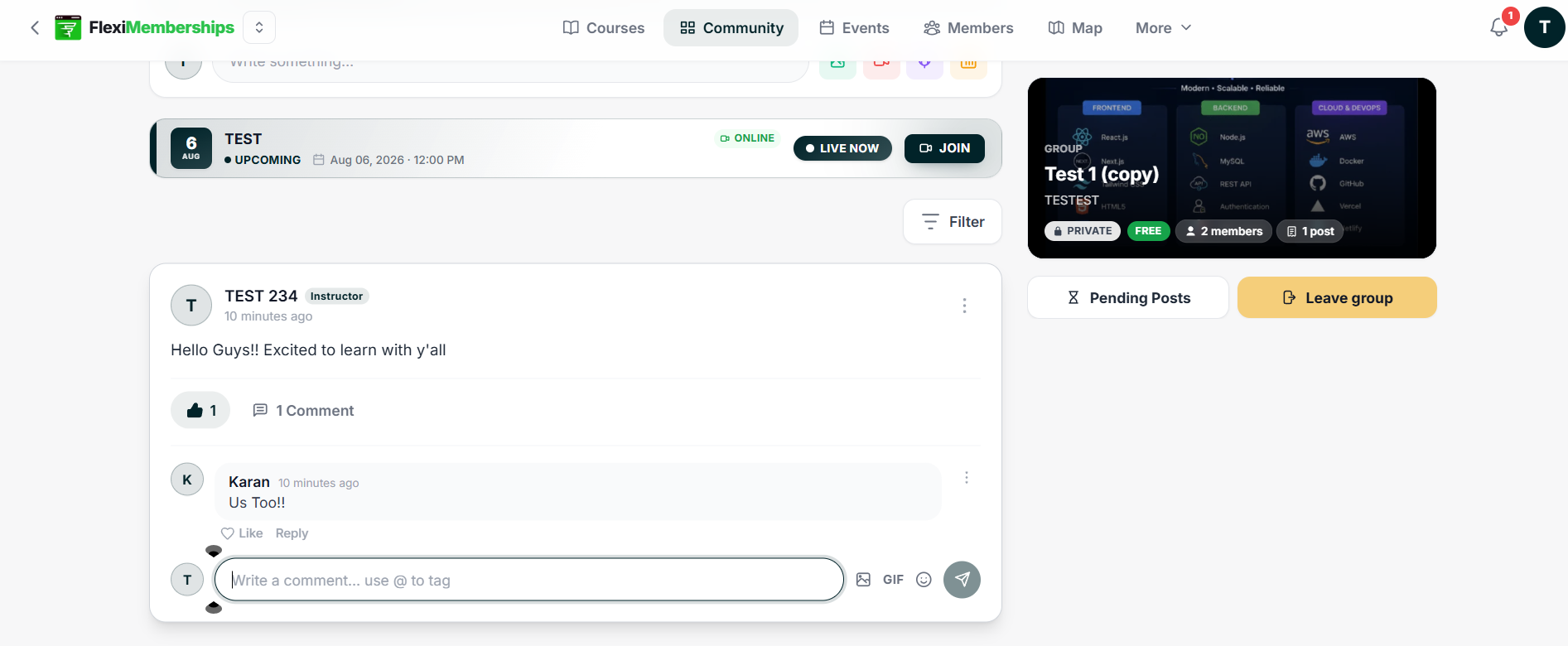
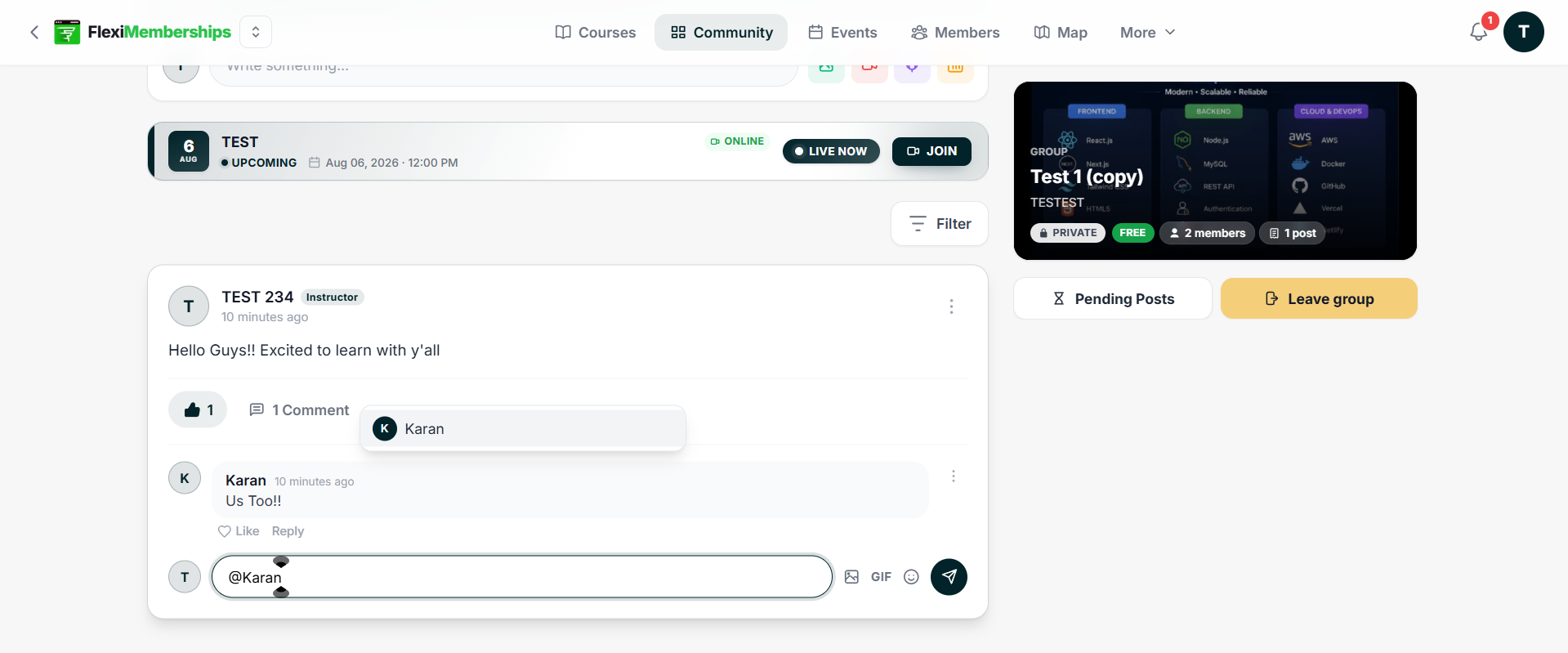
Mentioning Other Members
While writing a comment, type the @ symbol followed by a member's name to mention them in your message.
This helps notify specific members during discussions.
Using GIFs and Emojis
Comments support additional engagement features, including:
- GIFs
- Emojis
These can be used to make conversations more interactive.
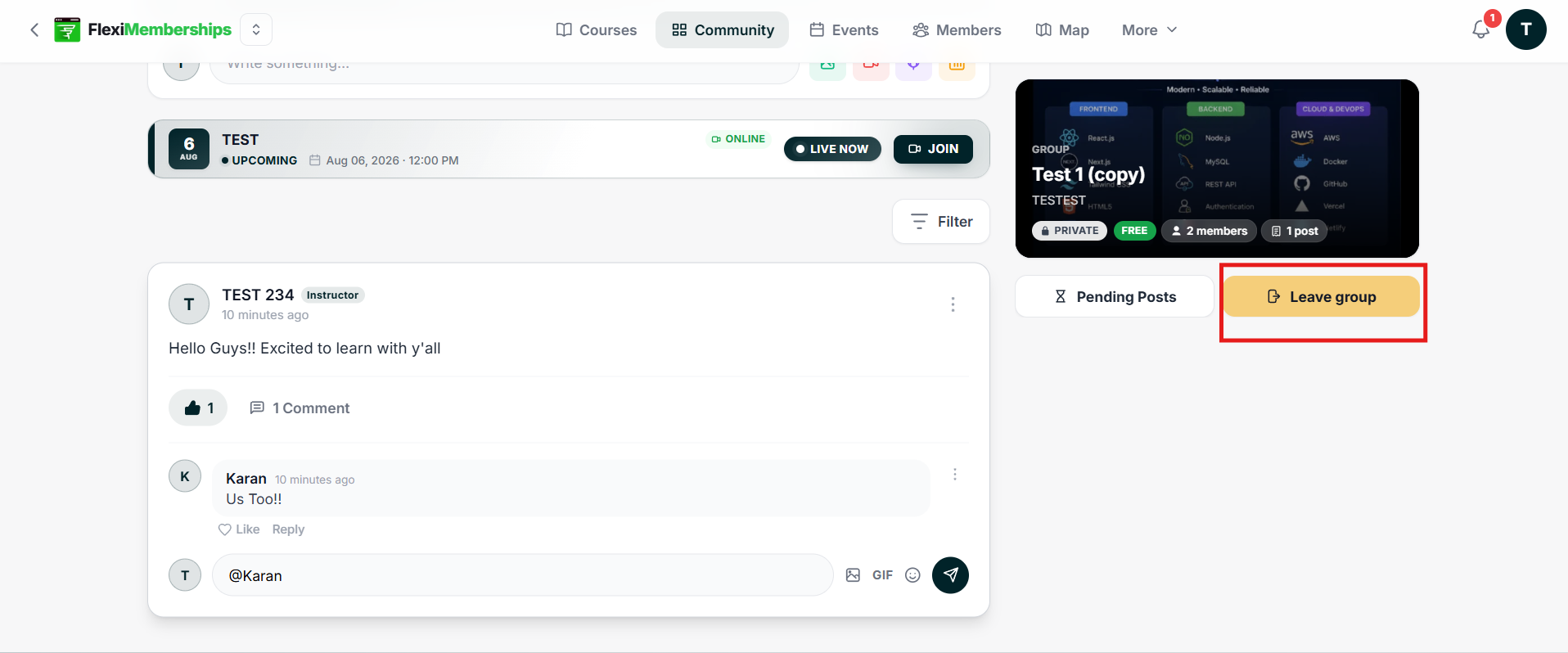
Leave Group
If permitted, members can leave the community at any time by clicking Leave Group.
After leaving, access to the group depends on its privacy and enrollment settings.
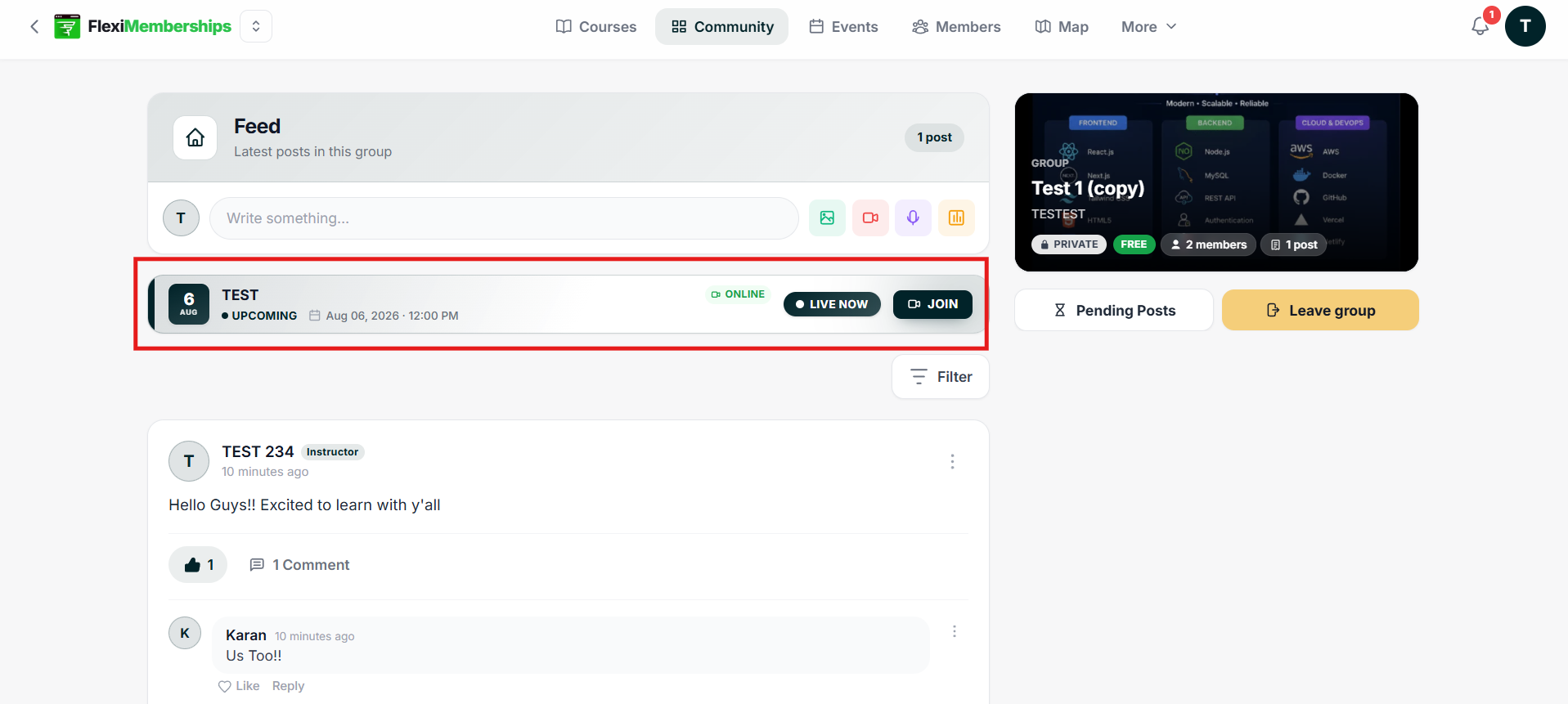
Live Events
If the membership owner has scheduled an event, it appears at the top of the community feed.
Event cards display information such as:
- Event title
- Date
- Time
- Live status
- Join button
When the event is live, click Join to participate.
Tips
- Introduce yourself after joining a new community.
- Use comments and replies to keep discussions organized.
- Mention members using @ when asking questions or requesting feedback.
- Participate regularly to stay engaged with instructors and fellow members.
- Keep discussions respectful and relevant to the purpose of the community.
- Watch for live event announcements at the top of the feed so you don't miss upcoming sessions.
Note: The features available inside a community (such as media uploads, voice messages, paid groups, or member permissions) depend on how the membership owner has configured the group.
Was this article helpful?
That’s Great!
Thank you for your feedback
Sorry! We couldn't be helpful
Thank you for your feedback
Feedback sent
We appreciate your effort and will try to fix the article