A community is like a club room ? inside your membership. Members meet there, chat and share ideas. Follow these steps to open one.
Little words, big meanings
| Word | What it means |
|---|---|
| Community | a space where members talk |
| Public community | anyone in your membership can join |
| Private community | only approved or invited members |
| Banner | the picture at the top of the community |
Before You Start
- You need a membership project in Flexi Membership
Create Your Community in 7 Steps
1Click New Community
- Open the Flexi Membership app
- Open your membership project
- Click the Communities tab
- Click New Community
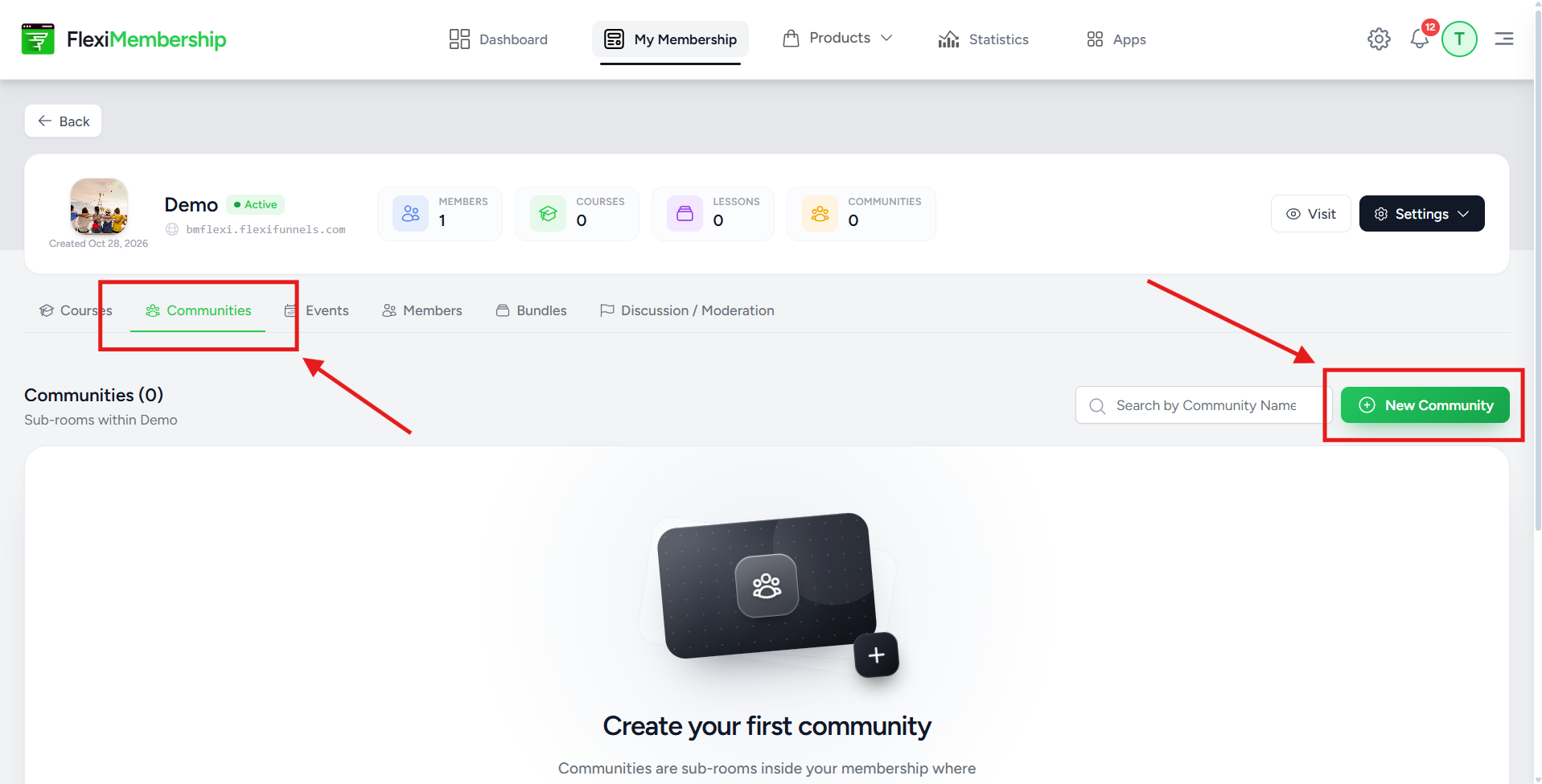
No communities yet? Click New Community on the Create your first community prompt.
2Choose the type
- Pick Public Community or Private Community
| Type | Who can join |
|---|---|
| Public Community | Everyone in the membership. They find it and join at once. |
| Private Community | Only approved or invited members. |
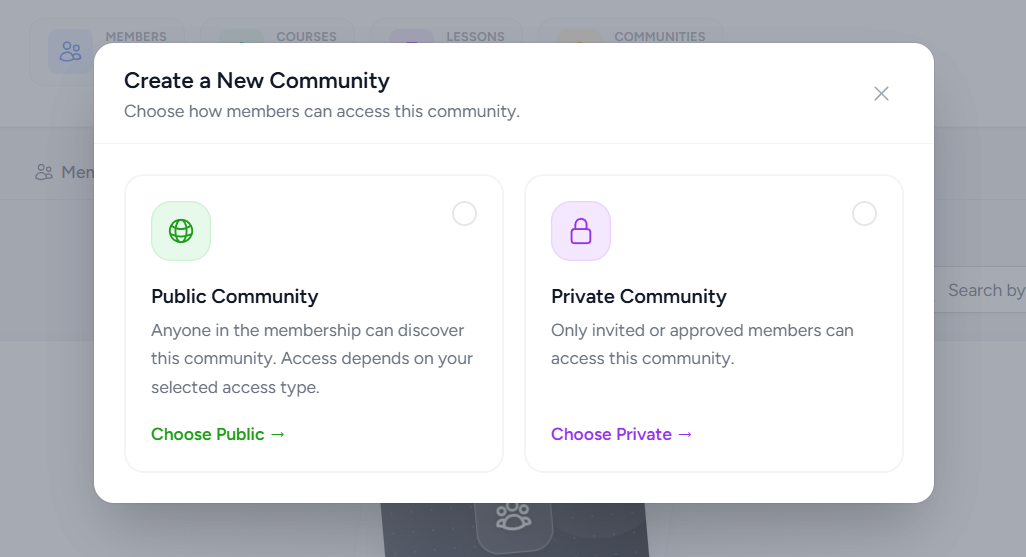
You will see: the community creation window opens.
3Add a name and short description
- Type a Community Name that shows the purpose, like Student Lounge
- Type a Short Description
- Keep it short
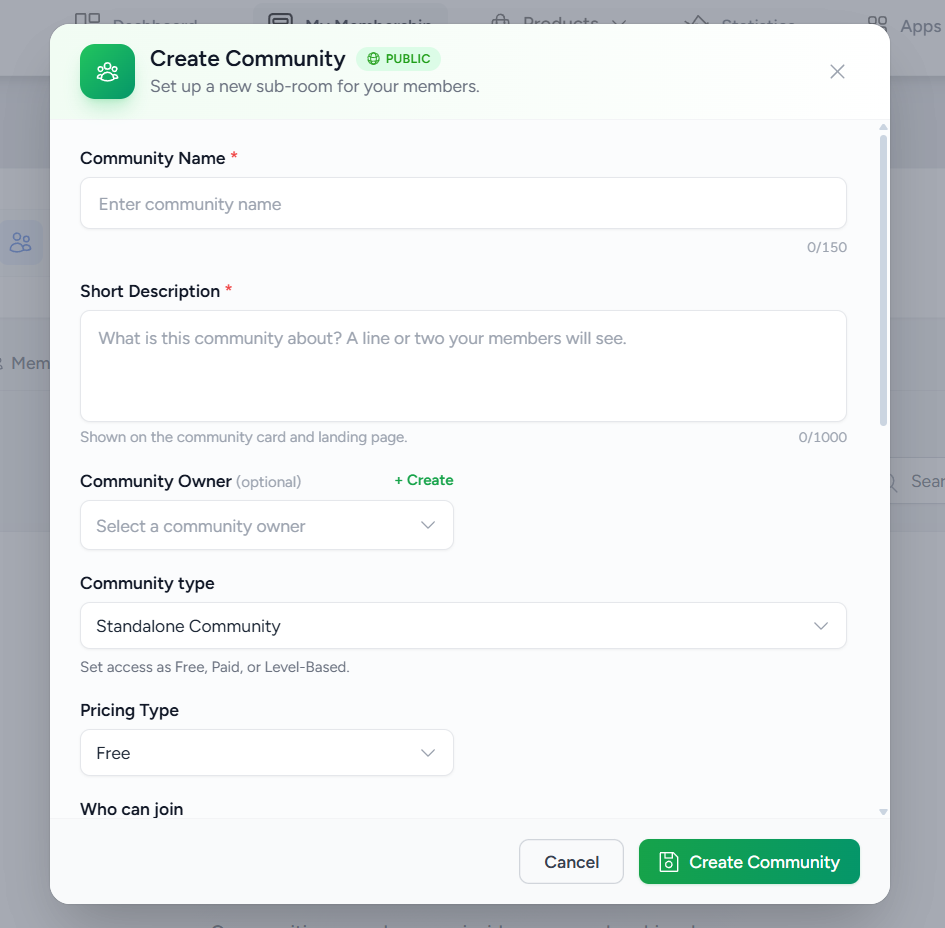
The description shows on the community card and landing page.
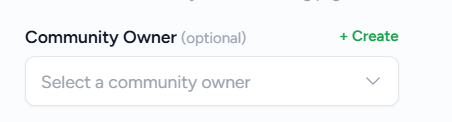
4Pick an owner (optional)
- Choose a Community Owner to manage the community
- Owner not on the list? Click + Create and add one
- Skip it if you want. You can add an owner later
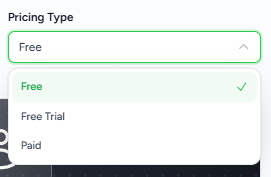
5Choose the pricing type
- Pick Free, Free Trial or Paid
6Add a banner (optional)
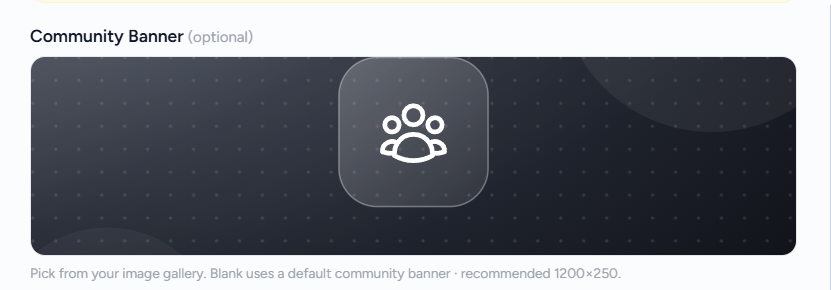
- Upload a banner image
- Best size: 1200 × 250 pixels
- No upload? The default banner is used
7Click Create Community
- Check your details
- Click Create Community
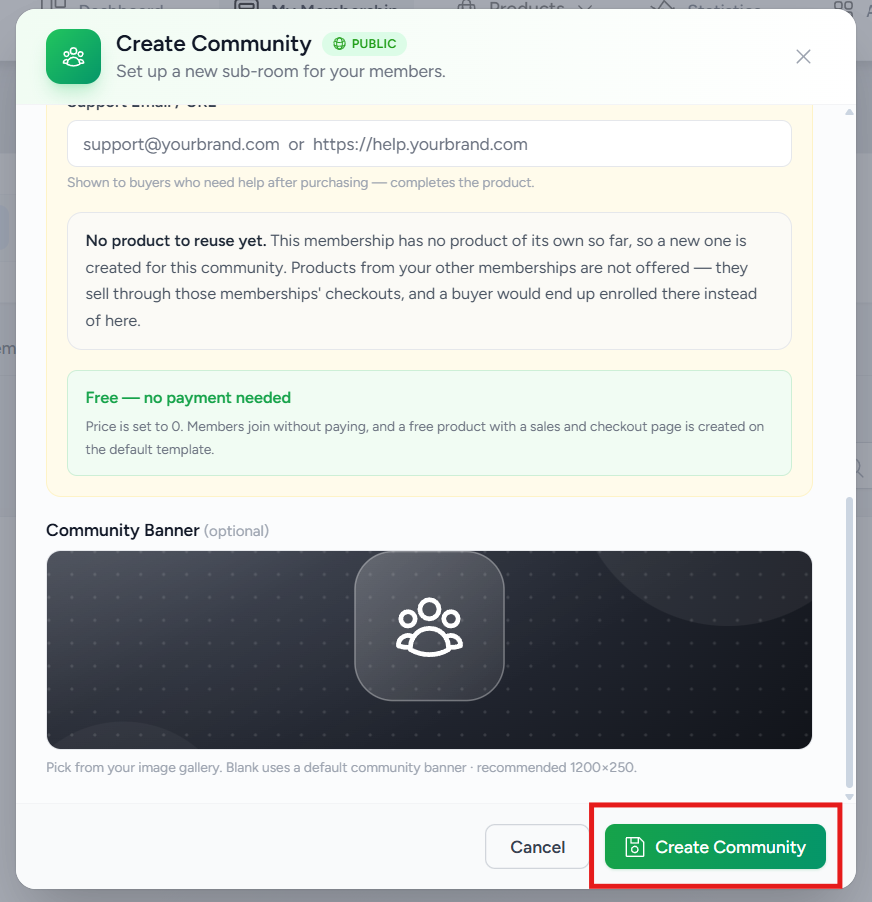
You will see: your new community on the Communities page right away.
See and Manage Your Communities
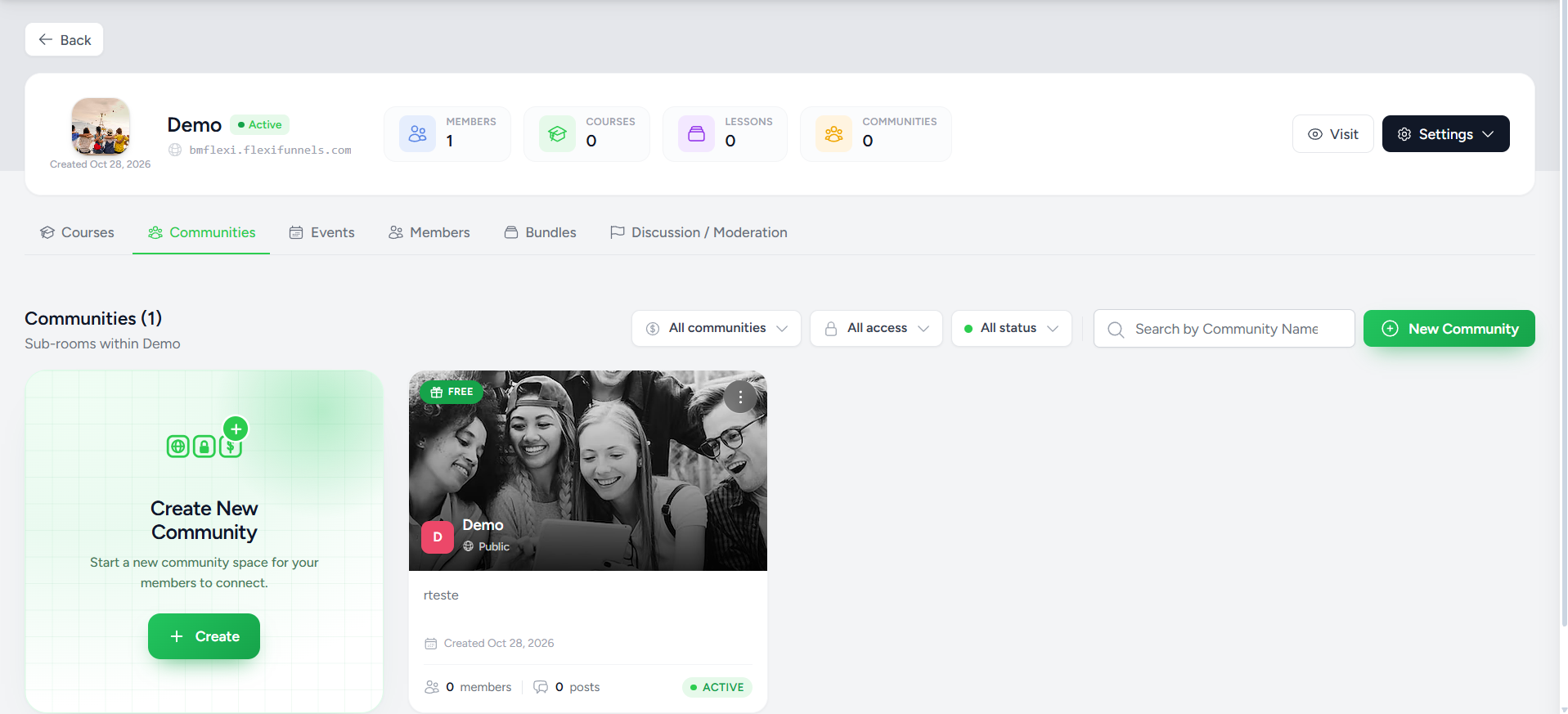
- Open the Communities tab to see all communities
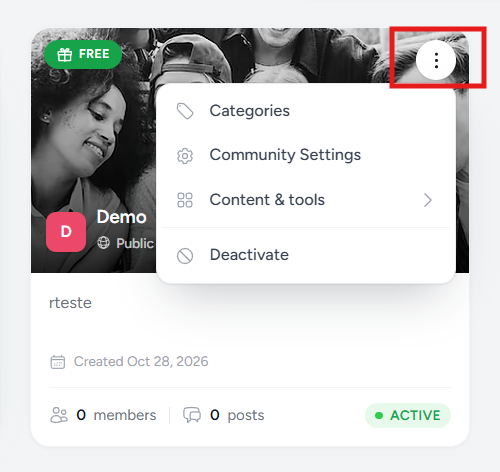
- Each card shows the details in the table below
| On the card | What it tells you |
|---|---|
| Community name | Which community it is |
| Visibility | Public or Private |
| Pricing type | Free, Free Trial or Paid |
| Creation date | When you made it |
| Members and posts | How active it is |
| Status | Active or not |
 Use the More Actions menu
- Click More Actions (⋮) on a card
- Pick an option from the table below
| Option | What it does |
|---|---|
| Categories | Sort discussions with feed categories |
| Community Settings | Set permissions, automation and member controls |
| Landing Page | Design the public page of the community |
| Policies | Manage Terms & Conditions and Privacy Policy |
| Content & Tools | Email notifications, custom scripts, scheduled posts and more |
| Deactivate | Turn the community off. Your settings stay saved |
Which type?Use Public for open chats. Use Private for premium or coaching members.
Was this article helpful?
That’s Great!
Thank you for your feedback
Sorry! We couldn't be helpful
Thank you for your feedback
Feedback sent
We appreciate your effort and will try to fix the article