Community Settings is like a control panel ?️ for your community. You choose who joins, what members can post and what runs by itself.
Little words, big meanings
| Word | What it means |
|---|---|
| Auto Reply | AI answers new posts for you |
| Approve | check first, then allow |
| Quota | the most members allowed |
| Gamification | points and levels for members |
| Tagging | mentioning a member by name |
Set Up Your Community in 9 Steps
Open Community Settings
- Open the Flexi Membership app
- Open your membership project
- Click Communities
- Find your community
- Click the ⋮ (More Actions) menu
- Click Community Settings
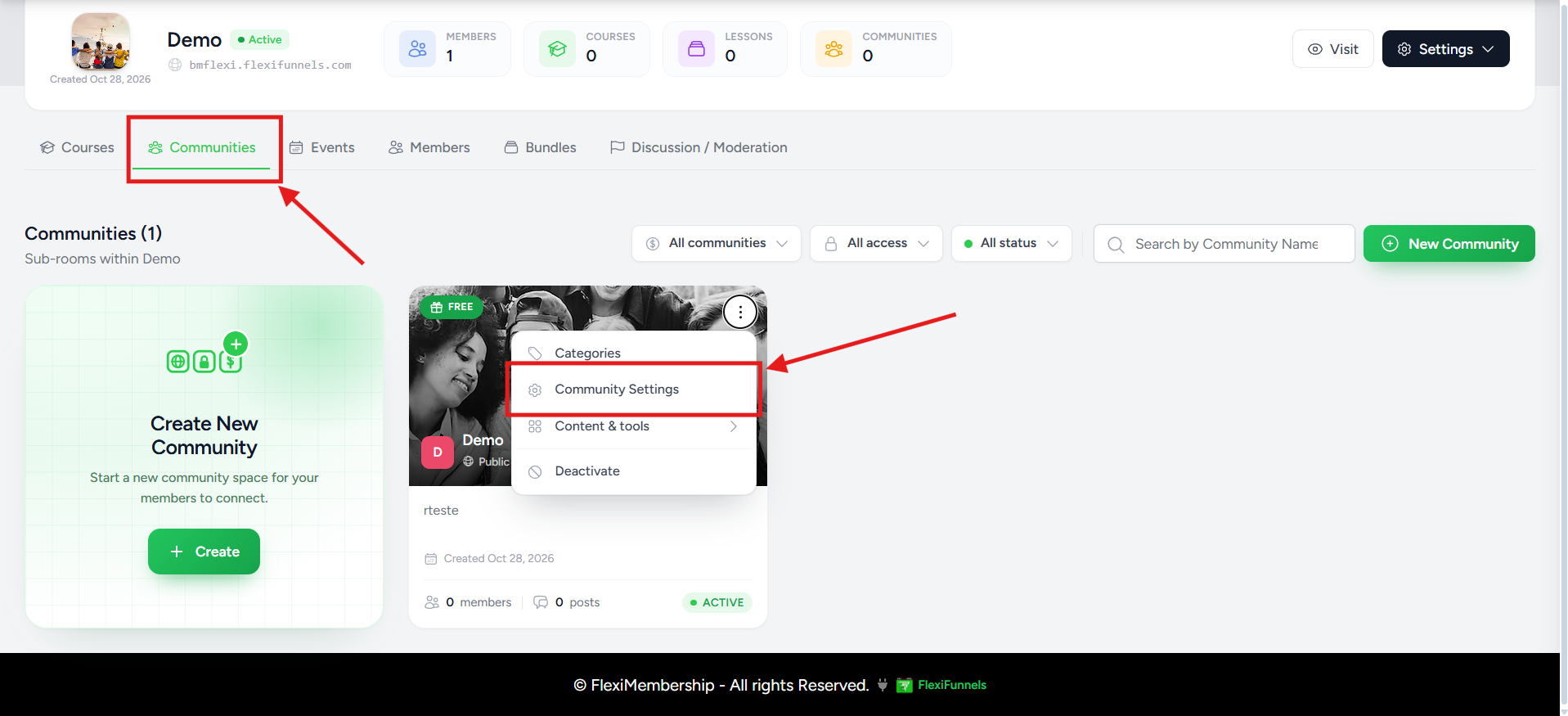
You will see: the Community Settings page opens.
Turn on AI Automation (optional)
| Setting | What it does |
|---|---|
| Auto Reply | AI answers new posts. Good for common questions and when admins are away. |
| Schedule Posts | Posts go live by themselves. Good for daily tips, challenges, lessons and announcements. |
- Switch each one on or off any time
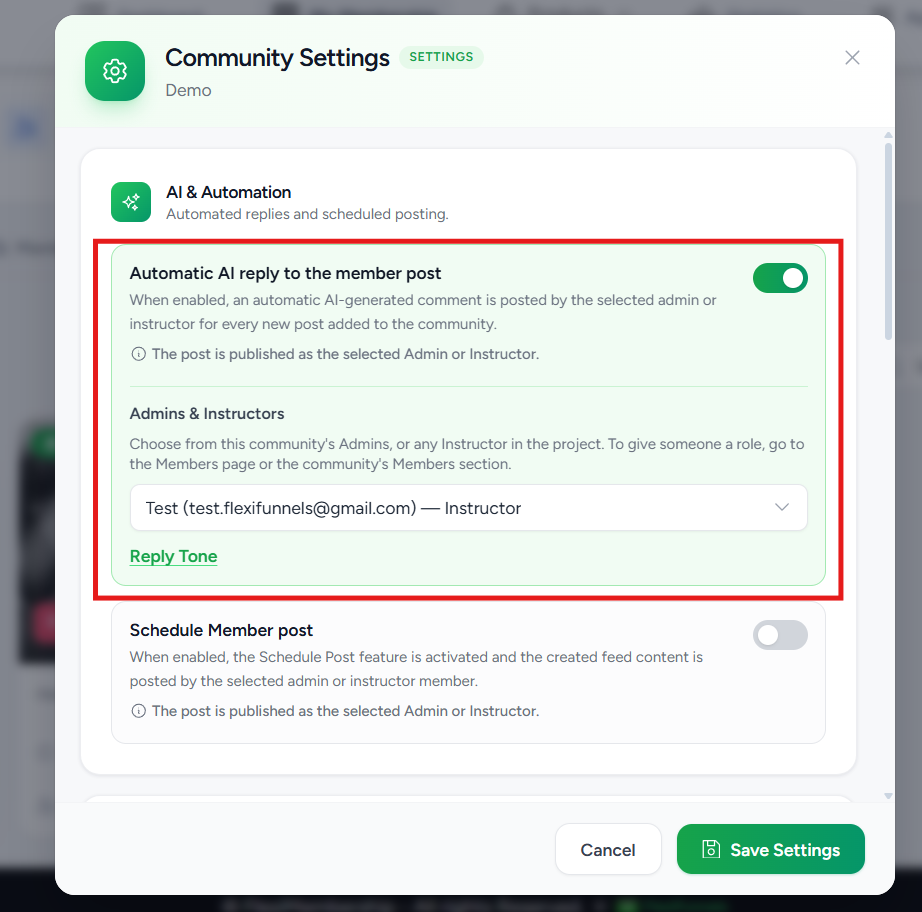
Auto Reply
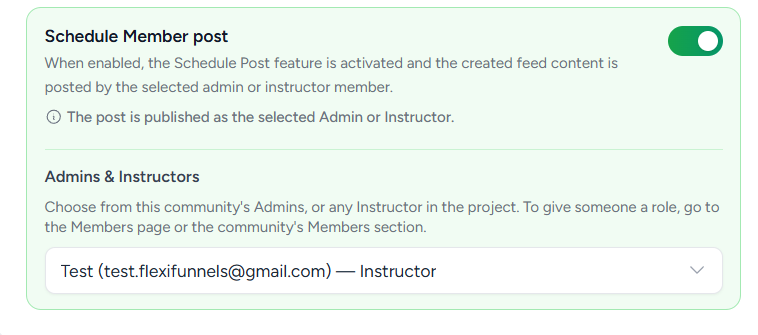
Schedule Posts
3Pick what members can post
- Open Post & Display
- Switch on the types you want: Photos, Videos, Audio, Polls
- Each type works on its own
- Example: switch Videos off to keep chats text-only
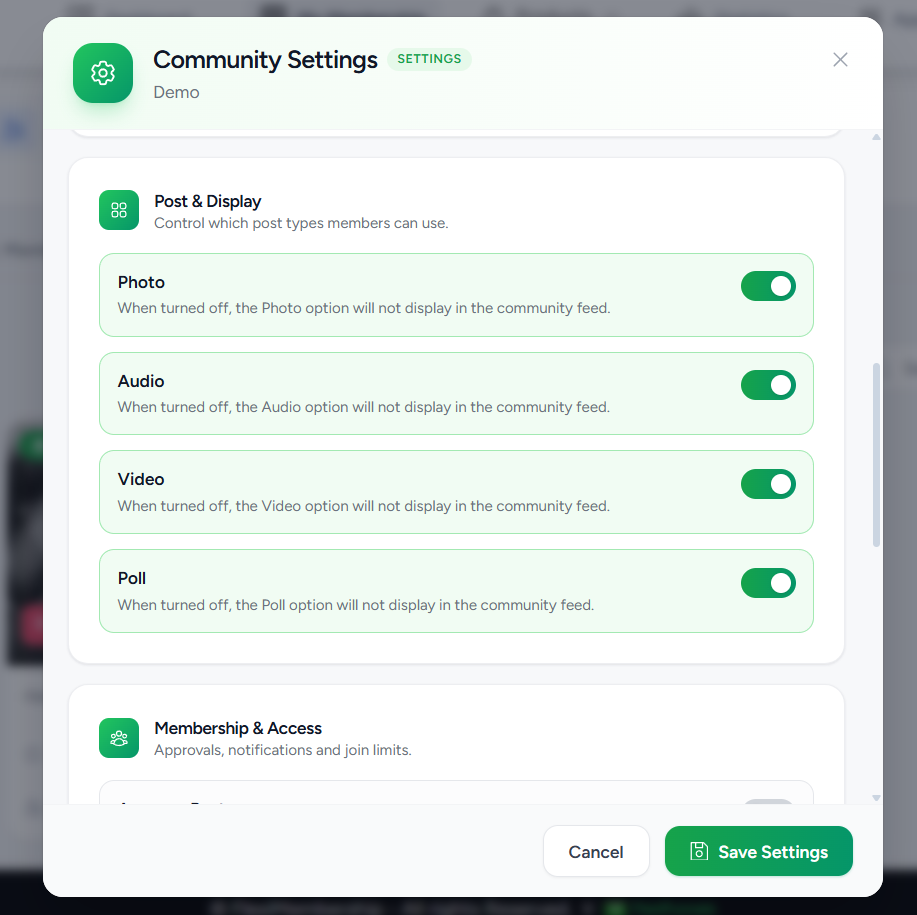
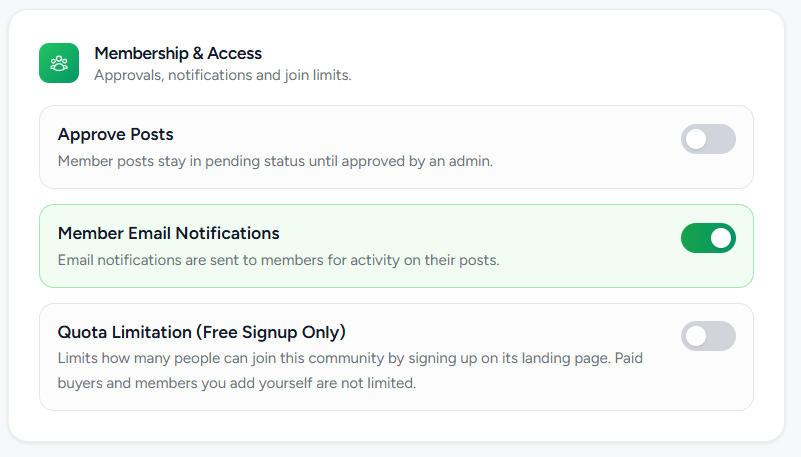
Choose approval rules
| Setting | When it is on |
|---|---|
| Approve Members | An admin must approve each join request. Best for premium, coaching and private communities. Off: eligible members join at once. |
| Approve Posts | Member posts wait as pending. Admins review them. Only approved posts show in the feed. This helps stop spam. |
5Switch Email Notifications on or off
- Use the Email Notifications toggle
- On: members get emails from the templates you set for this community
- Edit templates in the Email Notifications section, not here
6Set a member limit (optional)
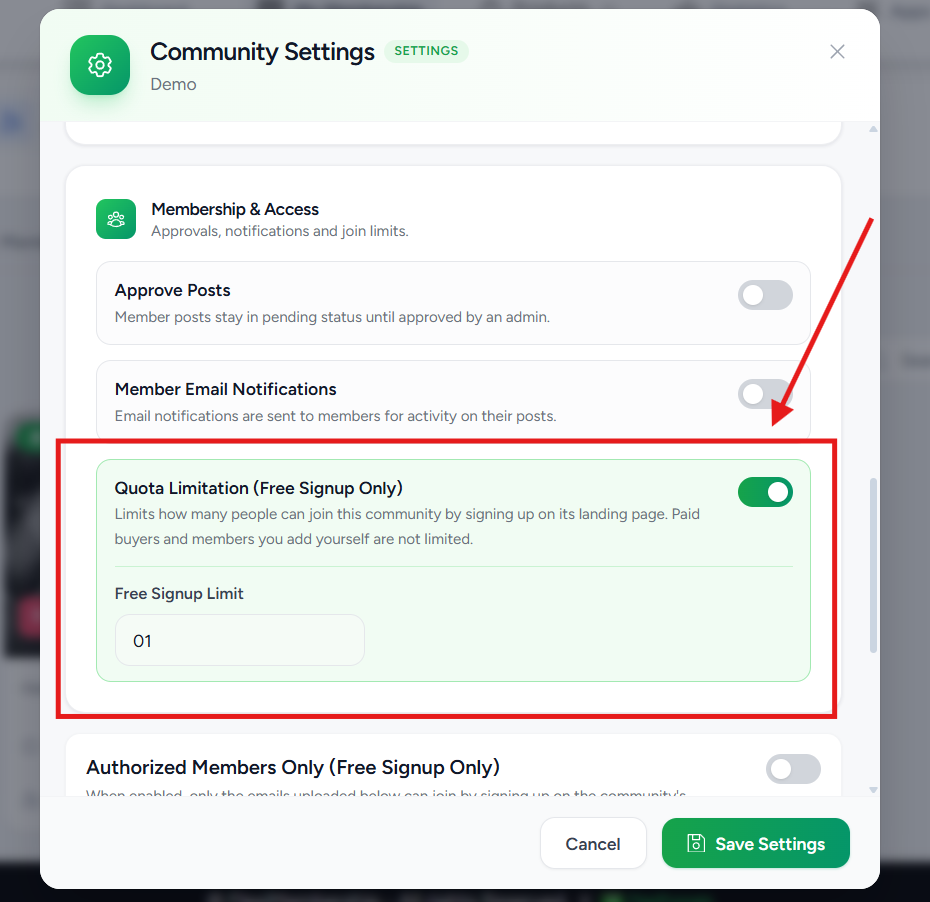
- Type a number in Quota Limitation
- Example: 100 lets in 100 members
- Limit reached? No one new can join until space opens
- Good for limited-seat coaching and cohort programs
7Limit access (optional)
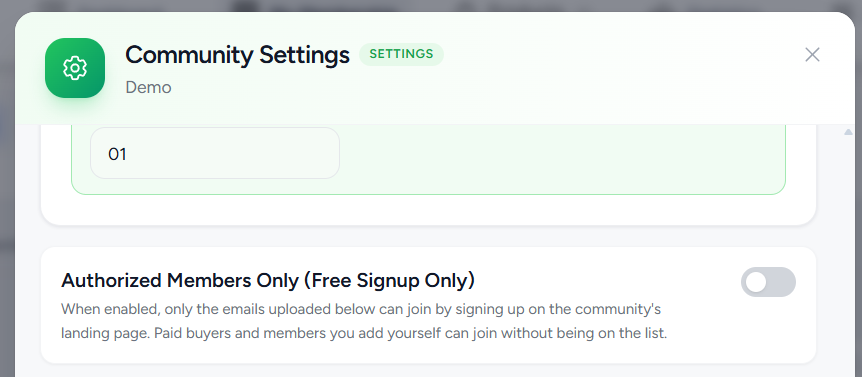
- Switch on Authorized Members Only
- Only approved or authorized members can join or open the community
- Good for invitation-only communities
8Set level rules (optional)
- These need Gamification turned on
- Members must reach a level first. This rewards active members
| Setting | What it does |
|---|---|
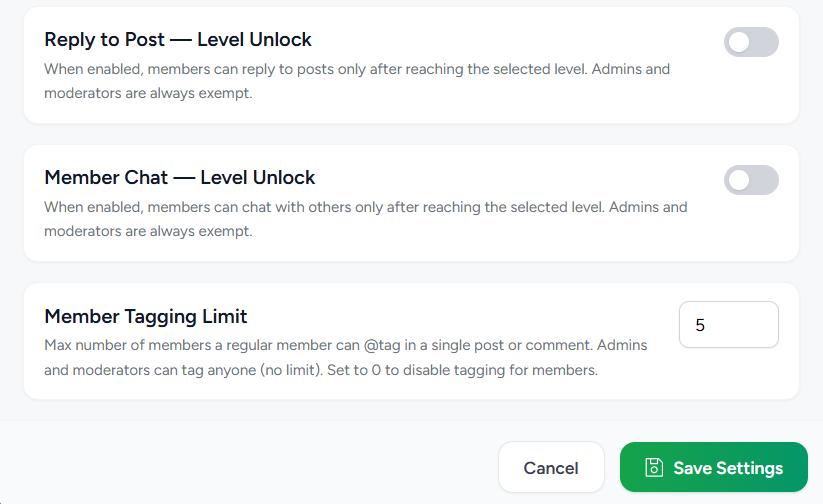
| Reply Unlock | Lowest level that can reply to posts. Example: Level 2 |
| Chat Unlock | Lowest level that can use member chat. Helps cut spam |
| Member Tagging Limit | How many members can be tagged in one post or comment. Stops too many notifications |
9Save
- Check your choices
- Click Save
You will see: your changes apply to this community right away.
Tips Use Approve Members for private or premium communities. Use Approve Posts for quality.
Review these settings as your community grows.
Quick Answers
| Question | Answer |
|---|---|
| Photos on, videos off? | Yes. Each content type works on its own. |
| Do members need approval to join? | Only if Approve Members is on. |
| Can I review posts first? | Yes. Turn on Approve Posts. |
| Member limit reached? | No one new can join until space opens or you raise the limit. |
| Rules by member level? | Yes, with Gamification on. Set levels for replies and chat. |
Was this article helpful?
That’s Great!
Thank you for your feedback
Sorry! We couldn't be helpful
Thank you for your feedback
Feedback sent
We appreciate your effort and will try to fix the article