Introduction
Welcome to Flexi Membership, the all-in-one platform for creating, managing, and selling online courses and membership communities. Whether you're launching your first course or migrating an existing membership, Flexi Membership provides the tools to deliver engaging learning experiences, build communities, and manage members from a single dashboard.
This guide introduces the Flexi Membership app, explains its key capabilities, and walks you through accessing the platform and migrating your existing membership projects.
Check this quick video to create a course using MCP/Flexi Genie:
What is Flexi Membership?
Flexi Membership is FlexiFunnels' dedicated membership application that allows you to create and manage digital learning experiences. It brings together course management, community engagement, events, gamification, member management, and product selling into a single platform.
With Flexi Membership, you can:
- Create and manage online courses
- Build free or paid communities
- Host online events
- Reward members through gamification
- Sell courses and communities
- Track member engagement
- Manage all membership activities from one place
Accessing the Flexi Membership App
To access Flexi Membership:
- Log in to your FlexiFunnels account.
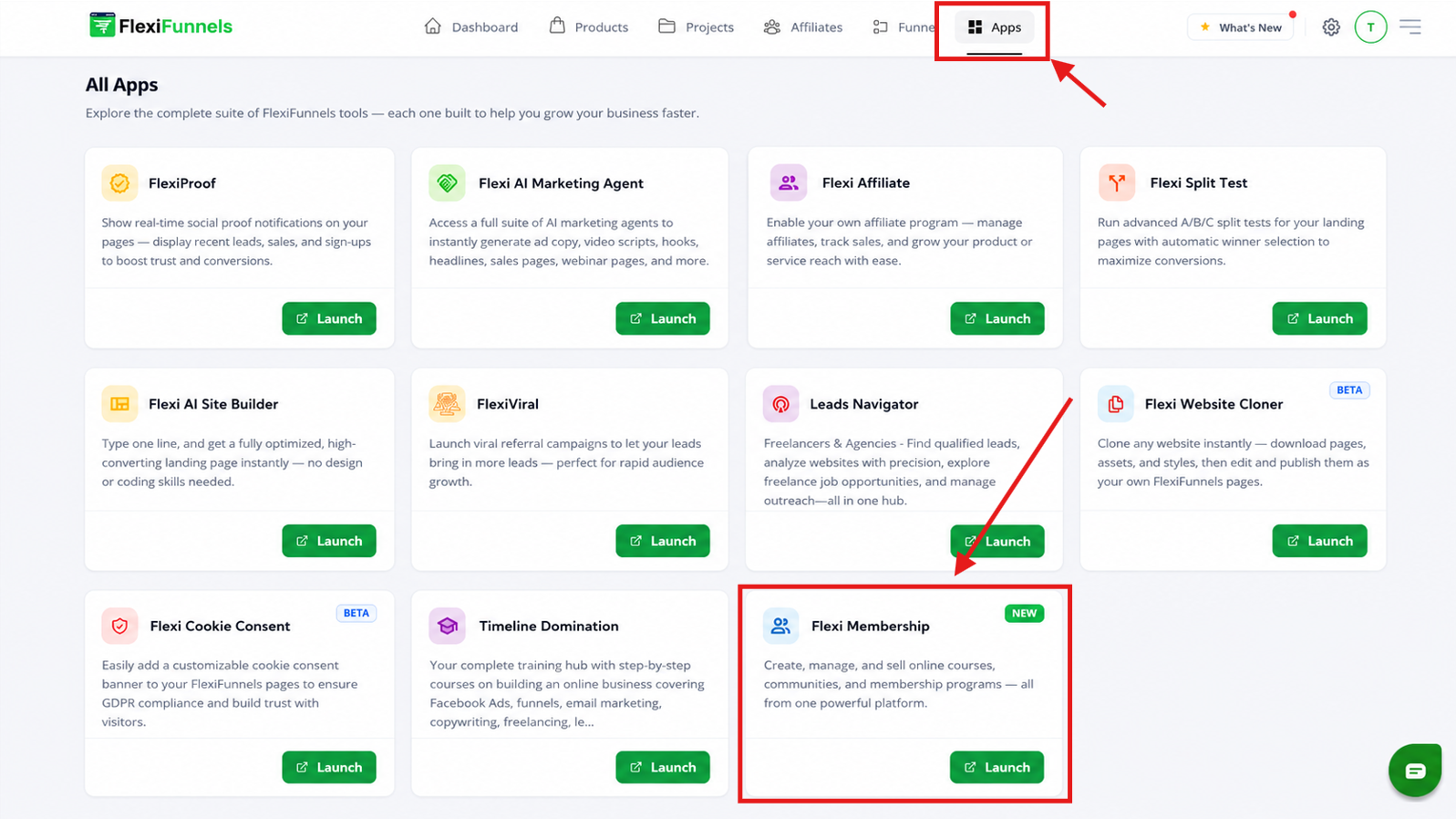
- Click Apps.
- Select Flexi Membership.
- The Membership Dashboard opens, where you can create and manage your membership projects.
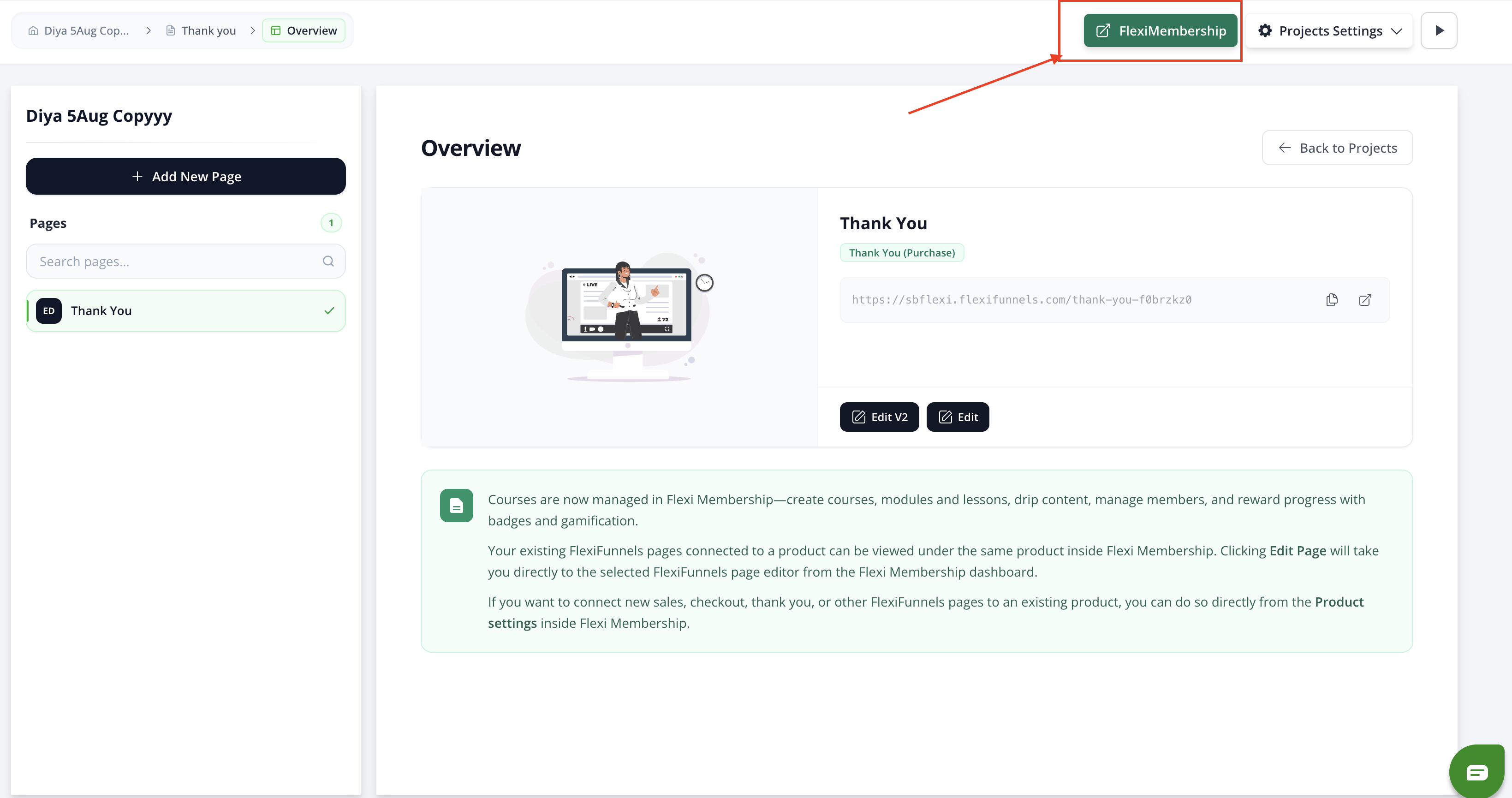
Note*- From now on your previous membership project will be Manage in Flexi membership you can redirect on it from your project via FlexiMembership button added in Right side near project settings.
Understanding the Flexi Membership Dashboard
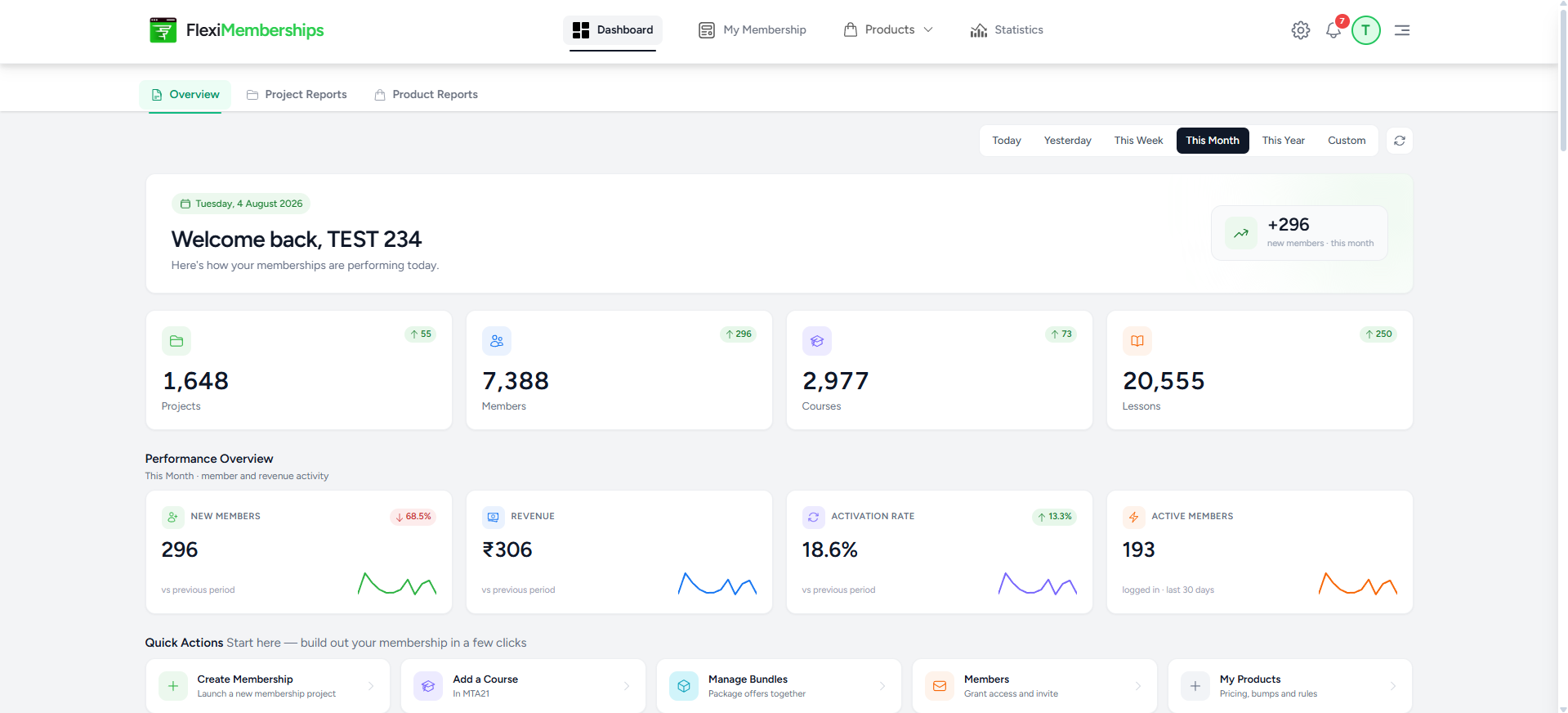
The Flexi Membership Dashboard provides a centralized overview of your membership business, allowing you to monitor performance, access key metrics, and quickly navigate to essential management tools.
When you launch the Flexi Membership app, the dashboard displays high-level insights into your membership projects, members, courses, lessons, and overall engagement.
Why Use the Dashboard?
The Flexi Membership Dashboard serves as your central workspace for monitoring and managing your membership business. Instead of navigating through multiple sections, you can quickly review your membership performance, track growth, and access the tools you use most—all from a single location.
Tip: Review the dashboard regularly to monitor member growth, course activity, revenue trends, and overall membership performance, helping you make informed decisions as your membership business grows.
Create Your First Membership Project
If you're new to Flexi Membership, creating your first project is simple.
- Open the Flexi Membership app.
- Click My Membership from the Navigation Menu.

- Click on New Membership button.
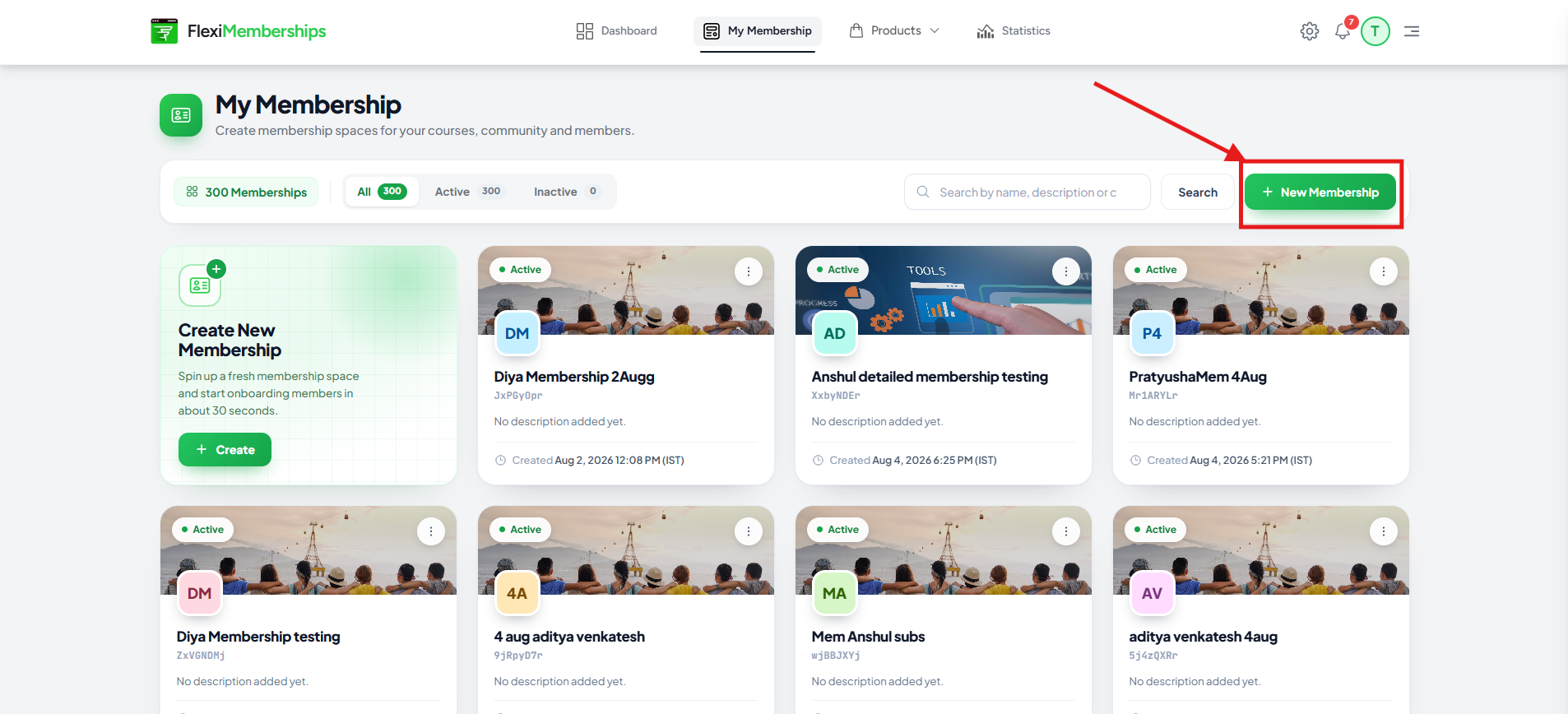
- Give your Membership Project a name and description.
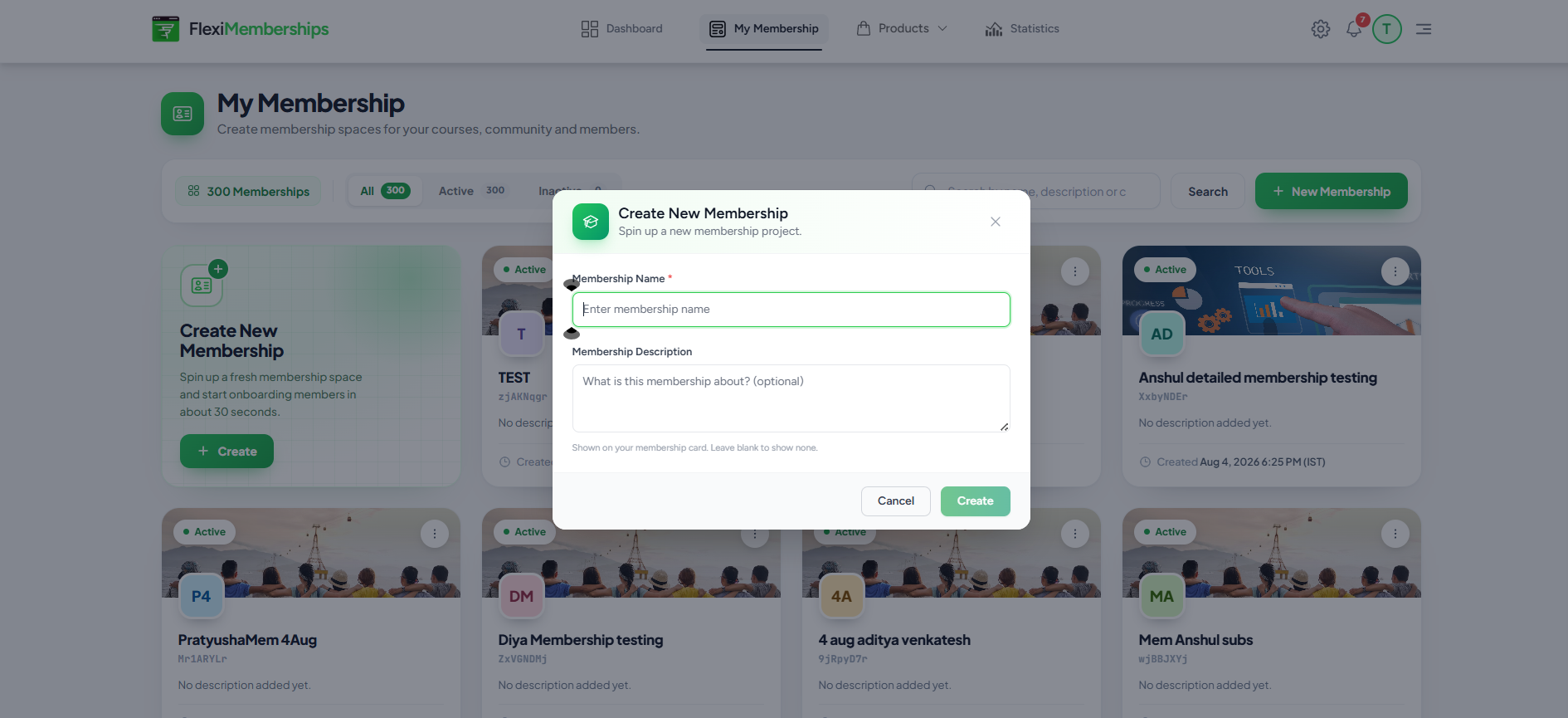
Once your membership is created, you can begin adding courses, communities, events, products, and other resources.
Accessing Your Existing Membership Projects
If you've previously created membership projects using the existing Membership feature in FlexiFunnels, no manual migration is required.
All previously created membership projects are automatically available inside the Flexi Membership app. Simply launch the app, and your existing projects will appear in the Membership Dashboard.
This means you can continue managing your memberships without exporting, importing, or recreating any data.
Note: Existing membership projects, along with their associated courses, products, and configurations, are automatically available in the new Flexi Membership experience.
Exploring the New Membership Project Interface
Once you create or open a membership project, you'll find an organized interface that allows you to manage every aspect of your membership experience.
This new membership project will help you configure:
- Courses
- Groups(Communities)
- Events
- Members
- Bundles
- Discussions
- Products
- Gamification
- Leaderboards
- Rewards
- Settings
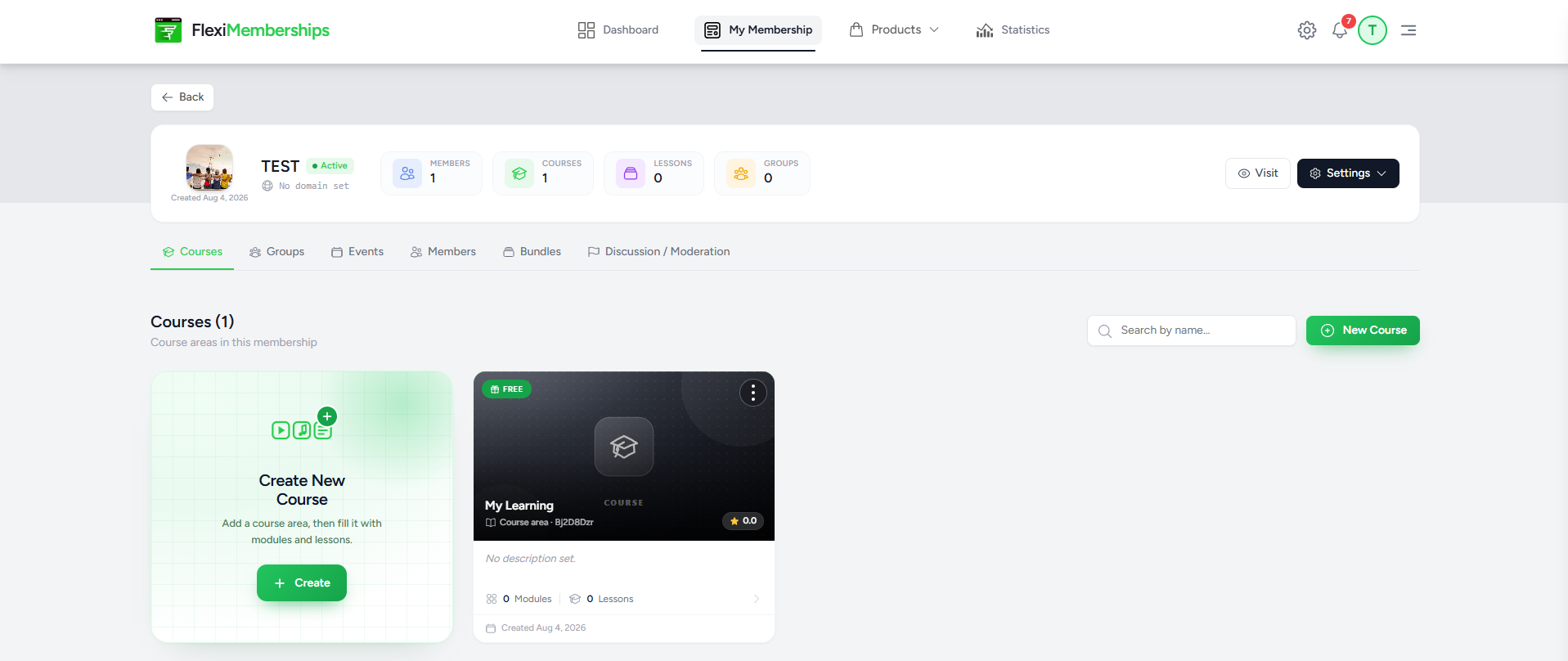
Each section is designed to help you manage a specific part of your membership while keeping everything centralized within a single workspace.
As you continue through this documentation, each of these sections is explained in detail with step-by-step instructions and best practices.
Hurray! You have successfully created a membership project, in next article we'll talk about how to create a course.
Was this article helpful?
That’s Great!
Thank you for your feedback
Sorry! We couldn't be helpful
Thank you for your feedback
Feedback sent
We appreciate your effort and will try to fix the article