Connect Claude or ChatGPT to FlexiMembership. Then copy lessons, add videos and downloads, and decide when members can open things.
Drip is like a tap ?. You open it a little at a time, instead of all at once.
| Tool of control | What it does |
|---|---|
| Drip | Holds content back. It opens later, by time or by progress. |
| Upgrade prompt | Shows a message and a button instead of the content, until a member upgrades. |
| Goal | A task a member must do before the lesson counts as done. |
Before You Start
- Connect FlexiMembership to Claude (a Connector) or ChatGPT (a Plugin). Make sure it is authorized.
- Have a course with modules and lessons. See Article 1.
- Have your video links, file links or CSV text ready.
- For protected video, your account needs protected video hosting.
- Start each request with “In FlexiMembership”.
Steps
1Copy a module or a lesson
- Ask to copy a module or a lesson. You can name the copy.
- A module copy holds every lesson.
- Each lesson keeps its text, video, drip, upgrade prompt, resources and goals.
- A lesson copy keeps its text, video, drip, resources and goal.
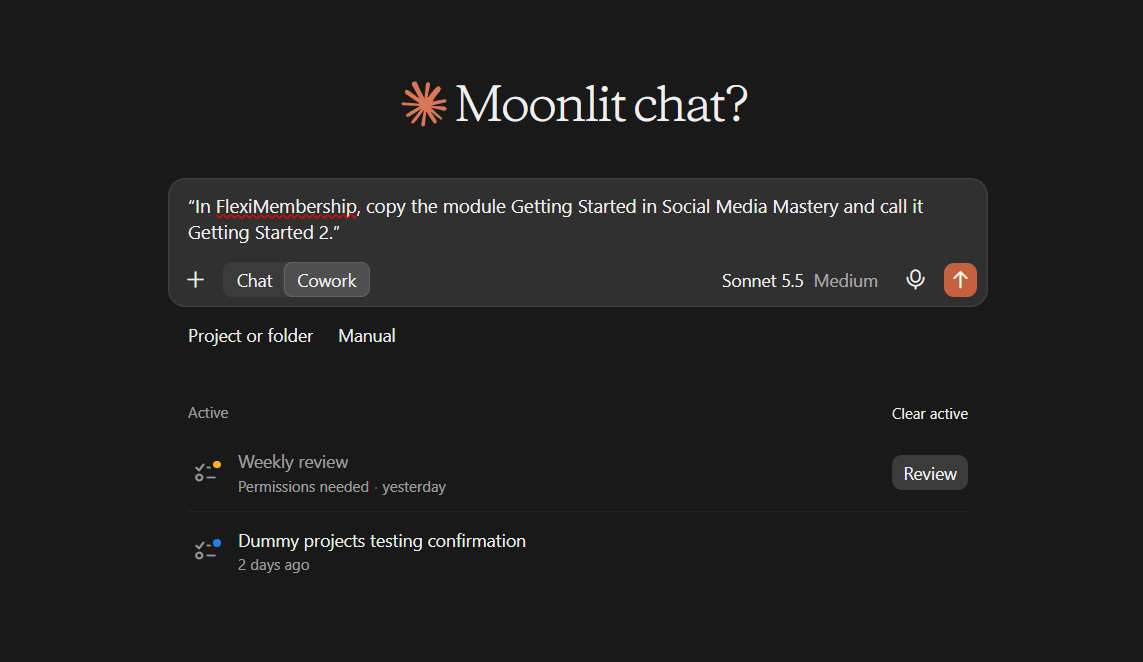
Example prompt“In FlexiMembership, copy the module Getting Started in Social Media Mastery and call it Getting Started 2.”
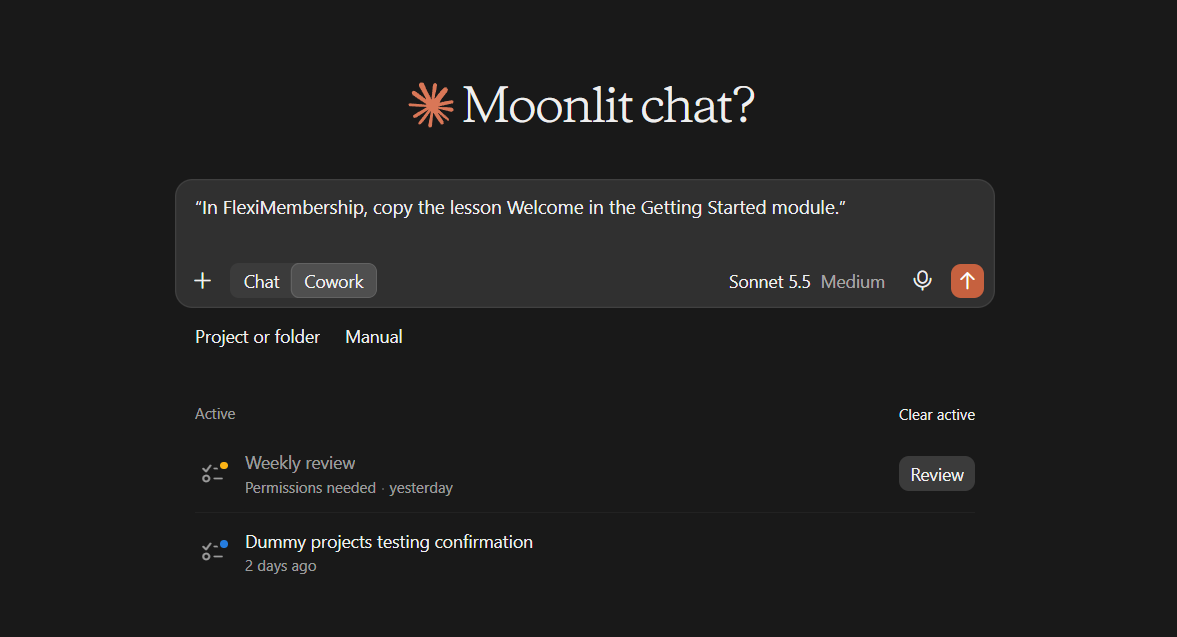
Example prompt“In FlexiMembership, copy the lesson Welcome in the Getting Started module.”
Be careful: copiesA copied module keeps each lesson’s published or draft state. Published lessons are visible to members at once. A copied lesson is a draft.
2Import a YouTube playlist
- Give a public YouTube playlist link. It must contain “list=”.
- Each video becomes a video lesson at the end of the module.
- You can import up to 50 videos at a time.
- The AI reads back the titles first. Check them.
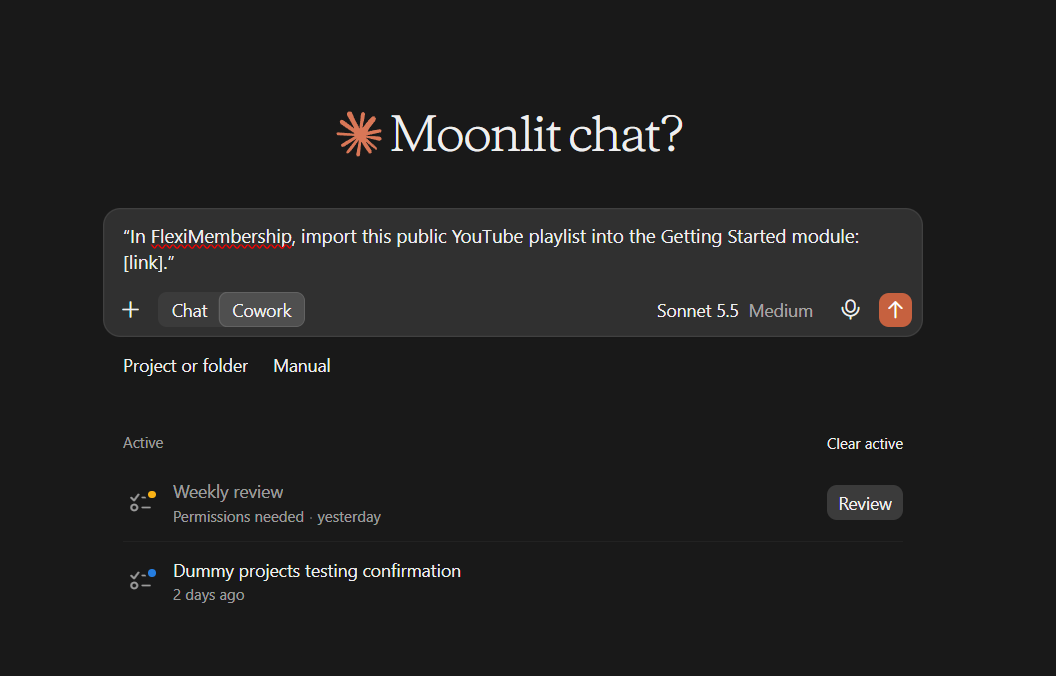
Example prompt“In FlexiMembership, import this public YouTube playlist into the Getting Started module: [link].”
- Imported lessons are drafts. A title that already exists is skipped.
Be careful: no deleteLessons cannot be deleted through the AI. Check the list of titles before you confirm.
3Import courses and lessons from a CSV
- Import one file at a time, in this order: bundles, then courses, then lessons.
- The AI checks every row first and changes nothing.
- One bad row stops the whole file.
- A row that matches an earlier import is updated, not copied.
- This works only on accounts where import is turned on.
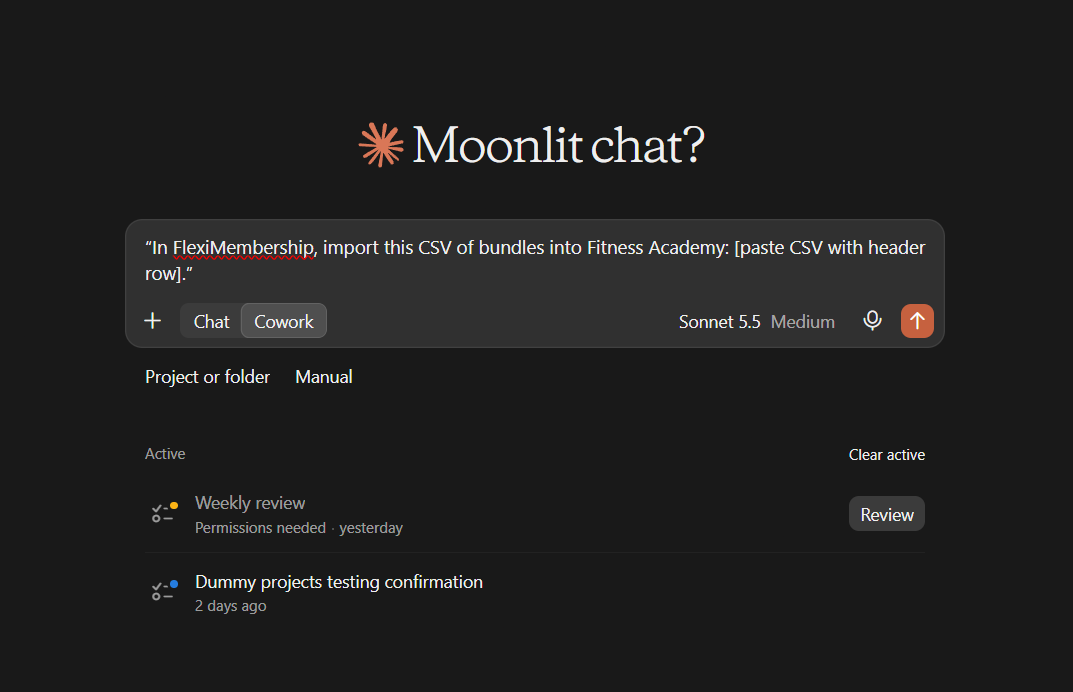
Example prompt“In FlexiMembership, import this CSV of bundles into Fitness Academy: [paste CSV with header row].”
Be careful: updatesUpdates change content that members may see. Read the list of rows to create and update.
4Add a video to a lesson
- Give a YouTube or Vimeo link, or a plain video link.
- Or give an embed from Wistia, Loom or Bunny.
- Or pick a video already in your library.
- A lesson holds one video. A new one replaces the old one. The preview says so.
- You can also set an introduction video for a module. It takes a YouTube or Vimeo link.
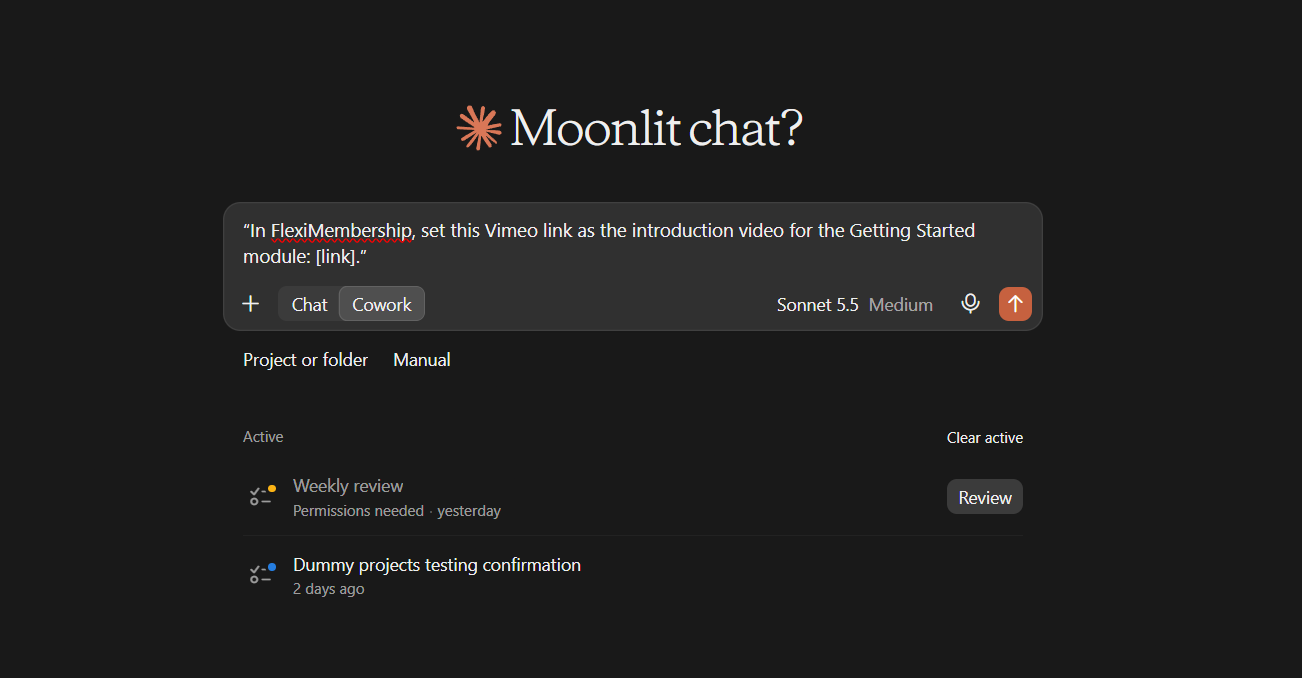
Example prompt“In FlexiMembership, put this YouTube link on the lesson Welcome in Social Media Mastery: [link].”
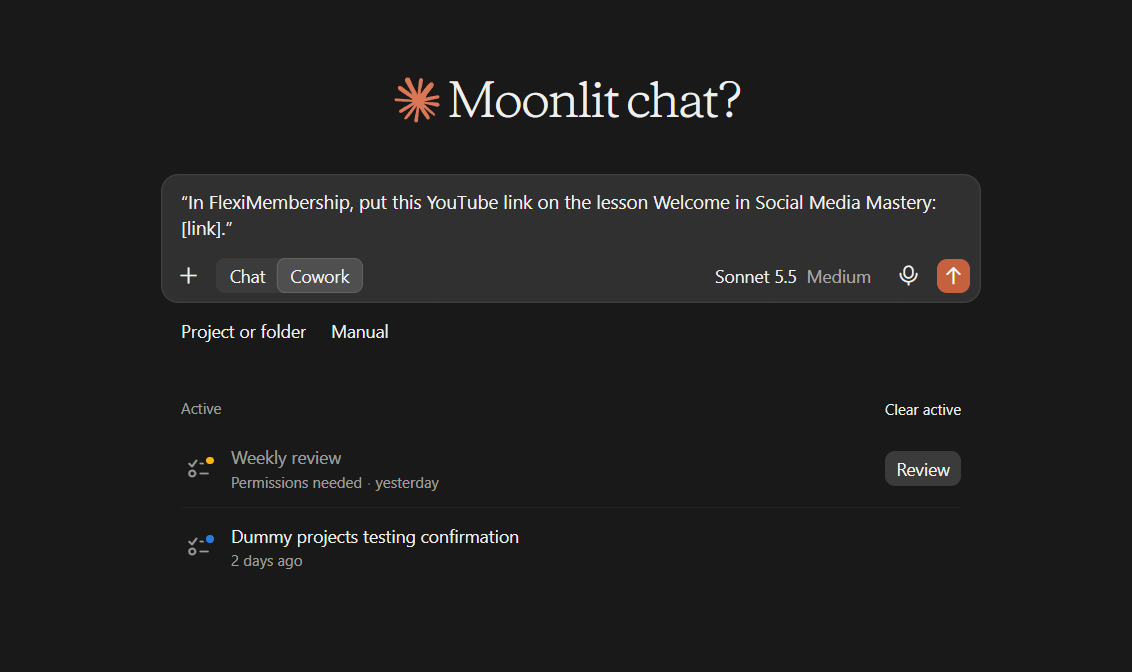
Example prompt“In FlexiMembership, which videos are already in Fitness Academy? I want to reuse one.”
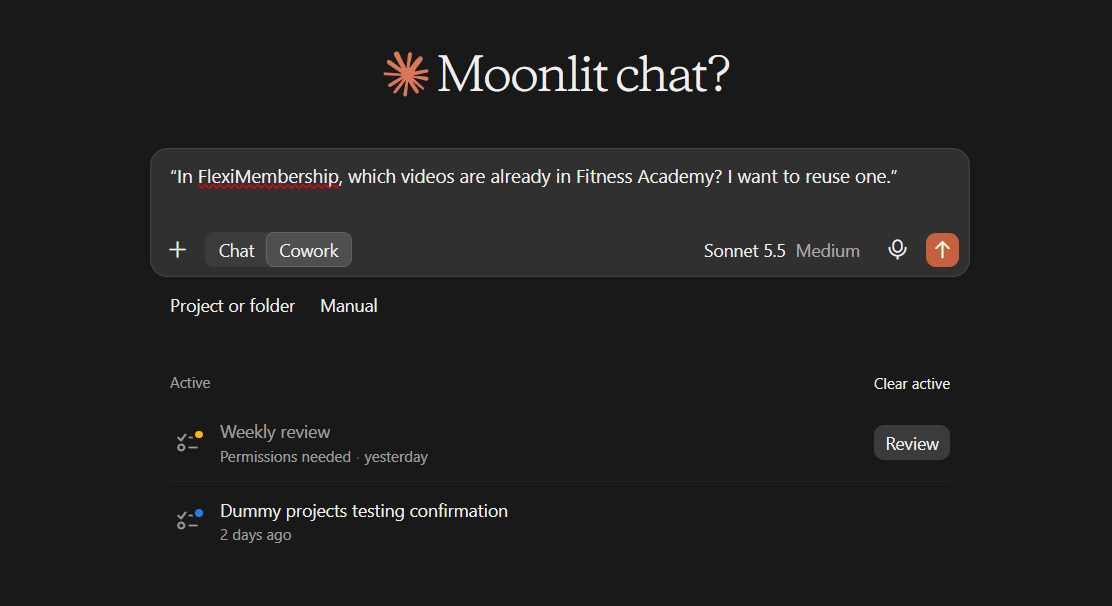
Example prompt“In FlexiMembership, set this Vimeo link as the introduction video for the Getting Started module: [link].”
- Asking for the library first lets you reuse a video.
5Upload a protected video
- A protected video is hosted for you, not on YouTube.
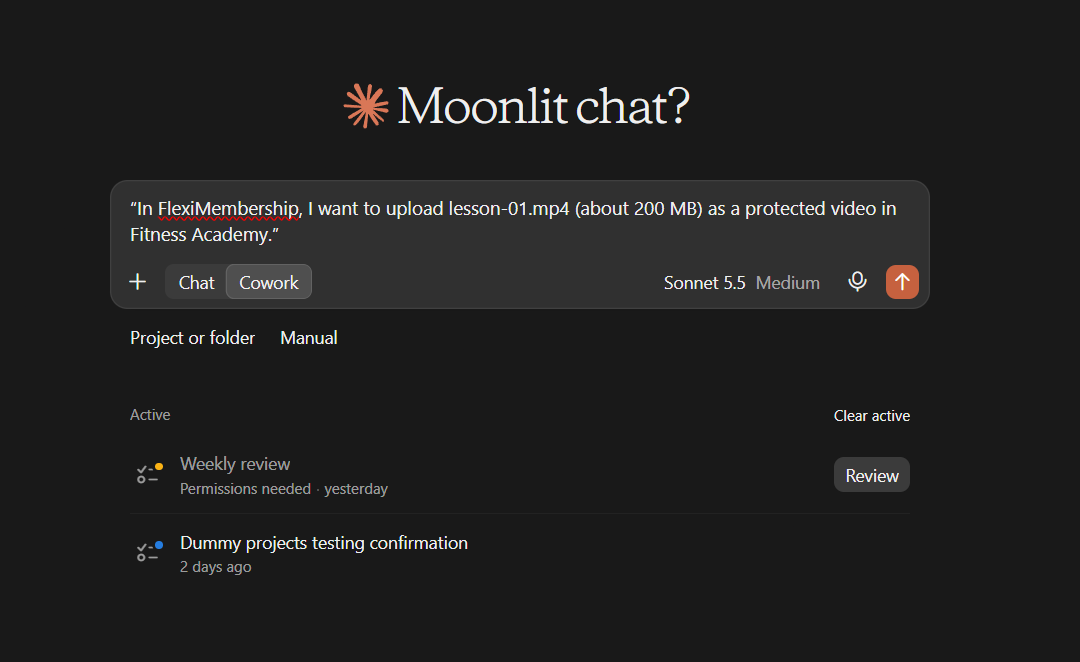
- Part 1: Ask to upload. Give the file name, the type and the exact size in bytes.
- The limit is 1 GB.
- Part 2: The file itself must be sent to an address the AI gives you.
- Only an AI app that can send files over the web can do this. It is a step outside the tools.
- Part 3: Ask the AI to register the video.
- Part 4: Ask the AI to put it on a lesson.
Example prompt“In FlexiMembership, I want to upload lesson-01.mp4 (about 200 MB) as a protected video in Fitness Academy.”
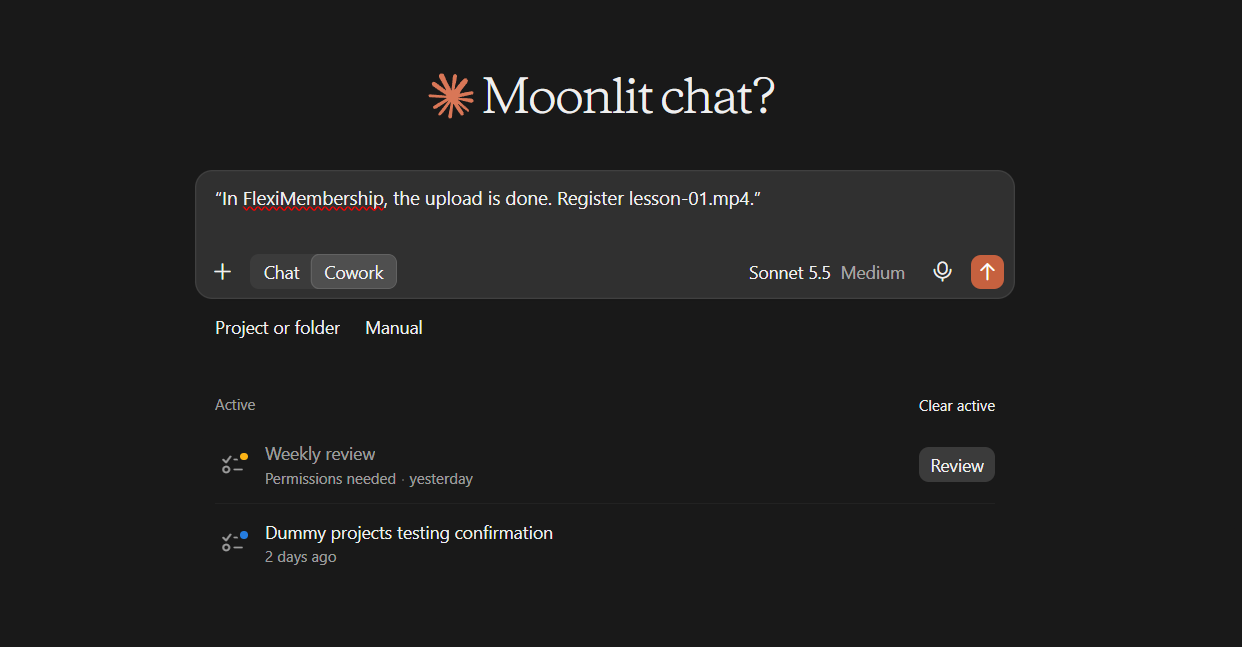
Example prompt“In FlexiMembership, the upload is done. Register lesson-01.mp4.”
Be careful: project settingRegistering turns on protected playback for the project and its membership products. It also uses your storage. The video may need a few minutes to process.
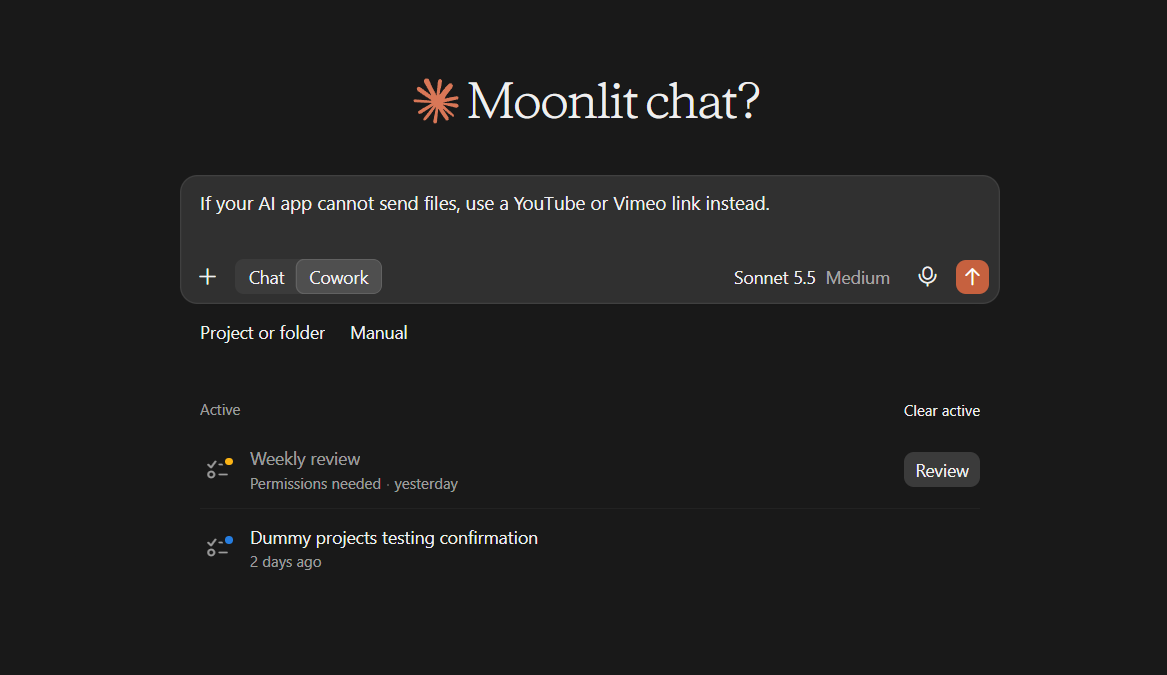
No upload? Use a linkIf your AI app cannot send files, use a YouTube or Vimeo link instead.
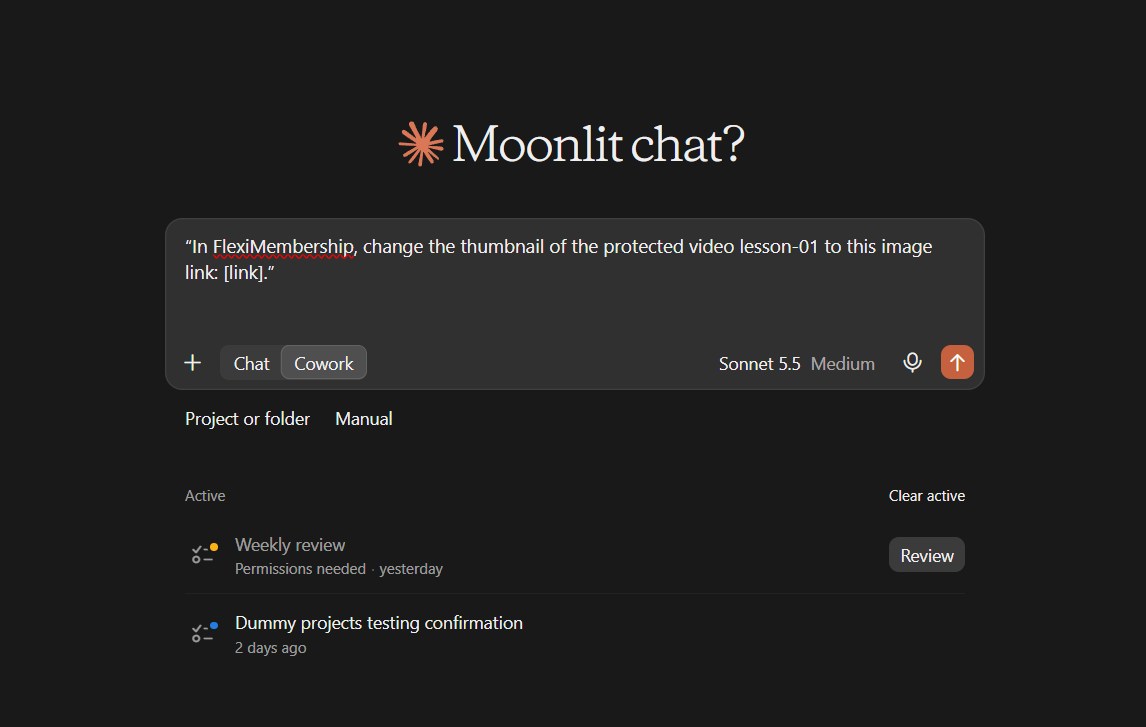
- You can also change the thumbnail of a protected video.
Example prompt“In FlexiMembership, change the thumbnail of the protected video lesson-01 to this image link: [link].”
6Add downloads and links to a lesson
- Give a name and one of these.
- A file link, a page link, or an instruction with no link.
- A file link gives members a download button.
- The file is not copied. It stays where the link points. The link must stay public.
- The first resource on a lesson is the preferred one. You can change which.
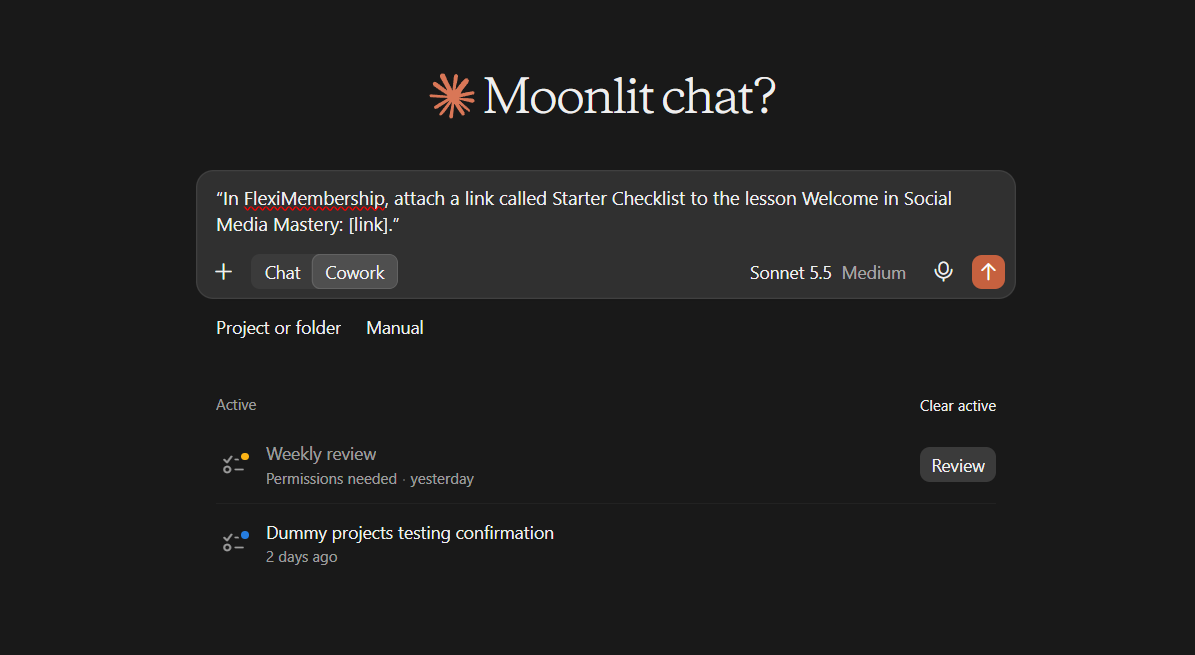
Example prompt“In FlexiMembership, attach a link called Starter Checklist to the lesson Welcome in Social Media Mastery: [link].”
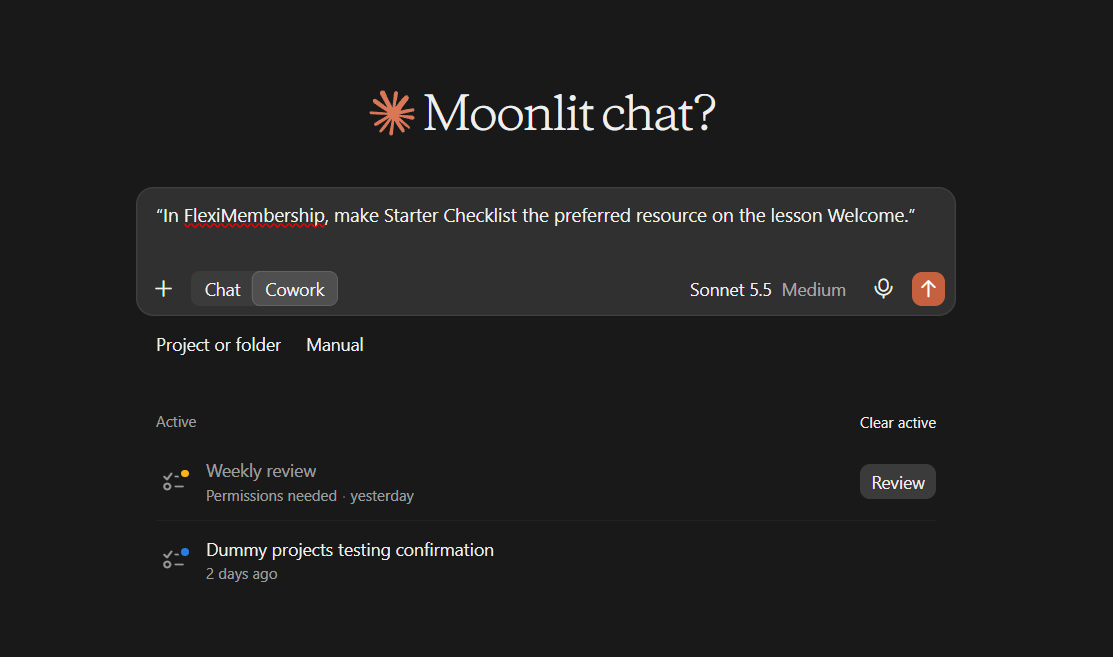
Example prompt“In FlexiMembership, make Starter Checklist the preferred resource on the lesson Welcome.”
- Removing a resource is done in the dashboard.
7Release lessons over time with drip
- A module can open a number of days after a member gets access, or on a fixed date.
- A lesson can open when a member finishes another lesson in the same module.
- Ask what the lesson’s drip is first. The AI lists the lessons you can pick.
- You can switch drip off. A module keeps its saved rule.
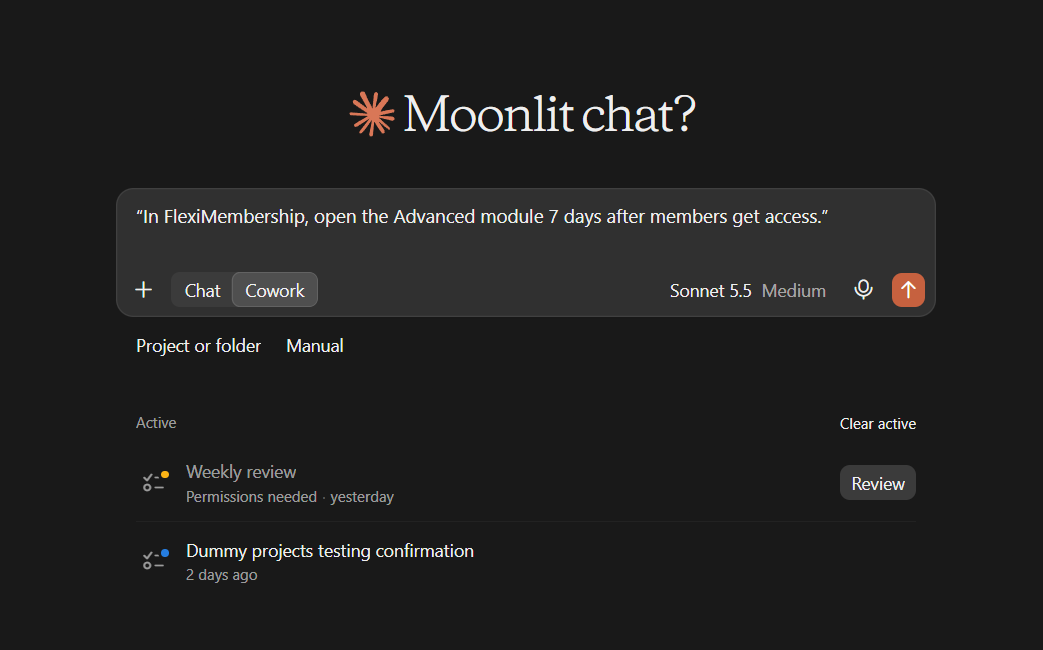
Example prompt“In FlexiMembership, open the Advanced module 7 days after members get access.”
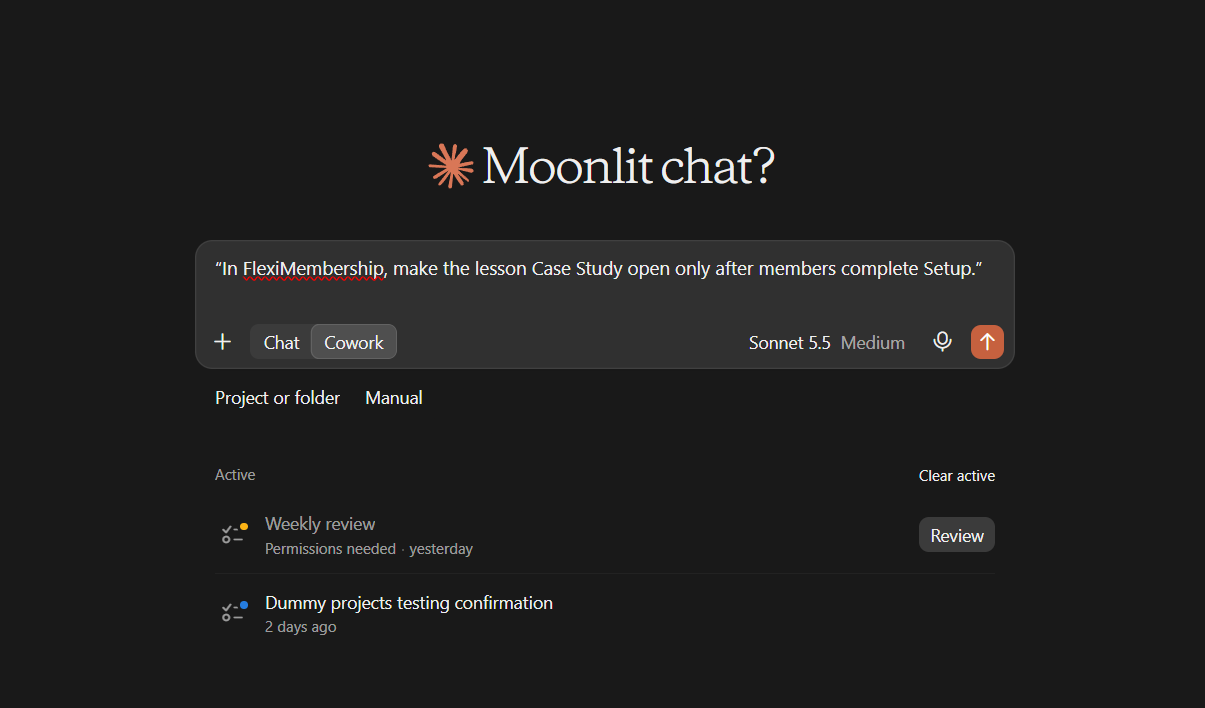
Example prompt“In FlexiMembership, make the lesson Case Study open only after members complete Setup.”
Be careful: membersDrip changes what paying members can open. Read the preview first.
8Add an upgrade prompt
- Pick one module or one lesson.
- Members without the upgrade see your message and a button, not the content.
- Give a message, a button label (up to 60 characters) and a link.
- You can switch it off. The text is kept.
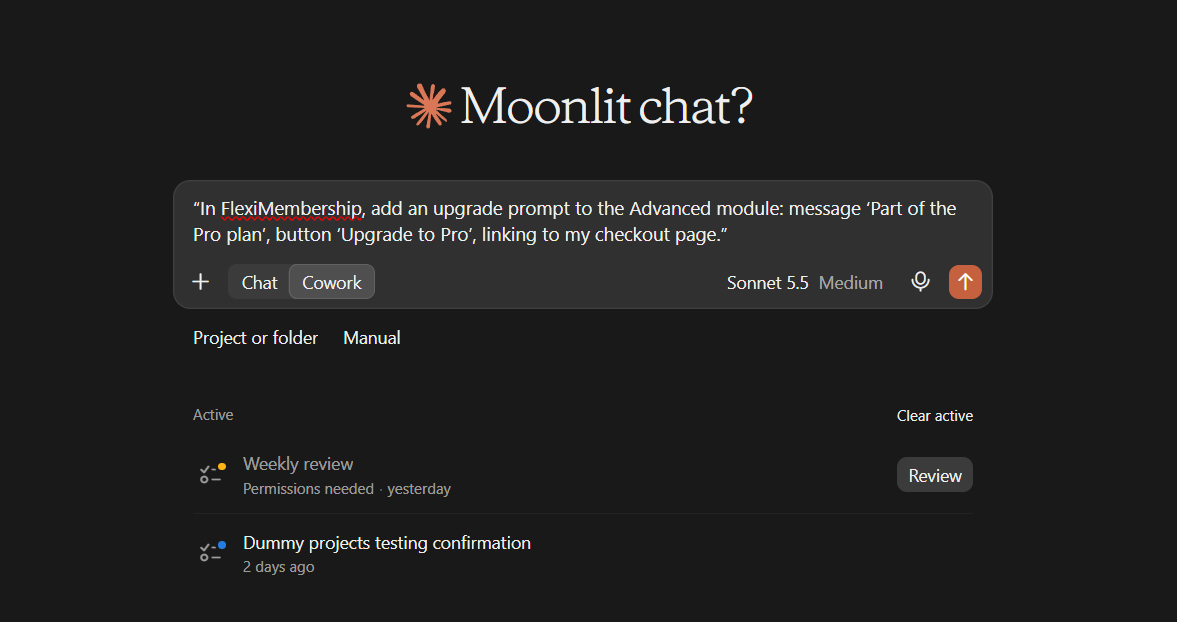
Example prompt“In FlexiMembership, add an upgrade prompt to the Advanced module: message ‘Part of the Pro plan’, button ‘Upgrade to Pro’, linking to my checkout page.”
Be careful: paywallThis is a paywall, not a timer. It hides content from members who do not have the upgrade.
9Set goals and review submissions
- A goal is a task. Members send an action, text, a video link or an audio link.
- Choose auto approval or manual approval.
- List what members sent. Then approve or reject, with a note.
- Approving marks the lesson complete for that member. No email is sent.
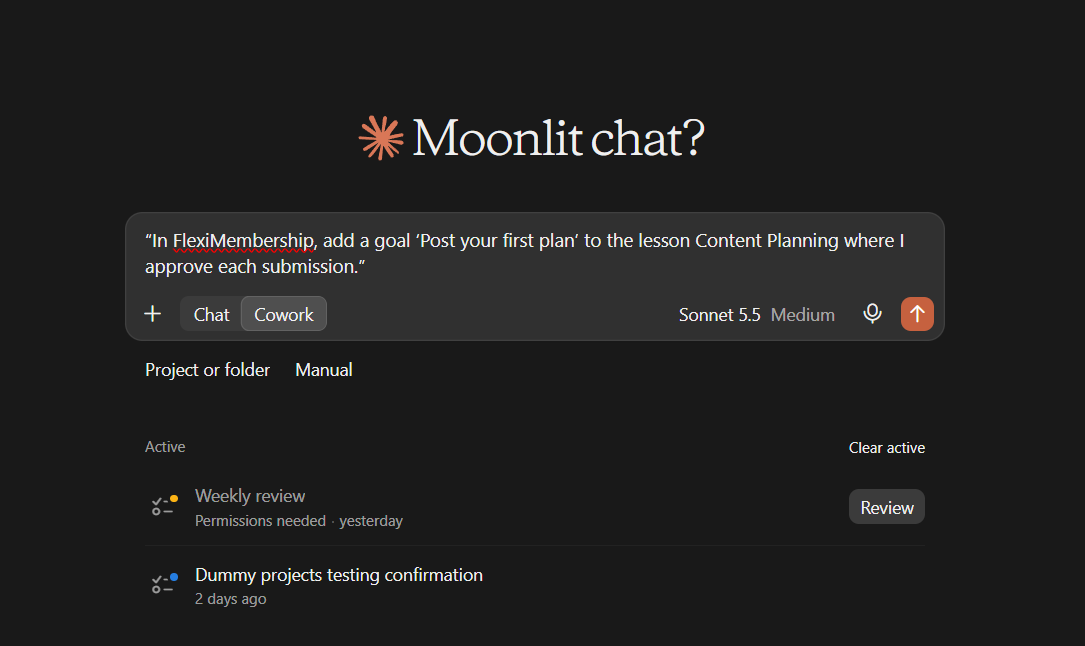
Example prompt“In FlexiMembership, add a goal ‘Post your first plan’ to the lesson Content Planning where I approve each submission.”
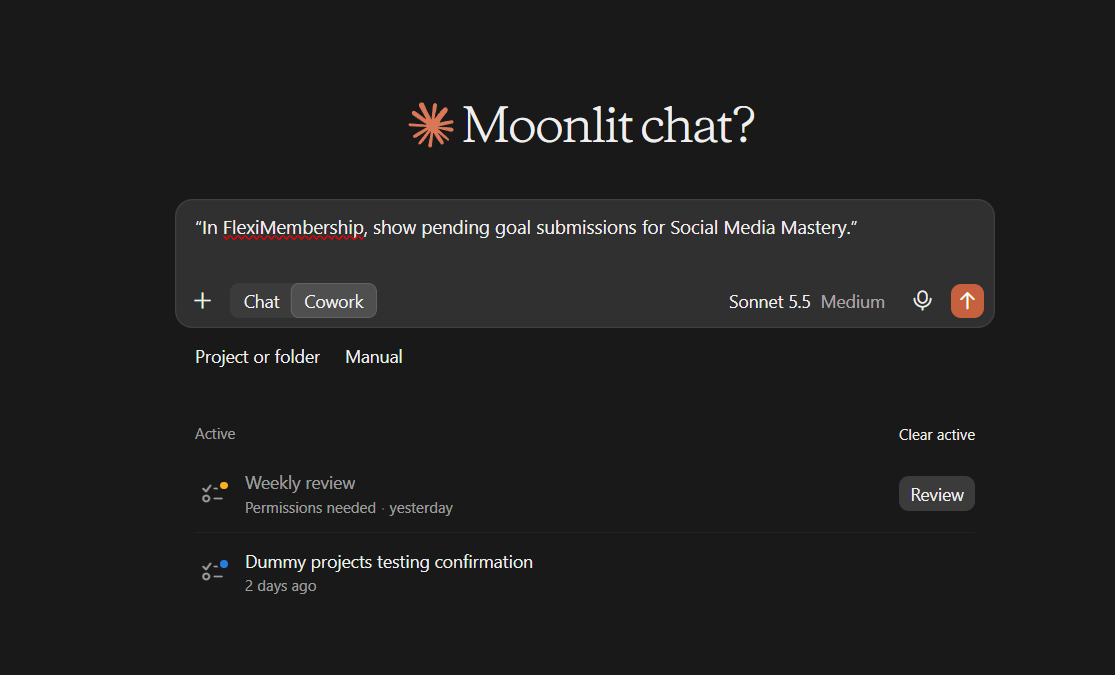
Example prompt“In FlexiMembership, show pending goal submissions for Social Media Mastery.”
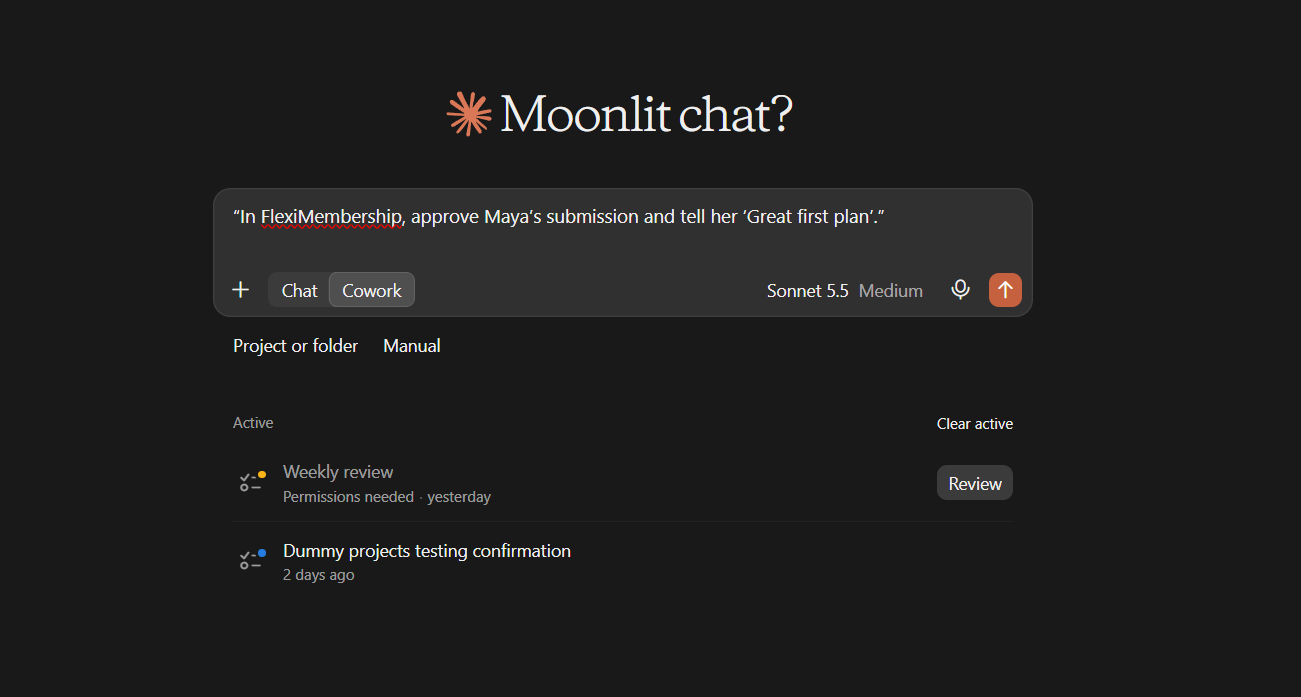
Example prompt“In FlexiMembership, approve Maya’s submission and tell her ‘Great first plan’.”
Be careful: goalsGoals cannot be removed here. You cannot reject a lesson that is already complete. Do that in the dashboard. Submissions are written by members. The AI treats them as text to read, not as orders.
? Screenshot needed: the goal submissions list
Behind the Scenes: MCP Tools Involved
| Task | Related MCP tool(s) |
|---|---|
| Copy a module | clone_module |
| Copy a lesson | clone_lesson |
| Import a YouTube playlist | import_playlist_to_module |
| Import bundles, courses or lessons from a CSV | import_course_csv |
| See the videos you already have | list_video_gallery |
| Put a video on a lesson | attach_video_to_lesson |
| Set a module’s introduction video | set_module_introduction_video |
| Start a protected video upload | request_video_upload |
| Register an uploaded protected video | register_uploaded_video |
| Change a protected video’s thumbnail | set_drm_video_thumbnail |
| Add a download, link or instruction to a lesson | add_lesson_resource |
| List a lesson’s resources | get_lesson_resources |
| Edit a resource | update_lesson_resource |
| Choose the preferred resource | mark_preferred_resource |
| See a lesson’s drip rule | get_lesson_drip |
| Set a drip rule | set_drip |
| Add or remove an upgrade prompt | set_upgrade_gate |
| Add or change a lesson goal | set_lesson_goal |
| See a lesson’s goal | get_lesson_goal |
| List goal submissions | list_goal_submissions |
| Approve or reject a submission | review_goal_submission |
| See modules and lessons first | list_course_modules |
Ready-to-Use Prompts
- “In FlexiMembership, put this YouTube link on the lesson Welcome in Social Media Mastery: [link].”
- “In FlexiMembership, attach a link called Starter Checklist to the lesson Welcome.”
- “In FlexiMembership, open the Advanced module 7 days after members get access.”
- “In FlexiMembership, add a goal ‘Post your first plan’ to the lesson Content Planning.”
- “In FlexiMembership, import this public YouTube playlist into the Getting Started module: [link].”
Tips for Better Results
- Name the course, the module and the lesson.
- Ask for the modules and lessons first. Then name the right one.
- For a playlist, read the title list before you confirm.
- Start a CSV import with a small file.
- Read the preview. It says what is replaced.
- Change one thing at a time.
Quick Fixes
| Problem | Fix |
|---|---|
| The AI cannot send my video file. | Use a YouTube or Vimeo link instead. |
| My protected video does not play yet. | It may still be processing. Wait a few minutes. |
| The CSV was refused. | One bad row stops the file. Fix the row. Keep the order: bundles, courses, lessons. |
| Imported or copied lessons are hidden. | Imported lessons and lesson copies are drafts. Ask to publish them. See Article 1. |
| A drip lesson is refused. | The trigger must be another lesson in the same module. |
| I cannot remove a resource. | Removing a resource is done in the dashboard. |
| The AI does not use FlexiMembership. | Check the connector or plugin is connected and authorized. Add “In FlexiMembership” to your prompt. |
Explore the complete FlexiMembership MCP Tools Reference: View the documentation for a detailed explanation of available MCP tools, their functionality, and how to use them.
Limitations
- A lesson holds one video. A new one replaces it.
- A module introduction video takes a YouTube or Vimeo link only.
- A protected video needs protected video hosting, and the limit is 1 GB.
- A resource is a link. The file is not copied. Removing it is done in the dashboard.
- Modules and lessons cannot be deleted through the AI.
- Goals cannot be removed here.
- CSV import works only on accounts where it is turned on.
- No undo is described. Read each preview before you confirm.
Was this article helpful?
That’s Great!
Thank you for your feedback
Sorry! We couldn't be helpful
Thank you for your feedback
Feedback sent
We appreciate your effort and will try to fix the article