How to build out your course content — courses, modules, and lessons — including videos, resources, and drip-feed rules, all through chat.
Overview
FlexiFunnels organizes membership content in three levels: a course contains modules (chapters), and each module contains lessons. This article covers building out this entire structure, adding video content and resources, and managing lesson details — all through Flexi Genie.
This article covers:
- Creating a course and adding modules
- Renaming a module
- Creating lessons, and editing their titles and descriptions
- Attaching video content to lessons and modules (including bulk video import)
- Adding downloadable resources to a lesson, and setting a preferred resource
- Cloning a lesson
- Viewing your course's module list and lesson descriptions
- Setting up drip-feed rules so content unlocks over time
What You Can Do
- Create a new course, and add modules (chapters) inside it
- Rename an existing module
- Add lessons inside a module, with a title and description
- Edit a lesson's title or description after it's created
- Set an introduction video for a module
- Attach a video (YouTube/Vimeo link, uploaded file, or a generic embed) to a specific lesson
- Import an entire playlist of videos into a module in bulk
- Add downloadable resources (PDFs, templates, etc.) to a lesson
- Mark one resource as the preferred/default resource for a lesson
- Clone an existing lesson
- View the list of modules inside a course, and see a lesson's description
- Set drip-feed rules so lessons or modules unlock over time or after a prerequisite
Why This Is Useful
Building out a full course manually — adding modules, lessons, videos, and resources one at a time — can take hours. With Flexi Genie, you can describe the structure you want and have it built in a fraction of the time, then fine-tune individual lessons as needed.
Before You Begin
- You need an active FlexiFunnels account, logged in, with a membership project set up.
- Have your video links (YouTube/Vimeo) or files ready if you plan to attach them right away.
- Plan your module and lesson structure loosely beforehand — it makes your request to Flexi Genie clearer and faster to execute.
Step-by-Step: Common Course Tasks
Step 1: Create a Course and Add Modules
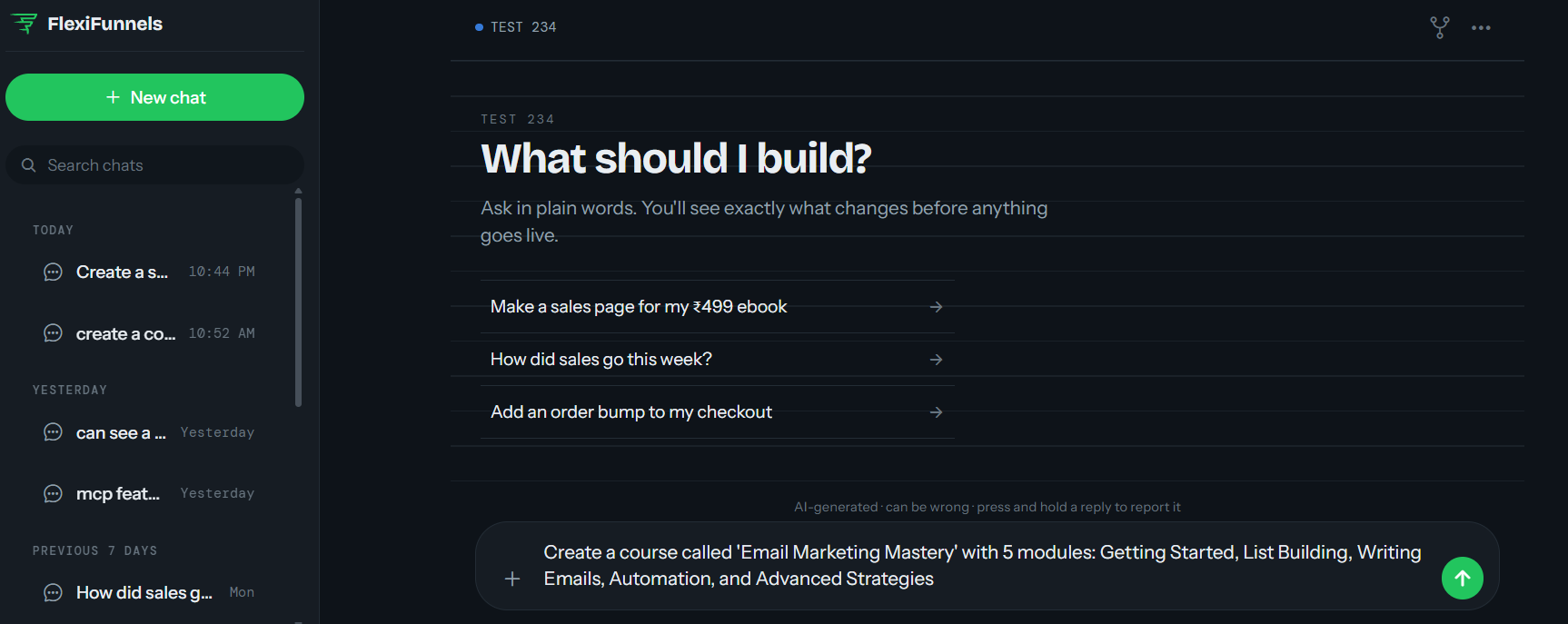
- Describe the course you want to create, along with the modules (chapters) it should contain.
Example Prompt: "Create a course called 'Email Marketing Mastery' with 5 modules: Getting Started, List Building, Writing Emails, Automation, and Advanced Strategies."
Step 2: Rename a Module
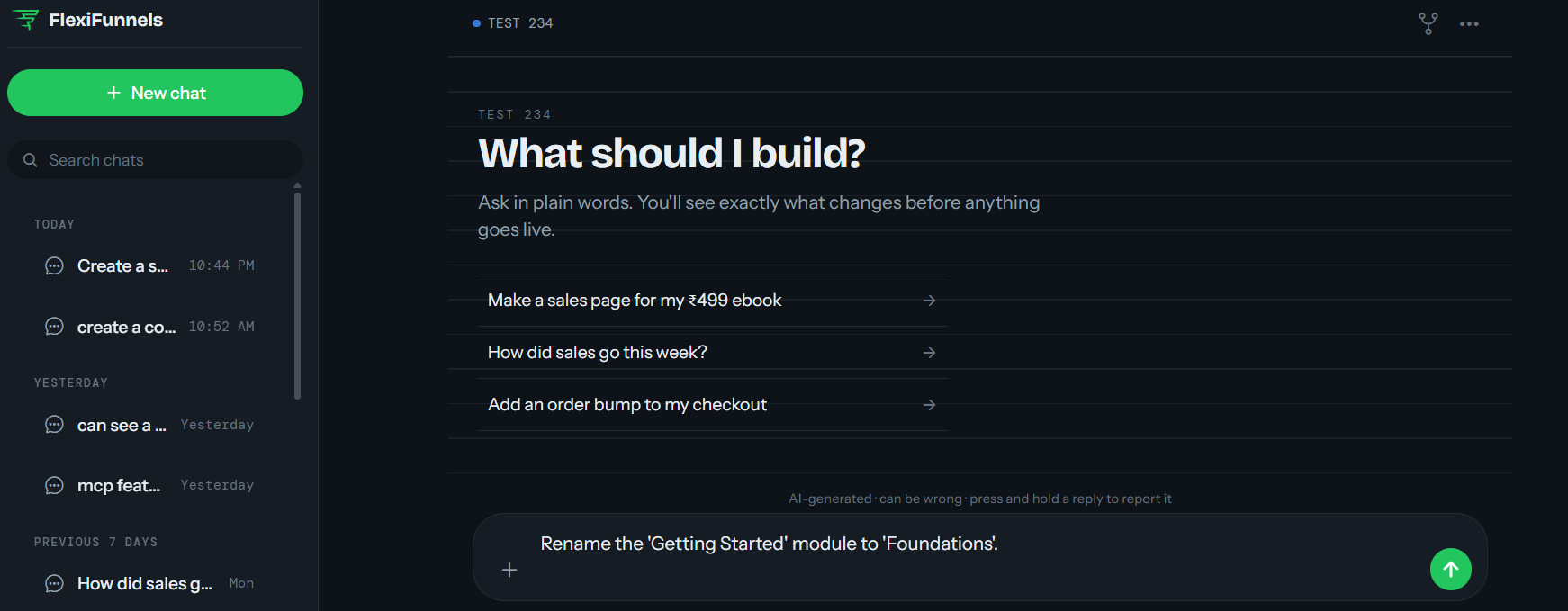
- If a module's name needs updating, just tell Flexi Genie the module and its new name.
Example Prompt: "Rename the 'Getting Started' module to 'Foundations'."
Step 3: Add Lessons, and Edit Their Titles or Descriptions
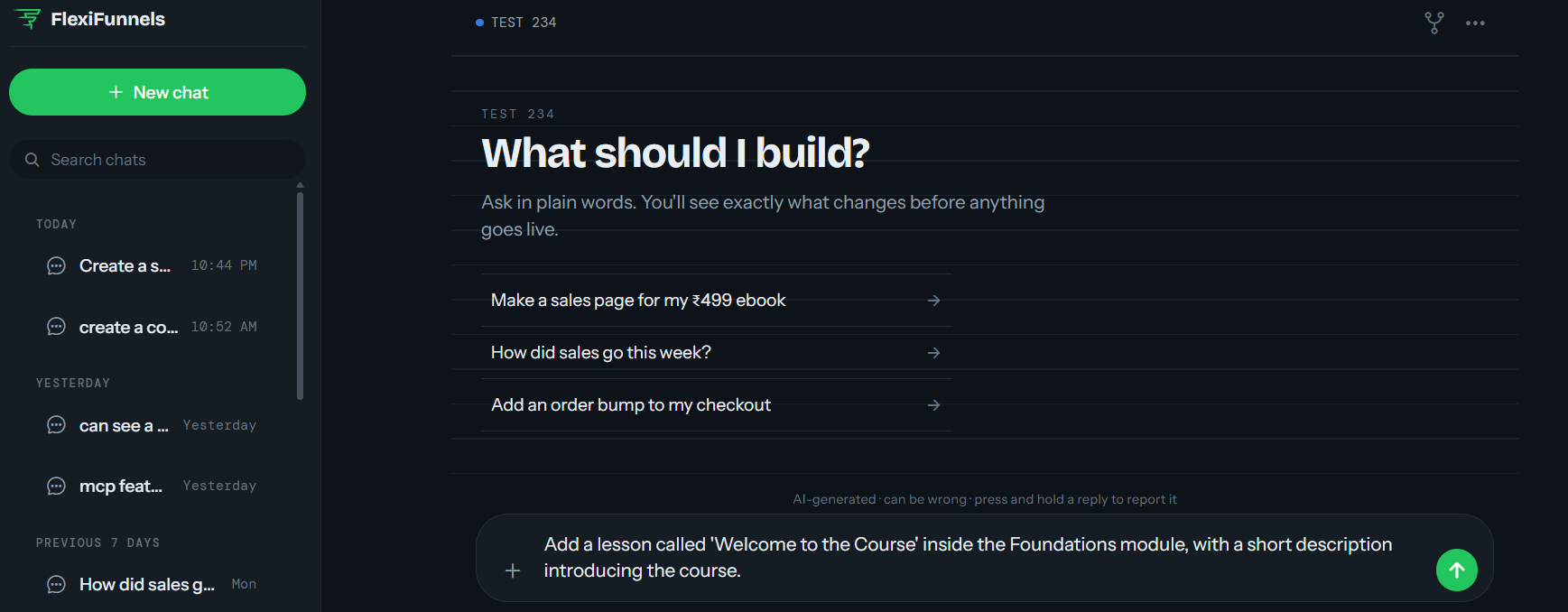
- Ask Flexi Genie to add one or more lessons inside a specific module.
- You can update a lesson's title or description at any time afterward.
Example Prompt: "Add a lesson called 'Welcome to the Course' inside the Foundations module, with a short description introducing the course."
Step 4: Attach Video Content
- You can attach a video to a lesson using a YouTube or Vimeo link, an uploaded video, or a generic embed.
- You can also set an introduction video for an entire module.
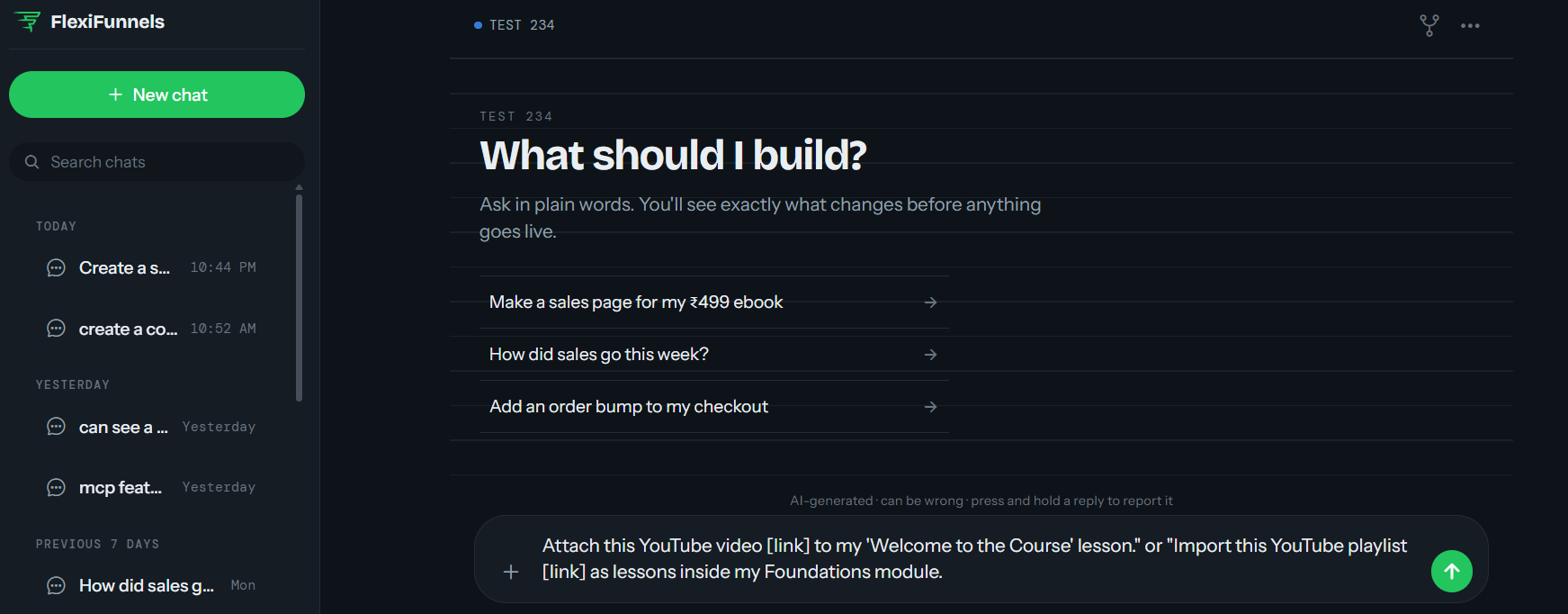
- To add many videos at once, ask Flexi Genie to import a full playlist into a module.
Example Prompt: "Attach this YouTube video [link] to my 'Welcome to the Course' lesson." or "Import this YouTube playlist [link] as lessons inside my Foundations module."
Step 5: Add Resources to a Lesson
- Attach downloadable files — PDFs, templates, worksheets — to a lesson.
- If a lesson has multiple resources, you can mark one as the preferred (default) resource shown to members.
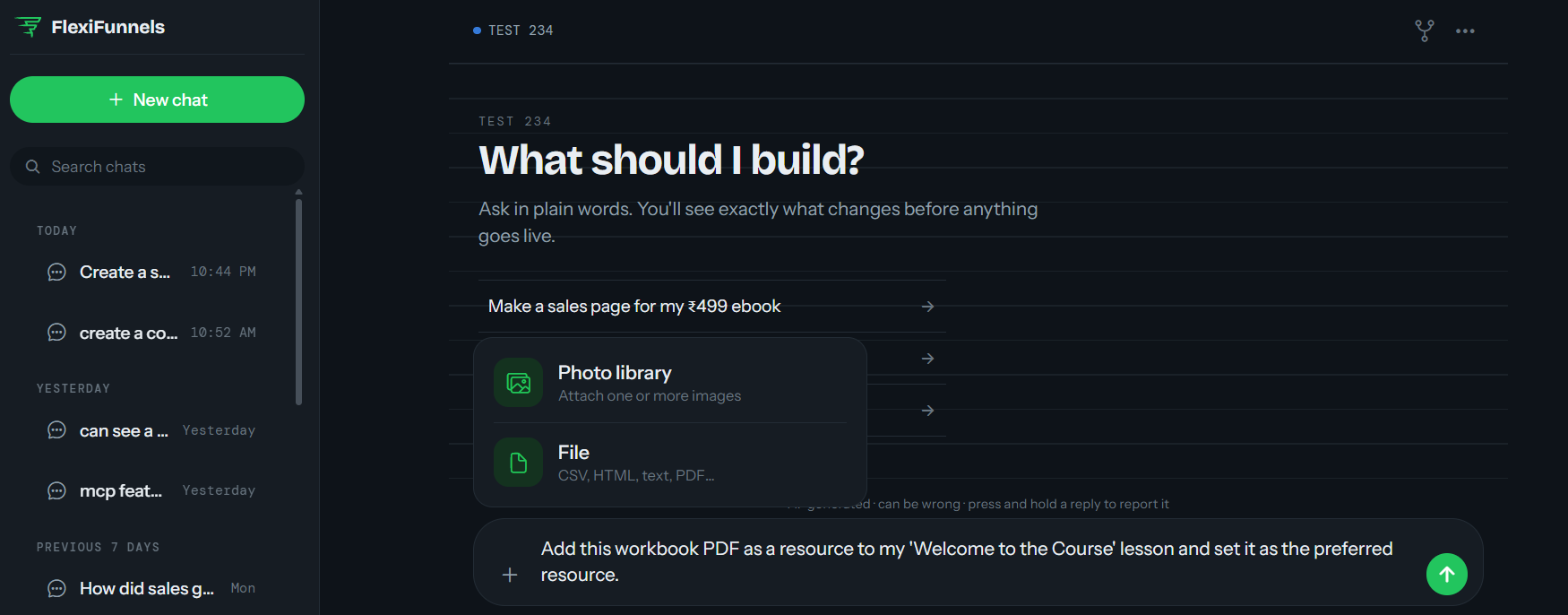
Example Prompt: "Add this workbook PDF as a resource to my 'Welcome to the Course' lesson and set it as the preferred resource."
Step 6: Clone a Lesson
- If you need a similar lesson elsewhere in your course, clone an existing one instead of building it from scratch.
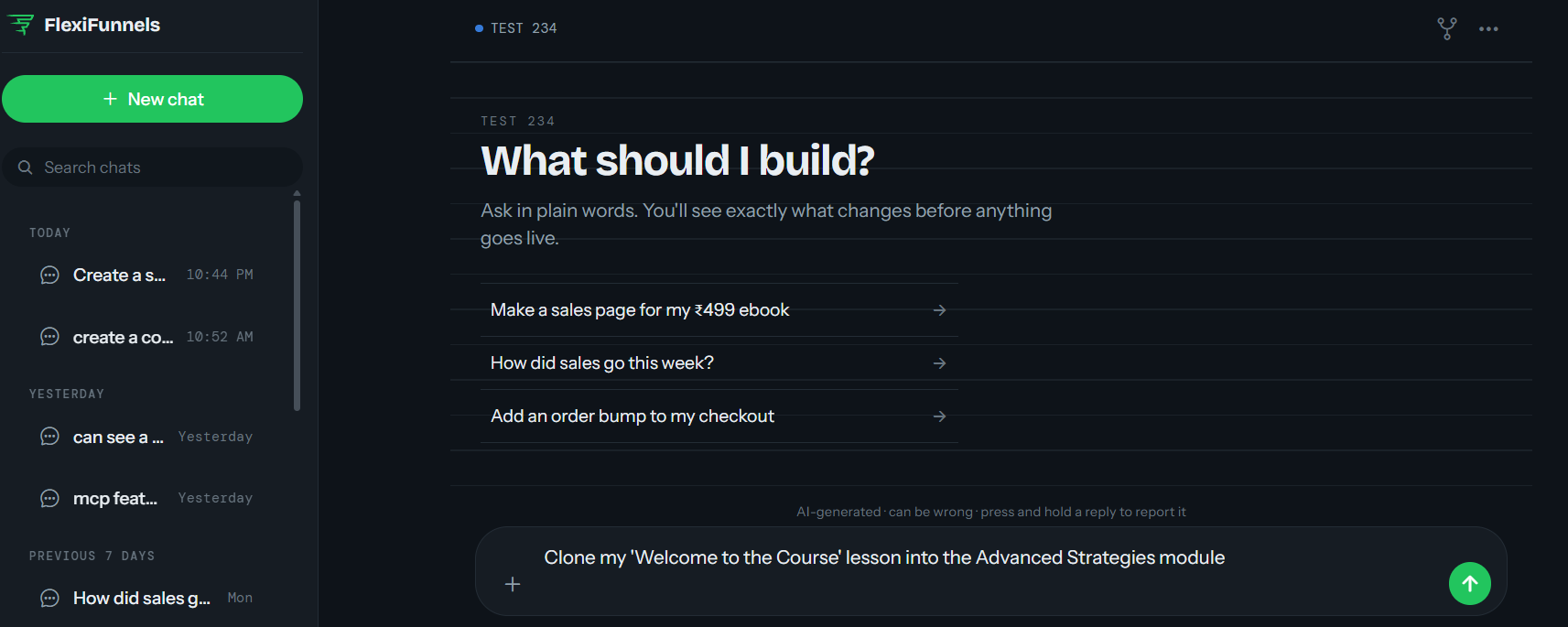
Example Prompt: "Clone my 'Welcome to the Course' lesson into the Advanced Strategies module."
Step 7: View Modules and Lesson Descriptions
- Ask Flexi Genie to list out all modules inside a course, or show you what a specific lesson's description currently says.
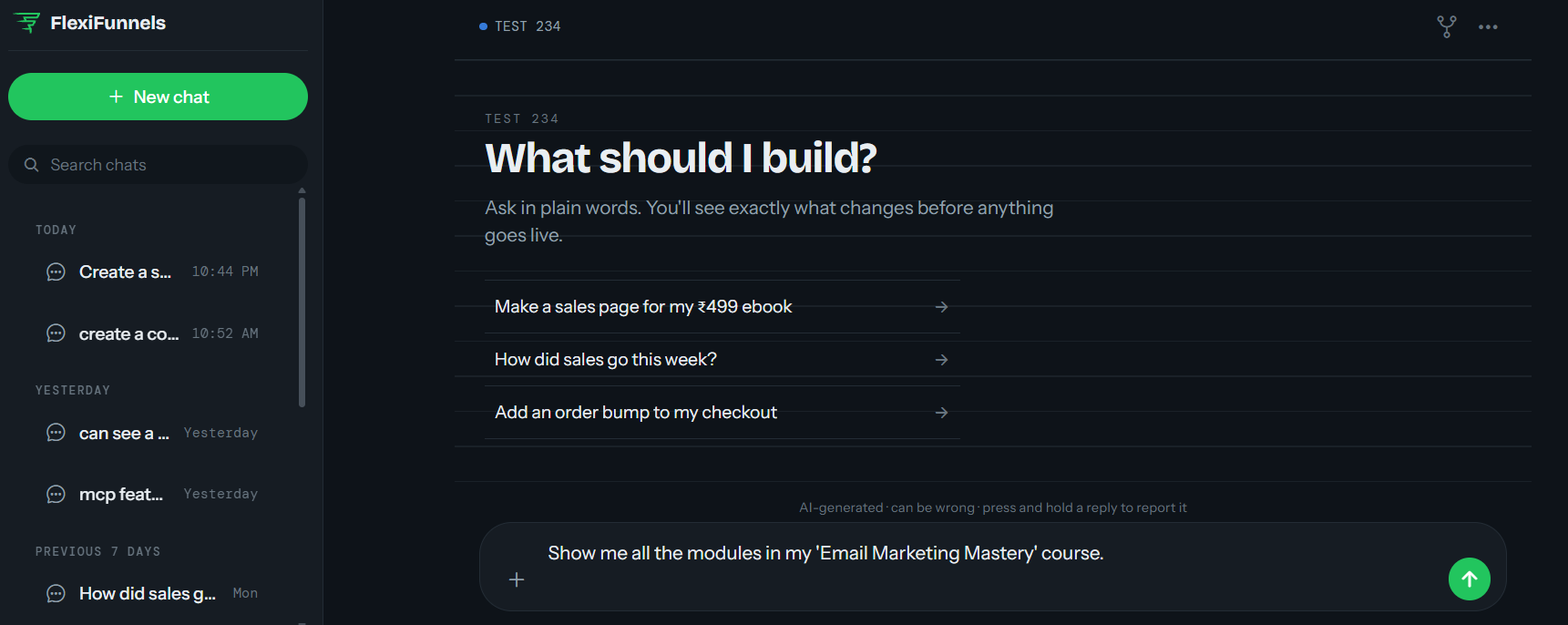
Example Prompt: "Show me all the modules in my 'Email Marketing Mastery' course."
Step 8: Set Up Drip-Feed Rules
- Drip-feed rules control when a lesson or module becomes available to a member — after a set number of days, or once a prerequisite is completed.
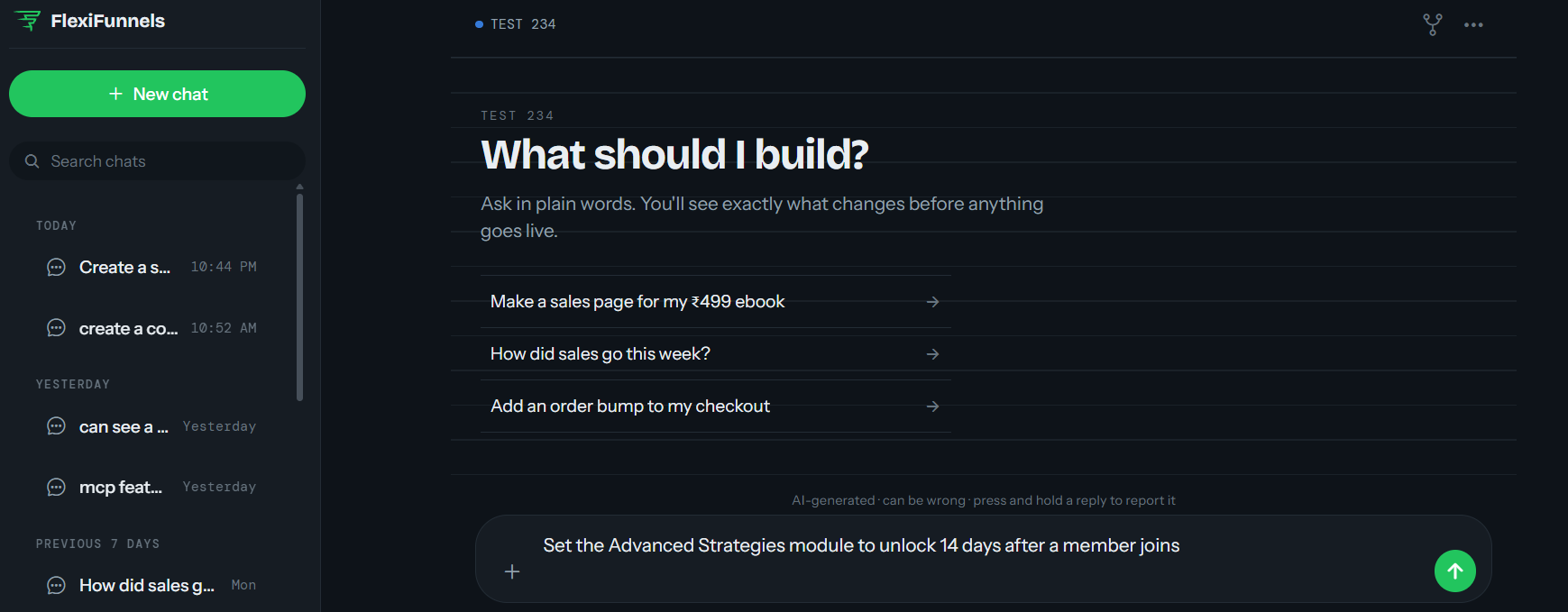
Example Prompt: "Set the Advanced Strategies module to unlock 14 days after a member joins."
Be Careful: Drip-feed rules affect when members can access content. Double-check the exact timing before applying it, especially for cohort-based courses with a specific schedule.
Behind the Scenes — MCP Tools Involved
| Task | Related MCP Tool(s) |
|---|---|
| Create a course | create_course |
| Add a module | add_module |
| Rename/update a module | update_module |
| Add a lesson | add_lesson |
| Edit lesson title | update_lesson_title |
| Edit lesson description | update_lesson_description |
| View lesson description | get_lesson_description |
| Set module introduction video | set_module_introduction_video |
| Attach video URL to a lesson | attach_video_url_to_lesson |
| Attach a generic/custom video to a lesson | attach_generic_video_to_lesson |
| Import a playlist of videos in bulk | import_playlist_to_module |
| Add a resource to a lesson | add_lesson_resource |
| Set the preferred resource | mark_preferred_resource |
| View resources on a lesson | get_lesson_resources |
| Clone a lesson | clone_lesson |
| View modules inside a course | list_course_modules |
| Reorder modules or lessons | reorder_course_content, reorder_courses |
| Set drip-feed on a lesson | set_lesson_drip |
| Set drip-feed on a module | set_module_drip |
Good to Know: You never need to know these tool names to use Flexi Genie — this table is just for anyone curious about what's happening behind the scenes.
Ready-to-Use Prompts
"Create a course called 'Content Creation Bootcamp' with 4 modules covering strategy, scripting, filming, and editing."
"Add 3 lessons to my 'Scripting' module: Hook Writing, Structuring a Script, and Call-to-Actions."
"Attach this Vimeo link [link] to my 'Hook Writing' lesson."
"Set my 'Filming' module to unlock 7 days after a member joins."
"Show me all the modules and lessons currently in my 'Content Creation Bootcamp' course."
Tips for Better Results
- Plan your module and lesson names in advance — clear names make later edits and reordering much easier.
- When bulk-importing a playlist, review the resulting lesson list afterward to confirm titles and order look right.
- Use drip-feed rules thoughtfully — test the unlock timing with a sample member account if the schedule is important to your launch.
Common Issues / Troubleshooting
Video Not Playing for Members: Confirm the video link is public/unlisted (not private) if using YouTube or Vimeo, and that it was correctly attached to the intended lesson.
Lesson Still Locked for a Member: Check the drip-feed settings on that lesson or its parent module — it may still be within its unlock waiting period.
Limitations / Important Notes
- Drip-feed timing is based on the rules configured at the module or lesson level — always verify the exact unlock condition (days after joining vs. a specific date) before publishing.
- Cloning a lesson duplicates its content, but any attached video or resource should be reviewed on the cloned copy.
Curious what else Flexi Genie and AI assistants can do inside FlexiFunnels? See the full Possibilities with Flexi Genie & AI Assistance reference document.
Was this article helpful?
That’s Great!
Thank you for your feedback
Sorry! We couldn't be helpful
Thank you for your feedback
Feedback sent
We appreciate your effort and will try to fix the article