Overview
The Courses section is where members can access all the courses available within a FlexiMembership.
Each course contains one or more modules, and each module contains lessons that can include videos, text, downloadable resources, discussions, and more.
From the Courses page, members can:
- Browse available courses
- Search for courses or lessons
- View course progress
- Continue learning from where they left off
- Complete lessons
- Participate in lesson discussions
- Access lesson resources
- Track their overall learning progress
Accessing Your Courses
After logging into your membership, click Courses from the top navigation menu.
The Courses page displays every course that has been assigned to your membership account.
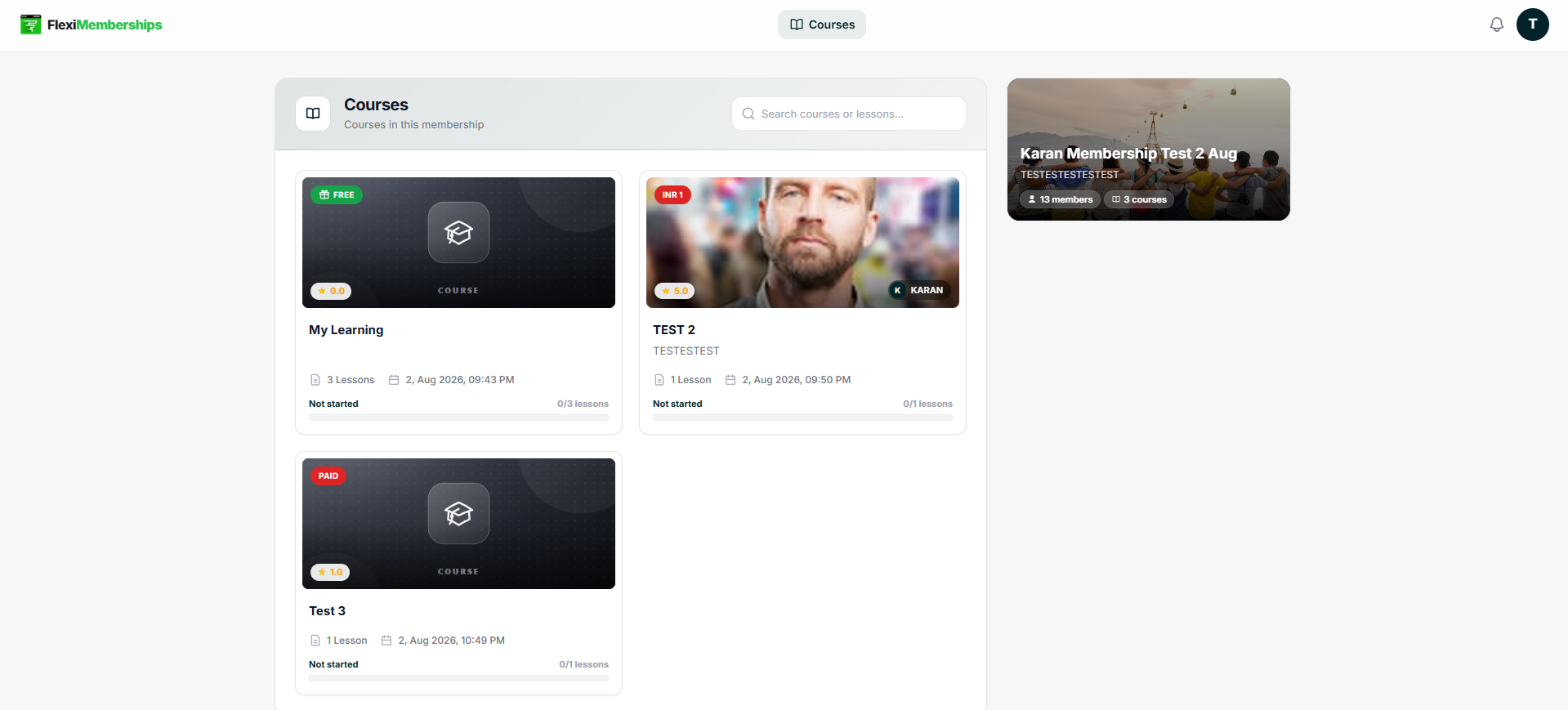
Each course card provides important information at a glance.
Understanding the Courses Page
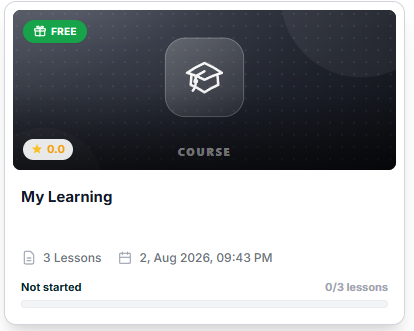
Each course card displays the following information.
Course Thumbnail
Displays the cover image for the course.
This helps identify the course visually.
Course Status
Depending on how the course is configured, you may see badges such as:
- Locked
- Free
A locked course cannot be accessed until the required conditions are met.
Course Name
Displays the title of the course.
Selecting the course opens the course player.
Course Description
A short summary describing what the course covers.
Number of Lessons
Displays the total lessons available in the course.
Example:
6 Lessons
Creation Date
Shows when the course was published.
Learning Status
Shows your current progress.
Examples include:
- Not Started
- In Progress
- Completed
Progress Bar
The progress bar visually represents how much of the course has been completed.
Example:
0 / 6 Lessons
As lessons are completed, this progress updates automatically.
Search Courses
Use the search bar at the top of the page to quickly find:
- Courses
- Lessons
Simply type a keyword to filter the available results.
Opening a Course
Click any course card to open the Course Player.
The Course Player is where you'll watch lessons and track your progress.
Understanding the Course Player
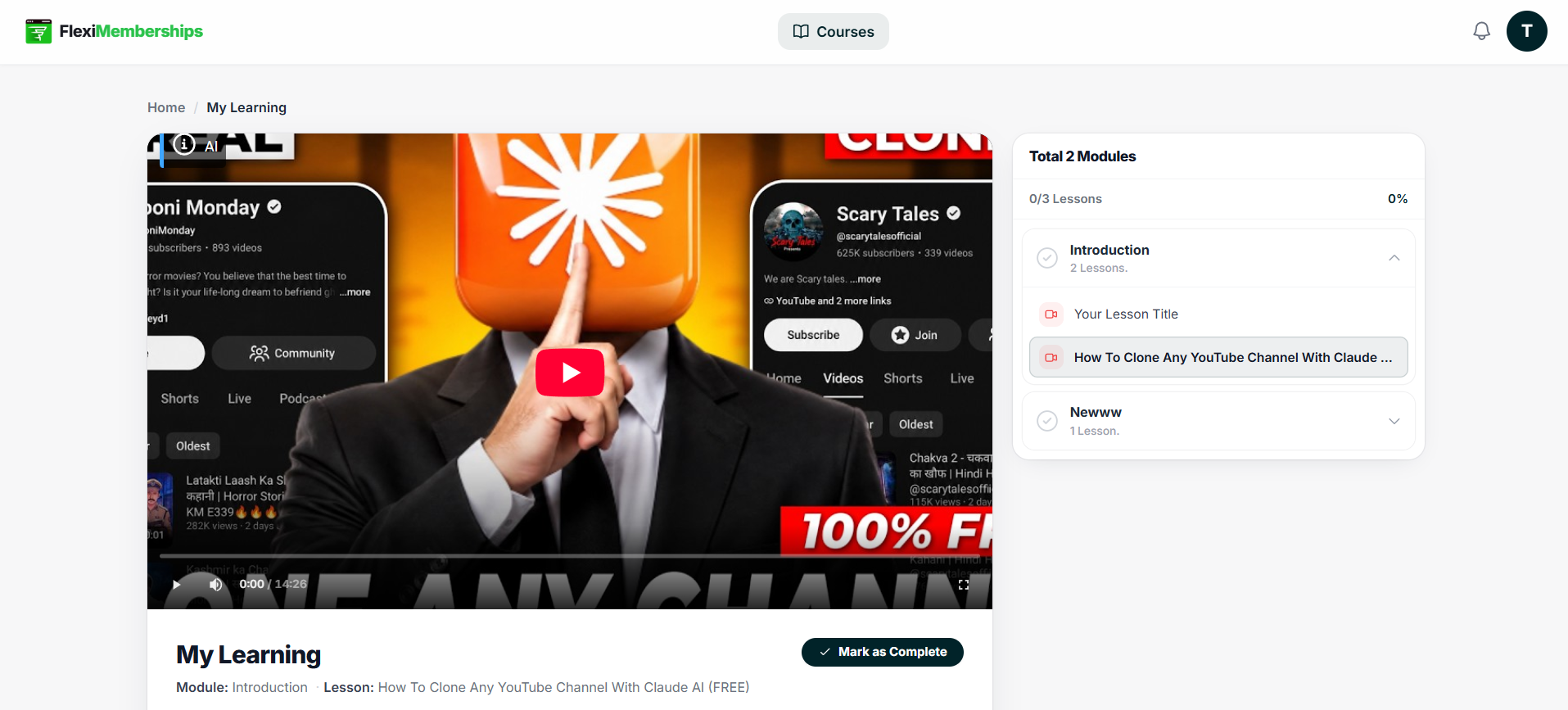
The Course Player is divided into several sections.
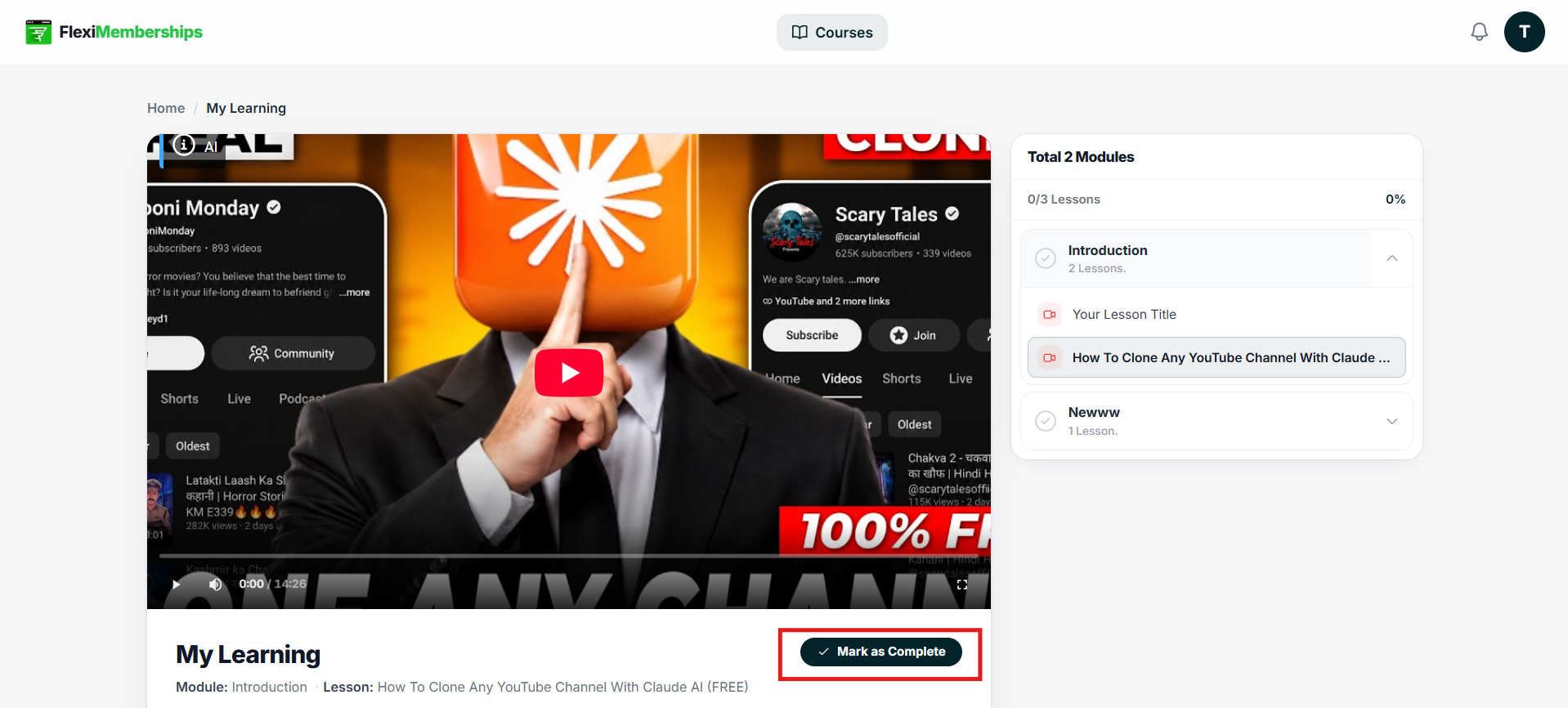
Video Player
The lesson video appears at the top of the page.
Depending on the lesson type, this area may contain:
- Video lessons
- Embedded content
- AI-generated videos
- Other supported lesson formats
Course Information
Below the video player you'll find:
- Course Name
- Module Name
- Lesson Name
- Lesson Category (if applicable)
This helps identify exactly where you are within the course.
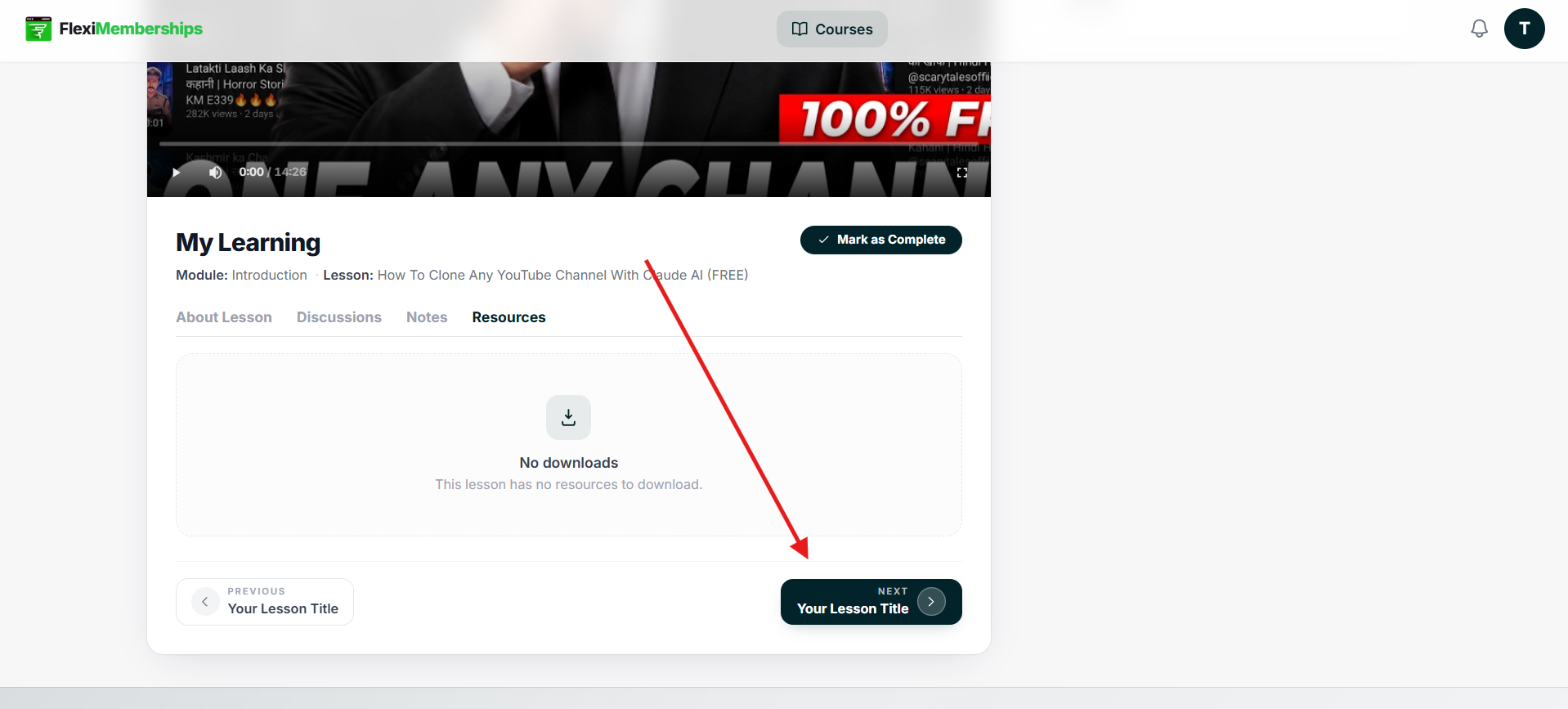
Lesson Tabs
Each lesson can include additional learning material organized into tabs.
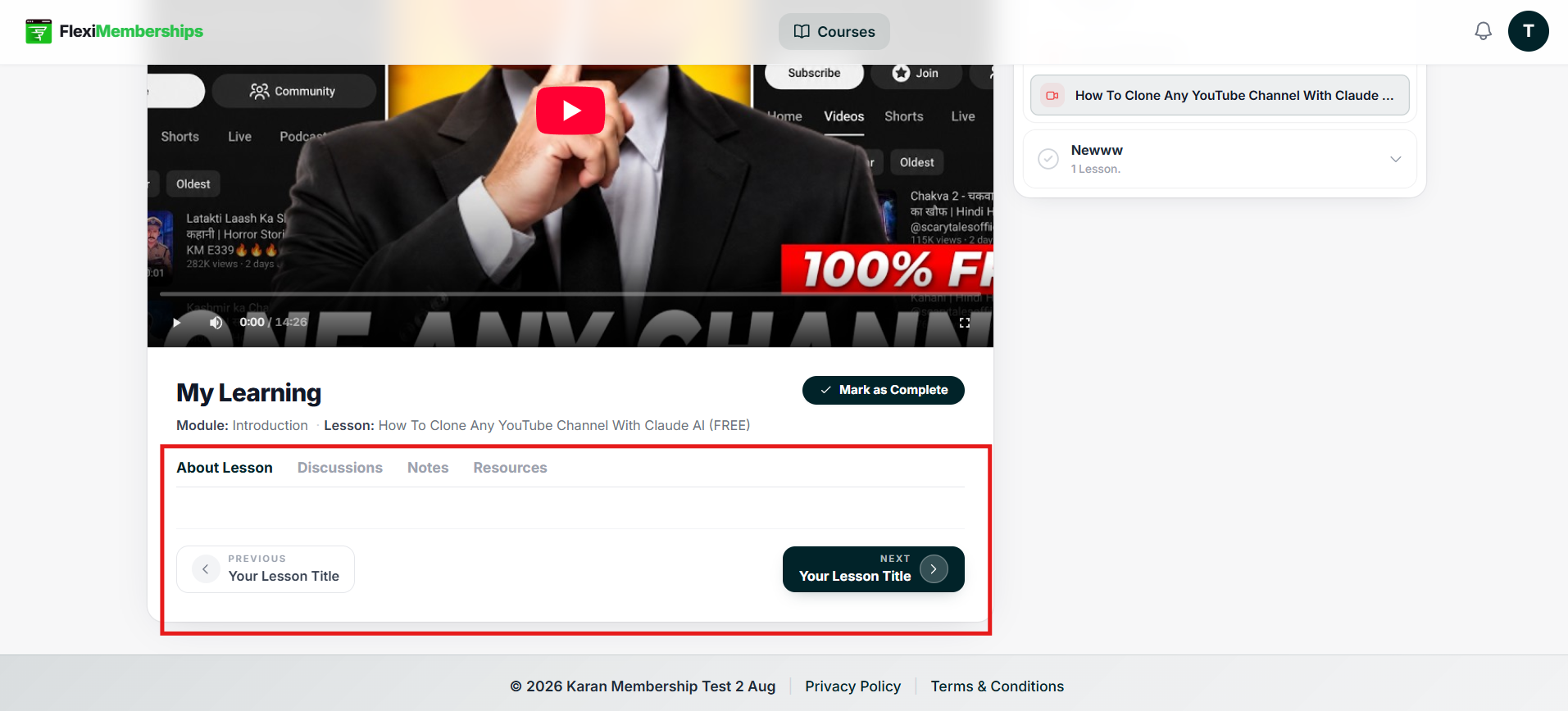
About Lesson
Contains the primary lesson content.
This may include:
- Written explanations
- Images
- Embedded media
- Additional information prepared by the instructor
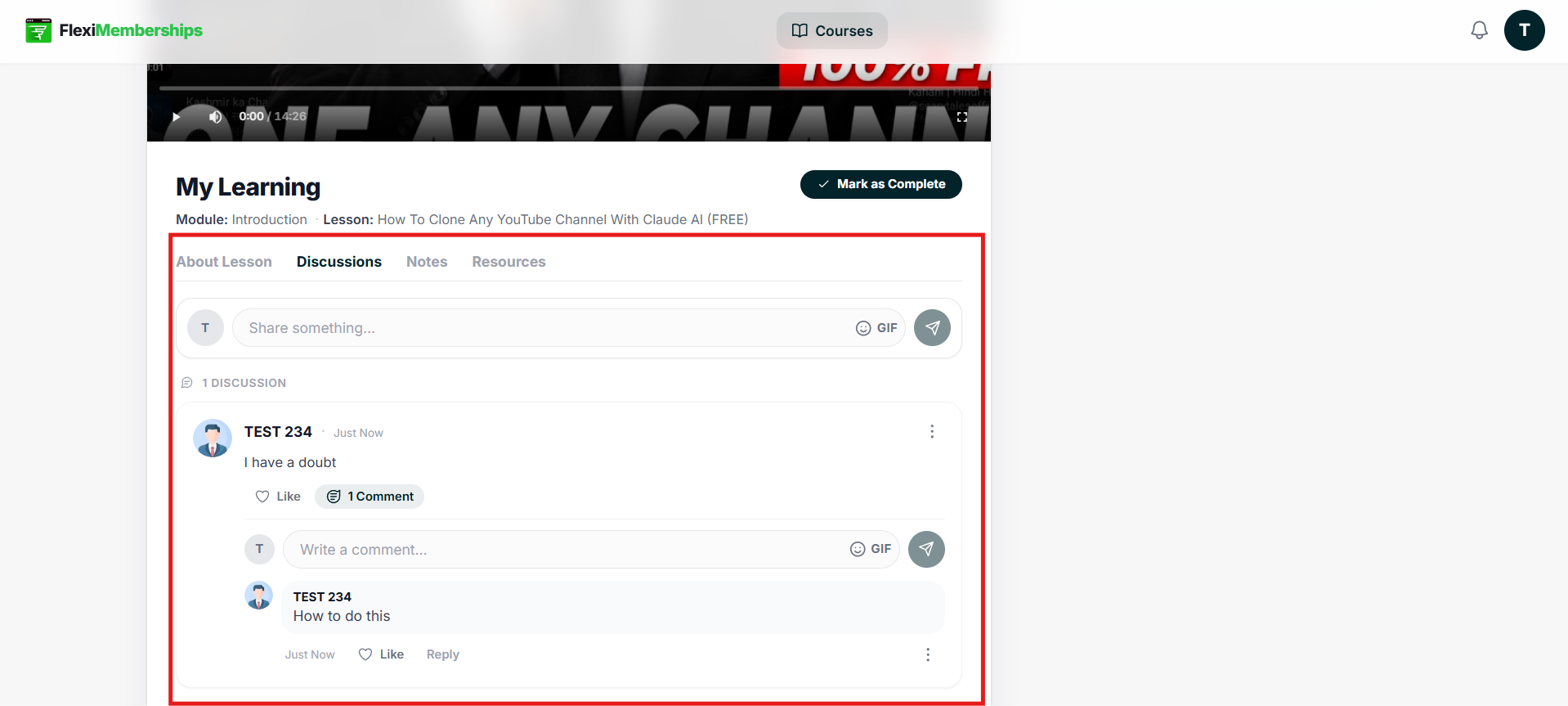
Discussions
Allows members to interact with instructors and other learners.
From this section you can:
- Create a discussion
- Reply to discussions
- Like discussions
- Ask questions
- Share feedback
This is ideal for clearing doubts and engaging with the learning community.
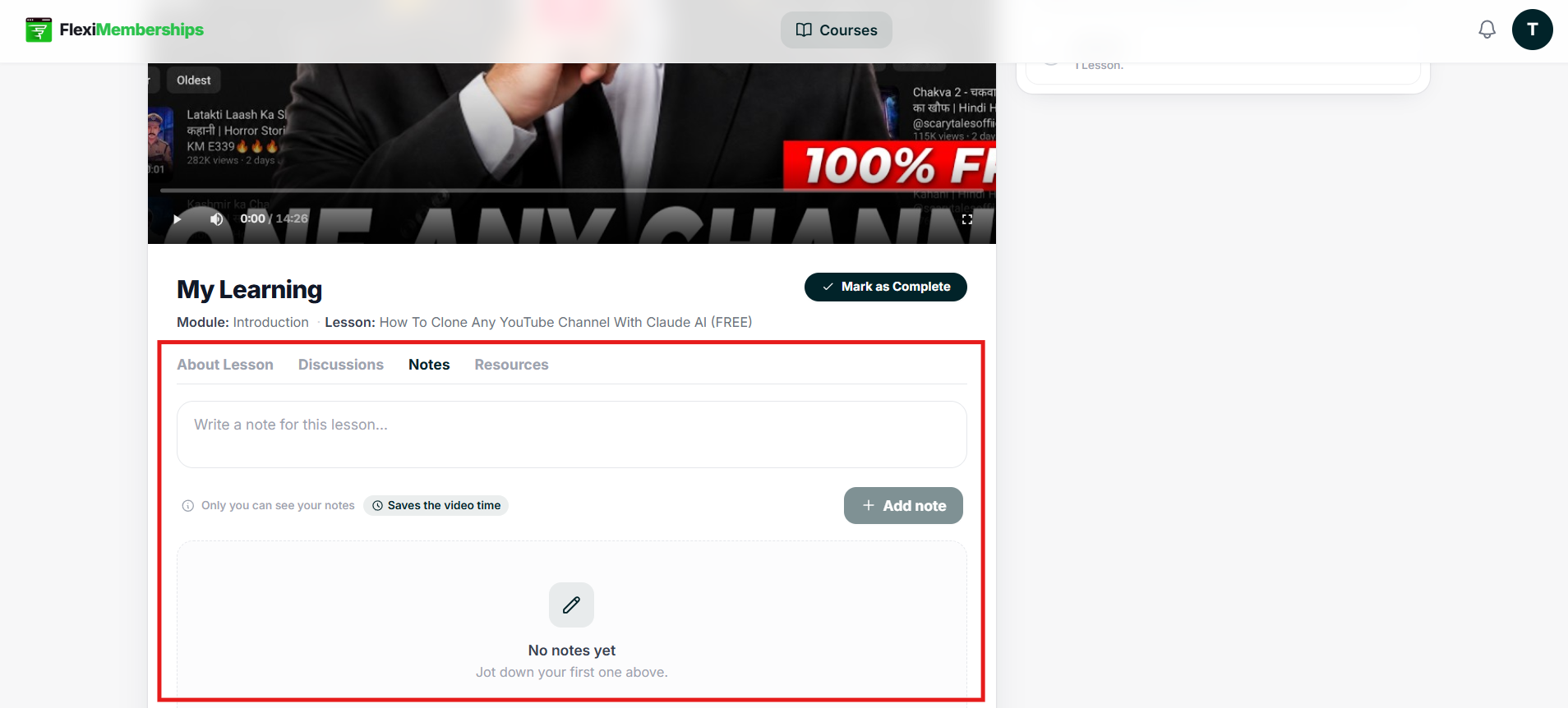
Notes
Use this section to view or manage notes associated with the lesson.
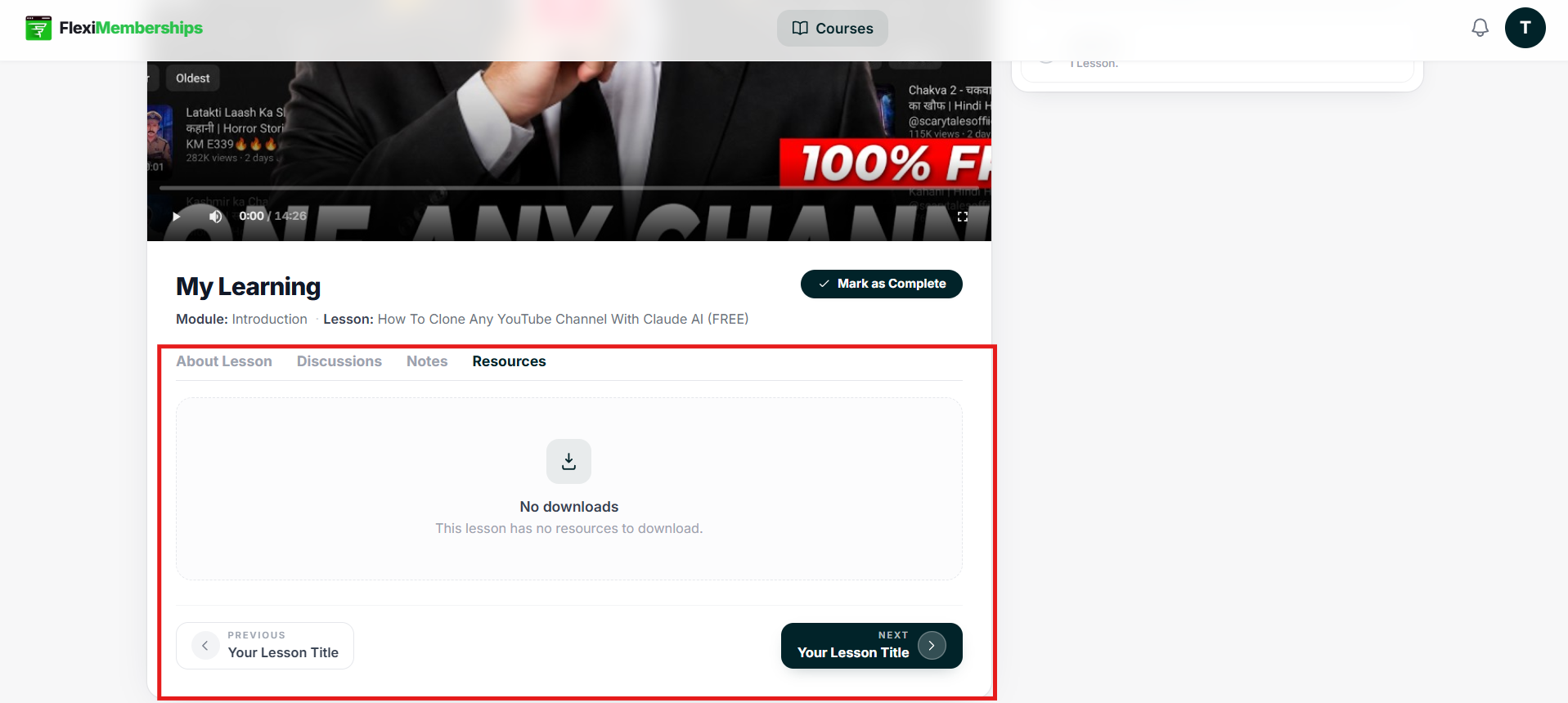
Resources
Contains downloadable learning materials such as:
- PDFs
- Worksheets
- Templates
- Additional reference files
Availability depends on the course creator.
Lesson Navigation
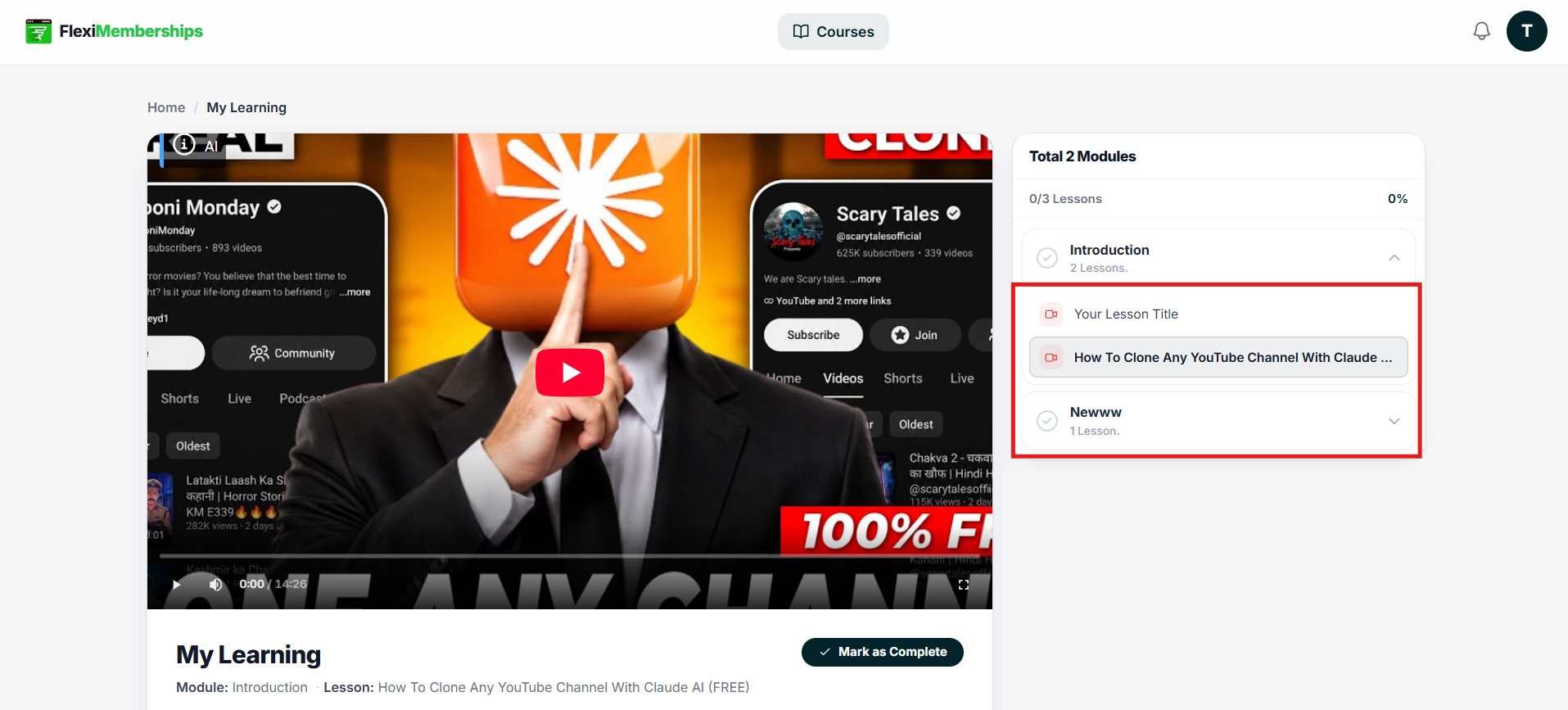
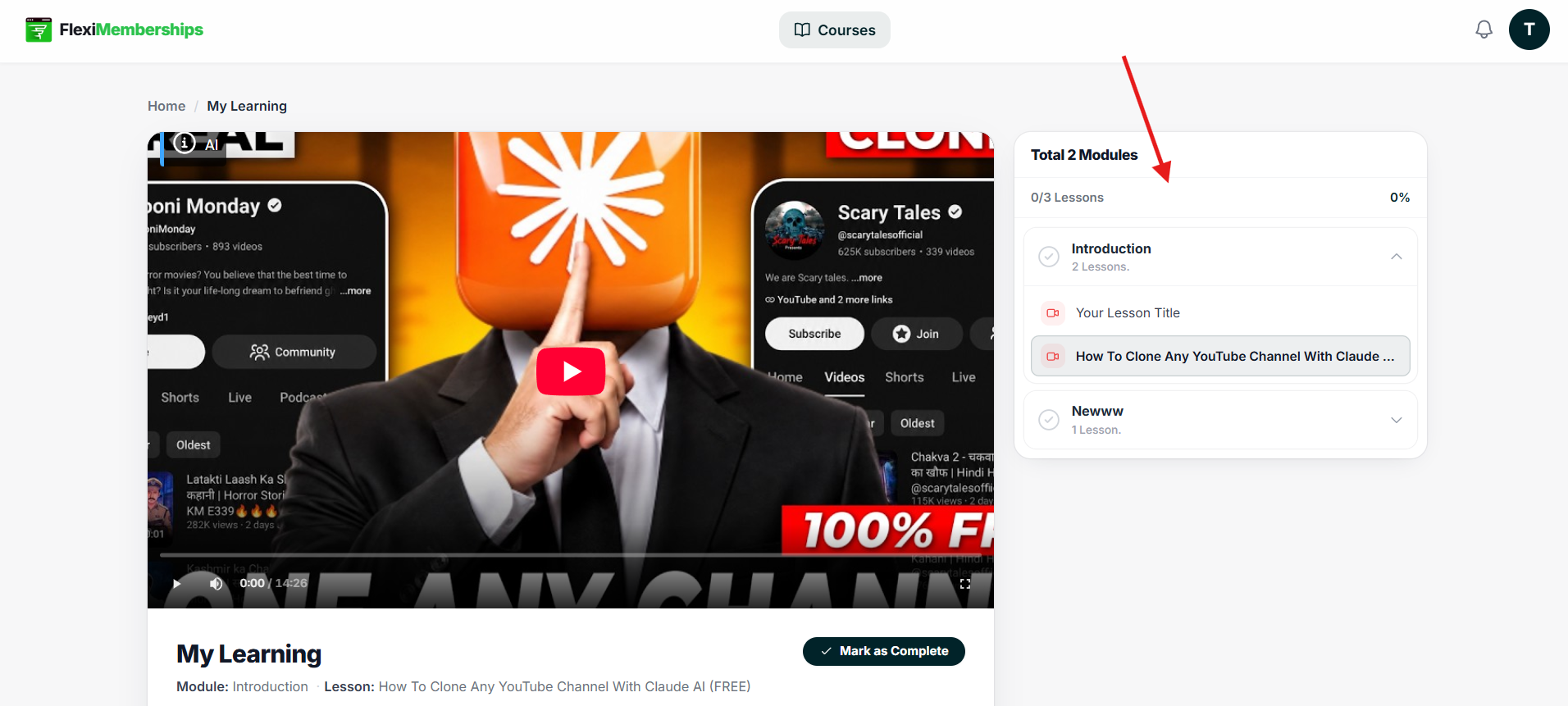
The lesson navigator appears on the right side of the Course Player.
It displays:
- Modules
- Lessons within each module
- Overall course progress
Members can quickly switch between lessons by selecting any lesson from the navigation panel.
Marking a Lesson as Complete
After finishing a lesson, click Mark as Complete.
Once marked:
- The lesson is recorded as completed.
- Your course progress updates automatically.
- Any applicable points or achievements are awarded based on your membership settings.
Previous and Next Lesson Navigation
At the bottom of the lesson page, use the navigation buttons to move through the course.
Previous
Returns to the previous lesson.
Next
Opens the next lesson in the module.
This makes it easy to progress through the course without returning to the course overview.
Course Progress
Your progress is automatically tracked as you complete lessons.
The Courses page and Course Player both reflect your current completion percentage, allowing you to continue learning from where you left off.
Tips
- Complete lessons sequentially for the best learning experience.
- Use the Search feature to quickly locate lessons in large memberships.
- Mark lessons as complete after finishing them to keep your progress accurate.
- Check the Resources tab for downloadable materials provided by the instructor.
- Use the Discussions tab whenever you have questions or want to interact with other learners.
- Monitor your Points and Levels if your membership includes gamification.
Was this article helpful?
That’s Great!
Thank you for your feedback
Sorry! We couldn't be helpful
Thank you for your feedback
Feedback sent
We appreciate your effort and will try to fix the article