Discussions help learners ask questions inside lessons, while Group Posts allow members to interact within community groups. As your membership grows, administrators and moderators need an efficient way to review, organize, and moderate this content.
The Discussion / Moderation section provides a centralized moderation dashboard where you can manage lesson discussions and community posts without navigating into individual courses or groups.
Before You Begin
Ensure that:
- You have Administrator or Moderator access to the membership.
- Your membership contains at least one course or community group with member activity.
Accessing the Discussion / Moderation Center
To open the moderation dashboard:
- Open your Membership Project.
- From the top navigation bar, click Discussion / Moderation.
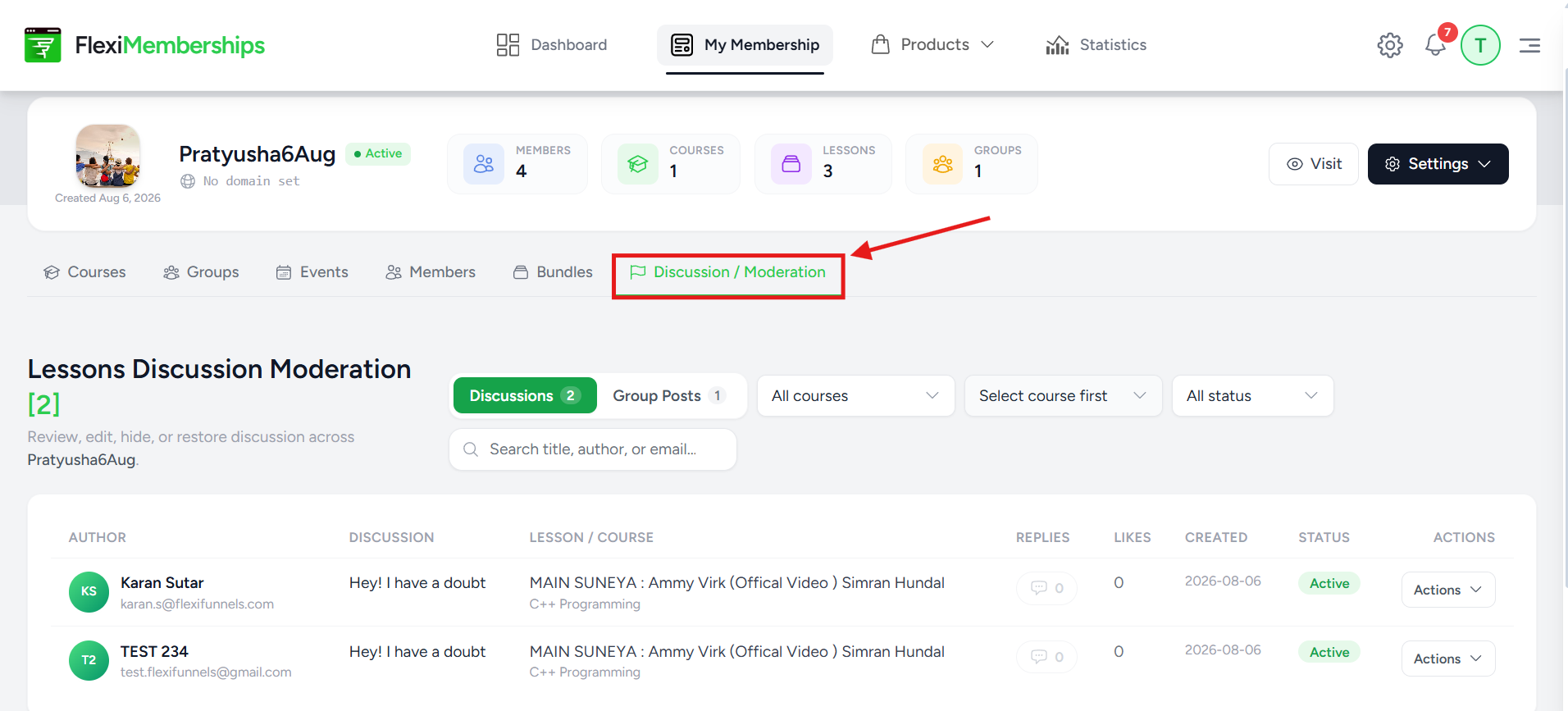
The moderation page contains two moderation areas:
- Discussions – Manage discussions created within course lessons.
- Group Posts – Manage posts published inside community groups.
Both sections include search, filters, moderation actions, and visibility controls to help you manage member-generated content.
Managing Lesson Discussions
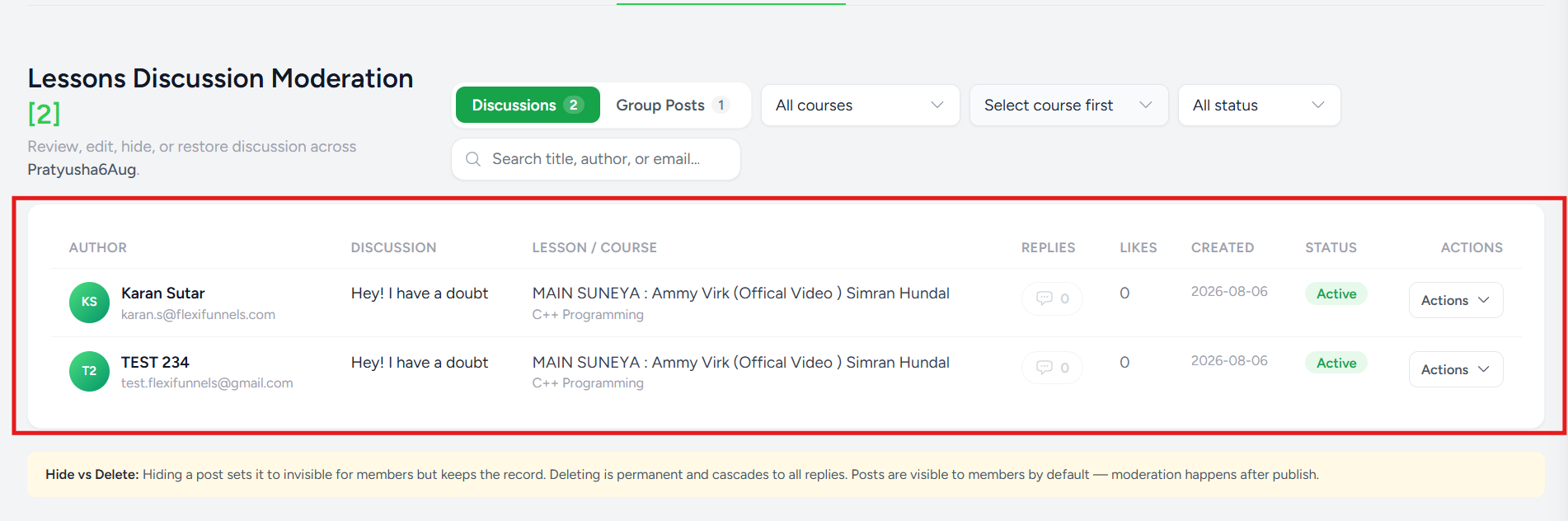
The Discussions tab displays every discussion created by learners inside your course lessons.
Each discussion entry provides useful information at a glance, including:
- Author name and email
- Discussion title
- Lesson and Course
- Number of replies
- Likes received
- Date created
- Current status
- Available moderation actions
This centralized view allows administrators to monitor learner conversations across every course without opening individual lessons.
Filtering and Searching Discussions
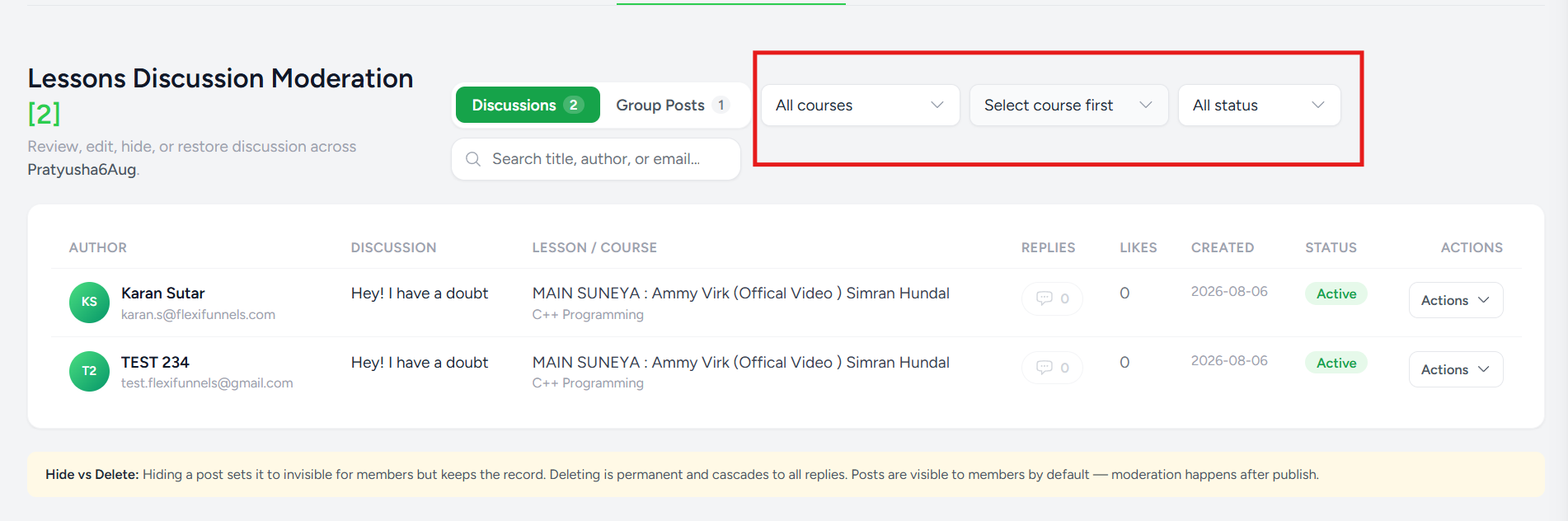
As your membership grows, finding specific discussions becomes easier with the built-in filters.
You can filter discussions using:
- Course – Display discussions from a specific course.
- Lesson – Narrow results to a particular lesson.
- Status – Filter discussions based on their moderation status.
- Search – Search by discussion title, member name, or email address.
These filters are especially useful when managing memberships with hundreds or thousands of active learners.
Managing Group Posts
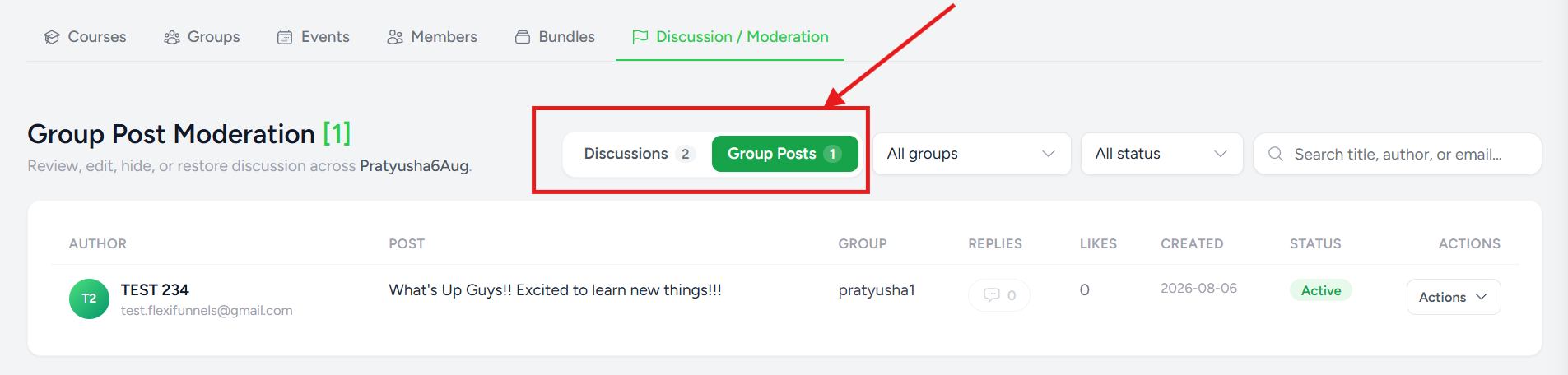
Select the Group Posts tab to manage discussions created inside community groups.
Each group post displays:
- Author
- Post preview
- Group name
- Number of replies
- Likes
- Creation date
- Status
- Available moderation actions
Administrators can also filter posts using:
- Group
- Status
- Search
This allows community activity to be moderated from one centralized location instead of opening individual groups.
Moderating Course Discussions and Group Posts
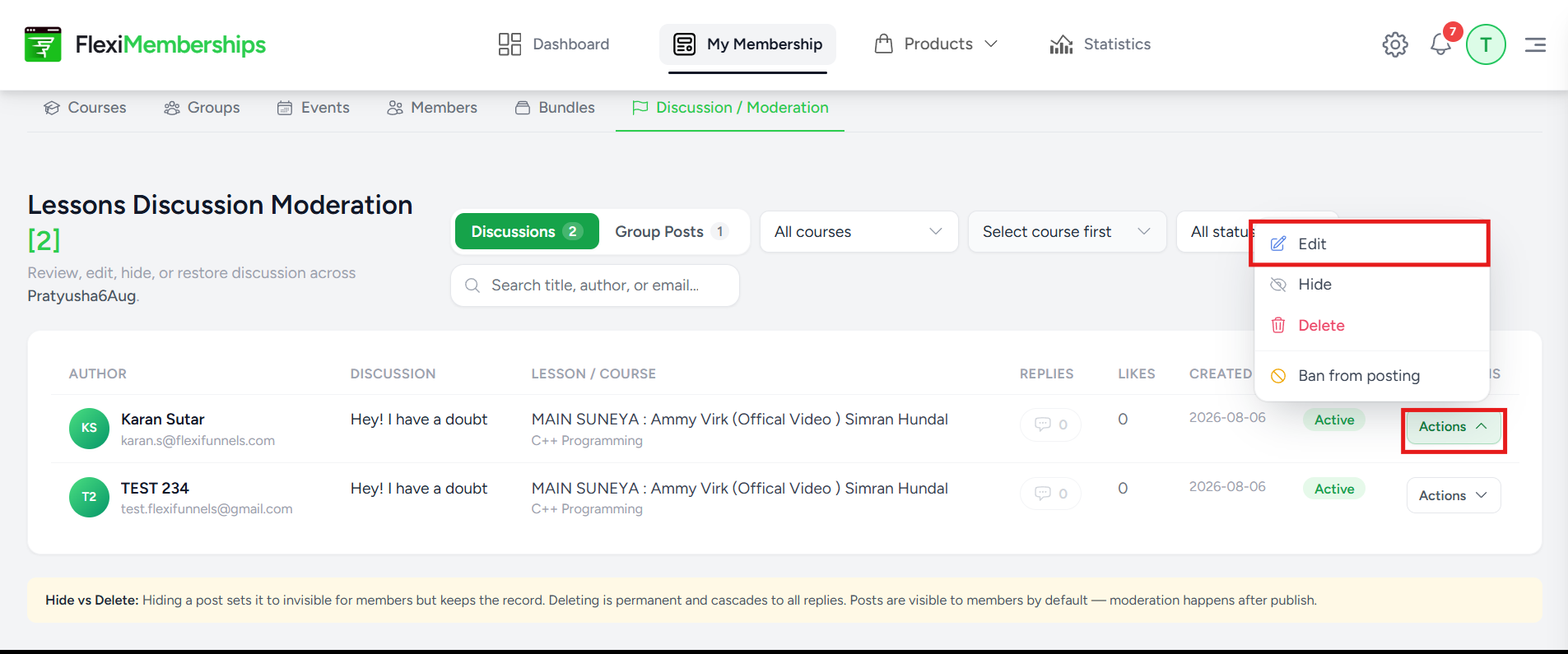
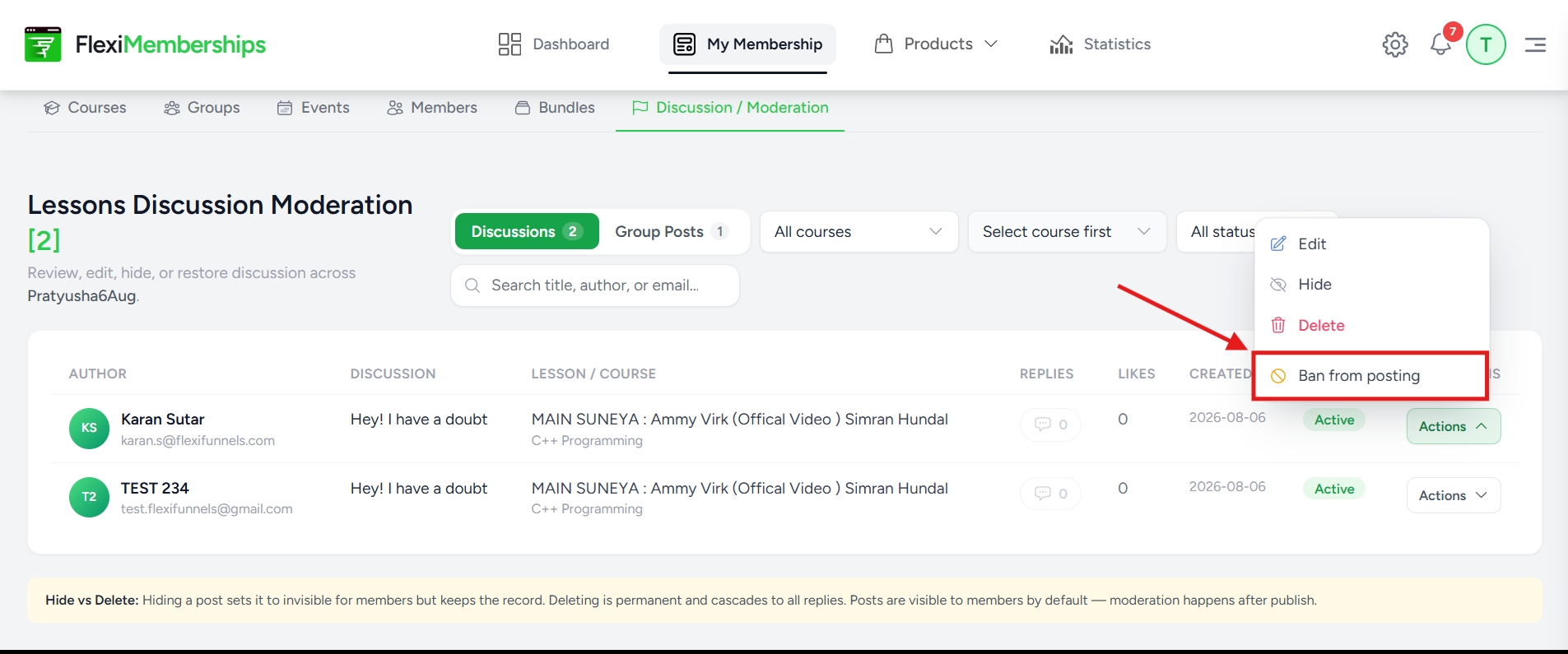
Every discussion and group post includes an Actions dropdown that provides moderation controls.
The available actions include:
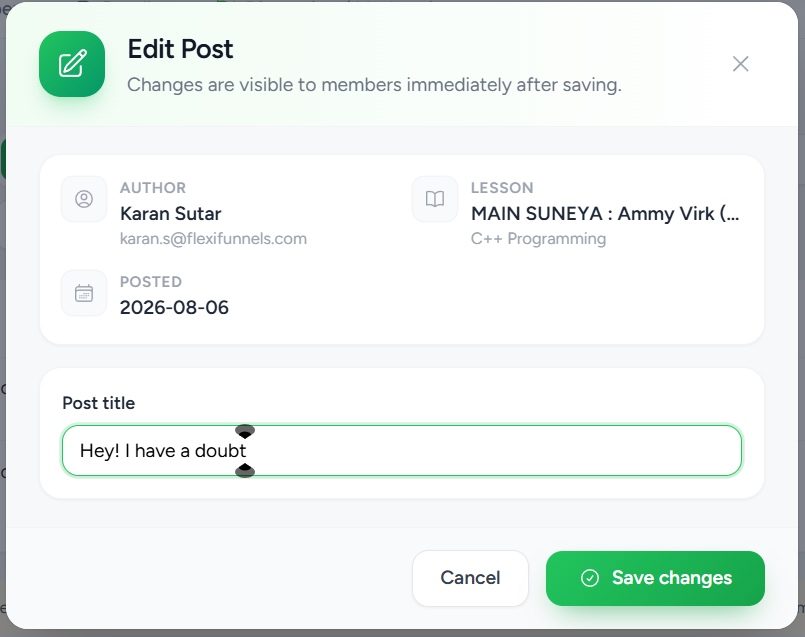
Edit
Select Edit to modify the discussion or post content.
This is useful for correcting formatting issues or making administrative updates without deleting the discussion.
Hide
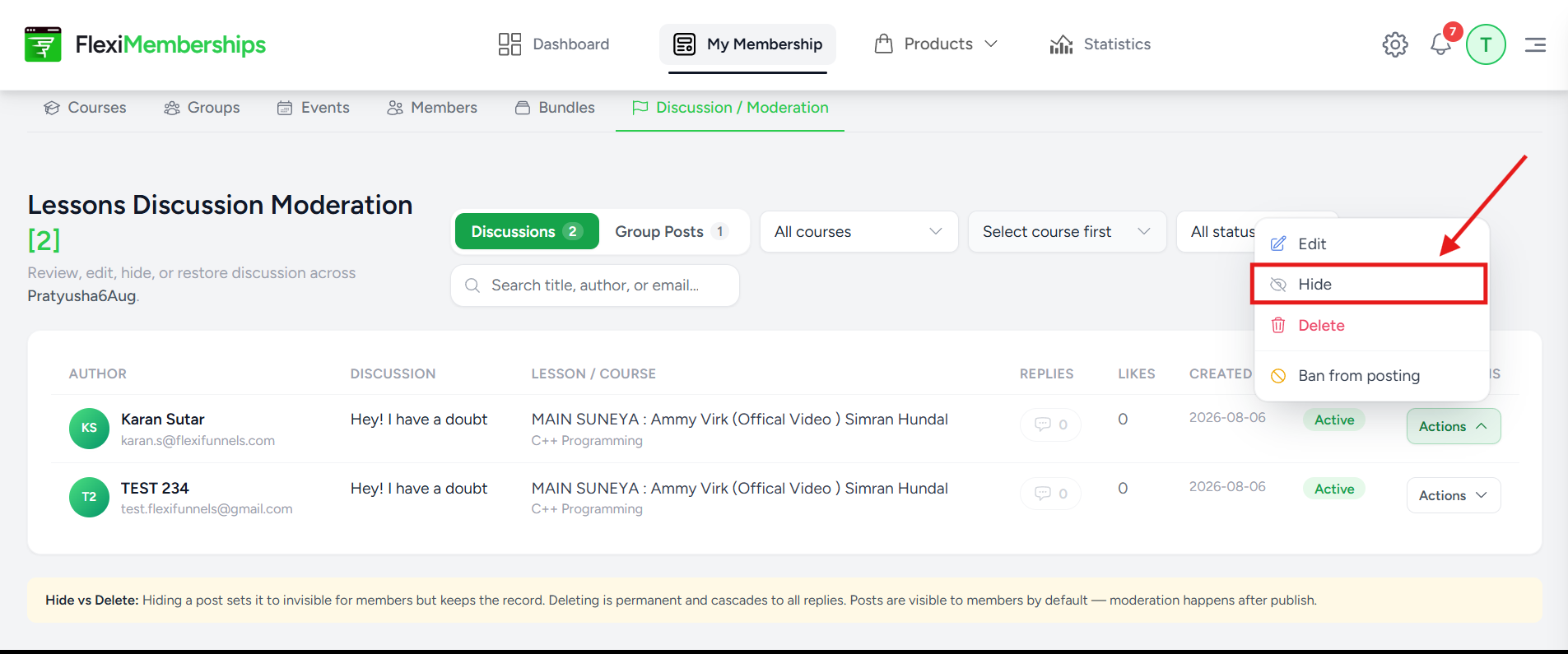
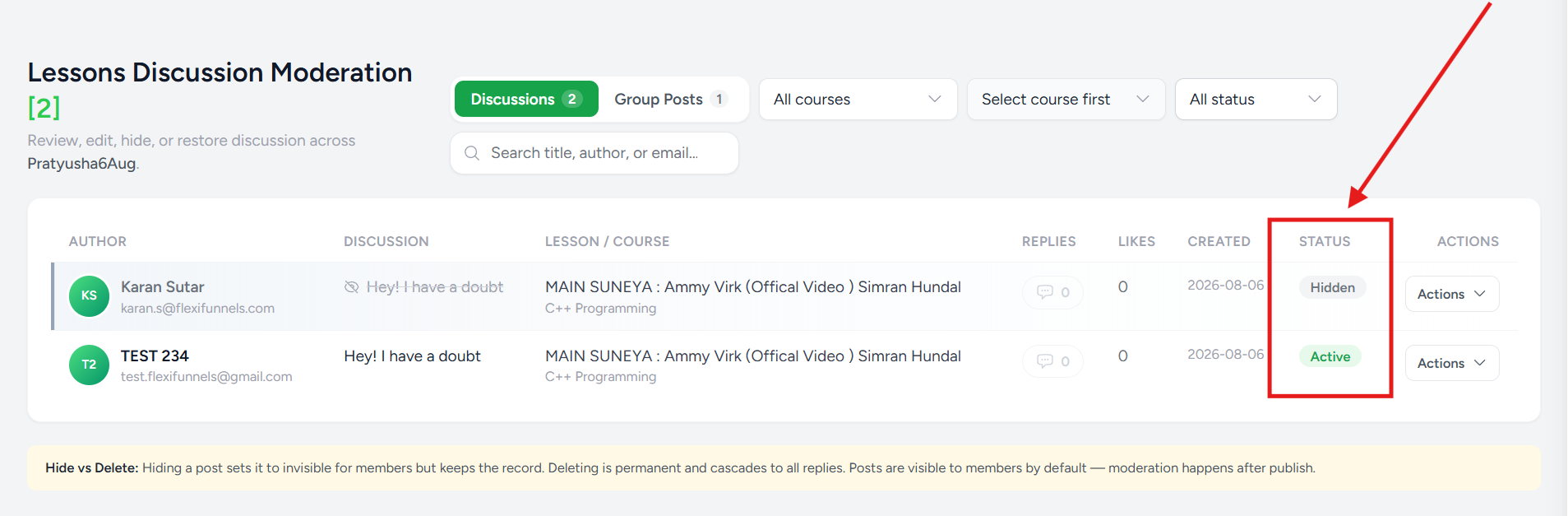
Selecting Hide removes the discussion or group post from member view while preserving the content in the system.
Use this option when content:
- Requires administrative review
- Violates community guidelines
- Needs temporary removal
Since the content is not permanently deleted, it can be restored later if required.
Delete
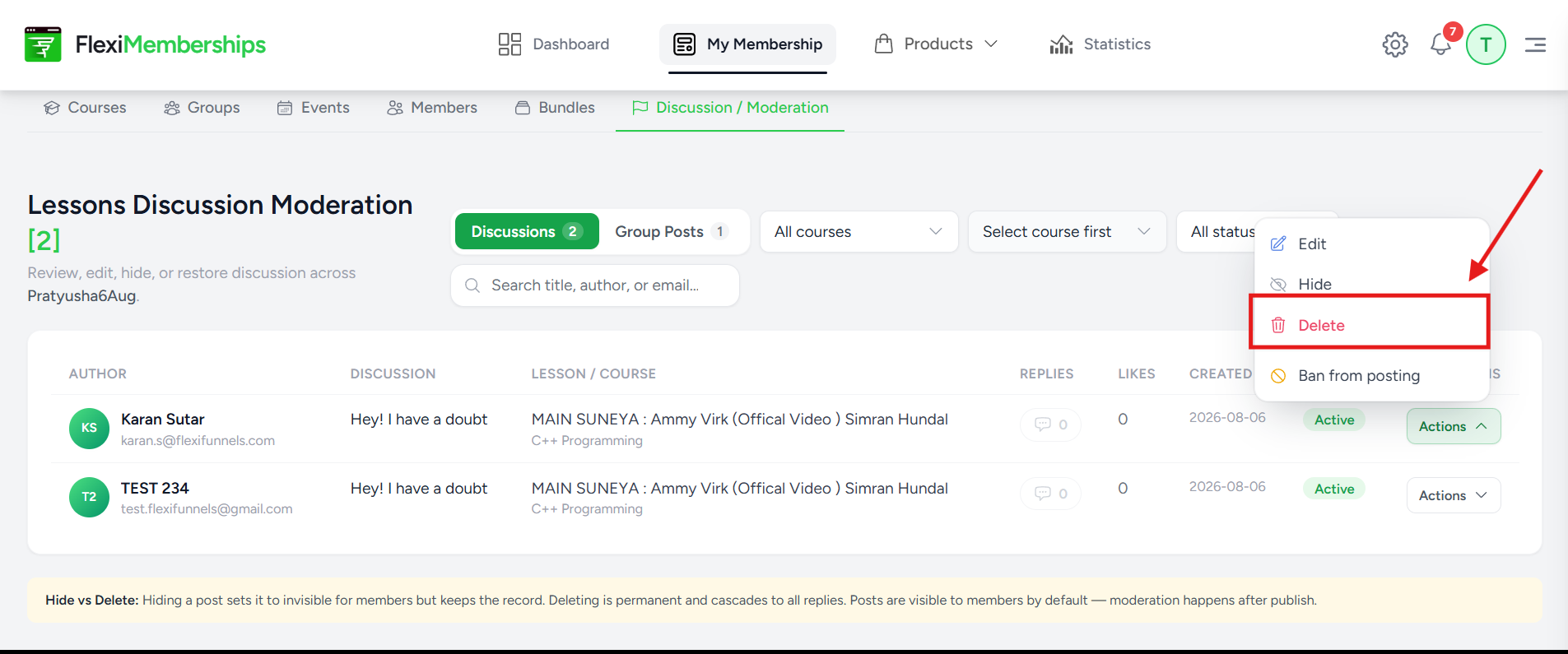
Selecting Delete permanently removes the discussion or group post from the membership.
Deleting content also removes any associated replies, making this action irreversible.
Use this option only when permanent removal is necessary.
Ban from Posting
If a member repeatedly violates community guidelines, you can select Ban from Posting.
This prevents the member from creating additional discussions or community posts while allowing administrators to continue managing the member through the Membership section.
This option is useful for maintaining a healthy and respectful learning environment without immediately removing the member from the membership.
Understanding Discussion Status
Each discussion or post displays its current moderation status.
For example:
- Active – The discussion or post is currently visible to members.
Additional statuses may appear depending on future moderation actions or platform updates.
Hide vs Delete
Although both actions remove content from members, they serve different purposes.
| Hide | Delete |
|---|---|
| Removes the discussion from member view. | Permanently removes the discussion or post. |
| Content remains stored and can be restored later. | Content and associated replies are permanently deleted. |
| Recommended when content requires review. | Recommended only for spam or content that should never appear again. |
When you're unsure whether content should be permanently removed, it's generally safer to Hide it first.
Best Practices for Moderation
To keep your membership community healthy and organized:
- Review new discussions regularly.
- Encourage constructive conversations between learners.
- Hide inappropriate content while investigating reports.
- Permanently delete spam or abusive posts when necessary.
- Use Ban from Posting for members who repeatedly violate community guidelines.
- Use filters and search to quickly locate discussions across multiple courses and groups.
Regular moderation helps maintain a positive learning experience and ensures discussions remain valuable for all members.
Was this article helpful?
That’s Great!
Thank you for your feedback
Sorry! We couldn't be helpful
Thank you for your feedback
Feedback sent
We appreciate your effort and will try to fix the article