Connect Claude or ChatGPT to FlexiMembership. Then control who gets into your course, and how it is sold.
A product is like a ticket ?️. A bundle is the gift bag the ticket opens. The bag holds your course content.
| Piece | What it does |
|---|---|
| Course | Holds your modules and lessons. It is the structure. |
| Bundle | The package a buyer gets. It holds courses, modules or lessons. |
| Product | What a person buys. It gives them one or more bundles. |
The big ideaA course is not the same as access to it. Buyers only see what is in their bundle. A paid course that looks empty to buyers is often a bundle that was never connected, or one that missed lessons you added later.
Before You Start
- Connect FlexiMembership to Claude (a Connector) or ChatGPT (a Plugin). Make sure it is authorized.
- Have a course. Create one first in Article 1.
- Connect your payment gateways in the dashboard. The AI cannot connect them.
- Decide the course price and what each buyer should get.
- Start each request with “In FlexiMembership”.
Steps
1Set the price when you create the course
- The AI makes the product when it creates the course.
- For a paid course, give the currency, the price, the gateway and a support contact.
- You can also reuse a product or bundle you already have.
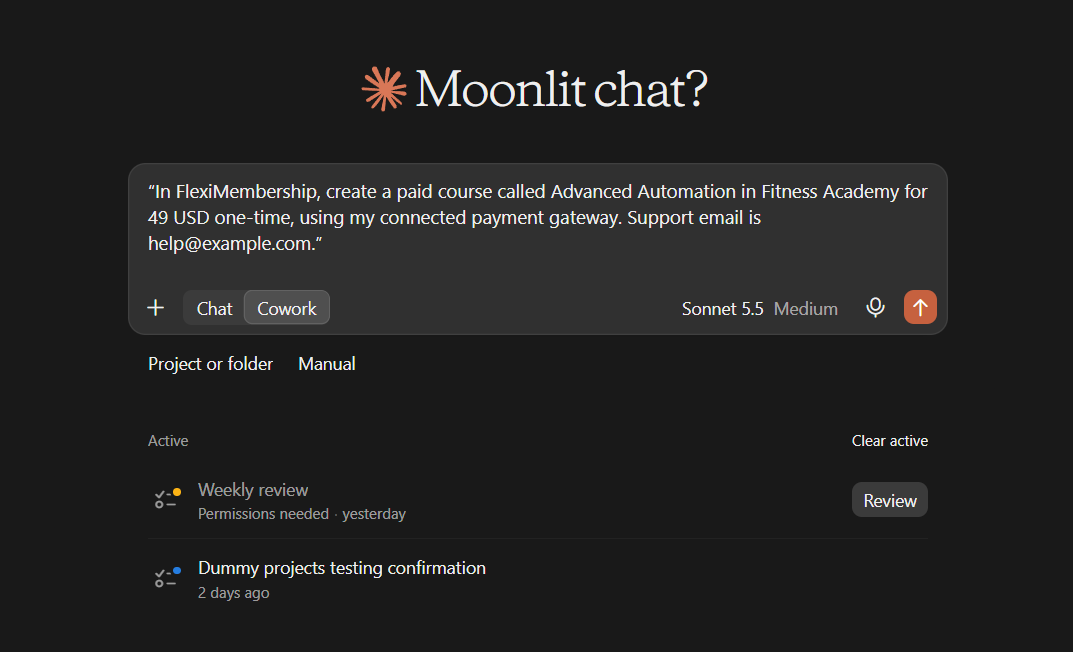
Example prompt“In FlexiMembership, create a paid course called Advanced Automation in Fitness Academy for 49 USD one-time, using my connected payment gateway. Support email is help@example.com.”
| Course access | What you can pick |
|---|---|
| Free | A free product |
| Paid | One-time, subscription or pay-your-own-price. Or reuse a product that has a price. |
| Level | The course unlocks at a level. Level courses cannot go in a bundle. |
Be careful: priceThe AI cannot change an existing course’s price, product or access type. Use the FlexiMembership dashboard for that. Check the price in the preview before you confirm. The AI also cannot take payments.
2See how the course is sold
- Ask how the course is sold.
- You see the chain: course, product and price, sales page, checkout, bundles and thank-you page.
- Ask for the bundles. You see what each one holds and which products sell it.
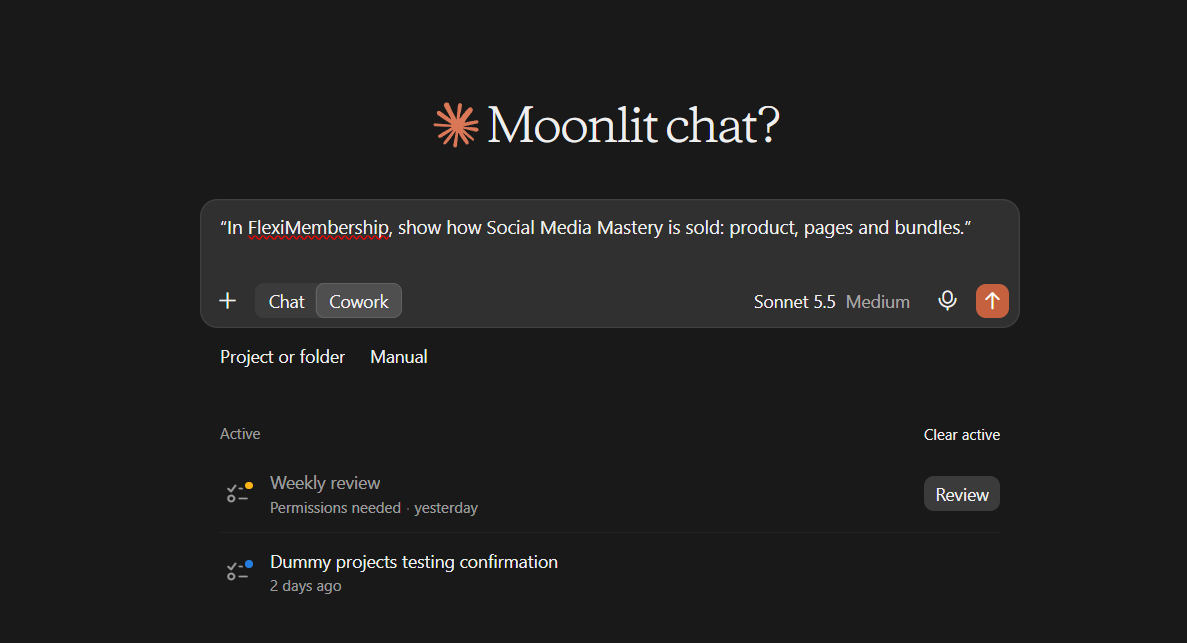
Example prompt“In FlexiMembership, show how Social Media Mastery is sold: product, pages and bundles.”
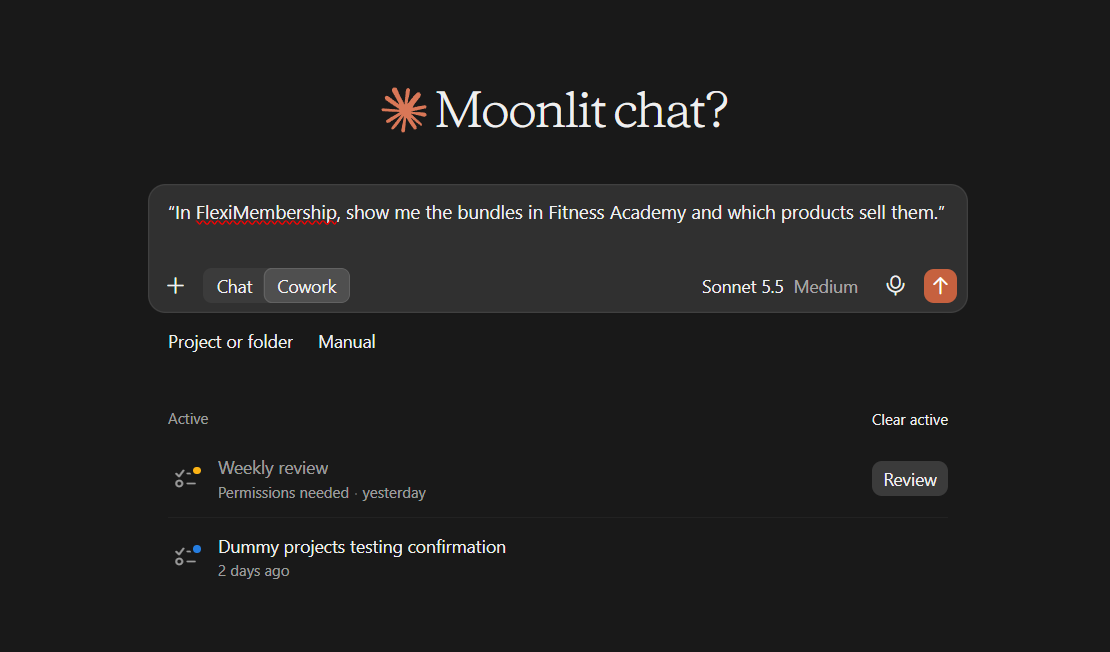
Example prompt“In FlexiMembership, show me the bundles in Fitness Academy and which products sell them.”
- A module may show fewer lessons linked than lessons inside it.
- Then buyers cannot see the missing lessons yet.
3Create a bundle
- A new course may already have a bundle. Make a new one only if you need one.
- Give it a name (3–255 characters).
- You can limit access in days, months or years.
- A month counts as 30 days. A year counts as 365 days.
- You can add a message for people whose access ended.
- Same name twice returns the bundle that exists.
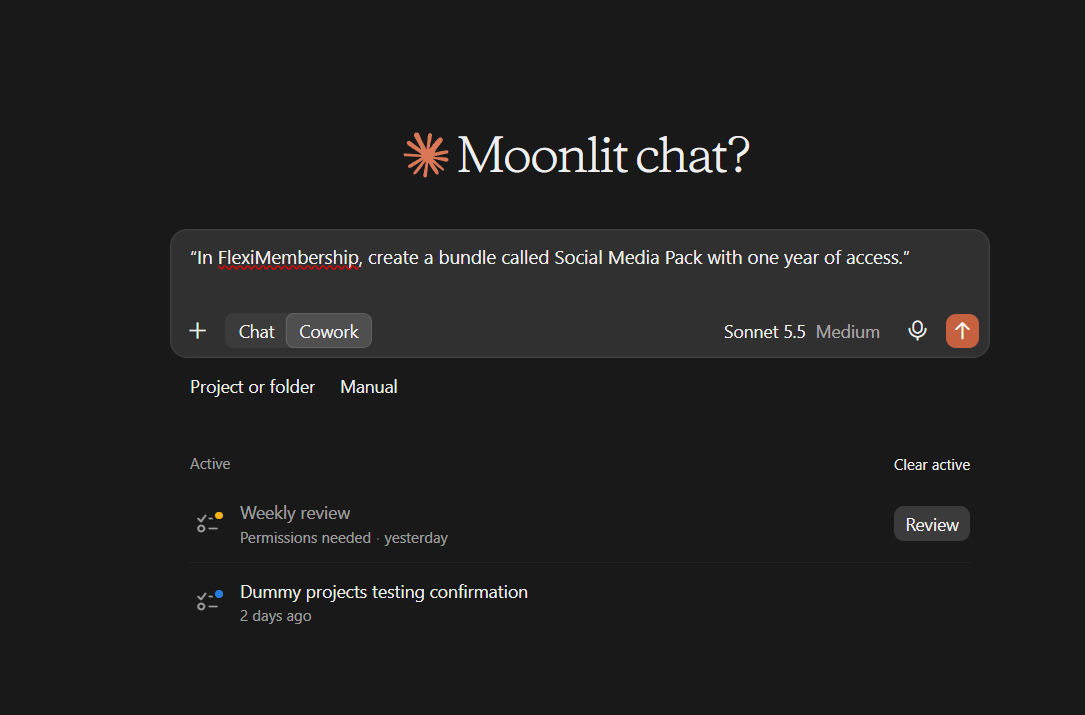
Example prompt“In FlexiMembership, create a bundle called Social Media Pack with one year of access.”
4Put content in the bundle
- Pick the level: a whole course, one module or one lesson.
- Adding only adds. It never takes anything out.
- Run it again after you add lessons. It picks up the new ones.
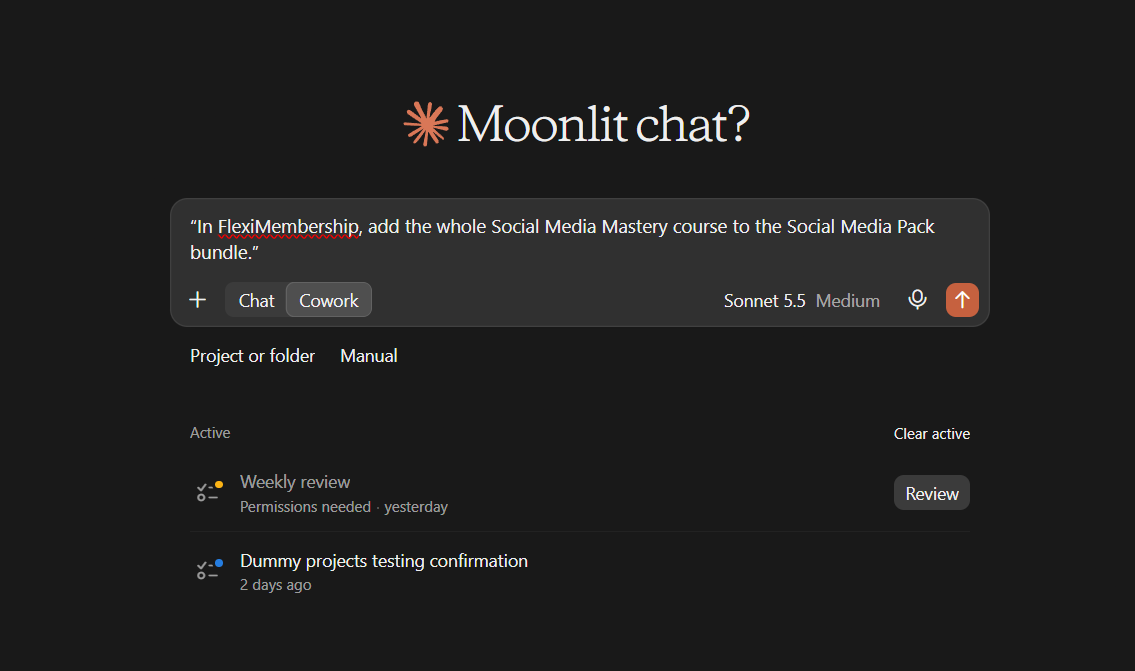
Example prompt“In FlexiMembership, add the whole Social Media Mastery course to the Social Media Pack bundle.”
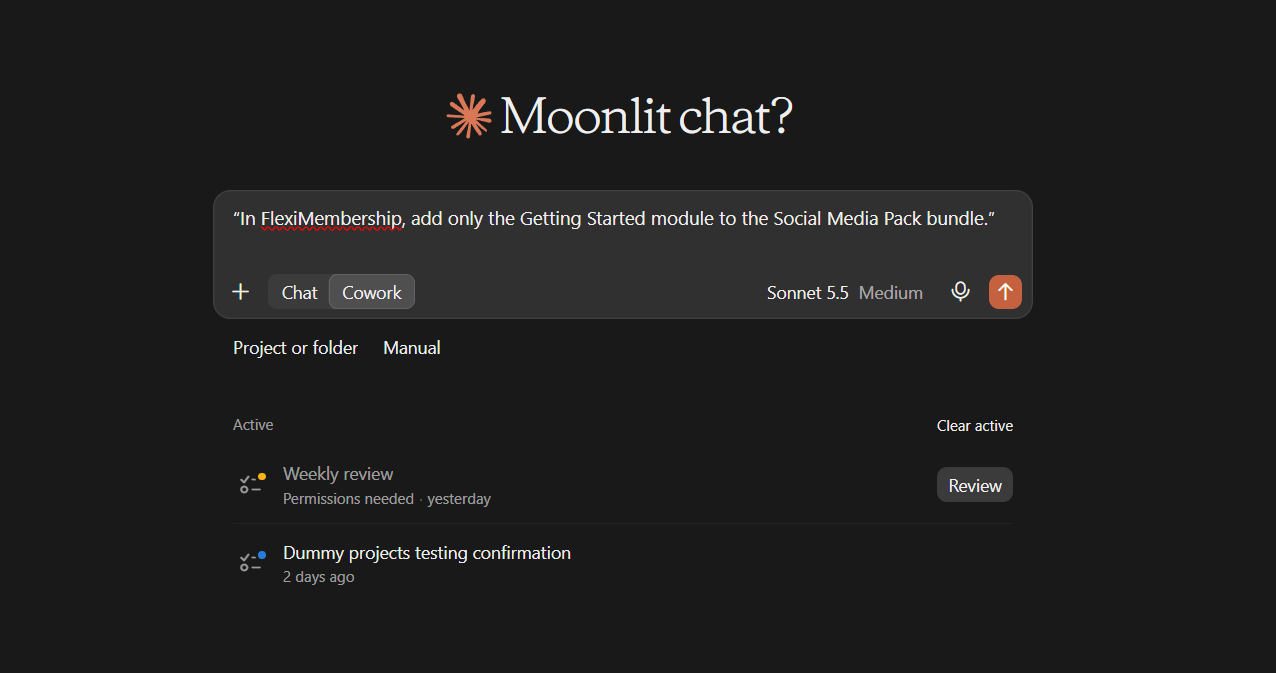
Example prompt“In FlexiMembership, add only the Getting Started module to the Social Media Pack bundle.”
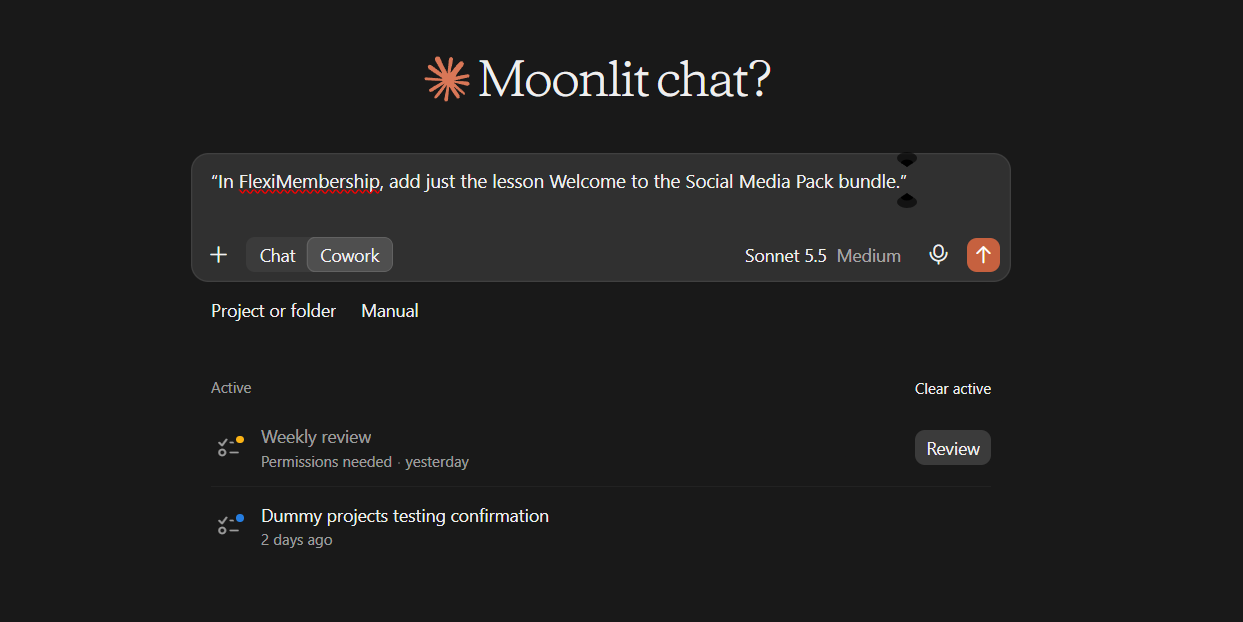
Example prompt“In FlexiMembership, add just the lesson Welcome to the Social Media Pack bundle.”
Be careful: what buyers getThis changes what buyers receive. Choose the right level. For “sell my course”, pick the whole course. Removing content from a bundle is done in the dashboard.
Good to knowCourses made with the outline tool, and new modules, join the course’s bundle on their own. Lessons added later may need this step.
5Connect a product to the bundle
- Ask the AI to make a product give the bundle.
- Everyone who buys that product gets the bundle’s content.
- A bundle can have only one selling product. A bundle sold by another product cannot be added.
- Ask for the bundles for that product first. You see which ones are free.
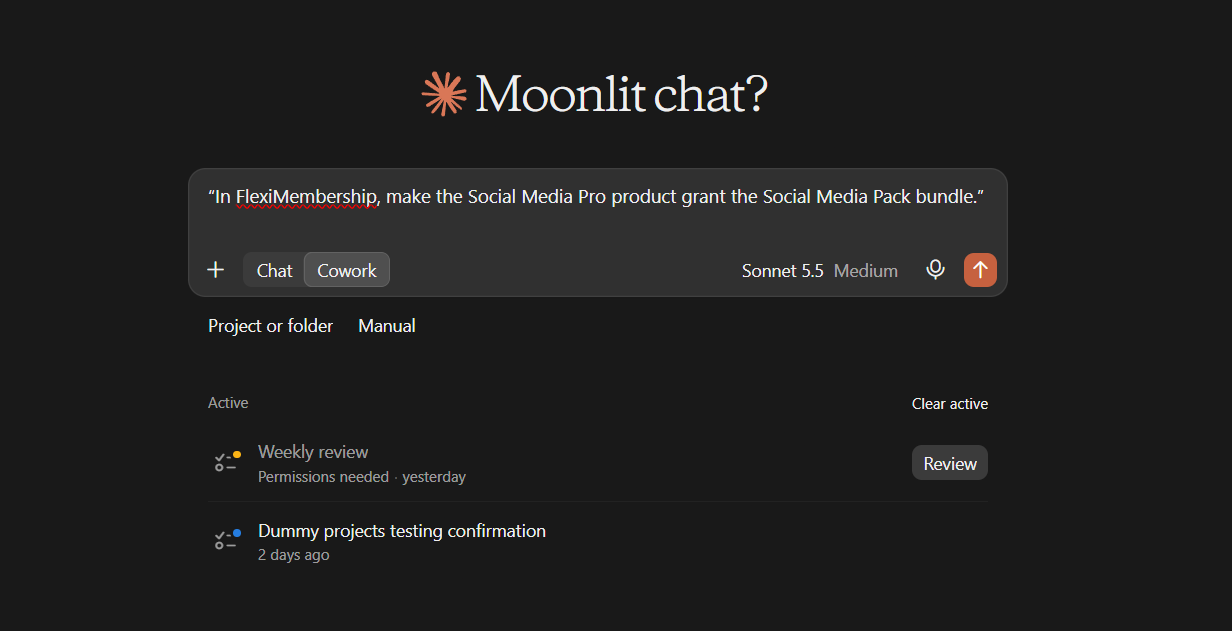
Example prompt“In FlexiMembership, make the Social Media Pro product grant the Social Media Pack bundle.”
Be careful: productThis decides what each buyer gets for their money. Check the product and the bundle in the preview. Unlinking is done in the dashboard.
6Change a bundle
- You can rename a bundle, change its access time, or edit its expiry message.
- You can switch it active or inactive.
- Content and selling products are not touched.
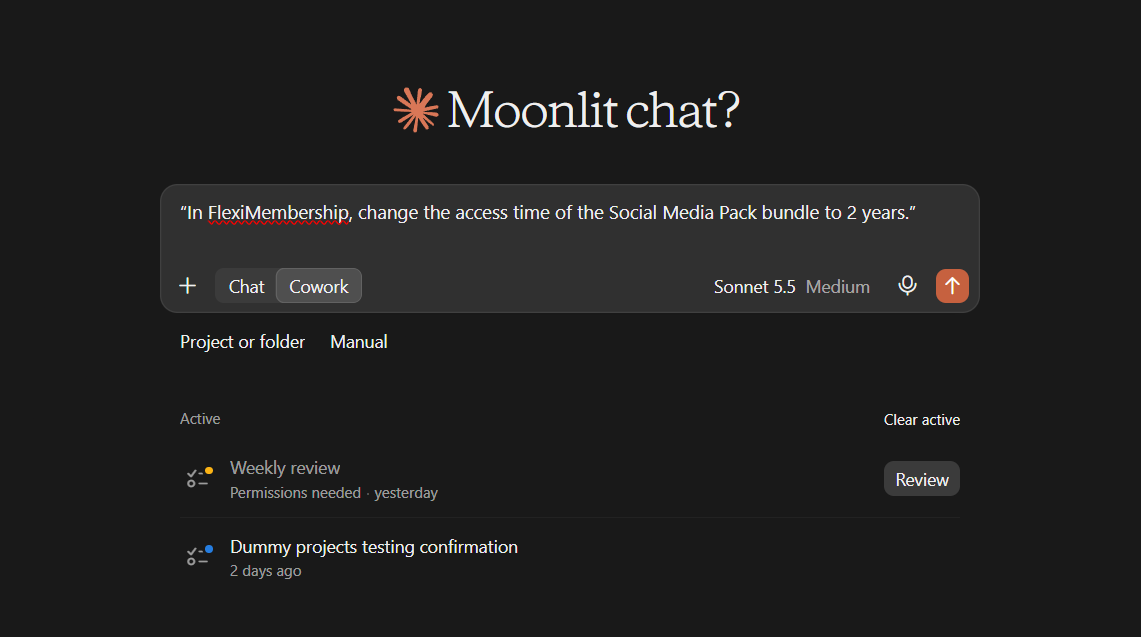
Example prompt“In FlexiMembership, change the access time of the Social Media Pack bundle to 2 years.”
Be careful: shorter accessAccess time counts from the day each member got the bundle. A shorter time can end access at once for people who already have it. The preview says how many.
7Check who has access
- Ask who has live access to a course or bundle.
- Ask for one member. You see their bundles, the product that gave them, and the dates.
- A member is active, expired or revoked.
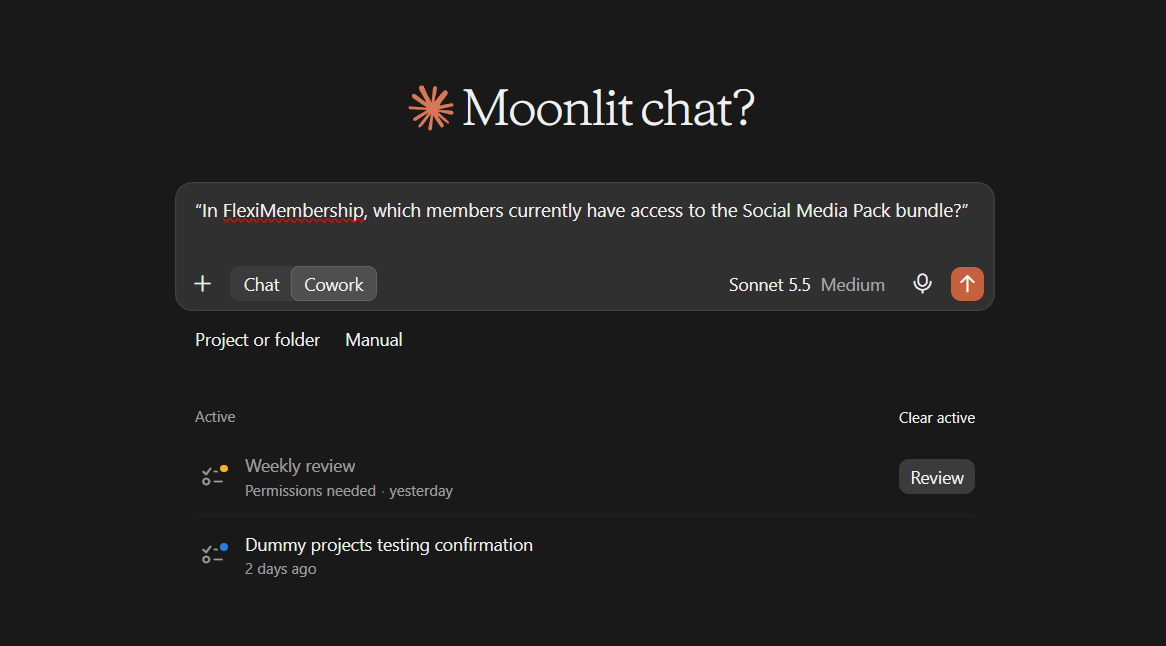
Example prompt“In FlexiMembership, which members currently have access to the Social Media Pack bundle?”
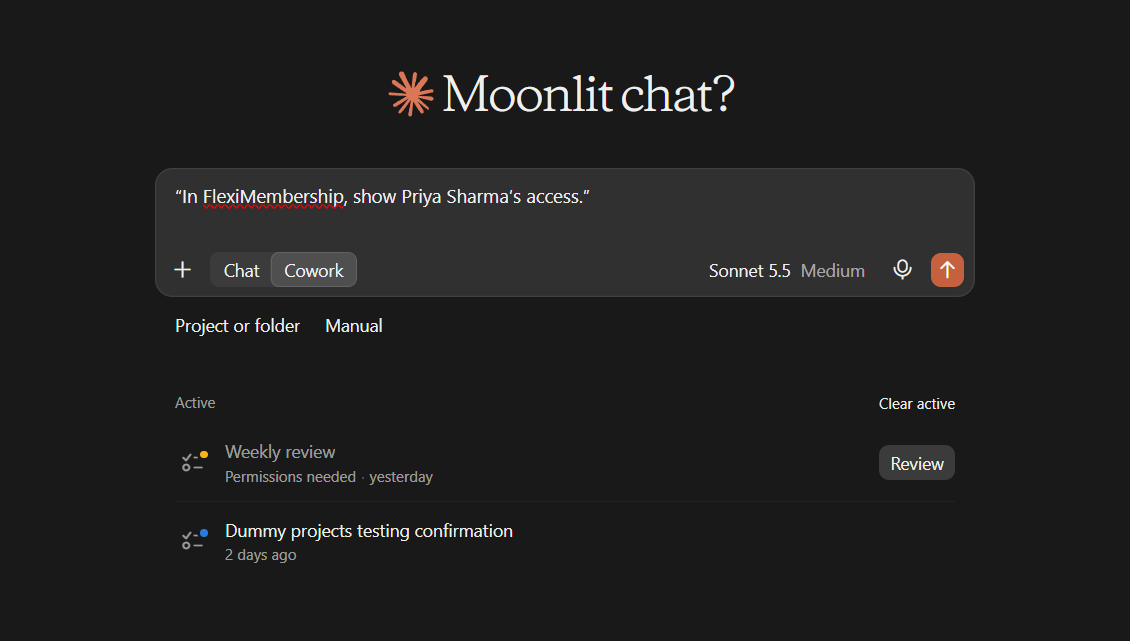
Example prompt“In FlexiMembership, show Priya Sharma’s access.”
8Give access by hand
- Ask the AI to give a member a product. Not a bundle alone.
- Up to 100 members at once.
- Each person gets an email. An invoice email goes too, unless you say no.
- It only adds access. Expired access is not reopened. See Article 6.
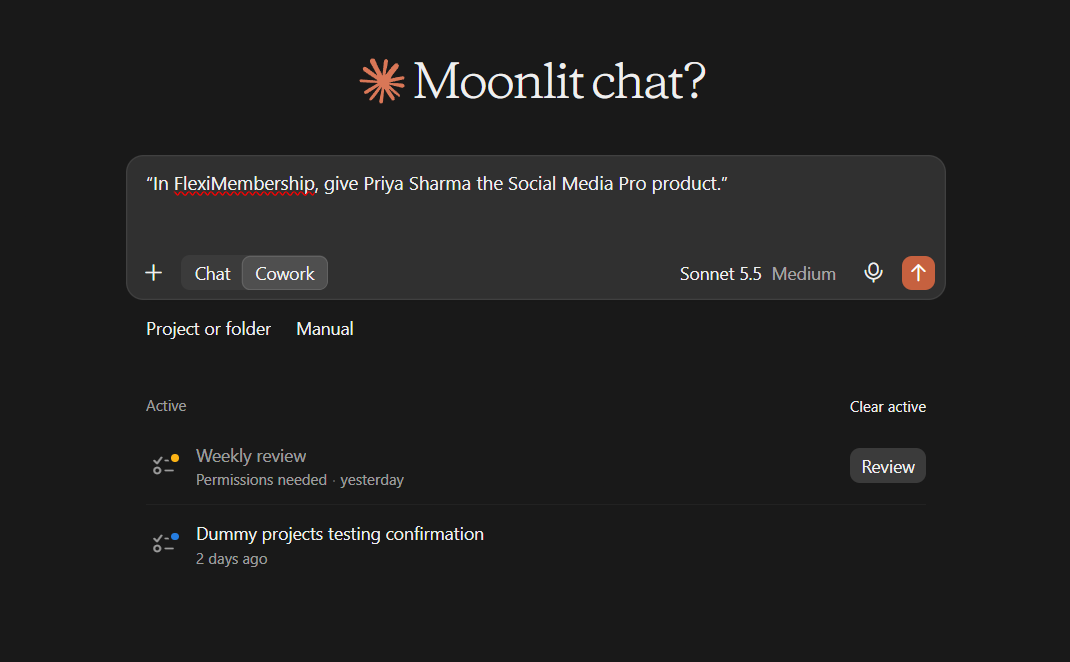
Example prompt“In FlexiMembership, give Priya Sharma the Social Media Pro product.”
Be careful: accessCheck the member and the product. Emails go out as soon as you confirm.
Behind the Scenes: MCP Tools Involved
| Task | Related MCP tool(s) |
|---|---|
| Create a course, with its product and price | create_course |
| See setup options: gateways, products, bundles to reuse | get_course_setup_options |
| List your courses | list_courses |
| List modules and lessons | list_course_modules |
| See the sales chain of a course | get_course_sales_pages |
| List bundles and their products | list_bundles |
| Create a bundle | create_bundle |
| Rename a bundle or change its access time | update_bundle |
| Add a whole course to a bundle | assign_course_to_bundle |
| Add one module to a bundle | assign_module_to_bundle |
| Add one lesson to a bundle | assign_lesson_to_bundle |
| Make a product give a bundle | assign_product_to_bundles |
| Find members with access to a course or bundle | list_members |
| View one member’s access | get_member |
| Give a member a product | grant_member_access |
| Give many members a product | grant_member_access_bulk |
Ready-to-Use Prompts
- “In FlexiMembership, show me the bundles in Fitness Academy and which products sell them.”
- “In FlexiMembership, create a bundle called Social Media Pack with one year of access.”
- “In FlexiMembership, add the whole Social Media Mastery course to the Social Media Pack bundle.”
- “In FlexiMembership, make the Social Media Pro product grant the Social Media Pack bundle.”
- “In FlexiMembership, which members currently have access to the Social Media Pack bundle?”
- “In FlexiMembership, show how Social Media Mastery is sold.”
Tips for Better Results
- Name the course, the bundle and the product in each request.
- Look at the bundles before you change them.
- Pick the right level: course, module or lesson.
- Run the bundle step again after you add lessons.
- Read every preview. Money and access are at stake.
- Change one thing at a time. Then ask the AI to show the result.
Quick Fixes
| Problem | Fix |
|---|---|
| Buyers see an empty course. | The bundle may be missing or out of date. Ask for the bundles. Add the course to the bundle again. |
| Buyers miss my new lessons. | Lessons added later may not be in the bundle. Add the module or course again. |
| A bundle cannot be added to my product. | Another product already sells it. A bundle has one selling product. |
| A level course cannot go in a bundle. | Level courses and lessons cannot be bundled. |
| I need to change the course price. | The AI cannot. Use the FlexiMembership dashboard. |
| The AI does not use FlexiMembership. | Check the connector or plugin is connected and authorized. Add “In FlexiMembership” to your prompt. |
Limitations
- The AI cannot change an existing course’s price, product or access type.
- There is no separate tool to make a product.
- A product is made together with a course or a community.
- The AI does not take payments or connect gateways.
- Adding to a bundle only adds. Removing content is done in the dashboard.
- Unlinking a product from a bundle is done in the dashboard.
- A bundle has one selling product.
- A bundle alone cannot be granted to a member.
- No undo is described. Read each preview before you confirm.
Explore the complete FlexiMembership MCP Tools Reference: View the documentation for a detailed explanation of available MCP tools, their functionality, and how to use them.
Was this article helpful?
That’s Great!
Thank you for your feedback
Sorry! We couldn't be helpful
Thank you for your feedback
Feedback sent
We appreciate your effort and will try to fix the article