Connect Claude or ChatGPT to FlexiMembership. Then edit and publish the three pages that sell one course.
Each course has a sales page, a checkout page and a thank-you page. They work like a shop window, a till and a receipt ?️.
| Page | What it does |
|---|---|
| Sales page | Tells people about the course. It has the buy button. |
| Checkout page | Where people pay. |
| Thank-you page | What buyers see after they pay. |
Edit is not publishEditing a page and publishing it are not the same. A sales page edit is saved but not published. A checkout or thank-you edit goes live at once if that page is already live. A design change publishes at once. New course pages are drafts, and nobody can buy until they are published.
Good to knowThese tools work on a course’s selling pages. They are not a general website page builder.
Before You Start
- Connect FlexiMembership to Claude (a Connector) or ChatGPT (a Plugin). Make sure it is authorized.
- Have a course. Create one first in Article 1.
- Know the course name and the words you want on each page.
- Start each request with “In FlexiMembership”.
Steps
1See how the course is sold now
- Ask how the course is sold.
- You see the design, every section, and if each page is published.
- You also see the product, the price and the bundles.
- Ask for the pages a course can use. This is the page picker.
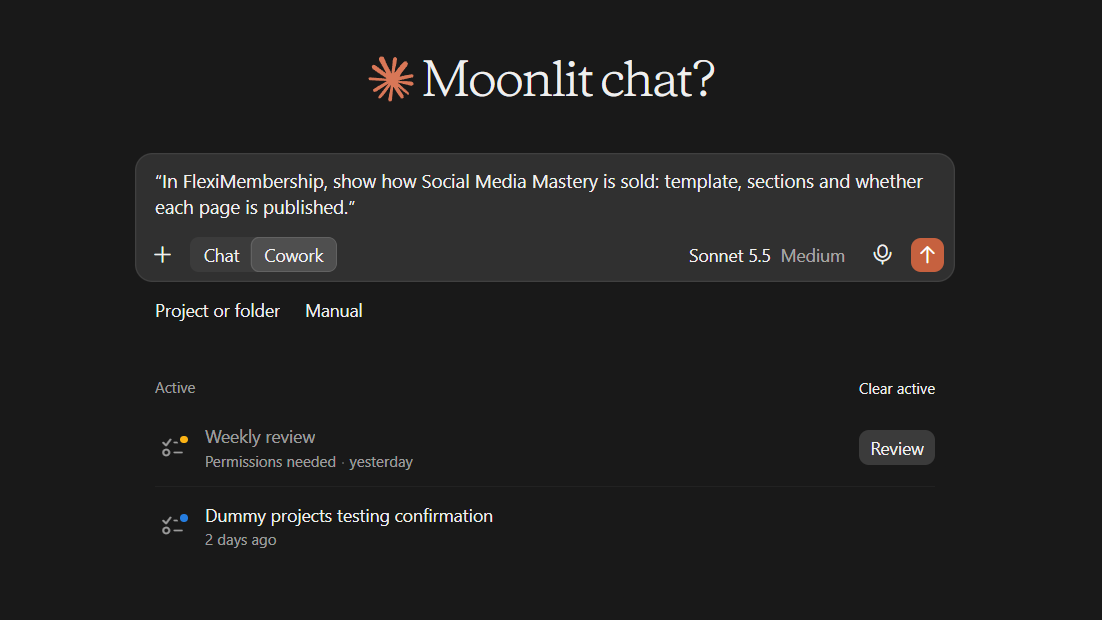
Example prompt“In FlexiMembership, show how Social Media Mastery is sold: template, sections and whether each page is published.”
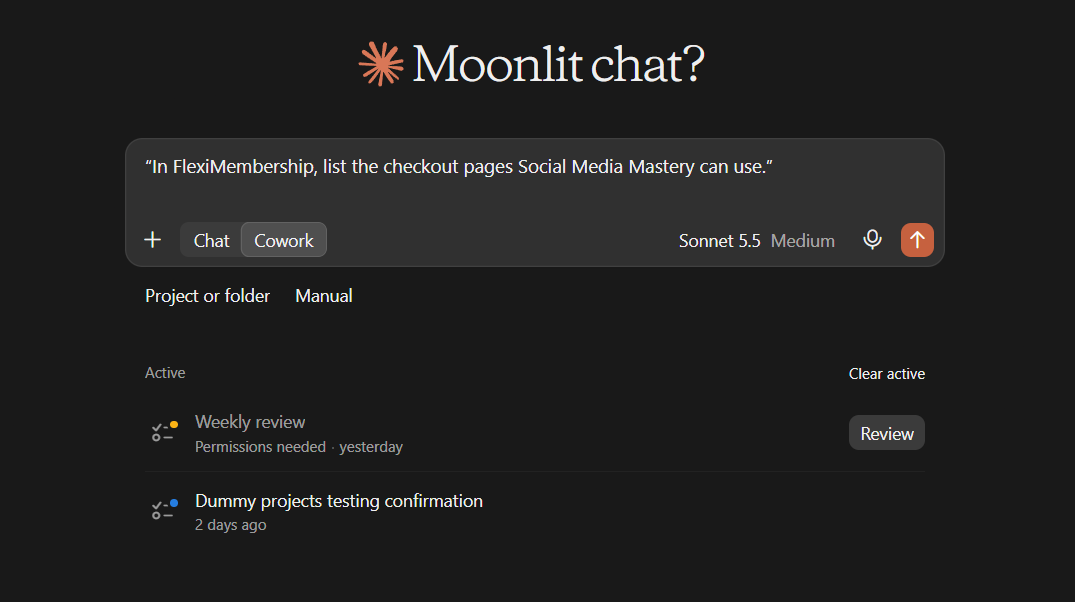
Example prompt“In FlexiMembership, list the checkout pages Social Media Mastery can use.”
2Edit the sales page
- Ask to change one part at a time.
- The AI reads the page first. A list you change is replaced in full.
- Plain text only. Scripts and frames are refused.
- Saving does not publish.
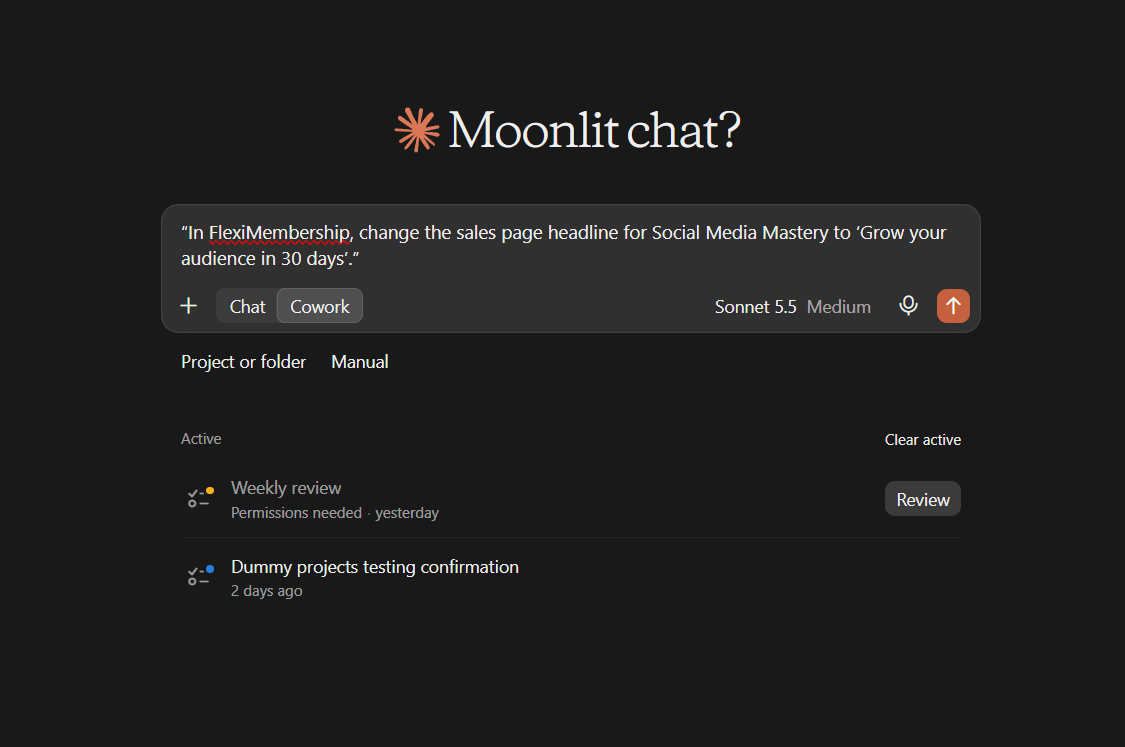
Example prompt“In FlexiMembership, change the sales page headline for Social Media Mastery to ‘Grow your audience in 30 days’.”
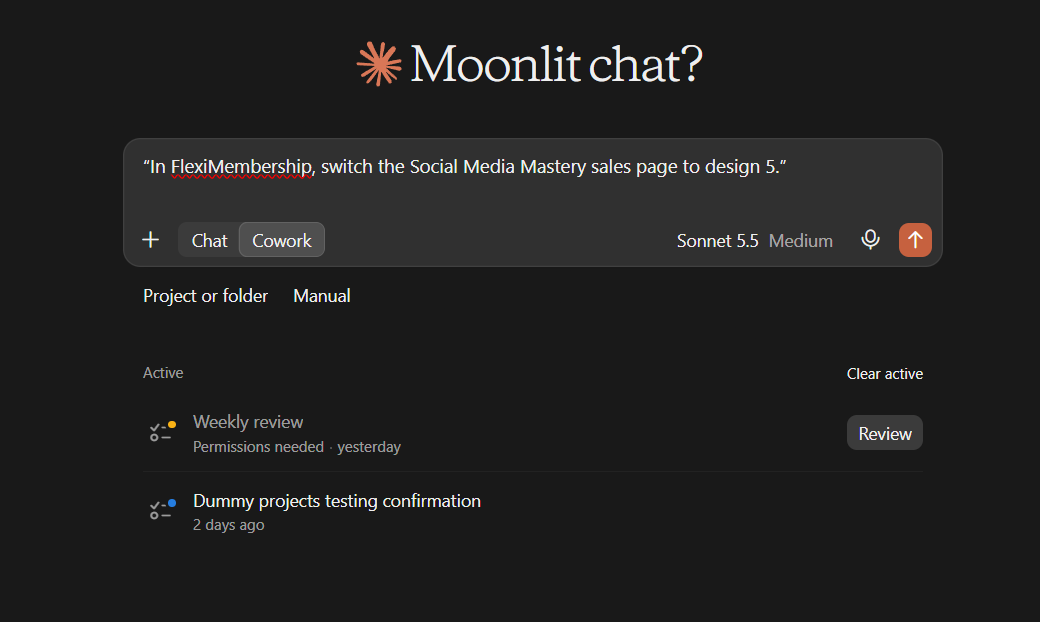
Example prompt“In FlexiMembership, switch the Social Media Mastery sales page to design 5.”
| Part of the page | What you can change |
|---|---|
| Header | Headline, sub-headline and background image |
| Buy button | Button text and whether the price shows |
| What you will learn | Heading, text and list |
| Testimonials | Names, ratings and reviews |
| Money-back guarantee | Days and wording |
| FAQ | Questions and answers |
| About, what is included | Headings and text |
| Video, opt-in form, social links | Show or hide, links and labels |
| Colors and logo | Theme colors and logo |
| Order of sections | Which comes first |
- There are designs 1 to 17. Your words and sections stay when you switch design.
3Edit the checkout page
- Ask to change one part at a time.
- Parts: header, order summary, billing fields, trust and terms, coupon box, colors and logo.
- Name, email and phone are always collected.
- You can ask for a different design for checkout, thank-you or both.
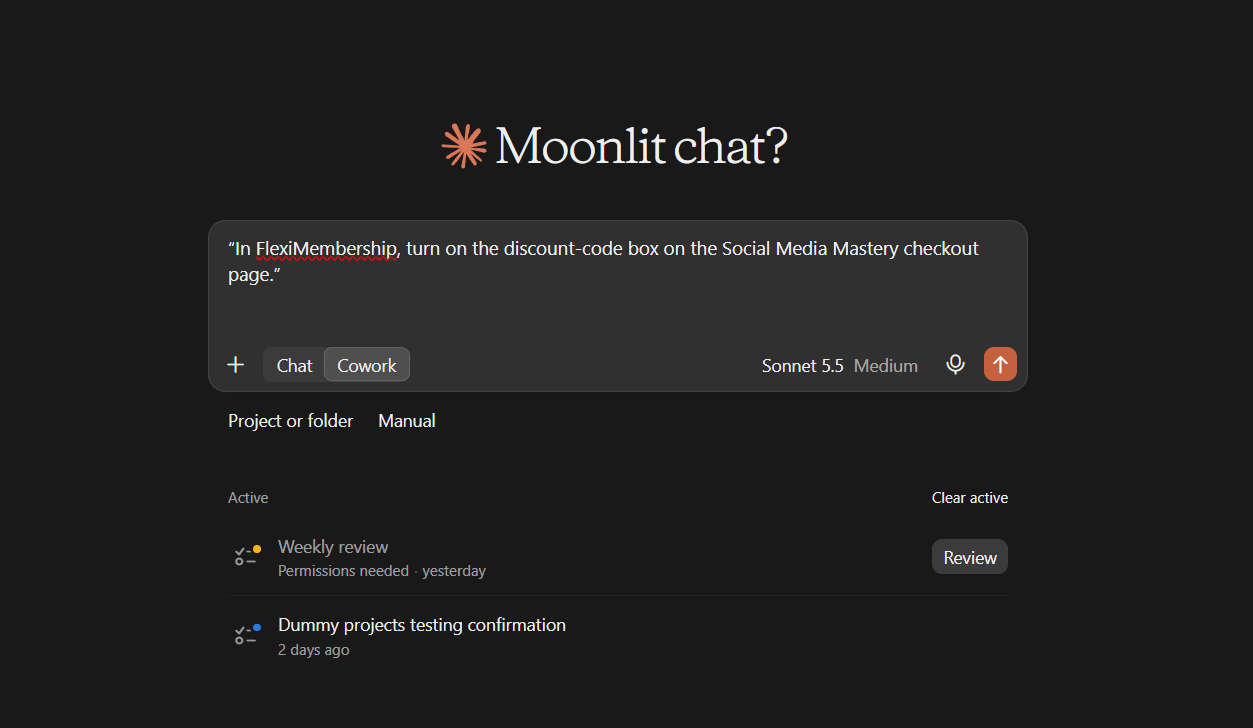
Example prompt“In FlexiMembership, turn on the discount-code box on the Social Media Mastery checkout page.”
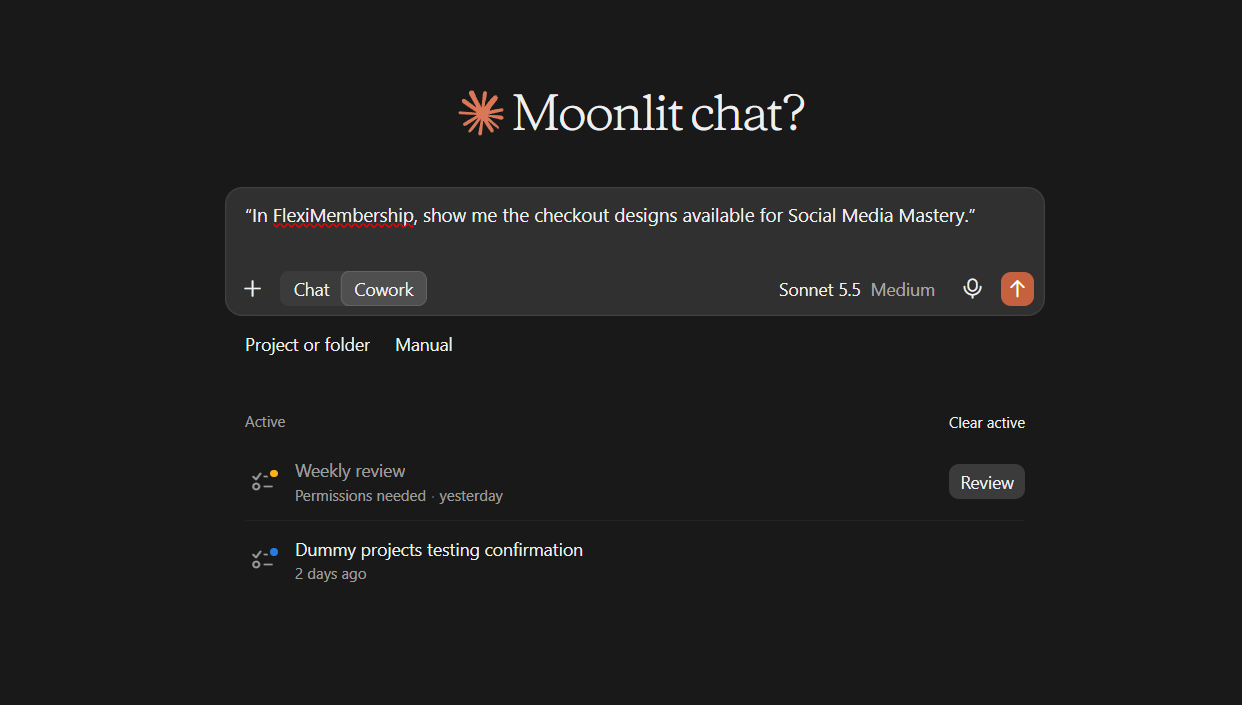
Example prompt“In FlexiMembership, show me the checkout designs available for Social Media Mastery.”
Be careful: live pagesIf the checkout is already live, an edit goes live at once. A new design is published at once. A page you built yourself in FlexiFunnels is never changed.
- Prices, payment methods and bumps are set on the product, not here. See Article 5.
4Edit the thank-you page
- You can change the colors, the logo and the message.
- The page may be shared.
- A course with no page of its own uses the project’s default page.
- Then other courses change too. The preview says which page it is.
- This changes no emails.
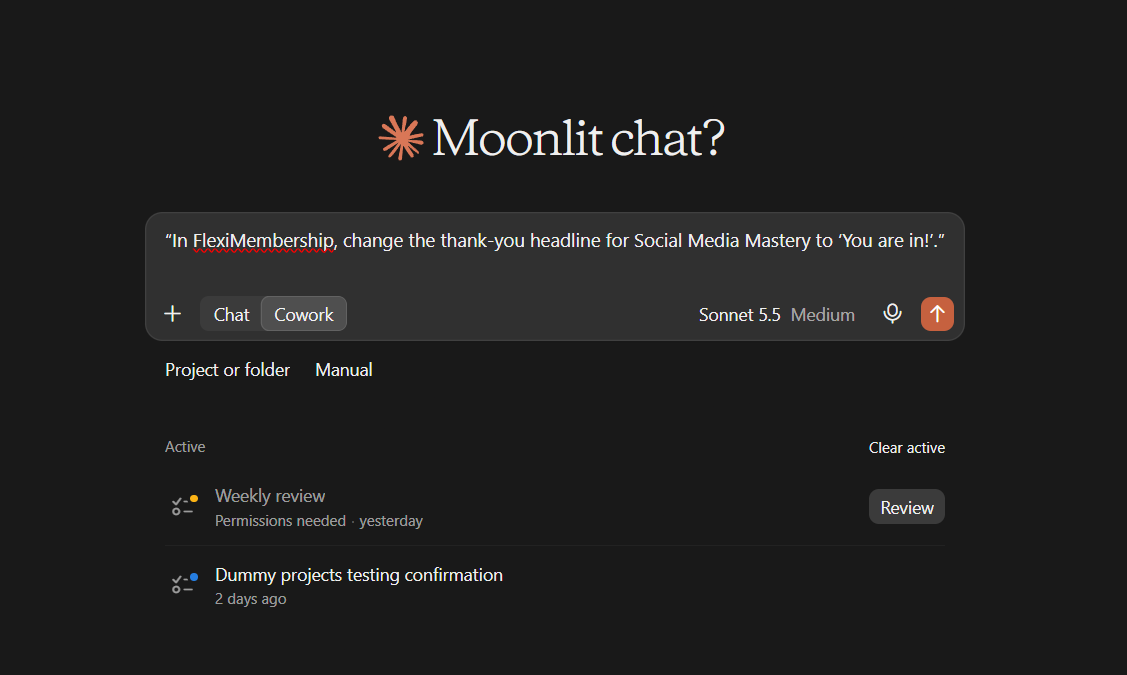
Example prompt“In FlexiMembership, change the thank-you headline for Social Media Mastery to ‘You are in!’.”
Be careful: shared pageA live thank-you page changes at once. A page that was never published stays unpublished.
5Choose which page is live
- Each course can use one sales, one checkout and one thank-you page.
- Ask the AI to make a page the active one.
- This only chooses. It publishes nothing and deletes nothing.
- After you change the checkout, publish the sales page again. Its buy button follows.
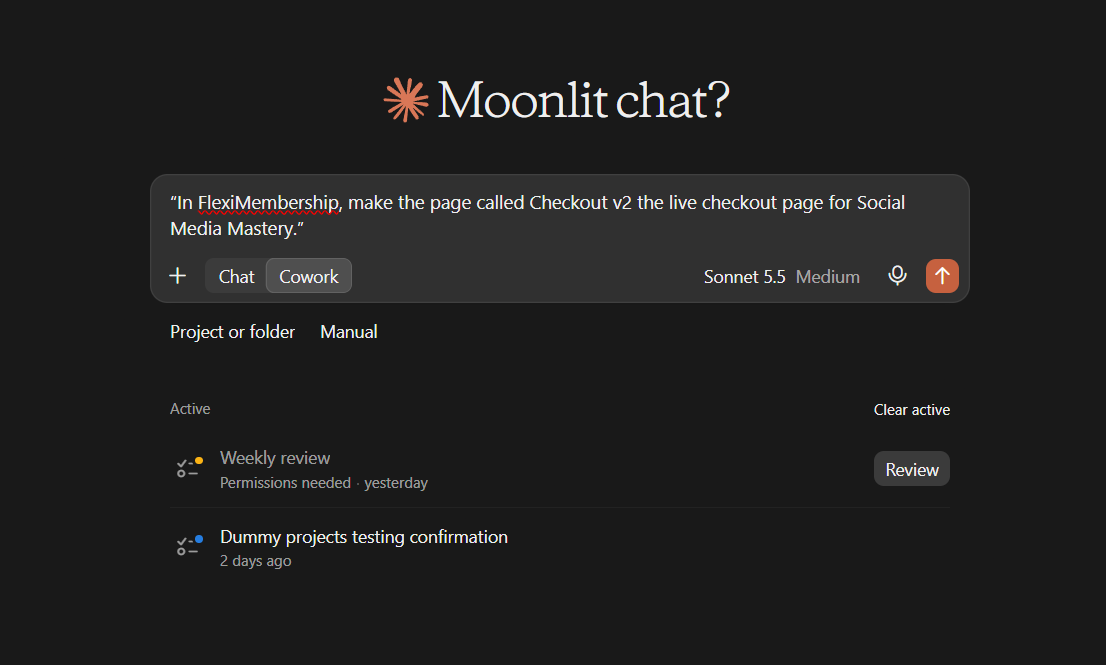
Example prompt“In FlexiMembership, make the page called Checkout v2 the live checkout page for Social Media Mastery.”
6Change page settings
- Ask for a page’s settings first.
- You can set a password (at least 8 characters), URL forwarding or a cookie-consent widget.
- Changes reach the live page when you publish.
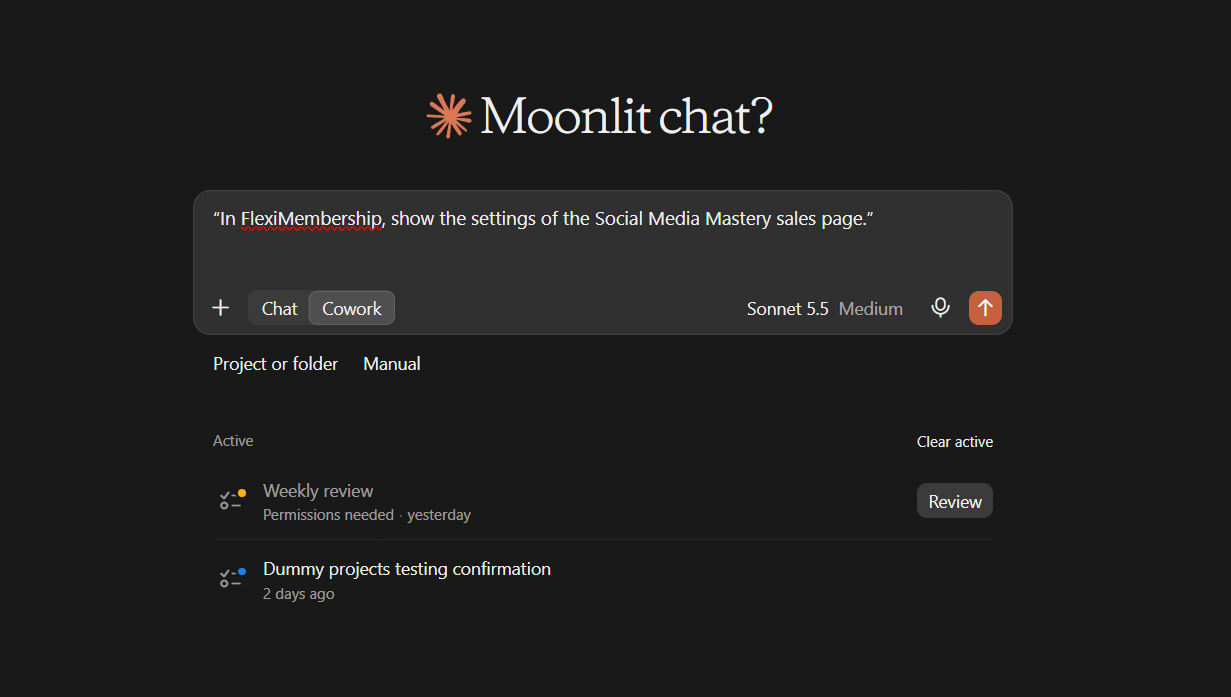
Example prompt“In FlexiMembership, show the settings of the Social Media Mastery sales page.”
Be careful: passwordThe settings view shows a page’s password. Do not share it in public chats.
7Publish and get the links
- Ask the AI to publish. It publishes sales and checkout. Add the thank-you page if you changed it.
- Each page reports its own result. Others still publish if one fails.
- Publishing again replaces the live page with the current design.
- Ask for the links when it is done.
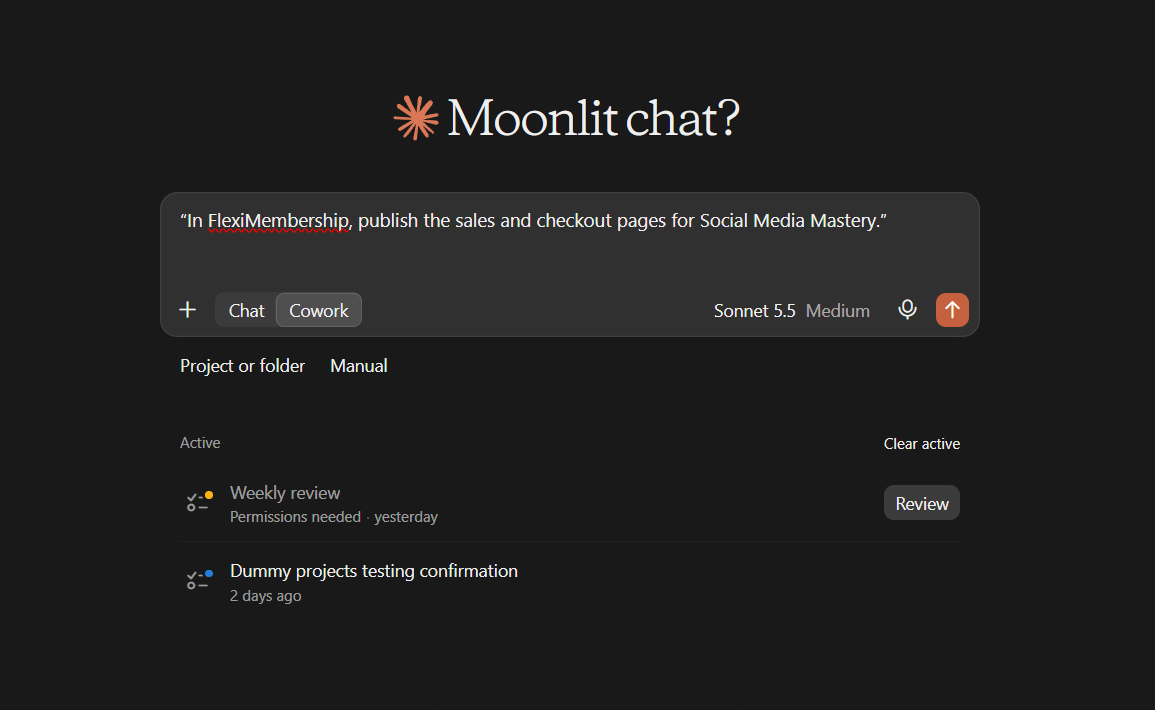
Example prompt“In FlexiMembership, publish the sales and checkout pages for Social Media Mastery.”
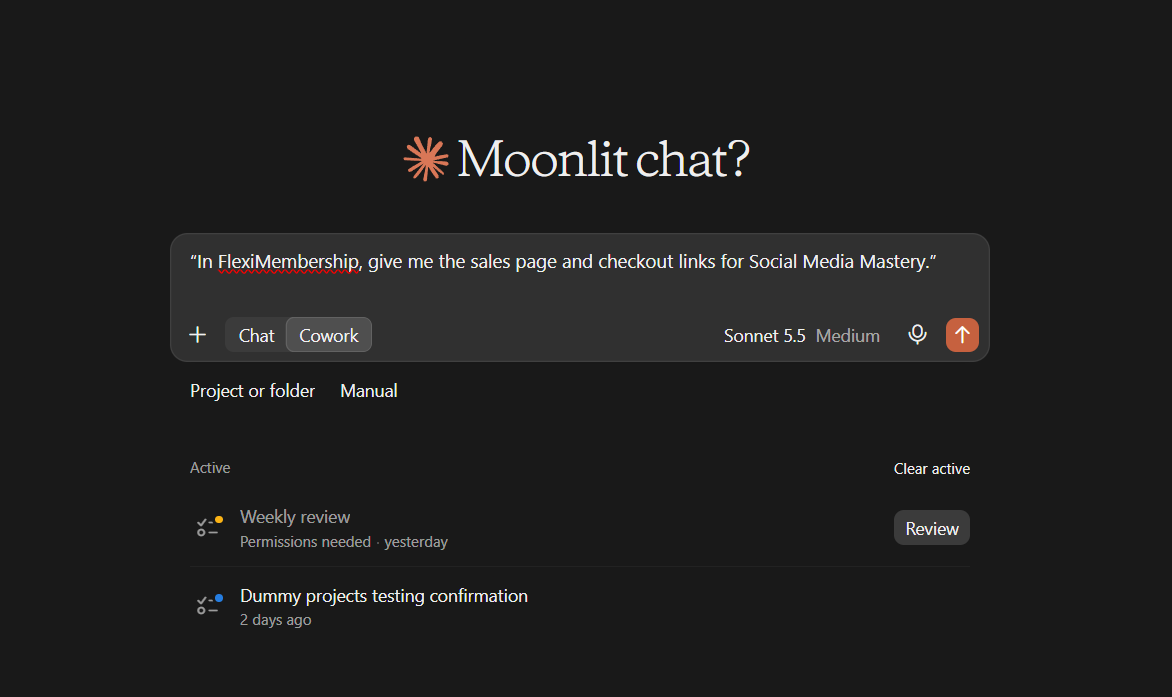
Example prompt“In FlexiMembership, give me the sales page and checkout links for Social Media Mastery.”
Be careful: links can publishPublishing makes pages visible to buyers. Asking for links is not read-only. If a page is missing or not live, the AI can create the checkout page, write AI text where a page has none, and publish. It shows a preview first.
You will see: Live links for the sales and checkout pages.
8Connect the opt-in form
- The sales page can hold an opt-in form.
- Ask where it sends sign-ups. You see your connected email tools.
- Then connect it to a list. Tags are optional.
- Connecting a new email account is done in the dashboard.
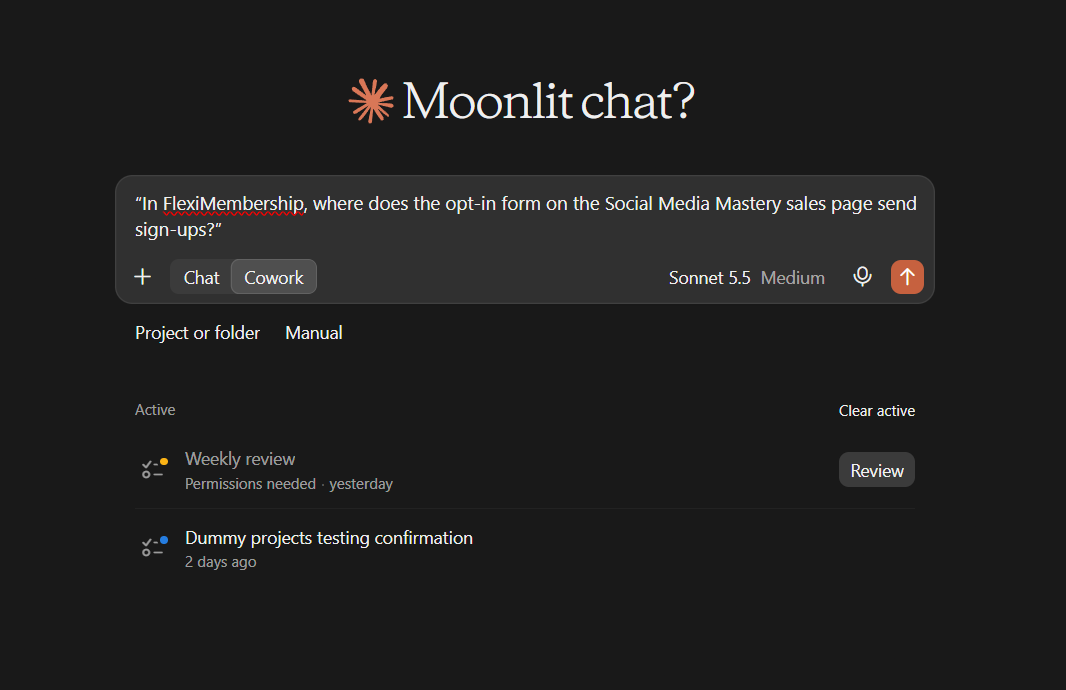
Example prompt“In FlexiMembership, where does the opt-in form on the Social Media Mastery sales page send sign-ups?”
Example prompt“In FlexiMembership, send everyone who fills in the Social Media Mastery opt-in form to my main email list.”
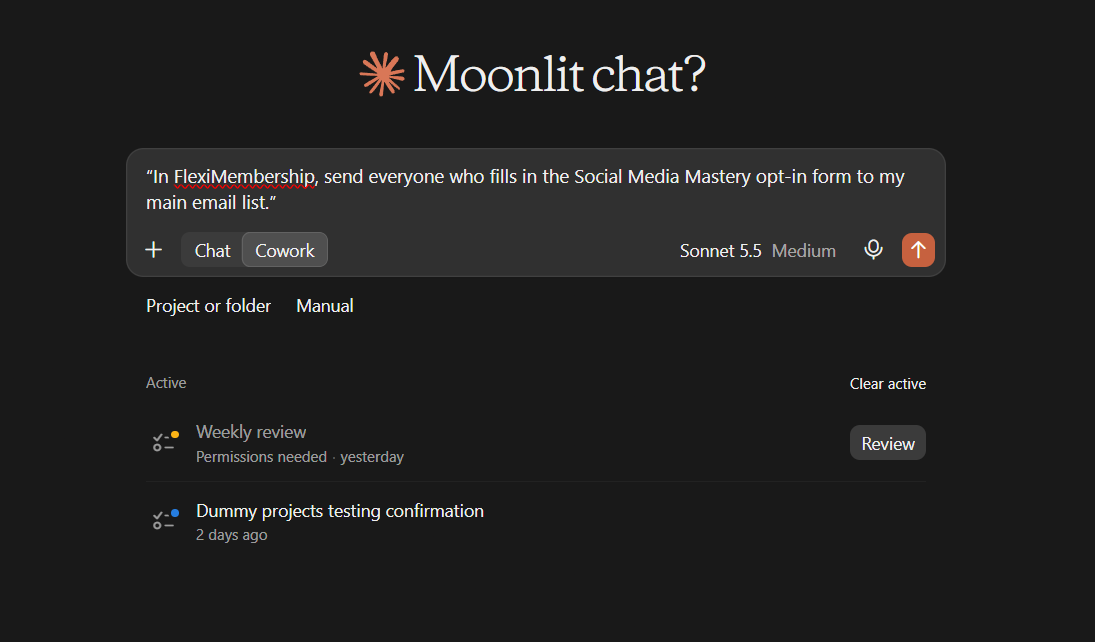
Be careful: listIf the form already sends to another list of the same email tool, that list is replaced. Disconnecting is not available here.
Behind the Scenes: MCP Tools Involved
| Task | Related MCP tool(s) |
|---|---|
| See how a course is sold | get_course_sales_pages |
| List the pages a course can use | list_course_pages |
| Get the sales and checkout links | get_course_page_links |
| Edit a sales page section | update_sales_page_section |
| Switch the sales page design | set_sales_page_template |
| Edit a checkout page section | update_checkout_section |
| Change the checkout or thank-you design | set_course_page_design |
| Edit the thank-you page | update_thankyou_section |
| Choose the live sales, checkout or thank-you page | set_course_live_page |
| Read a page’s settings | get_course_page_settings |
| Change a page’s password, forwarding or cookie widget | update_course_page_settings |
| Publish the pages | publish_course_pages |
| See where the opt-in form sends sign-ups | get_lead_form_integrations |
| Connect the opt-in form to a list | connect_lead_form_autoresponder |
| Find a course | list_courses |
Ready-to-Use Prompts
- “In FlexiMembership, show how Social Media Mastery is sold.”
- “In FlexiMembership, change the sales page headline for Social Media Mastery to ‘Grow your audience in 30 days’.”
- “In FlexiMembership, change the thank-you headline for Social Media Mastery to ‘You are in!’.”
- “In FlexiMembership, publish the sales and checkout pages for Social Media Mastery.”
- “In FlexiMembership, give me the sales page and checkout links for Social Media Mastery.”
Tips for Better Results
- Name the course in every request.
- Ask how the course is sold before you edit.
- Change one part at a time.
- Before an edit, check if the page is live. A live checkout or thank-you page changes at once.
- Publish the sales page after you change the checkout.
- Read every preview. It says which page it will change.
Quick Fixes
| Problem | Fix |
|---|---|
| Nobody can buy the course. | New pages are drafts. Ask the AI to publish the sales and checkout pages. |
| My sales page edit is not showing. | Saving a sales page does not publish it. Ask to publish. |
| My checkout edit showed up straight away. | A live checkout changes at once. Read the preview next time. |
| Other courses changed too. | The thank-you page was shared. The preview says if it is. Check before you confirm. |
| The AI says the price was not saved. | Nobody can buy until it is fixed. Check the course price in the dashboard. |
| The AI does not use FlexiMembership. | Check the connector or plugin is connected and authorized. Add “In FlexiMembership” to your prompt. |
Explore the complete FlexiMembership MCP Tools Reference: View the documentation for a detailed explanation of available MCP tools, their functionality, and how to use them.
Limitations
- Prices, payment methods and bumps are set on the product, not on these pages.
- Tracking and retargeting code is not covered.
- Sales page lists are replaced in full when you change them.
- A page you built in FlexiFunnels is not changed by a design switch.
- Connecting new email accounts, webinars, downloads and webhooks is done in the dashboard.
- Disconnecting the opt-in form is not available.
- No undo is described. Read each preview before you confirm.
Was this article helpful?
That’s Great!
Thank you for your feedback
Sorry! We couldn't be helpful
Thank you for your feedback
Feedback sent
We appreciate your effort and will try to fix the article