Customer mapping ties a customer to the affiliate who should receive credit for their sales. When a mapping is locked, the customer's renewals are credited to the mapped affiliate.
Key Terms
| Term | Meaning |
|---|---|
| Mapping | Tying a customer to an affiliate. |
| Locked | No other affiliate can claim the customer's renewals. |
| Affiliate cookie | A saved record of which affiliate link was clicked. |
| Renewal | When a subscription charges the customer again. |
Why map customers?
A locked mapping takes priority over the affiliate cookie. A renewal always credits the affiliate who won the customer, even if the customer later clicks another affiliate's link.
Steps
1. Open Customer Mapping
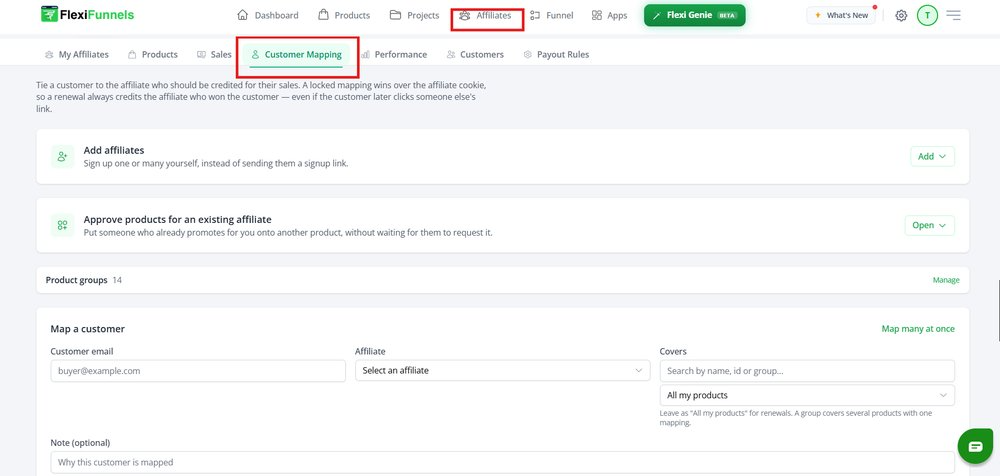
- Click Affiliates in the top menu.
- Click the Customer Mapping tab.
What you will see
You see cards for Add affiliates and Approve products for an existing affiliate, and a Map a customer form.
2. Fill In the Map a Customer Form
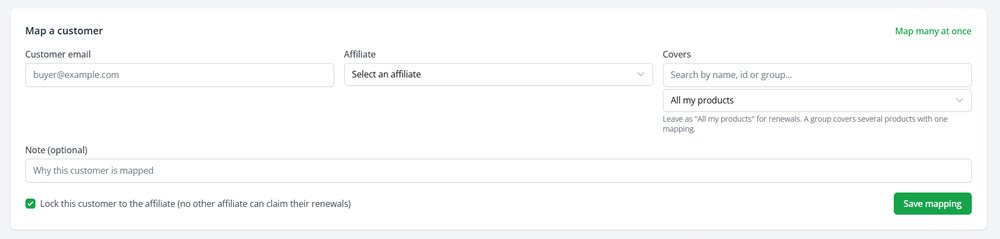
- Find the Map a customer form.
- Enter the buyer's email address in the Customer email field.
- Under Affiliate, open the Select an affiliate list and choose an affiliate.
- Under Covers, search for a product, product ID or group, or choose from the list below the search box.
- Optional: enter a reason in the Note (optional) field.
Good to know
For renewals, leave Covers set to All my products. A group covers several products with a single mapping.
3. Lock the Customer and Save
- Select the Lock this customer to the affiliate (no other affiliate can claim their renewals) checkbox.
- Click the green Save mapping button.

4. Find a Mapped Customer
- Scroll to the Mapped customers section.
- Set the filters you need, then click the green Filter button.
- Alternatively, type in the search box above the table.

| Filter | What it does |
|---|---|
| Customer | Finds a customer by email address. |
| Affiliate | Finds an affiliate by name or email address. |
| Covers | Finds mappings for a product, a group, or all products. |
| Locked | Shows locked or unlocked mappings. The default is Either. |
| Source | Filters by where the mapping came from. The default is Any source. |
| Added from / Added until | Filters by date range. Added until includes the whole day. |
5. Review or Remove a Mapping
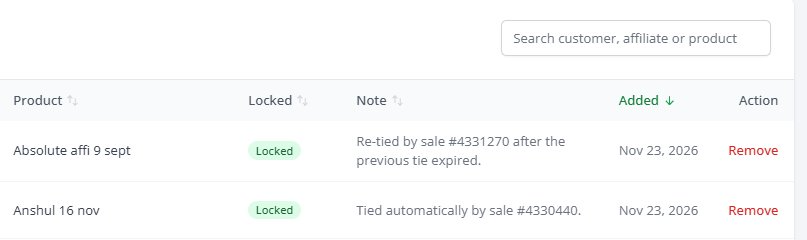
- Each row shows the customer, affiliate, product, lock status, note and date added.
- To remove a mapping, click the red Remove button in the Action column.
Was this article helpful?
That’s Great!
Thank you for your feedback
Sorry! We couldn't be helpful
Thank you for your feedback
Feedback sent
We appreciate your effort and will try to fix the article