You can give someone who already promotes for you access to another product, without waiting for them to request it.
Key Terms
| Term | Meaning |
|---|---|
| Affiliate | A person who promotes your product. |
| Payout account | Where the affiliate's commission is paid. |
Steps
1. Open Customer Mapping
- Click Affiliates in the top menu.
- Click the Customer Mapping tab.
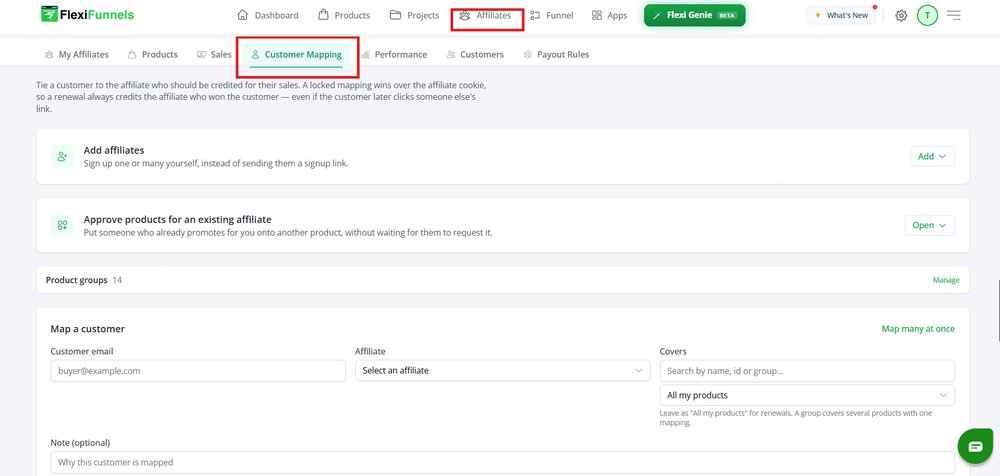
What you will see
You see cards for Add affiliates and Approve products for an existing affiliate, and a Map a customer form.
2. Open the Card
- Find the Approve products for an existing affiliate card.
- Click Open on the right.
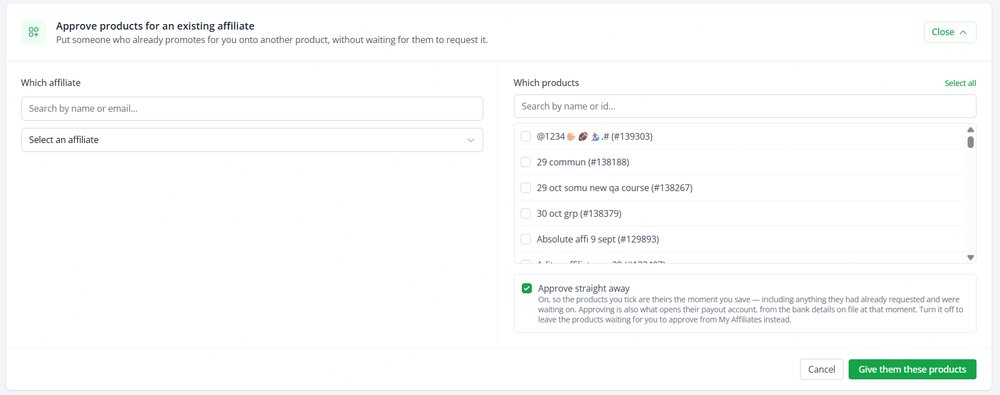
What you will see
The card opens, and the button changes to Close.
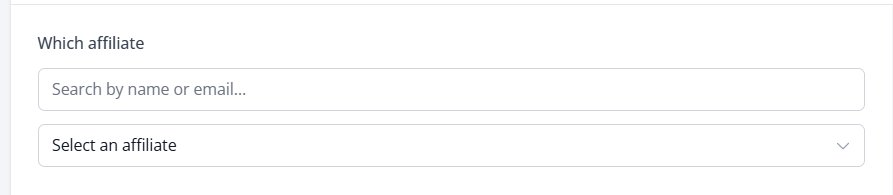
3. Choose the Affiliate
- Under Which affiliate, type a name or email address in the search box.
- Alternatively, open the Select an affiliate list and choose an affiliate.
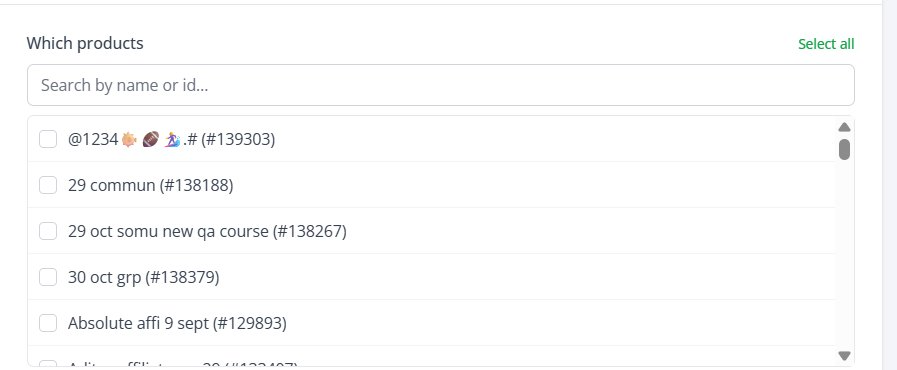
4. Choose the Products
- Under Which products, select the checkbox next to each product.
- To find a product by name or ID, type in the search box.
- To select every product, click Select all.
5. Choose How to Approve
- Find the Approve straight away checkbox.
- Select it, or leave it clear.
| Choice | What happens |
|---|---|
| On (selected) | The products are assigned to the affiliate as soon as you save, including any products they had already requested and were waiting on. Approving also opens their payout account, using the bank details on file at that moment. |
| Off (clear) | The products wait for your approval. You can approve them later from My Affiliates. |

6. Assign the Products
- Click the green Give them these products button.
- To leave without saving, click Cancel instead.

Was this article helpful?
That’s Great!
Thank you for your feedback
Sorry! We couldn't be helpful
Thank you for your feedback
Feedback sent
We appreciate your effort and will try to fix the article