The My Affiliates tab lists everyone who promotes your products. From this tab, you can find affiliates, approve or reject new requests, and send messages.
Before You Start
- Make sure affiliates are enabled for your product. For details, see How to Set Affiliate Commission for a Product.
Key Terms
| Term | Meaning |
|---|---|
| Affiliate | A person who promotes your product. |
| Approval | Your decision to accept or reject an affiliate. |
| Aff. ID | The affiliate's unique ID number. |
Steps
1. Open My Affiliates
- Click Affiliates in the top menu.
- Click the My Affiliates tab.
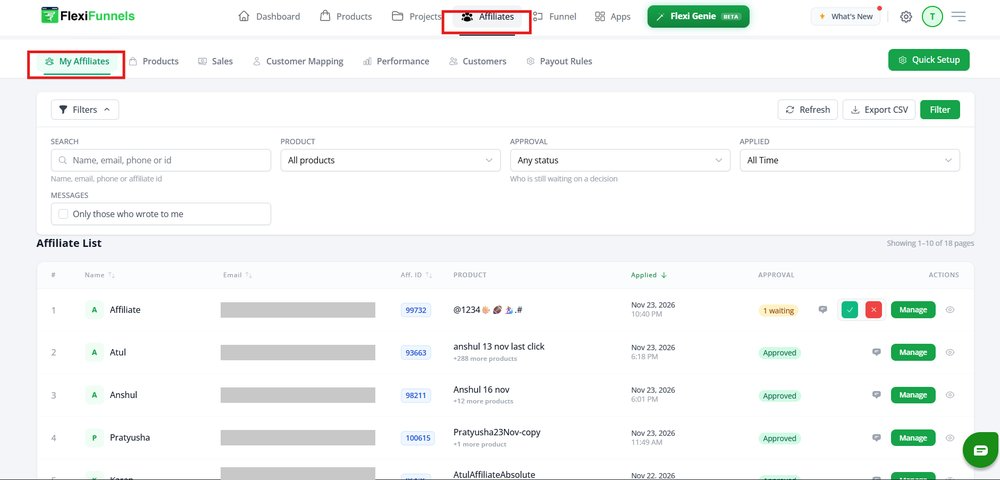
What you will see
The Affiliate List opens.
2. Find an Affiliate Using Filters
- Use the filter fields at the top of the page.
- Click the green Filter button.

| Filter | What it does |
|---|---|
| Search | Finds an affiliate by name, email, phone number or affiliate ID. |
| Product | Shows affiliates for one product. The default is All products. |
| Approval | Shows affiliates by status. The default is Any status. Use it to find affiliates who are still waiting for a decision. |
| Applied | Filters by when the affiliate applied. The default is All Time. |
| Only those who wrote to me | Shows only affiliates who have sent you a message. |
Two more actions are available next to the filters:
- Click Refresh to reload the list.
- Click Export CSV to download the list.
3. Read the Affiliate List
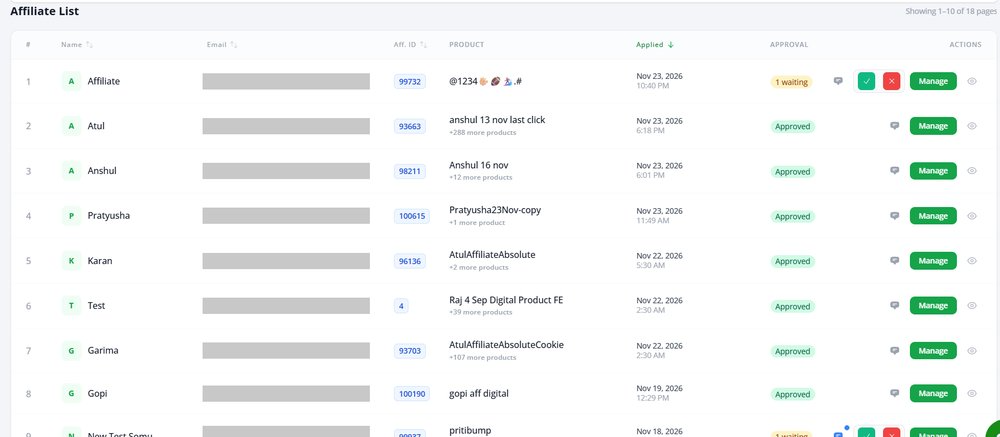
| Column | What it shows |
|---|---|
| Name, Email | Who the affiliate is. |
| Aff. ID | The affiliate's unique ID number. |
| Product | The product they promote. Faded text such as +12 more products means they promote additional products. |
| Applied | The date and time they applied. |
| Approval | Their status, such as Approved or 1 waiting. |
| Actions | Buttons for managing that affiliate. |
- Click the small arrows next to a column heading to sort the list.
- The top-right corner shows how many pages the list contains.
4. Approve or Reject a Waiting Affiliate
- Find a row that shows 1 waiting in the Approval column.
- Click the green ✓ button to approve the affiliate, or click the red ✕ button to reject them.

5. Send a Message to an Affiliate
- In the Actions column, find the speech-bubble button. Its label reads Send a message.
- Click the button to write to that affiliate.

Was this article helpful?
That’s Great!
Thank you for your feedback
Sorry! We couldn't be helpful
Thank you for your feedback
Feedback sent
We appreciate your effort and will try to fix the article