The Performance tab works like a scoreboard for your affiliate program. It shows which affiliates sell the most and which products they sell.
Rankings are based on revenue, not on the number of sales.
Before You Start
- Your affiliates must have made at least one completed sale.
- The tab counts completed affiliate sales only.
Steps
1. Open the Performance Tab
- Find the menu at the top of the affiliate area.
- Click Performance.
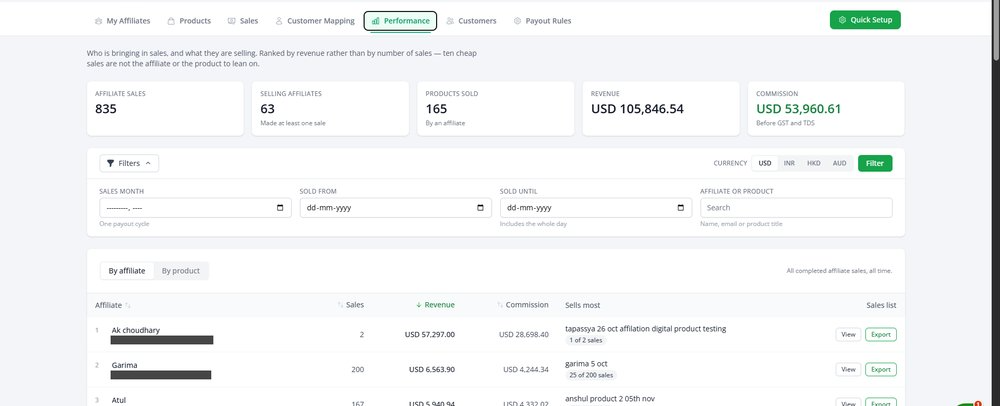
What you will see
You see the summary cards, the filters and a ranked table.
2. Read the Summary Cards
Five cards at the top of the tab show totals for all completed affiliate sales.

| Card | What it shows |
|---|---|
| Affiliate Sales | How many sales affiliates made. |
| Selling Affiliates | Affiliates who made at least one sale. |
| Products Sold | Products sold by an affiliate. |
| Revenue | Money from those sales. |
| Commission | Commission earned, before GST and TDS. |
3. Filter the Results
- Click Filters to open or close the filter box.
- Select a Currency, then set any of the other filters.
- Click the green Filter button.

| Filter | What it does |
|---|---|
| Currency | Choose USD, INR, HKD or AUD. |
| Sales Month | Shows one payout cycle. |
| Sold From | Shows sales from this date. |
| Sold Until | Shows sales up to this date, including the whole day. |
| Affiliate or Product | Searches by name, email or product title. |
What you will see
The cards and the table update to match your filters.
4. See Which Affiliates Sell the Most
- Click By affiliate.
- Each row is one affiliate. The top row earned the most revenue.
- To sort by a different column, click a column name that shows arrows.
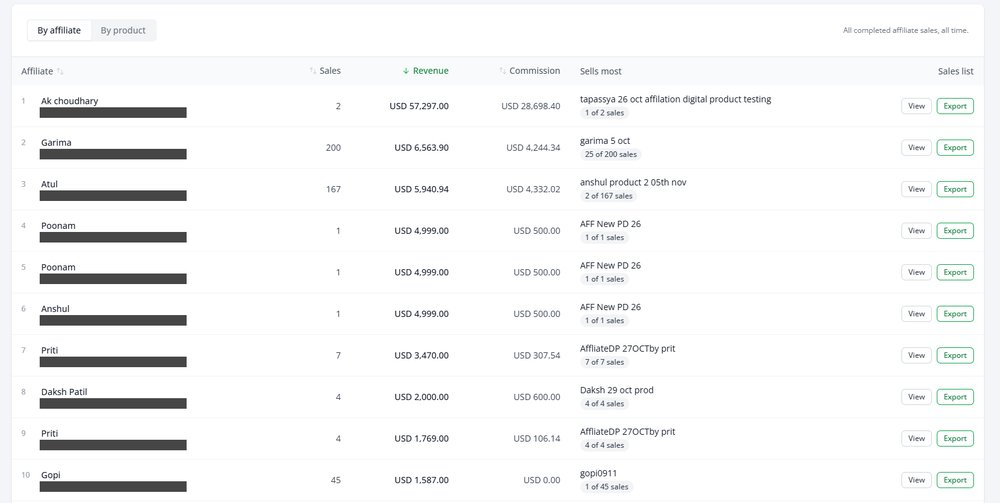
| Column | What it shows |
|---|---|
| Affiliate | The affiliate's name and email address. |
| Sales | Number of sales. |
| Revenue | Money from their sales (default sort). |
| Commission | What the affiliate earned. |
| Sells most | Their best-selling product, and how many of their sales it accounts for. |
| Sales list | View and Export buttons. |
Tip
Two affiliates can have the same name. Use the email address shown under the name to tell them apart.
5. See Which Products Sell the Most
- Click By product in the switch above the table.
- Each row is one product. The top row earned the most revenue.

The By product table:
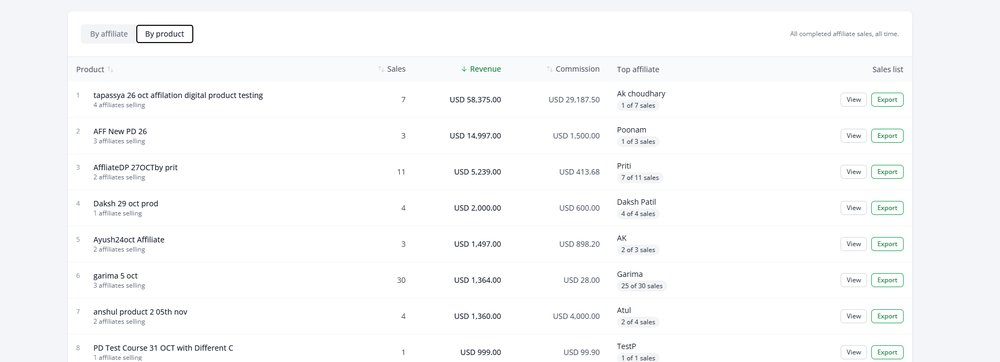
| Column | What it shows |
|---|---|
| Product | The product name and how many affiliates sell it. |
| Sales | Number of sales. |
| Revenue | Money from its sales (default sort). |
| Commission | Commission paid on it. |
| Top affiliate | Who sold it the most, and how many sales they made. |
| Sales list | View and Export buttons. |
6. Open the Sales List
- Find the row you want.
- Click View in the Sales list column.

The Sales list window opens:
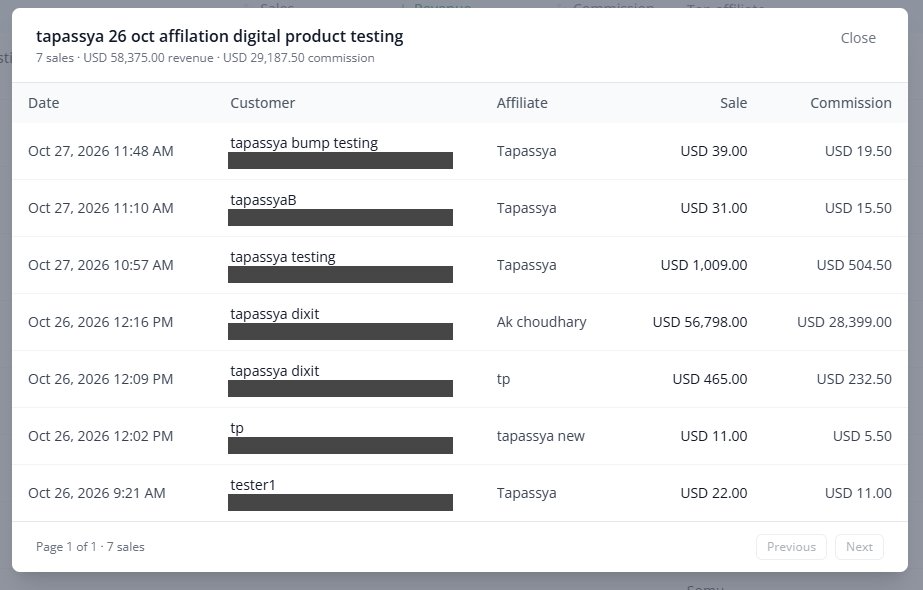
| Column | What it shows |
|---|---|
| Date | When the sale happened. |
| Customer | Who bought. |
| Affiliate | Who made the sale. |
| Sale | The sale amount. |
| Commission | The commission on that sale. |
- Use Previous and Next to move between pages.
- Click Close when you are done.
What you will see
Every sale behind that row, with a total at the top.
7. Export a Row
- Click Export next to View in the row you want to export.

Was this article helpful?
That’s Great!
Thank you for your feedback
Sorry! We couldn't be helpful
Thank you for your feedback
Feedback sent
We appreciate your effort and will try to fix the article