What This Feature Does
Lets you add graded quizzes to specific lessons, set pass/fail thresholds, control retakes, and optionally require students to pass a quiz before unlocking the next lesson.
Before You Start
- Have your questions, answer choices, and correct answers written out ahead of time
- Decide your passing threshold and retake policy before setting up (changing these mid-course can confuse students who already attempted under different rules)
Let’s explore how you can navigate quiz settings and utilise them effectively to maximize the impact of your membership offerings.
Steps to add the quiz feature inside your membership/course.
1. Accessing Quiz Settings:
Navigate to your membership settings. There, you should find an option to add a quiz or test.
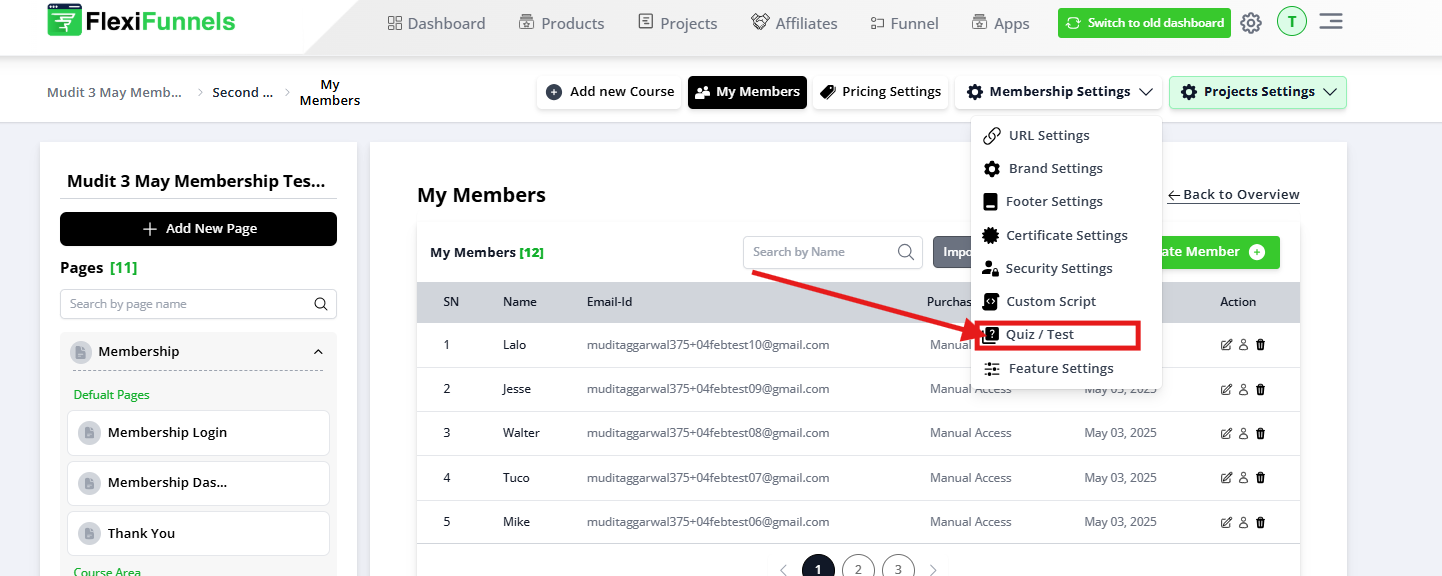
2. Once you click on "Quiz/Test," you'll be presented with three options:
Quiz Questions: Here, you can create and manage the actual questions and answers for your quiz.
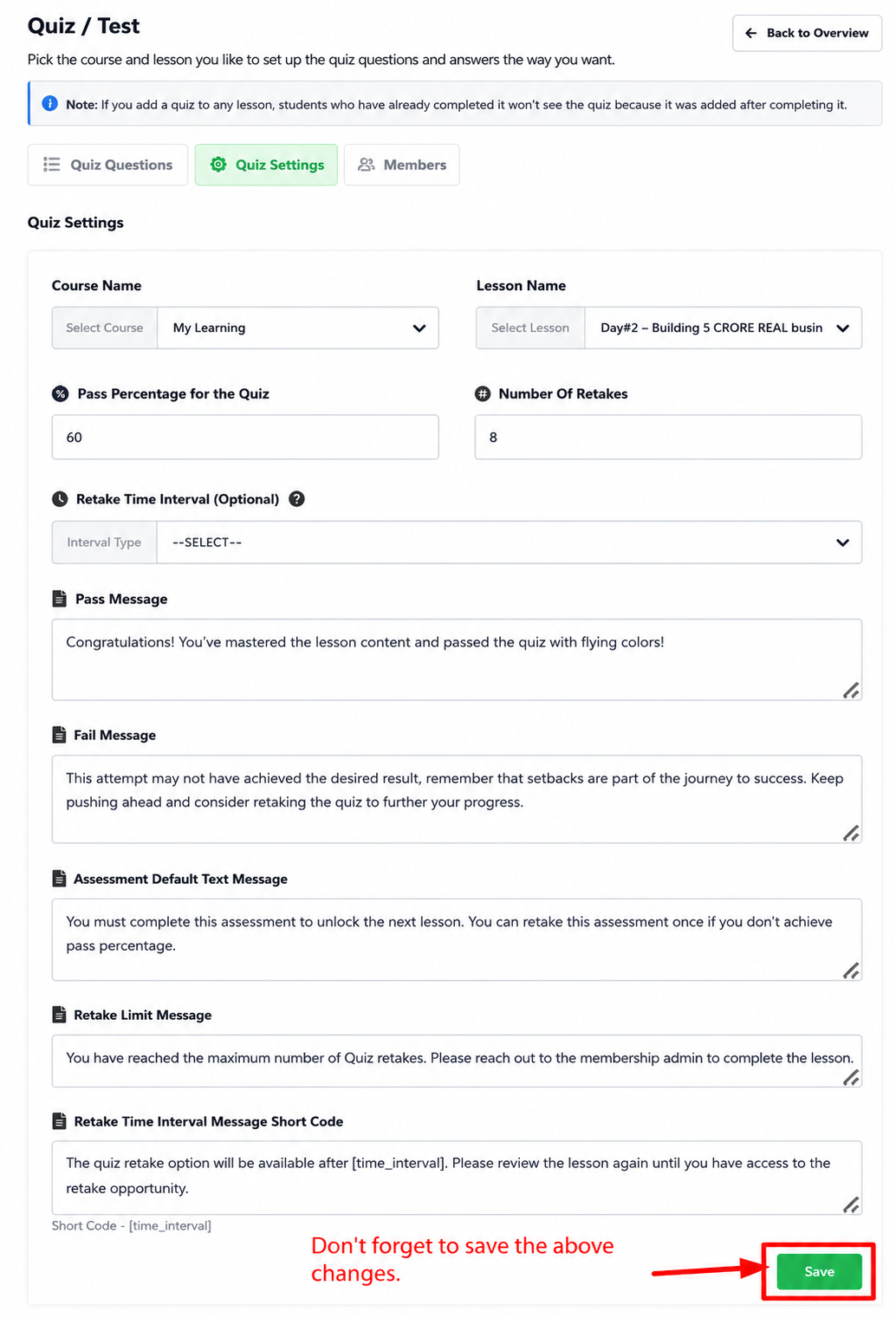
Quiz Settings: This section allows you to define various parameters for the quiz, such as passing score, retakes, and messages.
Members: This section lets you monitor user performance on the quiz, including details like names, scores, and retake attempts.
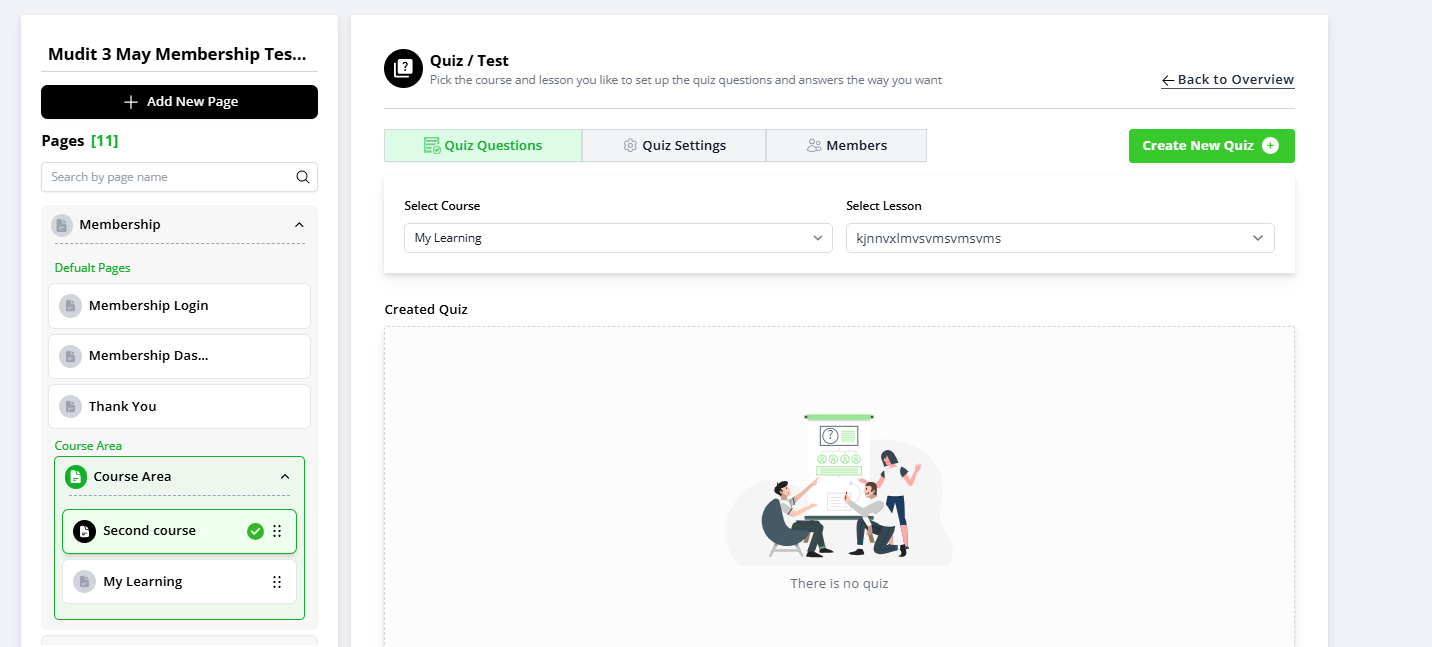
1.) Quiz Questions:
Click on "Quiz Questions" and choose the specific course and lesson where you want the quiz to appear.
Add your questions, answer options, and mark the correct answer for each question.
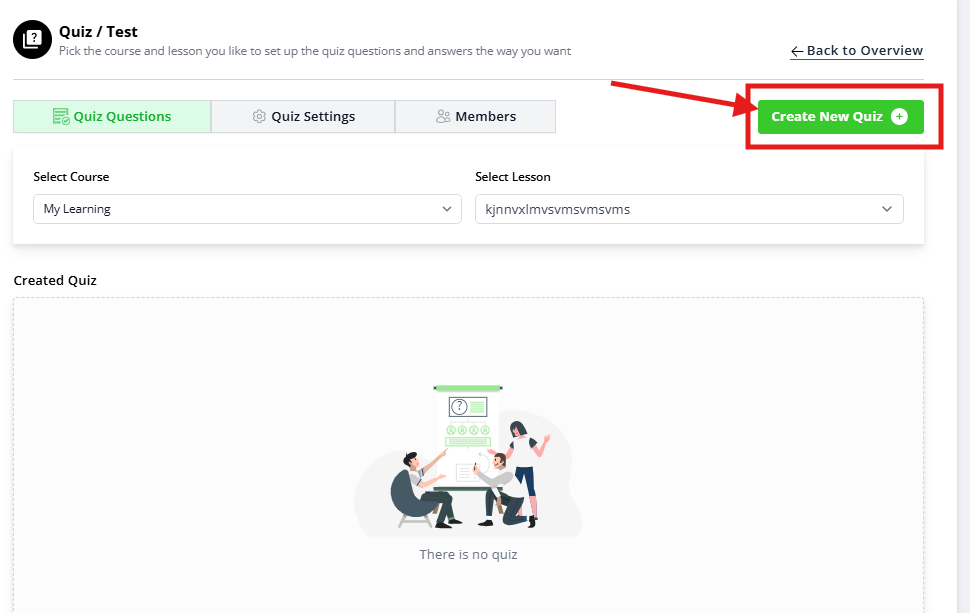
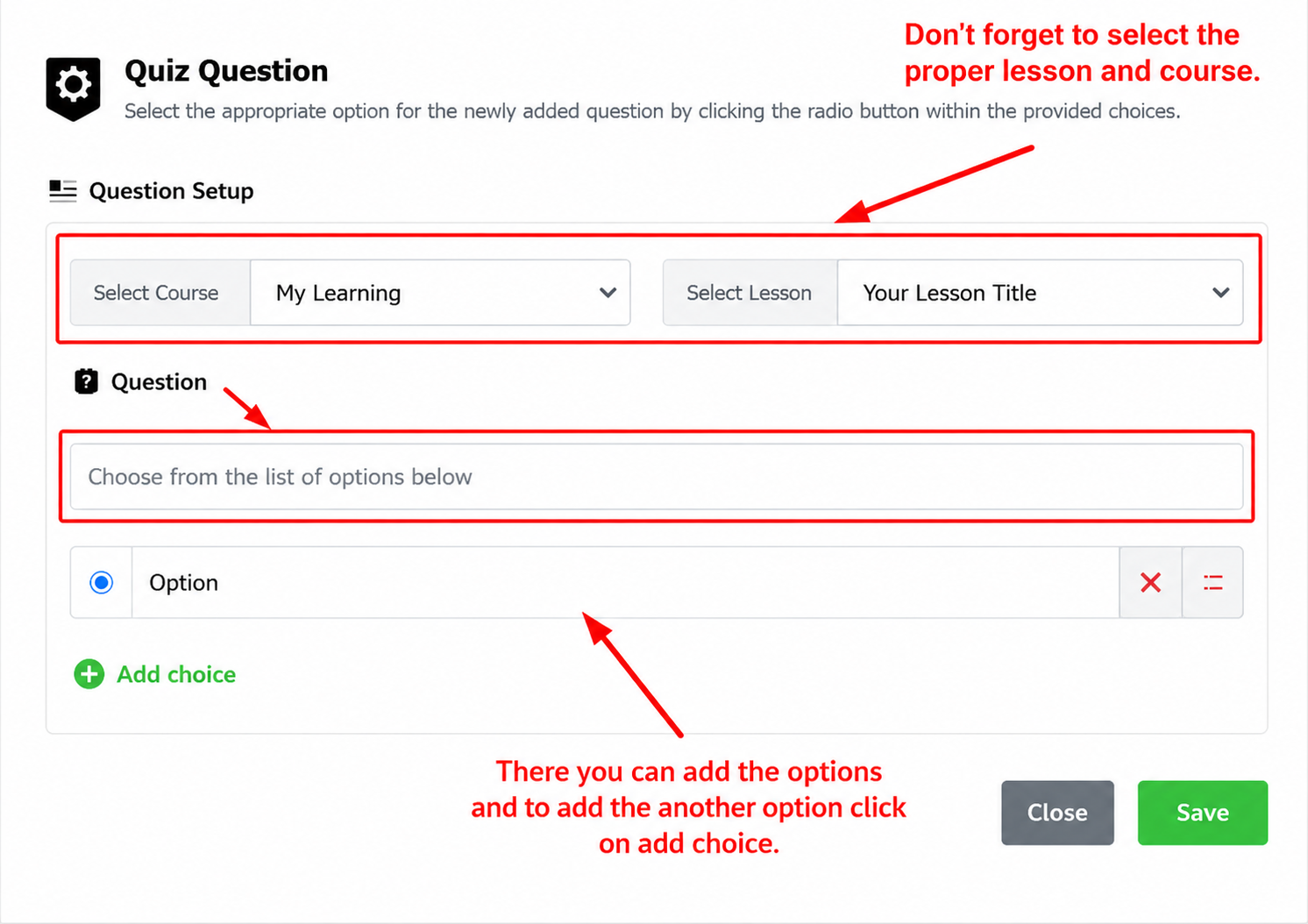
2.) Quiz Settings:
Select the desired course and lesson again. Here, you can customize various quiz settings:
Pass Percentage: Define the minimum score required to pass the quiz.
Number of Retakes: Specify how many times users can retake the quiz if they fail initially.
Retake Time Interval: Set a waiting period before users can attempt the quiz again after a failed attempt.
Pass/Fail Messages: Craft messages to display based on whether a user passes or fails the quiz.
Assessment Default Text Message: Provide a message that users see before starting the quiz.
Retake Limit Message: Define a message displayed when users reach their maximum allowed retakes.
Retake Time Interval Message Shortcode: Here, you can add a message indicating the time until the next retake is available after a user's previous attempt.
3.) Members:
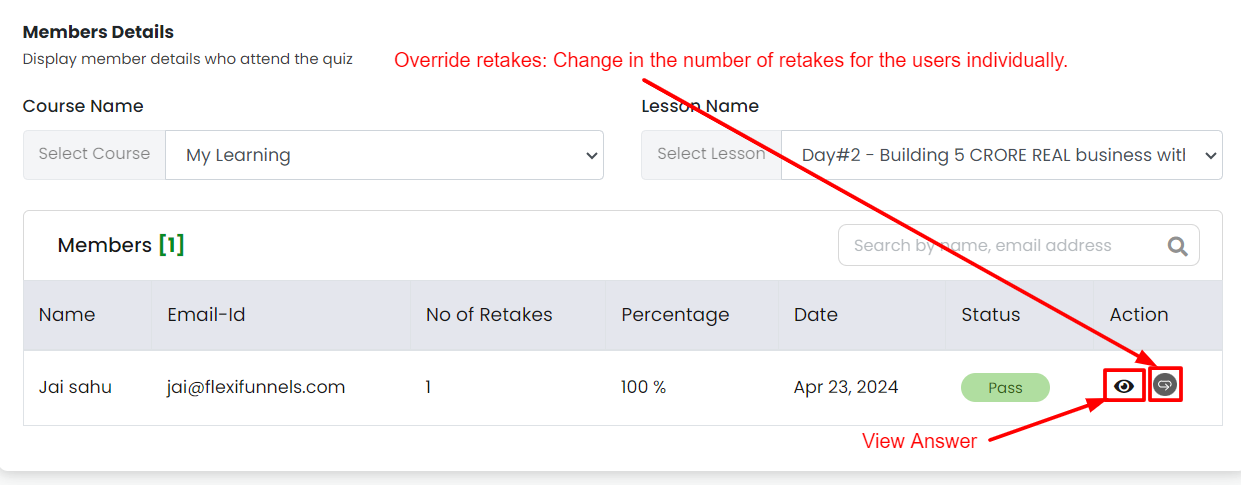
Access the "Members" section to track user performance on the quiz.
This section provides details like user names, email addresses, number of retakes, scores, attempt dates, and pass/fail status.
You can also:
Override Retakes: Manually grant a user additional retake attempts individually.
Eye view option /View Answers: Review individual user's quiz answers.
Drip-feed with Quiz:
If you want users to complete the quiz before accessing the next lesson, you can enable "Drip Feed" on the desired lesson.
Select the lesson following the quiz and activate "Drip Feed." This ensures users can only access the next lesson after passing the quiz.
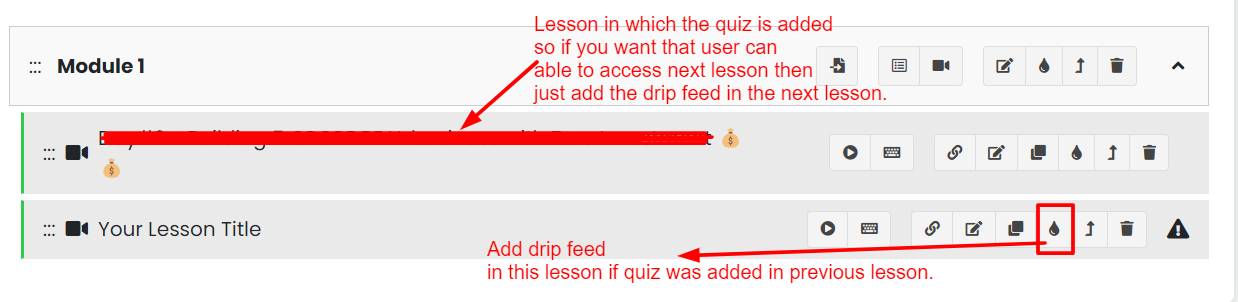
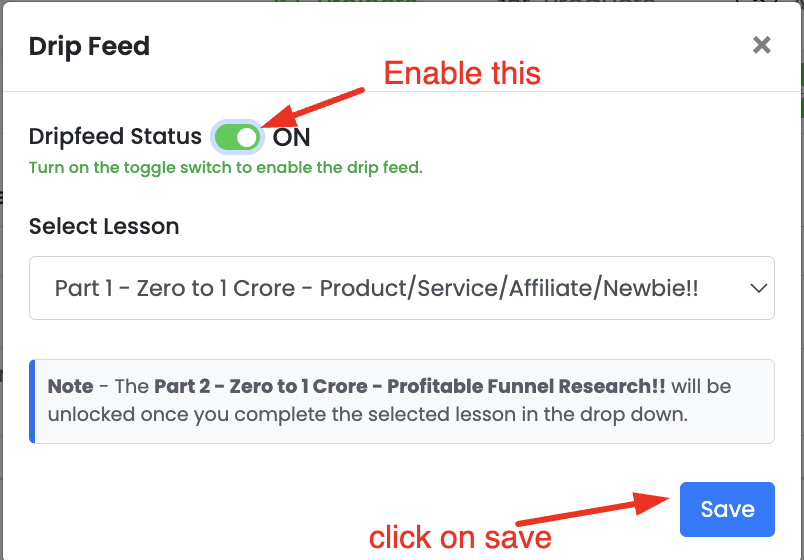
Example: If you want to apply the drip feed on "Part 2" and you have set up "Part 1" as a mandatory lesson in the dropdown & once you complete (click on "Mark as Complete Lesson" or "Complete Quiz" button) the "Part 1" lesson only then you will be able to access the "Part 2".
For further information on the drip feed feature please check the attached article: https://help.flexifunnels.com/en/support/solutions/articles/36000333774-how-to-drip-feed-your-membership-site-course-content-
By following these steps, you can effectively add a quiz feature to your membership/course, enhancing user engagement and knowledge assessment.
Use cases:
Skill Assessment and Knowledge Retention: Embedding quizzes directly into your courses allows you to assess members understanding of the material. This not only reinforces learning outcomes but also gives members immediate feedback on their progress, promoting knowledge retention and encouraging continued engagement with the course content.
Customized Learning Paths: Utilize quiz performance data to identify the strengths and weaknesses of your members. This information can be instrumental in personalizing learning paths, recommending additional resources, or unlocking certain content based on quiz outcomes, thus creating a more tailored learning experience.
Increasing Course Value and Credibility: Quizzes can increase the perceived value and credibility of your courses. By requiring members to pass a quiz before moving on to subsequent lessons, you ensure that they have adequately grasped the material, thereby maintaining high standards for your educational offerings.
Motivation and Gamification: Quizzes introduce an element of challenge and competition, which can be motivating for members. Leaderboards, badges, and certificates of completion are just some gamification elements that can be integrated with quiz results to reward progress and encourage a competitive spirit within the community.
Data-Driven Insights for Course Improvement: The analysis of quiz results can provide valuable insights into how your course material is performing. Which questions are most members struggling with? Where do they excel? This data can inform future course developments and refinements, ensuring that your content remains effective and relevant.
Regulatory Compliance and Certification: For industries that require ongoing certification and compliance training, quizzes are a must-have feature. They can serve as a formal assessment tool to validate member qualifications and to fulfil industry standards for continuing education
Bringing Offline Coaching Centres Online Seamlessly: Schools and coaching centers can now manage everything with a simple Membership dashboard using FlexiFunnels. This includes adding courses, creating fun quizzes, and even generating certificates automatically. But the best part? With the help FlexiFunnels Membership now you can asses people online. So, a lot of offline coaches will take their services online.
Real-World Scenario
Goal: Ensure students actually understand Module 1 before moving to Module 2.
Setup:
- Quiz added to the last lesson of Module 1
- Pass Percentage: 70%
- Number of Retakes: 3
- Retake Time Interval: 24 hours
- Module 2's first lesson has Drip Feed enabled, prerequisite = Module 1's quiz lesson
What happens:
- Student finishes Module 1, takes the quiz, scores 60% — fails
- They see your custom "fail" message and must wait 24 hours before retaking
- Second attempt: they score 75% — pass
- Module 2 unlocks automatically
Edge case to plan for: What if a student uses all 3 retakes and still fails? Without manual intervention, they're permanently stuck. This is where Override Retakes in the Members section becomes necessary — not a nice-to-have, but the actual unlock mechanism for a legitimately stuck paying customer.
Common Issues & Fixes
| Problem | Likely Cause | Fix |
|---|---|---|
| Student can't access next lesson despite passing | Drip feed prerequisite points to the wrong lesson | Double-check the prerequisite selection matches the actual quiz lesson |
| Student stuck after using all retakes | Retake limit reached, no more attempts allowed by default | Use "Override Retakes" in the Members section to grant more attempts |
| Quiz doesn't appear on the lesson | Questions were added to the wrong course/lesson combination | Re-check the course/lesson selected in "Quiz Questions" matches the intended one |
| Pass/fail message not showing | Message field left blank, or quiz settings weren't saved | Re-enter the message and confirm save |
| Student says they passed but system shows fail | Scoring calculation or answer key error | Use "View Answers" to check exactly what they submitted vs. the marked correct answer |
Was this article helpful?
That’s Great!
Thank you for your feedback
Sorry! We couldn't be helpful
Thank you for your feedback
Feedback sent
We appreciate your effort and will try to fix the article