SEO (Search Engine Optimization) is how you help search engines like Google understand your page so they can show it to the right people. Think of the SEO settings as the little name tag and business card your page hands to Google — and to Facebook, WhatsApp, and LinkedIn when someone shares your link. A good name tag means more people find you and more people click.
This guide shows you where those settings live, what to put in each box (with the sizes that actually matter), and how to fix the most common problem: "my link shows the wrong image or title when I share it."
Why it's worth doing
- More visibility: higher search rankings mean more people see your page.
- More trust: pages near the top of Google look more credible.
- Cost-effective: organic search traffic is free compared to running ads.
Step-by-Step Guide
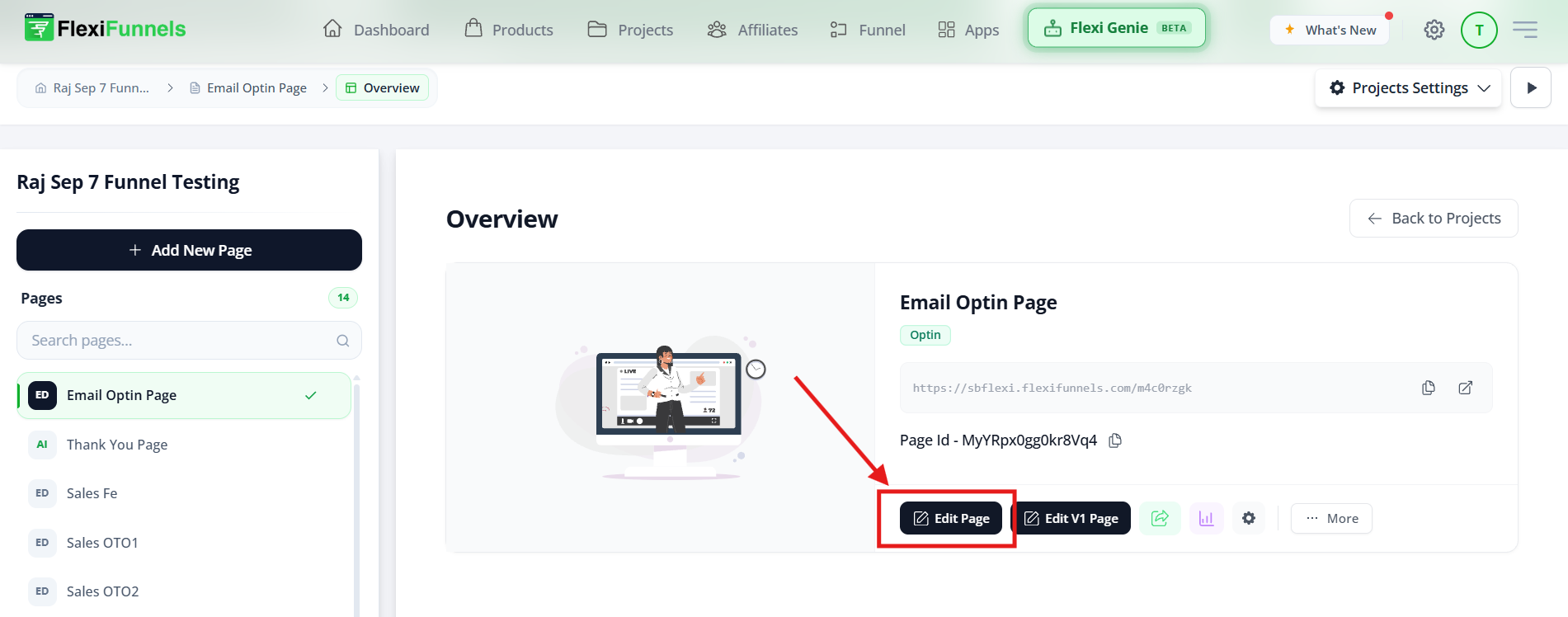
Step 1 — Open the Editor
Open the page you want to optimize, and click into the page editor.
Step 2 — Open Gear Settings → SEO
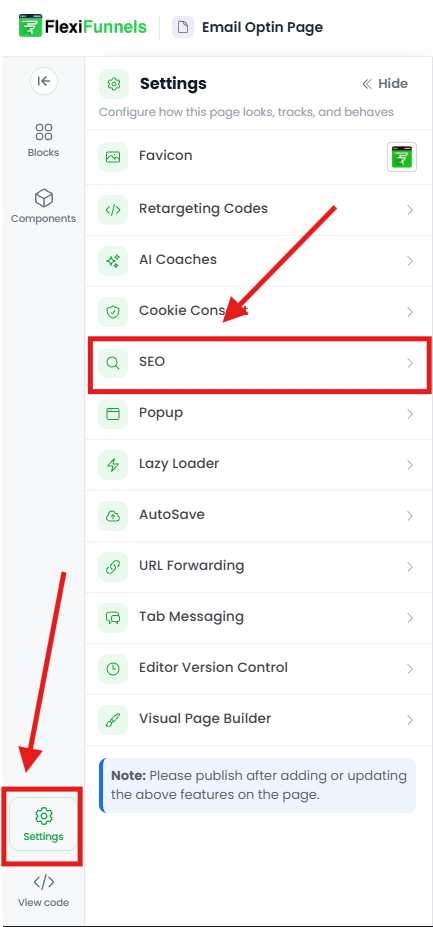
- Click the gear ⚙️ icon in the lower-left corner of the editor to open the settings menu.
- Click the “SEO” option. A pop-up window opens where you'll enter your details.
? The lower-left gear opens whole-page settings. (The gear on an element only changes that element.)
Step 3 — Fill In Your SEO Details
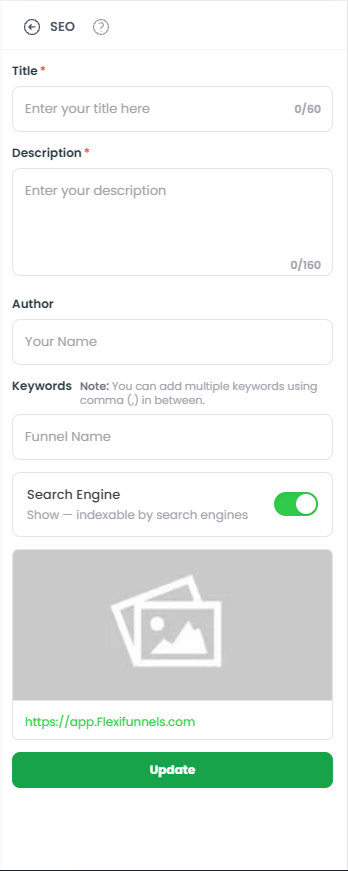
In the pop-up, you'll see these fields. Here's what each one does and how to fill it in well:
- Title — the headline shown as the clickable blue link in Google, and the title on a shared link. Best practice: keep it around 50–60 characters, put your most important word near the front, and make every page's title unique. Example: "Free 7-Day Meal Plan — Download PDF | YourBrand".
- Description — the short summary shown under the title in search results and link previews. It's your mini sales pitch. Best practice: around 150–160 characters, clear and inviting, mentioning what the visitor gets. (It doesn't directly change rankings, but a good one gets more clicks.)
- Author — optional; the name of the person or brand behind the content.
- Keywords — add a few relevant words separated by commas if you like. Honest note: modern search engines (including Google) largely ignore the meta keywords box — it won't lift your rankings. Real keyword optimization happens in your visible page content (your headline, paragraphs, and buttons), not in this field. So focus your energy there.
- Image — the thumbnail picture shown when your link is shared on social media (Facebook, WhatsApp, LinkedIn, X). Best practice: use a landscape image around 1200 × 630 pixels so it isn't blurry or awkwardly cropped.
? Write for a human first. Titles and descriptions stuffed with keywords read badly and get fewer clicks. Describe the page like you're telling a friend what's on it.
Step 4 — Update, Then Publish
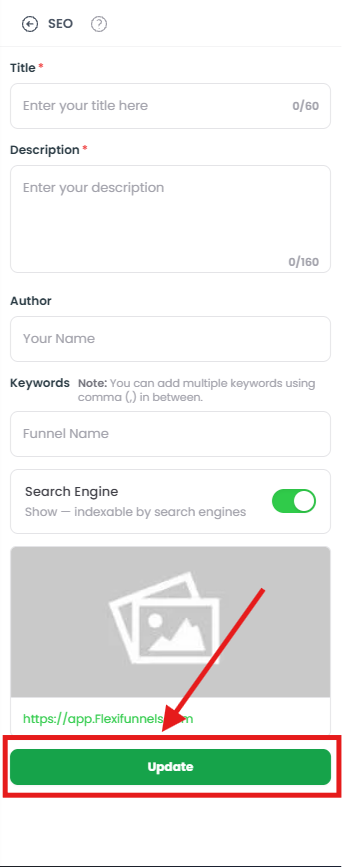
- Click “Update” to save your SEO settings.
- Publish (or re-publish) the page.
⚠️ Saving isn't the same as being live. Update stores your settings, but search engines and social platforms only read the published page. If the page was already live, you must re-publish for the new SEO details to take effect.
? Your SEO settings are saved. Now let's make sure they show up correctly.
One thing to know: SEO is not instant
Adding SEO settings doesn't put you on Google's first page overnight. Search engines have to find and index your page first, which can take days to weeks. To speed it up:
- Add your site to Google Search Console (search.google.com/search-console) and request indexing for the page.
- Keep your visible page content clear and genuinely useful — that's what actually drives ranking over time.
Set the expectation that SEO is a slow, compounding game, not a switch.
Common Situations & Quick Fixes
Try these first — most SEO-settings issues are caching or timing, not bugs.
“When I share my link, it shows no image, the wrong image, or an old title.”
This is the #1 issue, and it's almost always social-media caching — Facebook/LinkedIn remember the first version they saw of your link. Fix it:
- Make sure you set an Image in SEO settings and published the page.
- Re-scrape the link so the platform fetches the new info:
- Facebook / WhatsApp / Instagram: Facebook Sharing Debugger (developers.facebook.com/tools/debug) → paste your URL → Scrape Again.
- LinkedIn: Post Inspector (linkedin.com/post-inspector) → paste your URL → Inspect.
- Share the link again — the new preview should appear.
“The shared image looks blurry or gets cut off.”
Use a landscape image around 1200 × 630 px. Tall or tiny images get cropped or pixelated in link previews.
“I added SEO but I'm not showing up on Google.”
That's expected at first — indexing takes time. Add the page to Google Search Console and request indexing. Real ranking builds gradually with good content.
“My Google title/description doesn't match what I entered.”
Two reasons: Google may still be showing a cached older version (give it time / re-request indexing), and Google sometimes rewrites titles and descriptions on its own based on the search query. This is normal Google behavior, not a FlexiFunnels issue.
“I updated SEO but nothing changed on the live page.”
Click Update and publish/re-publish. Then confirm on the live URL — not the editor preview.
“Where do my keywords actually matter?”
In your visible page content — headlines, body text, and buttons that real visitors read. The meta keywords box has little to no effect on rankings.
“Do I have to do this for every page?”
Yes. SEO settings are per page, so give each important page its own unique Title, Description, and Image.
Quick Recap
- Open the editor.
- Lower-left gear ⚙️ → SEO.
- Fill in Title (~55 chars), Description (~155 chars), optional Author, optional Keywords, and a 1200×630 Image.
- Update, then Publish/re-publish.
- Re-scrape the link in Facebook Debugger / LinkedIn Post Inspector if a shared preview looks wrong.
- Be patient — indexing and ranking take time.
Related articles
- How to Create a Landing Page and Use the Page Settings
- How to Add Retargeting Code to a Landing Page
- URL Forwarding Inside FlexiFunnels
Still need help?
If you've published, set an image, and re-scraped the link and your preview or listing still looks wrong, we're glad to help. Please submit a ticket and include:
- The live page URL
- What you entered (Title / Description / Image) vs. what's showing
- Where you see the problem (Google search, Facebook share, WhatsApp, LinkedIn, etc.)
- A screenshot of the wrong preview or listing
That detail lets us tell quickly whether it's a caching, image-size, or publishing issue and solve it on the first reply.
Was this article helpful?
That’s Great!
Thank you for your feedback
Sorry! We couldn't be helpful
Thank you for your feedback
Feedback sent
We appreciate your effort and will try to fix the article