The Statistics tab in your product settings shows you everything customers entered in your checkout form — names, emails, addresses, custom fields, and more. It's your complete record of who visited checkout and what information they provided.
This guide shows you how to access that data, interpret it, export it for analysis, and use it to improve your checkout and follow-up strategy.
Check this quick video to create a Product using MCP/Flexi Genie:
Why Checkout Data Matters
What you get:
- Every person who visited your checkout page
- All the information they entered (Name, Email, Phone, Address, custom fields, etc.)
- Whether they completed the purchase or abandoned
- Timestamps of when they submitted the form
Why it's valuable:
- Lead capture — even if they didn't buy, you have their email to follow up
- Customer insights — see which fields cause friction (high drop-off at Address = shipping concerns?)
- Data verification — confirm that your form is capturing the right information
- Segmentation — export the data and segment by company, location, purchase status, etc.
- Compliance — you have a record of what you collected and when
Understanding Your Statistics Tab
The Statistics tab shows four key metrics:
Total Form Submissions
Count of everyone who submitted the checkout form (whether they completed payment or abandoned).
Example: 150 form submissions = 150 people reached checkout.
Completed Purchases
Count of submissions that resulted in a successful payment.
Example: 120 completed out of 150 submissions = 80% conversion rate.
Abandoned Carts
Count of submissions without completed payment.
Example: 30 abandoned out of 150 = 20% abandonment rate.
Form Field Data
All the individual fields customers entered: Name, Email, Phone, Address, Company, custom fields, etc. Displayed in a table format.
Step-by-Step: Access Checkout Data
Step 1 — Go to Your Product
Navigate to Products and click on the product whose checkout data you want to view.
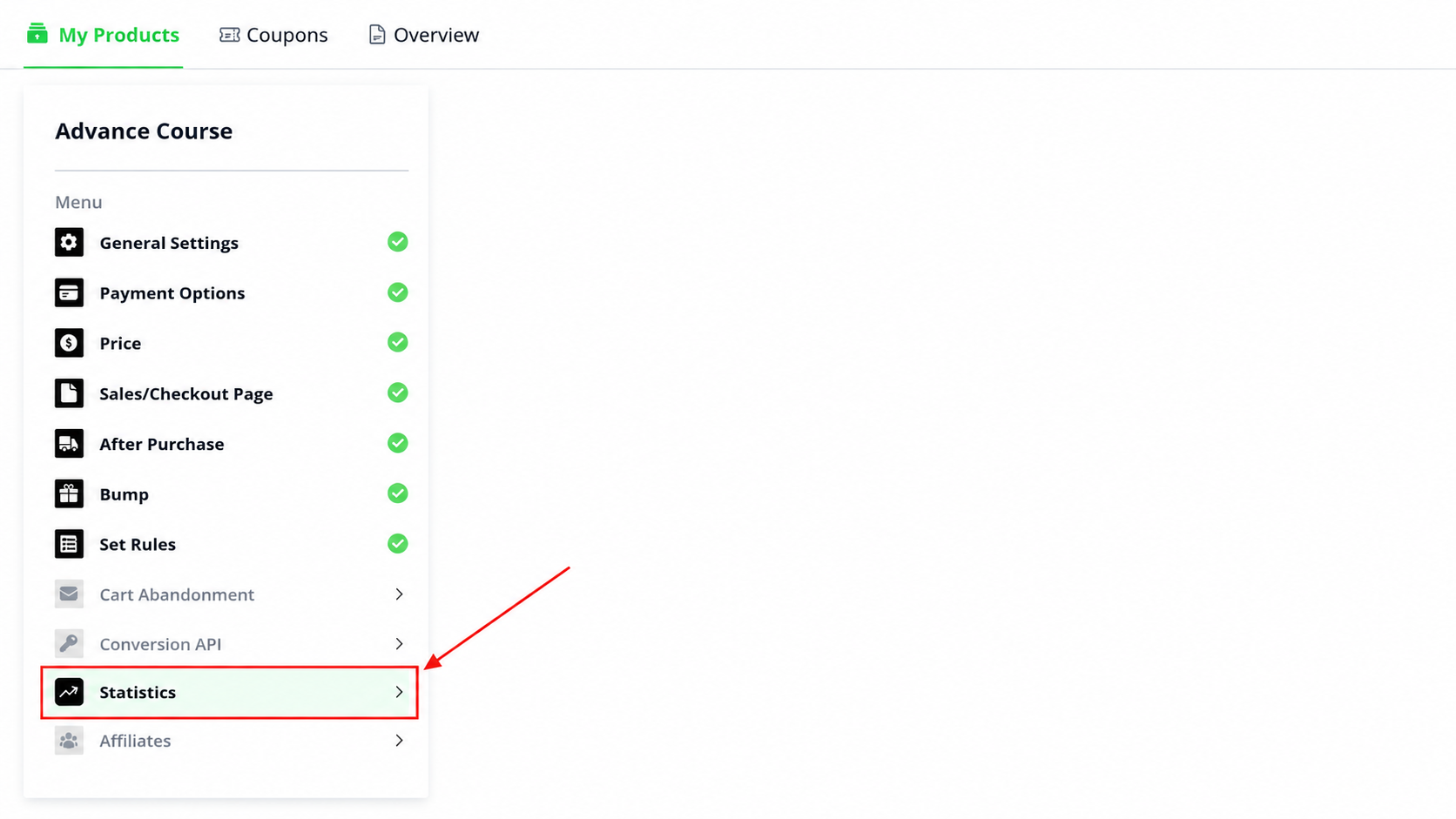
Step 2 — Open the Statistics Tab
In the product settings, click the "Statistics" tab.
You'll see:
- Total form submissions
- Completed purchases
- Abandonment rate
- A table of all submitted data by field
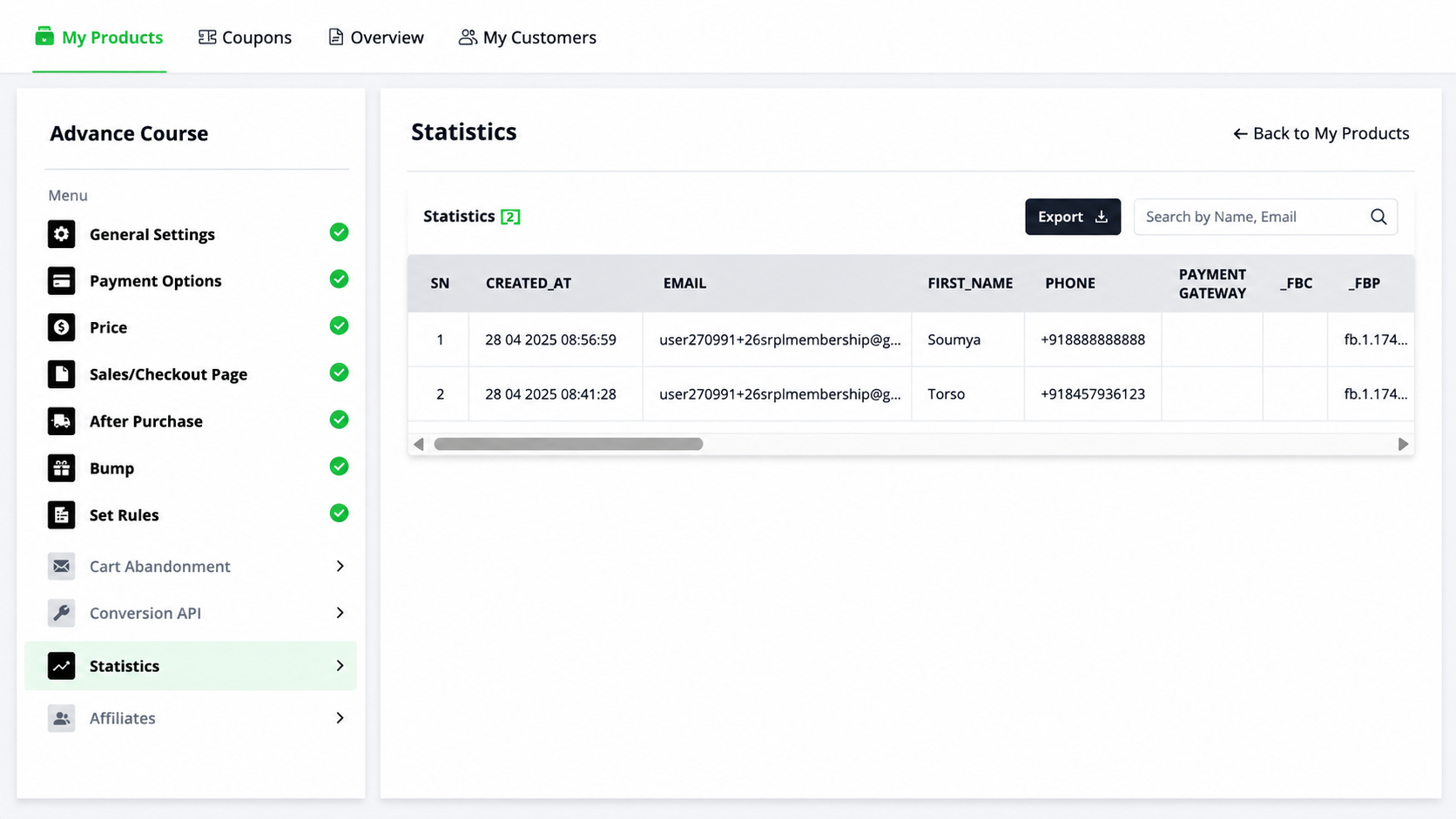
Step 3 — View the Form Data Table
The table displays every field your checkout form collected, row by row. Each row is one form submission.
Columns include:
- Name, Email, Phone (standard fields)
- Address, City, State, Zip (if you collected them)
- Any custom fields you added to the form
- Submission timestamp (when they filled it out)
- Purchase status (completed or abandoned)
Step 4 — Export the Data as CSV
To download the data for analysis in Excel, Google Sheets, or your CRM:
- In the Statistics tab, click "Export CSV"
- A file called something like
product_data_2026-06-17.csvdownloads to your computer - Open it in Excel or Google Sheets
What's in the CSV:
- All columns from the form data table
- Every row of submissions (all-time, unless filtered)
- Ready to sort, filter, and analyze
Step 5 — Close the Statistics Tab
Click the "Close" button when you're done viewing the data.
Common Situations & Quick Fixes
"My Statistics tab is empty — no data showing."
- Is your checkout page published? (Data only appears after real submissions on live pages.)
- Have you actually had form submissions? (If you haven't had visitors, there's nothing to show.)
- Check if the form was recently added — allow 5–10 minutes for first submissions to appear.
"The export CSV file is huge (50,000+ rows)."
You have that many form submissions (impressive!). To manage it:
- Filter by date range before exporting (last 30 days instead of all-time)
- Or export monthly (one file per month) instead of all at once
- Or use a more advanced analytics tool designed for large datasets
"I exported CSV but some fields are blank."
Those fields were optional on your checkout form, so some customers skipped them. This is normal. If you need that data:
- Make the field required in form settings
- Or accept that it's optional and plan your follow-up accordingly
"Email addresses in the CSV don't match what my autoresponder shows."
The Statistics tab shows raw data (exactly what customers typed). Your autoresponder may:
- Auto-correct/clean emails (remove spaces, lowercase, etc.)
- Flag invalid emails and exclude them
- Show a different filter than "all submissions"
Compare the counts: if Statistics shows 100 submissions but your autoresponder shows 85 contacts, the other 15 likely had invalid/duplicate emails.
"Can I delete old data from Statistics?"
Not directly — the Statistics tab is a read-only archive. You can't delete individual rows. If you need to remove sensitive data (GDPR, privacy requests), please submit a ticket and we can help.
"The CSV has duplicate emails — how do I deduplicate?"
In Excel/Sheets:
- Use Data → Remove Duplicates (Excel)
- Or Data → Filter → Unique (Google Sheets)
- Then manually review which duplicate to keep (most recent submission vs. earliest)
"I can't see the 'Export CSV' button."
Make sure you're in the Statistics tab (not General Settings or Price Settings). The button should be visible in the data table section.
Data Privacy & Best Practices
- The data is sensitive. It contains customer email addresses and potentially addresses, phone numbers, etc. Keep the CSV secure (don't email it, use password protection).
- You're responsible for compliance. GDPR, CCPA, and other privacy laws require you to delete customer data on request. Keep a log of export dates and data deletions.
- Regular audits. Monthly, review the data for quality (typos, incomplete fields, test entries). This helps you spot and fix form issues early.
- Segment by consent. If you collect opt-in consent (checkbox), mark those customers separately. Only email those who agreed.
Statistics vs. Other Reports
| Tool | Shows | Best For |
|---|---|---|
| Statistics Tab (this article) | Raw form field data, all submissions | Exporting customer data, auditing form quality |
| Product Reports Dashboard | Conversion rates, revenue, visitor flow | High-level performance metrics, revenue tracking |
| Rules & Webhooks | Automated actions (who got added to email list, etc.) | Tracking automations, debugging rule triggers |
| Rules & Automations | Conversion funnels, abandonment rates | Understanding where customers drop off |
Use Statistics to see the raw data. Use Product Reports to understand the big picture.
Was this article helpful?
That’s Great!
Thank you for your feedback
Sorry! We couldn't be helpful
Thank you for your feedback
Feedback sent
We appreciate your effort and will try to fix the article