You can send your FlexiFunnels product purchase data directly to Google Sheets without Zapier, Pabbly, or any middleman tool. Just Google Sheets + a free add-on + your FlexiFunnels webhook = automatic data collection.
This guide shows you the full setup, from Google Sheets add-on installation to data flowing automatically from product purchases into your spreadsheet.
Why This Approach?
Compare your options:
| Tool | Cost | Setup | Flexibility |
|---|---|---|---|
| Google Sheets (this guide) | Free | 20 minutes | Basic (Google Sheets only) |
| Zapier | $19+/month | 15 minutes | Advanced (1000+ integrations) |
| Pabbly | $15+/month | 15 minutes | Advanced (500+ integrations) |
| Custom API | Varies | Hours/days | Unlimited (developer needed) |
Use the Google Sheets direct approach if:
- You only need data in Google Sheets (not CRM, email, etc.)
- You want zero recurring cost
- You have basic data needs (email, name, purchase amount, etc.)
- You're comfortable with Google Sheets automation
Use Zapier/Pabbly if:
- You need to send data to multiple destinations (email, CRM, Slack, etc.)
- You want advanced formatting and logic
- You prefer a visual, point-and-click interface
What Data Gets Sent to Sheets?
When a customer purchases your product, the webhook sends:
- Customer info: Name, Email, Phone (from checkout form)
- Order details: Product name, Price, Quantity, Purchase date/time
- Any custom fields: Company, Address, etc. (if collected in checkout)
These appear as columns in your Google Sheet, one row per purchase.
Prerequisites
- A Google account (free)
- Google Sheets (free)
- A FlexiFunnels product created and ready to connect
- 10–15 minutes of setup time
Part 1: Set Up the Google Sheets Add-On
Step 1 — Create a New Google Sheet
Go to Google Sheets and create a new blank spreadsheet.
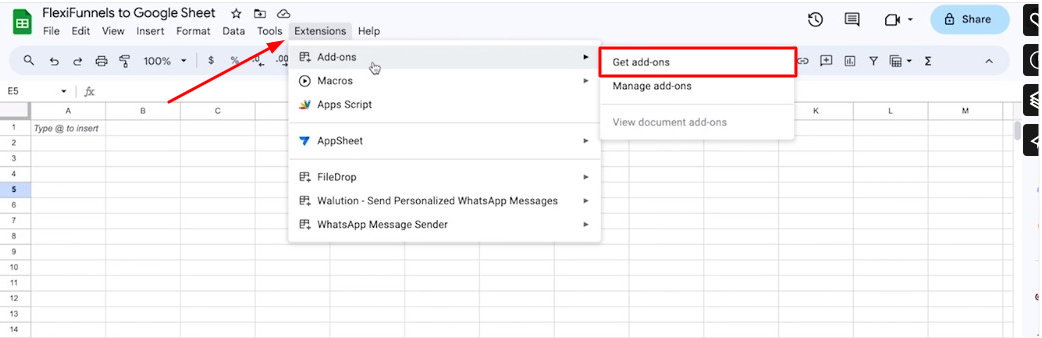
Step 2 — Open Extensions Menu
Click Extensions in the top menu bar.
Step 3 — Get Add-ons
Click Extensions → Add-ons → Get add-ons.
Step 4 — Search for "Webhooks for Sheets"
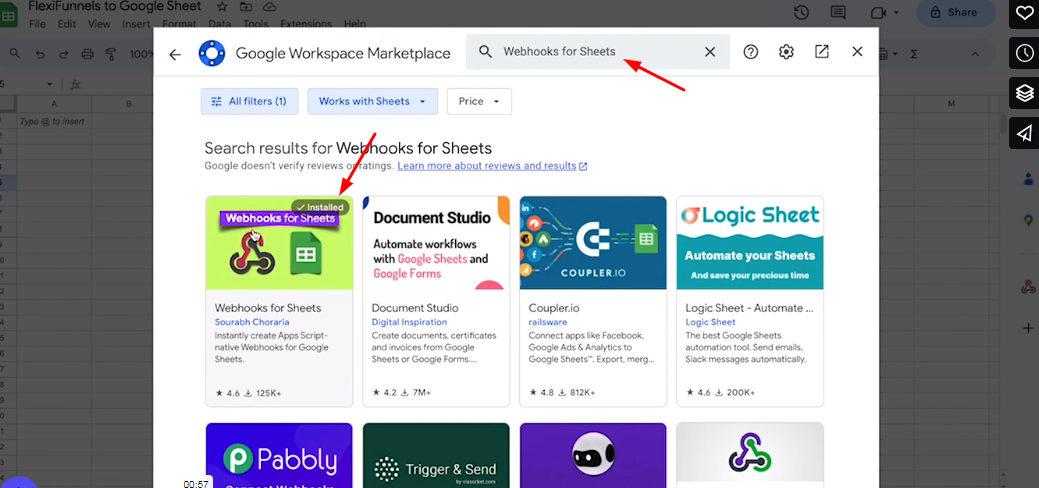
In the search bar, type "Webhooks for sheet" and press Enter.
Click the result when it appears.
Step 5 — Install the Add-on
Click Install to add the "Webhooks for Sheet" add-on to your Google account.
Step 6 — Authorize the Add-on
After installation, Google will ask you to authorize the add-on:
- Click Continue
- Choose your Google account
- Click Allow to grant permissions
Step 7 — Reload Your Sheet
Close the add-ons window and reload your Google Sheet (press F5 or Ctrl+R).
After reloading, you'll see a new webhook icon on the right side panel of your sheet.
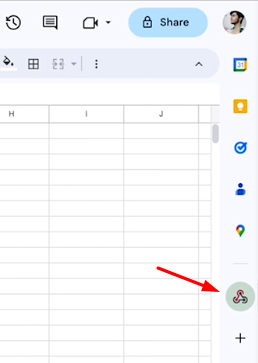
Click the webhook icon.
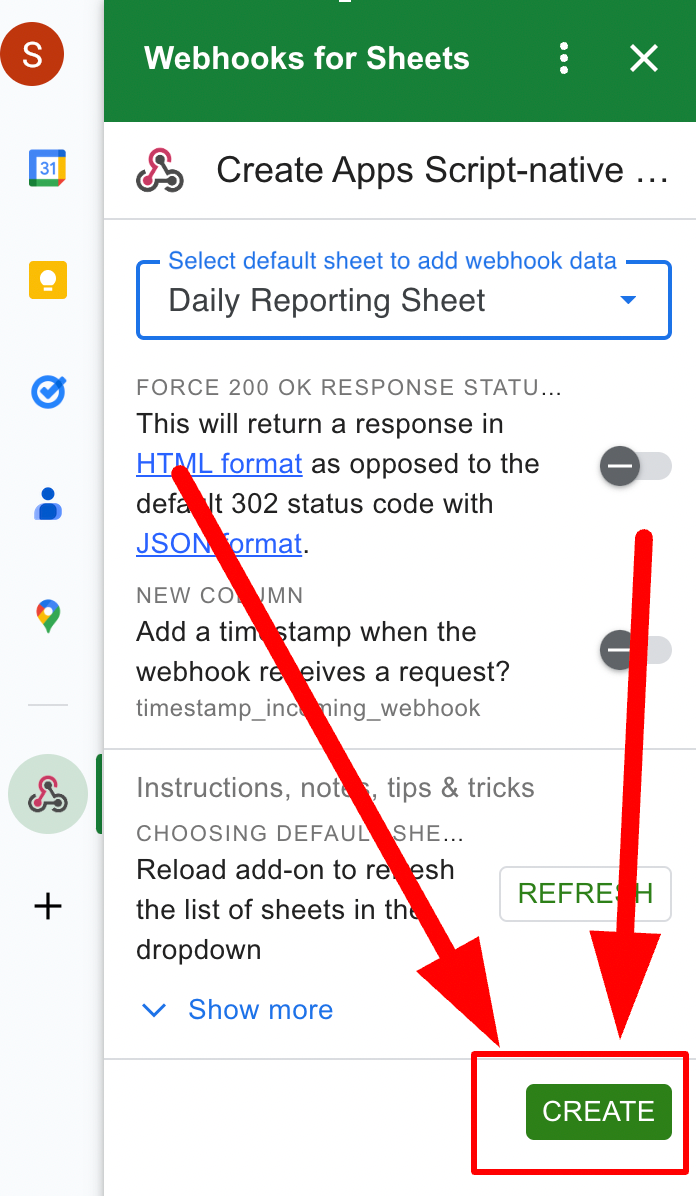
Step 8 — Create a Webhook Form
The webhook panel opens. Click Create (or a similar button) to set up a new webhook form.
Part 2: Get Your Webhook URL From Google Sheets
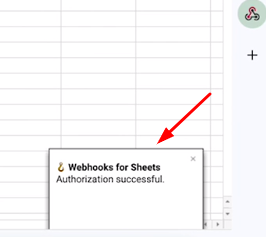
Step 1 — Authorize the Webhook
In the webhook panel, click Webhook → Authorize.
A popup appears asking you to grant permissions. Click OK.
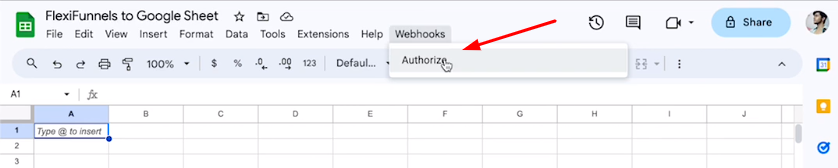
Click on Ok
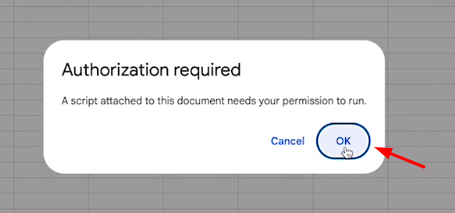
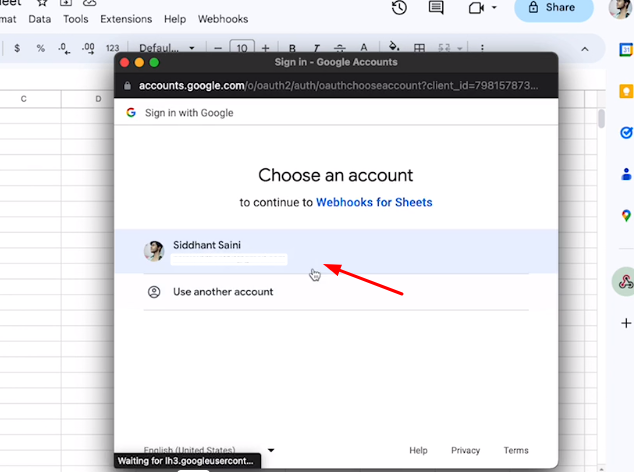
Step 2 — Choose Your Google Account
Select the Google account that owns this spreadsheet.
Step 3 — Grant Permissions
Click Allow to let the webhook add-on send data to your sheet.
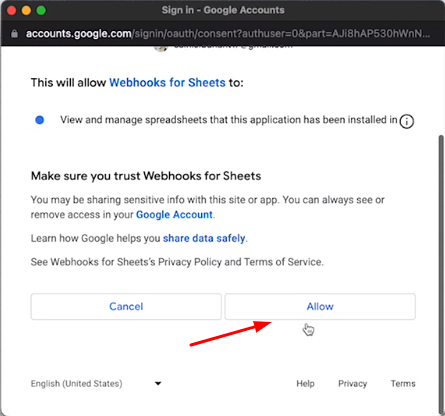
Reload the spreadsheet once authorization is completed.
Step 4 — Get the Webhook URL
After authorization completes, the webhook panel will show you a unique webhook URL.
Copy this URL. You'll paste it into FlexiFunnels next.
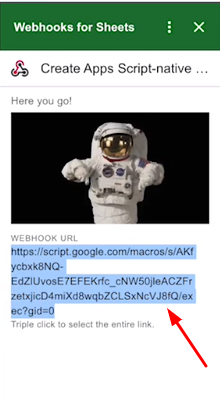
? Keep this URL safe. Anyone with it can send data to your sheet. Don't share it publicly.
Part 3: Connect Your FlexiFunnels Product to the Sheet
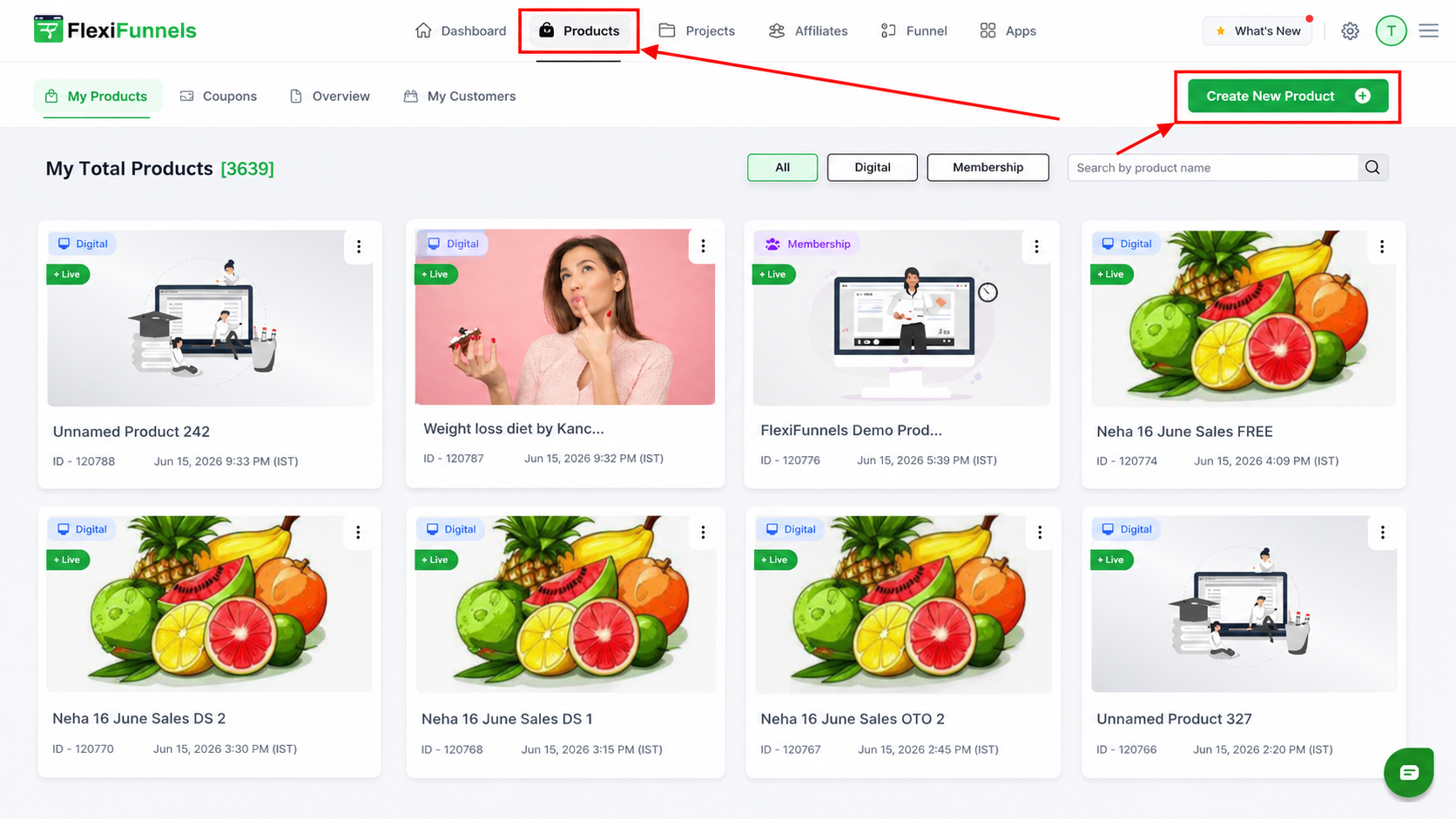
Step 1 — Open Your Product in FlexiFunnels
In FlexiFunnels, go to Products and open the product you want to connect to the sheet.
Step 2 — Go to Set Product Rules
In the product settings, click "Set Product Rules" to create a rule.
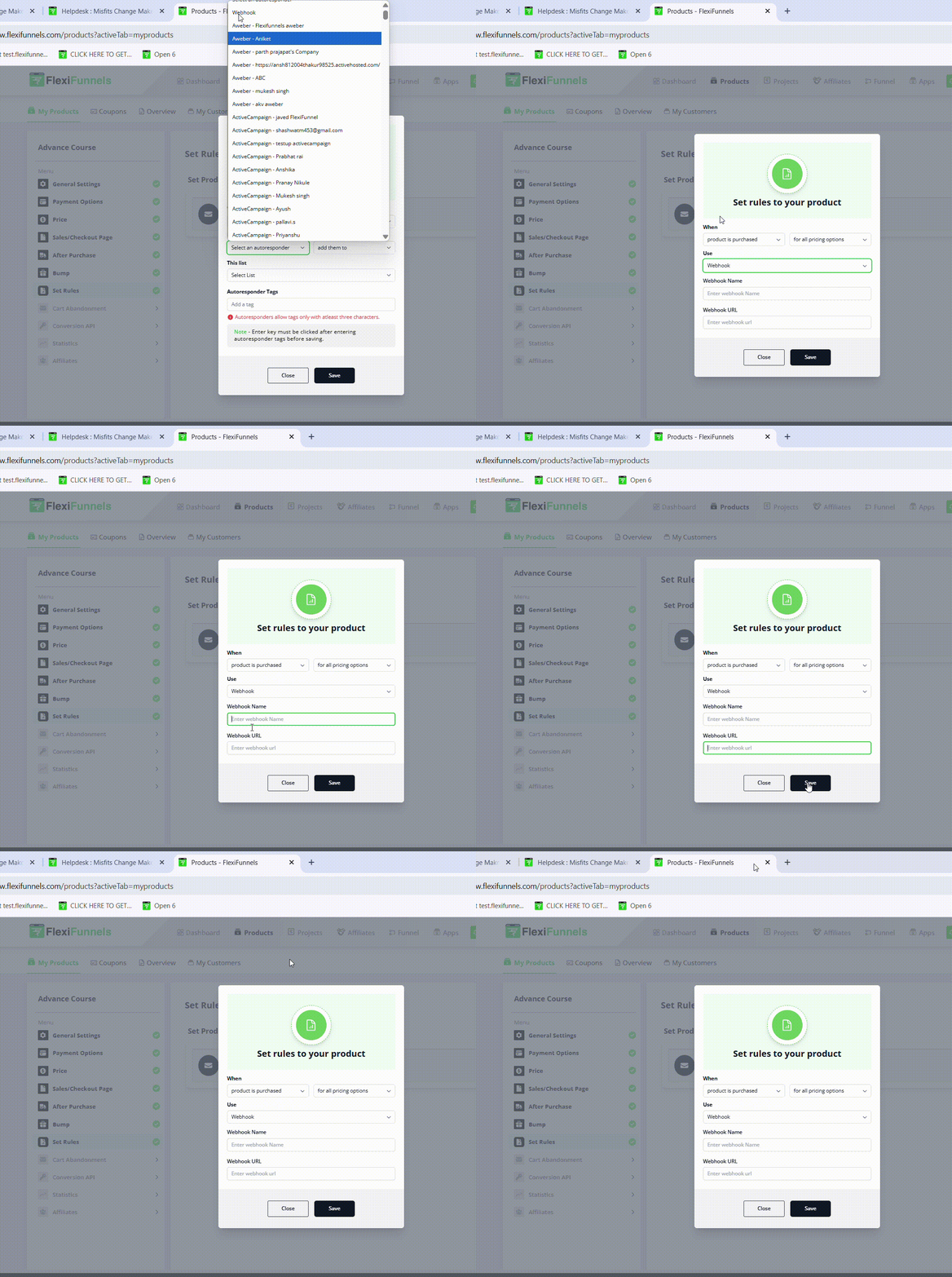
Step 3 — Configure the Webhook Rule
In the rule form:
- Select "When: Product is purchased"
- In the "Use" dropdown, select "Webhook"
- Give it a name (e.g., "Google Sheets Webhook")
- Paste the webhook URL you copied from Google Sheets
- Click "Save"
Step 4 — Save Your Product
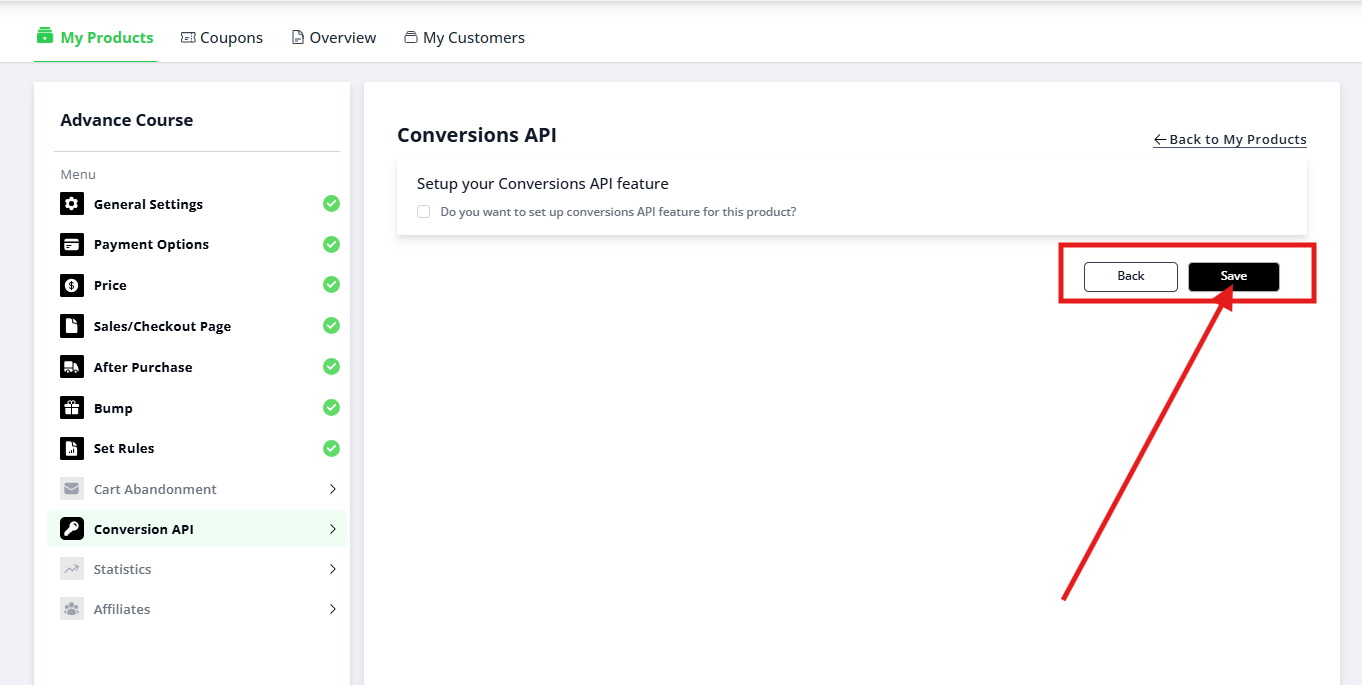
After saving the rule, scroll down and click the main "Save" button to save all product settings.
Testing the Connection
To verify everything works:
- Publish your checkout page (if not already published)
- Make a test purchase using a test email address on your live checkout page
- Go back to your Google Sheet (refresh if needed)
- Check for the new row — your test purchase data should appear as a new row in the sheet
If data appears: Congratulations! The webhook is working.
If no data appears: See the Troubleshooting section below.
Understanding Your Data in Google Sheets
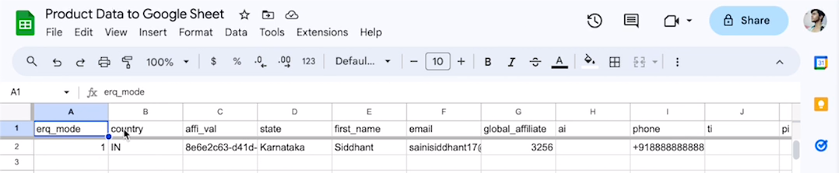
When data arrives, your sheet will look like this:
| Timestamp | Name | Phone | Product | Price | Quantity | |
|---|---|---|---|---|---|---|
| 6/15/2026 14:32:10 | John Smith | john@example.com | 555-1234 | Course Bundle | $97.00 | 1 |
| 6/15/2026 15:45:22 | Sarah Johnson | sarah@email.com | 555-5678 | Course Bundle | $97.00 | 2 |
Key columns:
- Timestamp — when the purchase happened
- Name, Email, Phone — customer info from checkout
- Product, Price, Quantity — what they bought
- Any custom fields — Address, Company, etc. (if you collected them)
You can now sort, filter, and analyze this data in Google Sheets.
What To Do With the Data
Once purchase data is flowing into your sheet, you can:
Use Case 1: Manual CRM Entry
Copy the email and name columns daily and paste into your CRM.
Use Case 2: Automated Emails
Use Google Sheets automation or Zapier to send follow-up emails based on purchase data.
Use Case 3: Accounting
Track all purchases, prices, and dates for invoicing and accounting records.
Use Case 4: Customer Analysis
Pivot the data to see: total revenue, average order value, most popular products, etc.
Use Case 5: Inventory Tracking
If you're selling physical products, use the "Quantity" column to track inventory depletion.
Common Situations & Quick Fixes
"I set up the webhook but no data appeared in the sheet after a purchase."
- Did you copy the webhook URL correctly? (No extra spaces, full URL)
- Did you save the FlexiFunnels product after adding the rule?
- Did you publish the checkout page after saving the rule?
- Are you testing on the live checkout page (not editor preview)?
- Wait a minute — webhook delivery can take 10–30 seconds. Refresh your sheet and check again.
- Is the webhook authorization still valid? Sometimes Google Sheets requires re-authorization. Go back to the webhook panel and click "Authorize" again.
"Data appeared once, then stopped coming."
The webhook authorization likely expired. Re-authorize:
- In Google Sheets, click the webhook icon
- Click Webhook → Authorize
- Choose your account and click Allow
- Refresh and test with another purchase
"Data is appearing but some fields are empty or wrong."
- The fields you're capturing in checkout determine what appears. If a field is missing, add it to your order form. See Form Element Settings.
- Check that customers are filling out all fields. Optional fields may be blank if not filled.
"I want to add more columns or change the layout."
Edit your Google Sheet directly:
- Add column headers manually (e.g., "Customer Name," "Purchase Date")
- Organize columns how you like
- The webhook will populate the data under whatever column headers you set up
"How do I delete old test data from the sheet?"
Manually delete rows in Google Sheets. Or start with a fresh sheet if you prefer a clean slate.
"Can I send data to multiple sheets?"
No, not with this setup. Each webhook URL connects to one sheet. If you need multiple sheets:
- Option 1: Create multiple products, each with their own webhook → sheet
- Option 2: Use Zapier to send one product purchase to multiple sheets
"What if I want to send data to email AND Google Sheets simultaneously?"
Use two separate rules:
- Rule 1: Autoresponder (adds them to email list)
- Rule 2: Webhook (sends data to Google Sheets)
Both fire when someone purchases.
Best Practices
- Keep your webhook URL secret. Don't share it publicly; anyone with it can send data to your sheet.
- Back up important data. Google Sheets is convenient but not a business database. Export your data periodically.
- Re-authorize monthly. Google sometimes revokes add-on permissions. Monthly re-authorization prevents "data stopped flowing" surprises.
- Use clear column headers. When data arrives, it's easier to work with if your columns are labeled.
- Test before going live. Make a test purchase and verify data appears before announcing your product.
Webhooks vs. Zapier vs. Rules — When to Use Each
| Need | Use |
|---|---|
| Send product data to Google Sheets only, free | Webhooks + Sheets (this guide) |
| Send to email list + Google Sheets + CRM | Zapier (costs money, more flexible) |
| Send to email platform (Mailchimp, GetResponse, etc.) | Rules (Autoresponder option) |
| Send to any tool with a URL | Webhooks (via Zapier or custom) |
Was this article helpful?
That’s Great!
Thank you for your feedback
Sorry! We couldn't be helpful
Thank you for your feedback
Feedback sent
We appreciate your effort and will try to fix the article