Overview
Every FlexiFunnels account includes a free FlexiFunnels subdomain, allowing you to publish and share your funnels without purchasing or connecting a custom domain.
Your subdomain acts as the base URL for your funnels and pages until you decide to use your own custom domain.
Example:
yourbrand.flexifunnels.com
This is ideal for:
- Building and testing funnels
- Launching quickly without domain setup
- Beginners who don't yet own a custom domain
Before You Begin
Before setting your subdomain, ensure that:
- You have an active FlexiFunnels account.
- You have access to your Account Settings.
- You've chosen a unique subdomain name that represents your business or brand.
Note: Each FlexiFunnels subdomain must be unique. If your preferred subdomain is already in use, you'll need to choose another one.
Step 1: Go to Your Account Settings
Click on your Profile Icon in the top-right corner of the dashboard.
Click on the Settings (Gear Icon) next to your profile.
From the left-hand menu, click on “Integration Settings.”
Then, click on the “Account Settings” tab.
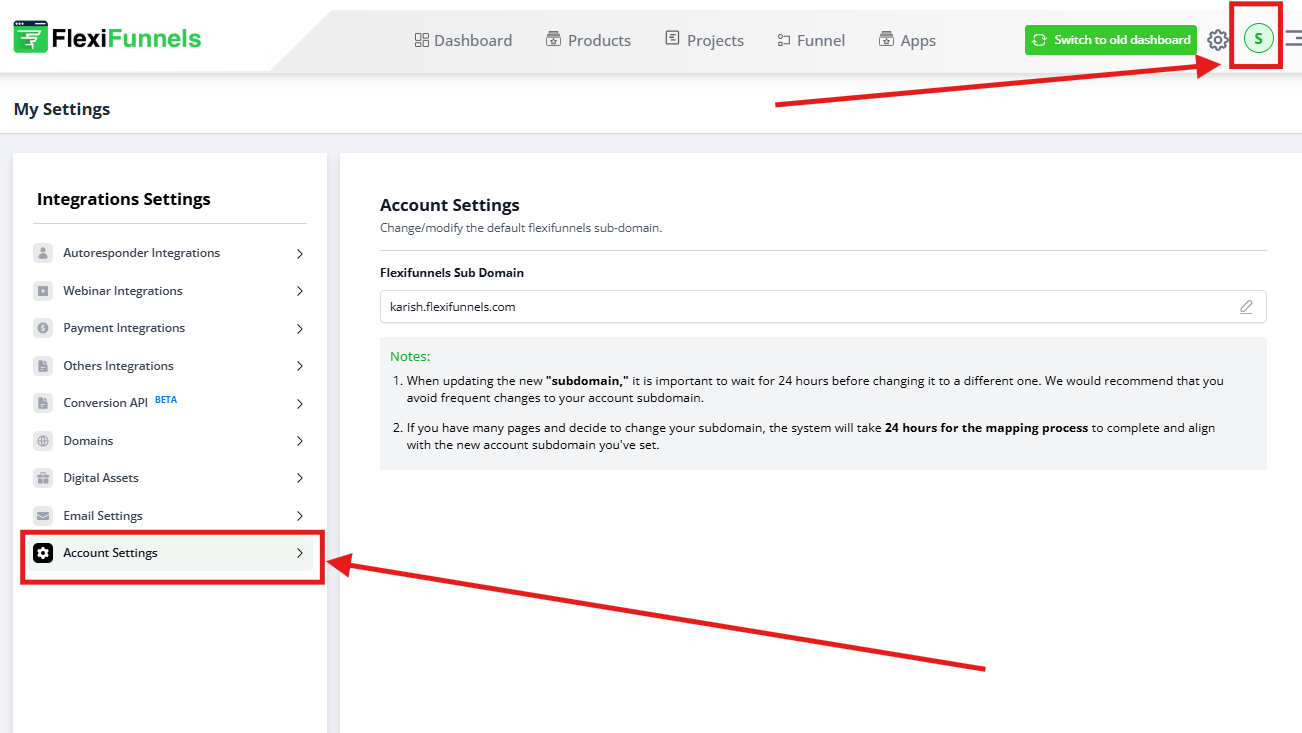
Step 2: Choose Your FlexiFunnels Subdomain
Once you’re in the Account Settings section:
You’ll find a field to enter your FlexiFunnels Subdomain Name.
This subdomain will be used as the base URL for all your funnels.
Example:
yourbrand.flexifunnels.com
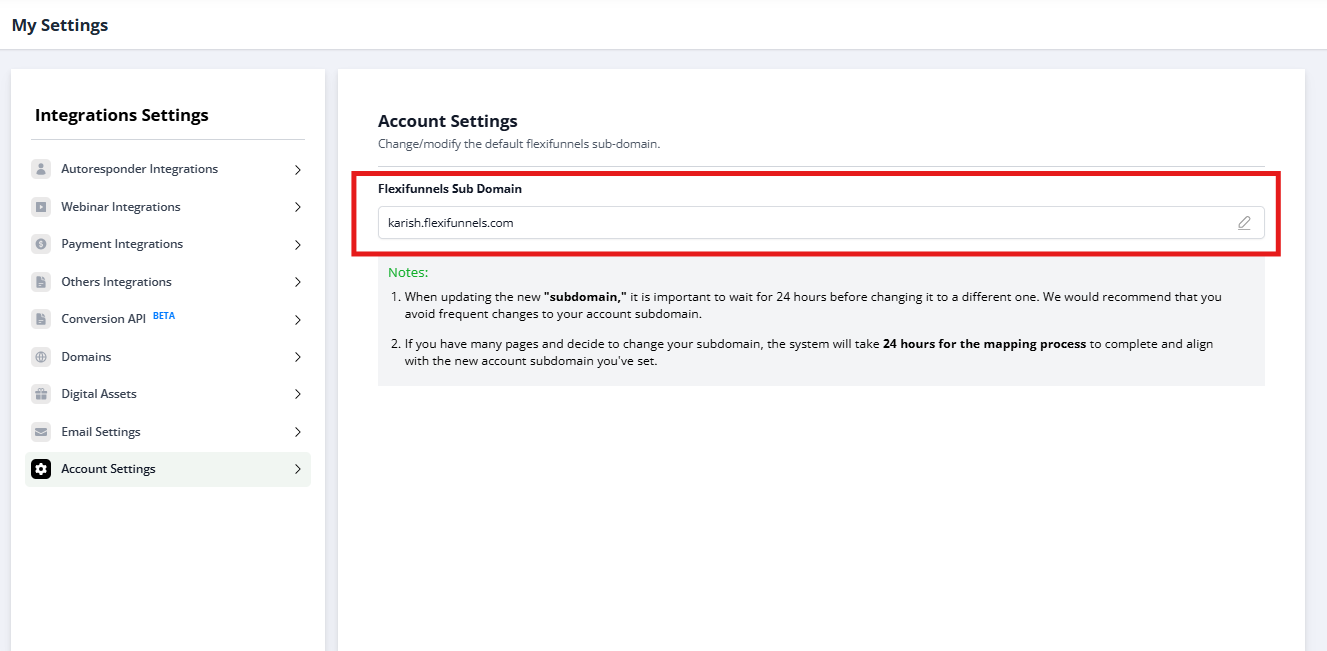
Step 3: Use the Free Subdomain
The subdomain you choose here is hosted for free by FlexiFunnels.
You can use it to start building and sharing funnels even if you haven’t connected a custom domain yet!
? Note: You can always upgrade later to use a custom domain, but the FlexiFunnels subdomain is perfect for beginners and testing.
Best Practices
For a professional-looking subdomain:
- Keep it short and easy to remember.
- Use your business or brand name whenever possible.
- Avoid unnecessary numbers or special characters.
- Double-check the spelling before saving.
Good Examples
- yourbrand.flexifunnels.com
- acmecoaching.flexifunnels.com
- growwithalex.flexifunnels.com
Common Scenarios
My preferred subdomain isn't available.
Subdomains must be unique.
If your chosen name has already been taken, try:
- Adding your business name
- Adding your city or niche
- Using a slight variation of your brand name
Can I change my subdomain later?
Yes.
You can update your FlexiFunnels subdomain from your Account Settings if needed.
Important: Changing your subdomain may affect the URLs of any funnels or pages you've already shared. If you've already shared your funnel links publicly, update them after changing your subdomain.
Do I need a custom domain?
No.
Your free FlexiFunnels subdomain is fully functional and can be used to publish and share funnels.
A custom domain is recommended if you want:
- More professional branding
- Higher customer trust
- Consistent business identity
My funnel still isn't opening with my new subdomain.
Check the following:
- The subdomain has been saved successfully.
- You're using the correct URL.
- Your browser cache has been cleared.
- You're opening the published version of the funnel.
- The funnel has been published after making changes.
Before Contacting Support
Before reaching out to our support team, please verify the following:
- ✅ Your subdomain has been entered correctly.
- ✅ The subdomain has been saved successfully.
- ✅ You're using the correct FlexiFunnels URL.
- ✅ The funnel has been published.
- ✅ You refreshed the page or cleared your browser cache.
- ✅ You tested the URL in an Incognito/Private browser window.
If the issue still persists, please provide:
- Your FlexiFunnels subdomain.
- The funnel URL you're trying to access.
- A screenshot of your Account Settings.
- A screenshot of the error (if applicable).
- A brief description of the issue and the steps you've already tried.
Was this article helpful?
That’s Great!
Thank you for your feedback
Sorry! We couldn't be helpful
Thank you for your feedback
Feedback sent
We appreciate your effort and will try to fix the article