Overview
The Account Subdomain feature lets you configure the default page shown at the root URL of your FlexiFunnels account subdomain. Use this setting when you want visitors who open your FlexiFunnels subdomain to land on a specific page in a selected project.
Before You Begin
- Access to your FlexiFunnels account.
- A project containing the page you want to use as the account subdomain homepage.
- A published page that is ready for visitors.
Step-by-Step Instructions
Step 1: Open General Settings
Open your account settings to access the configuration options for your FlexiFunnels subdomain.
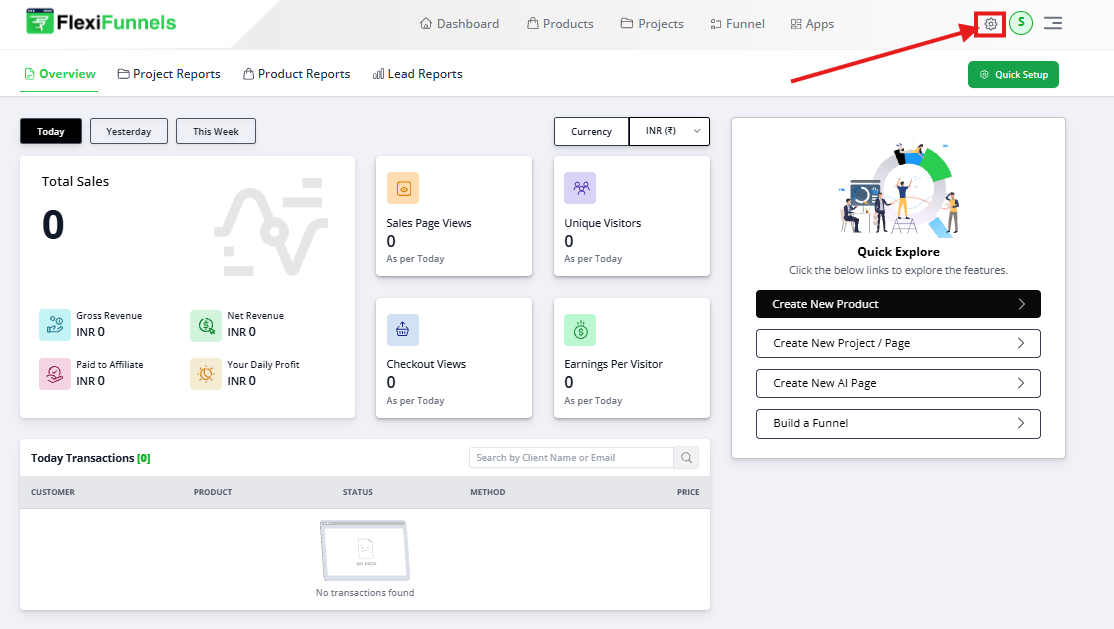
- Sign in to your FlexiFunnels Dashboard.
- Select the Settings icon in the upper-right corner.
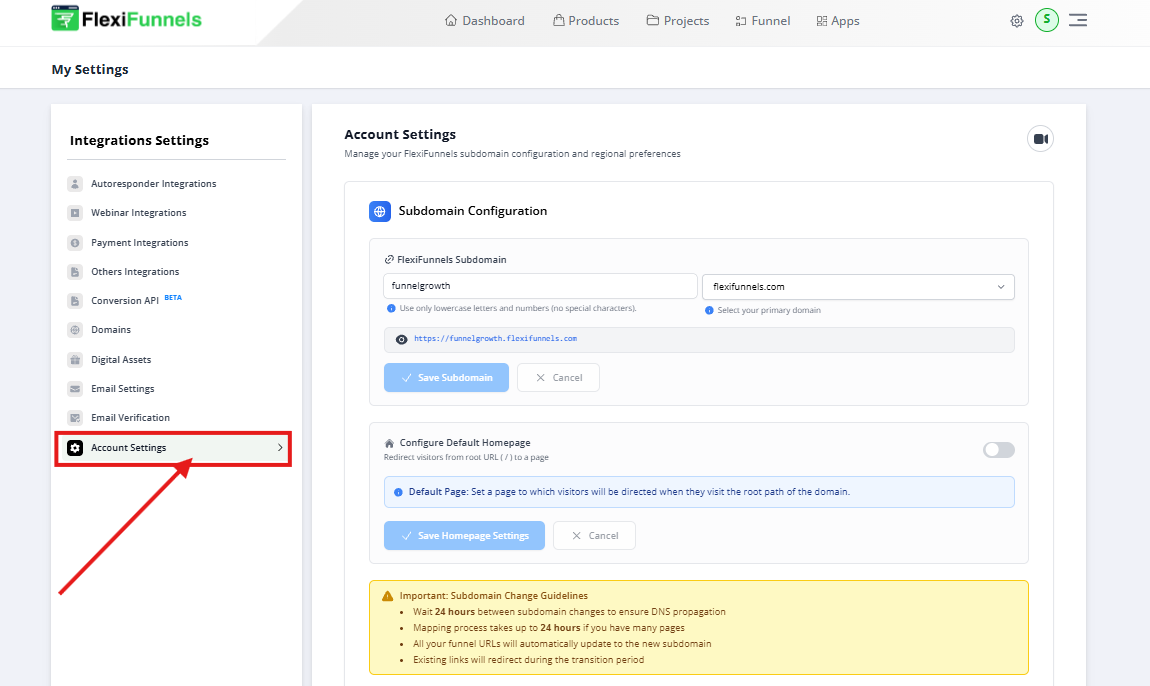
- Open Account Settings.
Step 2: Open Account Subdomain Settings
Under Account Settings, locate the Subdomain Configuration section. This section displays and manages your FlexiFunnels account subdomain.
Step 3: Enable Default Homepage Configuration
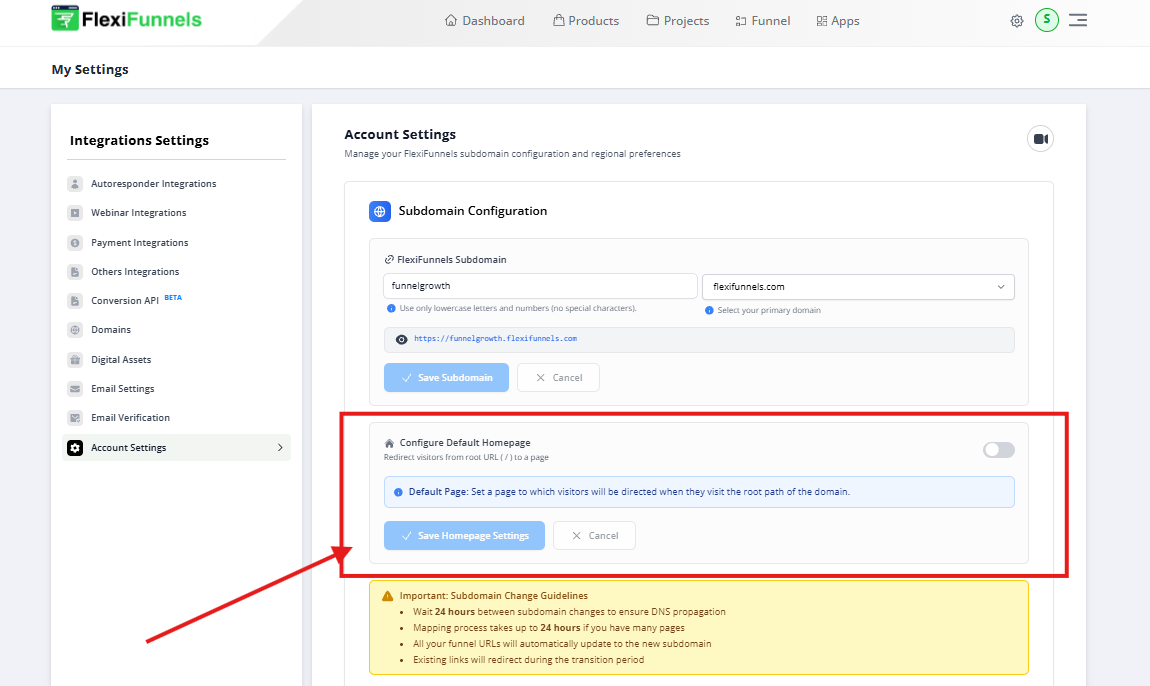
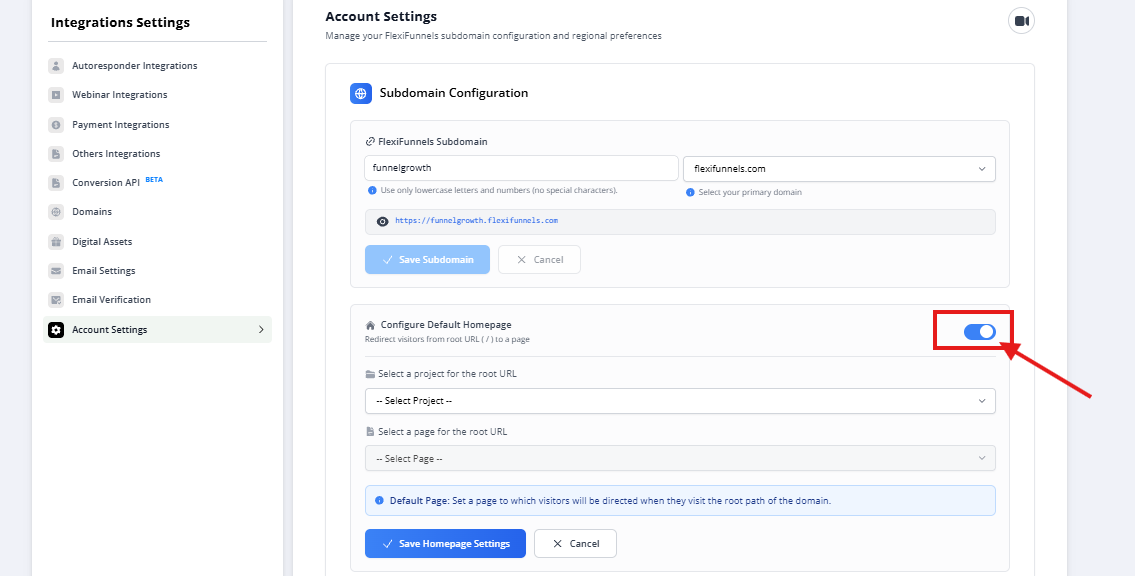
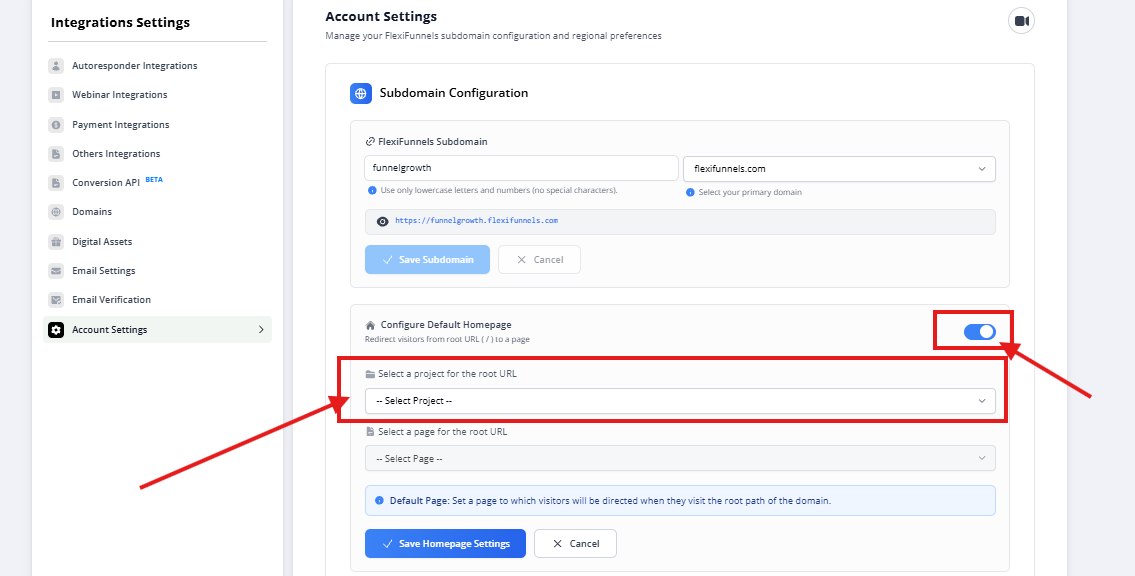
Scroll to Configure Default Homepage and enable the toggle. This allows you to choose a project and page that will be displayed at your subdomain’s root URL.
Step 4: Select the Homepage Project
Select the project that contains the page you want to display as the subdomain homepage. The project selection determines which pages are available in the next step.
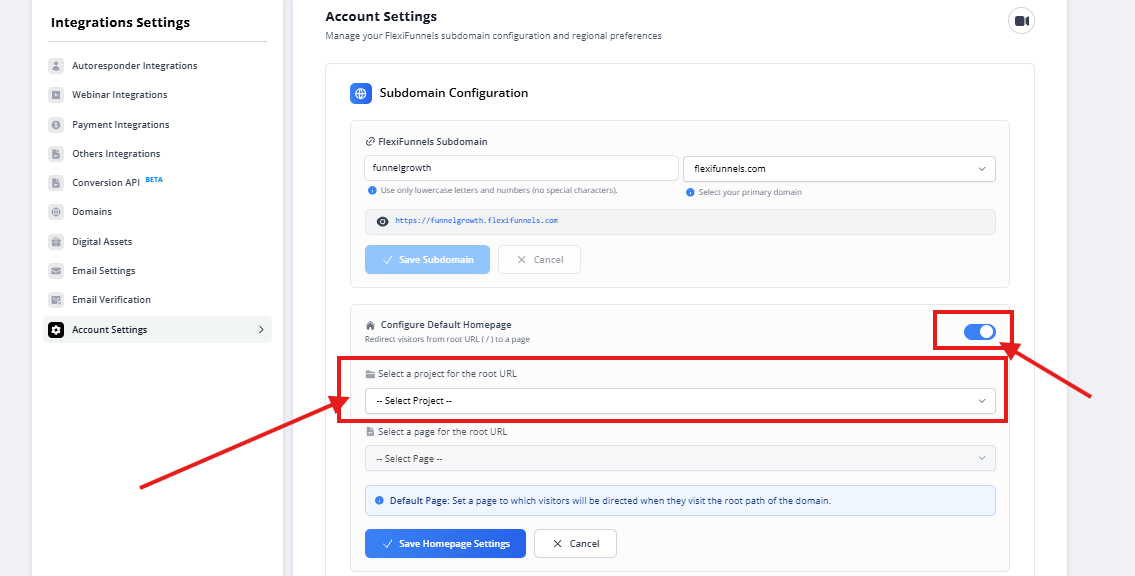
Step 5: Select the Page for the Root URL
Choose the specific page within the selected project. This page is displayed when a visitor opens your FlexiFunnels account subdomain without a page path.
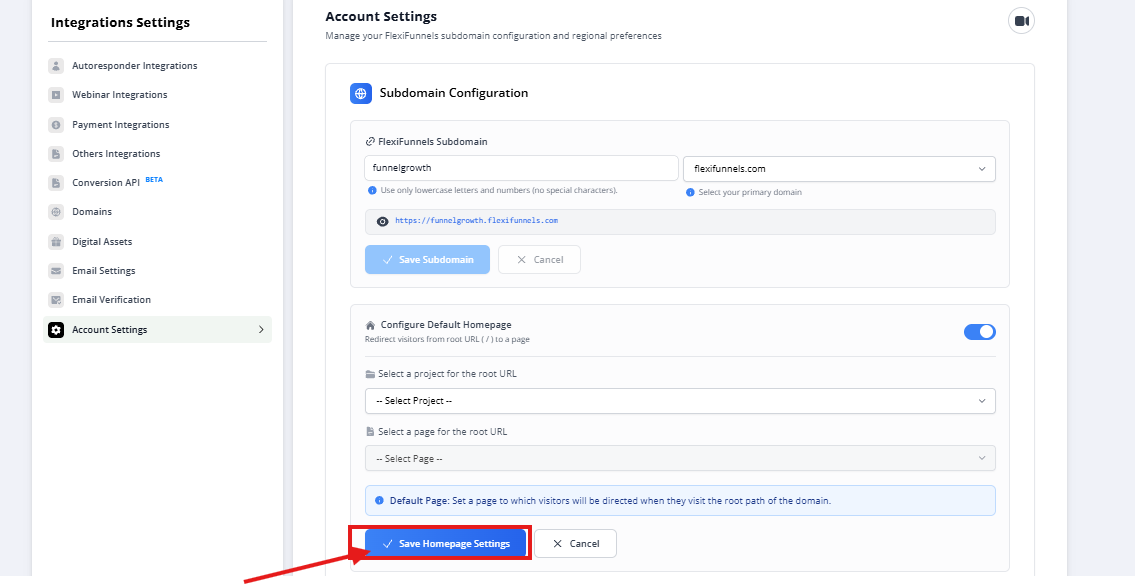
Step 6: Save the Homepage Settings
Select Save Homepage Settings to apply the configuration. The selected page becomes the homepage for your FlexiFunnels account subdomain.
Verify the Configuration
- Open your FlexiFunnels account subdomain in an incognito or private browser window.
- Confirm that the selected page loads at the root URL.
- Confirm that the page content, links, and forms display as expected.
- If you recently updated the page, confirm that the latest version is published.
Common Scenarios
- Primary business website: Display your main landing page when visitors open the account subdomain.
- Lead generation: Set an opt-in page as the default destination for traffic sent to the subdomain.
- Product promotion: Direct visitors to a current offer or sales page.
- Webinar registration: Use a webinar registration page as the default subdomain homepage.
Best Practices
- Select a page that is published and fully tested.
- Use a page that clearly represents the primary purpose of your subdomain.
- Confirm that the selected project remains active and accessible.
- Test the root URL after saving any homepage change.
- Review page links, forms, and mobile responsiveness before directing paid traffic to the subdomain.
- Update the default homepage when your main campaign or business objective changes.
Before Contacting Support
- ✓ Confirm that Configure Default Homepage is enabled.
- ✓ Confirm that the intended project and page are selected.
- ✓ Confirm that the selected page is published.
- ✓ Save the Homepage Settings again after making changes.
- ✓ Test the account subdomain in an incognito browser window.
- ✓ Clear browser cache if an older page version continues to load.
Expected Outcome
After the configuration is saved, visitors who open your FlexiFunnels account subdomain root URL are automatically shown the selected published page from the chosen project.
Was this article helpful?
That’s Great!
Thank you for your feedback
Sorry! We couldn't be helpful
Thank you for your feedback
Feedback sent
We appreciate your effort and will try to fix the article