What does "webinar integration" mean, and why use it?
A webinar is an online event — a live or recorded presentation where people gather digitally to watch, learn, and interact. When you integrate a webinar with a form, anyone who signs up through your form gets automatically registered for your webinar in GoToWebinar.
Why does this matter? Because it removes friction. Without integration:
- Someone fills out your form.
- You manually find their email in your autoresponder.
- You manually register them in GoToWebinar.
- They get a separate confirmation email from GoToWebinar with the join link.
With integration:
- Someone fills out your form.
- FlexiFunnels instantly registers them for the webinar.
- They get the GoToWebinar confirmation automatically.
- You don't lift a finger.
It's the difference between one-click automation and a three-step manual process. Plus, attendees get their webinar link immediately — no waiting, no forgotten emails.
What's "GoToWebinar"? It's a popular video conferencing platform (owned by Logmein) for hosting webinars. When you create a webinar in GoToWebinar, people register and get a link to join. This integration connects FlexiFunnels to that platform so registrations happen automatically.
Quick reminder on where forms live: Forms sit inside Rows on your page, following the Section → Row → Element structure.
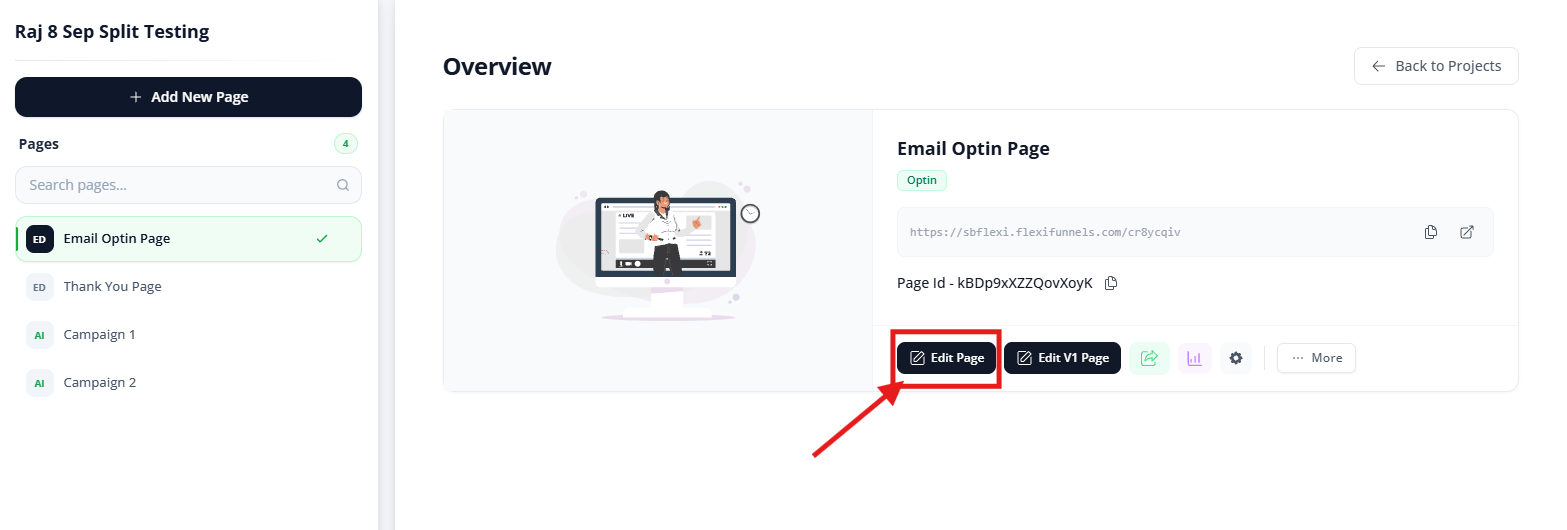
Step 1: Open your editor
Open the Landing Page Editor for the page where you want to add the webinar signup form.
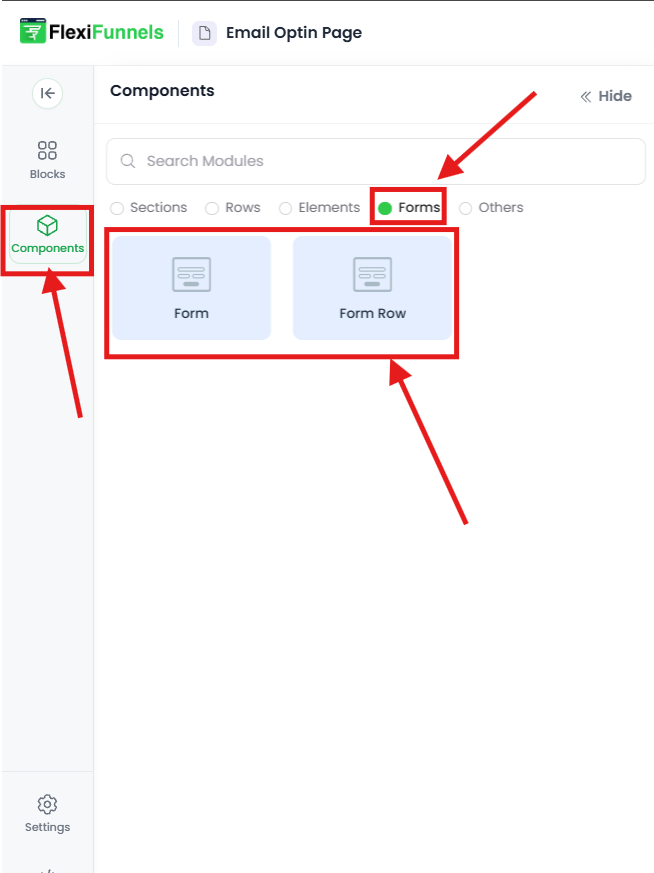
Step 2: Add the Optin Form
Drag and drop the Optin Form element onto your page.
Why "Option Form" specifically? It's the form type that plays nicest with webinar integrations. Other form types work too, but Option Form is designed for this workflow.
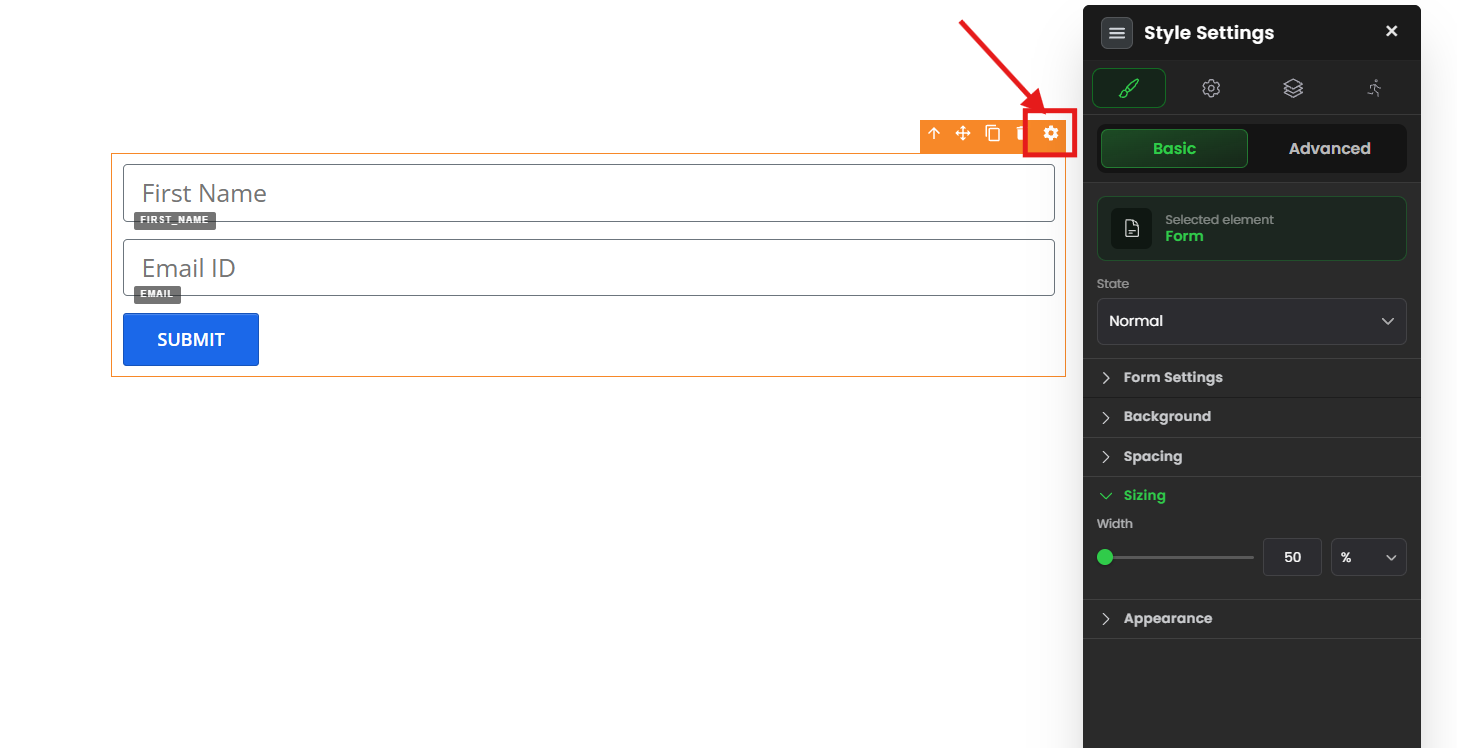
Step 3: Open Personal Settings
Click the form to select it, then click on its gear icon to open its settings. From the menu, select Personal Settings.
Step 4: Go to Advanced Settings
Inside Personal Settings, navigate to the Advanced Settings section.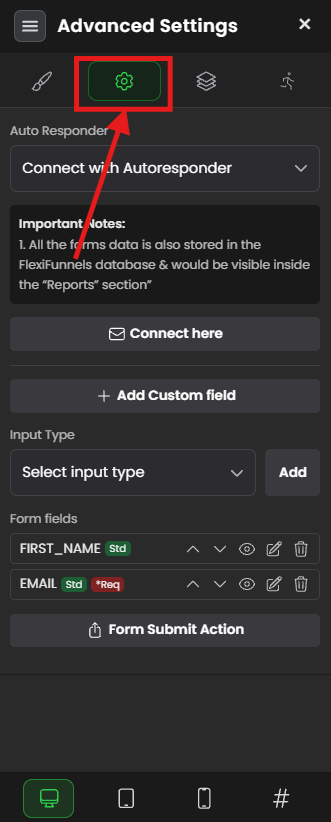
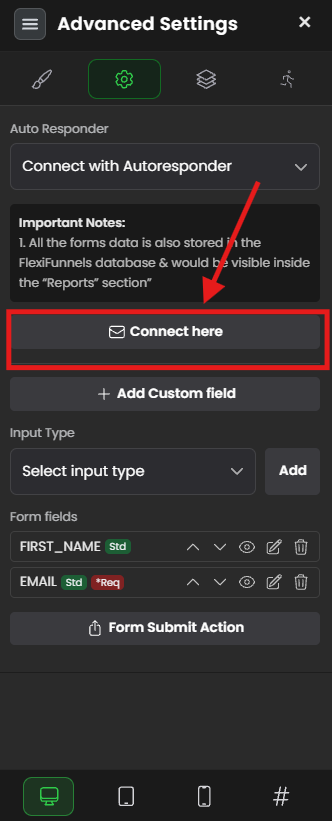
Step 5: Click "Connect Here"
In Advanced Settings, look for the option labeled "Connect Here" — click it to open the webinar integration panel.
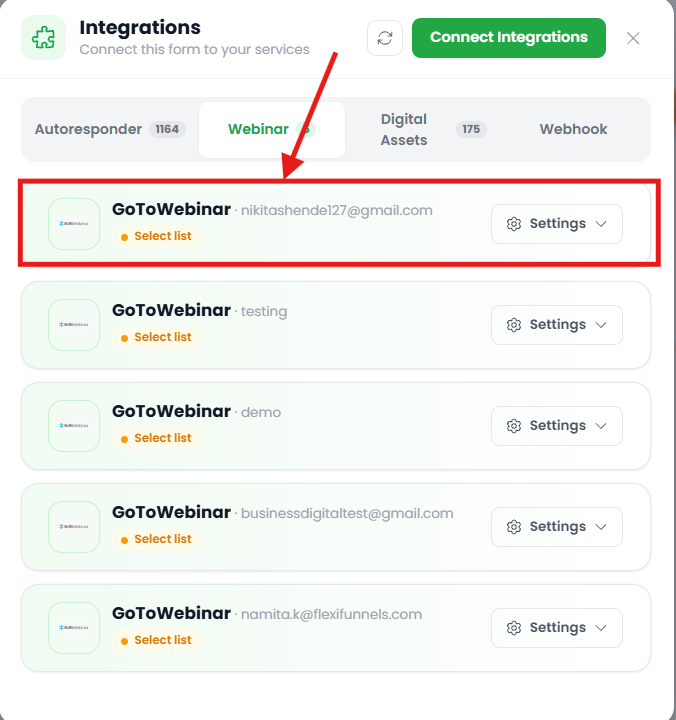
Step 6: Select GoToWebinar
From the service options, choose "GoToWebinar".
FlexiFunnels will ask you to authorize the connection so it can access your GoToWebinar account. Follow the authorization steps if prompted.
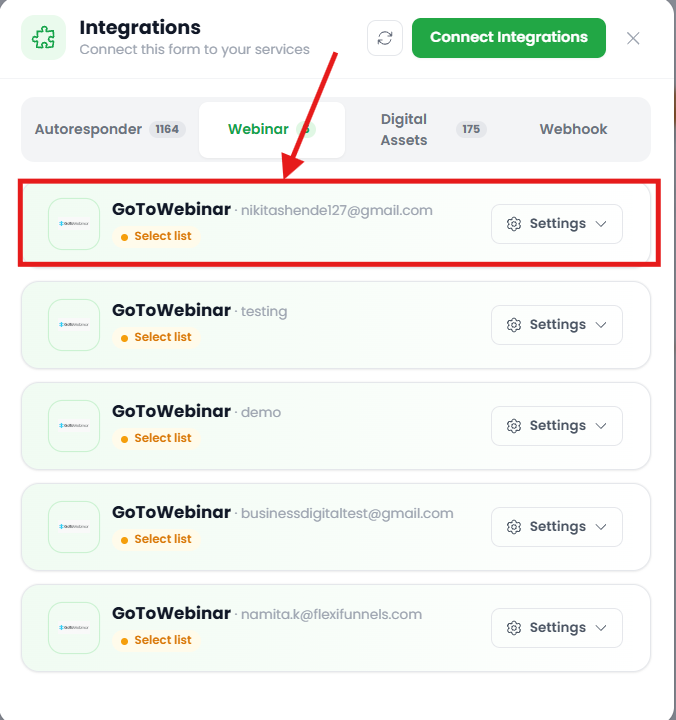
Step 7: Select your webinar and save
- From the dropdown menu, choose the webinar you want to connect to (the one people will be registered for when they submit the form).
- Click Save.
That's it — your form is now wired to auto-register people in that webinar. ?
What happens next?
- Visitor submits the form → their name and email go into your email list (if you've also connected an autoresponder).
- At the same time → they're automatically registered in GoToWebinar for the selected webinar.
- GoToWebinar sends them → a confirmation email with the webinar date, time, and join link.
- You see them in both places → in your email tool and in your GoToWebinar attendee list.
Common situations & quick fixes
Check these before contacting support.
"I can't find the 'Connect Here' button." → Make sure you're:
- Using an Option Form (not a standard Form or Vertical Form).
- Inside Personal Settings → Advanced Settings.
- Check that the form is actually selected when you open settings.
"The integration isn't letting me authorize GoToWebinar / says "connection failed."" → This is usually a login issue. When FlexiFunnels asks you to authorize GoToWebinar:
- Make sure you log in with the correct GoToWebinar account (the one that owns the webinars).
- If you have two-factor authentication on GoToWebinar, make sure your device can receive those codes.
- If it keeps failing, log out of GoToWebinar in another browser tab, then try the integration again with a fresh login.
"I chose the webinar but when I published and tested, it didn't register anyone." → Work through these in order:
- Did you click Save after choosing the webinar? The choice doesn't stick until you save.
- Did you re-publish after saving? Any setting change needs a fresh publish.
- Test on the published page, not the editor. Integrations don't fire inside the editor.
- Check GoToWebinar's attendee list directly — log in and see if your test submission appears there. Give it 1–2 minutes for the data to sync.
"My form is also connected to an email autoresponder — will both integrations work?" → Yes. You can stack integrations. People who submit the form will be added to both your email list and registered in the webinar. The data flows to both places.
"The webinar dropdown is empty / no webinars are showing." → GoToWebinar integration only shows webinars you've already created in GoToWebinar itself. If the dropdown is empty:
- Log into GoToWebinar and confirm you have at least one webinar set up.
- Try re-authorizing the connection (go back to "Connect Here" and log in again).
- If it still won't show, the account you authorized may not have any webinars yet — create one in GoToWebinar first.
"I want to register people for a different webinar later — do I re-do all this?" → No, just go back to Advanced Settings, click the webinar dropdown, and pick a different one, then save. You don't need to re-authorize.
"After someone submits, they're registered but didn't get a confirmation email from GoToWebinar." → GoToWebinar should send a confirmation automatically, but there's usually a slight delay (5–15 minutes). Check their spam folder. If it never arrives, confirm in GoToWebinar's attendee list that they're actually registered — if they are, the email might be going to spam.
"My form field names don't match GoToWebinar's fields — will it still work?" → Yes. Most integrations use the email address as the key identifier. As long as your form captures an email, GoToWebinar can register the person. Other fields (like name) are nice-to-have but not required.
"I changed the webinar or form fields, but the old data is still there." → Changing integrations doesn't affect past submissions — they're done. Future submissions will follow the new integration setup.
Need more help?
If your webinar integration still isn't working after the steps above, submit a ticket and include:
- The page URL where the form sits
- Which webinar you're trying to connect (its name)
- Whether GoToWebinar authorization succeeded
- Whether a test submission on the published page appeared in your GoToWebinar attendee list
- A screenshot of your form's Advanced Settings and the selected webinar
- What you expected vs. what's actually happening
Was this article helpful?
That’s Great!
Thank you for your feedback
Sorry! We couldn't be helpful
Thank you for your feedback
Feedback sent
We appreciate your effort and will try to fix the article