What is Tab Messaging, and why use it?
Tab Messaging changes the title or icon of your browser tab to grab attention — dynamically updating it with messages or alerts while your visitor is away looking at another tab.
Think of how Facebook works: you're scrolling Twitter while Facebook is open in another tab. Suddenly, the Facebook tab's title changes to "1 New Message" or "2 New Notifications" — and you feel compelled to switch back and check. Tab Messaging lets you do the exact same thing on your pages.
Why does it work? Psychology. When people leave your page (to check email, chat, or another site), they often forget to come back. A blinking title or notification sound in the background reminds them you exist. Research firm Tab Engage published a case study showing that well-timed tab messages recovered 50–86% of lost traffic — people who would have abandoned the page but came back after seeing the notification.
Common real-world uses:
- Abandoned checkout reminders — "Don't Forget! Your Cart Has 3 Items" pulls back people mid-purchase.
- Time-sensitive offers — "Only 2 Hours Left! Get 50% Off" creates urgency.
- Appointment reminders — "Your Appointment is in 30 Minutes" for doctors, salons, etc.
- New messages or updates — Mimic the Facebook pattern: "You Have 1 New Message."
What's a "browser tab"? The tabs across the top of your web browser — the little boxes that say "Gmail," "YouTube," etc. Tab Messaging changes the text and/or icon shown there.
Important limitation upfront: Tab Messaging only works on desktop browsers, not mobile. It's also a bit of a "nudge" feature — use it respectfully so it doesn't feel pushy.
Steps to add the Tab Messaging.
Step 1: Open page-level settings
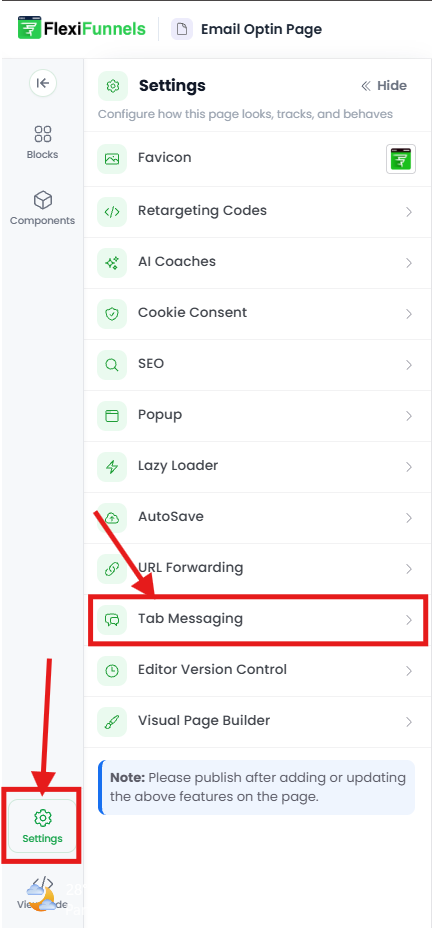
In your editor, locate the gear icon in the bottom left corner of the screen. Click it to open the page settings menu.
Step 2: Select Tab Messaging
From the menu, click "Tab Messaging".
A settings pop-up appears with options to customize your tab notifications.
Step 3: Customize your settings
Enable Tab Messaging
At the top or bottom of the pop-up, toggle the switch ON to activate the feature. (Nothing will happen until this is on.)
Set the notification interval
Choose "Notify Every" — how often the tab text switches to the next message:
- 5 seconds — very fast, feels like rapid-fire alerts (use sparingly).
- 10 seconds — quick, keeps attention.
- 25 seconds — moderate, feels less aggressive.
- 30 seconds — relaxed, gives people breathing room.
- 60 seconds — long gaps, subtle reminders.
Add a notification sound (optional)
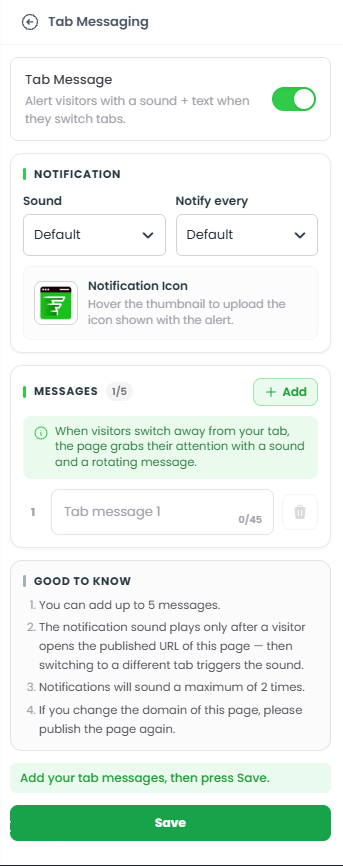
Choose "Notification Sound" to pick a sound that plays each time the tab message updates. This makes the notification audible — useful for important reminders, but can feel pushy. Only use if your message is genuinely important.
⚠️ Sound plays only after the first click: The sound only plays after a visitor clicks on your page and then switches to another tab. They won't hear it until they've engaged with the page first. This is a browser safety feature.
Add an icon (optional)
Choose "Notification Icon" to display a small image alongside the tab message — makes it even more eye-catching.
Add your messages
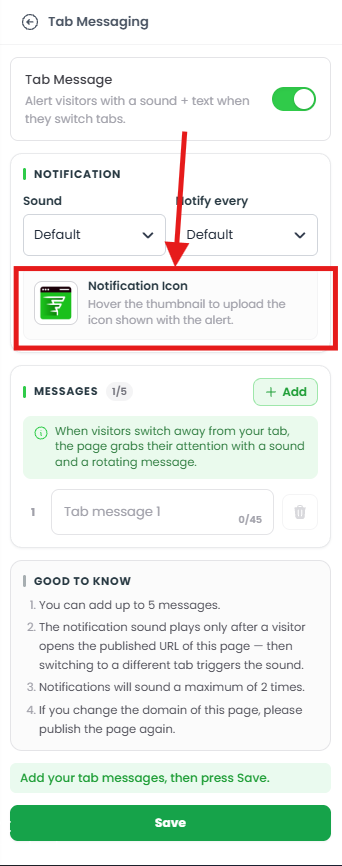
Click "Add Message" to write the text that will appear in the browser tab. You can add up to 5 messages — the most impactful ones are short and action-oriented:
- "Don't forget! Items in your cart"
- "Limited time: 50% off inside"
- "Your appointment is soon"
Each message will rotate through the tab at the intervals you set.
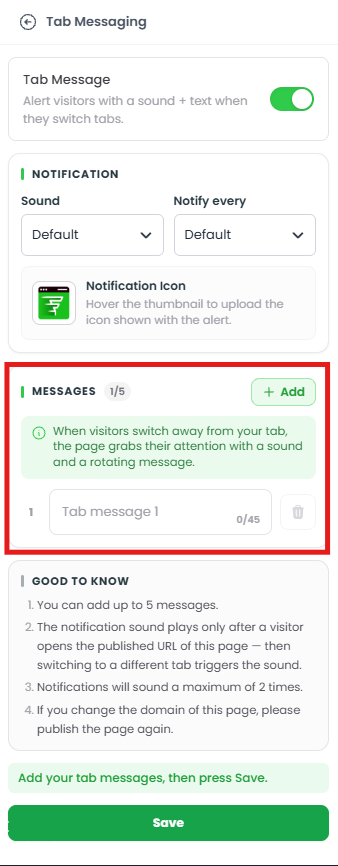
Don't forget to toggle the switch to enable tab messaging.
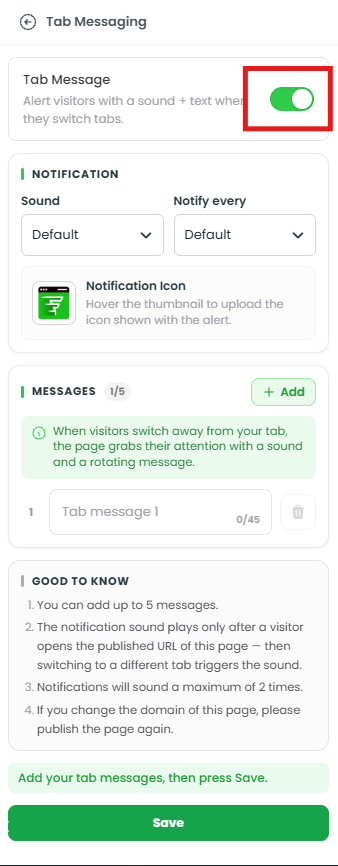
Step 4: After customizing all the settings, save your changes.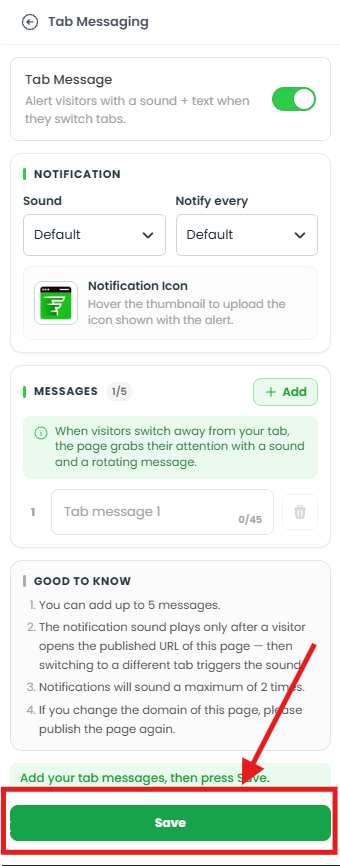
Step 5: Save and publish
- Save your settings in the editor.
- Publish the page to make Tab Messaging live.
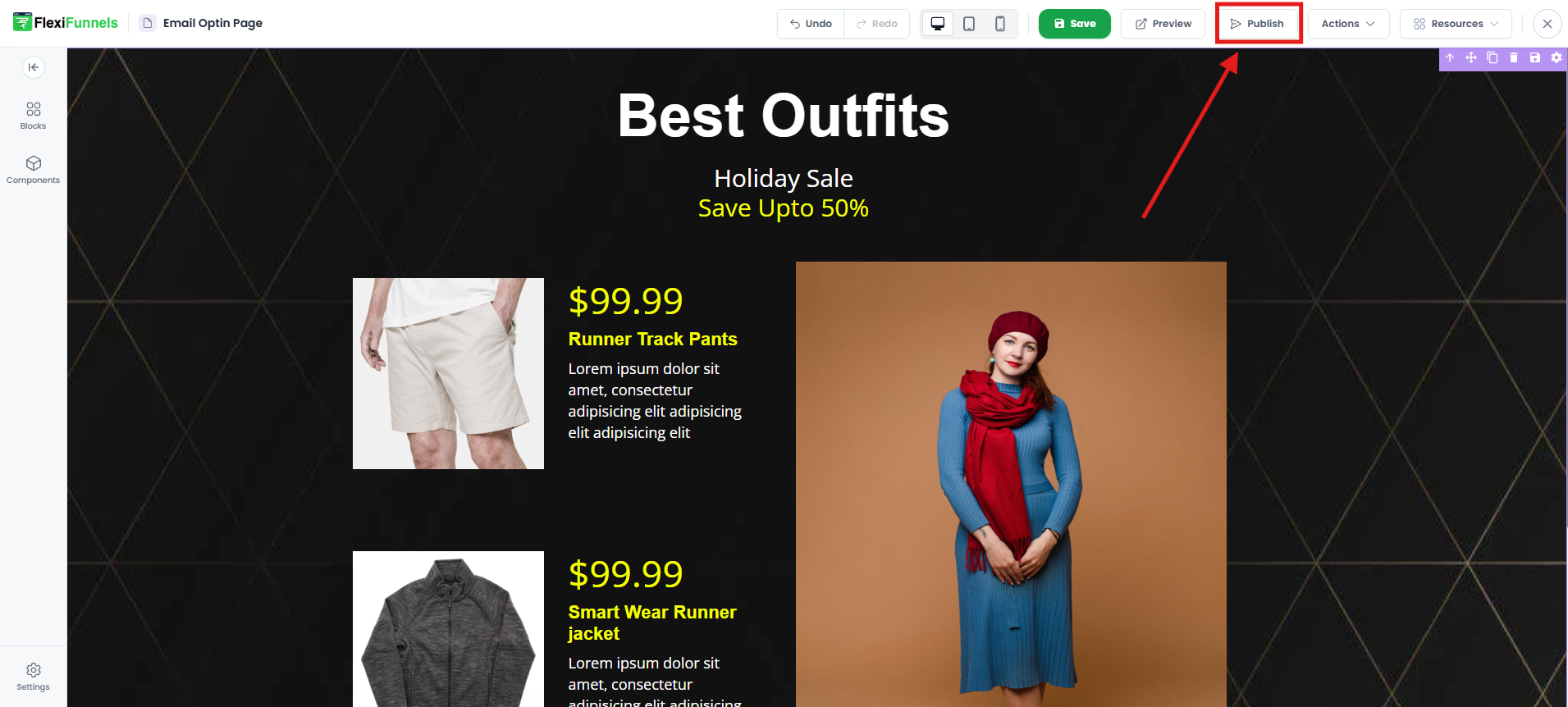
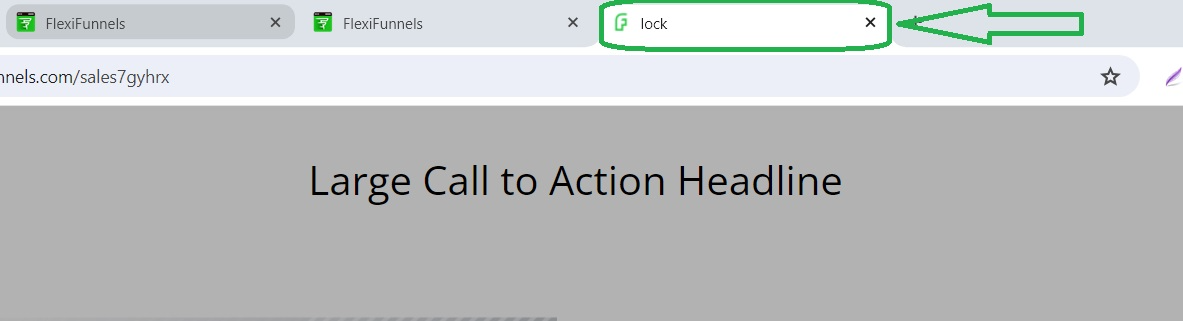
Experience the dynamic tab messaging on your page. The title/message in the tab will automatically change at specified intervals, creating an engaging and interactive user experience.
Critical constraints (read this carefully)
These aren't bugs — they're intentional limits to prevent abuse:
- Max 5 messages — You can add up to 5 different messages. Plan them thoughtfully.
- Max 2 notification sounds — The notification sound plays only twice, even if the visitor stays on other tabs longer. (The message text keeps cycling, but the sound stops after 2 alerts to avoid annoying them.)
- Sound only after initial click — The sound plays only after the visitor has clicked somewhere on your page and then switched to another tab. They won't hear it on their first arrival (browser security).
- Desktop only — This feature works exclusively on desktop and laptop browsers. Mobile browsers don't support tab messaging, so it won't show up on phones or tablets.
- Republish on domain/slug changes — If you change the page's URL or domain name, republish the page for Tab Messaging to work correctly again.
Common situations & quick fixes
Check these before contacting support.
"My tab messages aren't showing." → Work through these in order:
- Is the toggle ON? Check that Tab Messaging is enabled in settings.
- Did you publish? Tab Messaging only works on the published page, not in the editor.
- Are you on a desktop browser? Tab Messaging is desktop-only. It won't appear on mobile.
- Does the message actually need you to switch tabs to see it? You have to leave the page (go to another tab) for the message to change. If you're looking at the tab while on the page, it shows the normal title.
"I see the message text but no sound." → Normal behavior. The sound plays a maximum of 2 times, and only after you've clicked on the page first. If you've already heard 2 alerts, the sound won't play again even if you switch tabs multiple times. Also confirm your browser volume is on and not muted.
"The message text keeps cycling but the sound isn't playing at all." → Check:
- Your browser's volume isn't muted (check your keyboard or system volume).
- You've actually clicked on the page and then switched to another tab. The sound doesn't fire if you never engaged with the page.
- Test on the published page, not the editor.
"I want more than 5 messages." → FlexiFunnels limits you to 5 maximum — this is a built-in constraint to keep Tab Messaging concise. Pick the 5 most important messages and rotate those.
"The messages aren't changing / stuck on one message." → Confirm you added multiple messages (the Add Message button should show a list). A single message never cycles. Also, reload the published page and give it a moment — the cycling starts after you switch tabs.
"I changed the page URL but the messages disappeared." → After changing the domain or slug of your page, go back to Tab Messaging settings and republish. The feature needs to re-register with the new URL.
"Does this annoy visitors?" → It depends on tone and frequency. Messages that feel helpful ("Your appointment is in 1 hour") work well. Messages that feel spammy ("CLICK ME NOW") can frustrate. Use the longer intervals (30–60 seconds) and avoid overly aggressive wording. Respect your audience.
"Why doesn't this work on my phone?" → Mobile browsers don't support the browser tab notification API that powers this feature. Tab Messaging is desktop-only by design.
Need more help?
If Tab Messaging still isn't working after the steps above, submit a ticket and include:
- The page URL where you set up Tab Messaging
- The device and browser you tested on (e.g., "Chrome on Windows 10")
- Whether you toggled the switch ON
- Whether you published after editing
- What you expected vs. what's actually happening
- A screenshot of your Tab Messaging settings
Was this article helpful?
That’s Great!
Thank you for your feedback
Sorry! We couldn't be helpful
Thank you for your feedback
Feedback sent
We appreciate your effort and will try to fix the article