Steps to Download Bulk Data (All / Date-Filtered)
Step 1: Go to the Project section and open the required project.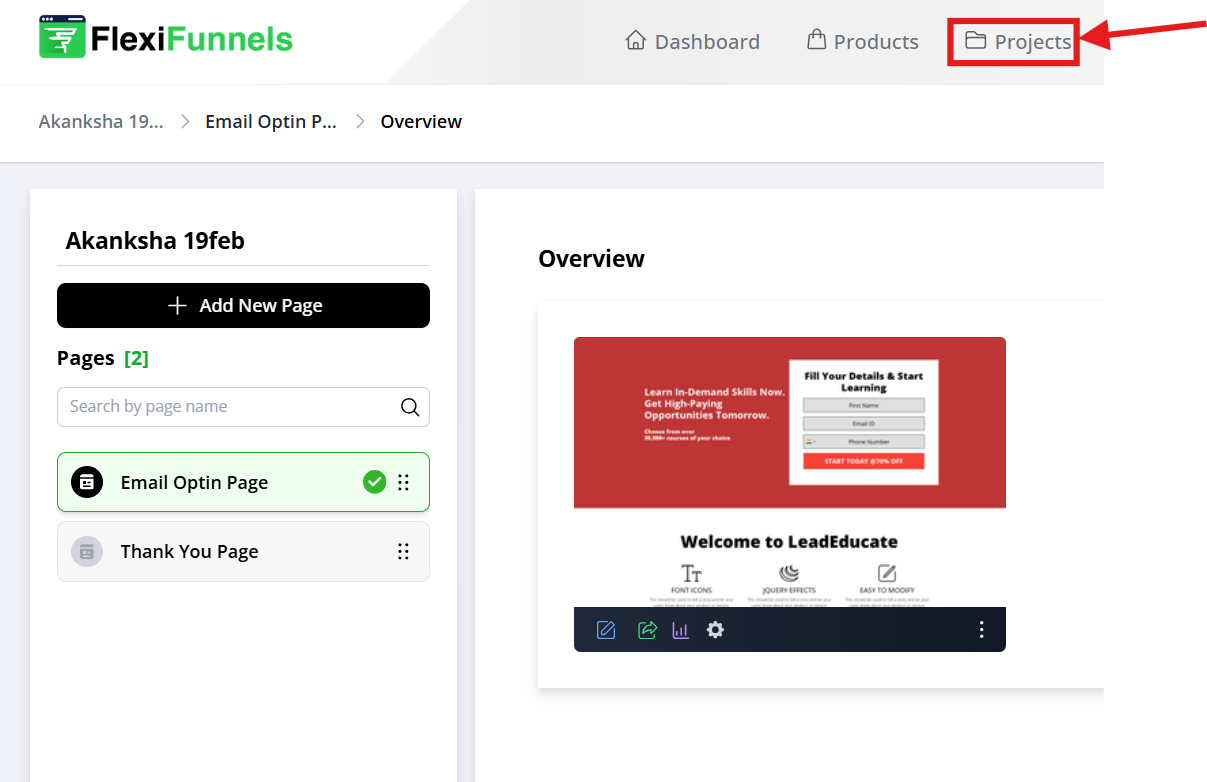
Step 2: Select the page for which you want to download the data, then click on the Report option.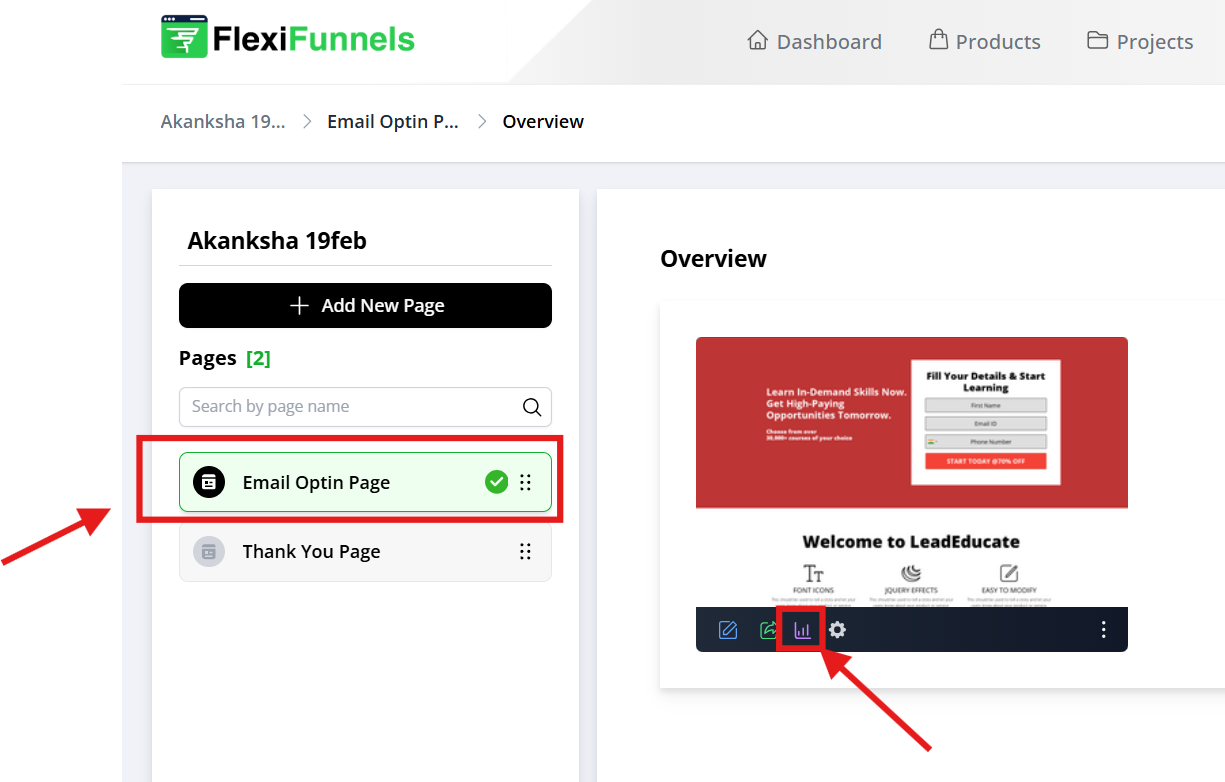
Step 3: Apply the required filters (if any) or directly click on the Export Data button.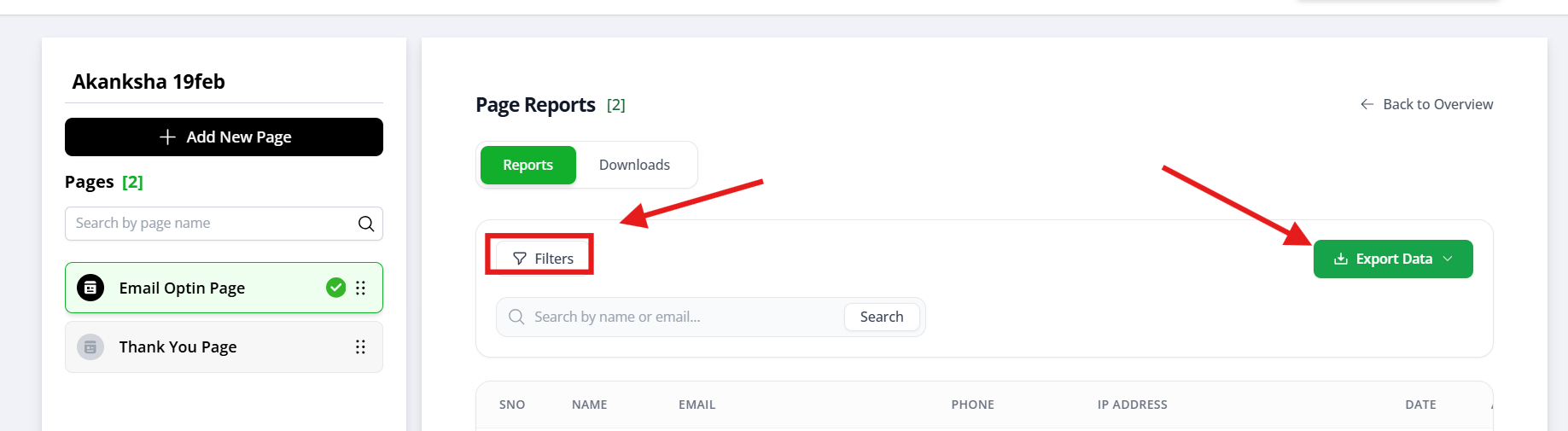
Step 4: Choose either Filtered Data or All Data while exporting.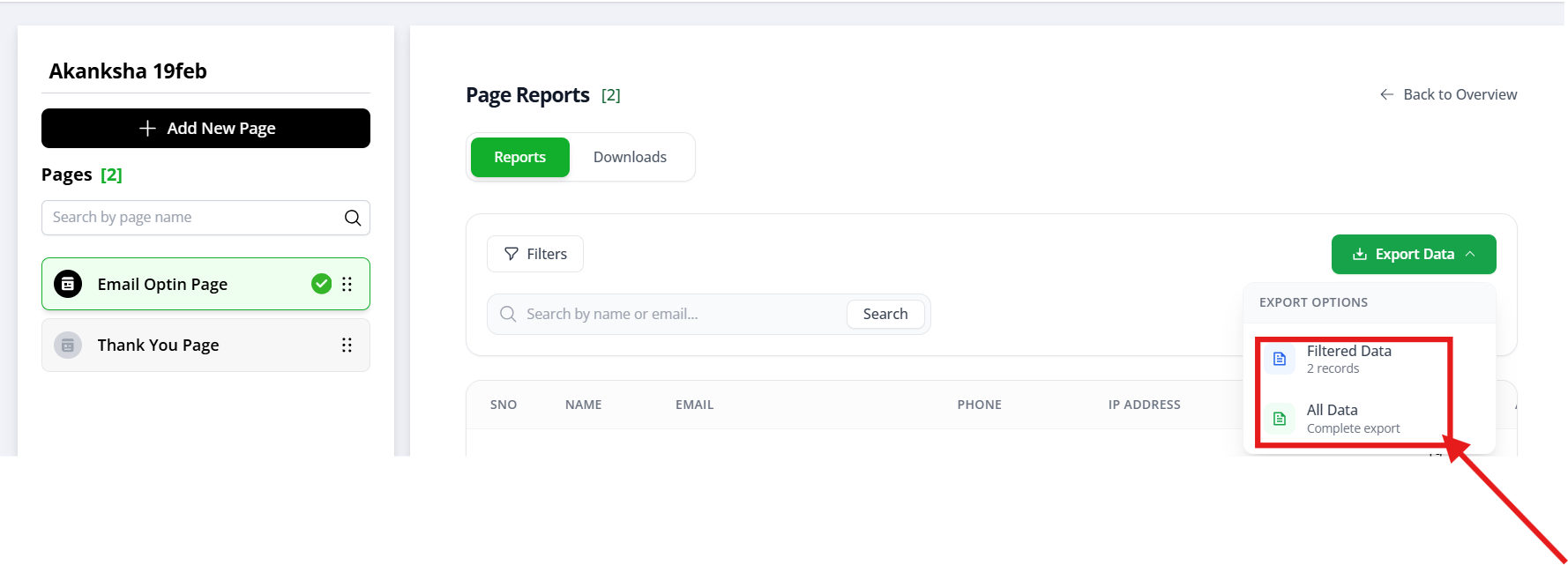
Step 5: The system will generate a file with the selected data and save it in the Download section. Open the Download section and click on the Download button for the required file from the list.
Was this article helpful?
That’s Great!
Thank you for your feedback
Sorry! We couldn't be helpful
Thank you for your feedback
Feedback sent
We appreciate your effort and will try to fix the article