Use the Invoices section to view your FlexiFunnels transaction-fee invoices and download the available transaction data in CSV format.
What can you do from the Invoices section?
The Invoices section brings your FlexiFunnels invoices together in one place. From here, you can:
- View your invoice history.
- Check the amount and payment date of each invoice.
- Download the transaction data as a CSV file.
- Download the corresponding PDF invoice.
- Check whether there is any outstanding transaction-fee balance.
Before you begin
- Log in to your active FlexiFunnels account.
- Make sure you have access to the account settings.
Part 1: Open the Invoices section
- Open FlexiFunnels.
Log in to your FlexiFunnels account and open your dashboard.
- Click the Settings/Profile icon.
Look at the top-right corner of the dashboard and click the account/settings icon.
 Screenshot: The account/settings icon is highlighted in the top-right corner.
 - Open Invoices.
Inside My Settings, find the settings menu on the left and select Invoices.
Why this matters: The Invoices section is where FlexiFunnels keeps your transaction-fee invoice history. You do not need to search through individual products to find these invoices.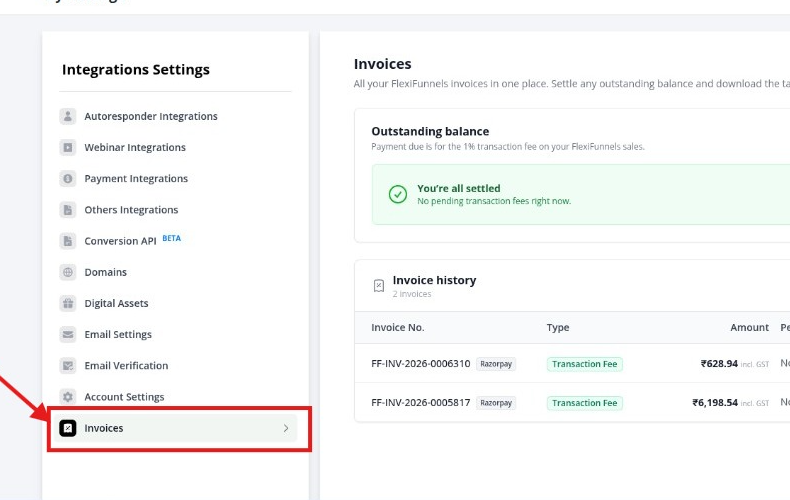 Screenshot: Invoices is selected and the invoice history shows PDF and CSV download options.
Part 2: Download the transaction data as CSV
- Find the invoice you need.
In the Invoice history section, locate the relevant invoice using the invoice number, amount, period, or payment date shown in the table.
- Click the CSV button.
On the right side of the invoice row, click CSV. Your browser will download the available transaction data for that invoice.
Why this matters: CSV is a spreadsheet-friendly format. You can open it in Excel or Google Sheets and use the data for reconciliation, reporting, or product-wise transaction analysis.Important: Select the correct invoice row before downloading. Each row represents a separate invoice entry, so downloading the wrong row may give you the wrong transaction period or amount for your report. - Open the downloaded CSV.
Open the downloaded file in Excel, Google Sheets, or another spreadsheet application. Review the transaction data available in the export, including the product-wise details provided for the invoice.
Need the tax invoice instead?
If you need the actual invoice document rather than spreadsheet data, use the PDF button in the same invoice row.
Understanding the Invoices page
| Section / Column | What it means |
|---|---|
| Outstanding balance | Shows whether there is any pending transaction-fee amount that needs to be settled. |
| Invoice No. | The unique reference number for the invoice. |
| Type | Shows the invoice/payment category, such as a transaction fee. |
| Amount | The amount associated with the invoice. |
| Period | The billing period shown for that invoice. |
| Paid On | The date on which the invoice amount was paid. |
| Downloads the invoice document. | |
| CSV | Downloads the available transaction data in spreadsheet-friendly format. |
Common situations & quick fixes
“I cannot find the Invoices option.”
Open the account/settings area from the top-right of your FlexiFunnels dashboard and check the My Settings menu. The Invoices option is listed there.
“I clicked CSV but cannot find the file.”
Check your browser's downloads area. The file is normally saved to your browser's configured download location.
“I downloaded CSV, but I need an invoice document.”
CSV is for transaction data. Go back to the same invoice row and click PDF to download the invoice document.
“I need to check whether I have any pending payment.”
Look at the Outstanding balance section at the top of the Invoices page. It indicates whether any transaction-fee balance is pending.
“I need data for a particular invoice.”
Use the invoice history table to identify the correct invoice number, payment date, amount, or period before clicking CSV.
Quick recap
- Open FlexiFunnels.
- Click the Settings/Profile icon.
- Open Invoices.
- Find the required invoice in Invoice history.
- Click CSV to download the transaction data.
- Click PDF if you need the invoice document.
Was this article helpful?
That’s Great!
Thank you for your feedback
Sorry! We couldn't be helpful
Thank you for your feedback
Feedback sent
We appreciate your effort and will try to fix the article