Overview
Zapier connects FlexiFunnels with thousands of third-party applications, including Google Sheets, Slack, Gmail, and CRM platforms. Use this integration to automatically send FlexiFunnels events—such as product purchases and referred leads—to another application without writing code.
Before You Begin
- A FlexiFunnels account with access to Settings.
- A Zapier account. A free account can be used for initial testing.
- A clear automation goal, such as adding purchasers to a Google Sheet or notifying a team in Slack.
- The product or project where the FlexiFunnels event will occur.
Important: Your FlexiFunnels API key is a confidential credential. Do not share it publicly. Generating a replacement key invalidates the previous key, so any Zap using the old key must be reconnected.
Step 1: Generate a FlexiFunnels API Key
The API key allows Zapier to securely connect to your FlexiFunnels account.
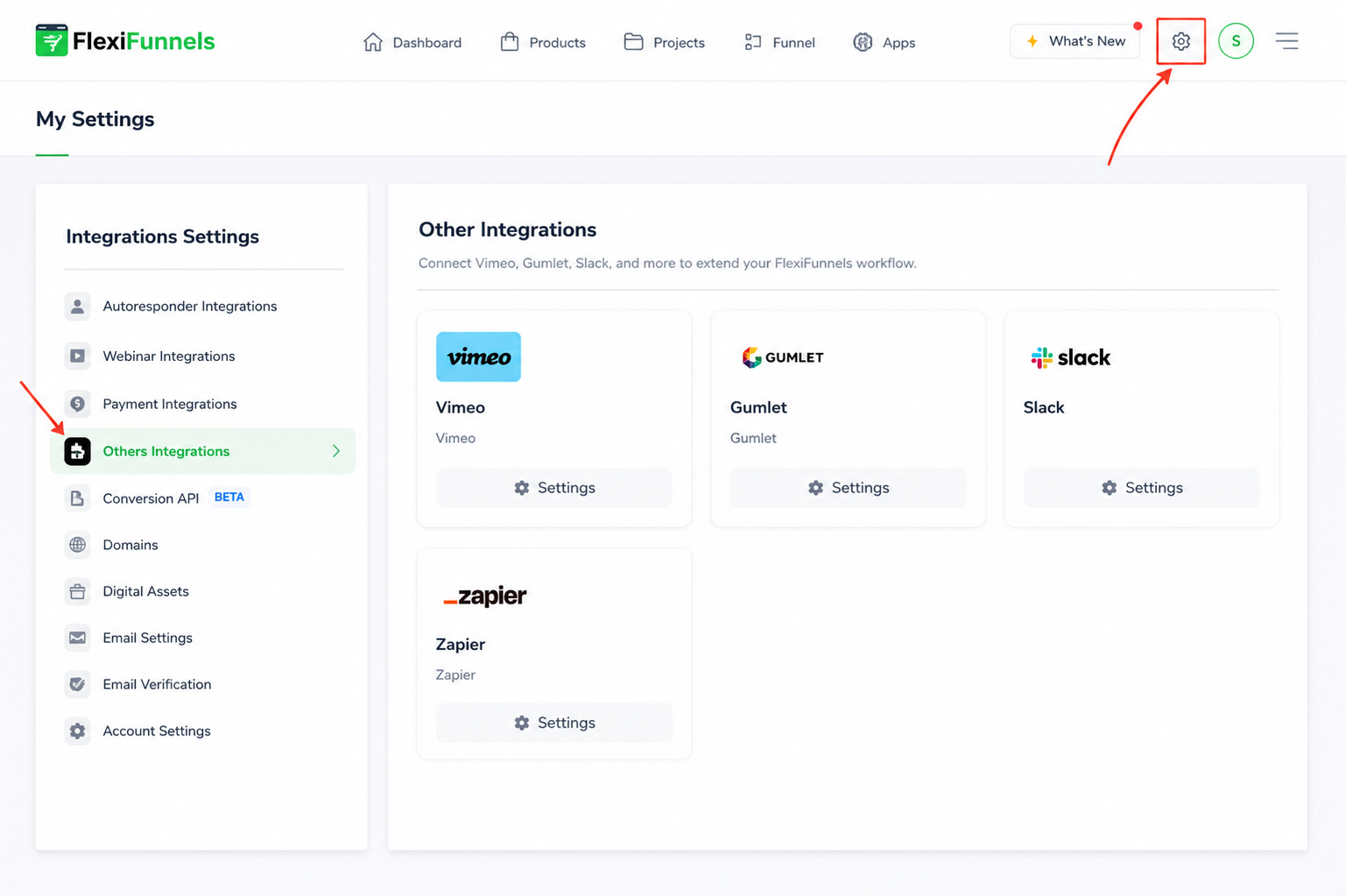
- Sign in to your FlexiFunnels dashboard.
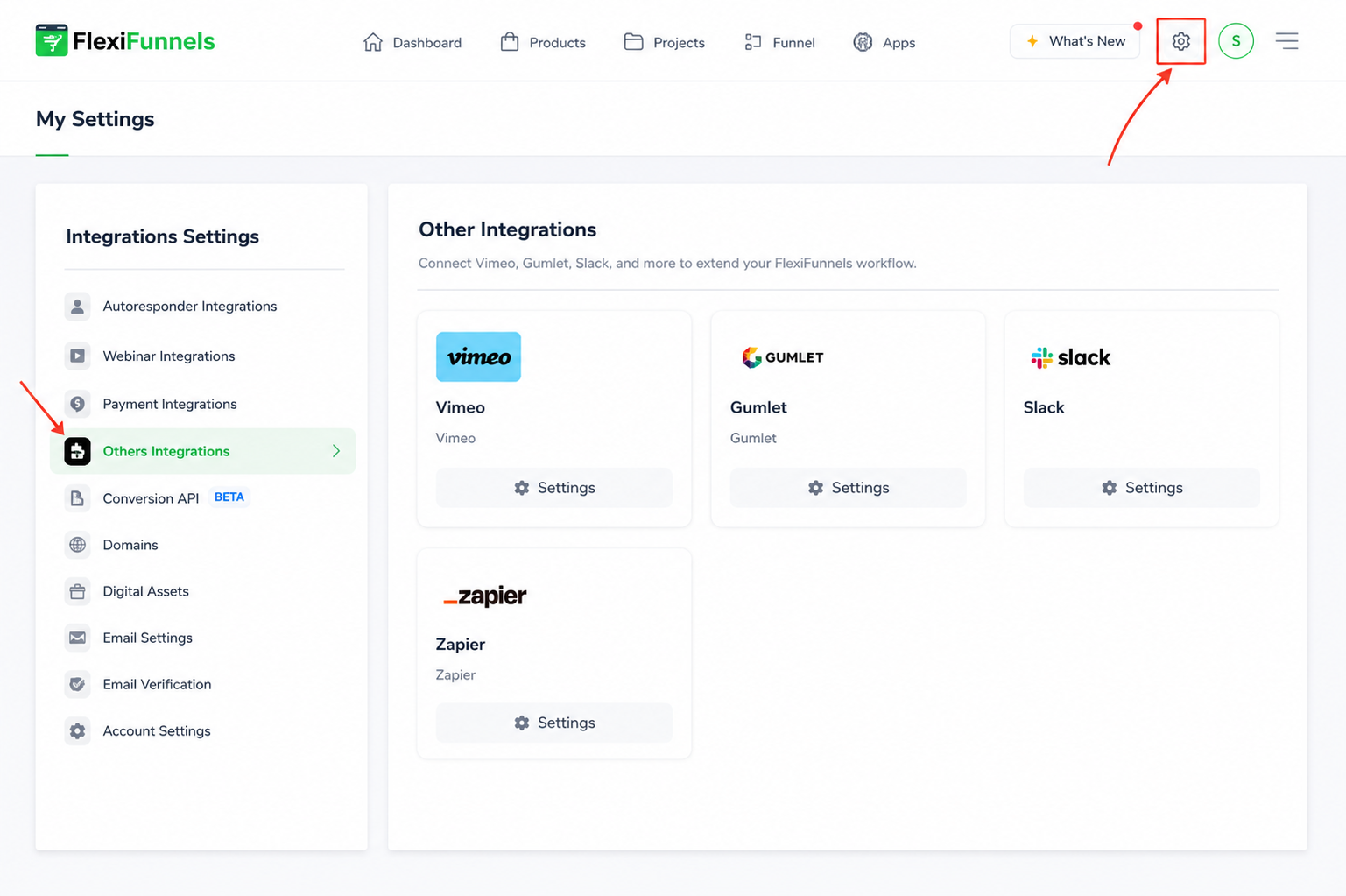
- Select your profile icon and open Settings.
- Open Other Integrations.
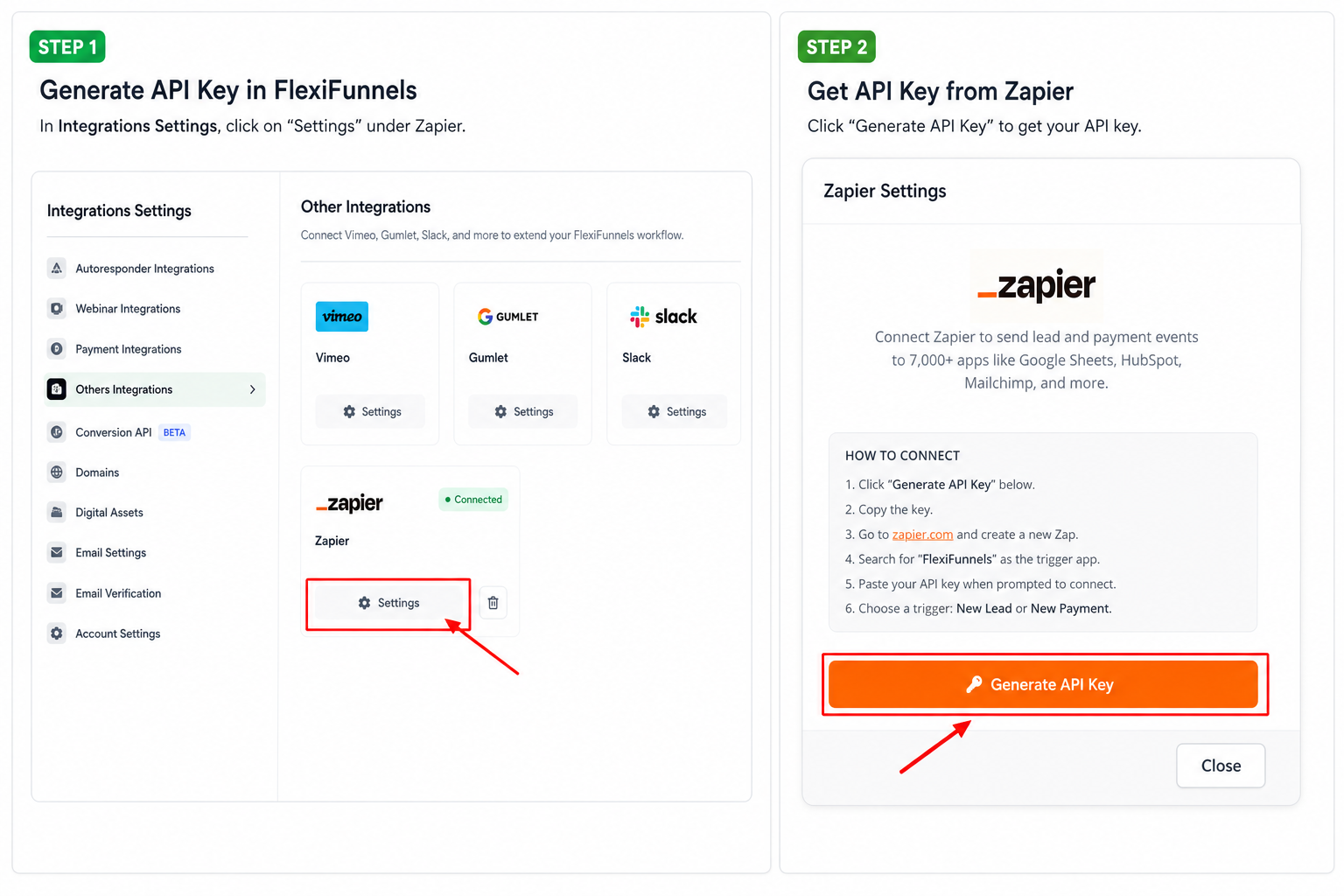
- Locate Zapier and open its settings.
- Select Generate API Key.
- Copy the generated API key and keep it available for the Zapier connection.
Warning: Keep the API key secure. You will paste it into Zapier in the next step.
Step 2: Create and Connect a Zap
Create a Zap in Zapier and use FlexiFunnels as the trigger application. The trigger determines which FlexiFunnels event starts the automation.
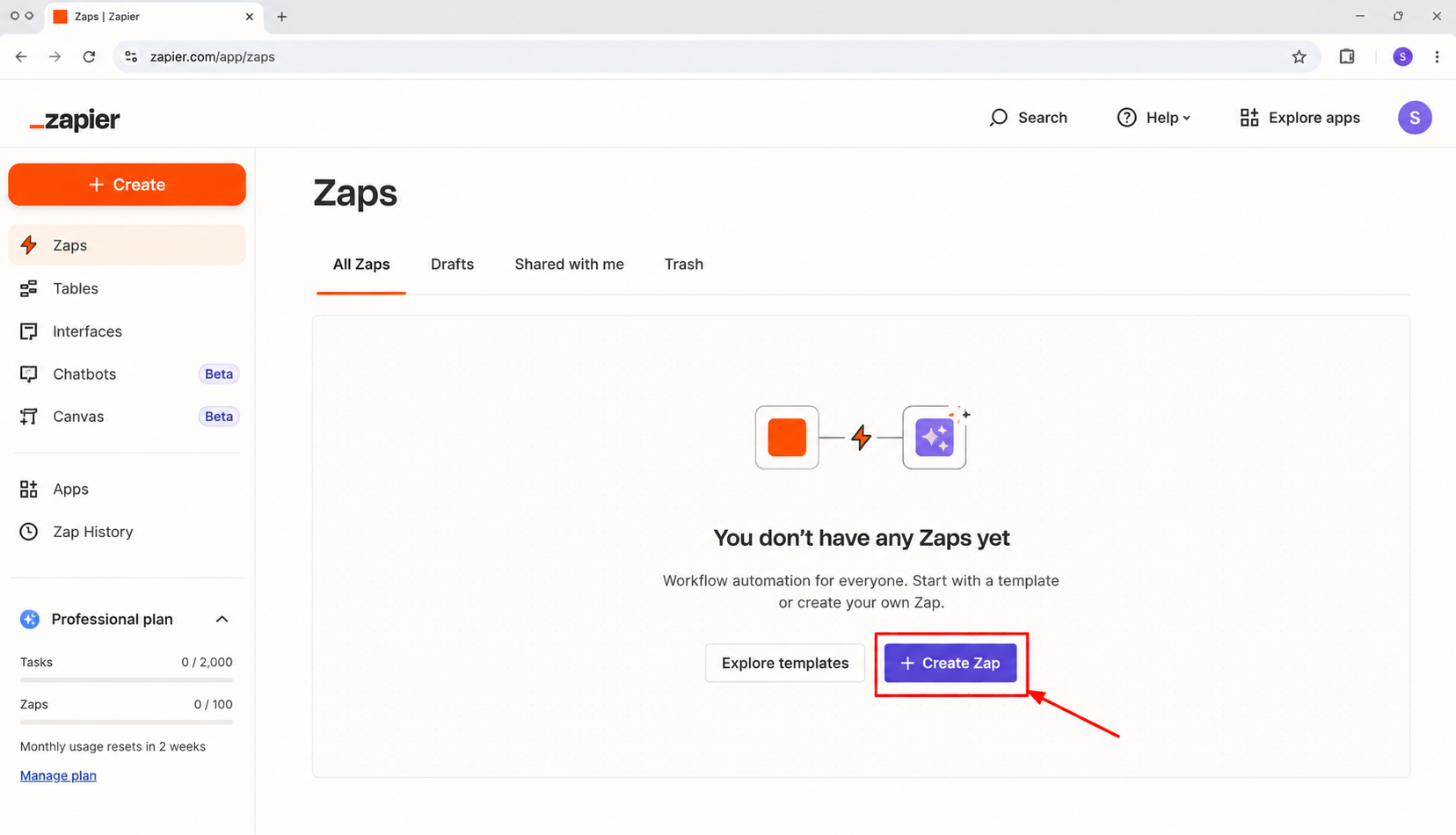
- Open Zapier and create a new Zap.
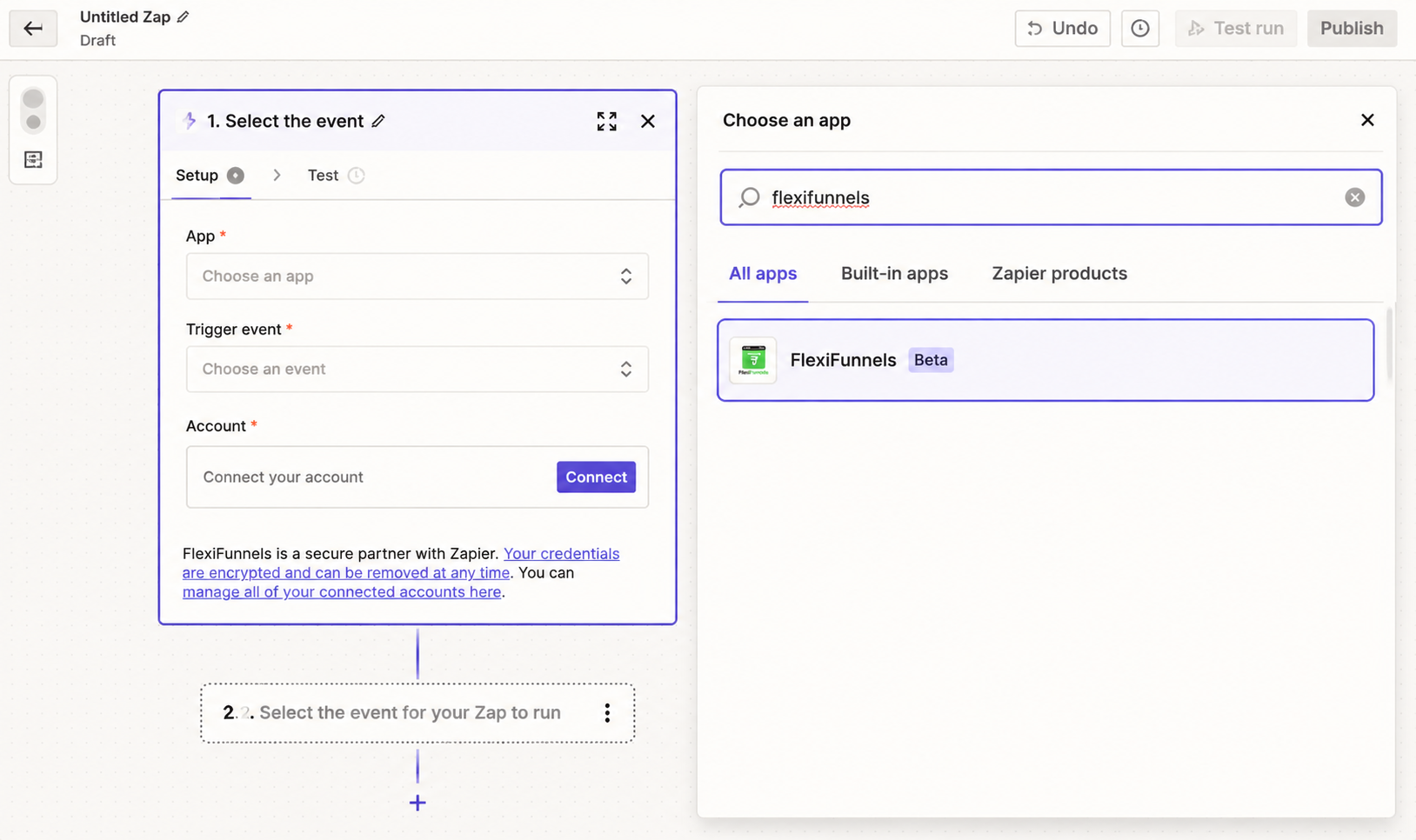
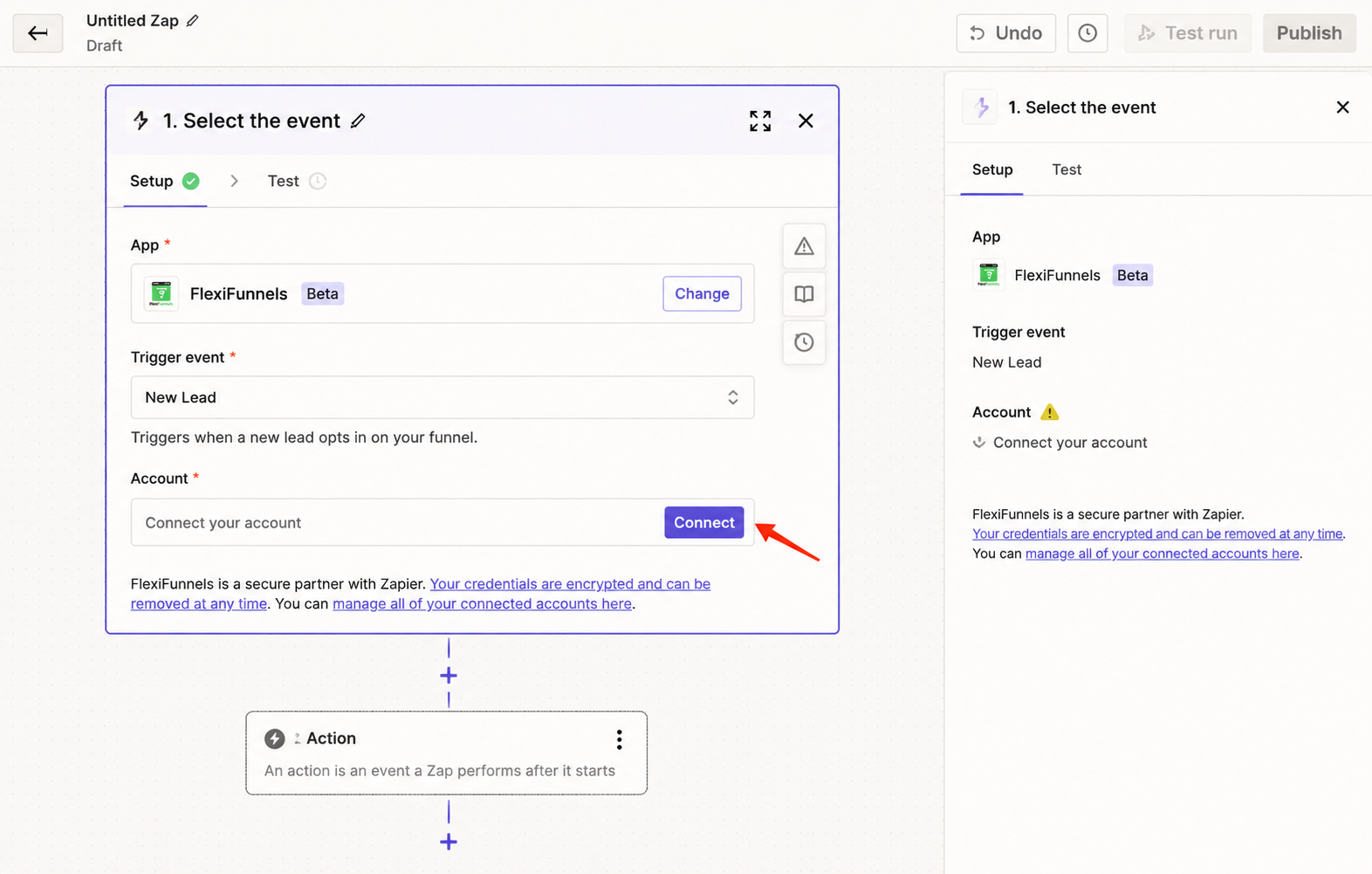
- In the Trigger step, search for and select FlexiFunnels.
- In the Account section, select Connect your account.
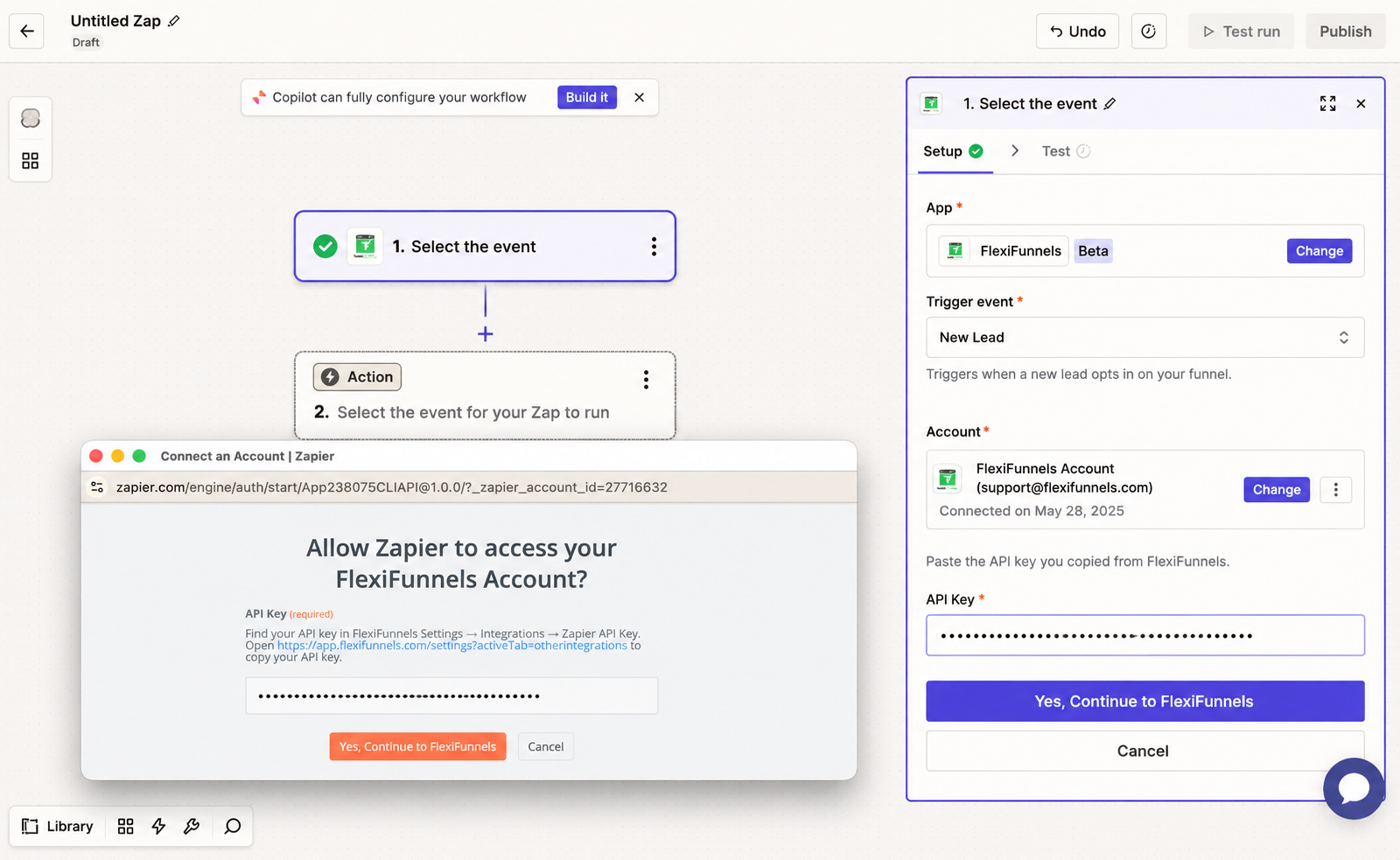
- Paste the FlexiFunnels API key generated in Step 1.
- Select Yes, Continue to FlexiFunnels.
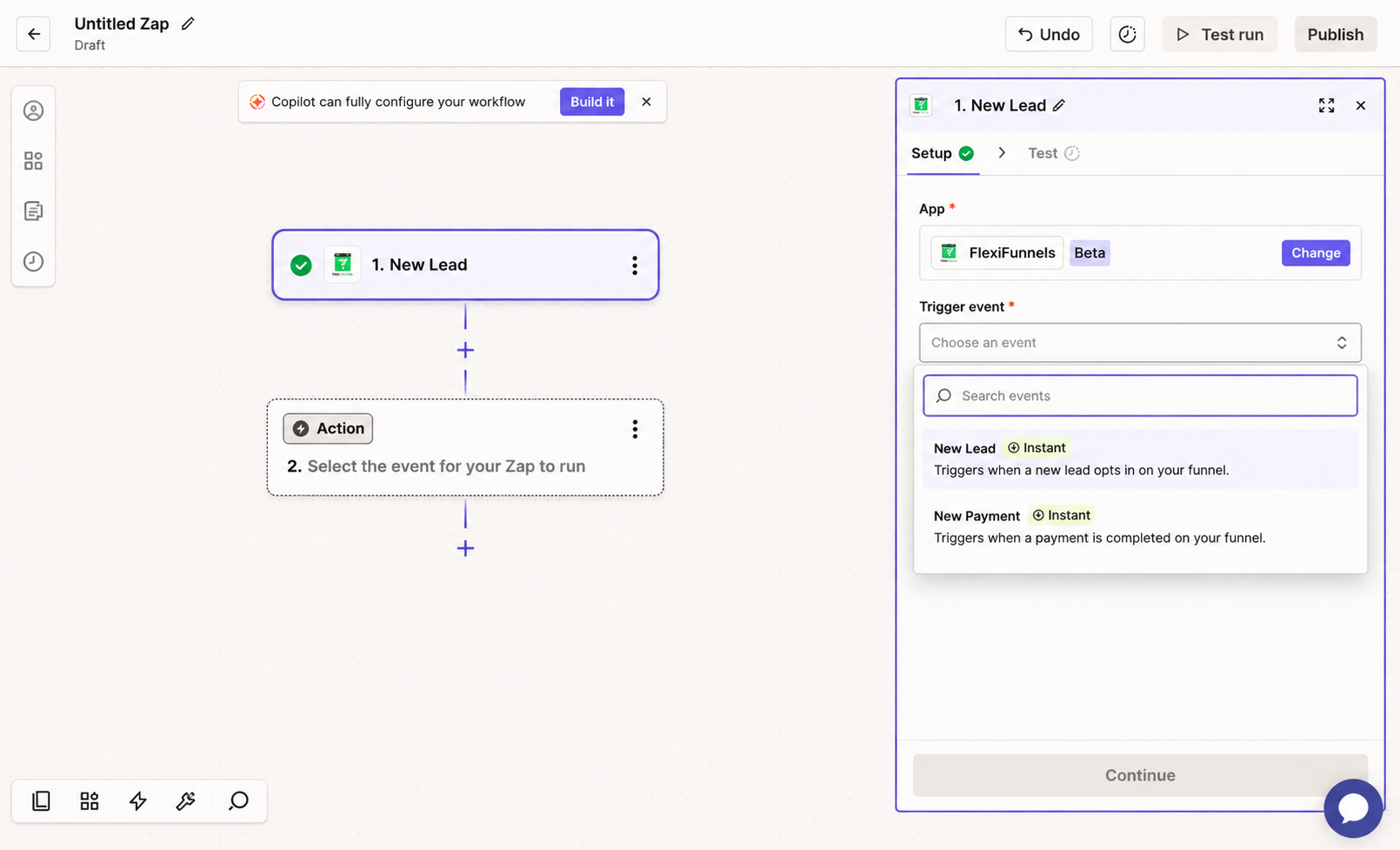
- Choose the required trigger event, such as a product purchase or newly referred lead.
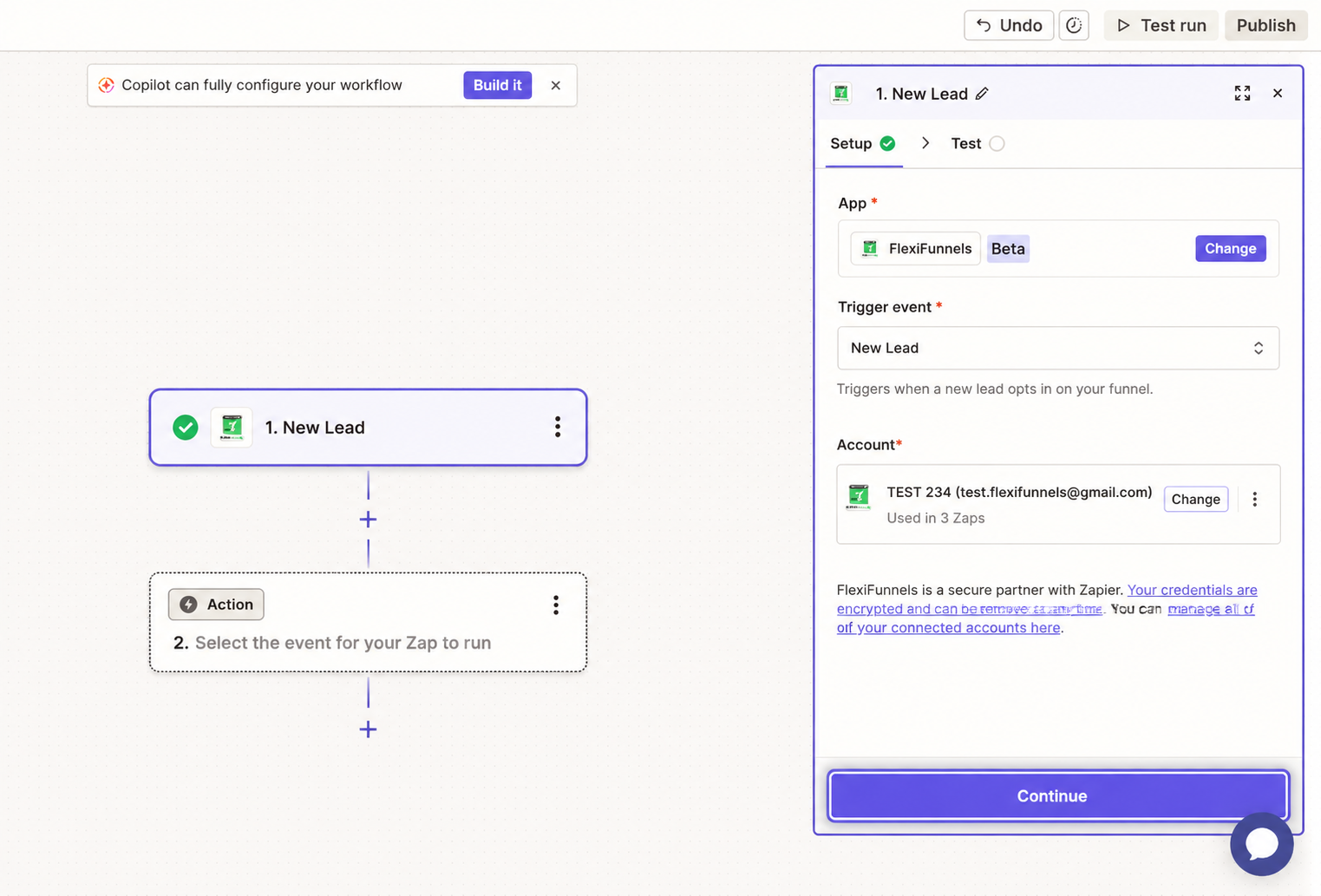
- Confirm the event details and test the trigger.
- Configure the action app and action that should run after the trigger, then publish the Zap.
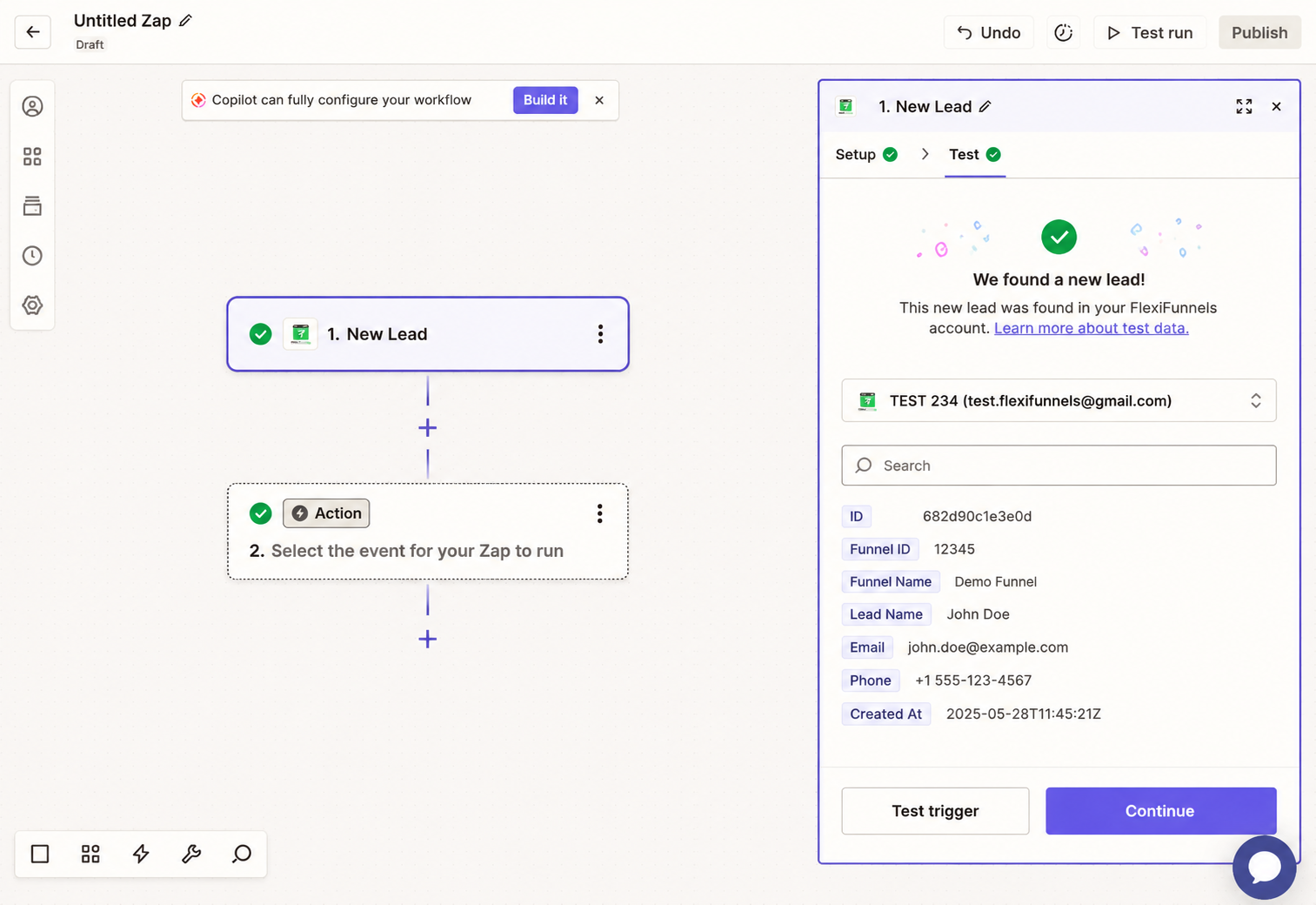
Step 3: Apply the Zap to the Relevant Product or Project
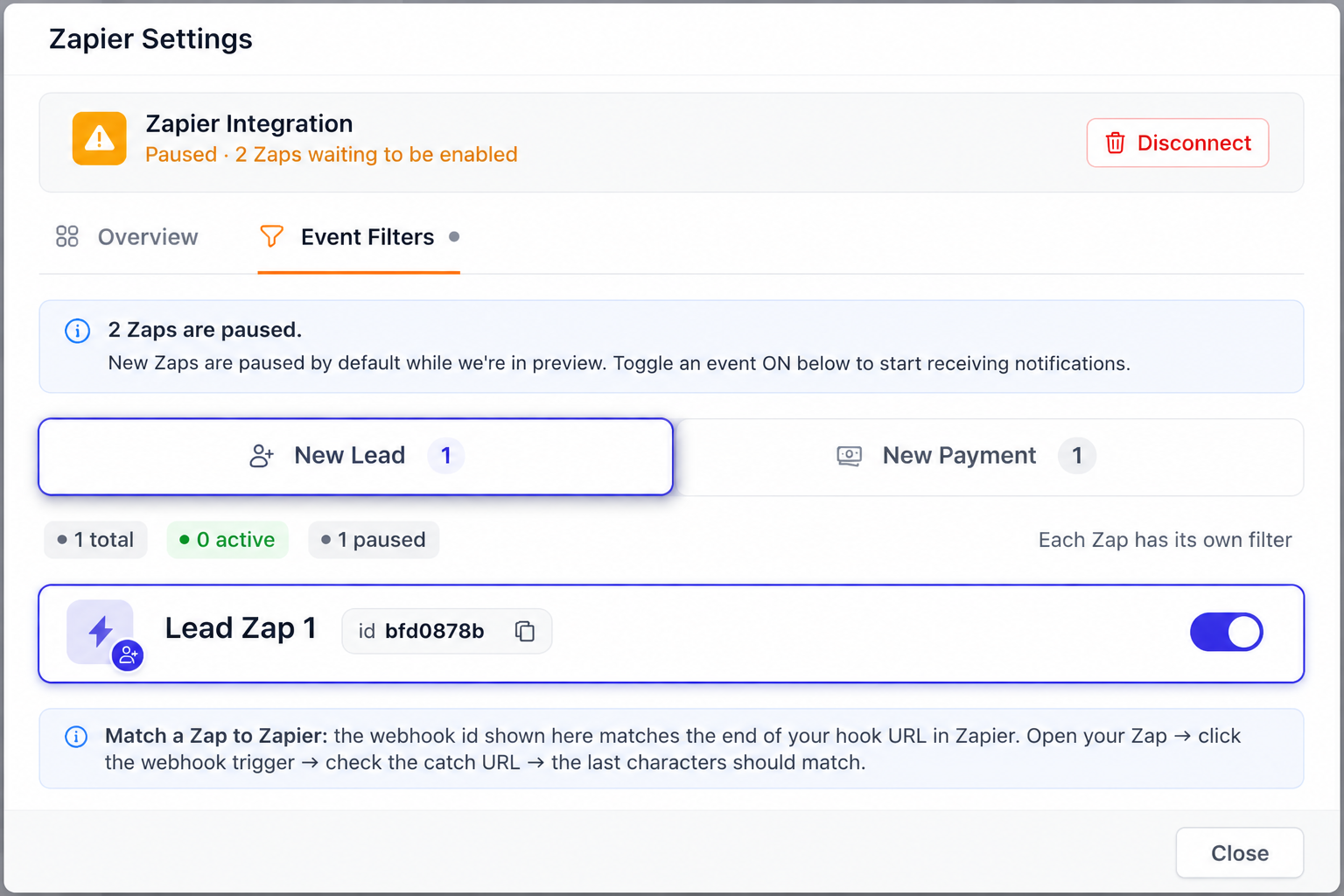
Creating and publishing a Zap does not by itself tell FlexiFunnels where to detect the event. You must apply the Zap to the relevant product or project in Event Filters. If this step is skipped, the Zap will not run.
- Return to FlexiFunnels and open Settings.
- Open Other Integrations.
- Open Zapier Settings.
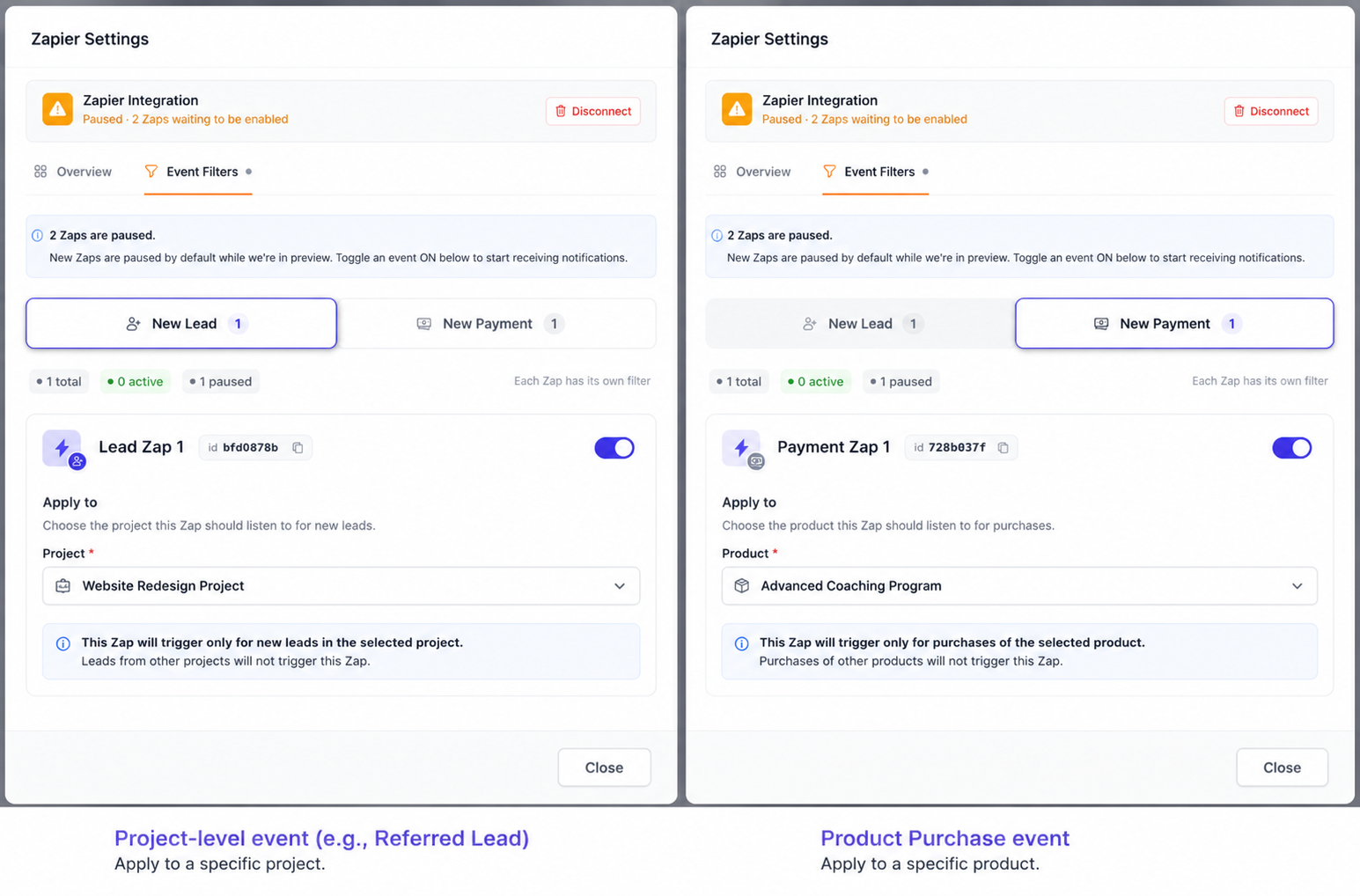
- Select the Event Filters tab.
- Locate the Zap you created.
- Apply a Product Purchase event to the specific product that should trigger the Zap.
- Apply a project-level event, such as a referred lead, to the specific project where the event occurs.
Verify the Configuration
- Confirm that the FlexiFunnels account is connected in Zapier.
- Confirm that the required trigger event is selected.
- Confirm that the Zap is turned on or published in Zapier.
- Confirm that the Zap is applied to the correct product or project in FlexiFunnels Event Filters.
- Complete a real or test event and verify that the selected action runs in the connected app.
Common Scenarios
- Product purchase: Add a purchaser to a CRM, spreadsheet, email sequence, or team notification workflow.
- Referred lead: Send newly referred leads from a project to another marketing or sales system.
- Internal notifications: Notify a Slack channel or email inbox when a purchase or lead event occurs.
- Data synchronization: Create or update contact records in a CRM after a supported FlexiFunnels event.
Best Practices
- Use a descriptive Zap name that identifies the trigger and destination.
- Test each Zap before using it in a live workflow.
- Apply each Zap only to the products or projects where it is required.
- Keep API keys confidential and regenerate them only when necessary.
- Document the downstream application and action used by each Zap.
- Review active Zaps regularly to prevent duplicate or outdated automations.
Before Contacting Support
- ✓ Confirm that the FlexiFunnels API key is current and contains no extra spaces.
- ✓ Confirm that FlexiFunnels is selected in Zapier’s Trigger step, not the Action step.
- ✓ Confirm that the correct trigger event is selected.
- ✓ Confirm that the Zap is published or turned on.
- ✓ Confirm that Event Filters applies the Zap to the correct product or project.
- ✓ Trigger a recent real event if Zapier test data is unavailable.
Expected Outcome
After the Zap is connected, published, and assigned in FlexiFunnels Event Filters, the selected FlexiFunnels event automatically triggers the configured action in Zapier.
Related Articles
- FlexiFunnels Other Integrations
- FlexiFunnels product settings
- FlexiFunnels project settings
Still need help? Submit a ticket with the trigger event selected, the product or project assigned in Event Filters, and the exact Zapier error message. Never include your API key in a support ticket.
Was this article helpful?
That’s Great!
Thank you for your feedback
Sorry! We couldn't be helpful
Thank you for your feedback
Feedback sent
We appreciate your effort and will try to fix the article