Email notifications help keep group members informed about important activities without requiring them to
constantly check the community. Flexi Membership allows administrators to control which automated emails are sent for various events, such as new members joining, new posts, comments, replies, mentions, event reminders, and more.
Using the Email Notifications settings, you can decide exactly which notifications members receive and customize the email content and sender information.
Accessing Group Email Notifications
To configure email notifications for a group:
- Open your Membership Project.
- Navigate to the Groups tab.
- Locate the group you want to configure.
- Click the three-dot (⋮) menu on the group card.
- Select Content & Tools.
- Click Email Notifications.
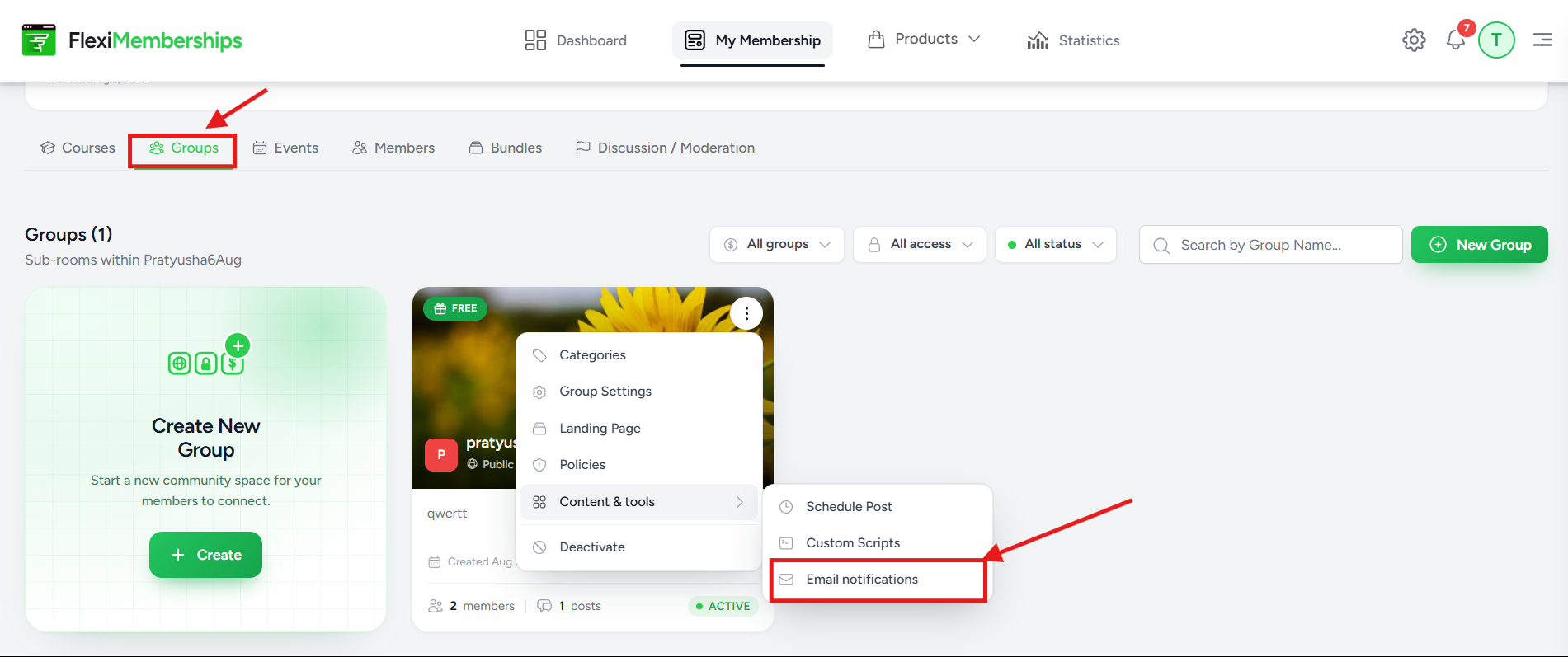
The Email Notifications window contains three tabs:
- Notifications
- Email Content
- Sender
Each tab controls a different aspect of your group's email communication.
Notifications Tab
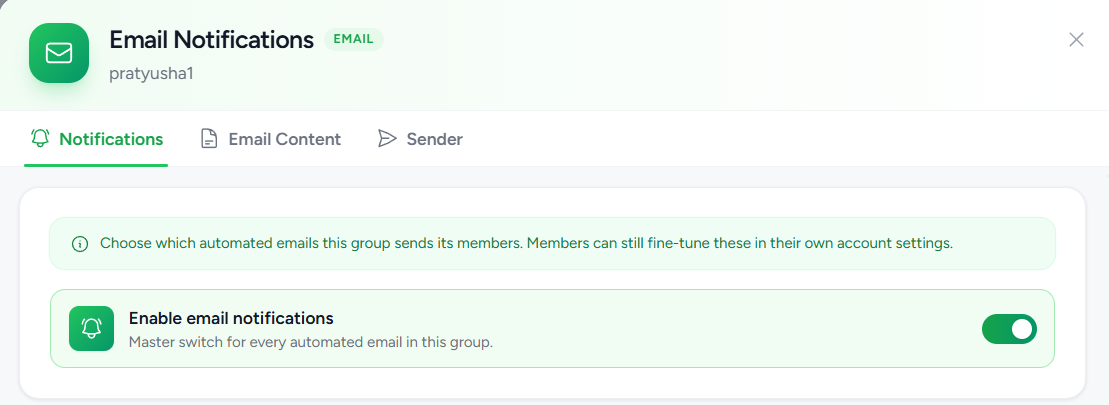
The Notifications tab allows you to enable or disable individual automated emails sent to group members.
Enable Email Notifications
At the top of the page is the Enable Email Notifications master switch.
When enabled:
- Automated emails are sent according to the notification settings below.
When disabled:
- All group email notifications are turned off, regardless of the individual notification settings.
This switch acts as the global control for all group email automation.
Available Email Notifications
Flexi Membership lets you control notifications for a wide range of member activities.
Welcome Email
Triggered when:
A new member joins the group.
Purpose
This email welcomes new members and confirms that they have successfully joined the community.
It can also introduce members to the group, explain what they can expect, and encourage them to participate.

New Post Published
Triggered when:
A new post is published inside the group.
Purpose
Notifies members whenever fresh content becomes available, helping increase engagement and encouraging members to return to the community.

Admin Posted
Triggered when:
An Administrator or Moderator publishes a post.
Purpose
Administrative announcements are often more important than regular member posts.
Enabling this notification ensures members are immediately informed about updates, announcements, or important community messages posted by administrators or moderators.

Comments
Triggered when:
Someone comments on a member's post.
Purpose
Keeps members informed when their discussions receive new comments, encouraging continued conversations and engagement.

Replies
Triggered when:
Someone replies to a member's post or comment.
Purpose
This notification alerts members when someone responds directly to their conversation, making it easier to continue discussions without missing replies.

Mentions
Triggered when:
A member is mentioned using @username in a post or comment.
Purpose
Mentions help bring specific members into a conversation.
When enabled, the mentioned member receives an email notification so they can quickly join the discussion.

Post Likes
Triggered when:
Someone likes a member's post.
Purpose
This notification lets members know that others appreciate their content, helping increase engagement and encouraging more participation.

Comment Likes
Triggered when:
Someone likes a member's comment or reply.
Purpose
Members receive an email whenever their contribution receives a like, providing positive feedback and encouraging continued interaction.

Event Reminders
Triggered when:
An upcoming event is scheduled within the group.
Purpose
Reminds members about upcoming webinars, live sessions, meetings, or other community events so they don't miss scheduled activities.

Weekly Summary
Triggered when:
The weekly activity summary is generated.
Purpose
Provides members with a recap of recent group activity, helping inactive members catch up on important discussions, posts, and community updates.

Email Content Tab
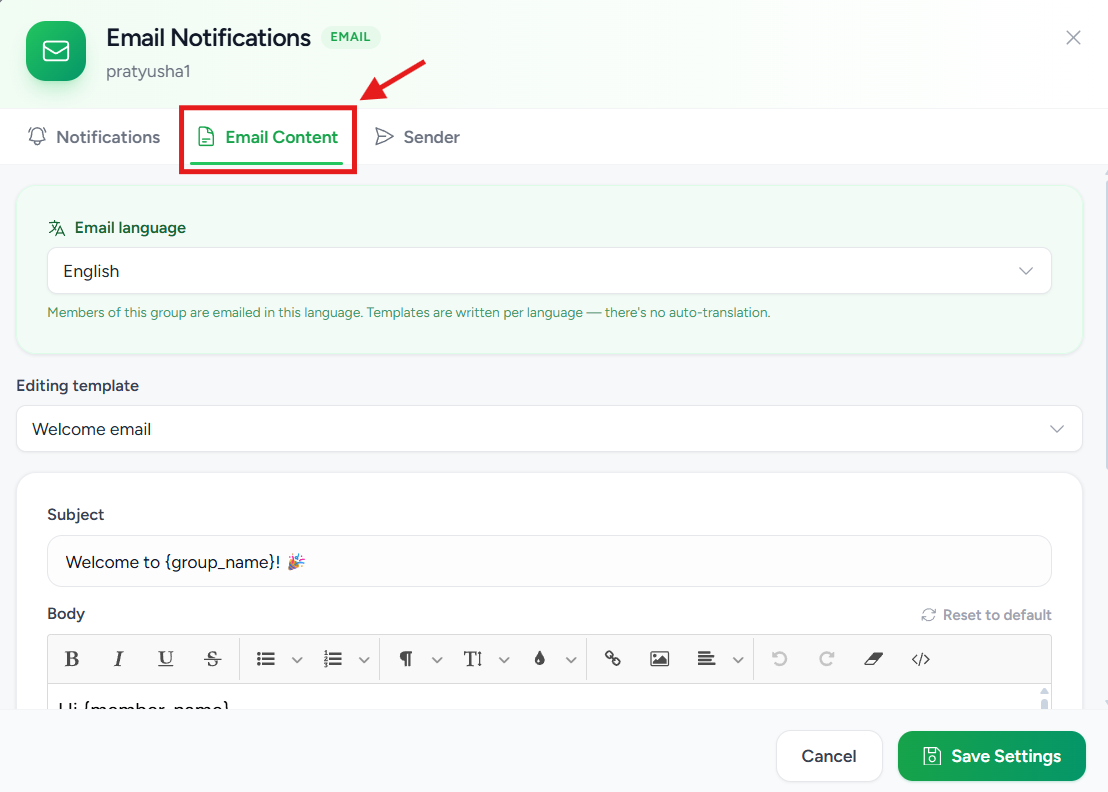
The Email Content tab allows you to customize the actual email templates sent to members.
From this section, you can:
- Modify the email subject line.
- Customize the email body.
- Add branding and personalized messaging.
- Use supported merge variables (shortcodes) where available.
- Preview the email before saving changes.
Customizing your email templates helps maintain consistent branding and provides a better experience for your members.
Sender Tab
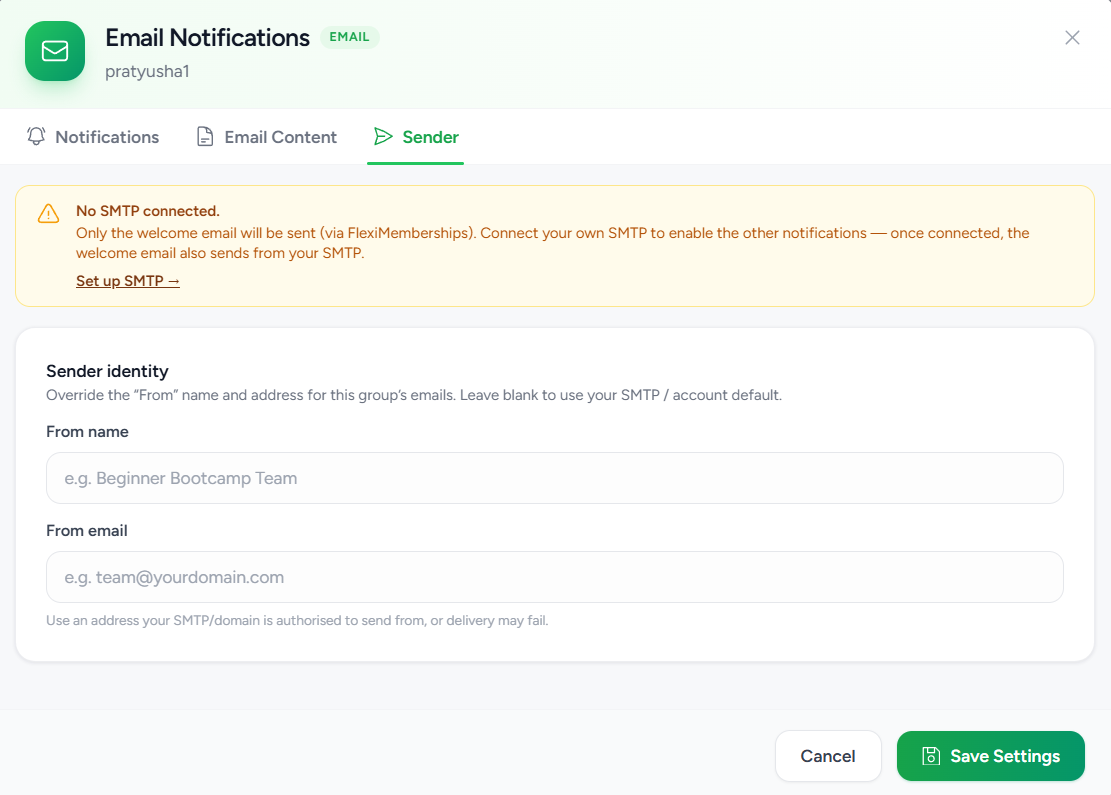
The Sender tab lets you customize the sender identity for emails sent from a specific group.
By default, emails use the sender details configured in your connected SMTP account. However, you can override the sender name and email address for individual groups if needed.
This is useful when managing multiple communities under the same membership platform, allowing each group to have its own branded sender identity.
SMTP Connection Requirement
At the top of the Sender tab, Flexi Membership displays the current SMTP connection status.
If no SMTP server is connected, you'll see a notification indicating:
- Only the Welcome Email will be sent using Flexi Membership's default email service.
- All other automated email notifications remain disabled until an SMTP server is connected.
- Once your SMTP is configured, all group notifications—including the Welcome Email—will be sent using your own SMTP configuration.
To enable the complete email notification system, click Set up SMTP and configure your preferred email provider.
Configuring the Sender Identity
The Sender Identity section allows you to override the default sender information for the selected group.
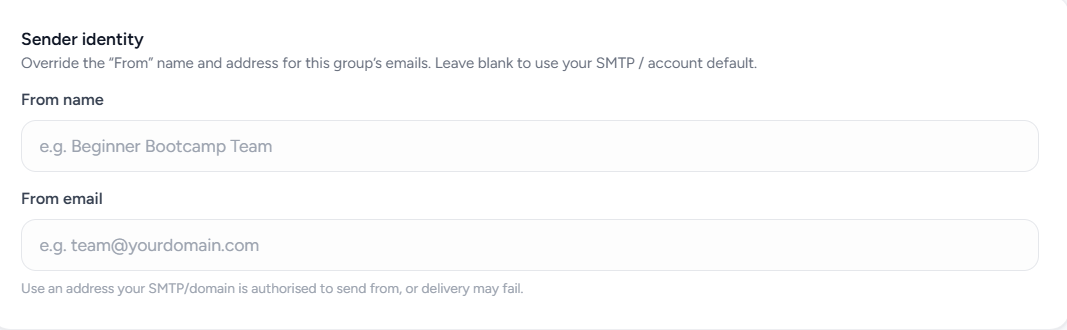
From Name
Enter the display name that recipients will see in their inbox.
Examples include:
- Beginner Bootcamp Team
- Marketing Community
- Flexi Membership Support
- Your Company Name
If left blank, the default sender name configured in your SMTP account will be used.
From Email
Specify the email address that should appear as the sender for this group's emails.
For example:
The email address must belong to a domain that is authorized by your connected SMTP provider. Using an unauthorized address may cause email delivery to fail or messages to be rejected by recipient mail servers.
If this field is left blank, Flexi Membership uses the default sender email configured in your SMTP settings.
Saving Your Changes
After configuring the sender identity:
- Review the From Name and From Email values.
- Click Save Settings.
The updated sender identity will be applied to future automated emails sent from this group.
Best Practices
To provide members with a positive email experience:
- Keep the Welcome Email enabled to onboard new members.
- Enable New Post Published and Admin Posted to keep members informed about important updates.
- Enable Comments, Replies, and Mentions to encourage conversations.
- Use Event Reminders for webinars, live sessions, and scheduled events.
- Keep Weekly Summary enabled to re-engage inactive members.
- Use a verified branded domain and professional sender email to improve email deliverability and build trust.
- Periodically review your email templates to ensure they reflect your current branding and communication style.
Was this article helpful?
That’s Great!
Thank you for your feedback
Sorry! We couldn't be helpful
Thank you for your feedback
Feedback sent
We appreciate your effort and will try to fix the article