Background videos make a page feel alive — and now they can be heard too. An audio option has been added to the Background Video setting, so your background video can start playing with sound instead of silently. You also get a mute button on the page so visitors stay in control.
Think of it like music in a shop. Until now your background video was a silent TV screen on the wall. With this update you can switch the speakers on — and, just as importantly, you put a volume switch by the door so any customer who prefers quiet can turn it off themselves.
✅ Why the mute button mattersSound that starts on its own can surprise a visitor — especially someone browsing at work or late at night. Because you choose where the mute button sits, every visitor can silence the video in one click instead of hunting for the tab and closing your page. Sound gains you attention; the mute button keeps you from losing the visitor.
Follow These Steps
Step 1: Open the Editor
Open the page you want to edit in the FlexiFunnels page editor.
Step 2: Click on the Page Section Settings
Click the Page Section Settings icon in the top-right corner of the editor to open the Style Settings panel.
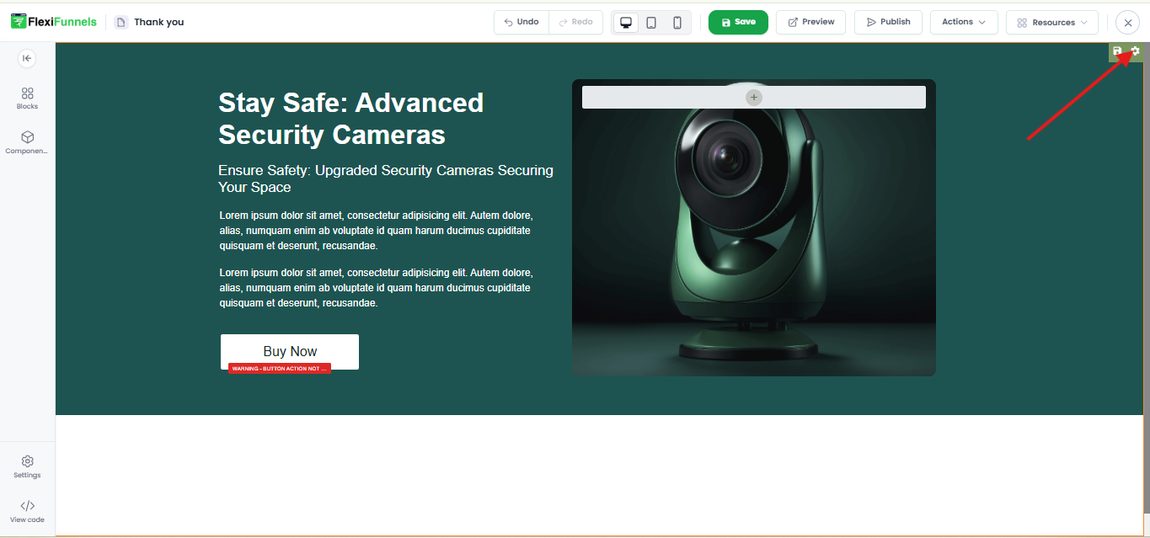
Click the Page Section Settings icon in the top-right corner of the editor
Step 3: Select the Background Option
In the Style Settings panel, expand the Background section.
Step 4: Click on the Video Background Option
Among the background type icons, click the Video Background option (the video icon on the right).
Step 5: Turn On the Background Video Toggle
Switch the Background Video toggle on.
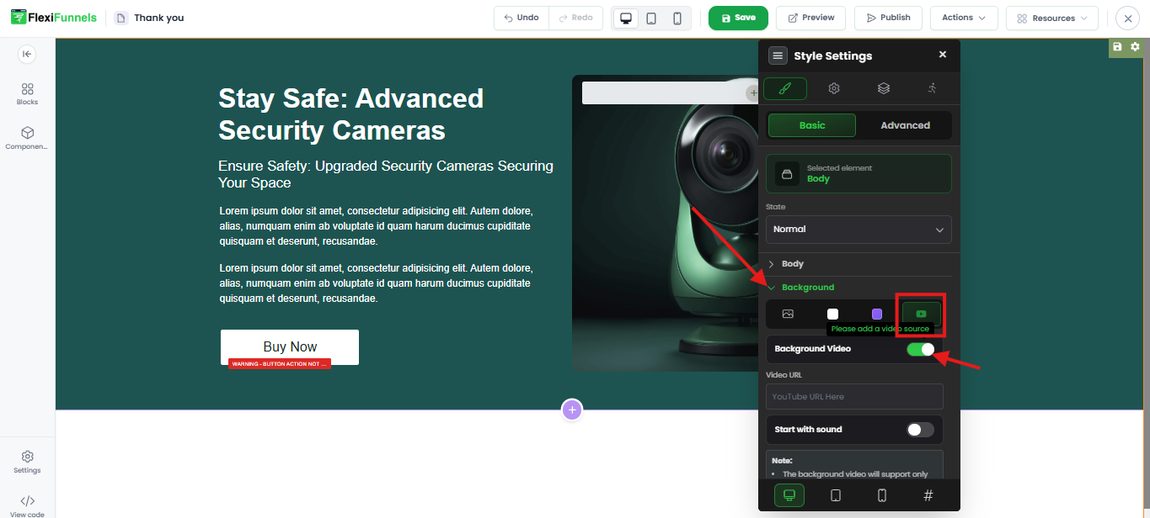
Select the Video Background option, then turn on the Background Video toggle
Step 6: Enter the Video URL
Paste your video link into the Video URL field.
⚠️ Important: YouTube URLs onlyThe background video supports only a YouTube URL. Links from other platforms (Vimeo, direct MP4 files, and so on) will not work here. Also note: the video's thumbnail is taken automatically from the video itself, so you don't need to upload a separate image.
Step 7: Turn On the Start with Sound Toggle
Switch the Start with sound toggle on. This is the new audio option — with it enabled, your background video begins playing with sound instead of muted.
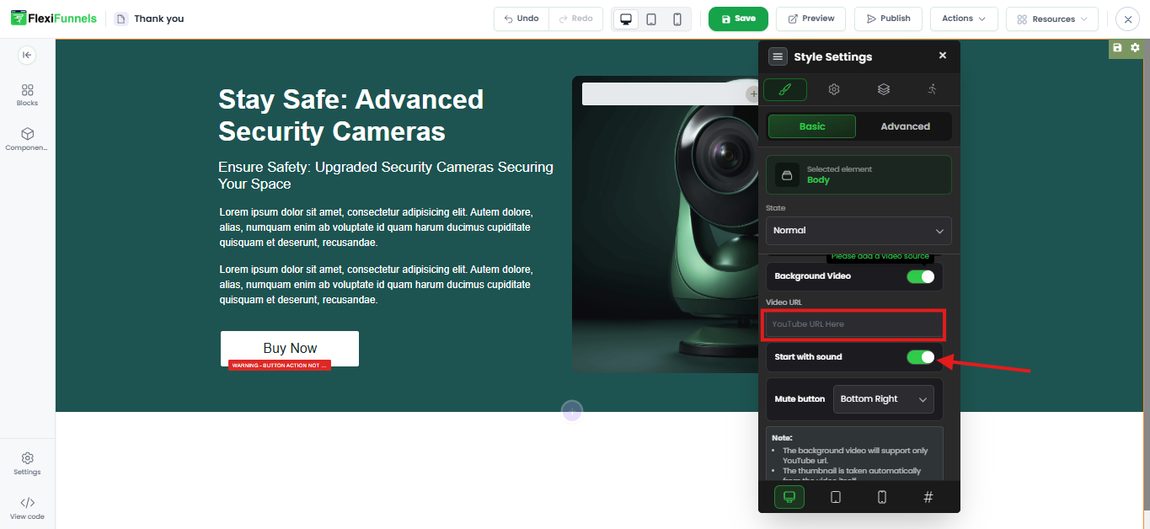
Enter your YouTube URL, then turn on the Start with sound toggle
Step 8: Select the Mute Button Position
From the Mute button dropdown, choose where the mute control should appear on your page. The available positions are:
- Bottom Right (default)
- Bottom Left
- Top Right
- Top Left
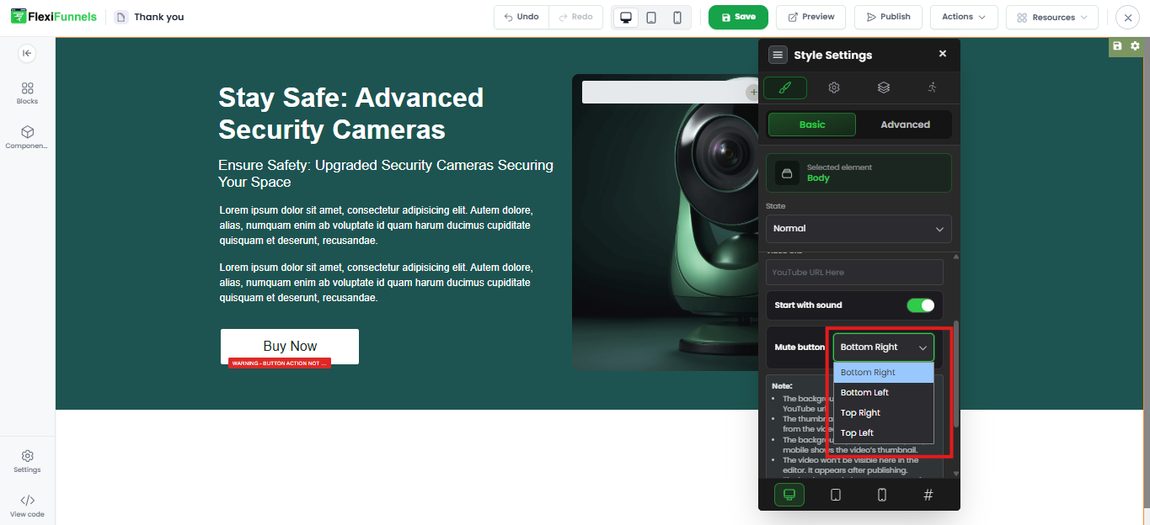
Pick the mute button position from the dropdown — Bottom Right, Bottom Left, Top Right or Top Left
? Tip: Pick a position that doesn't cover anythingChoose a corner where the mute button won't sit on top of your headline, form, or call-to-action button. If your CTA sits at the bottom right of the section, move the mute button to the top right instead so nothing gets blocked.
Step 9: Publish the Page
After making the changes, publish the page.
⚠️ The video won't play inside the editor — publish firstThe background video is not visible in the editor. It only appears once the page is published, so don't worry if the section looks empty while you're building. If you skip publishing, none of your changes go live — always click Publish when you're done.
? Note about mobileOn mobile devices, the background video shows the video's thumbnail instead of playing. Plan your section so it still looks right when only the thumbnail image appears.
Common Situations & Quick Fixes
❓ "My background video isn't showing in the editor."That's expected — the background video doesn't render inside the editor. Publish the page and open the live URL to see it playing.
❓ "My video link isn't working."The background video accepts YouTube URLs only. If you pasted a Vimeo link, an MP4 file link, or any other source, upload the video to YouTube and use that URL instead.
❓ "The video plays but there's still no sound."Check that the Start with sound toggle is on (Step 7) and that you republished the page afterwards. Also confirm your own device volume isn't muted, and remember that some browsers restrict autoplay audio until the visitor interacts with the page.
❓ "The mute button is covering my button/headline."Change the Mute button position (Step 8) to a different corner — Bottom Right, Bottom Left, Top Right or Top Left — then publish again.
❓ "On my phone the video doesn't play — it just shows an image."That's how it works by design: on mobile the background video displays the video's thumbnail rather than playing.
❓ "Do I need to upload a thumbnail image for the video?"No — the thumbnail is pulled automatically from the video itself.