The Visual Page Builder is a new feature that lets you view and edit the HTML and CSS of your page directly inside the editor — with a live split-screen preview so you can see the result of every change as you make it.
Think of the drag-and-drop editor as building with LEGO bricks, and the Visual Page Builder as opening the toolbox. The bricks handle 99% of what you need — but sometimes you want a shape no brick provides. The toolbox lets you shape that one piece by hand, without rebuilding the whole model.
⚠️ Who this feature is forThe Visual Page Builder edits your page's raw code. If you're comfortable with HTML and CSS, it's a powerful shortcut. If you're not, you can safely use the normal drag-and-drop editor for everything — you never need to touch this feature. Broken code can break your page layout, so if you're unsure, ask a developer or reach out to support before applying changes.
Follow These Steps
Step 1: Open the Editor
Open the page you want to edit in the FlexiFunnels page editor.
Step 2: Click on Page Settings
Click the Settings icon in the bottom-left corner of the editor.
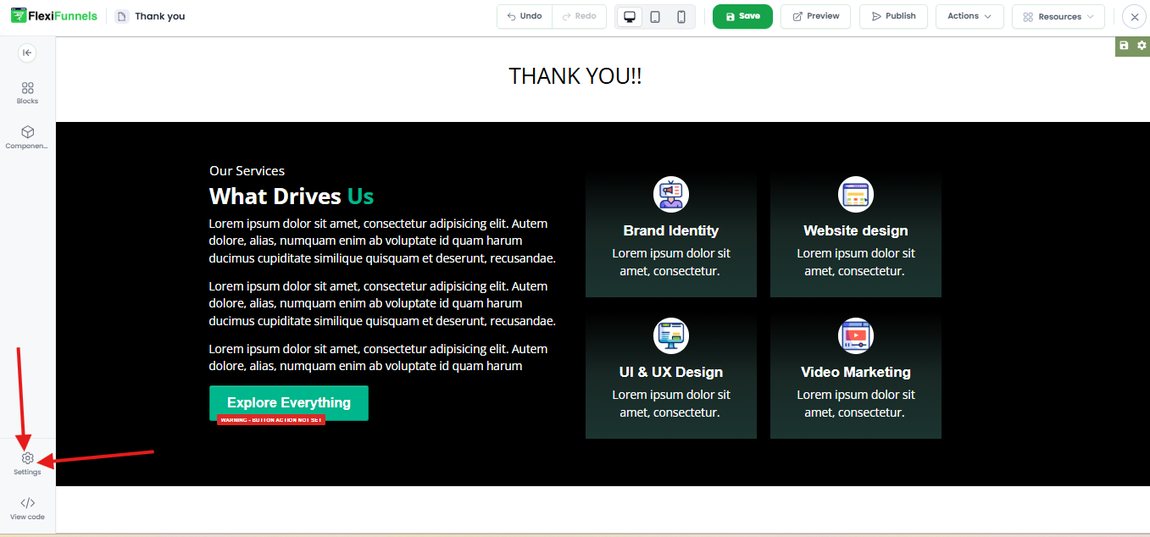
Click the Settings icon at the bottom-left of the editor
Step 3: Click on Visual Page Builder
In the Settings panel, scroll down and click Visual Page Builder (it sits at the bottom of the list, below Conversion Tracking).
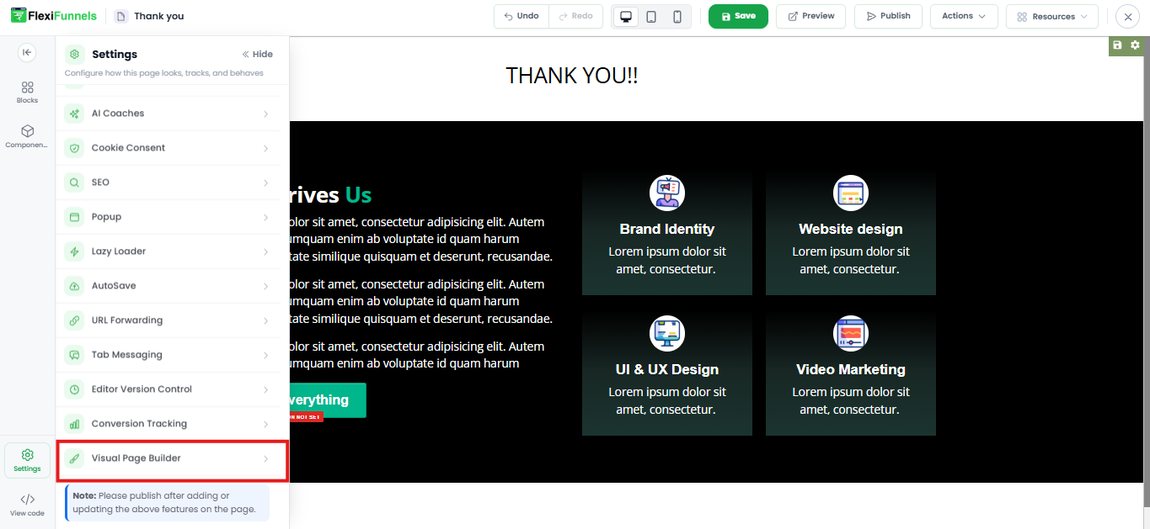
Select Visual Page Builder from the Settings panel
Step 4: Start Editing the Code
The Visual Page Builder opens with your page's code. At the top you'll find tabs for HTML, AI CSS and CSS, so you can switch between the page's markup and its styling. You can also use Copy or Download in the top-right to save a copy of the code before you change anything.
? Tip: Download a copy firstBefore your first edit, click Download (or Copy and paste into a text file). That gives you the original code to fall back on if an experiment doesn't work out — the safest 10 seconds you'll spend in this feature.
Step 5: Check the Split View and Preview
Use the three view buttons at the top of the panel to check your work as you go:
- Code — the code editor at full width
- Split — code on the left, live page preview on the right
- Preview — the rendered page at full width
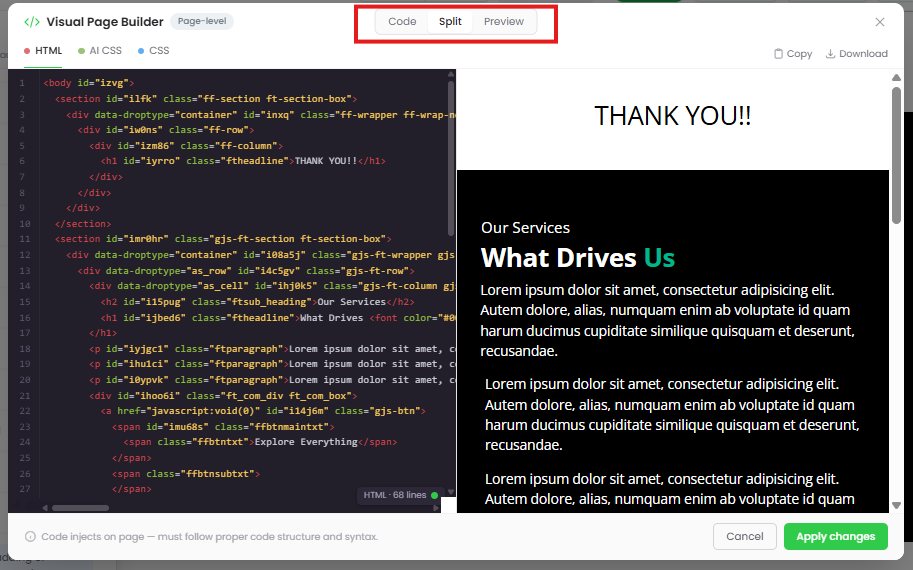
Split view shows your code and the live result side by side
✅ Why the split view mattersEditing code blind is how pages get broken. In Split view, you change a line and immediately see whether the section still looks right. Catching a mistake here — before you apply and publish — means your visitors never see it.
Step 6: Click Apply Changes
When your edits look right, click Apply changes at the bottom-right of the panel. (Clicking Cancel discards your edits.)
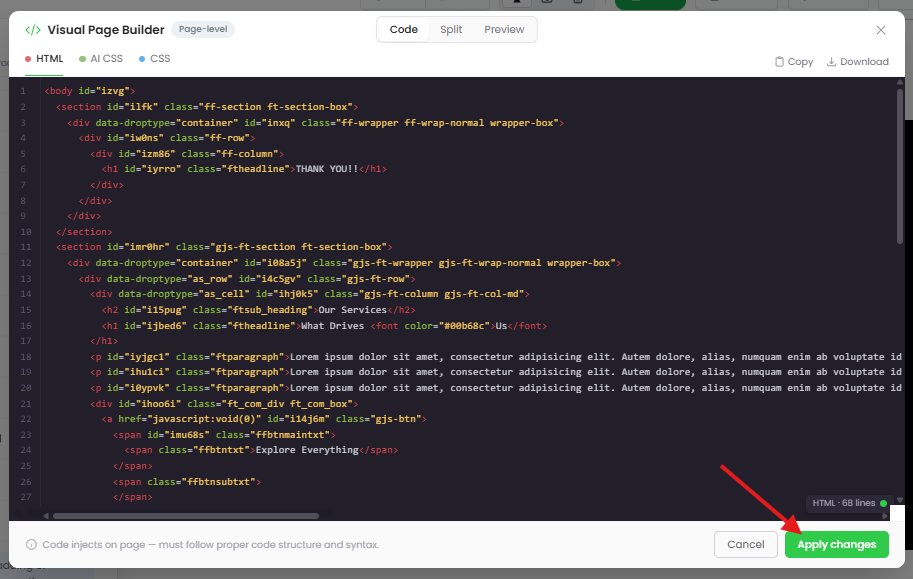
Click Apply changes to save your edits to the page
⚠️ Your code must follow proper structure and syntaxAs the panel itself notes: code injects on the page — it must follow proper code structure and syntax. A missing closing tag or a stray bracket can break the layout of your page. Check the Preview before applying, and make sure every tag you open is properly closed.
Step 7: Publish the Page
After making the changes, publish the page.
⚠️ Applying is not publishingApply changes saves your code into the page inside the editor — it does not make it live. Your visitors won't see anything until you click Publish. This is the single most common reason people think their code "didn't work."
What Can You Use It For? (Use Cases)
Here are practical ways creators use the Visual Page Builder. Every one of these is possible in code but tedious — or impossible — through drag-and-drop alone.
1. Fine-tune spacing and alignment beyond the editor's optionsWhen a section needs a slightly different padding, margin or line height than the editor's controls allow, adjust the CSS directly for pixel-perfect placement.
2. Apply a style change across many elements at onceInstead of clicking every button to change its corner radius or font, write one CSS rule that targets them all — a big time-saver on long sales pages.
3. Match your brand exactlySet precise brand colours by hex code, apply your exact font sizes, or replicate the styling from your main website so your funnel pages feel like the same brand.
4. Add custom CSS effectsHover effects on buttons and cards, gradient backgrounds, shadows, rounded shapes, or subtle animations that make a page feel more premium.
5. Fix a mobile display issueAdd a media query to adjust how one specific element behaves on smaller screens — useful when a headline or image needs different treatment on phones.
6. Hide or tweak an element you can't reach in the editorHide a stubborn element, nudge a stacking order, or override a default style that the visual controls don't expose.
7. Embed custom HTML blocksAdd custom markup for a layout, table, or third-party widget that isn't available as a ready-made block.
8. Inspect and learn your page's structureEven if you don't edit anything, opening the HTML tab shows how your page is built — useful for debugging, or for handing a copy of the code to a developer (use Copy/Download).
9. Hand work to a developer without giving up your accountDownload the code, let a developer prepare the change, then paste it back and apply — no need to walk them through the whole builder.
? Best practice: change one thing at a timeMake a single change, check Split view, apply, and publish. If something breaks, you know exactly which edit caused it. Ten changes applied at once turn a five-second fix into a twenty-minute hunt.
Common Situations & Quick Fixes
❓ "I applied my changes but the live page looks unchanged."Apply changes only saves the code in the editor. You still need to publish the page for visitors to see it. Publish, then hard-refresh the live page (Ctrl/Cmd + Shift + R) to clear your browser cache.
❓ "My page layout broke after editing the code."Almost always a syntax problem — an unclosed tag or a missing bracket. Reopen the Visual Page Builder, check your edit against the surrounding structure, and use Preview to confirm before applying. If you downloaded the original code, paste it back to restore the page.
❓ "Can I undo my code changes?"Click Cancel to discard edits before applying. After applying, restore your saved copy (from Download/Copy) — which is exactly why taking a copy before editing is worth the extra few seconds. The editor's Editor Version Control option in Settings may also help you get back to an earlier version of the page.
❓ "I don't know HTML or CSS — do I need this feature?"No. Everything on your page can be built with the normal drag-and-drop editor. The Visual Page Builder is an optional tool for people who want code-level control.
❓ "Where do I put my CSS versus my HTML?"Use the tabs at the top of the panel: HTML for page structure and content, CSS for styling rules. Switch tabs rather than pasting style rules into the HTML.
❓ "Can I see the code without changing anything?"Yes — open the Visual Page Builder, look around, then click Cancel. Nothing changes unless you click Apply changes.