The Viewer Counter displays a live message above your form — for example, "194 people are currently checking this offer right now!" — so visitors can see they're not the only one looking. It's set up inside the form's Form Submit Action, and it appears above the form on the published page.
Think of it like a busy restaurant window. An empty dining room makes people hesitate at the door; a room with other diners inside makes them walk in. The viewer counter is that window — it shows your offer is getting attention right now, which nudges hesitant visitors to act instead of "thinking about it."
✅ Why this mattersMost visitors delay because they're unsure — and a delayed decision is usually a lost one. Seeing that other people are looking at the same offer creates gentle urgency and social proof at the exact moment someone is deciding whether to fill in your form. It costs you nothing and sits directly where the decision happens.
Follow These Steps
Step 1: Open the Editor
Open the page with your form in the FlexiFunnels page editor.
Step 2: Add the Form Element
Add the Form element to your page (or select the form you already have).
Step 3: Go to the Form Advanced Settings
With the form selected, open its Advanced Settings panel.
Step 4: Click Form Submit Action
At the bottom of the Advanced Settings panel, click Form Submit Action.
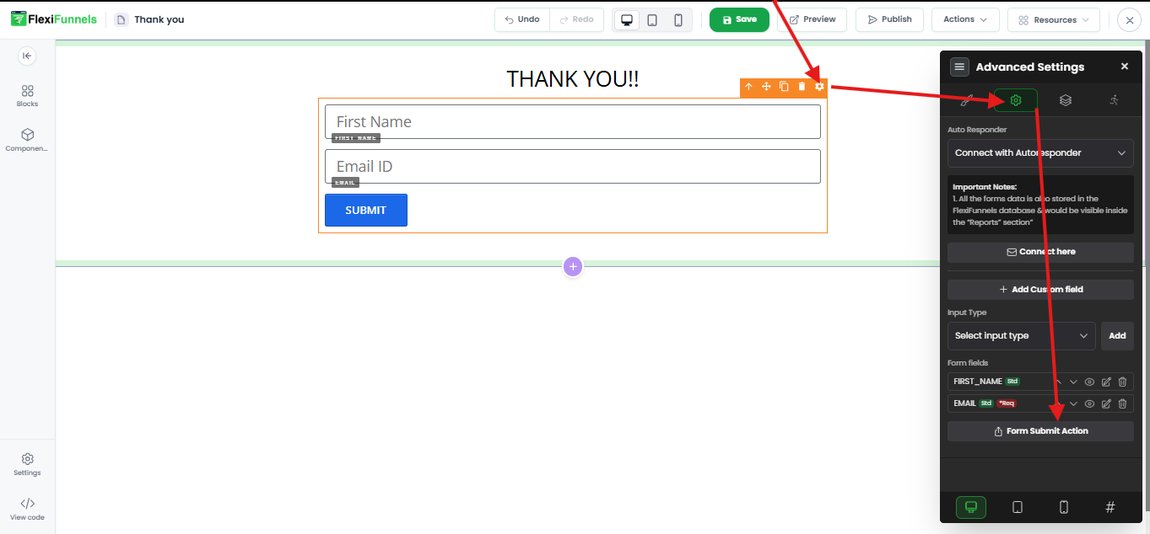
Open the form's Advanced Settings and click Form Submit Action
Step 5: Click Viewer Counter
In the Form Submit Action window, select Viewer Counter from the list on the left (below On Submit, Enable Consent Checkbox and Autofill Form Data).
Step 6: Enable the Setting
Tick the checkbox on the right to turn the counter on.
Step 7: Enter Your Message
Type the message you want visitors to see in the Message box. The default is:
{{viewers}} people are currently checking this offer right now!
⚠️ Keep the {{viewers}} placeholder in your message{{viewers}} is where the live count gets inserted. If you delete it, your message will display without any number — so it stops being a counter. Write whatever wording you like around it, but always leave {{viewers}} in place, exactly as spelled.
You can also set the Text Color using the colour picker or a hex code (the default is #e60000 red), and the Preview underneath shows exactly how your message will look on the page.
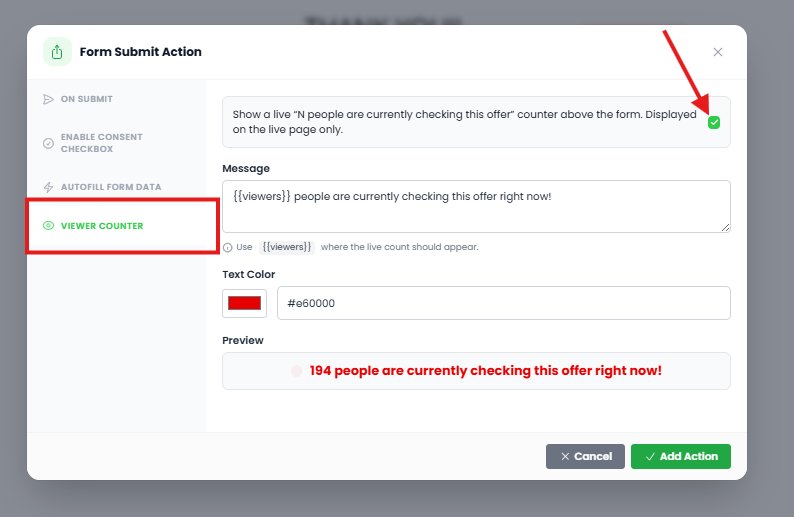
Select Viewer Counter, tick the checkbox, then set your message, text colour and check the preview
? Tip: Match the colour to your pageRed (#e60000) draws maximum attention, but if your page already uses a lot of red — or your brand is a different colour — set a shade that stands out without clashing. Use the Preview to check readability before you save.
Step 8: Click Add Action to Save
Click Add Action at the bottom-right of the window to save your changes. (Cancel discards them.)
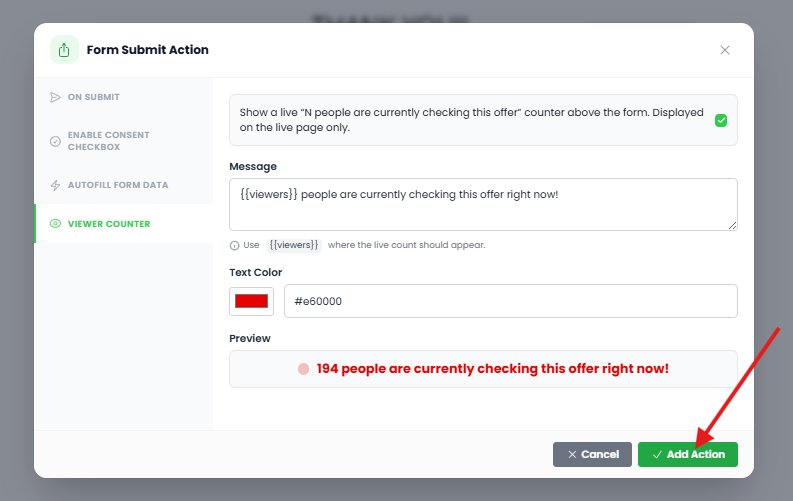
Click Add Action to save the viewer counter
Step 9: Publish the Page
After making the changes, publish the page.
⚠️ The counter only shows on the live pageAs the setting itself states, the counter is displayed on the live page only — you won't see it inside the editor. So don't worry if nothing appears while you're building: save the action, publish the page, then open the live URL to see the counter above your form.
What Can You Use It For? (Use Cases)
1. Add urgency to a limited-time offerOn a discount or launch page, showing that others are looking right now pushes fence-sitters to claim the offer instead of bookmarking it.
2. Boost webinar and event registrations"N people are registering for this session right now" makes an event feel popular and worth joining — reword the message to suit.
3. Increase lead magnet downloadsOn an opt-in page, a live counter reassures visitors that the freebie is genuinely in demand.
4. Make limited-seat programs feel scarceFor coaching, cohorts or workshops with limited spots, seeing other people viewing the same page reinforces that seats are going.
5. Warm up cold ad trafficVisitors arriving from ads know nothing about you. Social proof at the form is a quick trust signal for a first-time visitor.
6. Support booking and appointment pages"N people are booking calls right now" nudges visitors to pick a slot before the good times fill up.
7. Test whether urgency lifts your conversionsBecause the message and colour are editable, you can try different wording and see which version converts better for your audience.
? Best practice: keep it believableMatch your message to the page. A brand-new offer claiming enormous numbers can make visitors doubt everything else on the page, while a plausible count strengthens trust. Credibility converts better than exaggeration.
Common Situations & Quick Fixes
❓ "I don't see the counter on my page."Three checks: (1) the counter is displayed on the live page only — it never shows in the editor; (2) you clicked Add Action to save; (3) you published the page. Then open the live URL and hard-refresh (Ctrl/Cmd + Shift + R).
❓ "My message shows but there's no number in it."The {{viewers}} placeholder is missing or mistyped. Reopen Viewer Counter and make sure {{viewers}} appears in the message exactly as written — that's the spot where the live count is inserted.
❓ "Where exactly does the counter appear?"Above the form on the published page. If you want it in a different spot, move the form itself — the counter travels with it.
❓ "Can I change the wording?"Yes — rewrite the Message however you like (e.g., "{{viewers}} people are viewing this workshop right now"). Just keep {{viewers}} in the text.
❓ "The text colour is hard to read on my background."Change the Text Color using the picker or a hex code, and check the Preview before saving. Then republish.
❓ "How do I turn the counter off?"Go back to Form Submit Action → Viewer Counter, untick the checkbox, click Add Action, and publish the page again.
❓ "I have several forms — do I set this up for each one?"Yes. The Viewer Counter is configured inside a specific form's Submit Action, so repeat these steps for every form where you want it.