A bump is a small extra offer on your checkout page. It is like the sweets near the shop counter ?. The buyer ticks one box to add it to the order.
You create a bump once. You pick a look from many ready designs. Then you add it to any product.
? Little words, big meanings
| Word | What it means |
|---|---|
| Bump | An extra offer the buyer adds with one tick. |
| Template | A ready-made bump design you can change. |
| Base price | The main price of your bump. |
| Pre-ticked | The box is already ticked for the buyer. |
| Live preview | Shows how the bump looks on checkout. |
| Display order | The order bumps appear in on checkout. |
✋ Before You Start
- You have a product created under Products → My Products.
- You know the price you want for your bump.
Check this quick video to create a Bump Product using MCP/Flexi Genie:
? Part A: Create the bump
1 Open Bumps
- Click Products in the top menu.
- Click the Bumps tab.
- Click the green Add Bump + button (top right).
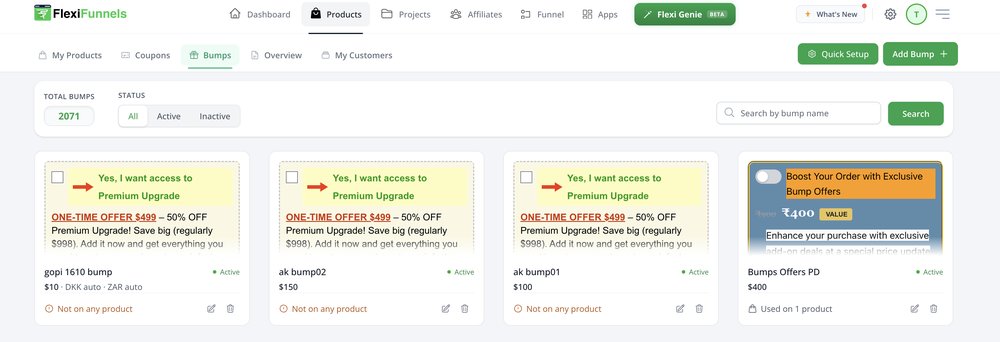
✅ You will see: The Add bump page with 4 tabs: Details, Pricing, Design, Content.
2 Fill in Details
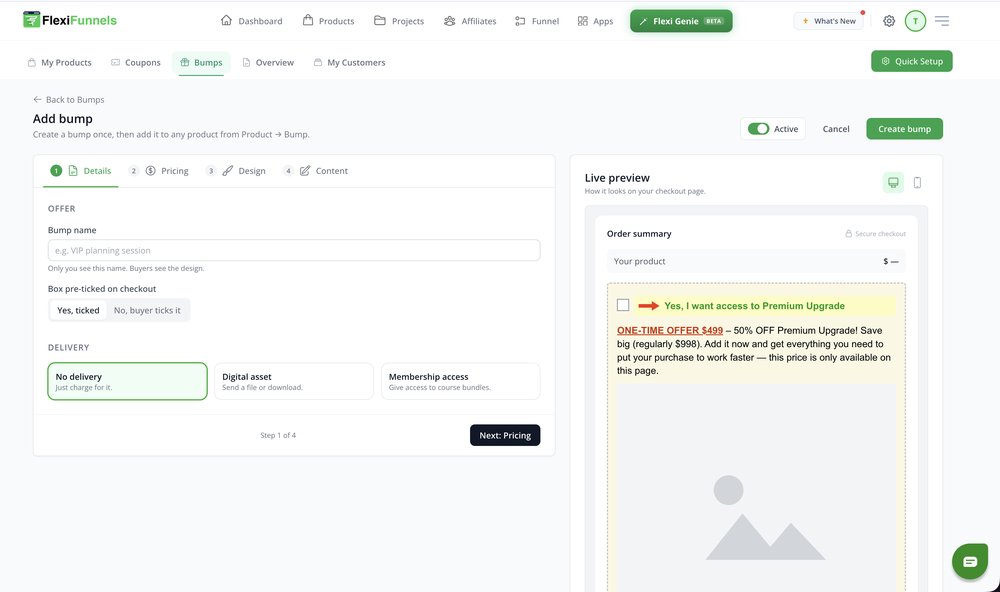
- Type a Bump name. Only you see this name. Buyers see the design.
- Choose Box pre-ticked on checkout: Yes, ticked or No, buyer ticks it.
- Under Delivery, pick what the buyer gets (see table).
| Option | What it does |
|---|---|
| No delivery | Just charges for it. |
| Digital asset | Sends a file or download. |
| Membership access | Gives access to course bundles. |
- Click Next: Pricing.
3 Set the Pricing
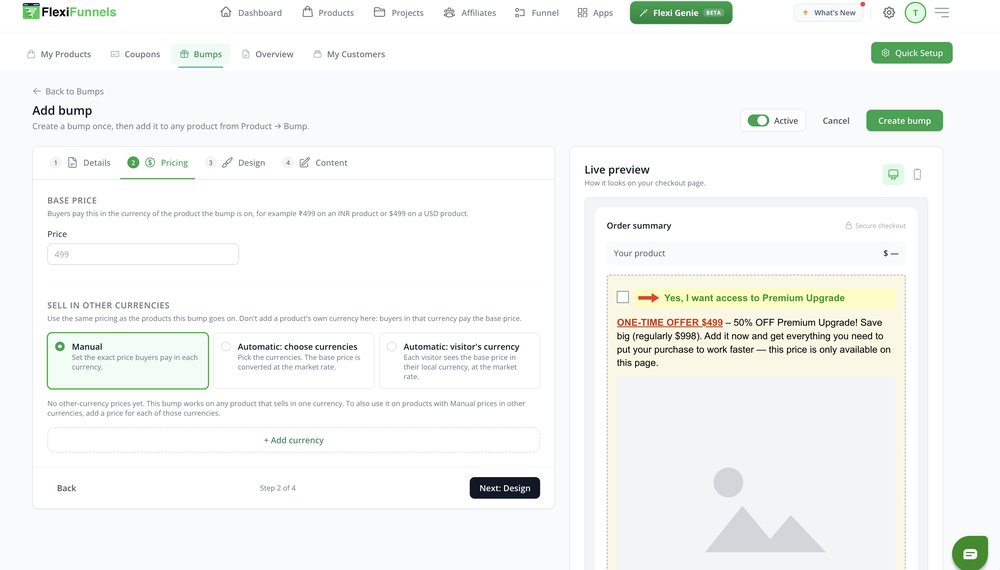
- Type the Price under Base Price.
- Buyers pay it in the product's currency. Example: ₹499 on an INR product, $499 on a USD product.
- Under Sell in other currencies, pick one option (see table).
| Option | What it does |
|---|---|
| Manual | You set the exact price for each currency. |
| Automatic: choose currencies | You pick currencies. The base price is converted at the market rate. |
| Automatic: visitor's currency | Each visitor sees the base price in their local currency, at the market rate. |
- For Manual, click + Add currency to add more prices.
- Click Next: Design.
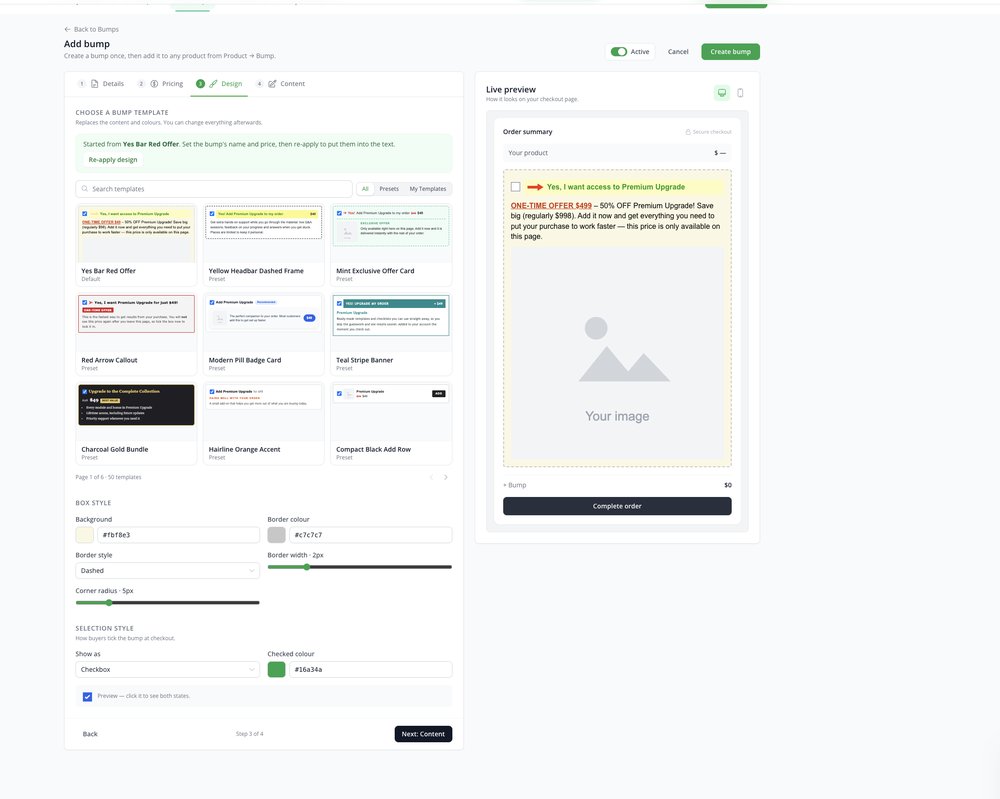
4 Pick a design (template)
- Look at Choose a Bump Template. There are many designs to pick from.
- Use Search templates, or filter by All, Presets or My Templates.
- Use the arrows at the bottom to see more pages.
- Click the design you like. It replaces the text and colours.
- Click Re-apply design to put your bump name and price into the text.
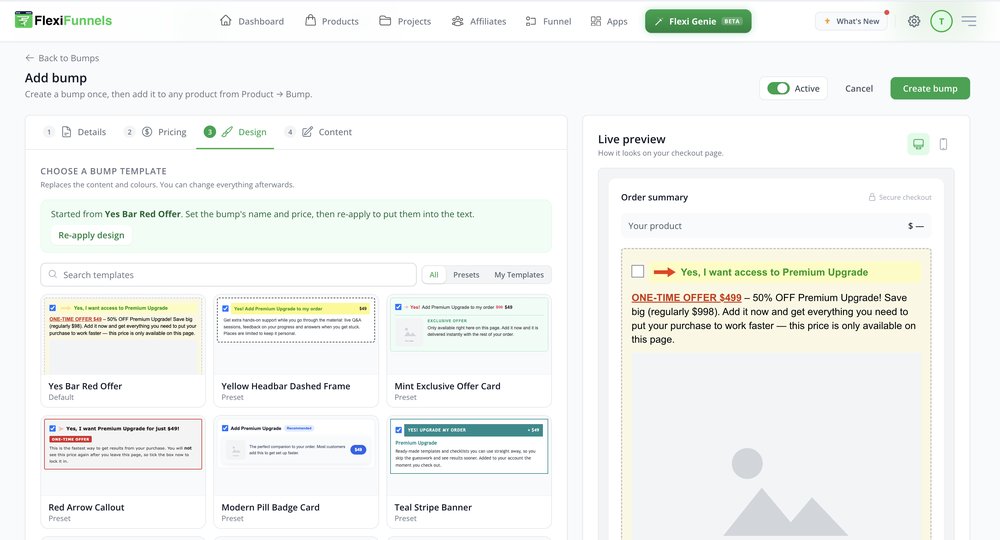
✅ You will see: The Live preview on the right changes to your chosen design.
5 Change the style (optional)
- Scroll down to Box Style.
- Change Background, Border colour, Border style, Border width and Corner radius.
- Under Selection Style, choose Show as and Checked colour.
- Tick the small preview box to see the ticked and unticked look.
- Click Next: Content.
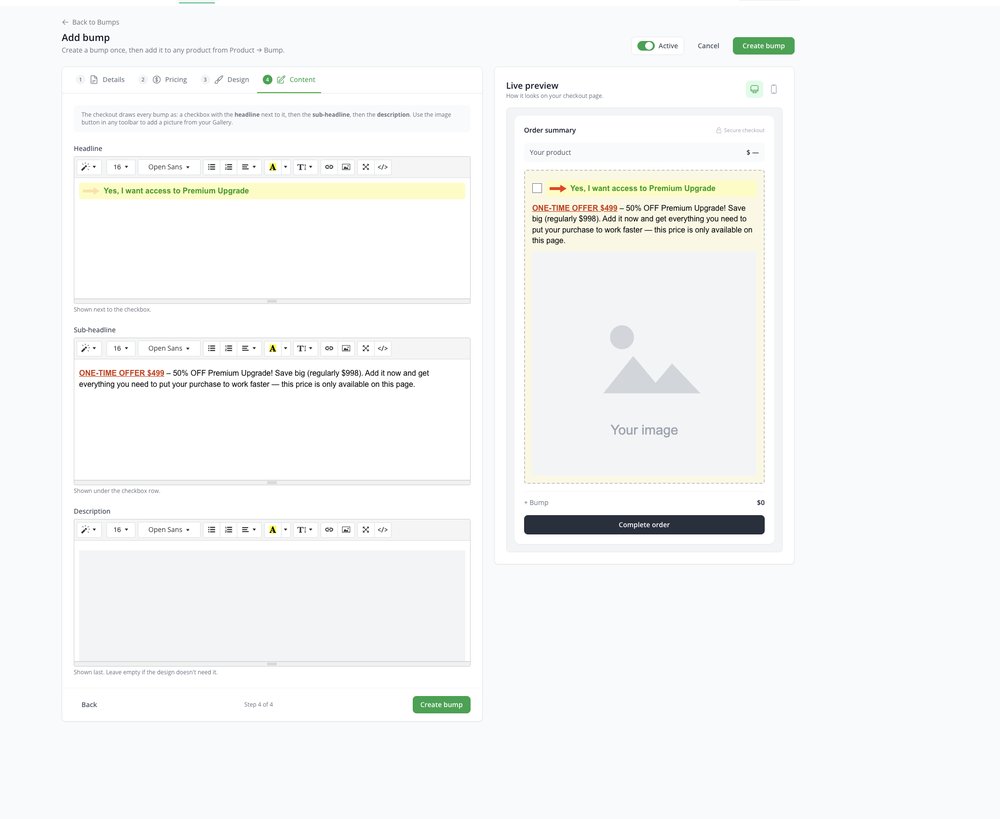
6 Write the Content
- Edit the Headline. It shows next to the checkbox.
- Edit the Sub-headline. It shows under the checkbox row.
- Add a Description. It shows last. Leave it empty if the design does not need it.
- To add a picture, click the image button in any toolbar. It opens your Gallery.
- Check the Live preview. Use the computer and phone icons to switch views.
7 Create the bump
- Keep the Active switch on (green).
- Click Create bump.
✅ You will see: Your bump in the Bumps list. It says Not on any product until you connect it.
? Part B: Connect the bump to a product
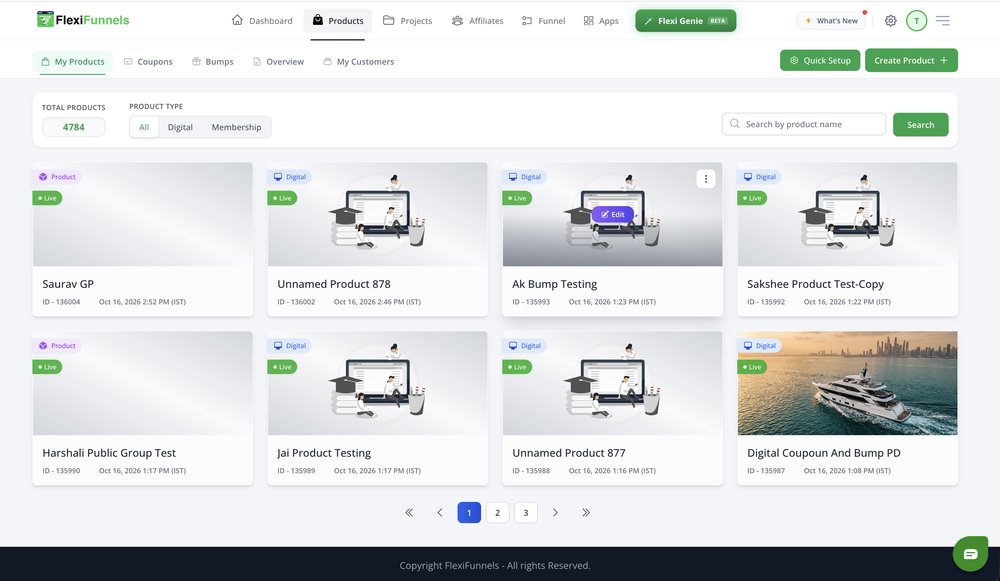
8 Open your product
- Go to Products → My Products.
- Move your mouse over the product card.
- Click Edit.
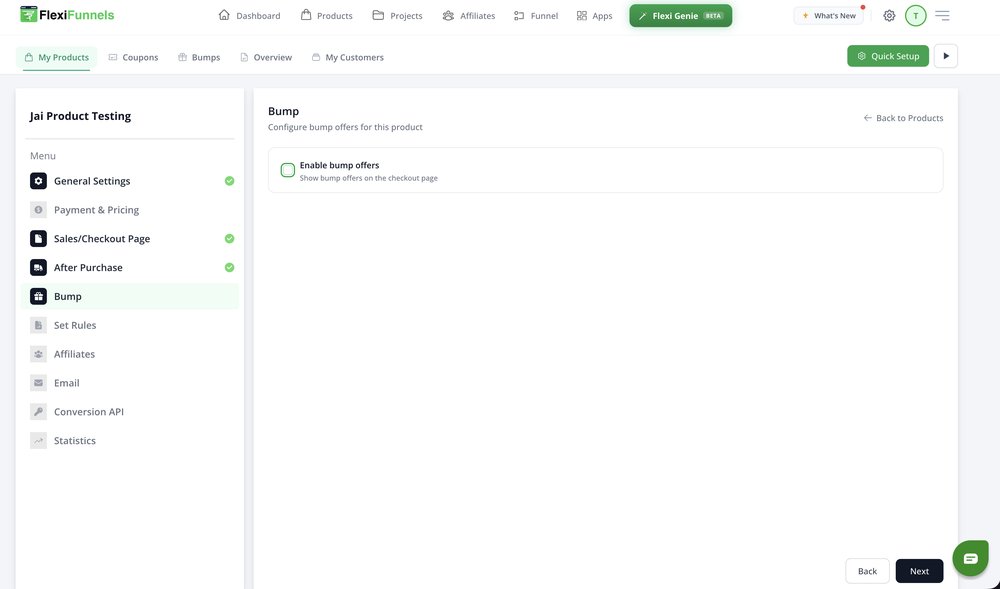
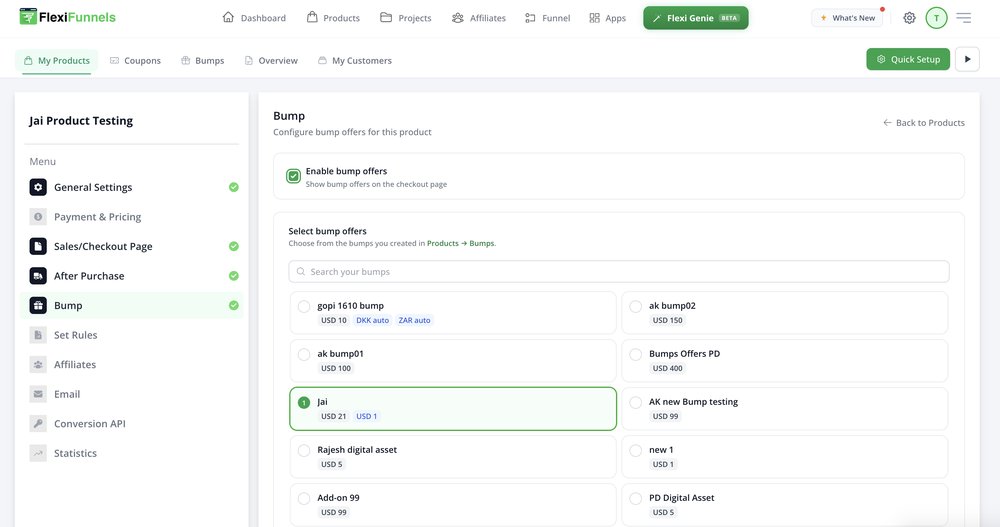
9 Turn on bump offers
- In the left Menu, click Bump.
- Tick Enable bump offers.
10 Select your bump
- Under Select bump offers, click the bump you made.
- Use Search your bumps to find it fast.
- You can select more than one bump.
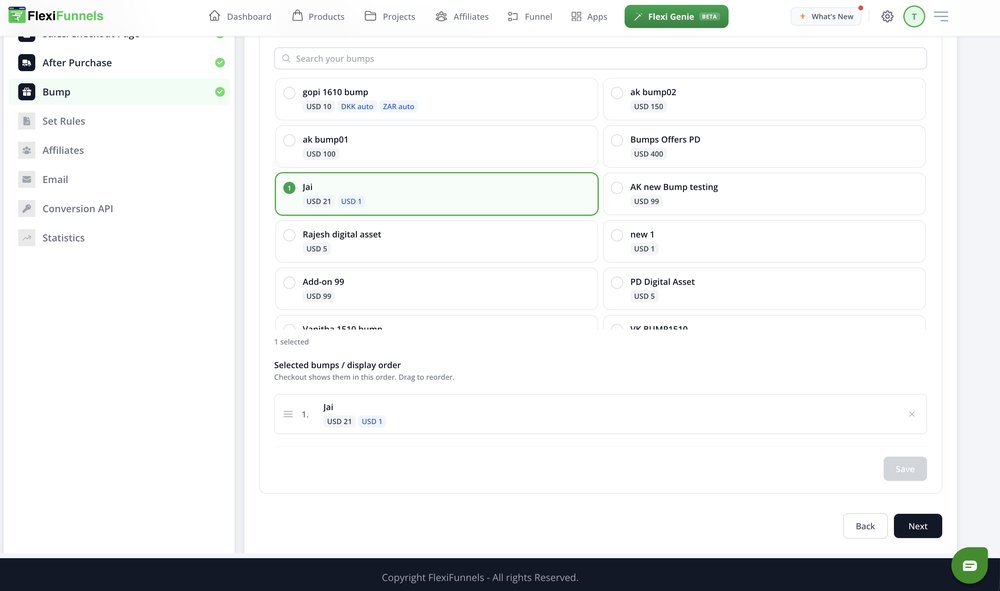
11 Set the order and save
- Look at Selected bumps / display order.
- Drag the ☰ handle to change the order.
- Click × to remove a bump.
- Click Save.
✅ You will see: In the Bumps list, your bump now says Used on 1 product.
?️ Quick Fixes
| Problem | Fix |
|---|---|
| Bump does not show on checkout. | Check Enable bump offers is ticked and you clicked Save. |
| Bump says Not on any product. | Connect it in the product's Bump menu (Part B). |
| Name or price not in the design text. | Go to Design and click Re-apply design. |
| Bump missing on a product with other-currency prices. | Under Manual, add a price for each of those currencies. |
Was this article helpful?
That’s Great!
Thank you for your feedback
Sorry! We couldn't be helpful
Thank you for your feedback
Feedback sent
We appreciate your effort and will try to fix the article