A rule reacts automatically when something happens on a subscription — a renewal, a failed payment, a cancellation and more.
WHEN this happens → THEN do this.
- Push to autoresponder — add the customer to a list or tag in your email service
- Send a webhook — send the event data to your CRM, Zapier, Make or Slack
✅ Why use rules?A one-time purchase has one moment: “bought.” A subscription has many — renewed, failed, cancelled, paused and more. Rules let you save sales, recover failed payments and keep records right, automatically.
New to rules? Start with the general Set Product Rules article — this one uses the same screen.
Create a Rule in 5 Steps
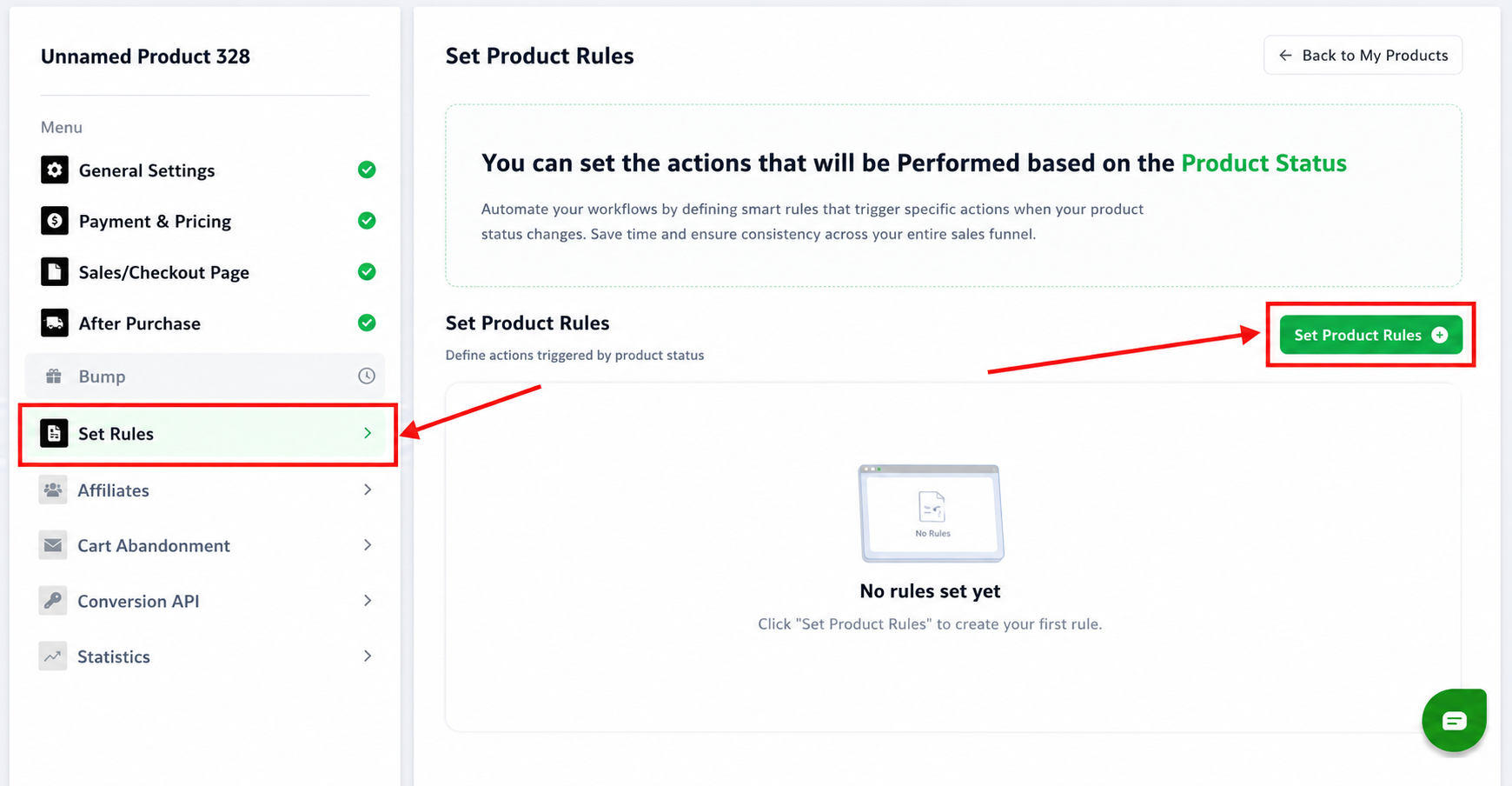
1 Open Set Rules
- Product settings → Set Rules (left menu)
- Click the green Set Product Rules button (top right)
2 Meet the rule window
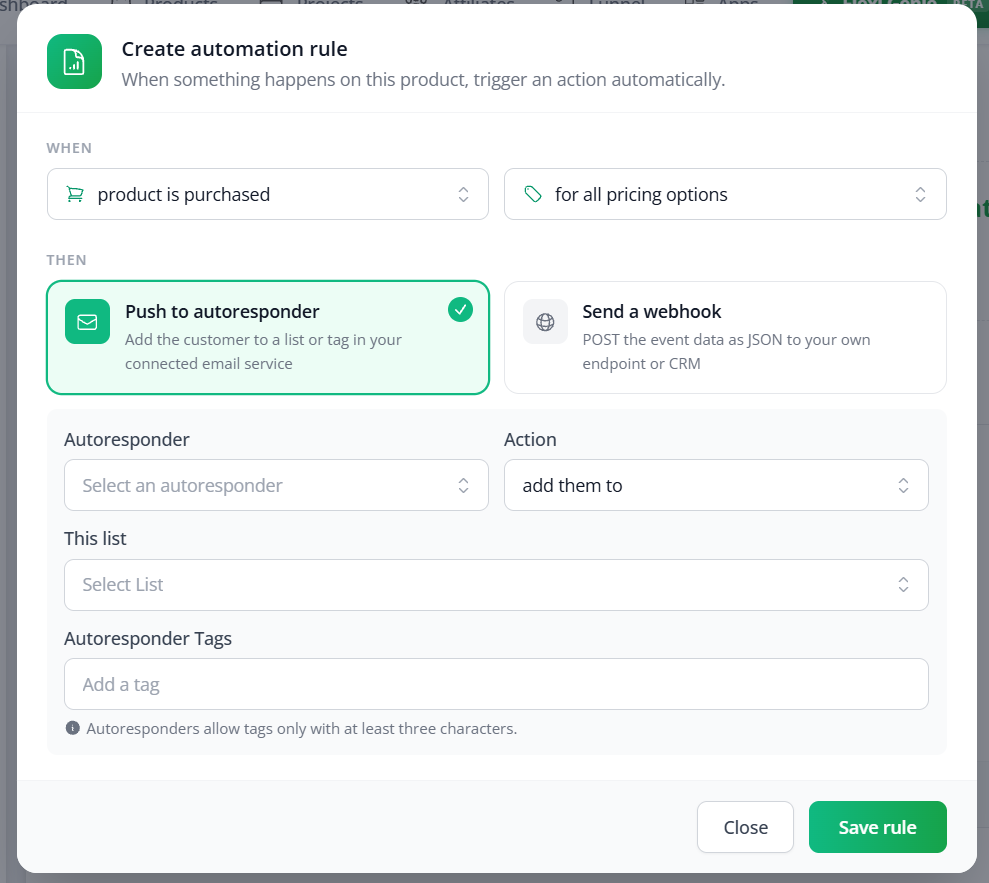
- The Create automation rule window opens
- WHEN = the trigger · THEN = the action
3 Choose the trigger (WHEN)
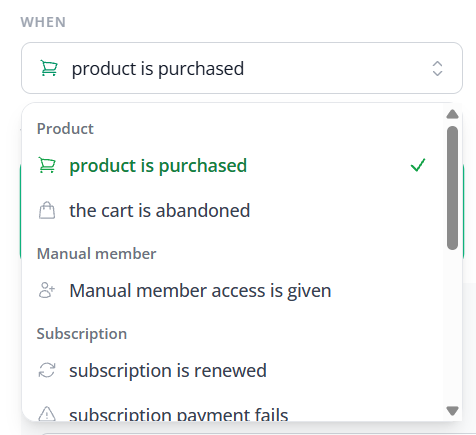
- Click the first dropdown under WHEN
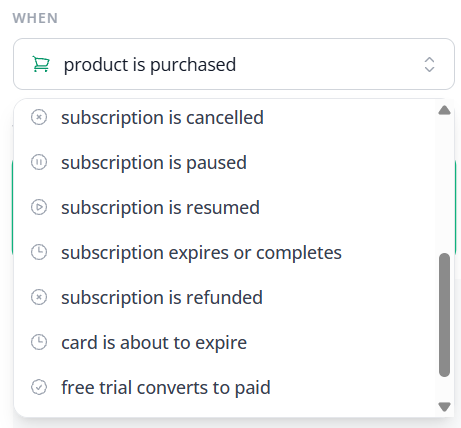
- Pick from the Subscription group (the list also has Product and Manual member)

| Trigger | Fires when… |
|---|---|
| subscription is renewed | A payment succeeds and the next cycle starts |
| subscription payment fails | A recurring charge is declined |
| subscription is cancelled | The customer or you cancel it |
| subscription is paused | It is put on hold, not cancelled |
| subscription is resumed | A paused subscription starts again |
| subscription expires or completes | It reaches its natural end (for example, a fixed plan finishes) |
| subscription is refunded | A subscription payment is refunded |
| card is about to expire | The card on file is nearing expiry — an early warning |
| free trial converts to paid | A trial ends and becomes a paid subscription |
| free trial is ending | A trial is about to end — a heads-up |
The list also has product is purchased and the cart is abandoned (Product), and Manual member access is given (Manual member). You build those rules the same way.
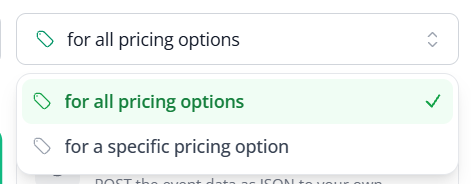
Pricing option
- Second dropdown: for all pricing options or for a specific pricing option
- Handy for tiers, like Monthly vs. Annual
4 Choose the action (THEN)
- Pick one card: Push to autoresponder or Send a webhook
 Option A: Push to autoresponder
- Autoresponder — pick your connected email platform
- Action — add them to
- This list — the list to add them to
- Autoresponder Tags — optional; at least 3 characters
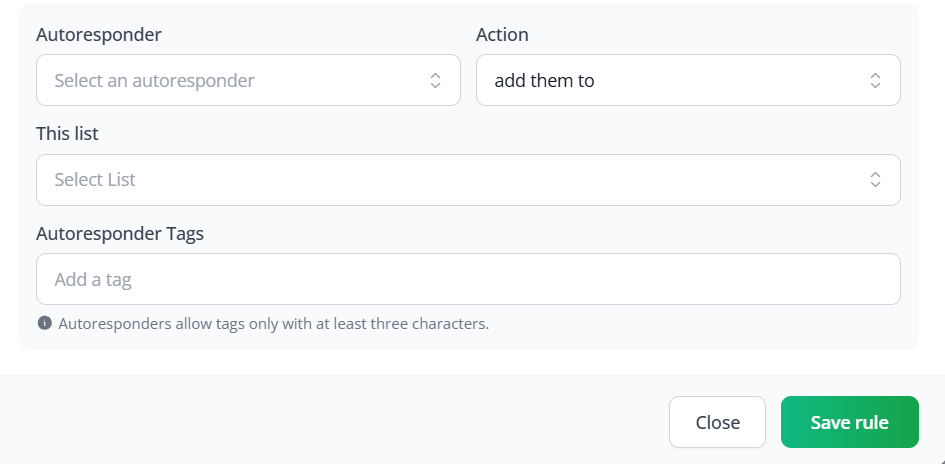
⚠️Connect the autoresponder first in Settings → Integrations, and make sure the list already exists in your autoresponder.
Option B: Send a webhook
- Tick the events that should send data to your URL
- Webhook Name — your own label (for example, “CRM sync”)
- Webhook URL — where the data goes (Zapier catch hook, Make webhook or your server)
- Open Sample subscription event payload to see the JSON that is sent
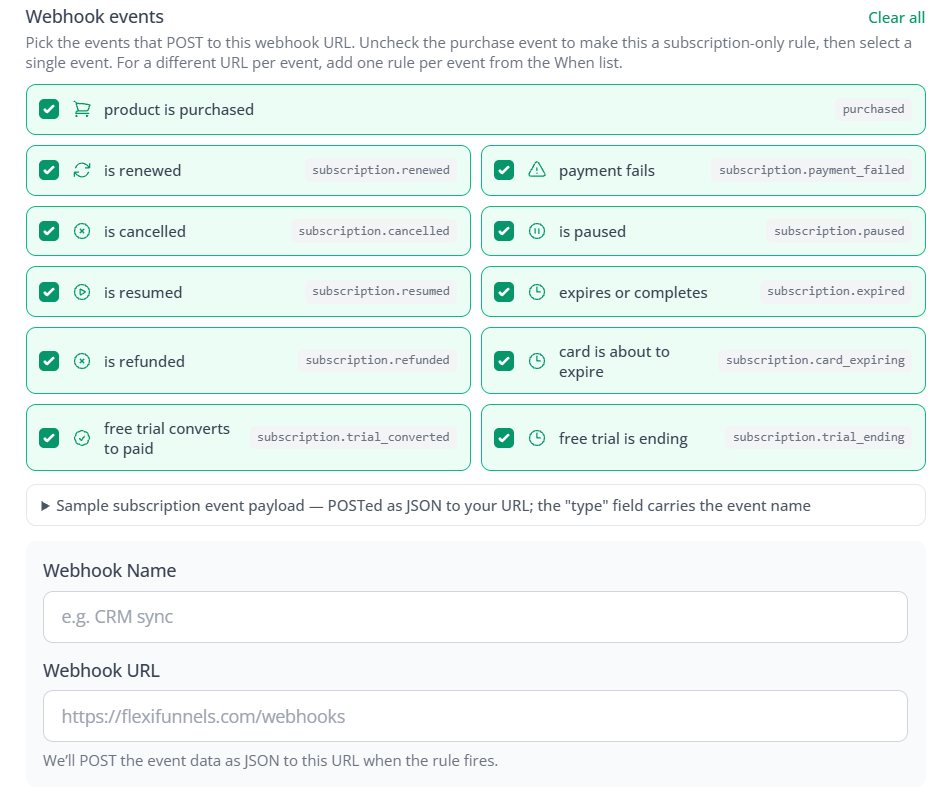
⚠️All events are ticked by default, including product is purchased. For a subscription-only webhook, untick it — or your URL also gets the first sale.
Each event is sent with a name in the type field:
| Event | Sent as type |
|---|---|
| product is purchased | purchased |
| is renewed | subscription.renewed |
| payment fails | subscription.payment_failed |
| is cancelled | subscription.cancelled |
| is paused | subscription.paused |
| is resumed | subscription.resumed |
| expires or completes | subscription.expired |
| is refunded | subscription.refunded |
| card is about to expire | subscription.card_expiring |
| free trial converts to paid | subscription.trial_converted |
| free trial is ending | subscription.trial_ending |
?One URL for all events: tick several events — your endpoint reads
A different URL per event: make one rule per event, each with a single box ticked and its own URL.
Webhook and autoresponder together: each rule has one action, so make two rules with the same WHEN.
type to tell them apart.A different URL per event: make one rule per event, each with a single box ticked and its own URL.
Webhook and autoresponder together: each rule has one action, so make two rules with the same WHEN.
5 Save the rule
- Click Save rule (bottom right)
- The rule is live and fires the next time that event happens
Rule Ideas
| Goal | WHEN | THEN |
|---|---|---|
| Win back failed payments | subscription payment fails | Autoresponder: tag “Payment-Failed” → send “update your card” emails |
| Clean up your list on cancel | subscription is cancelled | Autoresponder: move to “Cancelled” list, tag “Churned” |
| Celebrate trial conversions | free trial converts to paid | Autoresponder: move “Trial” → “Paid Customers”, tag “Converted” |
| Remind trial users | free trial is ending | Autoresponder: tag “Trial-Ending” → send a reminder |
| Stop expiring-card churn | card is about to expire | Autoresponder: tag “Card-Expiring-Soon” → send “update your card” email |
| Sync everything to your CRM | all subscription events | Webhook to your CRM, Zapier or Make |
| Alert your team on cancel | subscription is cancelled (only) | Webhook to a Slack or Zapier URL |
Quick Fixes
| Problem | Fix |
|---|---|
| My “cancelled” rule didn’t fire | Pick exactly subscription is cancelled (not “expires or completes”) · click Save rule · check the autoresponder or webhook URL is filled in |
| My webhook gets events I don’t want | All boxes are ticked by default. Untick the ones you don’t want and save again |
| I want different URLs per event | Make one rule per event, each with a single box ticked and its own URL |
| My tag didn’t apply | Tags need at least 3 characters · check the tag exists (or can be created) in your autoresponder |
| What is the “type” field? | It names the event that happened, like subscription.payment_failed. Open the Sample subscription event payload to see the full JSON |
| Webhook AND autoresponder on one trigger | One action per rule — make two rules with the same WHEN |
Was this article helpful?
That’s Great!
Thank you for your feedback
Sorry! We couldn't be helpful
Thank you for your feedback
Feedback sent
We appreciate your effort and will try to fix the article