FlexiMembership allows you to set a default password that is automatically assigned to new members. This is useful when members are created through manual creation, import, sign-up, or purchase.
Before You Begin
- Log in to your FlexiMembership account.
- Open the membership for which you want to configure the password.
- Keep the default password you want to assign to new members ready.
Step-by-Step Instructions
Step 1: Open My Membership
- Log in to FlexiMembership.
- From the top navigation bar, click My Membership.
- Open the membership where you want to set the default password.
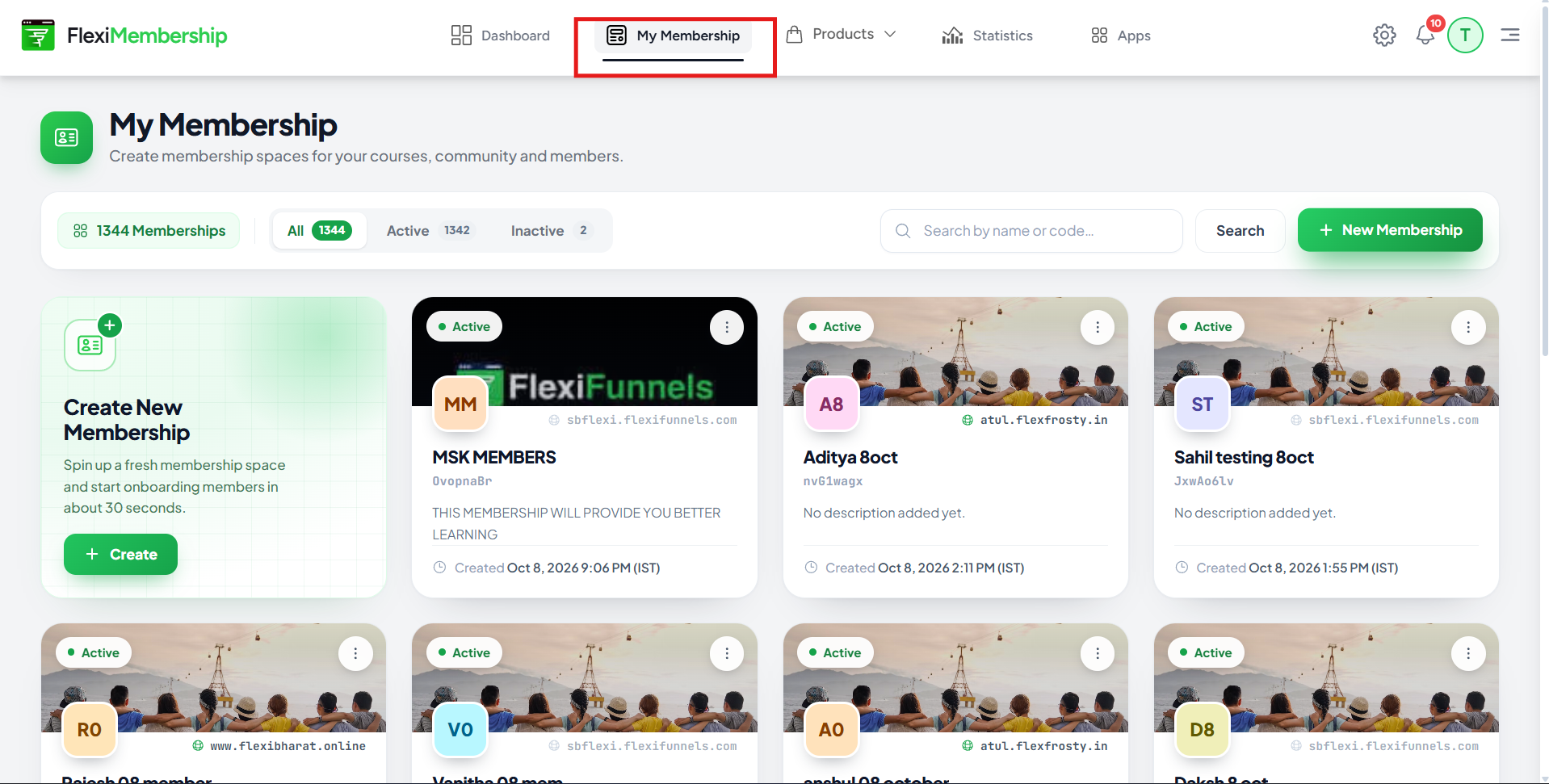
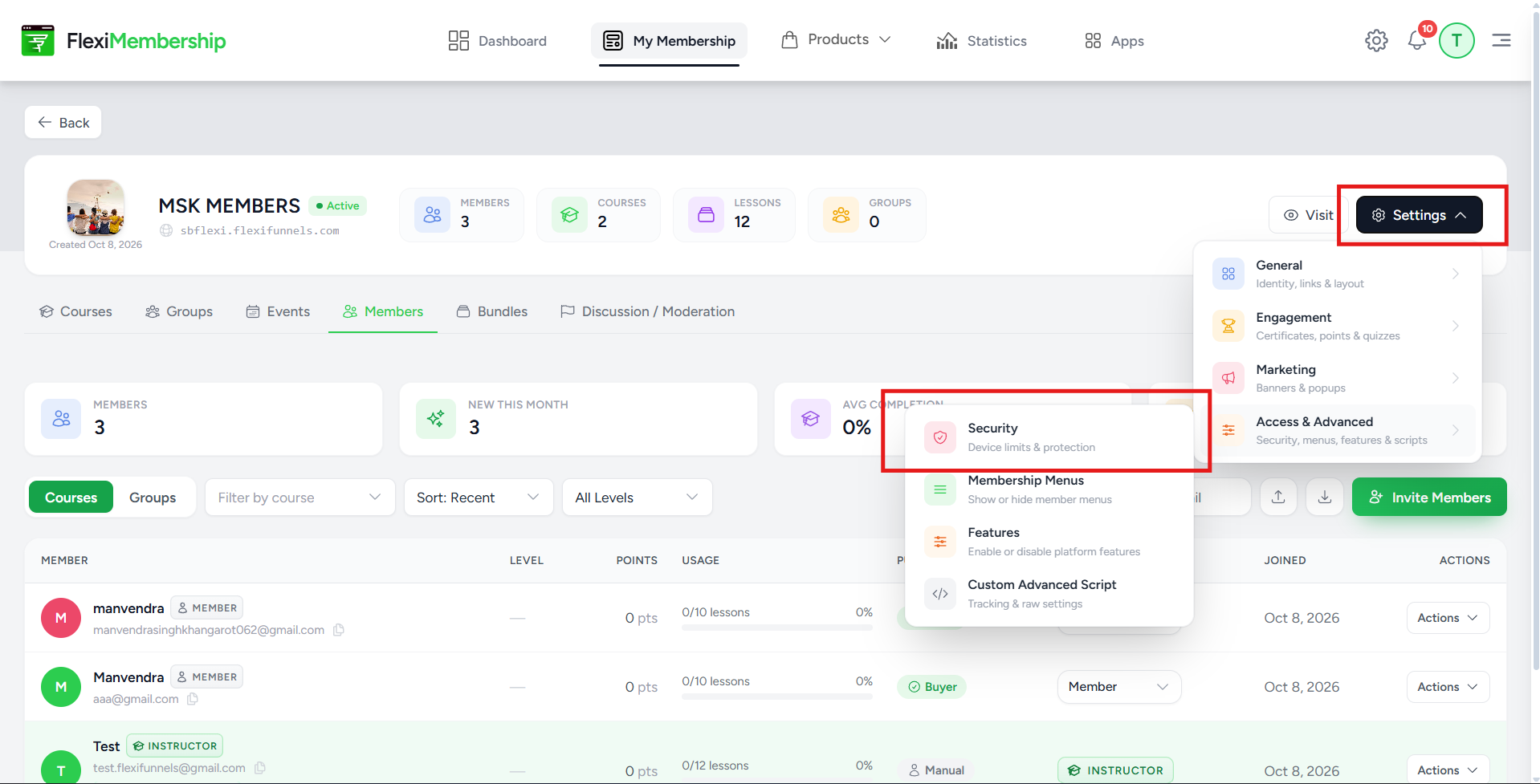
Step 2: Open Security Settings
- Open the required membership.
- Click Settings.
- Select Access & Advanced.
- Select Security.
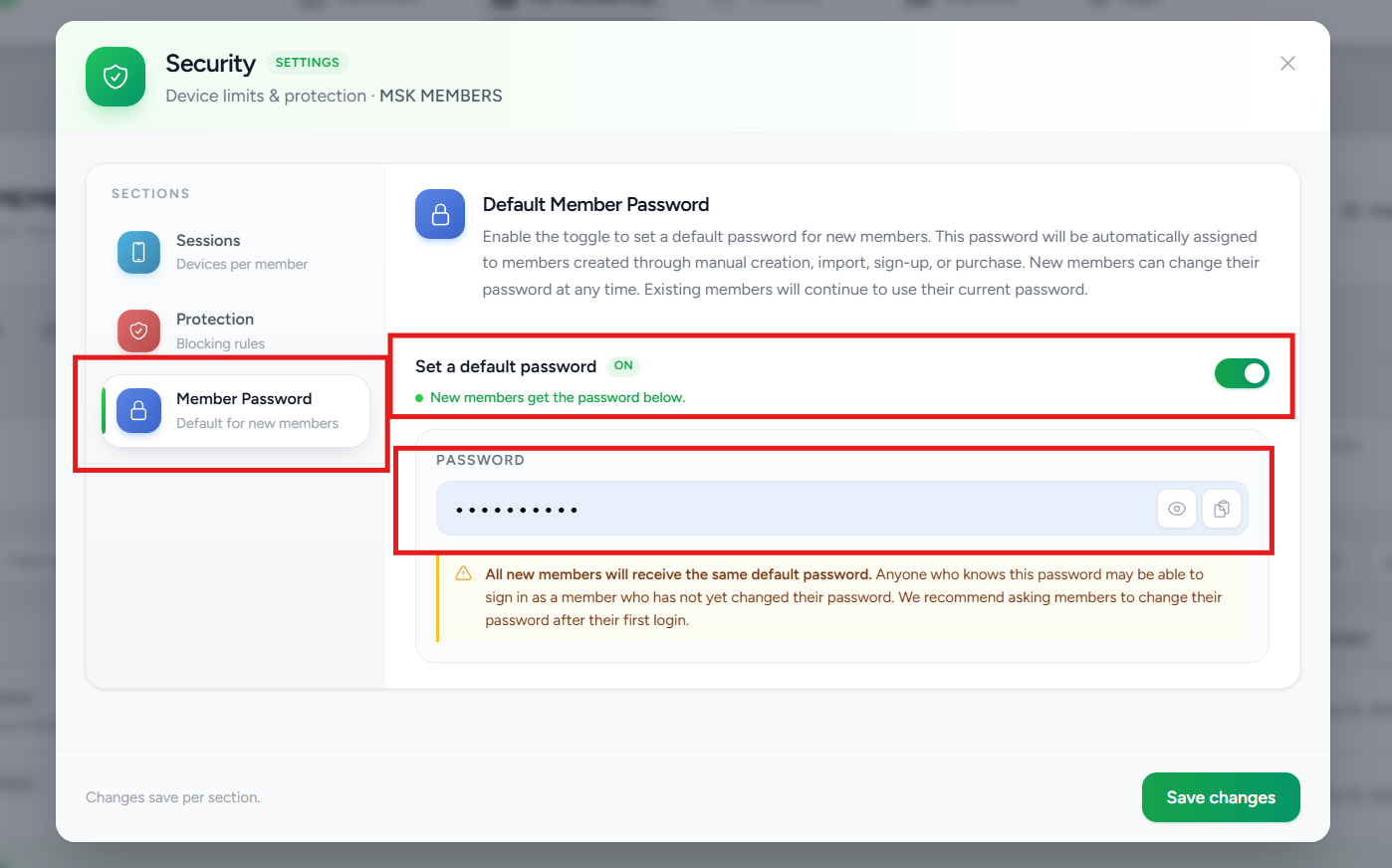
Step 3: Configure the Default Password
- Inside Security, select Member Password.
- Turn on the Set a default password toggle.
- Enter the password you want new members to receive.
- Click Save changes.
How the Default Password Works
The setting shown in FlexiMembership automatically assigns the configured password to new members created through:
- Manual creation
- Import
- Sign-up
- Purchase
Important Security Note
The Member Password screen warns that all new members receive the same default password until they change it. Anyone who knows the default password may be able to sign in as a member who has not changed it yet.
For better security, ask new members to change the default password after their first login.
Common Scenarios
A new member needs a password automatically
Enable Set a default password, enter the password, and save the changes.
An existing member still uses their old password
This is expected. The default-password setting applies to new members and does not change existing member passwords.
You want members to create their own secure passwords
Ask members to change the default password after their first login. The Security settings specifically recommend this.
Troubleshooting
- Password is not being assigned: Confirm that Set a default password is enabled and that you clicked Save changes.
- An existing member did not receive the new password: Existing members are not affected by this setting.
- A new member cannot log in: Confirm that the member was created after the setting was enabled and that the correct default password is being used.
- You no longer want a default password: Return to Security → Member Password and turn off Set a default password.
Before Contacting Support
- Confirm that you opened the correct membership.
- Confirm the path: Settings → Access & Advanced → Security → Member Password.
- Check that Set a default password is enabled.
- Confirm the password was entered correctly.
- Click Save changes.
- Check whether the affected member was created before or after the default password was configured.
Frequently Asked Questions
Does the default password apply to existing members?
No. Existing members continue to use their current passwords.
Which new members receive the default password?
According to the setting shown in the supplied screenshot, it applies to new members created through manual creation, import, sign-up, or purchase.
Can members change the default password?
Yes. The Security screen recommends asking members to change the password after their first login.
What happens when I change the default password?
The new default applies to new members. Existing members keep their current passwords.
Summary
- Open My Membership.
- Select the required membership.
- Open Settings.
- Go to Access & Advanced → Security → Member Password.
- Enable Set a default password.
- Enter the default password.
- Click Save changes.
- Ask new members to change the password after their first login.
Was this article helpful?
That’s Great!
Thank you for your feedback
Sorry! We couldn't be helpful
Thank you for your feedback
Feedback sent
We appreciate your effort and will try to fix the article